Steam Deck Not Charging? 7 Fixes That Work in 2026
Steam Deck won't charge? Use a 45W charger, clean the USB-C port, and reset the charging circuit with Battery Storage Mode. 7 proven fixes to try first.
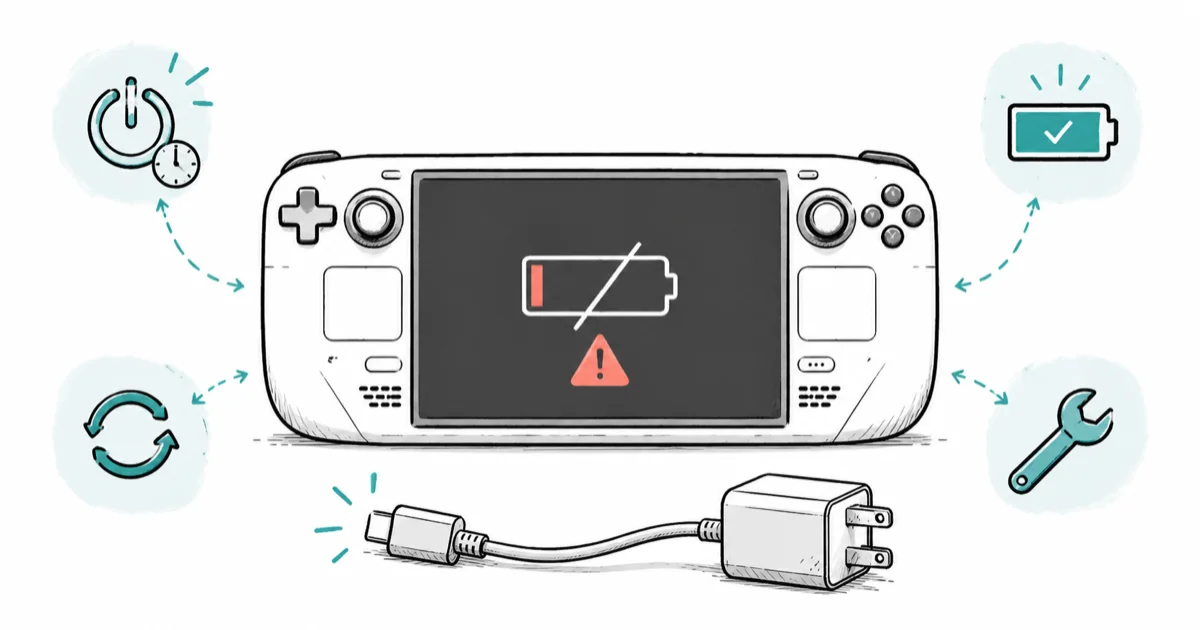
Quick AnswerPlug in the official 45W charger and hold the power button for 12 seconds to force a restart. If the charging light stays dark, reset the charging circuit through Battery Storage Mode in the BIOS.
A Steam Deck not charging is usually a power problem, not a dead device. Start with a charger that can push enough wattage, then check the port, reset steps, and software updates. Work through them in order.
- The Steam Deck needs a 45W USB-C charger, so a typical phone brick may keep the screen dark even when it’s plugged in and seated correctly
- A force restart, holding power for 10 to 12 seconds, clears the most frequent charging glitch in seconds
- Battery Storage Mode in the BIOS resets the charging circuitry, and it’s the fix most owners never try
- A USB-C port packed with lint or pocket dust is a surprisingly common cause, and it cleans out in under a minute
- No charging light at all when plugged in usually points to the port or board, which is a repair job rather than a settings change
#Why Won’t Your Steam Deck Charge?
Most charging failures fall into one of five buckets: an underpowered charger, a dirty or worn USB-C port, a charging-circuit glitch, an out-of-date SteamOS build, or real hardware damage. The first four you can fix at your desk in minutes. The fifth needs a repair shop.
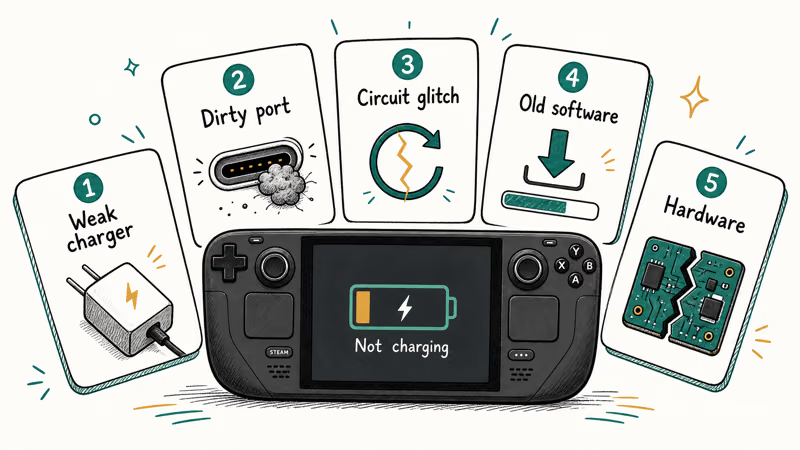
The single most common mistake is the charger. The Steam Deck draws far more power than a phone, and a weak brick can leave it stuck at the same battery percentage for hours.
So work in order: rule out power, then the port, then the reset tricks, and only then hardware.
If the Deck powers on but the battery never climbs, that’s a charging issue. A black screen with no status light is closer to a hardware fault.
#Force Restart and Reset the Power Controller
Start with the fastest fix. Hold the power button for 10 to 12 seconds until the Deck shuts off, then press it again to boot. A force restart clears a frozen power state and can make the charger register again.
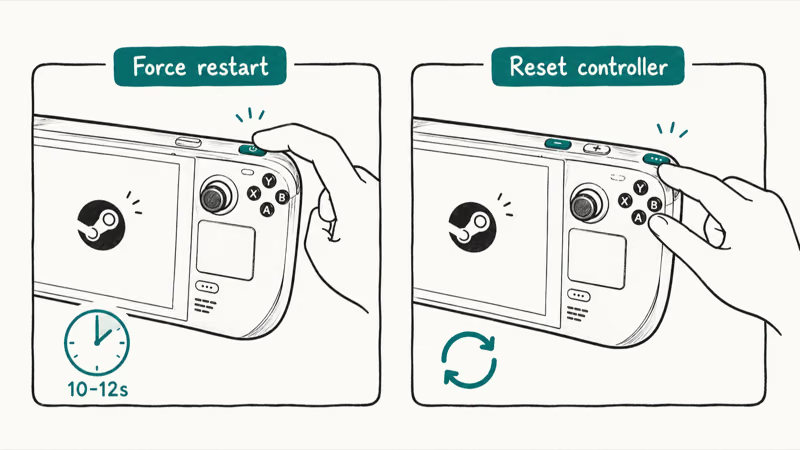
If a plain restart does nothing, reset the power controller. Hold the three-dot (”…”) button and Volume Down together for about five seconds, which forces the internal controller to reinitialize. Plug the charger back in afterward and watch for a charging bolt on the battery icon, since the reset sometimes only takes effect the moment power is reintroduced rather than instantly.
Give it two or three minutes after each reset. A deeply drained Deck sometimes needs a short trickle before the screen wakes, so don’t assume the fix failed in the first ten seconds.
#Use a 45W Charger and Inspect the USB-C Port
Use the charger that came in the box. According to iFixit, the Steam Deck needs 45W to charge reliably, as documented in iFixit’s Steam Deck not-charging guide. A laptop USB port or a slim travel charger often falls short.
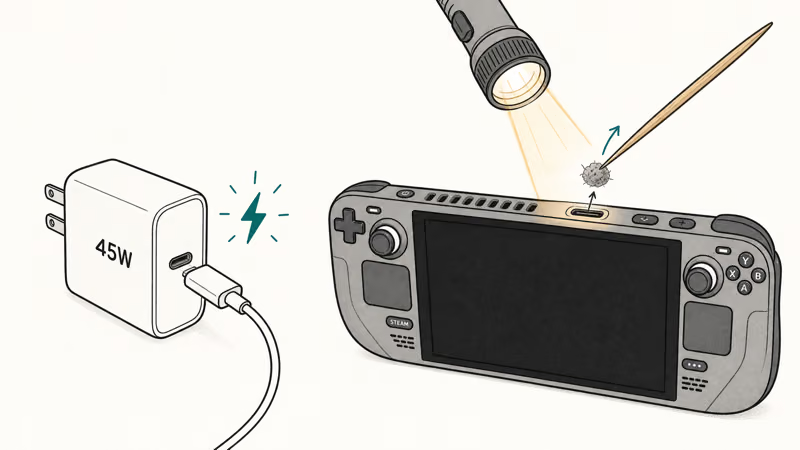
Try a different cable too. USB-C cables fail internally with no visible damage, and a cable that charges your phone fine may still be too thin to carry full wattage, so swap in another quality cable before blaming the Deck, because this single swap solves a surprising number of “dead” Decks that turned out to be a tired cable.
Then inspect the port. Power the Deck off, shine a flashlight into the USB-C connector, and look for lint or pocket fuzz packed at the back. A wooden toothpick or a quick puff of compressed air clears it. Even a small ball of lint can block a solid connection, so this quick check is worth doing first.
#Reset the Charging Circuit With Battery Storage Mode
This is the fix most people miss. Battery Storage Mode is a BIOS setting that effectively disconnects the battery from the system, and toggling it forces the charging circuitry to reset when you plug back in.
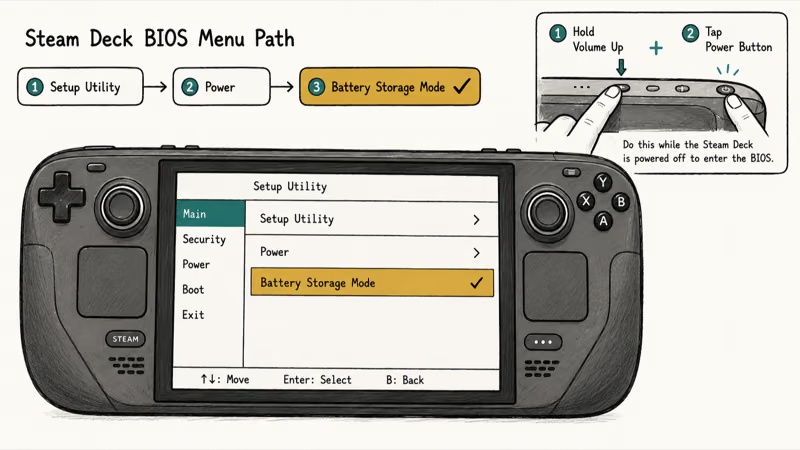
To reach it, power the Deck off completely. Hold Volume Up and tap the power button to enter the BIOS, then choose Setup Utility and open the Power menu. Select Battery Storage Mode and confirm. The Deck shuts down and ignores the battery until you connect a charger, which wakes it and re-establishes the charging connection.
Brand-new Decks often ship in this mode. That’s exactly why a fresh unit can look dead on arrival.
Steam’s official Steam Deck troubleshooting guide confirms that holding the power button while plugged in is the intended way to wake a Deck left in storage mode. If yours sat unused for weeks, run this step before assuming a fault.
#Is It a Hardware Problem?
Here’s the clearest signal. Plug in a charger you trust and watch the small status light next to the USB-C port.
If it lights up, power is reaching the board, and your issue is more likely software or battery related. No light at all across multiple chargers and cables means power isn’t getting in, which points to the port or the charging board, and that’s a much harder problem to solve at home without the right tools and a steady soldering hand.
A battery isolation test helps confirm. If the Deck runs fine on AC power but dies the instant you unplug it, the battery itself may be failing rather than the charging path.
A battery that holds no charge after years of cycling is a wear item, not a glitch.
The charge port on the Steam Deck is soldered to the mainboard, so a cracked or lifted port isn’t a part you can snap in yourself. iFixit’s guide treats a damaged port as a board-level repair, which means a soldering-capable shop or a Valve RMA. If the no-light test fails, stop the DIY and book a repair.
#Update Software and Check the Battery
A SteamOS bug can break charging behavior, and Valve patches these in regular updates. Go to Settings, then System, and check for a software update.
According to Steam’s support documentation, keeping SteamOS current resolves a range of hardware-behavior issues, so install any pending update and reboot before drawing conclusions. Valve’s official Steam Deck page lists the hardware specs if you want to confirm your model’s battery and port details before you go further.
While you’re in Settings, open the battery section and check the reported health and charge level. A Deck that charges to only a fraction of its old capacity has an aging battery, which is normal after heavy use.
Slow charging is a different symptom. It’s often the charger or cable again, so loop back to the 45W requirement before assuming the worst. A demanding game can out-draw even the right charger, which is why a Deck running a heavy title sometimes loses battery while plugged in, so charge it with the screen off to measure the real rate without the game stealing power from the wall.
#Bottom Line
Rule out the charger and a software glitch before assuming a dead Steam Deck. The Deck needs a 45W charger, so a phone brick may not power it at all. A force restart plus a power-controller reset clears many one-off failures in under a minute.
If it still won’t charge, Battery Storage Mode in the BIOS resets the charging circuitry, and that’s the fix most people never try. The clearest hardware signal is no light when plugged in, which usually means the port or board, not the battery. That’s a repair-shop job, not a settings change.
A few related guides help once you’re back up. If your screen is dark for a different reason, our guide on the Steam Deck black screen covers the display side.
Downloads crawling? See why your Steam download is slow.
Gaming on the Deck, too? When a title stutters, our Minecraft low FPS fix helps, and so does the guide for when you can’t connect to a Minecraft world.
And if a multiplayer login ever feels off, it pays to learn how to spot a phishing email before one reaches your Steam account, because shared networks are a common attack route and a few seconds of caution saves a stolen login.
#Frequently Asked Questions
What wattage charger does the Steam Deck need?
It needs a 45W USB-C charger, the one that ships in the box. A weaker phone brick may not charge it while it’s on, which is why the battery can look stuck. With a third-party charger, confirm it supports USB-C Power Delivery at 45W, because many slim travel adapters quietly top out lower and leave the Deck barely sipping power.
What is Battery Storage Mode?
It’s a BIOS setting that disconnects the battery so the Deck can sit unused without draining. Toggling it resets the charging circuit, and plugging in a charger afterward wakes the device.
The charging light won’t come on at all, what does that mean?
No status light across several chargers and cables usually means power isn’t reaching the board. That points to the USB-C port or the charging circuitry rather than the battery or software. At that stage, DIY fixes rarely help, and a repair shop or a Valve RMA is the next step.
Can a dirty USB-C port stop the Deck from charging?
Yes. Lint packed at the back of the connector stops the cable from seating fully. Power the Deck off, look inside with a flashlight, and clear any buildup with a toothpick.
Why does my Steam Deck charge slowly?
Slow charging almost always comes down to the charger or cable. A sub-45W adapter, a thin cable that can’t carry full wattage, or charging while playing a demanding game all drag the rate down. Swap to the official 45W charger and a quality cable, then let it charge with the screen off, which is the only way to see the fastest possible rate without the game stealing power.
Is the charge port repairable if it’s broken?
The charge port is soldered to the mainboard, so it isn’t a snap-in part. A cracked port needs a board-level repair from a soldering-capable shop or a Valve RMA.

Fortnite Stuck on the Loading Screen? Fix It in 2026
Fortnite stuck on the loading screen? Check server status, fix the Windows N Media Pack and DirectX 11 on PC, clear the console cache, and verify files.

Minecraft Keeps Crashing? Java and Bedrock Fixes (2026)
Minecraft keeps crashing on startup or mid-game? Update your GPU driver, remove mods on Java, and reinstall Gaming Services on Bedrock. Fixes for both.

Pokemon GO Not Loading? Fix the Loading Screen 2026
Pokemon GO not loading or stuck on the Pokeball? Check server status, fix automatic date and time, grant location permission, clear the cache, and update.

PS5 Controller Not Charging? 9 Fixes That Work (2026)
DualSense not charging? Swap the cable, use a rear port in Rest Mode, clean the USB-C port, and check power settings. 9 fixes for a dead PS5 controller.