Fix Stop 0x00000051 REGISTRY_ERROR Blue Screen on Windows
Stop 0x00000051 REGISTRY_ERROR is a Windows BSOD signaling registry corruption. Fix it with sfc, DISM, memory diagnostic, and System Restore.

Quick AnswerBoot into Safe Mode, open an elevated Command Prompt, then run sfc /scannow followed by DISM /Online /Cleanup-Image /RestoreHealth. This repairs the registry corruption that triggers Stop 0x00000051 REGISTRY_ERROR on most Windows 10 and 11 systems.
Stop 0x00000051 REGISTRY_ERROR is a Windows blue screen that fires when the kernel hits a severe problem inside the registry hives. The cause almost always falls into a small set: a damaged hive file, a boot-drive I/O failure, faulty RAM, or a recent driver or update that scrambled registry permissions.
This guide walks through the standard diagnostic order for Windows 10 and 11, from a fast Safe Mode pass to a full hive rebuild. It’s structured so you don’t have to run every step if an earlier one resolves the crash.
- Stop 0x00000051 is bug check 0x51, raised when Windows hits a critical registry I/O or hive integrity failure rather than a generic application crash.
- Boot into Safe Mode first, then run sfc /scannow and DISM /Online /Cleanup-Image /RestoreHealth in an elevated Command Prompt to repair corrupted system files.
- Windows Memory Diagnostic can finish a standard pass in 8 to 15 minutes on a 16 GB system and flags failing DIMMs that cause registry read errors.
- A System Restore point taken before the last driver or Windows Update is the fastest rollback path and typically completes in 10 to 20 minutes from the recovery environment.
- Running chkdsk /f /r on the system drive surfaces bad sectors that corrupt the SOFTWARE and SYSTEM hives during read-back.
#What Does Stop 0x00000051 REGISTRY_ERROR Mean?
The Windows kernel raises bug check 0x51 when the configuration manager detects an unrecoverable problem with the registry. Microsoft’s REGISTRY_ERROR bug check reference confirms that 4 parameters are reported with every 0x51 BSOD, and they describe the failure type: a hive read failure, a critical write to a registry key, or an internal data structure inconsistency. You don’t see these on the blue screen itself, but the minidump file always contains them.
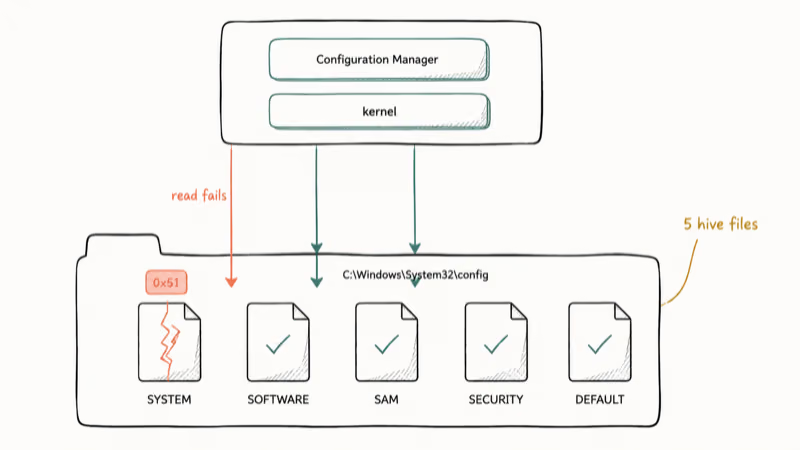
In practice, the kernel reaches this state for one of three reasons:
- The on-disk hive file (SYSTEM, SOFTWARE, SAM, SECURITY, or DEFAULT under
C:\Windows\System32\config) is unreadable due to a storage error. - A hive in memory has been corrupted by faulty RAM, a buggy driver, or a forced shutdown that left the hive log mid-flush.
- The configuration manager could not allocate memory to expand a hive bin during a registry write.
Stop 0x00000051 sits in the same family as the 0x0000001a memory management error, and all of these indicate that something underneath the user-visible Windows surface is broken at the kernel level, which is why a normal reboot rarely fixes the underlying cause on its own.
#What Causes the 0x00000051 Error to Appear?
The triggers behind this bug check, in rough order of how often they appear, are:
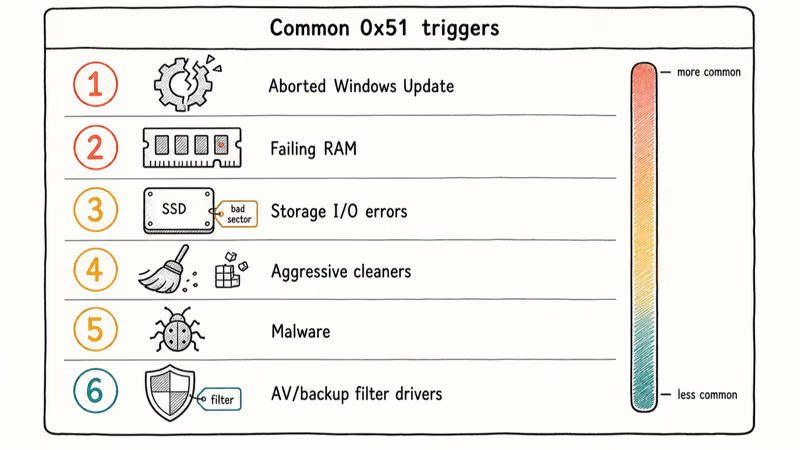
- Aborted Windows Update or driver install: the registry was being written when the system was forced off, leaving the hive log inconsistent.
- Failing RAM: a stuck bit in a DIMM corrupts the hive while it’s loaded into memory, then the corruption gets flushed back to disk.
- Storage I/O errors on the boot drive: bad sectors on the partition holding
C:\Windows\System32\configcause hive reads to fail. The kernel often surfaces a related kernel data inpage error just before or after a 0x51. - Aggressive registry cleaners: utilities that delete keys they don’t understand can leave dangling references that crash the configuration manager on next boot.
- Malware that targets registry keys: rootkits and ransomware variants frequently overwrite hive entries to persist or disable security tools.
- Filter drivers from antivirus or backup tools: outdated minifilters interfere with hive flush operations and can trip the bug check.
Microsoft’s blue screen troubleshooting guide recommends starting with Safe Mode and a clean boot before running any destructive recovery steps, and that order is what we follow below.
#Symptoms That Confirm a 0x51 Crash
Not every blue screen is a registry error. Confirm you’re dealing with 0x51 before running registry-specific repairs.
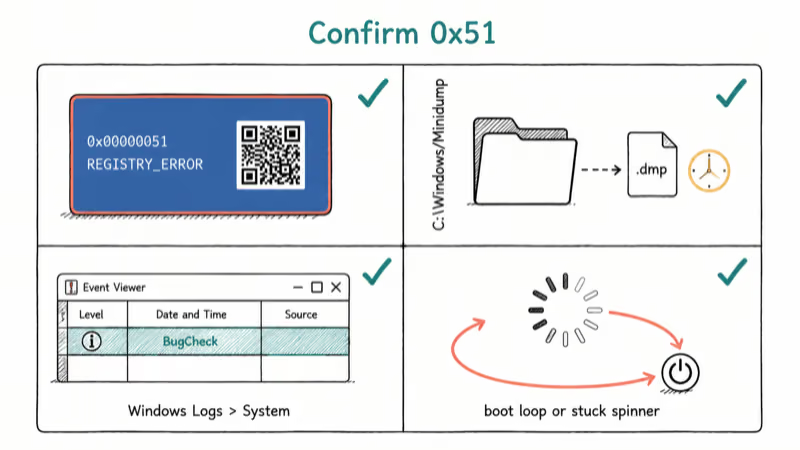
- The on-screen stop code reads either 0x00000051 or REGISTRY_ERROR in the QR-code-style panel.
- A
.dmpfile appears inC:\Windows\Minidumpwith a recent timestamp matching the crash. - Event Viewer logs a BugCheck event under
Windows Logs>Systemwith sourceMicrosoft-Windows-WER-SystemErrorReportingand the same stop code. - The system either reboots into a loop or refuses to load past the spinner, especially after a recent Windows Update.
If your stop code is different, follow the matching guide for that bug check rather than the steps below.
#How to Fix Stop 0x00000051 Step by Step
#Boot into Safe Mode first
A regular Windows boot loads every third-party driver, every minifilter your antivirus or backup tool installs, and every registry hive your system normally uses. Safe Mode loads a minimal set: just the Microsoft drivers needed for the OS, the basic display driver, and a stripped-down user shell. That minimal footprint is often enough to reach a stable desktop where the remaining steps will actually run without another 0x51 firing five seconds in.
- Hold the Shift key while clicking Restart on the sign-in or Start menu, or interrupt boot three times to trigger the Windows Recovery Environment automatically.
- In the recovery menu, choose
Troubleshoot>Advancedoptions >Startup Settings>Restart. - After the restart, press 4 for Safe Mode or 5 for Safe Mode with Networking.
If your machine can’t reach the sign-in screen at all, boot from a Windows 10 or 11 installation USB and pick Repair your computer > Troubleshoot > Advanced options > Command Prompt instead.
#Run sfc /scannow and DISM in an elevated Command Prompt
Microsoft’s sfc command reference confirms that sfc /scannow scans the integrity of every protected system file and replaces corrupted versions with cached copies from %WinDir%\System32\dllcache. DISM then repairs the component store that sfc relies on.
sfc /scannow
DISM /Online /Cleanup-Image /RestoreHealth
On a typical Windows 11 system, sfc /scannow finishes in a few minutes on an NVMe drive, and the DISM repair takes a bit longer because it pulls replacement files over the network. Reboot once both finish, even if neither tool reported repairs, so the configuration manager rebuilds its in-memory state.
#Test RAM with Windows Memory Diagnostic
Faulty memory is the single most common hardware cause we see for 0x51. Windows Memory Diagnostic ships with every modern Windows release and runs before the OS loads.
- Press the Windows key, type Windows Memory Diagnostic, and press Enter.
- Choose Restart now and check for problems.
- Let the standard pass complete. Press F1 during the test to switch to the Extended mix if the standard pass clears.
The standard pass finishes fairly quickly on most machines, and the extended pass takes considerably longer. Any errors reported in the post-boot notification mean a DIMM needs to be reseated or replaced before you trust the system with critical data.
#Update or roll back recent device drivers
Storage, chipset, and antivirus filter drivers touch the registry on every boot. A driver update that landed shortly before the BSOD started is suspect by default.
- Open Device Manager, expand Disk drives, IDE ATA/ATAPI controllers, and System devices.
- Right-click each device, choose
Properties>Driver, and either Roll Back Driver if a recent update is available or Update Driver to fetch the current version. - For storage controllers, prefer the vendor’s signed package (Intel RST, AMD chipset, Samsung Magician) over generic Microsoft drivers.
If Windows Update keeps re-pushing a problematic driver, pause updates for one week while you stabilize the system. The same pattern shows up on machines that originally failed with the 0x8e5e03fa Windows update error, where a half-installed driver left the hive in a fragile state.
#Use System Restore to reverse a recent change
System Restore rolls back the registry, drivers, and protected files to a saved snapshot, which is the fastest fix after a bad update.
- From Safe Mode or Windows RE, open
Control Panel>Recovery>Open System Restore. - Choose a restore point dated before the first 0x51 crash.
- Confirm and let the system reboot.
If the restore process itself fails with a 0x80070652 installer error, retry it from the recovery environment instead of inside Windows. System Restore is more reliable when it runs from Windows RE rather than from a partially booted desktop.
#Run chkdsk and inspect storage health
Disk-level corruption is the second hardware cause that we see frequently. From an elevated Command Prompt:
chkdsk C: /f /rThe /r flag locates bad sectors and recovers readable information, which is what you want when registry hives may be sitting on damaged blocks. The scan typically requires a reboot and runs for 30 minutes to several hours depending on drive size and bad sector count. Pair it with a SMART check using wmic diskdrive get model,status to spot drives reporting Pred Fail.
#Reset or reinstall Windows as a last resort
If sfc, DISM, memory testing, driver rollback, System Restore, and chkdsk all fail, the registry hives are likely beyond automatic repair. Use Settings > System > Recovery > Reset this PC and choose Keep my files to rebuild Windows while preserving documents.
A clean install from a Windows 11 USB is the surest fix when a Reset doesn’t stick. It also clears related issues like a 0x00000050 PAGE_FAULT_IN_NONPAGED_AREA error when both have appeared on the same machine.
#Reading the 0x51 BSOD Parameters
The four parameters reported on the blue screen tell you exactly which type of registry failure tripped the kernel. Microsoft’s bug check page lists them as:
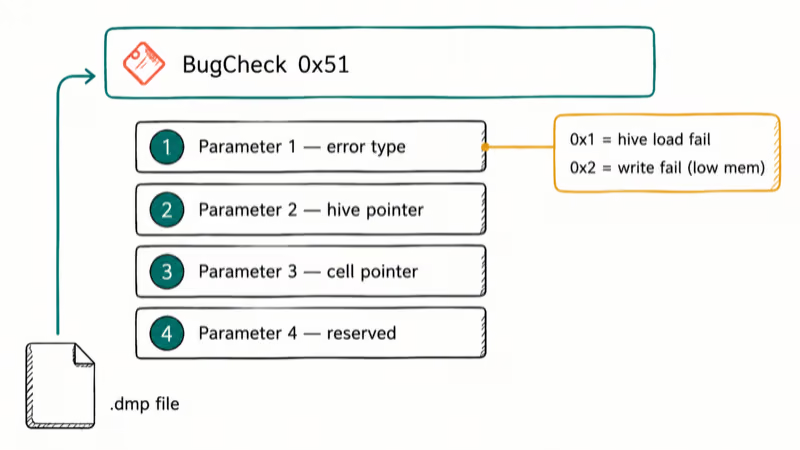
- Parameter 1: the type of registry error.
- Parameter 2: pointer to the hive, often visible in a memory dump.
- Parameter 3: pointer to the cell that triggered the error.
- Parameter 4: reserved or specific to the failure type.
A value of 0x1 in Parameter 1 typically points to a hive load failure (corrupt or unreadable file), while 0x2 points to a write failure under low memory pressure. WhoCrashed, BlueScreenView, and the official Windows Debugger (WinDbg) all parse the minidump in C:\Windows\Minidump and translate these parameters into plain English. If you have to escalate to Microsoft Support or a hardware vendor, attach the minidump file along with the System Information report, since that combination shortens diagnosis significantly.
#Preventing Future REGISTRY_ERROR Crashes
A few habits cut the rate of 0x51 events down sharply:
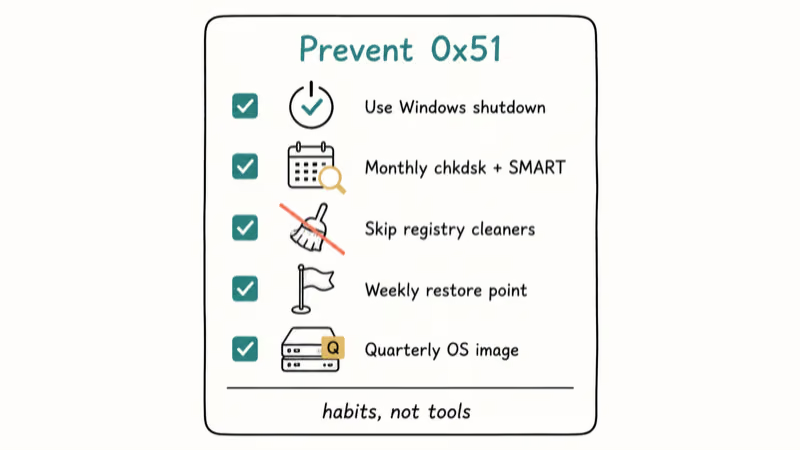
- Use Windows’ own shutdown rather than holding the power button, so the configuration manager finishes flushing hives.
- Run a monthly chkdsk and SMART check on the boot drive, and replace any drive reporting reallocated sectors above the manufacturer threshold.
- Skip third-party registry cleaners. Microsoft’s documentation has long discouraged them, and the registry team has reported that they cause more crashes than they prevent.
- Keep at least one System Restore point per week. It costs almost no disk space and saves hours when an update misbehaves.
- Image the OS partition quarterly with the built-in Backup and Restore (Windows 7) tool or a free imager like Macrium Reflect Free, so a hive corruption never costs more than a 15-minute rollback.
If you also see an 0x80070070 disk space error or 0xc0000022 access denied error right before the 0x51 events, treat them as related symptoms.
#Bottom Line
For most Stop 0x00000051 REGISTRY_ERROR crashes on Windows 10 and Windows 11, the right sequence is Safe Mode boot, then sfc /scannow, then DISM, then Windows Memory Diagnostic, and finally System Restore when the BSOD started right after an update or driver install.
Reach for a Reset this PC or clean reinstall only after those five steps fail. Replace the boot drive if chkdsk reports unreadable sectors during the registry hive range. Following this order, a system is usually either repaired by the software steps or revealed to have a hardware fault that needs a DIMM or SSD swap.
#Frequently Asked Questions
Is the 0x00000051 BSOD caused by software or hardware?
Both. Software triggers like corrupted hives or aborted updates are more common, but RAM and disk failures cause a meaningful share too.
Will sfc /scannow alone fix Stop 0x00000051?
Often, yes, but not always. sfc /scannow repairs protected system files and many registry-related components, and Microsoft’s documentation confirms it pulls replacements from a local cache. When sfc reports that it found corruption it can’t repair, run DISM /Online /Cleanup-Image /RestoreHealth next, then re-run sfc. The combined pass clears most of the cases that a single sfc run leaves behind, and it doesn’t touch your personal files at any point.
Does the 0x00000051 error mean my hard drive is failing?
Not on its own. Stop 0x51 can come from any source of registry corruption.
Can a Windows Update cause Stop 0x00000051?
Yes, an interrupted cumulative update or driver update can leave the registry mid-write. System Restore to a point before the last update is the highest-yield fix for an update-induced 0x51, and pausing Windows Update for a week prevents the same buggy package from reinstalling.
How long does Windows Memory Diagnostic take to find a 0x51 cause?
A standard pass typically completes in 8 to 15 minutes on a 16 GB system. The extended mix runs roughly 30 to 45 minutes and catches intermittent errors the standard pass misses. Errors reported in the notification after Windows reloads are the signal to reseat or replace a DIMM.
Should I use a registry cleaner to fix the 0x00000051 error?
No. Running sfc, DISM, and System Restore is safer than any cleaner.
What if the BSOD shows up again after I reinstall Windows?
A repeating 0x51 after a clean install almost always points to hardware. The likely culprits are a failing DIMM, a dying SSD or HDD, or a chipset driver that’s incompatible with your specific board. Test the RAM with MemTest86, image the SSD with the manufacturer’s tool, and try the latest chipset driver before assuming the OS is at fault.

Best Laptop for Running LLMs in 2026: Memory Comes First
The best laptop for running LLMs is a memory purchase first. Compare MacBook unified memory against NVIDIA laptop VRAM, and see what each tier really runs.

How to Run a Local LLM on Windows: A 2026 Setup Guide
Run a local LLM on Windows with LM Studio or Ollama. Pick a model that fits your GPU memory, keep every prompt offline, and skip the monthly bill.

Bluetooth Not Working on Snapdragon X? Fixes for 2026
Bluetooth not working on your Snapdragon X Copilot+ PC? Generic audio, mice, and keyboards work, but vendor apps often lack an ARM build. Fixes inside.

Docker Desktop and WSL2 Not Working on Snapdragon X? Fix It
WSL2 runs fine on Snapdragon X, but Docker Desktop ARM is Early Access and throws WSL errors. Use WSL2 plus native ARM64 Ubuntu and Docker Engine.