Shell Infrastructure Host: Fix High CPU and Memory Usage
Shell Infrastructure Host renders the Windows taskbar and notifications. See why it spikes CPU or memory and seven settings that bring usage down.
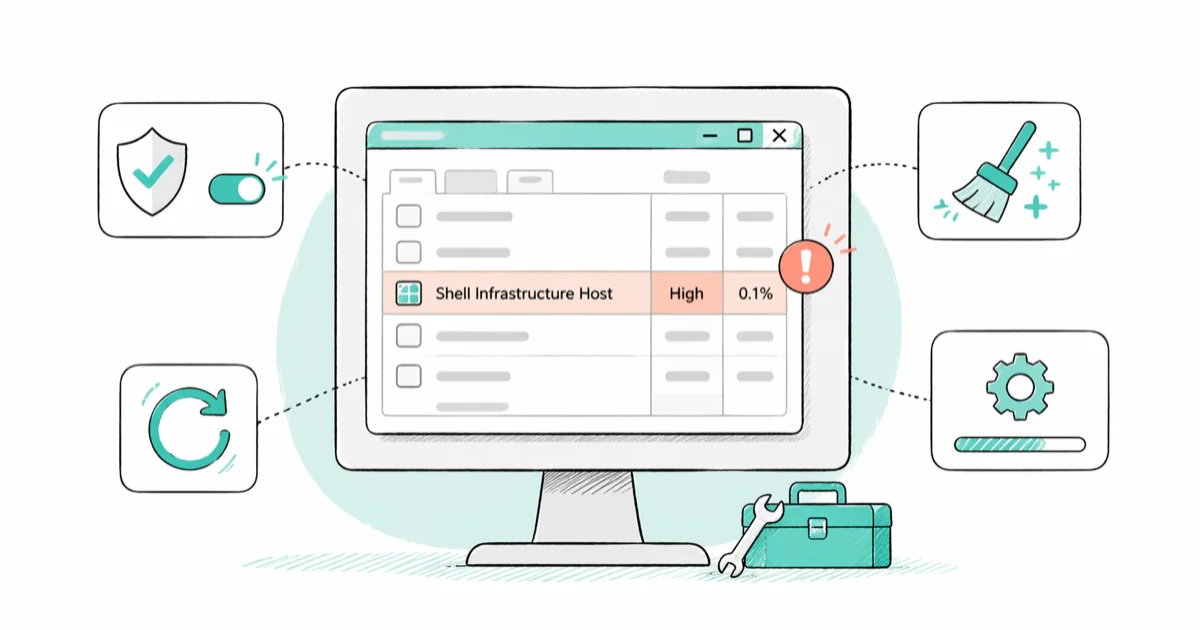
Quick AnswerShell Infrastructure Host (sihost.exe) is a legitimate Windows system process that renders the taskbar, notifications, transparency effects, and accent colors on Windows 10 and 11. Sustained CPU above 25 percent or memory above 200 MB almost always traces to slideshow backgrounds, transparency, or a third-party shell extension, and the fix lives in Settings, not in deleting the process.
Shell Infrastructure Host high CPU usage is one of the most misread alerts in Task Manager. It isn’t a virus, it isn’t a service host, and it isn’t something you should hunt down and delete. It’s the rendering engine for parts of the Windows shell. When it climbs above its normal range, almost every cause is a setting you turned on without realizing the cost.
- Shell Infrastructure Host runs as sihost.exe at C:\Windows\System32 and powers the taskbar, notification flyouts, transparency, and accent colors on Windows 10 and 11
- Healthy idle memory sits between 30 MB and 80 MB; spikes above 200 MB sustained or 25 percent CPU usually point to UI overload, not a broken process
- Desktop slideshow backgrounds combined with the automatic accent color toggle force a full repaint on every image change and are a common cause of repeated spikes
- Ending the process from Task Manager is safe as a short diagnostic; Windows restarts it automatically
- Real malware sometimes copies the name; the genuine binary is at C:\Windows\System32\sihost.exe and any other path is the actual problem
#What Is Shell Infrastructure Host?
Shell Infrastructure Host runs as sihost.exe and is part of the modern Windows shell. According to Microsoft Learn’s overview of the Windows shell, the shell is the user interface that ties together the desktop, taskbar, notifications, Start menu, and the dialogs that surface system events. Sihost.exe is the host that loads the shell components Microsoft has moved into the modern UI stack.
Sihost.exe draws and refreshes the visual surfaces you see. Each user action is its own draw call.
That bursty pattern is why CPU rises in spikes even on a perfectly healthy machine, and it’s also why blanket “high CPU = broken process” alerts in cleaner apps end up misleading users about a process that’s just doing its job. Toggle Dark Mode, open Action Center, flip wallpapers in a slideshow, or change the accent color, and the same loop kicks in to composite the new state across the taskbar, Start, and notification surfaces.
The confusion with svchost.exe is common. Service Host (svchost.exe) hosts background Windows services like Windows Update or Windows Audio. Shell Infrastructure Host (sihost.exe) hosts UI rendering. Different binaries, different jobs.
#Normal CPU and Memory Usage Ranges
Healthy idle memory ranges from 30 MB to 80 MB on Windows 10 and 11 with default settings. CPU usage stays near zero between events and spikes briefly when something visual changes.
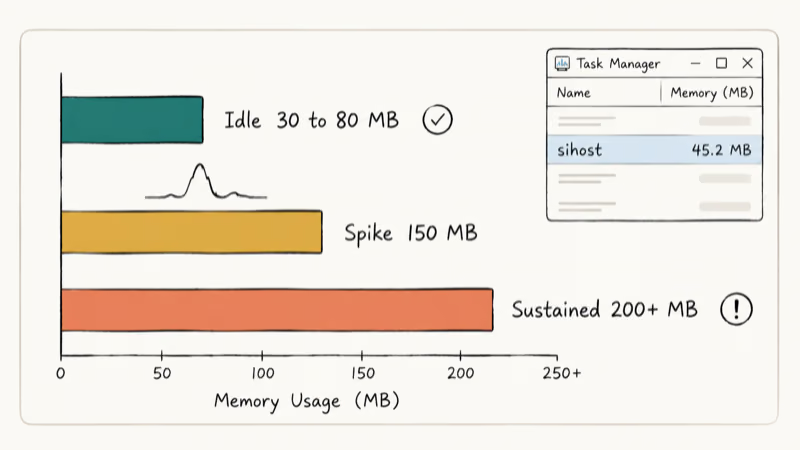
Static wallpaper and stock theme should keep sihost.exe in the normal idle band between visual events.
Sustained high usage tells a different story. Above 200 MB held for more than a minute, or 25 to 30 percent CPU that doesn’t relax, the process is being asked to repaint constantly. That’s a configuration symptom, not a process bug.
Slow elsewhere too? See our guide to a slow Windows 10 PC.
#Common Causes of High CPU and Memory Spikes
Desktop slideshow backgrounds top the list.
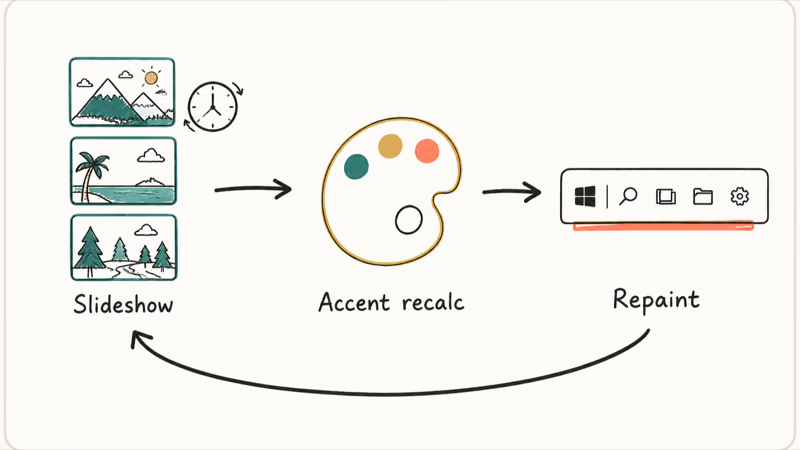
Every time the slideshow rotates, the shell recomputes the dominant colors of the new image, applies the accent color, and repaints the taskbar, Start, and Action Center. The cost compounds when “Automatically pick an accent color from my background” is also enabled, because the wallpaper change forces an accent recalculation across every transparent surface and the work piles up after every rotation.
When slideshow and auto-accent are both enabled, each wallpaper change can trigger another shell repaint. Switching to a static wallpaper and a fixed accent color removes that repeat work.
That reduction is why these two settings are the first fix to try.
Transparency effects sit just behind. Acrylic, Mica, and the legacy Aero blur all ask the GPU to sample background pixels and feed the result back to the shell, which repaints whenever the underlying content changes. On older integrated graphics, the loop costs more CPU than it saves in design polish, and the cost doesn’t go away just because the visible blur is gentle.
Third-party shell extensions are the third category. Old context menu entries from uninstalled apps, cloud storage providers that hook into File Explorer, and customizers that inject themselves into the shell namespace all qualify. Any extension that misbehaves can keep sihost.exe busy.
The same logic explains why Service Host Local System can spike disk and memory when one of its hosted services misbehaves, and why Desktop Window Manager runs hot when a graphics driver issues constant repaints.
#Step-by-Step Fixes for High CPU and Memory
The fix order below starts with the most common and lowest-risk settings. Apply them in sequence and check Task Manager after each.
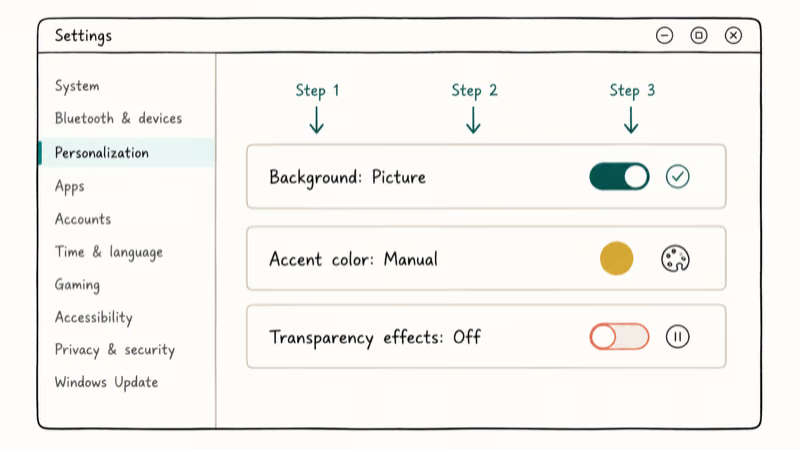
Step 1: Switch off the desktop slideshow. Open Settings > Personalization > Background and change “Personalize your background” from “Slideshow” to “Picture” or “Solid color.” Pick one image. Wait 10 minutes and watch sihost.exe in Task Manager.
Most users see the spike vanish here.
Step 2: Lock the accent color. Open Settings > Personalization > Colors. Turn off “Automatically pick an accent color from my background.” Pick a fixed accent color manually. The shell now skips the recalculation that the slideshow used to trigger, which is the heaviest piece of the workload on most machines that didn’t fully clear with Step 1.
Step 3: Disable transparency.
Open Settings > Personalization > Colors > Transparency effects and toggle it off on either Windows 10 or 11. Transparency demands GPU-to-CPU communication on every change behind the surface; turning it off cuts that loop entirely. Reduced motion under Settings > Accessibility > Visual effects trims it further by skipping the longer animations.
Step 4: Turn off live tiles or widgets. On Windows 10, right-click each tile on Start and choose “More > Turn live tile off.” On Windows 11, hide widgets from Settings > Personalization > Taskbar. Each tile and widget surface is rendered by the shell, so removing the ones you don’t use removes work.
Step 5: Investigate shell extensions.
ShellExView from NirSoft (free, vendor-signed) lists every shell extension and lets you disable non-Microsoft entries one at a time. The pattern is identical to a Windows clean boot, just scoped to the shell namespace: isolate by elimination, re-enable in groups, and the last group you turned on contains the offender.
If memory stays elevated after Steps 1 through 5, your computer may also be low on memory for unrelated reasons, and the broader memory fix list applies.
#Is It Safe to End Shell Infrastructure Host?
Yes. Ending sihost.exe from Task Manager is safe, and Windows restarts the process automatically.
Use it as a short diagnostic. Open Task Manager, right-click “Shell Infrastructure Host”, and choose End Task. The taskbar may flicker as it repaints. Use the PC normally for a brief window.
If responsiveness improves clearly during that window, the running configuration is the bottleneck and the steps above will resolve it. If nothing changes, sihost.exe wasn’t the cause and the next investigation is hardware drivers or background services.
What you must not do is try to permanently disable or delete the process. Windows requires the legitimate shell components to render the desktop and lock screen at all. Without sihost.exe running, the taskbar, notifications, and the Settings app stop drawing. Reboot brings it back, but you haven’t gained anything by ending it permanently.
#Verifying It Isn’t Malware
The legitimate process is safe. Real malware occasionally hides under a similar name, so a 60-second verification pass is reasonable when you see unfamiliar behavior.
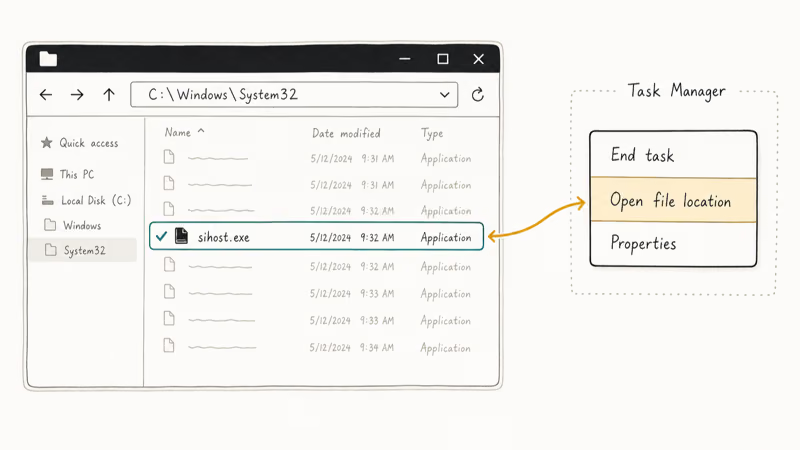
Right-click Shell Infrastructure Host in Task Manager and choose Open file location. The genuine path is C:\Windows\System32\sihost.exe. Any other directory, especially a user folder or a temp path, is suspicious by default.
Run a Windows Defender quick scan from Settings > Privacy & security > Windows Security > Virus & threat protection. Microsoft’s Windows Security documentation states that Defender is built into Windows 10 and 11 and runs without separate installation, so the scan is a one-click check. If Defender flags anything, follow its remediation prompt rather than deleting the file by hand.
For a deeper read on impostor processes, our guide to FileRepMalware detections walks through how false positives differ from genuine threats, and the com surrogate process is a sibling case where the legitimate Windows component frequently shows up as a high-CPU mystery in Task Manager.
#Advanced Fixes for Persistent Issues
When Steps 1 through 5 don’t move the needle, the cause is usually older code, corrupted system files, or a startup app interfering with the shell.
Update Windows and Microsoft Store apps. Open Settings > Windows Update and install everything available, then open the Microsoft Store, click the library icon, and update all apps. Outdated shell components and outdated apps that hook the shell can both push sihost.exe harder than necessary.
Reinstall the Visual C++ Redistributables.
Many shell extensions and Microsoft Store apps depend on these runtime libraries; corruption causes UI components to misbehave. Press Windows + R, type appwiz.cpl, and find every “Microsoft Visual C++ Redistributable” entry. Uninstall them, reboot, and reinstall the latest x86 and x64 packages from Microsoft’s official Visual C++ Redistributable download page, which is the page Microsoft Learn maintains for current versions.
Run System File Checker.
Open Command Prompt as administrator and run sfc /scannow. Microsoft’s System File Checker documentation recommends the tool for repairing corrupted Windows system files. Let the scan finish even if it takes 15 to 20 minutes, then reboot. If sfc reports unrepairable files, follow it with DISM /Online /Cleanup-Image /RestoreHealth, which pulls clean copies from Windows Update.
Run a clean boot to isolate startup software. Microsoft’s clean boot procedure walks through disabling all non-Microsoft services and startup items. If sihost.exe behaves in clean boot but spikes again on a normal boot, re-enable groups of startup items until the spike returns. The last group you turned on contains the culprit, often a sync agent or a customizer. The same elimination pattern works for WMI Provider Host high CPU when WMI is the suspect.
If the issue survives all of the above, a Windows in-place upgrade replaces system files without touching personal data. It’s the cleanest fallback before a full reset.
#Bottom Line
Shell Infrastructure Host (sihost.exe) is Windows working as designed. Treat sustained high CPU or memory not as a broken process but as a request the operating system is being asked to repeat too often.
For the typical case, switching the wallpaper from a slideshow to a single static image and locking the accent color resolves the issue inside one Settings session. Add transparency off if the process still sits above its normal idle range. If those three settings don’t fix it, the second tier is sfc, the Visual C++ Redistributables, and a clean boot to isolate a misbehaving startup item, in that order.
If your taskbar and notifications still feel laggy after these fixes, the bottleneck has moved off sihost.exe and onto something else, most often graphics drivers or a third-party customizer. Treat it as a different problem from that point forward.
#Frequently Asked Questions
What is the actual file path for the real Shell Infrastructure Host?
The genuine file is at C:\Windows\System32\sihost.exe.
Right-click “Shell Infrastructure Host” in Task Manager and select Open file location to verify. Any path outside System32 is suspicious by default and warrants a Defender scan plus a check of the recent install history for whatever app dropped that file.
Can I remove or permanently disable Shell Infrastructure Host?
No. The process is part of how Windows draws the taskbar, notifications, and Start menu, so removing it breaks the desktop until reboot. Ending it temporarily for a diagnostic test is fine; deleting or blocking it from running permanently isn’t.
Why does Shell Infrastructure Host sometimes spike to 30 percent CPU?
A short spike during animations or wallpaper changes is normal and should settle after the repaint finishes. A sustained spike in the 25 to 30 percent range usually traces to a desktop slideshow with automatic accent colors enabled, transparency effects on weaker GPUs, or a third-party shell extension. Walk through the five-step fix sequence above in order, starting with the wallpaper and accent-color settings.
How can I tell if it’s actually malware?
Run two checks. First, verify the file path through Task Manager’s “Open file location.” Second, run a Windows Defender quick scan.
Is 50 MB of memory normal?
Yes. Healthy idle usage falls between 30 MB and 80 MB. Sustained values above 200 MB warrant the fixes in this article.
Is it dangerous to end the process in Task Manager?
No. The taskbar may flicker briefly as Windows restarts the process automatically.
How do I reinstall the Visual C++ Redistributables?
Open appwiz.cpl from the Run dialog. Find every “Microsoft Visual C++ Redistributable” entry, uninstall each one, and reboot. Then download both the x86 and x64 packages of the latest version from Microsoft’s official download page and install them. Many shell extensions depend on these libraries, so refreshing them clears a class of UI corruption issues that disabling slideshows or transparency won’t touch.
Does this process exist on Windows 7 or 8?
Sihost.exe was introduced with the modern Windows shell that shipped in Windows 8 and matured in Windows 10. On Windows 7, equivalent UI work is handled by explorer.exe and dwm.exe instead.

Best Laptop for Running LLMs in 2026: Memory Comes First
The best laptop for running LLMs is a memory purchase first. Compare MacBook unified memory against NVIDIA laptop VRAM, and see what each tier really runs.

How to Run a Local LLM on Windows: A 2026 Setup Guide
Run a local LLM on Windows with LM Studio or Ollama. Pick a model that fits your GPU memory, keep every prompt offline, and skip the monthly bill.

Bluetooth Not Working on Snapdragon X? Fixes for 2026
Bluetooth not working on your Snapdragon X Copilot+ PC? Generic audio, mice, and keyboards work, but vendor apps often lack an ARM build. Fixes inside.

Docker Desktop and WSL2 Not Working on Snapdragon X? Fix It
WSL2 runs fine on Snapdragon X, but Docker Desktop ARM is Early Access and throws WSL errors. Use WSL2 plus native ARM64 Ubuntu and Docker Engine.