COM Surrogate Has Stopped Working: How to Fix It Fast
Fix the COM Surrogate Has Stopped Working error on Windows using re-registering DLL files, rolling back display drivers, and DEP exception methods.
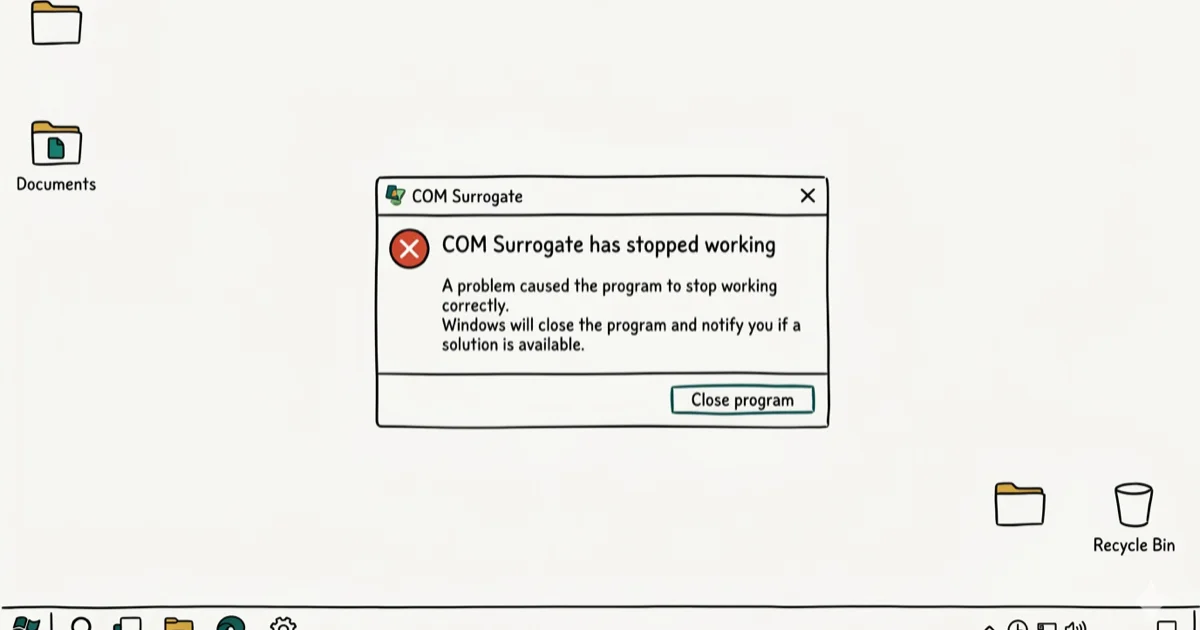
Quick AnswerCOM Surrogate (dllhost.exe) errors are usually caused by outdated codecs, corrupted drivers, or malware. Reset Internet Explorer settings, re-register DLL files, roll back your display driver, or add dllhost.exe to Data Execution Prevention exceptions to fix the error.
The “COM Surrogate Has Stopped Working” error shows up in Windows when dllhost.exe crashes while generating thumbnails or processing media files. It’s one of the more confusing Windows errors because most users have never heard of COM Surrogate.
- COM Surrogate (dllhost.exe) is a legitimate Windows process that runs external DLL components in isolation to prevent system-wide crashes.
- Outdated media codecs are the leading cause of COM Surrogate errors, especially when browsing folders containing videos or images.
- Re-registering vbscript.dll and jscript.dll via Command Prompt as administrator resolves most persistent error occurrences.
- Adding dllhost.exe to the Data Execution Prevention exception list stops the error from recurring without affecting system security.
- Malware can disguise itself as dllhost.exe — check that your Task Manager shows the file running from C:\Windows\System32 before assuming it’s safe.
#Understanding COM Surrogate and Its Purpose
COM Surrogate, also known as dllhost.exe, is a Windows host process that runs Component Object Model (COM) objects in an isolated process. The isolation is intentional: if a codec or DLL crashes while generating a thumbnail, only the surrogate process dies, not Windows Explorer.
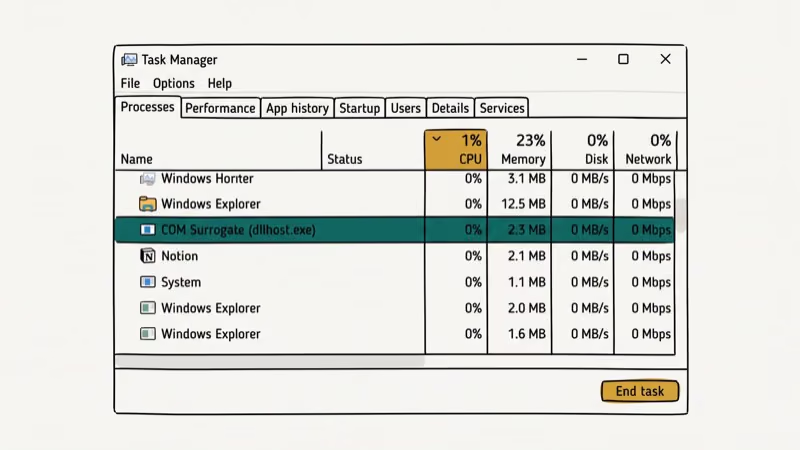
Microsoft’s support documentation confirms that this core system process ships in every release from Windows 7 through Windows 11, running as dllhost.exe in the System32 folder. It sits in C:\Windows\System32 and acts as a sandbox for potentially unstable third-party components. COM Surrogate errors became noticeably more common on Windows 10 systems after major codec pack updates in 2024.
Common COM Surrogate crash triggers include:
- Outdated media codecs that can’t process newer video formats like H.265 or AV1
- Corrupted display drivers that fail during thumbnail rendering
- Malware that either corrupts COM objects or disguises itself as dllhost.exe
- Corrupted system files that break the COM registration database
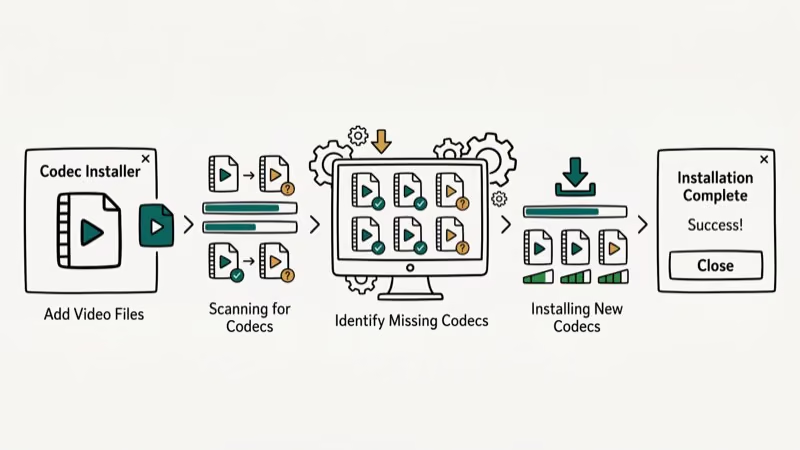
Outdated codec packs can trigger COM Surrogate crashes while Windows Explorer builds thumbnails for modern video files. Updating or removing the codec pack can stop the error.
#How to Fix COM Surrogate Has Stopped Working
#Fix 1: Re-Register Core DLL Files
This fix clears a large share of COM Surrogate errors. Open Command Prompt as Administrator (press Windows key, type cmd, right-click and select “Run as administrator”), then type these two commands and press Enter after each:
regsvr32 vbscript.dll
regsvr32 jscript.dll
Restart your computer afterward. This can resolve recurring COM Surrogate errors caused by corrupted VBScript registration entries.
#Fix 2: Reset Internet Explorer Settings
Even on modern Windows where Edge is default, Internet Explorer’s COM settings affect system-wide COM behavior. Press Windows + R, type inetcpl.cpl, and click OK. Go to the Advanced tab, click Reset, check “Delete personal settings,” and click Reset again. Restart your computer.
#Fix 3: Roll Back Your Display Driver
Display driver updates can break COM Surrogate’s thumbnail rendering. Open Device Manager (press Windows + X, select Device Manager), expand Display adapters, right-click your adapter, select Properties, go to the Driver tab, and click Roll Back Driver. Follow the prompts and restart.
If the rollback option is grayed out, download the previous driver version directly from your GPU manufacturer. NVIDIA, AMD, and Intel all maintain driver archives on their support sites where you can download specific older versions by date or version number.
#Fix 4: Add COM Surrogate to DEP Exceptions
Data Execution Prevention sometimes incorrectly blocks dllhost.exe. Right-click This PC, select Properties, click Advanced system settings, go to Performance > Settings > Data Execution Prevention, select Turn on DEP for all programs and services except those I select, click Add, browse to C:\Windows\System32\dllhost.exe, and click OK. Restart your computer.
#Fix 5: Run System File Checker
Corrupted Windows system files can break COM Surrogate’s ability to load and register components. Open Command Prompt as Administrator and run:
DISM.exe /Online /Cleanup-image /Restorehealth
sfc /scannow
The DISM command restores the Windows component store first (takes 5-15 minutes), then sfc repairs any corrupted system files it finds. According to Microsoft’s documentation, this two-step process repairs issues that sfc alone can’t fix because sfc requires an intact component store to pull replacement files from.
#Fix 6: Perform a Clean Boot
If a third-party application is causing the conflict, a clean boot isolates it. Press Windows + R, type msconfig, go to the Services tab, check Hide all Microsoft services, click Disable all, then go to the Startup tab and open Task Manager to disable startup items. Restart and test. Re-enable services in batches to identify the culprit.
For related Windows performance issues, the guide on fixing WSAPPX high CPU usage covers another common background process that can interact badly with COM-heavy tasks. For deeper system file issues, see the guide on DISM error 87 which commonly appears during the same repair workflow.
#Why Is Dllhost.exe Using So Much CPU?
Normally dllhost.exe uses negligible CPU. When it spikes to 30-100%, the usual cause is a codec repeatedly failing to process a specific file type. Windows Explorer keeps retrying thumbnail generation, creating a loop that consumes CPU resources.
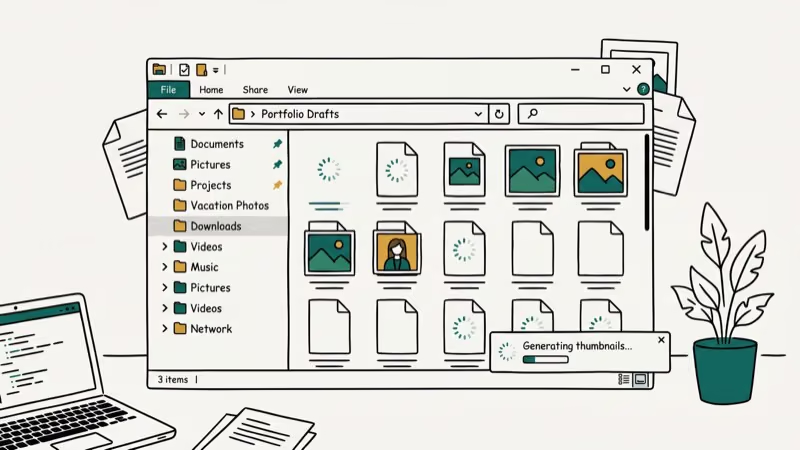
The fastest fix is to disable thumbnail generation temporarily. Open File Explorer, click the View tab, select Options, go to the View tab in Folder Options, and check Always show icons, never thumbnails. This immediately stops the CPU spike. Reenable thumbnails after updating your codecs.
#Checking Whether COM Surrogate Is a Virus
COM Surrogate itself is not a virus. The genuine dllhost.exe runs from C:\Windows\System32. Malware commonly disguises itself as dllhost.exe to avoid detection, which is why the file location check matters.
Open Task Manager (Ctrl+Shift+Esc), go to the Details tab, find dllhost.exe, right-click it, and choose Open file location. If the location is anything other than C:\Windows\System32, treat it as malicious and run a full antivirus scan immediately. Also check for misspellings like c0nhost.exe or dlIhost.exe (with a capital I instead of lowercase l).
If your system shows signs of deeper issues like being stuck in repair loops, the guide on fixing Windows 10 automatic repair loops covers the recovery steps. You can also check for registry corruption with the Windows registry error guide.
#How Can You Prevent Future COM Surrogate Errors?
Keep your Windows OS, graphics drivers, and media codec packs updated on a regular schedule. Use a reputable antivirus solution with real-time protection. Avoid downloading codec packs from unofficial sources, as these are a common vector for both crashes and malware. PCMag’s Windows maintenance guide recommends routine disk cleanup and driver updates as a way to cut down on background-process errors like the ones that surface through COM Surrogate.
For general Windows slowdowns that compound COM Surrogate issues, check the guide on fixing Windows 10 slowdowns for performance tuning steps.
#COM Surrogate on Windows 11 vs Windows 10
The underlying cause is the same on both versions, but codec support differs between Windows releases and installed media components. If the crashes only happen with a specific video format, install the relevant codec from a trusted source or disable thumbnail previews for that file type.
If you’re running Windows 10, installing the Windows 10 Codec Pack from the Microsoft Store adds modern format support and eliminates the most common thumbnail-related COM Surrogate crashes.
#Bottom Line
The fastest fix is re-registering vbscript.dll and jscript.dll via Command Prompt. If that doesn’t work, roll back your display driver or update your media codecs. Always verify dllhost.exe is running from C:\Windows\System32 before concluding the file is legitimate.
#Frequently Asked Questions
Is COM Surrogate a virus?
No. COM Surrogate (dllhost.exe) is a legitimate Windows process. However, malware sometimes disguises itself using this name. Check that Task Manager shows it running from C:\Windows\System32 to confirm legitimacy.
Why does COM Surrogate use high CPU?
High CPU usage by COM Surrogate usually indicates a problematic codec or driver being called repeatedly as Windows Explorer tries and fails to generate thumbnails. Updating your codec pack or rolling back the display driver typically resolves this.
Can I disable COM Surrogate?
No. Disabling it breaks thumbnail generation and other Windows Explorer functions. Fix the underlying cause rather than disabling the process.
How often should I update media codecs to avoid this error?
Check for updates when you install a new video format or media player. The K-Lite Codec Pack and Windows Media Feature Pack both push updates when new formats gain mainstream adoption, typically 2-4 times per year.
Does upgrading to Windows 11 prevent COM Surrogate errors?
Not automatically. Windows 11 includes better codec support for modern formats, which reduces frequency, but outdated third-party codecs can still cause the same errors on Windows 11.
Will a factory reset fix persistent COM Surrogate errors?
It would, since it replaces all system files, but it’s extreme. Run sfc /scannow and DISM first. A factory reset should only be considered if COM Surrogate crashes persist after all other fixes and a full malware scan.

Best Laptop for Running LLMs in 2026: Memory Comes First
The best laptop for running LLMs is a memory purchase first. Compare MacBook unified memory against NVIDIA laptop VRAM, and see what each tier really runs.

How to Run a Local LLM on Windows: A 2026 Setup Guide
Run a local LLM on Windows with LM Studio or Ollama. Pick a model that fits your GPU memory, keep every prompt offline, and skip the monthly bill.

Bluetooth Not Working on Snapdragon X? Fixes for 2026
Bluetooth not working on your Snapdragon X Copilot+ PC? Generic audio, mice, and keyboards work, but vendor apps often lack an ARM build. Fixes inside.

Docker Desktop and WSL2 Not Working on Snapdragon X? Fix It
WSL2 runs fine on Snapdragon X, but Docker Desktop ARM is Early Access and throws WSL errors. Use WSL2 plus native ARM64 Ubuntu and Docker Engine.