FileRepMalware Explained: Avast False Positive or Threat?
FileRepMalware is an Avast and AVG reputation tag, not a virus family. Learn how to verify the file with VirusTotal and remove only true threats safely.
Quick AnswerFileRepMalware is a reputation-based label Avast and AVG apply to uncommon, unsigned executables, and it's often a false positive on legitimate tools rather than a confirmed virus. Upload the file to VirusTotal, check the Avast Threat Labs false positive submission page, and remove it only if multiple engines confirm the detection.
FileRepMalware is the label Avast and AVG assign when a file’s reputation score falls below their threshold. It’s not the name of a specific virus family. Plenty of harmless, obscure utilities trigger the tag on first launch simply because the antivirus has no reputation data for them yet.
Before changing these settings, use the steps only on your own device, computer, or account, or with explicit permission from the owner. Unauthorized access can violate law, privacy rights, and platform terms, so don’t use this guide to bypass someone else’s controls. When available, start with the official support option, built-in settings menu, or vendor documentation before trying manual fixes, especially if the device or account belongs to work, school, or another person.
The label catches real threats and legitimate-but-obscure tools in the same net, so jumping straight to removal risks wiping your own software. This guide walks through verification, safe removal, and false-positive recovery using the exact tools Avast recommends.
- FileRepMalware is a heuristic reputation tag, not a confirmed virus signature
- Avast and AVG trigger it on unsigned files with thin download history
- Upload the flagged file to VirusTotal before removing anything
- KMSPico cracks and activators are the most common true positives
- Submit verified false positives to Avast Threat Labs for whitelisting
#What FileRepMalware Actually Means
The name breaks down as “File Reputation Malware.” Avast’s engines keep a reputation database. Every executable earns a score based on how many Avast users have run it, whether a trusted publisher signed it, and how long it has circulated.
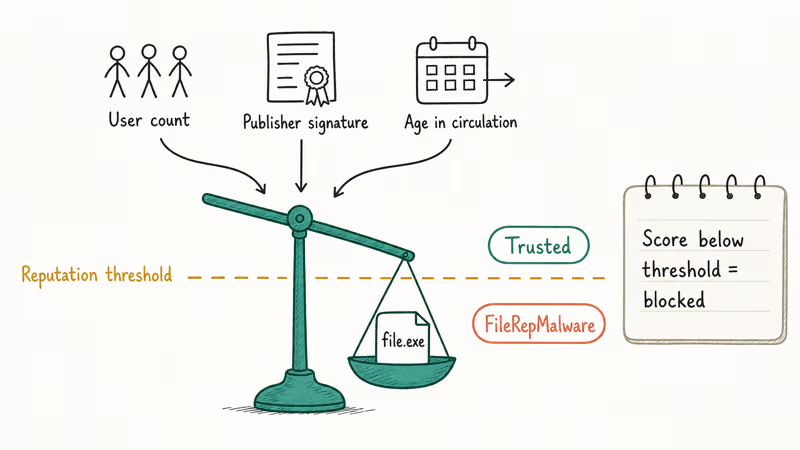
When a file fails multiple reputation checks, the scanner blocks it under the generic FileRepMalware tag instead of a specific malware name. According to Avast’s consumer support article on infection alerts, detections labeled “FileRepMalware” or similar generic names are heuristic flags rather than definitive identifications, and the support team directs users to submit the file for analysis if they believe it’s safe. That framing matters: Avast itself treats the tag as probabilistic rather than conclusive.
The tag commonly appears on three file types.
Cracked software, keygens, and unofficial activators like KMSPico sit at the top. Avast flags them because they ship unsigned, modify system files, and are redistributed through low-reputation channels. Legitimate but obscure utilities come second. A portable app that a developer published last week to a personal GitHub release will trigger the tag until enough Avast users download it.
Old installers from archive sites round out the list, usually because the publisher signature expired and knocked the reputation score below the threshold.
This pattern is easy to reproduce. An old signed installer with an expired certificate can trigger FileRepMalware, while a fresh signed build of a common tool like 7-Zip passes without comment.
AV-TEST’s Avast Free Antivirus evaluation rates Avast highly on protection while acknowledging that heuristic engines produce occasional false positives on legitimate low-reputation files. The rate is low in absolute terms but painful when it trips on a tool you need right now, which is why the next two sections focus on triage before cleanup, not after.
#Is FileRepMalware an Actual Virus or a False Positive?
It depends entirely on the file. A FileRepMalware hit by itself tells you nothing about what the file does. It only confirms that Avast’s reputation database does not trust it yet.
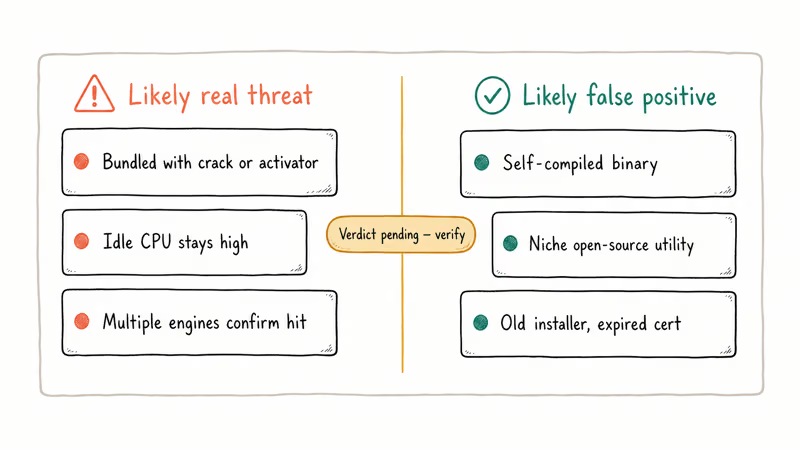
Three signals point toward a real threat. If the file arrived bundled with pirated software, activators, or “free” versions of paid apps, the detection is almost certainly legitimate. If Task Manager shows the process consuming steady CPU while the system is idle, it may be a cryptominer. If multiple engines confirm the hit on VirusTotal, trust them.
Three signals point toward a false positive. A file you compiled yourself, a niche open-source utility with a small user base, or a legitimate installer older than about two years commonly trigger the tag without being malicious. A self-compiled script packaged by a tool like PyInstaller will often get flagged as FileRepMalware on first scan even when it contains nothing but a “Hello, World” print statement.
Uncertainty is the point. That’s why verification matters before you act.
#How Do You Verify a FileRepMalware Detection?
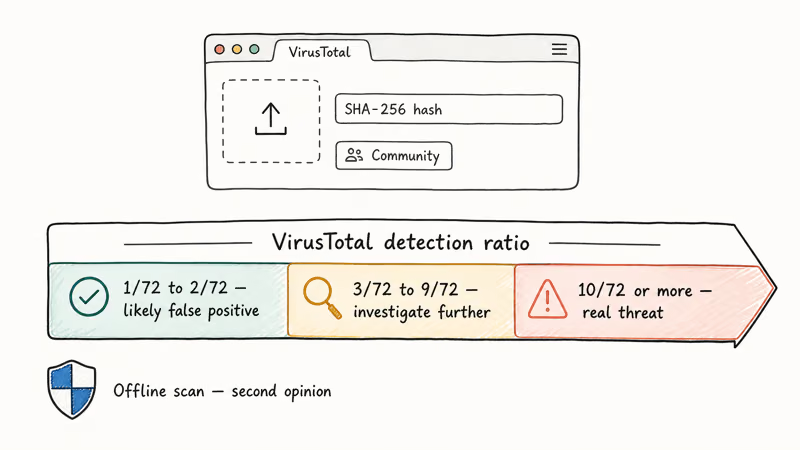
The single most reliable verification tool is VirusTotal. It runs the file through roughly 70 commercial antivirus engines and reports how many detect it. Google owns VirusTotal, and its free web upload accepts files up to 650 MB.
Follow these steps to verify.
First, quarantine the file in Avast, then restore it to a contained folder like C:\Temp\Quarantine-Review\ where nothing will execute on its own.
Next, go to virustotal.com and upload the file, or paste its SHA-256 hash if you already have it. Read the detection ratio once the scan finishes.
A score of 1/72 or 2/72 almost always means false positive, especially when the only detection is Avast or AVG. Check the Community tab for user comments on the hash. If 10 or more engines flag it, including tier-one vendors like Kaspersky, Bitdefender, or Microsoft Defender, treat it as a real threat.
Microsoft Defender offers a built-in second opinion. Microsoft’s guide on running a Defender offline scan states that the offline scan runs before Windows fully loads, which lets it catch rootkits that hide from in-Windows scans.
Trigger it from Windows Security, pick Virus & threat protection, choose Scan options, and select Microsoft Defender Offline scan.
Common Windows system utilities sometimes get false-flagged too. We’ve covered the pattern for files like conhost.exe and csrss.exe, which both trip Avast’s heuristics despite being signed Microsoft components.
The same pattern hits Google Update too. Verification stays identical: hash check, VirusTotal, second-opinion scan.
#Removing a Confirmed FileRepMalware Threat
Once VirusTotal confirms the detection, remove the file with a layered approach. Avast’s own scanner is your first pass, but a second independent engine catches anything that slipped past the reputation check.
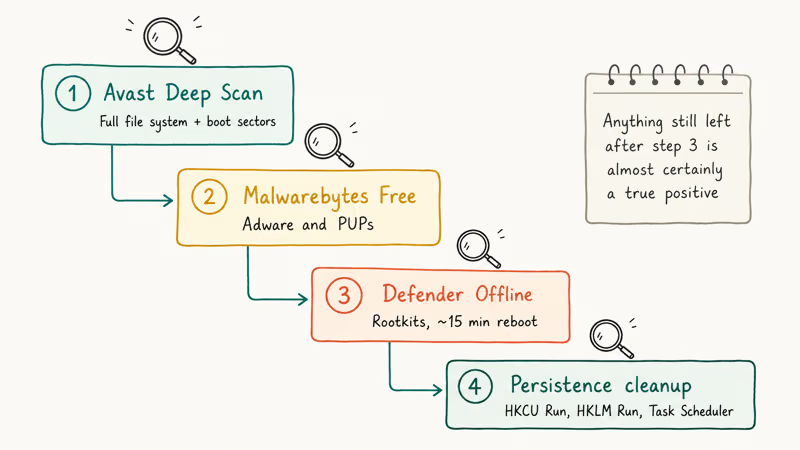
#Step 1: Use Avast’s Deep Scan
Open Avast, go to Protection > Virus Scans, and choose Deep Scan instead of Smart Scan. Deep Scan inspects the full file system including archives and boot sectors. When it finishes, select the infected file and choose “Move to Chest” to quarantine it, then “Delete” after 24 hours if your system runs normally in the interim.
#Step 2: Run Malwarebytes Free as a Second Opinion
Malwarebytes Free runs alongside Avast without conflict and targets adware and PUPs that generic antivirus engines often miss. Download the installer from the official Malwarebytes site, run the default threat scan, and quarantine anything it flags.
Malwarebytes regularly catches bundled installers that a reputation-based scanner like Avast misses, particularly the extra payloads that ride along with KMSPico-style activators.
#Step 3: Scan with Microsoft Defender Offline
This is the nuclear option for rootkits and persistent droppers. Microsoft’s support page on Defender Offline states that the scan takes about 15 minutes and reboots the PC into a recovery environment outside the main Windows session. Anything still on the disk after this scan is almost certainly a true positive.
#Step 4: Clean Up Persistence
Check three locations for leftover registry entries or scheduled tasks. Look in HKCU\Software\Microsoft\Windows\CurrentVersion\Run, HKLM\Software\Microsoft\Windows\CurrentVersion\Run, and Task Scheduler.
A trojan that quietly reinstalls itself on reboot will have an entry in one of these three locations. Cleaning up related Windows Update cache entries after a persistent infection sometimes requires deleting Windows update files completely to remove poisoned installer packages.
#Handling FileRepMalware as a False Positive
Submit the file to Avast Threat Labs for whitelisting. This is the only permanent fix. Adding an exception locally solves your problem but leaves every other Avast user facing the same block.
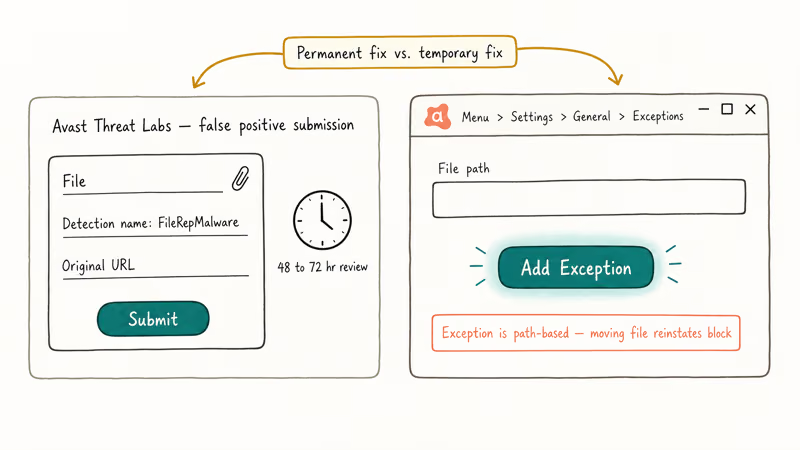
Visit the Avast Threat Labs false positive submission page, attach the flagged file, and include the detection name (FileRepMalware) and the original download URL. Avast’s analysts review submissions and typically update the reputation database within 48 to 72 hours. Once reclassified, the next virus definition update pushes the whitelist to all users.
Add a temporary exception while you wait. Open Avast, go to Menu > Settings > General > Exceptions, click “Add Exception” and paste the full file path, then save and close.
Exceptions work by file path, not hash. Moving or renaming the file reinstates the block. For production machines where you need the file whitelisted across multiple locations, AVG and Avast both support folder-level exceptions, though this weakens your overall protection.
If a signed installer is triggering the hit, check the publisher certificate. Right-click the file, choose Properties, then the Digital Signatures tab, and verify the certificate has not expired. Expired certificates are a common cause of reputation drops on older installers. A vendor re-signing the package often resolves the issue in subsequent releases.
Windows also ships with application blocking that sometimes trips over Java installers and other legitimate tools. The resolution pattern is similar: verify signature, whitelist if trusted, escalate to the vendor if the block persists.
#Preventing Future FileRepMalware Flags
Three habits reduce false positives and real infections at the same time.
First, download software from official sources only. Publisher sites, GitHub releases from verified accounts, and the Microsoft Store carry files that already have reputation history. Archive sites and third-party mirrors strip publisher signatures and knock reputation scores below the threshold, triggering Avast flags even on software that was safe at its original release.
Second, keep Avast and Windows Defender definitions current. Avast pushes updates roughly every 15 to 30 minutes on desktops that are online. Confirm updates under Menu > Settings > General > Update.
Third, use Malwarebytes Free alongside Avast as a cross-check. The two engines use different detection philosophies. Avast leans on reputation and signatures, Malwarebytes leans on behavior, and false positives rarely align between them. If only Avast flags the file, the odds of a real threat drop sharply.
For Windows cleanup habits more broadly, see our walkthrough on Windows 10 factory reset without a password when a system is too compromised to clean incrementally, and our breakdown of whether 7-Zip is safe to install when reputation checks flag common tools.
#Bottom Line
Treat FileRepMalware as a question, not an answer. The tag tells you Avast does not trust the file yet, nothing more.
Run the flagged file through VirusTotal first. Detection ratios under 3/72 almost always indicate false positives on obscure but legitimate software. Ratios above 10/72 confirm a real threat that warrants Deep Scan plus Malwarebytes cleanup.
Keep one eye on KMSPico-style activators, which are the single most common true-positive source. Submit confirmed false positives to Avast Threat Labs so the fix propagates to every user. That whole workflow costs about 20 minutes and prevents both missed infections and lost software.
#Frequently Asked Questions
Is FileRepMalware a specific virus?
No. It’s a generic reputation tag, not a virus signature. The file behind it could be anything from harmless to malicious, so always verify with VirusTotal before acting.
Can Avast delete my legitimate software by accident?
Yes, but with a safety net. Avast’s Chest quarantines rather than deletes, giving you a recovery window of several days. Open Avast, go to Protection > Virus Chest, select the quarantined file, and choose Restore or Restore and Add Exception. If you already emptied the Chest, re-download the file from the publisher and add an exception before the scanner quarantines it again.
Does VirusTotal upload my personal files anywhere risky?
Yes, in a limited sense. VirusTotal shares uploaded files with partnered security vendors, and uploads become searchable by hash. Keep sensitive documents, credentials, and private photos out of the upload queue. A safer workflow: compute the file’s SHA-256 hash locally with PowerShell’s Get-FileHash cmdlet and search VirusTotal for that hash instead.
Why does Avast flag my self-compiled code as FileRepMalware?
Your binary has no reputation, no signing certificate, no distribution footprint. That triggers the lowest confidence score. Sign it or submit a false-positive request.
Should I switch antivirus if Avast keeps flagging my files?
Not unless the false positives affect critical work files. Every reputation-based engine flags unsigned low-reputation binaries, including AVG, Kaspersky, Norton, and Bitdefender. Switching vendors moves the problem rather than solving it. A cleaner fix is to code-sign your binaries or run Microsoft Defender, which leans more heavily on Microsoft’s own reputation service and often trusts Microsoft Store apps by default.
How long does Avast take to remove a false positive after I submit it?
Avast’s support documentation states that the analyst team reviews submissions and updates the reputation database, which typically pushes whitelist changes through the next virus definition release. In practice this usually lands within roughly 2 to 5 business days, depending on the analysis queue.
Can FileRepMalware spread to other computers on my network?
The tag is a label, not a virus, so it doesn’t spread on its own. A true-positive underlying file can still propagate through SMB shares, USB drives, or network storage, so isolate the PC until cleanup is done.
Is the built-in Windows Defender enough, or do I still need Avast?
Microsoft Defender has matured significantly, and AV-TEST’s product evaluations rate it comparably to third-party suites for protection. If false positives from Avast frustrate you, running Defender alone is a legitimate choice. For additional coverage, keep Defender as your primary engine and add Malwarebytes Free for behavioral detection, which avoids the reputation-based false positives Avast and AVG generate.

Best Laptop for Running LLMs in 2026: Memory Comes First
The best laptop for running LLMs is a memory purchase first. Compare MacBook unified memory against NVIDIA laptop VRAM, and see what each tier really runs.

How to Run a Local LLM on Windows: A 2026 Setup Guide
Run a local LLM on Windows with LM Studio or Ollama. Pick a model that fits your GPU memory, keep every prompt offline, and skip the monthly bill.

Bluetooth Not Working on Snapdragon X? Fixes for 2026
Bluetooth not working on your Snapdragon X Copilot+ PC? Generic audio, mice, and keyboards work, but vendor apps often lack an ARM build. Fixes inside.

Docker Desktop and WSL2 Not Working on Snapdragon X? Fix It
WSL2 runs fine on Snapdragon X, but Docker Desktop ARM is Early Access and throws WSL errors. Use WSL2 plus native ARM64 Ubuntu and Docker Engine.