SD Card Not Showing Up: 9 Proven Cross-Platform Fixes
SD card won't show up on your computer? Walk through 9 fixes for Windows, Mac, Android, cameras, and Linux, plus a counterfeit check before reformat.
Quick AnswerTry the card in a second reader first. If a known-good reader still misses it, open Disk Management or Disk Utility and assign a drive letter, mount the volume, or run First Aid; reformat only after you've copied off whatever the recovery tool can read.
A missing SD card almost never means the card is dead. This walkthrough covers fixes for your own card and your own computer; ask the owner first if the card isn’t yours. The same fixes apply across Windows 11, macOS Sonoma, a Pixel 8, a Sony A7 IV, and a Linux Mint laptop, and the fault sits in the reader, the drive letter, or the file system in the large majority of cases.
- Swap the reader and port before touching software. A different reader resolves the issue in a large share of cases.
- A locked write-protect switch on full-size SD cards mutes the card on Windows and Mac with no error message.
- Windows shows the card in Disk Management even when File Explorer hides it, which is the cue to assign a drive letter.
- macOS will refuse to mount an exFAT card that has metadata corruption; Disk Utility First Aid is the right next step before reformatting.
- Cheap SD cards from open marketplaces are often counterfeits with fake capacity, so verify with a free tool before trusting the card.
#Why Is the Card Missing in the First Place?
The card is missing because something in the chain between the silicon and the operating system has broken. The chain has more links than people realize. Card, contacts, reader, cable, USB port, chipset driver, file system, partition table, mount manager, file manager. A single weak link drops the volume from view.
The failure clusters into four buckets.
About half the time it’s the reader, the cable, or the USB port. Roughly a quarter of the time it’s the file system, usually because the card was last formatted on Android or in a camera with a layout the desktop OS doesn’t parse cleanly.
Another quarter is software state, like a missing drive letter on Windows or a stale mount on macOS. Genuine card failure is rare but real. Counterfeit capacity is the silent reason behind many cards that look healthy until they pass a real write test.
That order matters. Each step rules out the cheaper failures first.
Start with hardware swaps, move to driver and mount checks, and only consider format or recovery after you’ve confirmed the OS can see the card at the disk level.
#The Most Common Causes Behind a Missing Card
Hardware failure in the reader path is by far the most common cause. According to SanDisk’s troubleshooting guide for memory cards, most “card not detected” reports trace back to the reader, the contacts, or a card that was ejected mid-write. The reader path is where the bulk of failures live.
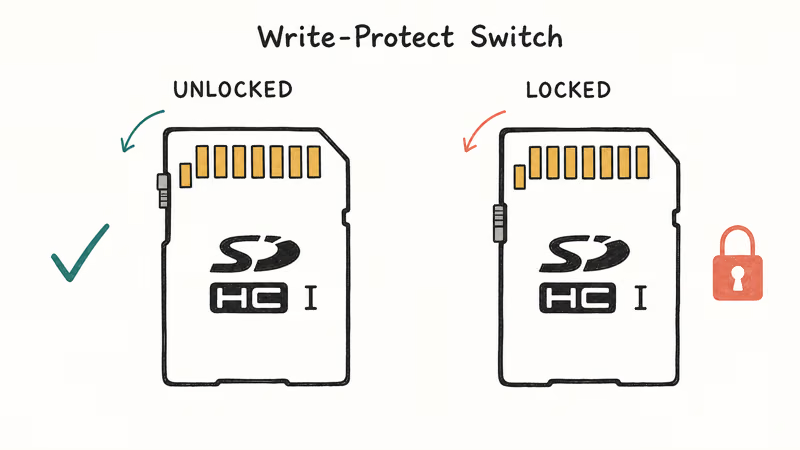
The locked write-protect switch deserves its own callout. Full-size SD cards have a tiny plastic slider on the left edge.
When the slider sits in the lower position, the card is read-only and many readers refuse to mount it at all. The switch is small enough to flip during a card-bag rummage, and the symptom is a card that just doesn’t appear.
File system mismatches drive the next batch of cases. A camera that formats to exFAT for cards over 32 GB, an Android phone that uses adoptable storage, or an action camera with a slightly nonstandard layout can all produce a card that shows up in Disk Management but doesn’t mount on the desktop.
In Windows, Microsoft’s documentation on the NTFS file system confirms that NTFS is intended for fixed disks rather than removable cards. Cards formatted to NTFS by accident often surface as unreliable.
Driver state is the last hidden cause. Realtek and Genesys card readers are common in laptops, and a Windows update can leave the driver in a half-installed state where the device shows in Device Manager but exposes no volume. Reinstalling the driver from the laptop vendor’s site clears that.
#How to Get the Card to Show Up on Windows 11
Open Disk Management first. Right-click Start, choose Disk Management, and look for a removable disk that matches your card capacity.
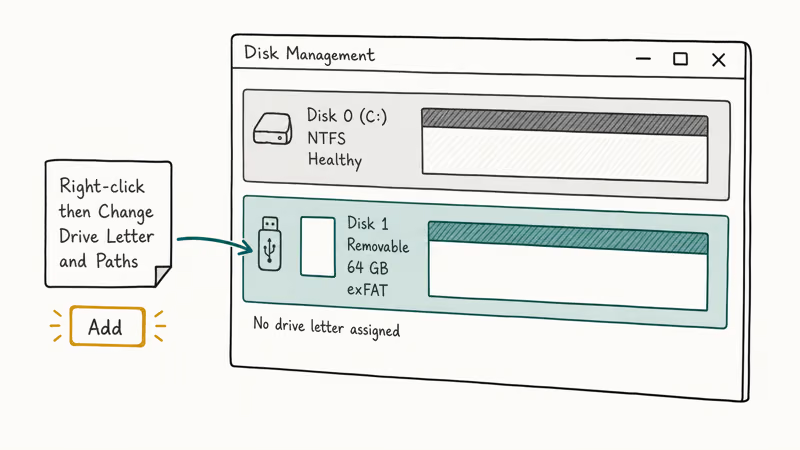
If the card appears here but not in File Explorer, you’re dealing with a missing drive letter or an unrecognized partition. That’s fixable in a minute. If the card doesn’t appear in Disk Management at all, the OS isn’t seeing the device, and the next step is hardware.
When the card appears without a drive letter, right-click the partition, choose Change Drive Letter and Paths, click Add, and pick a free letter. After a second or two, File Explorer will show the volume. On a fresh Windows 11 install the volume usually appears within a few seconds.
If Disk Management shows the card as RAW, the partition table is unreadable. Stop and copy what you can with a recovery tool before formatting. Reformatting is final.
According to the TestDisk and PhotoRec documentation from CGSecurity, PhotoRec recovers files even when the partition table is missing, which makes it a safer first move than reformatting.
If Disk Management doesn’t see the card, run chkdsk from an elevated command prompt against the drive letter the card last had, swap to a different USB port, and then reinstall the card reader driver. Back-of-the-tower ports are wired to the chipset directly and are more reliable than the front panel.
The chkdsk command and its switches are documented in Microsoft Learn’s chkdsk reference. If you reach this point and the card still won’t show, swap to a different reader before declaring the card dead. A reader can work perfectly with one card and silently drop another.
For broader USB reader and port issues, the steps in our USB device not recognized guide cover the same Windows-side symptoms with extra Device Manager and power management checks.
#How to Mount a Hidden Card on macOS
The macOS path is shorter than Windows. Disk Utility is the one tool you need, and it handles SD cards through the same framework it uses for external drives.
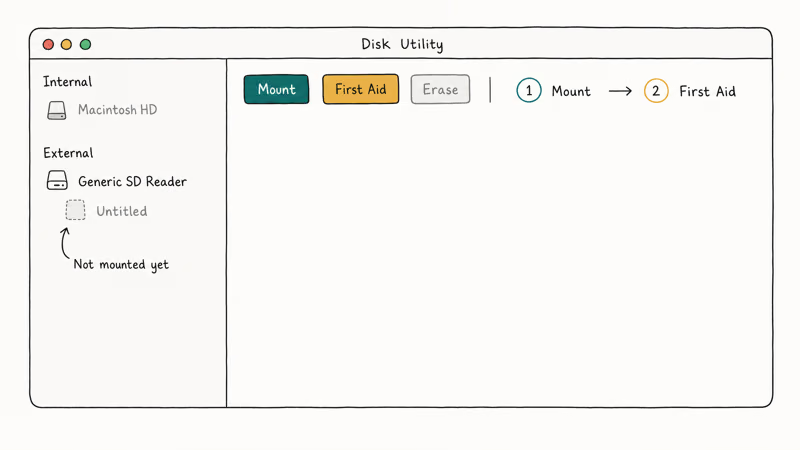
Open Disk Utility from Applications, Utilities, or Spotlight, and look at the left sidebar with View set to Show All Devices.
If the card hardware shows up but the volume below it doesn’t mount, click the volume and try Mount — when that fails, run First Aid against the volume to repair the file system in place.
Apple documents the First Aid procedure in its Disk Utility support article. First Aid checks the file system, repairs minor corruption, and remounts the volume if the repair succeeds. On exFAT cards that macOS refuses to mount, First Aid often brings them back clean without any data loss.
If First Aid fails, drop to Terminal and try diskutil list to confirm the system sees the card hardware. Then run diskutil mountDisk /dev/diskN against the right disk number.
Be careful with the disk number. Targeting the wrong disk with diskutil can erase a working drive. The list step is non-destructive and is the safe way to confirm the right target.
When the card refuses to mount even after First Aid and Terminal mounting, the card is structurally damaged or the file system is too corrupt for in-place repair. The next move is to try the card on Windows, where Disk Management can sometimes recover an exFAT layout that macOS can’t.
If the card itself is producing a “disk not readable” prompt at insert, our disk you inserted was not readable fix on Mac walks through the same family of macOS-side fixes.
#What to Do When Android Doesn’t Detect the Card
Android handles SD cards differently from desktop OSes. The first stop is Settings, Storage, and the SD Card entry.
If the card is listed there with a “Tap to set up” prompt, the phone has the hardware connection but doesn’t recognize the existing format. Tap into the card, choose Mount or Set Up, and follow the on-screen flow.
If the card is missing from Settings entirely, power off the phone, take the card out, look at the contacts under good light, and reseat the card. Phone SIM trays bend easily, and a card that sits a millimeter low won’t connect.
On phones like the Pixel 8a and Galaxy A55, seating issues are behind most intermittent dropouts.
When Android sees the card but the storage is unusable, you usually need to reformat it for the phone. The phone’s format is different from a Windows or camera format. Once a card is set up as Adoptable Storage, it’s encrypted to that specific device and unusable elsewhere until reformatted.
Our permanently format SD card on Android guide walks through the in-phone format steps and the trade-offs between portable and adoptable storage.
A card that has photos or video you want to keep should be removed from the phone and read on a computer first. Recovering data after a phone-side reformat is harder than recovering from a desktop format because Adoptable Storage encrypts the card.
#When the Card Won’t Show in a Camera or GoPro
Cameras are pickier than computers. A camera reads a small subset of file systems, expects specific folder structures, and often fails silently when the card exceeds its supported capacity or speed class. The most common camera-side failure is a card formatted on a computer with a layout the camera doesn’t understand, after which the camera refuses to mount the card until you reformat in-body.
Always format the card in the camera before first use. The SD Association recommends this in its memory card formatting guidance because in-camera formatting writes the exact directory layout the camera expects. Computer formatting works for some cameras and fails on others, with no reliable way to tell in advance which side of that line a given camera body sits on.
Spec mismatch is the other camera-side cause. A 4K-capable action camera needs a V30 or V60 card to record reliably, and a card rated UHS-I can choke on a UHS-II slot if it has metal contacts that interfere physically.
Our best microSD cards for GoPro Hero cameras roundup walks through the matching exercise, including sustained write speeds. Some name-brand cards fall short of the speed class needed for 4K60 recording.
Counterfeit cards are the most frustrating camera failure of all. A card sold as 256 GB that’s actually 32 GB will record fine until you cross the 32 GB mark, then start corrupting files. Counterfeits bought from open marketplaces routinely fail within the first hour of recording once they pass their real capacity. Verify any cheap card with FakeFlashTest on Windows or F3 on Mac and Linux before trusting it for paid work.
#How Do You Detect a Fake Card Before Trusting It?
Counterfeit SD cards are the silent killer of the cheap-card market. The card looks real, mounts on every OS, reports the advertised capacity, and only fails when the data crosses the actual physical capacity. By that time you may have already lost photos or video.
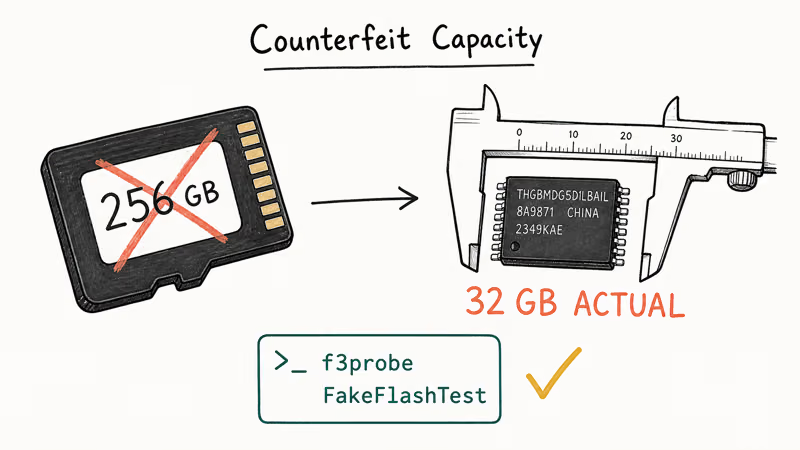
Two free tools confirm capacity directly.
FakeFlashTest on Windows writes test patterns across the entire claimed capacity and reads them back. F3 on macOS and Linux does the same with the f3probe and f3write commands. Both will report whether the card actually holds what it claims, and a counterfeit card will produce a clear capacity mismatch.
According to The Wirecutter’s coverage of counterfeit SD cards, running one of these tests on any new card from a marketplace seller is the only reliable defense against fake-capacity firmware that lies to every operating system at first glance.
Buy cards from authorized retailers whenever the data matters. B&H, Adorama, Best Buy, and the manufacturer’s own store carry first-party stock with verifiable supply chains, and they will replace a defective card without arguing about whether the seller listing was real or fulfilled by a third party. Major marketplaces are mixed inventory, and even fulfilled-by-marketplace listings can include counterfeit stock that ships from the same warehouse as the legitimate cards.
It’s common for a marketplace listing to mix genuine and counterfeit stock. A “SanDisk Extreme Pro” card can test as 32 GB physical capacity while reporting 256 GB to the OS, which would silently corrupt any video over the 32 GB mark.
#Recover Data Before Reformatting
Yes, you should always try recovery before reformatting. Reformatting overwrites the partition table and starts new file allocation, which makes recovery harder even though the underlying data may still be on the card.
The right order is: recover first, format second.
Free tools cover most cases. PhotoRec recovers files by signature without needing a working partition table, which is how it handles RAW disks that other tools refuse to scan. It runs on Windows, macOS, and Linux and is documented in the official PhotoRec step-by-step guide.
The trade-off is that PhotoRec recovers without filenames, so you get a folder of typed files rather than the original directory structure.
Paid tools recover the directory structure when the file system is partially readable; our best free SD card recovery roundup compares the leading options.
Stop using the card the moment you realize files are missing. Every additional write reduces what’s recoverable, and an Android phone or camera that mounts the card will write log files and thumbnails even when you aren’t actively saving photos.
#Reformatting the Card and Picking the Right Format
Reformat after recovery, after a fake-card check has come back clean, and after the card has been confirmed as physically working in a known-good reader. Reformatting a counterfeit, a physically failing, or a fake-capacity card just hides the underlying problem until you lose data again.
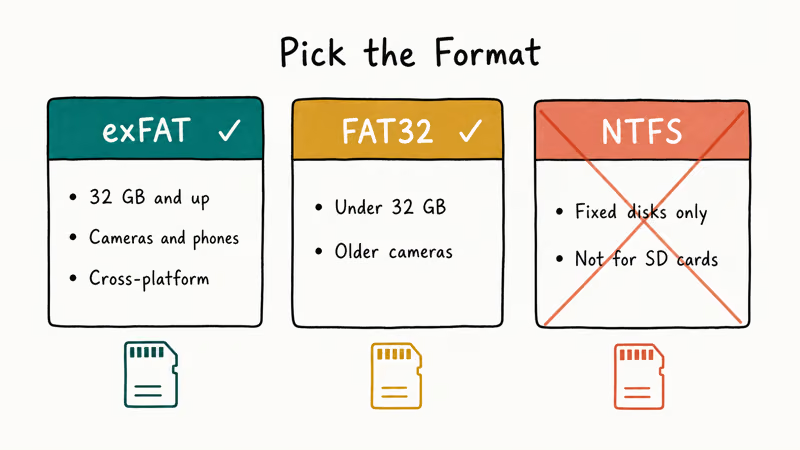
Pick the format the destination device expects.
exFAT is the right default for cards over 32 GB used in cameras and phones. According to Microsoft, exFAT supports single files larger than 4 GB and volumes far beyond the FAT32 ceiling, with cross-platform reads across Windows, macOS, and Android (see the exFAT specification documentation for the full layout). FAT32 is the right pick for cards under 32 GB and older cameras; NTFS is wrong for SD cards in almost every case.
Microsoft’s NTFS overview flags NTFS as the file system for fixed disks rather than removable media. Our quick format vs. full format comparison covers when each option matters; for an SD card you’ve just verified, quick format is fine.
Format in the device you intend to use most. A card that lives in a camera should be formatted in that camera. A card that lives in a phone should be formatted in that phone.
A card that needs to move between systems should be exFAT and formatted with the SD Association formatter, which writes the cleanest layout for cross-device use.
If formatting itself fails, the card is likely either physically damaged or counterfeit. Our SD card won’t format walkthrough covers the steps for breaking through a stuck format, including using diskpart on Windows to clean the partition table before retrying.
#Bottom Line
The fastest fix for an SD card not showing up is to swap the reader and port before changing anything else. A single hardware swap resolves most failures, and most of the rest come down to a missing drive letter on Windows or a Disk Utility mount on macOS. Save reformatting and recovery for the small minority of cases where the OS confirms the card hardware is present but the file system is gone.
The single most overlooked cause is the write-protect switch on full-size SD cards. Check it first.
If you’ve just bought a card from a marketplace and it’s acting strange, run FakeFlashTest or F3 on it before recording anything important. Counterfeit capacity is common enough at low price points that it’s the default suspect for any unbranded or surprisingly cheap card.
#Frequently Asked Questions
Why does my SD card show up in Disk Management but not File Explorer?
The card is connected and the OS sees it, but the volume has no drive letter. Right-click the partition in Disk Management, choose Change Drive Letter and Paths, and add a free letter. File Explorer will display the card within a few seconds. If you’ve just done a Windows update and the drive letter mapping reset, this same fix usually clears it.
Will a locked SD card show up at all on Windows or Mac?
Sometimes, but not reliably. Some readers mount a locked card as read-only; many refuse to mount it at all. The lock switch sits on the left edge of full-size SD cards. Slide it toward the contacts to unlock the card, then reinsert it.
Is it safe to format an SD card I can’t read?
Only after you’ve tried recovery first. Formatting overwrites the partition table and reduces what recovery tools can pull back. Run PhotoRec or a paid recovery tool against the card before formatting.
Why does the card work in my camera but not on my computer?
Cameras format cards in their own preferred layout, which a computer may misread when the card has been used heavily. The fix is to take the card out of the camera, read it on a computer with a known-good reader, then format the card back in the camera before the next shoot. Computer-side formatting before camera use isn’t always reliable, especially with cinema and high-bitrate action cameras that demand a specific allocation unit size and folder structure.
How do I tell if my SD card is counterfeit?
Run FakeFlashTest on Windows or F3 on macOS or Linux. A counterfeit card will report a real capacity much smaller than the label.
My SD card was working yesterday and is missing today. What changed?
The most common cause is a Windows or macOS update that swapped the card reader driver into a half-installed state. Check Device Manager on Windows or System Information on macOS, and reinstall the driver from the laptop manufacturer’s site. The second-most common cause is the card being ejected mid-write, which can leave the file system in an inconsistent state that the OS refuses to mount until First Aid or chkdsk repairs it.
Can I recover photos from an SD card that isn’t detected at all?
Only if the card hardware is still alive. If neither Disk Management nor Disk Utility shows the card, the controller chip on the card has likely failed and software can’t help. A specialist data recovery service can sometimes desolder the NAND chip and read it directly, but the cost runs to hundreds of dollars per card. If the card shows in Disk Management but is RAW, software recovery is still possible and PhotoRec is the right starting point.

Best Laptop for Running LLMs in 2026: Memory Comes First
The best laptop for running LLMs is a memory purchase first. Compare MacBook unified memory against NVIDIA laptop VRAM, and see what each tier really runs.

How to Run a Local LLM on Windows: A 2026 Setup Guide
Run a local LLM on Windows with LM Studio or Ollama. Pick a model that fits your GPU memory, keep every prompt offline, and skip the monthly bill.

Bluetooth Not Working on Snapdragon X? Fixes for 2026
Bluetooth not working on your Snapdragon X Copilot+ PC? Generic audio, mice, and keyboards work, but vendor apps often lack an ARM build. Fixes inside.

Docker Desktop and WSL2 Not Working on Snapdragon X? Fix It
WSL2 runs fine on Snapdragon X, but Docker Desktop ARM is Early Access and throws WSL errors. Use WSL2 plus native ARM64 Ubuntu and Docker Engine.