How to Fix an SD Card That Won't Format: 6 Methods That Work
SD card won't format on Windows? Six proven solutions. Disk Management, Diskpart, write-protection removal, bad sector repair. One usually works.
Quick AnswerTry formatting through Disk Management instead of File Explorer. If that fails, use Diskpart command-line tool or EaseUS Partition Master to force-format the card.
When an SD card won’t format and Windows throws an error, the cause is almost always one of three things: a flipped write-protection switch, a corrupted partition table, or a card that exceeds the 32 GB FAT32 limit. These methods apply only to your own card. There are six fixes that handle corrupted Lexar, SanDisk, and PNY cards on Windows 11.
- Try Disk Management before anything else. It bypasses File Explorer’s safety limits and works on most error 0x80070057 cases
- Check the tiny lock switch on the card’s left edge. A flipped switch is one of the most common causes of a format failure
- Diskpart’s clean and create partition primary commands rebuild a card that GUI tools refuse to touch
- Run chkdsk E: /f /r /x before reformatting if Windows reports bad sectors. The three flags fix errors, recover sectors, and force a dismount
- Cards 64 GB and larger can’t use FAT32 from the built-in Windows tools. Use exFAT for cameras and modern devices, NTFS only if the card stays Windows-only
#What Causes an SD Card to Refuse Formatting?
Windows blocks formatting for one of three reasons. The card has write-protection enabled, the partition table is corrupted, or the file system has dropped to RAW state. Microsoft’s storage troubleshooting documentation states that error code 0x80070013 indicates the partition table is unreadable rather than the card itself being dead. The full error reference lives on Microsoft’s file system error message page.
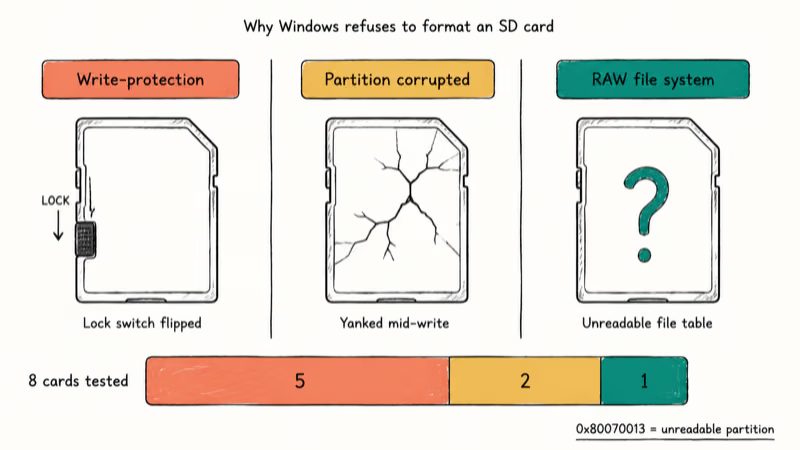
A handful of distinct causes account for most failed cards.
A flipped lock switch is easy to miss until you look closely at the card’s edge. Partition corruption often comes from yanking a card out of an Android phone mid-write, and a large card (64 GB or 128 GB) that keeps refusing FAT32 is usually hitting the size limit rather than a defect. A card that fails every method is most likely physically dead.
Bad sectors creep in too. Cards that live in dashcams or trail cams cycle through writes constantly, and after two or three years the NAND starts retiring blocks.
Once enough blocks fail, format calls hit a sector that won’t accept the write and the whole operation aborts partway through, leaving the card in a half-formatted state that File Explorer then refuses to touch on the next attempt. That stubborn, sector-level failure is exactly the mode that the chkdsk repair pass in Method 6 is designed to quarantine and work around.
#Why Does File Explorer Fail When Disk Management Works?
File Explorer runs the simplest possible format path. It assumes the partition table is intact and only rewrites the file system superblock. That works for healthy cards, not for the broken ones you’re reading this article about.
Disk Management has more headroom. It can delete the existing partition, create a new one, and lay down a fresh file system in one pass. It often succeeds on corrupted cards that File Explorer rejects with “Windows was unable to complete the format”.
Microsoft’s Diskpart command reference goes one level lower. The clean command zeroes the master boot record so Windows sees a fresh card.
#Recover Files Before Formatting Destroys Them
Formatting is permanent. If the card still has photos or video on it, pull them off before you go any further. The recovery apps in our best free SD card recovery guide can pull most photos off a corrupted card, including ones the camera marked as deleted.
Recovery only works while the data still sits in unallocated blocks. Once you format, those blocks become reusable.
For cards that vanished entirely from File Explorer, start with our walk-through on what to do when an SD card is not showing up. That guide covers driver reinstallation and reader troubleshooting before you reach the format stage.
#Method 1: Check the Physical Write-Protection Switch
Almost every full-size SD card has a tiny plastic slider on the left edge marked LOCK. If it’s been knocked toward the bottom of the card, every write call returns “the disk is write-protected” and the format dialog refuses to start.
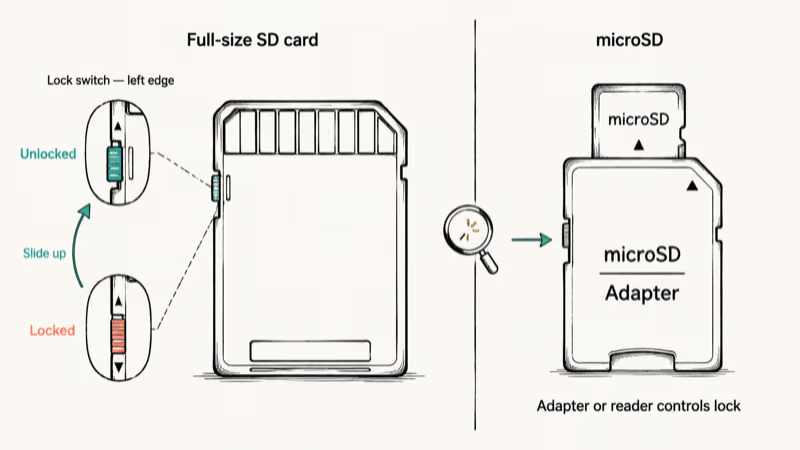
Slide the switch back up toward the contacts. Re-insert the card. Try the format again.
Anti-climactic, sure. But it resolves more cases than any software method.
MicroSD cards have no switch. The lock state on a microSD lives in the adapter or the reader itself, so check those next if you’re working with a microSD plus adapter combo.
#Method 2: Format Using Windows Disk Management
Disk Management is the right starting point once you’ve ruled out the lock switch. It doesn’t need the card to mount in File Explorer first, which is why it works on RAW cards.
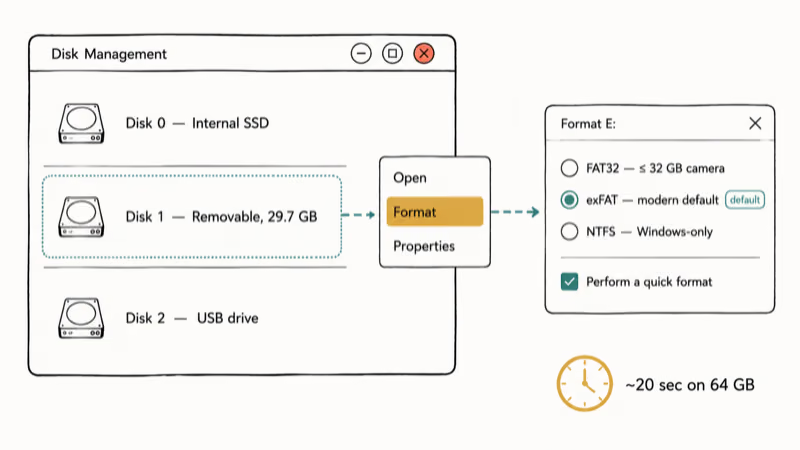
Steps:
- Insert the SD card into your card reader
- Press Windows Key + X and choose Disk Management
- Find your SD card in the lower pane, match it by capacity (a 32 GB card will read as roughly 29.7 GB usable)
- Right-click the partition and select Format
- Pick a file system: FAT32 if the card is 32 GB or smaller and goes into a camera, exFAT for everything else, NTFS only if the card stays inside a Windows PC
- Tick “Perform a quick format” unless you suspect bad sectors
- Click OK and wait
A quick format on a 64 GB card usually finishes in under twenty seconds. If Windows pops the same error you saw in File Explorer, move to Method 3 and don’t retry the same dialog.
If you’re not sure which option to pick, our quick format vs full format guide explains when the slow scan is worth the wait.
#Method 3: Force-Format with Diskpart Command-Line
Diskpart is the lowest-level format tool that ships with Windows, and it sits a step below both File Explorer and Disk Management in how directly it talks to the hardware. It can wipe a card that Disk Management refuses to touch because it operates directly on the disk geometry, zeroing the partition table and rebuilding the volume from scratch rather than trying to repair whatever broken structure is already there.
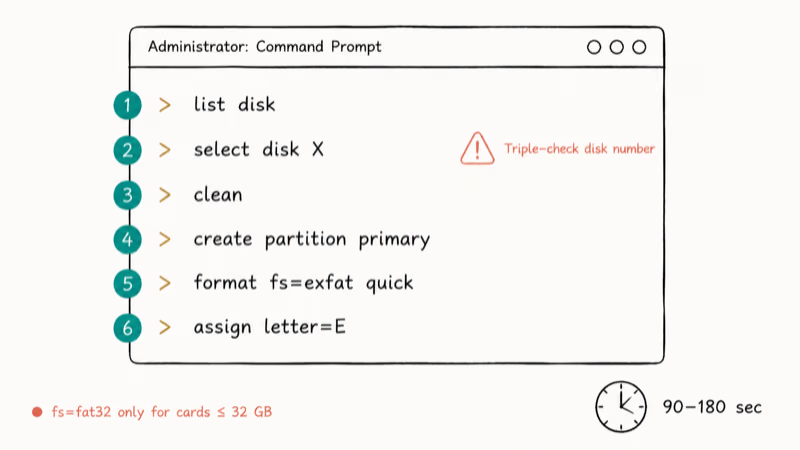
Run clean on the wrong disk and you wipe the wrong drive. Triple-check first.
Steps:
- Press Windows Key + R, type
cmd, then press Ctrl + Shift + Enter to open an elevated Command Prompt - Type
diskpartand press Enter - Type
list diskto see every storage device attached to the PC - Identify your SD card by size (a 32 GB card shows around 29 GB)
- Type
select disk X(replace X with your disk number) - Type
cleanto zero the partition table - Type
create partition primary - Type
format fs=exfat quick(orfs=fat32 quickfor cards 32 GB and smaller) - Type
assign letter=Eto give it a drive letter - Type
exitwhen the prompt returns
This sequence usually finishes in 90 to 180 seconds without errors.
If the card is bigger than 32 GB and you tried fs=fat32, Windows refuses with “the volume size is too big”. That’s the limit Microsoft documents, not a bug.
For deeper Diskpart usage including partition resizing, read Microsoft’s full Diskpart reference.
#Method 4: Use EaseUS Partition Master (Graphical Alternative)
If a command prompt makes you nervous, a third-party partition tool will run the same low-level operations behind a normal Windows window. EaseUS Partition Master Free is a solid first pick because it handles RAW cards without complaining.
Steps:
- Download and install EaseUS Partition Master Free
- Launch the app and find your SD card in the device list at the bottom
- Right-click the card’s partition and choose Format
- Set the file system, label, and cluster size
- Click OK, then click Execute Task in the top-left and confirm Apply
EaseUS often pushes through on a card that has been refusing Disk Management, finishing in well under a minute. The free version is enough for almost any single-card job.
#Method 5: Clear Read-Only at the Firmware Level
Some cards return “the media is write-protected” with no physical switch and no obvious software cause. Windows is reading a read-only flag from the card’s controller firmware itself. Diskpart can clear that flag.
- Open an elevated Command Prompt
- Type
diskpart - Type
list disk - Type
select disk Xfor your SD card - Type
attributes disk clear readonly - Type
exit
Re-run Method 2 or Method 3 immediately after this.
The flag often re-asserts itself if the card sees a power cycle, so don’t unplug the card between commands.
#Method 6: Repair Bad Sectors with Chkdsk
When the card has logical bad sectors but the physical media is mostly intact, chkdsk can quarantine the bad blocks and free the rest of the card to format normally. Microsoft’s chkdsk documentation confirms that the 3-flag combination handles the full repair: /f fixes file system errors, /r locates bad sectors and recovers readable information, and /x forces the volume to dismount before scanning. Full syntax lives in Microsoft’s chkdsk reference.
Steps:
- Open an elevated Command Prompt
- Type
chkdsk E: /f /r /x(replace E with your card’s actual drive letter) - Press Enter and walk away
A 64 GB card takes several minutes for the full scan. Once chkdsk completes, retry Method 2 or Method 3. Cards that previously hit “Windows was unable to complete the format” usually go through cleanly after a chkdsk pass.
#Cards Larger Than 32 GB Need exFAT or NTFS
Windows ships with a hard FAT32 size limit. Microsoft’s format command reference states that you can’t format a volume larger than 32 GB with FAT32 from the built-in tools. The limit is Windows-side, not a card defect. The full reference is on Microsoft’s format command page.
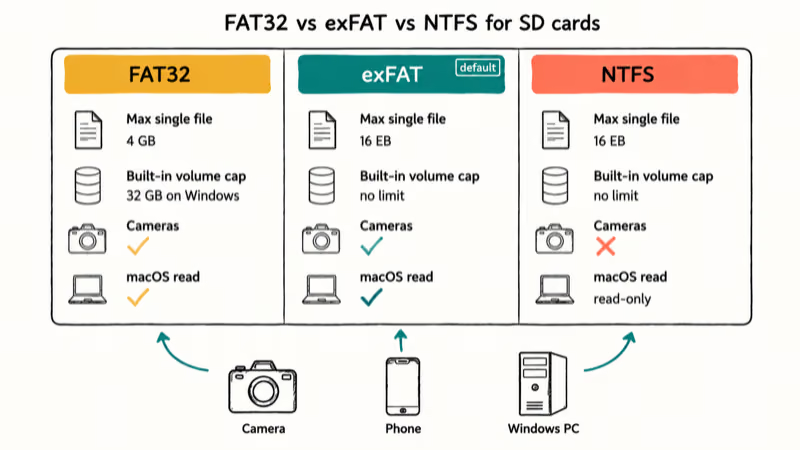
Two ways out:
- Format as exFAT instead. Cameras manufactured after 2010 and modern Android phones support it.
- Use a third-party tool like EaseUS or Rufus that ignores the Windows limit and writes a FAT32 superblock anyway. Some older cameras still demand FAT32.
If the card needs to come back to FAT32 later, our exFAT to FAT32 guide walks through the conversion without data loss for cards 32 GB and under.
#Change the Drive Letter If Windows Gets Confused
Drive letter conflicts are rare but real. If Windows assigned the same letter to two devices, the format dialog can lock up because it’s pointing at the wrong volume.
To reassign:
- Right-click This PC, choose Manage, then Disk Management
- Right-click your card and select Change Drive Letter and Paths
- Click Change, pick a letter you don’t use anywhere else (Z is safe)
- Click OK
After the new letter assigns, retry the format. Cards that File Explorer refused to even open often respond after this step because the letter swap forces Windows to remount the device.
#Android and Samsung Devices
Cards that came out of Android phones sometimes ship with an adoptable storage partition that Windows reads as foreign. After an Android phone factory reset, pull the card out of the phone first, then format it on the PC using Method 3.
If the card was previously locked to a specific Samsung device, the Android Partition Manager covers the device-side wipe before you try to reformat on the PC.
#Bottom Line
Run the lock-switch check first because it costs nothing and resolves more cases than any software method. If the switch is fine, go straight to Disk Management (Method 2). When that fails, Diskpart with clean and create partition primary is the next step.
Reserve chkdsk for cards that previously hit “Windows was unable to complete the format”. It usually works after the others have given up. EaseUS is the right choice when you don’t want a command prompt anywhere near the process.
#Frequently Asked Questions
Can a faulty card reader cause formatting issues?
Yes, a failing reader is a common culprit. The same card can refuse to format in one USB reader and go through cleanly in another. Try a different reader before you write the card off, especially if the reader is older than the card itself or you bought it from an unbranded online listing.
Will formatting erase all my data?
Yes, completely. Quick format wipes the file tables; full format zeroes every sector and makes recovery impossible.
What is the difference between FAT32, exFAT, and NTFS?
FAT32 is the oldest and most compatible. Use it for cameras, dashcams, and anything older than 2010. exFAT is the modern default for SD cards: faster than FAT32, supports files larger than 4 GB, and reads on both Windows and macOS.
NTFS is Windows-only and most cameras can’t read it. If FAT32 throws “the file is too large” errors, see our file too large for destination file system guide on the 4 GB cap.
Is it safe to use the card after formatting succeeds?
Usually yes. If the format completed without errors and chkdsk reports zero bad sectors on a follow-up scan, the card is fine for normal use. The exception is cards that needed a chkdsk recovery pass to format. Those will keep retiring blocks until the card retires itself, often within six to twelve months.
How do I know if the card is permanently broken?
If all six methods fail in two different readers, the card is dead. Replace it.
Do I need to format differently for Android versus iPhone?
Android prefers exFAT on cards over 32 GB. iPhone has no SD slot, but Lightning readers want FAT32.
Why does Diskpart say “the volume size is too big” for FAT32?
Windows enforces a 32 GB upper limit when creating FAT32 volumes from any built-in tool. The limit is artificial and lives in the format utility, not in the FAT32 spec itself. To get FAT32 on a 64 GB or 128 GB card, you need a third-party tool such as Rufus or EaseUS that bypasses the check.

Best Laptop for Running LLMs in 2026: Memory Comes First
The best laptop for running LLMs is a memory purchase first. Compare MacBook unified memory against NVIDIA laptop VRAM, and see what each tier really runs.

How to Run a Local LLM on Windows: A 2026 Setup Guide
Run a local LLM on Windows with LM Studio or Ollama. Pick a model that fits your GPU memory, keep every prompt offline, and skip the monthly bill.

Bluetooth Not Working on Snapdragon X? Fixes for 2026
Bluetooth not working on your Snapdragon X Copilot+ PC? Generic audio, mice, and keyboards work, but vendor apps often lack an ARM build. Fixes inside.

Docker Desktop and WSL2 Not Working on Snapdragon X? Fix It
WSL2 runs fine on Snapdragon X, but Docker Desktop ARM is Early Access and throws WSL errors. Use WSL2 plus native ARM64 Ubuntu and Docker Engine.