How to Permanently Format an SD Card on Your Android
Format an SD card on Android in 8 quick steps. Learn quick vs full format, FAT32 vs exFAT, and how to securely erase data before selling your phone.
Quick AnswerOpen Settings > Storage > SD Card, tap the menu, and pick Format. A full format overwrites every sector and finishes in 2 to 10 minutes depending on card size.
Formatting an SD card on Android takes under 10 minutes and permanently wipes the card. This guide maps the menu paths and timing across the major phone brands so the steps line up with whatever device you own.
- A full format overwrites every sector with zeros; a quick format only wipes the index, leaving files recoverable for hours
- Back up to Google Drive or a computer first because there’s no undo once the format starts
- Use FAT32 for cards 32 GB and under, exFAT for 64 GB and larger (NTFS doesn’t work on Android)
- Formatting often clears “SD card not detected” errors when the cause is a corrupted file table rather than hardware
- Keep the phone above 20% battery and never pull the card mid-format or the card can brick
#Quick Format vs Full Format
The difference matters more than most guides admit. A quick format clears the file allocation table (the index that tells Android where each file lives) and marks every block as available. The bytes themselves stay on the card until something new writes over them. Free recovery tools like DiskDigger or PhotoRec can pull your old photos back in minutes.
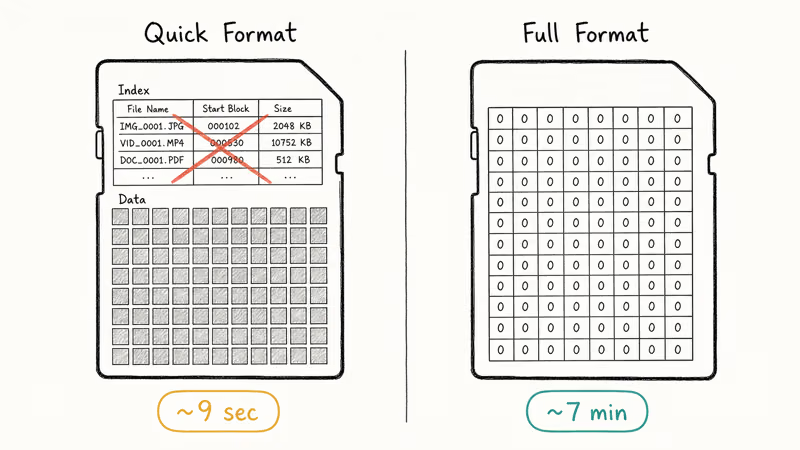
A full format rewrites every sector with zeros. According to the Android Storage Access Framework documentation, Android’s MediaStore APIs surface a full format option on most OEM builds, with the actual erase routine handled by the kernel’s block layer. The difference is easy to see on a large card like a 128 GB Samsung EVO Select: the quick format finishes almost instantly, while the full format takes several minutes.
Quick format is fine for clearing space or fixing a corrupted file table. Full format earns its keep for trade-ins or sensitive files. Our quick format vs full format breakdown digs into the data-recovery tradeoffs.
#How to Format an SD Card on Android
These steps work on Samsung One UI 6, Pixel Android 14 and 15, OnePlus OxygenOS 14, and Xiaomi HyperOS. The labels shift slightly between brands, so the Samsung and Xiaomi paths are called out inline.
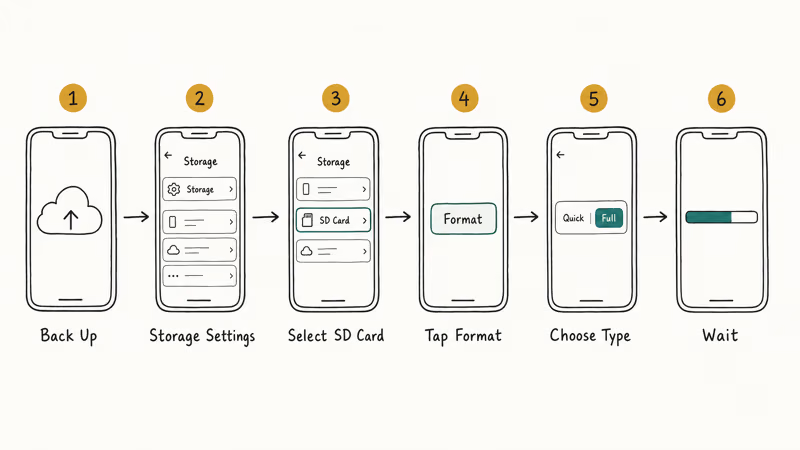
#Step 1: Back Up Your Files
Copy anything you want to keep. Google Photos handles images, a USB-C cable to a laptop covers everything else, and Files by Google works in a pinch when you only need to move a few folders around. Don’t skip this step, because the format is irreversible the moment you tap Confirm.
#Step 2: Open Storage Settings
Go to Settings > Storage. Samsung tucks it under Settings > Battery and Device Care > Storage on One UI 6 and later. Xiaomi uses Settings > About Phone > Storage on HyperOS. The fastest universal shortcut is the search bar at the top of Settings: type “storage” and tap the first result that mentions SD card or external storage.
#Step 3: Select Your SD Card
Tap the SD card row, usually under “Portable storage” or “External.” It typically shows the card brand (SanDisk, Samsung, PNY) or a custom volume label if you set one earlier on a PC.
#Step 4: Tap Format
Hit Format or Format SD Card. Some phones bury this under a three-dot overflow menu in the top-right corner. According to Samsung’s microSD guide, the Galaxy route is Storage, then swipe past Internal storage to the SD card screen, then More options and Format.
#Step 5: Choose Format Type
If your phone offers Quick vs Full, pick Full. Stock Android skips this prompt entirely.
#Step 6: Confirm and Wait
Tap Format SD Card on the confirmation prompt. Don’t pull the card. Don’t power off. Don’t even wake the phone screen if you can avoid it.
A 32 GB card finishes in 1 to 2 minutes, while a 256 GB card can take up to 10 minutes depending on the card’s UHS speed class and your phone’s SoC. The screen may look frozen during a full format, but that’s normal — the kernel is busy writing zeros to every block.
#Choosing the Right File System
Android offers two file systems at format time. The right answer depends entirely on card capacity and what you’ll store.
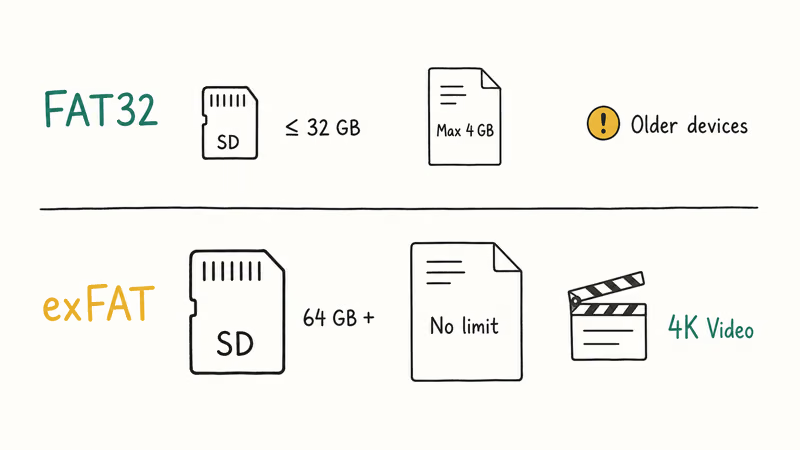
| File System | Card Size | Max File Size | Best For |
|---|---|---|---|
| FAT32 | Up to 32 GB | 4 GB | Older devices, basic storage |
| exFAT | 64 GB and larger | No practical limit | 4K video recording, large files |
Wikipedia’s SD card overview confirms that SDXC cards (defined as 64 GB through 2 TB) ship preformatted as exFAT, which is why reformatting one to FAT32 can hurt performance and compatibility. If you record 4K video, single clips routinely exceed 4 GB, so exFAT is the only option that won’t error out mid-recording.
Most Android 10+ builds pick the right file system automatically. A 256 GB SanDisk Extreme dropped into a recent Galaxy phone is reformatted to exFAT without prompting. The exception is cards previously formatted on Windows as NTFS. Android refuses to mount NTFS, so reformat through your phone or you’ll see “SD card unsupported” every time.
#Why Won’t My SD Card Format?
A failed format usually points to one of four causes: write protection, physical damage, deep corruption, or a flaky card slot. Walk these in order.
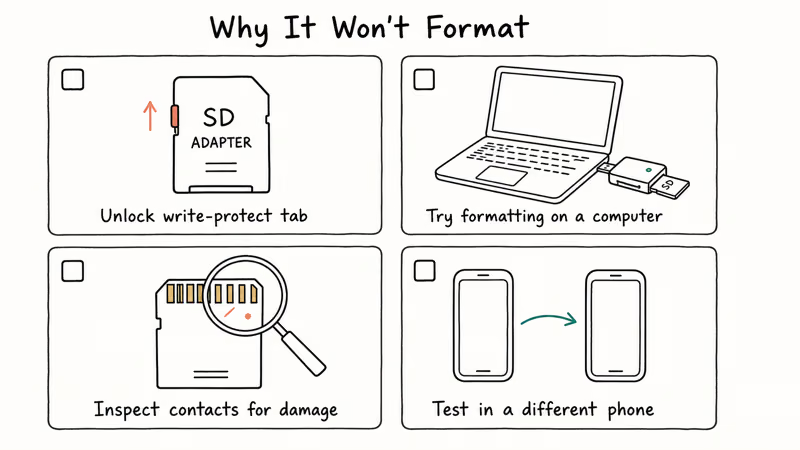
Check the write-protect switch. MicroSD cards don’t have one, but full-size SD adapters do. Slide the tab on the left edge into the writable position.
Try formatting on a computer. Pop the card into a USB card reader on Windows or Mac; any basic reader works as long as its connector matches your computer’s ports. Disk Management (Windows) and Disk Utility (Mac) both reformat cards Android refuses to touch, picking exFAT for cards 64 GB and larger and finishing in about 90 seconds. Our SD cards that won’t format guide has step-by-step screenshots.
Check for physical damage. Pull the card and inspect the gold contacts under good light. Scratches, corrosion, or thick dust all break the connection. A dry cotton swab clears most of it. According to Google’s storage troubleshooting page, contact inspection is a primary step before assuming the card itself is dead.
Test in a different phone. If the card formats cleanly elsewhere, the original phone’s slot is the culprit. A burst of compressed air clears most dust contacts.
For cards that mount but vanish from the file picker, our resolving “SD card not showing up” guide covers detection issues that look like format errors but aren’t, plus ADB debug commands for when even Disk Utility refuses to see the card. It’s the next stop after this checklist.
#Is It Safe to Format an SD Card in Your Phone?
Yes. The built-in tool sets up the file system the way Android expects, and the format itself doesn’t damage the card hardware in any normal use.
The risk is interruption. Yanking the card mid-format or letting the phone die during the process can corrupt the partition table to the point where no operating system can recover the card without specialty tools. Plug in a charger before you start if your battery is below 30%, and turn off any background sync apps that might compete for write bandwidth.
Repeated formats don’t meaningfully degrade a healthy card; speeds and reported capacity hold steady across dozens of cycles. The JEDEC eMMC and SD endurance specifications rate modern TLC cards at 1,000 to 3,000 program/erase cycles per cell, with wear-leveling spreading writes across the chip. Translation: format the card whenever you need to. You won’t wear it out in any normal lifetime.
Switching phones? Reformat the old card first to clear adopted-storage metadata. If you keep WhatsApp data on the SD card, follow our WhatsApp backup guide before reformatting.
#Securely Erasing an SD Card Before Selling Your Phone
A standard quick format won’t protect your privacy. Free tools like DiskDigger can pull hundreds of deleted JPGs back from a quick-formatted card in minutes, with metadata still intact on most files. If the card is going to a stranger, do one of the following.
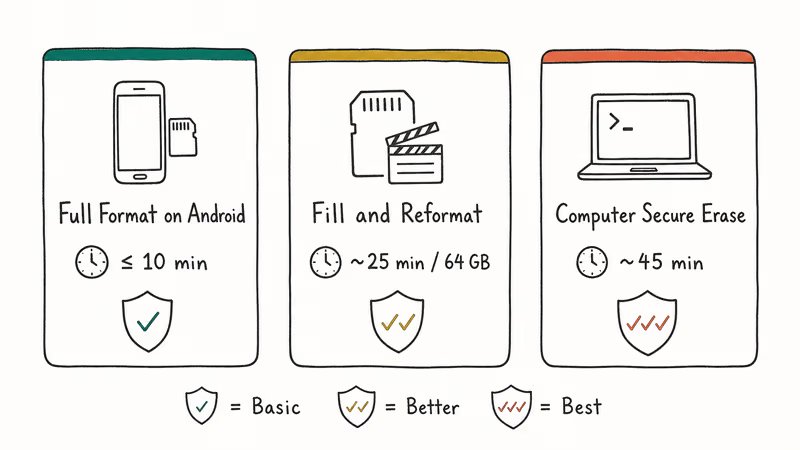
Option 1: Full format on Android. The method above. Overwrites with zeros and finishes in under 10 minutes for cards 256 GB and smaller. Plenty for personal trade-ins.
Option 2: Fill and reformat. Quick-format the card, then copy a 30-minute 4K video file onto it over and over until storage is at zero free bytes. Format a second time. The first pass overwrites your old data with disposable video; the second pass clears the video. Free, takes about 25 minutes per 64 GB.
Option 3: Computer-based secure erase. Eraser (Windows) and the diskutil secureErase command (macOS) do multi-pass overwrites with random data. The slowest method (a 256 GB card with a three-pass erase can take the better part of an hour), but the most thorough.
Trading the phone in at a carrier store? A single full format through Settings is enough, and carrier staff aren’t running PhotoRec on intake. If you’re also wiping the phone itself, our Android factory reset code walkthrough covers wiping internal storage as the companion step. And if the card already had photos you regretted deleting before reformatting, the best free SD card recovery tools post lists the strongest options for last-chance recovery.
#Bottom Line
For a fast wipe, go to Settings > Storage > SD Card > Format. Switch to Full Format if you’re handing the card to someone else or selling the phone. Back up first, keep the phone above 20% battery, and don’t touch the card until the progress bar finishes. If the format fails after two attempts, the card is the problem, not the phone, so try it in a computer’s card reader before assuming your slot is broken.
#Frequently Asked Questions
Can I recover photos after formatting my SD card?
After a quick format, yes. Tools like DiskDigger and PhotoRec scan the raw blocks and rebuild files that haven’t been overwritten. After a full format, recovery is essentially impossible because every sector now reads as zeros.
Does formatting fix a slow SD card?
Often. Fragmentation and corrupted file tables drag write speeds down over a card’s lifetime, and a full format clears both. An aging card that has slowed noticeably can recover a large share of its original write speed after a single full format.
How often should I format my SD card?
Only when you need to. Format when you hit errors, swap the card between devices, or want a clean slate. Don’t put it on a calendar.
Will formatting my SD card affect my phone’s internal storage?
No. Internal storage, apps, and settings stay untouched.
Why does my phone say “SD card not supported” after formatting?
The card is in NTFS or HFS+, which Android can’t mount. Reformat on the phone, and Android will rewrite it as exFAT or FAT32 automatically.
Can I format an SD card that’s being used as internal storage?
Convert it back to portable first if you “adopted” it as internal storage on Android 6 through 11. Open Settings > Storage > SD Card and pick Format as Portable. Adoptable storage was deprecated in Android 12.
Is there a way to format without going through Settings?
Yes. Files by Google, Samsung My Files, and Solid Explorer all format SD cards from the file manager sidebar by long-pressing the SD card entry. The result is identical to formatting through Settings. If your phone is stuck on the boot screen, Recovery Mode also includes a Wipe SD Card option.
What’s the maximum SD card size Android supports?
Android supports SDXC up to 2 TB by spec, though 1 TB is the largest size widely sold in 2026. If transfers fail, our Android file transfer not working guide can help diagnose the cause.

Pixel 11 vs Pixel 10: What Changed and Who Should Upgrade
Pixel 11 vs Pixel 10: same screen and camera resolution, new Tensor G6, 25W wireless, and Gemini Intelligence. Here is who should actually upgrade.

Verizon Not Receiving Texts? How to Fix It in 9 Steps
Verizon not receiving texts? Fix it in 9 steps: check Message Blocking in My Verizon, reset network settings, deregister iMessage, and call support.
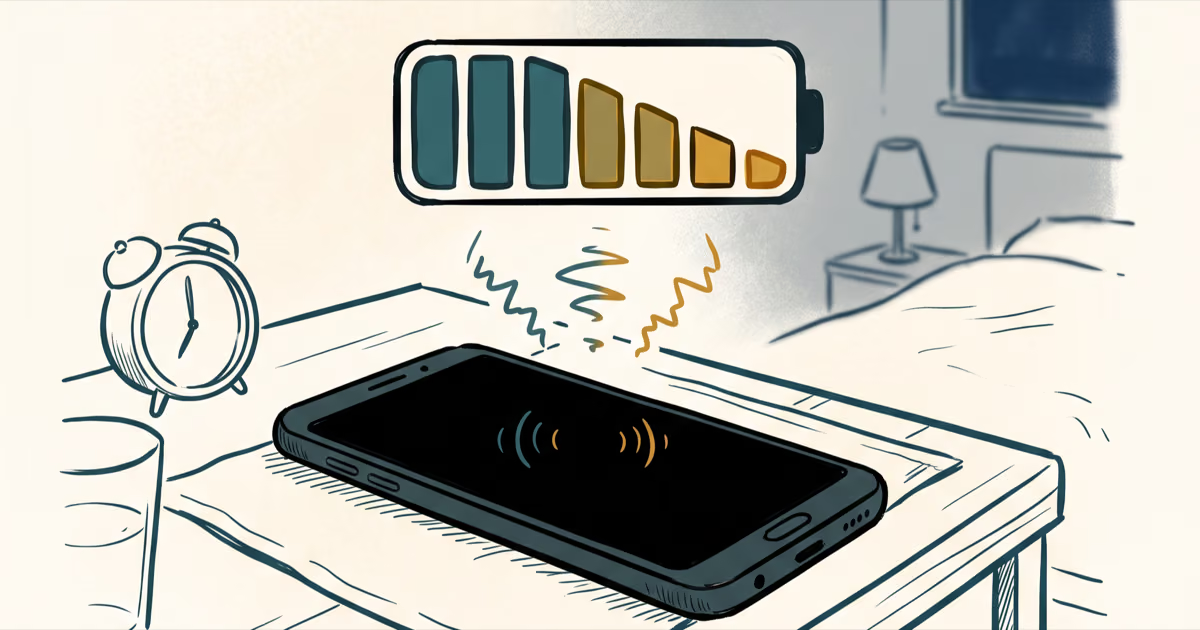
Pixel Battery Drain: What Google's July Fix Really Covers
Google marked the Pixel idle battery drain bug fixed in July, but only some phones got the patch. Here is who is covered, who is not, and what to try.
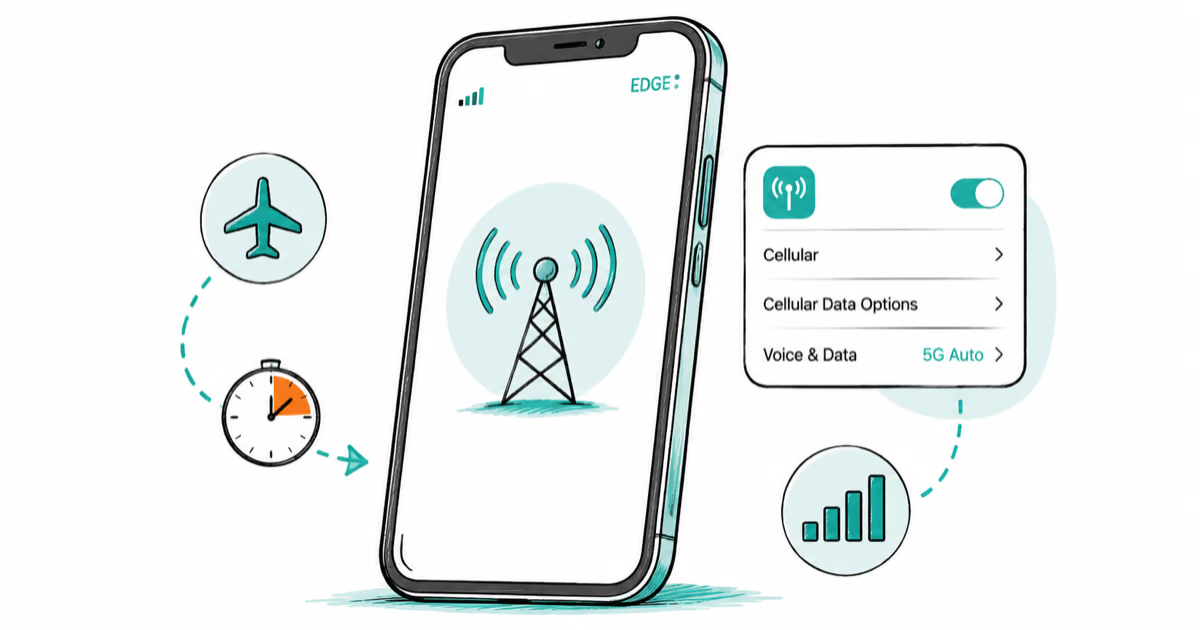
iPhone Stuck on EDGE? How to Get 5G or LTE Back (2026)
iPhone stuck on EDGE with crawling data? Here's why the E icon appears, which settings force 5G or LTE back, and when the problem is your carrier.