Fix REGISTRY_ERROR Blue Screen on Windows 10 and 11
Fix Windows REGISTRY_ERROR (stop code 0x00000051) blue screen with Safe Mode, chkdsk, DISM, sfc, System Restore, and disk plus RAM diagnostics in 2026.
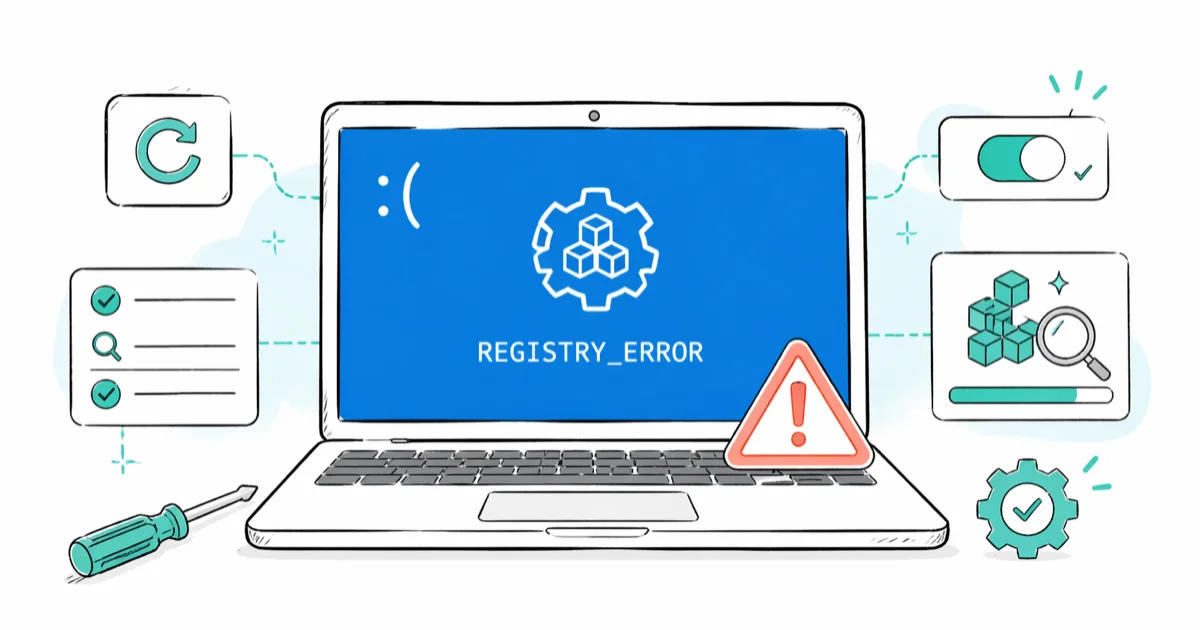
Quick AnswerREGISTRY_ERROR (Bug Check 0x00000051) is a Windows BSOD caused by registry corruption, failing storage, or bad RAM. Fix it by booting to Safe Mode, then running chkdsk /f /r, sfc /scannow, and DISM /RestoreHealth in that order. If the error persists, run Windows Memory Diagnostic and check disk SMART status before resorting to System Restore or a repair install.
REGISTRY_ERROR is a Windows blue screen of death tied to bug check code 0x00000051. It points to registry corruption, registry I/O failure, or hardware feeding bad data into the registry hive files. The system halts to protect itself.
The standard recovery sequence covers the common root causes of this stop code, from a SATA SSD showing early SMART warnings to a failing DDR4 stick. The fixes below are ordered from least invasive to “rebuild the OS.”
- Bug Check 0x00000051 means a registry hive failed to load, write, or verify, per Microsoft’s official bug check reference
- Boot into Safe Mode first so registry hives are not actively locked, then run chkdsk /f /r on the system drive
- DISM /RestoreHealth must run before sfc /scannow on Windows 10 1709+ and Windows 11, because sfc pulls its source from the component store DISM repairs
- Auto-backup of the registry to RegBack was disabled by default starting in Windows 10 version 1803, so most modern systems don’t have a clean RegBack copy to restore
- If chkdsk reports unrecoverable bad sectors or memory diagnostic finds errors, replace the failing hardware before reinstalling Windows
#What Does REGISTRY_ERROR Mean on Windows?
REGISTRY_ERROR is a stop code that fires when the kernel fails an operation against one of the registry hive files in C:\Windows\System32\config\. According to Microsoft Learn’s bug check 0x51 reference, the error indicates a severe registry problem, a registry I/O failure, or registry corruption that the kernel can’t safely roll back.
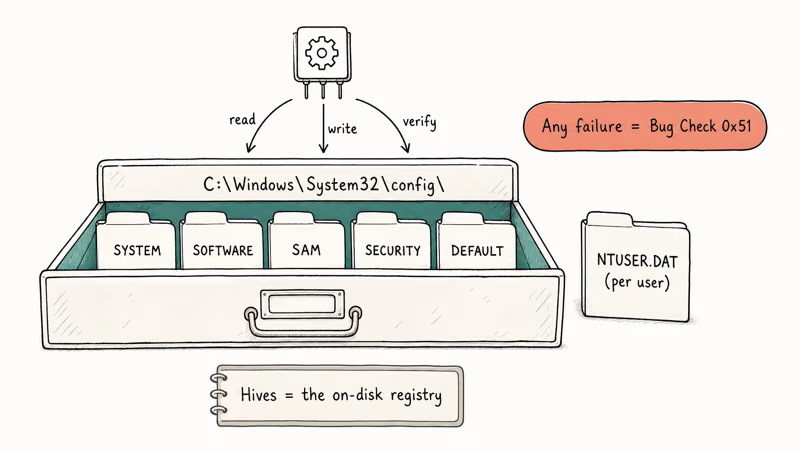
The hive files involved are SYSTEM, SOFTWARE, SAM, SECURITY, DEFAULT, and the per-user NTUSER.DAT. When any of these can’t be read, written, or validated, Windows triggers the BSOD instead of operating on a half-loaded hive.
One stop code can come from very different root causes: an SSD with reallocated sectors slowly eating the SOFTWARE hive, a bad DIMM flipping bits during registry writes, or a stuck Windows update that left the SOFTWARE hive half-committed. So “REGISTRY_ERROR” usually means something below the registry layer is wrong, not the registry itself.
#What Triggers Bug Check 0x00000051?
The common triggers fall into four buckets:
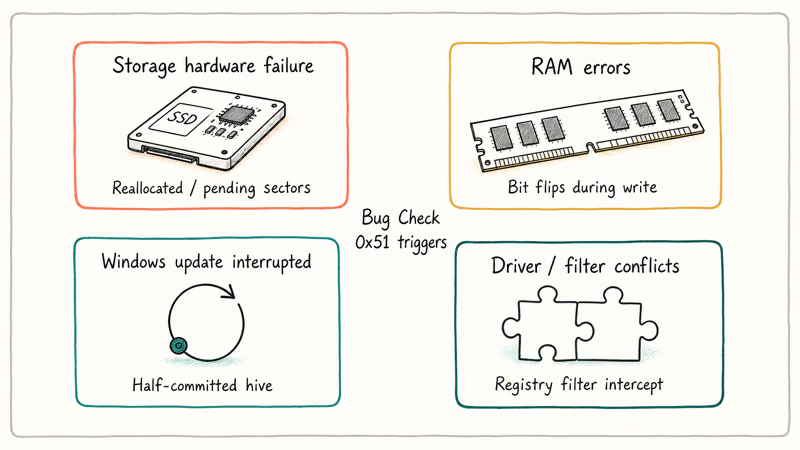
- Storage hardware failure. Reallocated sectors, pending sectors, or controller errors on the drive holding
C:\Windows\System32\config\. This is the most common single cause of the error. - RAM errors. A flaky DIMM corrupts registry writes mid-flight. The error tends to appear at random times, not on a single trigger.
- Recent Windows updates. A failed or interrupted cumulative update can leave the SOFTWARE or COMPONENTS hive partially written. Power loss during a major update has the same effect.
- Driver and filter conflicts. Registry filter drivers (sometimes installed by older antivirus suites or backup software) can intercept and break hive operations.
Windows update interruptions are a frequent trigger on laptops that get unplugged mid-install. If you also see the potential Windows Update database error detected message in Update Troubleshooter, treat both errors as related and run DISM before anything else.
#Fix 1: Boot Into Safe Mode
Always start here when REGISTRY_ERROR is recurring. Safe Mode loads only core Windows drivers and services, which keeps the registry hives unlocked and lets repair tools work.
If Windows still boots to the desktop, hold Shift and click Restart from the Start menu. If it doesn’t boot, force three failed boots in a row to trigger the Windows Recovery Environment, then go to Troubleshoot, Advanced options, Startup Settings, Restart, and pick option 4 for Safe Mode or 5 for Safe Mode with Networking.
According to Microsoft Support’s Safe Mode documentation, Windows uses a minimal driver set in Safe Mode, which is what you need before touching the registry. Run the next four fixes from here, in order.
#Fix 2: Run chkdsk /f /r on the System Drive
File-system damage on the partition holding C:\Windows\System32\config\ is one of the single most common causes. chkdsk repairs the file system structure and remaps bad sectors so the registry hive files become readable.
Open Command Prompt as administrator. Run:
chkdsk C: /f /rThe /f flag fixes file-system errors. The /r flag locates bad sectors and tries to recover readable data. Because the system drive is in use, Windows offers to schedule chkdsk for the next reboot. Type Y, then restart.
A full /r pass can take from 30 minutes to several hours, depending on drive size and health. An SSD with a few pending sectors runs long, and an aging hard drive riddled with bad clusters runs far longer. Don’t interrupt it.
If chkdsk reports unrecoverable bad sectors, the drive itself is failing. Skip to Fix 7 to confirm with SMART data, then replace the drive. Running more software fixes on dying hardware just delays the inevitable.
#Fix 3: DISM /RestoreHealth Before sfc /scannow
Order matters. Most guides get this backwards. On Windows 10 version 1709 and later, including all Windows 11 builds, sfc reads its replacement files from the local component store. If that store is corrupted, sfc can’t fix anything. DISM repairs the component store first, then sfc does its job.
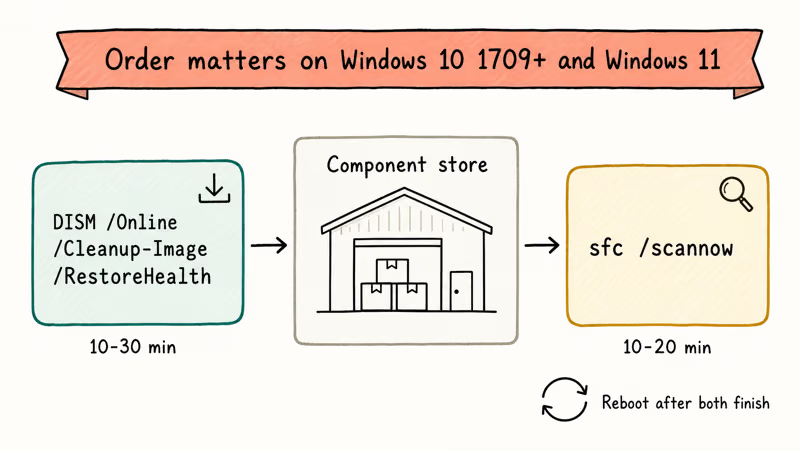
Open Command Prompt as administrator and run, in this order:
DISM /Online /Cleanup-Image /RestoreHealth
sfc /scannow
DISM downloads replacement files from Windows Update if needed, so you want an internet connection (Safe Mode with Networking covers this). Expect 10 to 30 minutes for DISM and another 10 to 20 minutes for sfc. Reboot after both finish.
Microsoft’s DISM and System File Checker repair guide confirms that DISM should run before sfc when the component store is suspect, which is exactly the case after a registry-related crash. This two-step combo often clears REGISTRY_ERROR caused by a failed cumulative update without any further action.
#Fix 4: Roll Back With System Restore
If you know the BSOD started after a specific change (an update, a driver install, a new program), System Restore is the cleanest rollback path. It reverts system files, drivers, and registry settings to a saved restore point without touching your personal files.
In Safe Mode, open the Start menu, search for “Create a restore point,” open System Properties, click System Restore, and follow the wizard. Pick a restore point dated before the first BSOD.
According to Microsoft Support’s recovery options article, System Restore is the recommended first rollback step before reset or reinstall. It works only if System Protection was enabled, which has been the default on the system drive in Windows 10 and 11 for years.
If you can’t reach Safe Mode, run System Restore from the Windows Recovery Environment instead. Same option, found under Troubleshoot, Advanced options.
#Fix 5: Restore the Registry From RegBack (Older Systems Only)
Skip this fix on modern Windows. Microsoft disabled automatic registry backup to C:\Windows\System32\config\RegBack\ by default starting in Windows 10 version 1803, per the official troubleshooting article. Older tutorials still recommend it, but it usually doesn’t work anymore.
Check whether you have a usable RegBack copy. From the Windows Recovery Environment command prompt:
dir C:\Windows\System32\config\RegBackIf the files are 0 bytes or the folder is empty, RegBack isn’t an option, skip this fix. If the files have real sizes (typically 10-100 MB each), copy them over the live hives:
cd C:\Windows\System32\config
copy RegBack\*.* .
Confirm overwrites and reboot. Honest caveat: even when RegBack files exist on a 1803-or-newer system, they’re usually stale because the auto-backup task is disabled. Treat this as a long-shot fix on Windows 10 1803+ and Windows 11.
#Fix 6: Test RAM With Windows Memory Diagnostic
If chkdsk and DISM both come back clean and the BSOD still happens at random, RAM is the next suspect. Bad RAM corrupts registry writes mid-flight, which produces 0x00000051 with no consistent trigger.
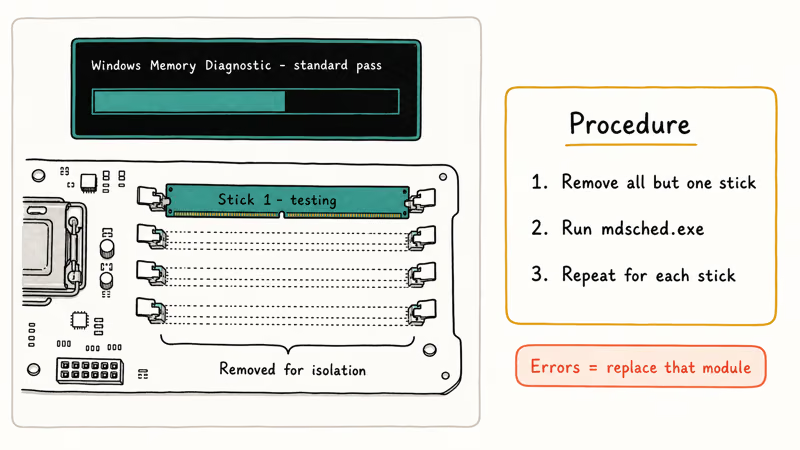
Press Windows + R, type mdsched.exe, and press Enter. Choose “Restart now and check for problems.” The test runs in a pre-boot environment for 15-30 minutes per pass. For higher confidence, download MemTest86 from PassMark’s official MemTest86 page and run a full multi-pass test from a USB stick.
Windows Memory Diagnostic often catches a failing DIMM on its first standard pass, and a longer MemTest86 run confirms the same stick. Once the bad stick is removed, the BSOD typically stops immediately and chkdsk runs stay clean even under heavy registry-write workloads like Visual Studio installs and SQL Server Express setup. Bad RAM is frequently the single change that turns a machine from “BSOD twice a day” into stable.
If the test reports any errors, replace the bad module. Test sticks one at a time if you have multiple installed: remove all but one, re-run the diagnostic, repeat.
#Fix 7: Check Disk SMART and Storage Health
If chkdsk finds bad sectors it can’t repair, or REGISTRY_ERROR keeps coming back after every other fix, the drive itself is dying. Confirm with SMART data before you spend more time troubleshooting software.
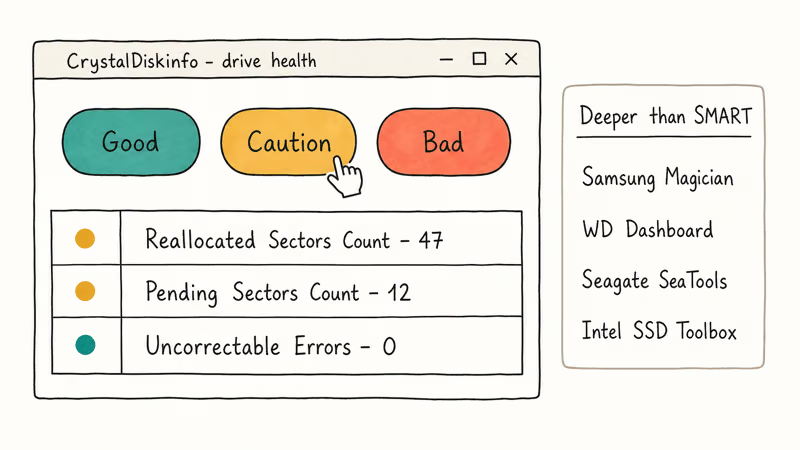
Download CrystalDiskInfo from the official CrystalDiskInfo download page and run it. Look at the overall health status (Good, Caution, Bad) and the raw values for Reallocated Sectors Count, Pending Sectors Count, and Uncorrectable Errors.
Manufacturer diagnostics go deeper than SMART alone: Samsung Magician for Samsung SSDs, WD Dashboard for Western Digital, Seagate SeaTools for Seagate, Intel SSD Toolbox for older Intel drives. These vendor tools surface error counters that the standard SMART attributes don’t expose.
A dying SSD with many reallocated sectors and several pending sectors can still boot, but every chkdsk run finds new errors within a week. In that situation, replacing the drive is what clears REGISTRY_ERROR permanently. Software fixes won’t save dying storage.
#Fix 8: Roll Back Recent Driver Updates
A bad storage driver update is a less common but real cause. Storage controller drivers (Intel RST, AMD AHCI, NVMe drivers) interact directly with the registry hive files at boot.
Open Device Manager (right-click Start, pick Device Manager), expand “Storage controllers” and “IDE ATA/ATAPI controllers.” Right-click any device updated in the last week, choose Properties, then Driver, then Roll Back Driver if the button is enabled.
If you saw the BSOD start after a Windows Update that included new drivers, a Microsoft Update history rollback can target just that update. Don’t uninstall driver updates blind; only roll back the ones matching the timeline of the first crash.
For other kernel-related blue screens like KMODE_EXCEPTION_NOT_HANDLED, driver rollback is often the primary fix. For REGISTRY_ERROR it’s closer to a fifth-priority option, so don’t start here.
#Fix 9: Reset This PC
If nothing above works and the hardware tests come back clean, Reset This PC reinstalls Windows while giving you the option to keep personal files. It rebuilds the registry hives from scratch as part of the reinstall.
Open Settings, go to System, then Recovery, then Reset this PC, and click Reset PC. Pick “Keep my files” first; only choose “Remove everything” if Keep My Files fails or if you want a fresh start. Either option removes installed apps, so plan to reinstall them.
According to Microsoft Support’s Reset This PC article, the cloud download option pulls a fresh Windows image from Microsoft’s servers, which is more reliable than the local image when local files are already suspect. Prefer cloud download if you reach this step.
Back up everything you can reach first. Even with Keep My Files selected, app data tied to specific install paths can be lost.
#Fix 10: In-Place Repair Install
A repair install reinstalls Windows over itself while keeping all programs, settings, and files intact. This is a real option that most users never try because it’s buried in the Windows ISO download flow.
Download the Windows 10 or Windows 11 ISO from the official Microsoft Software Download Center, mount the ISO by double-clicking it in File Explorer, and run setup.exe from the mounted drive. When the wizard asks what to keep, select “Keep personal files and apps.”
The repair install replaces all system files including the registry hive defaults while preserving installed programs and user data. For a BSOD caused by a failed update mid-install, this usually clears it without losing a single program, and it typically finishes in well under an hour.
If the repair install fails to start or the BSOD reappears immediately after, the hardware is the problem. Back to Fix 6 and Fix 7.
#Time Budget to Fix REGISTRY_ERROR
Realistic timing for each tier of fix:
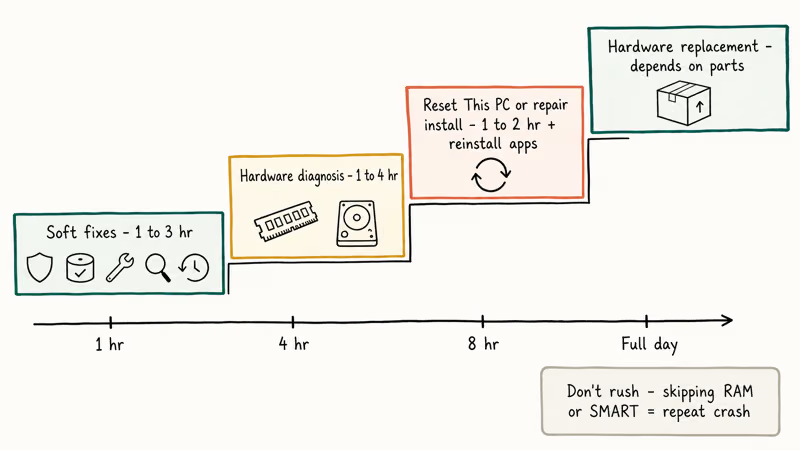
- Soft fixes (Safe Mode + chkdsk + DISM + sfc + System Restore): 1-3 hours total when nothing dramatic is wrong
- Hardware diagnosis (RAM and SMART): another 1-4 hours, mostly waiting for tests
- Reset This PC or repair install: 1-2 hours plus app reinstall time
- Hardware replacement: depends on parts availability
If you reach Fix 6 with no improvement, set aside an evening. Don’t rush. Rushing means skipping the memory or SMART test, then reinstalling Windows on dying hardware and crashing again the next day. That mistake costs a whole day for nothing.
Other hardware-rooted blue screens follow the same diagnostic order: software fixes first, then RAM, then disk, then reinstall.
- Error 0x0000007f: kernel trap, often RAM or driver
- Bad pool caller: memory pool corruption
- Unmountable boot volume: disk or filesystem damage
Different stop codes, same underlying logic.
#Bottom Line
Run the fixes in this exact order: Safe Mode, chkdsk /f /r, DISM /RestoreHealth, sfc /scannow, then System Restore. If the BSOD persists, run Windows Memory Diagnostic and CrystalDiskInfo before touching reset or reinstall.
Reinstalling Windows on a failing drive or bad RAM does nothing. The fastest end-to-end path on healthy hardware is 60-90 minutes; the longest path involving hardware replacement is closer to a full day. Skip RegBack on Windows 10 1803+ unless dir shows non-zero file sizes. The auto-backup is disabled by default, and the files are usually stale.
#Frequently Asked Questions
Is REGISTRY_ERROR the same as the 0x00000051 stop code?
Yes, same error. REGISTRY_ERROR is the descriptive name; 0x00000051 (or 0x51) is the hex bug check code. Microsoft’s reference uses both interchangeably.
Can I fix REGISTRY_ERROR without losing my files?
In most cases, yes. Safe Mode plus chkdsk, DISM, sfc, and System Restore all preserve personal files. Reset This PC has a “Keep my files” option, and the in-place repair install (Fix 10) keeps files plus installed programs intact. Only “Reset This PC” with “Remove everything” or a clean reinstall wipes data, and even then, back up first.
Cloud-backup layers like OneDrive and Backblaze recover what local backups miss, so use both rather than trusting either alone. The first hour after a BSOD is the right time to triple-check backups before running any repair tool that touches partitions.
Why does sfc /scannow fail with “Windows Resource Protection could not perform the requested operation”?
That message usually means the component store is corrupted. Run DISM /Online /Cleanup-Image /RestoreHealth first, reboot, then re-run sfc /scannow. On a system with REGISTRY_ERROR, this is the most common reason sfc fails on the first try. If sfc still fails after DISM, run sfc from Windows Recovery Environment with the offwindir flag pointing to your install.
Should I use a third-party registry cleaner to fix REGISTRY_ERROR?
We don’t recommend it. Most registry cleaners delete entries aggressively without understanding which keys the kernel relies on, which can turn a recoverable BSOD into an unbootable system. Microsoft’s official position, stated in support documentation for years, is that registry cleaners offer no measurable benefit and can cause harm. Stick with sfc, DISM, and System Restore.
What if the BSOD happens before I can boot into Windows?
Force three failed boots in a row by holding the power button during the Windows logo. On the fourth boot, Windows enters the Recovery Environment. From there you can reach Safe Mode, Command Prompt, System Restore, and Reset This PC without ever loading the desktop. If WinRE itself fails to load, boot from a Windows installation USB and pick “Repair your computer” instead of installing.
Can a Windows update cause REGISTRY_ERROR?
Yes. A failed cumulative update or one interrupted by power loss can leave the SOFTWARE or COMPONENTS hive in a half-written state. The fix path is DISM, sfc, and System Restore in that order. If you see related errors like the invalid value for registry message after the same update, treat both as symptoms of the same broken update and roll back via System Restore or wusa /uninstall.
Is REGISTRY_ERROR caused by a virus?
Rarely. Hardware or update problems are the cause far more often. Run a full Windows Defender scan after recovery as a precaution, but don’t skip chkdsk and the RAM test on the assumption that malware is the culprit.

Best Laptop for Running LLMs in 2026: Memory Comes First
The best laptop for running LLMs is a memory purchase first. Compare MacBook unified memory against NVIDIA laptop VRAM, and see what each tier really runs.

How to Run a Local LLM on Windows: A 2026 Setup Guide
Run a local LLM on Windows with LM Studio or Ollama. Pick a model that fits your GPU memory, keep every prompt offline, and skip the monthly bill.

Bluetooth Not Working on Snapdragon X? Fixes for 2026
Bluetooth not working on your Snapdragon X Copilot+ PC? Generic audio, mice, and keyboards work, but vendor apps often lack an ARM build. Fixes inside.

Docker Desktop and WSL2 Not Working on Snapdragon X? Fix It
WSL2 runs fine on Snapdragon X, but Docker Desktop ARM is Early Access and throws WSL errors. Use WSL2 plus native ARM64 Ubuntu and Docker Engine.