How to Fix Kmode Exception Not Handled on Windows 10 and 11
Fix the Kmode Exception Not Handled BSOD on Windows 10 and 11 with 7 driver-focused methods, Safe Mode checks, stop code 0x0000001E, and repair steps.
Quick AnswerBoot into Safe Mode, then update or roll back the most recently installed driver. The Kmode Exception Not Handled error (stop code 0x1E) is almost always a driver fault, and isolating the bad driver in Safe Mode fixes it for most users.
The Kmode Exception Not Handled error is a Windows blue screen with stop code 0x0000001E, and it almost always points to a misbehaving driver. The fix is rarely magic. You isolate the driver, then update, roll back, or remove it.
The troubleshooting flow below applies to Windows 10 and Windows 11 because the stop code points to the same kernel-mode failure pattern on both versions.
- Stop code 0x1E means a kernel-mode program raised an exception the error handler could not catch
- Faulty or outdated drivers are the most common cause
- Boot into Safe Mode first; if the BSOD doesn’t appear there, the cause is a third-party driver or service
- Disabling Fast Startup can help when a stale driver state keeps returning after reboot
- Run sfc /scannow and DISM before reinstalling Windows; corrupt system files trigger the same stop code
#What Kmode Exception Not Handled Means
Stop code 0x0000001E is raised when a kernel-mode driver or system process executes an illegal instruction the kernel can’t handle. According to Microsoft’s bug check 0x1E reference, the four parameters that follow the stop code identify the exception code, the address where the exception occurred, and two exception-specific values that point to the failing memory address.
In plain English, a driver tried to do something the CPU refused, and Windows crashed before the driver could clean up. The driver is usually the culprit, not Windows itself.
#Common Triggers for the Kmode Exception Not Handled BSOD
Five causes account for most Kmode Exception Not Handled crashes:
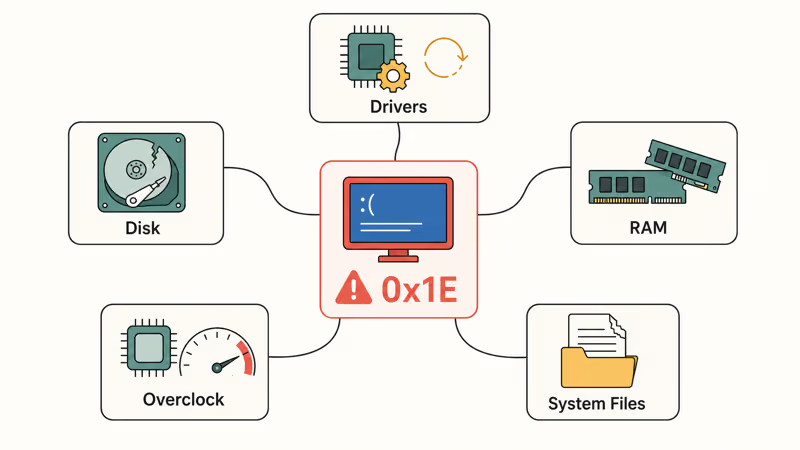
- A new or recently updated driver, especially graphics, network, or chipset
- Faulty RAM or a loose memory module
- Corrupt system files after a failed Windows update
- Overclocked CPU or memory running outside its stable range
- Disk corruption on the volume that holds the driver files
The error often surfaces during boot, after waking from sleep, or when launching a graphics-heavy app. If the BSOD points to a specific file (for example, nvlddmkm.sys or iastor.sys), that filename is your starting suspect.
#How Do You Fix Kmode Exception Not Handled on Windows 10?
Work through these methods in order. Method 1 alone fixes most cases, and Methods 2 and 3 cover almost everything else. Use the IRQL Not Less or Equal guide as a parallel reference if both stop codes appear on the same machine, because the driver-isolation steps are nearly identical.
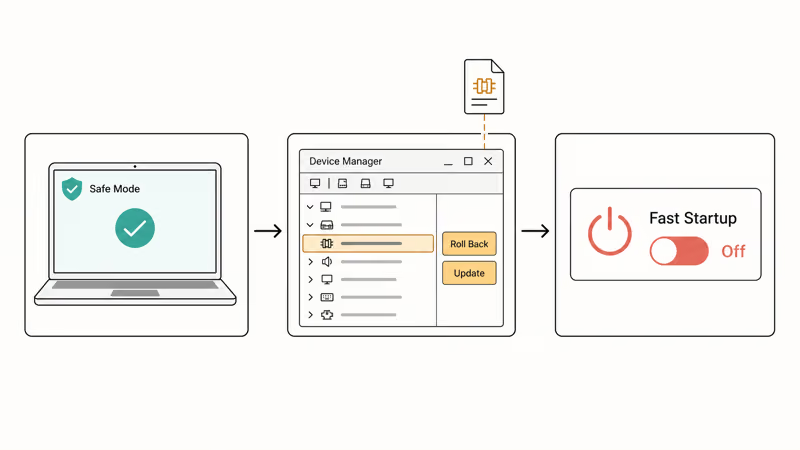
#1. Boot Into Safe Mode
Safe Mode loads only Microsoft signed drivers, so it isolates third-party causes within minutes.
- Hold Shift while clicking Restart from the Start menu. If you can’t reach the Start menu, force the system off three times during boot and Windows opens the Recovery Environment automatically.
- Choose Troubleshoot, then Advanced options, then Startup Settings, then Restart.
- Press 4 for Safe Mode or 5 for Safe Mode with Networking.
If the BSOD doesn’t return in Safe Mode, the cause is a driver or service that doesn’t load there. Move to Method 2.
#2. Update or Roll Back the Faulty Driver
The minidump file in C:\Windows\Minidump names the driver. BlueScreenView from NirSoft is a free way to read it and lists the offending driver in the bottom pane.
Once you know the driver:
- Press Windows + X and choose Device Manager.
- Expand the matching category (Display adapters, Network adapters, Storage controllers).
- Right-click the device, choose Properties, then the Driver tab.
- If the BSOD started after a recent driver update, click Roll Back Driver.
- If the driver is old, click Update Driver, then Search automatically for drivers.
Manual updates from the manufacturer’s website are usually better than Windows Update for graphics drivers. Nvidia, AMD, and Intel each post current packages on their support pages, while Windows Update can lag behind OEM or GPU-vendor releases.
#3. Disable Fast Startup
Fast Startup hibernates the kernel session instead of fully shutting down. When a driver state goes stale across reboots, the BSOD reappears every cold start.
- Press Windows + R, type
control, and press Enter. - Switch the view to Large icons and open Power Options.
- Click Choose what the power buttons do.
- Click Change settings that are currently unavailable.
- Uncheck Turn on fast startup, then click Save changes.
Restart the PC normally. If the BSOD stops, leave Fast Startup off. The 1 to 2 seconds you save at boot isn’t worth a recurring blue screen.
#System File and Memory Repair Steps
If the driver-focused fixes above don’t clear 0x1E, the next two checks target corrupt system files and bad RAM. Both account for a sizable share of the cases that survive Method 1 through 3.
#4. Run Windows Memory Diagnostic
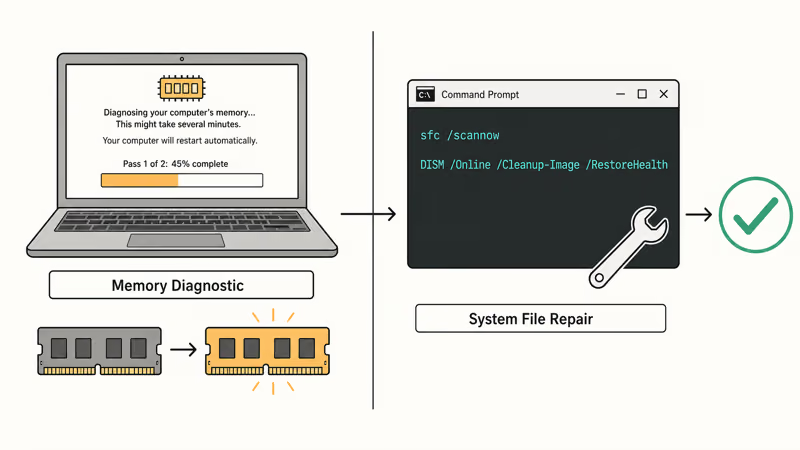
Bad RAM throws stop code 0x1E about as often as bad drivers do. Microsoft’s Windows Memory Diagnostic guide recommends the built-in tool for a first pass.
- Press Windows + R, type
mdsched.exe, and press Enter. - Choose Restart now and check for problems.
- The tool runs a 10 to 15 minute scan during reboot, then logs the result to Event Viewer under
Windows Logs>System(source MemoryDiagnostics-Results).
If the report flags errors, reseat each DIMM. If the errors persist on a single slot, the memory stick is likely bad and should be replaced.
#5. Run SFC and DISM to Repair System Files
Corrupt system files trigger the same stop code, especially after a failed feature update. Microsoft’s System File Checker documentation confirms that sfc /scannow scans every protected file and replaces damaged versions from the cached copy.
- Press Windows + S, type
cmd, right-click Command Prompt, and choose Run as administrator. - Run
sfc /scannowand wait for the scan to finish. It takes about 8 to 12 minutes on an SSD. - If SFC reports unrepaired files, run
DISM /Online /Cleanup-Image /RestoreHealthnext. DISM pulls fresh component files from Windows Update and patches the SFC source store. - Run
sfc /scannowagain after DISM completes. - Restart.
If you also see the registry error BSOD, repair both with the same DISM pass before deciding the system needs a reset.
#Software and Hardware Compatibility Fixes
When SFC, DISM, and a memory test all come back clean, the cause is usually a recently installed program or a hardware driver mismatch after a Windows feature update.
#6. Uninstall a Recently Added Program or Driver
If the BSOD started right after you installed a printer driver, antivirus, VPN client, or virtualization tool, that software is the most likely cause.
- Press Windows + R, type
appwiz.cpl, and press Enter. - Sort the list by Installed On and look at the most recent entries.
- Right-click the suspect, choose Uninstall, and reboot.
Antivirus suites and VPN clients install kernel filter drivers, which is why they show up in BSOD reports more than ordinary apps. If a clean uninstall doesn’t remove the driver, the vendor usually publishes a dedicated removal tool. Security suites can leave kernel drivers behind that need those tools to fully clear.
#7. Check Hardware Compatibility After a Windows Upgrade
If 0x1E started right after upgrading to Windows 11 or to a major Windows 10 feature update, the original driver might not support the new kernel. The Microsoft Windows Upgrade Assistant page lists known issues for each feature update, and the manufacturer’s support site usually announces compatibility-fix drivers within a few weeks.
Three checks settle most upgrade-related cases:
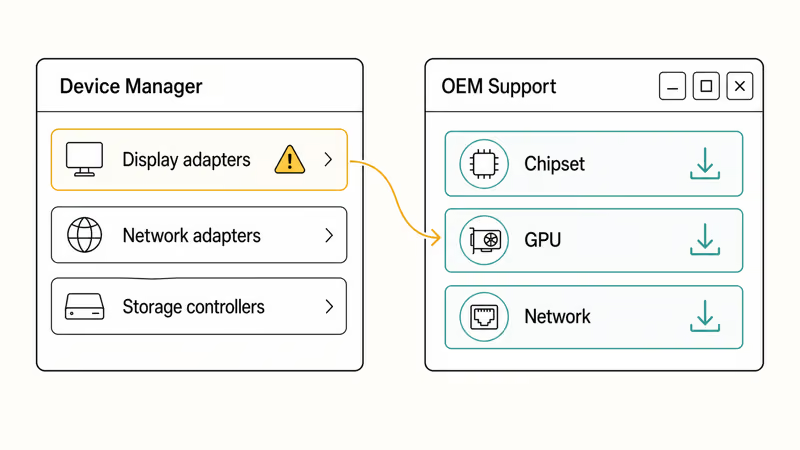
- Open Device Manager and look for any device with a yellow warning triangle.
- Visit the OEM support page for your motherboard or laptop and download the chipset, GPU, and network drivers labeled for your current Windows build.
- If the BSOD references a driver the OEM no longer publishes (common on machines older than 8 years), replace the device or use Microsoft’s generic class driver instead.
If none of the methods above work, this BSOD is often caused by the same root issues that produce page fault in nonpaged area or unexpected kernel mode trap errors, and the diagnostic flow in those guides applies here too.
#Why Does the BSOD Keep Coming Back After a Fix?
Recurring 0x1E crashes after a clean fix usually mean one of three things. The driver you replaced has a vendor-side bug that ships in every recent version, the underlying RAM is degrading and only fails under load, or a deeper system file remains corrupt and SFC missed it on the first pass.
Run Driver Verifier on a quiet weekend. The tool stresses every non-Microsoft driver and forces an immediate BSOD on the first one that misbehaves, which makes the suspect obvious in the next minidump. Microsoft’s Driver Verifier documentation explains the safe Verifier settings and how to disable the tool from Safe Mode if it triggers a boot loop.
When the same driver fails Verifier twice, replace it with the OEM’s last known good version, not the latest one.
#Bottom Line
Start with Method 1 and Method 2. Boot into Safe Mode, then update or roll back the driver that the minidump names. Those two steps address the most common driver-related causes before you move into deeper repair work.
If neither helps, run Memory Diagnostic and SFC before considering a reinstall. The same diagnostic flow applies if you also encounter critical process died. Reset Windows is a last resort, not a first move.
#Frequently Asked Questions
Can outdated drivers cause the Kmode Exception Not Handled error?
Yes. Outdated or incompatible drivers are the most common cause. The bug check codes that follow 0x1E almost always point at a kernel-mode driver. Update the driver from the OEM’s support page first, and roll back to the previous version if the update itself caused the crash.
How do I find which driver caused the blue screen?
Open C:\Windows\Minidump and load the most recent .dmp file in BlueScreenView or WinDbg. Both tools show the failing driver name (for example, nvlddmkm.sys for Nvidia graphics) in the analysis pane. That filename is your suspect.
Is it safe to disable Fast Startup permanently?
Yes. Disabling Fast Startup adds about 1 to 2 seconds to boot time on a modern SSD, which is unnoticeable in daily use. Many troubleshooting guides recommend leaving it off on systems that have hit driver-related BSODs, because Fast Startup can preserve a stale kernel state that retriggers the crash.
Will sfc /scannow fix Kmode Exception Not Handled?
Sometimes. SFC repairs corrupt system files, and corrupt files do trigger 0x1E. Run sfc /scannow first; if it reports problems it could not fix, run DISM /RestoreHealth, then run SFC again. The combined pass repairs more cases than either tool alone.
Should I reset Windows if nothing else works?
Reset only after Safe Mode, driver rollback, Memory Diagnostic, SFC, and DISM all fail. Back up your files first. A reset reinstalls Windows but keeps personal files when you choose Keep my files; it removes installed apps and most drivers, which often clears the BSOD if a corrupt third-party driver was the cause.
Can overclocking cause the Kmode Exception Not Handled BSOD?
Yes. CPU and memory overclocks that pass short stress tests can still throw 0x1E during longer kernel operations. Reset the BIOS to defaults, run the system stock for a week, and re-enable overclocks one variable at a time if you want to keep them.
Does the Blue Screen Troubleshooter still work in 2026?
The legacy in-app Troubleshooter was removed in Windows 11 22H2 and later. Microsoft now points users to the online Get Help blue screen guide, which walks through the same checks as the standalone tool. Use the online flow on Windows 11 and the in-app version on Windows 10 22H2 or earlier.

Best Laptop for Running LLMs in 2026: Memory Comes First
The best laptop for running LLMs is a memory purchase first. Compare MacBook unified memory against NVIDIA laptop VRAM, and see what each tier really runs.

How to Run a Local LLM on Windows: A 2026 Setup Guide
Run a local LLM on Windows with LM Studio or Ollama. Pick a model that fits your GPU memory, keep every prompt offline, and skip the monthly bill.

Bluetooth Not Working on Snapdragon X? Fixes for 2026
Bluetooth not working on your Snapdragon X Copilot+ PC? Generic audio, mice, and keyboards work, but vendor apps often lack an ARM build. Fixes inside.

Docker Desktop and WSL2 Not Working on Snapdragon X? Fix It
WSL2 runs fine on Snapdragon X, but Docker Desktop ARM is Early Access and throws WSL errors. Use WSL2 plus native ARM64 Ubuntu and Docker Engine.