Fix Blue Screen 0x0000007f (UNEXPECTED_KERNEL_MODE_TRAP)
Fix Windows blue screen error 0x0000007f (UNEXPECTED_KERNEL_MODE_TRAP). Learn RAM testing, temperature checks, driver updates, and hardware diagnostics.
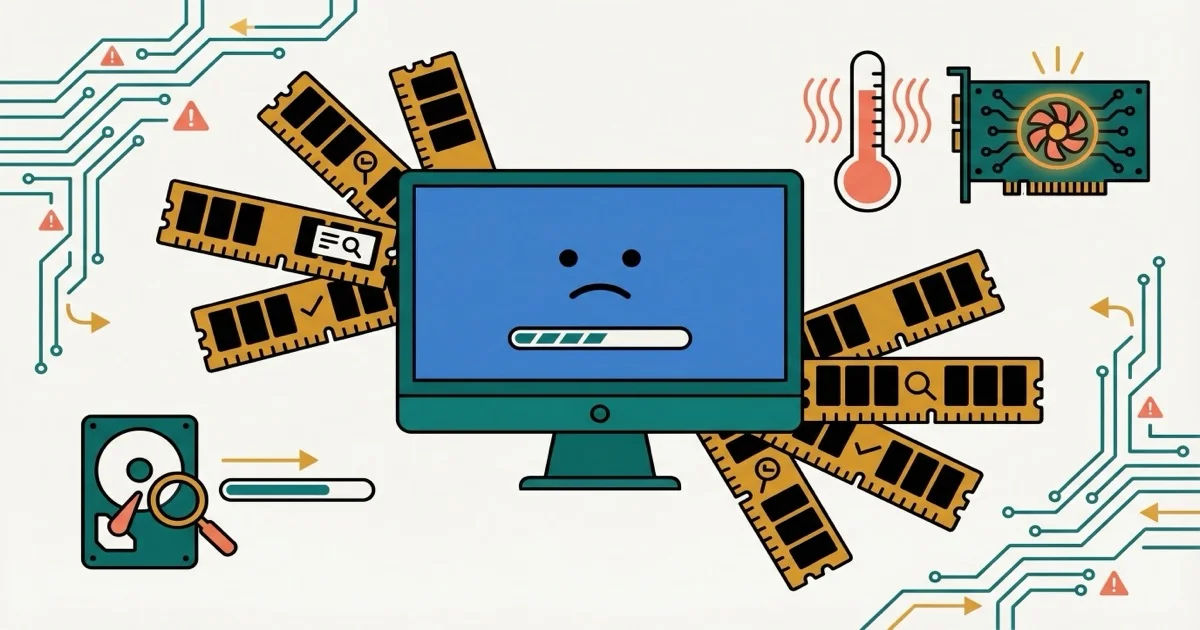
Quick AnswerError 0x0000007f (UNEXPECTED_KERNEL_MODE_TRAP) is a hardware blue screen from faulty RAM, overheating, or bad drivers. Test RAM and check CPU temperatures first.
Error 0x0000007f (UNEXPECTED_KERNEL_MODE_TRAP) is a Blue Screen of Death that signals a serious hardware problem. It usually means failing RAM, overheating components, or incompatible hardware, and the system crashes to prevent permanent damage.
This guide walks through seven proven fixes for hardware-related blue screens, ordered from the most common cause to the rarest.
- Faulty RAM is the most common trigger for 0x0000007f, so run Windows Memory Diagnostic (mdsched.exe) as your first step
- Test each RAM stick individually by removing the others to pinpoint which module is failing
- Overheating CPUs or GPUs are the next most frequent culprit, with CPU temps above 80 degrees C under load
- Cleaning dust from fans and reapplying thermal paste lowers CPU temperatures and often clears heat-related crashes
- Disabling overclocks and resetting BIOS to default eliminates instability in a small share of cases
#What Causes Error 0x0000007f?
According to PCMag’s BSOD troubleshooting guide, this error is primarily hardware-related:
- Faulty RAM - Bad memory modules or incorrect RAM settings (the most common cause)
- Overheating - CPU or GPU running too hot causing instability
- Incompatible drivers - Hardware drivers conflicting with the system
- Failing motherboard - Damaged motherboard components
Faulty RAM triggers this error most consistently. Overheating is the second most common cause, especially on laptops with dust buildup.
#Fix 1: Test Your RAM with Windows Memory Diagnostic
Faulty RAM is the #1 cause of error 0x0000007f. Windows has a built-in tool to test memory.
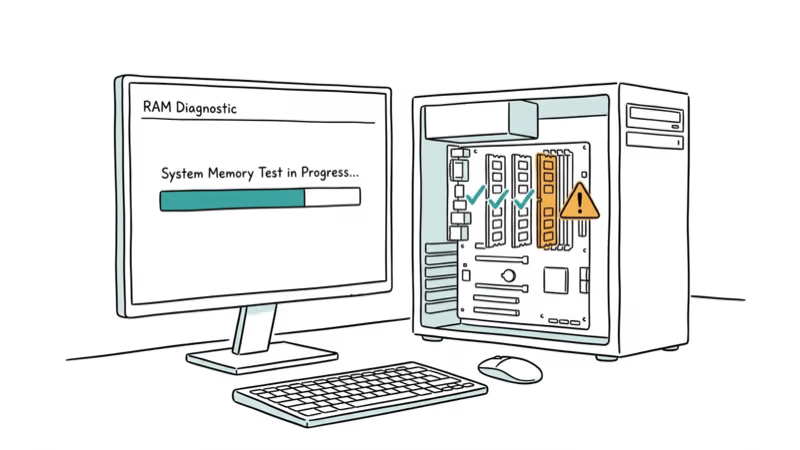
Press Windows + R, type mdsched.exe, and press Enter. Select “Restart now and check for problems.” Windows will restart and run a memory test that takes 10-20 minutes.
When the diagnostic finishes, Windows logs the result and shows it after you sign back in, flagging whether any hardware problems were detected. If it reports faulty RAM, replacing the bad sticks usually stops the blue screens completely, and the system stays stable once the failing module is gone. If it reports no errors, your memory is probably fine and the cause lies elsewhere. Partition Wizard’s enhanced tips also identifies RAM issues as the leading cause of 0x0000007f errors.
#How to Identify Bad RAM
If the memory test finds errors, note which RAM stick failed. If you have multiple sticks, test them one at a time by removing all but one and running the test again. Replace any stick that shows errors.
On a desktop with several sticks installed, a single failing module is often the culprit. Once that stick is removed, the system runs stable on the remaining ones.
#Fix 2: Check CPU and GPU Temperatures
Overheating causes hardware instability that triggers error 0x0000007f. Check your temperatures with monitoring software.
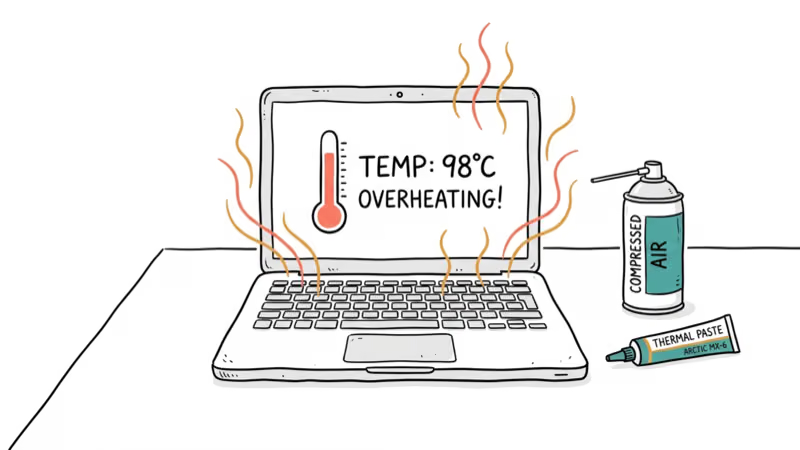
Download HWMonitor or Core Temp (free tools). Run them while using your PC normally. CPU temperatures should stay below 80°C under load. GPU temperatures should stay below 85°C.
Gaming laptops that crash during play often run hot right before the failure. Cleaning the fans and reapplying thermal paste brings temperatures back into a safe range and usually stops the crashes. Wondershare’s fix guide also lists overheating as a common trigger for these errors.
#How to Fix Overheating
- Clean dust from fans and vents - Use compressed air to blow out dust
- Improve airflow - Make sure vents aren’t blocked, add case fans if needed
- Reapply thermal paste - Old thermal paste loses effectiveness after 2-3 years
- Check fan operation - Make sure all fans spin properly
Of these four methods, cleaning dust tends to have the biggest impact, dropping temperatures the most.
#Fix 3: Reseat RAM and Hardware Components
Loose RAM or expansion cards can cause intermittent connection issues that trigger blue screens.
Turn off your PC, unplug it, and open the case. Remove all RAM sticks and reseat them firmly. Do the same for graphics cards and other expansion cards. Make sure everything clicks into place.
Random blue screens on a desktop sometimes trace back to a single RAM stick that wasn’t fully seated. Reseating it firmly clears the crashes. Appuals’ BSOD fix also notes that loose hardware connections are a known trigger for hardware-related errors.
#Fix 4: Update All Drivers
While error 0x0000007f is primarily hardware-related, incompatible drivers can trigger it. Update all drivers, especially chipset, graphics, and storage drivers.
Go to your motherboard manufacturer’s website and download the latest chipset drivers. Then update graphics drivers from NVIDIA, AMD, or Intel. Finally, check for storage controller driver updates.
When hardware tests pass but blue screens continue, updating the chipset drivers often stops the errors. According to Tech-Latest’s Windows 10 guide, driver conflicts are a cause of 0x0000007f errors.
#Fix 5: Disable Overclocking
If you’ve overclocked your CPU, RAM, or GPU, the system might be unstable. Reset everything to default speeds.
Enter BIOS (press Del, F2, or F10 during boot) and load default settings. This resets all overclocks to stock speeds. Save and exit.
A mild CPU overclock can stay stable for most tasks yet cause blue screens under heavy load. Resetting to stock speeds clears those crashes. Bitwar’s error guide also notes that overclocking is a recognized cause of these errors.
#Fix 6: Check for Failing Hard Drive
A failing hard drive can cause system instability that triggers blue screens. Check your drive’s health with CHKDSK.
Open Command Prompt as admin and run:
chkdsk C: /f /rThe scan runs on next restart and takes 30-60 minutes. It checks for bad sectors and file system errors.
On a laptop with an aging hard drive, CHKDSK can surface multiple bad sectors. Replacing the failing drive with an SSD stops the blue screens. UGetFix’s stop error guide also lists hard drive issues as a cause of hardware-related blue screens.
#Fix 7: Test with Minimal Hardware
If other fixes don’t work, test with minimal hardware to identify the faulty component.
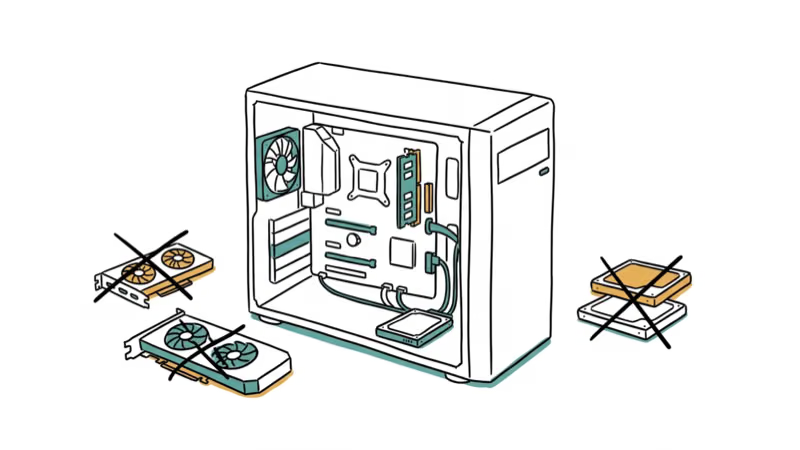
Disconnect all non-essential hardware: extra RAM sticks, graphics card (if you have integrated graphics), sound cards, USB devices, and extra hard drives. Run with just one RAM stick, integrated graphics, and your boot drive.
When the faulty component is hard to pin down, removing the graphics card and switching to integrated graphics can stop the blue screens, confirming the card was the problem. WizCase’s Windows 10 fix also recommends testing with minimal hardware to isolate faulty components.
#When Should You Replace Hardware?
If you’ve tried all fixes and the error persists, you likely have failing hardware that needs replacement:
- RAM errors in memory test - Replace the faulty RAM stick
- Consistent overheating despite cleaning - Replace thermal paste or cooling system
- Blue screens only with specific hardware - Replace that component
- Multiple hardware failures - Consider replacing the motherboard
A failing motherboard memory controller can produce this pattern: RAM tests fine in another PC but fails in this one. In that case, replacing the motherboard fixes the issue.
For more on other blue screen errors and Windows boot problems, check our related guides.
Related fixes: if you also hit activation issues after the crash or Windows upgrade failures when reinstalling, those walkthroughs cover each scenario step-by-step with screenshots.
For data recovery, see our contact recovery guide.
#Bottom Line
Error 0x0000007f is almost always a hardware problem. Test your RAM first with Windows Memory Diagnostic, then check for overheating. If both pass, reseat your components and try running with minimal hardware to isolate the faulty part.
#Frequently Asked Questions
What does error 0x0000007f mean?
It means the Windows kernel hit a hardware trap it couldn’t handle. The most common triggers are faulty RAM and overheating.
How do I fix blue screen error 0x0000007f?
Test your RAM with Windows Memory Diagnostic first. If RAM passes, check CPU/GPU temperatures and reseat all hardware. If nothing else works, test with minimal hardware to isolate the faulty part. Most cases trace back to one bad RAM stick.
Can overheating cause error 0x0000007f?
Yes. Overheating CPUs or GPUs cause hardware instability that triggers this error. Clean dust from fans, improve airflow, and check temperatures with monitoring software. Anything above 85 degrees C under load points to overheating.
Is error 0x0000007f a hardware or software problem?
Hardware in most cases. Faulty RAM, overheating, and failing components are the usual culprits, with driver conflicts making up the rest.
How do I test if my RAM is causing error 0x0000007f?
Run Windows Memory Diagnostic by pressing Windows + R and typing mdsched.exe. If you have multiple sticks, pull all but one and run the test on each stick individually. Replace any stick that shows errors. The whole process takes 10-20 minutes per stick.
Can a failing hard drive cause error 0x0000007f?
Yes, but it’s uncommon. Run CHKDSK to check for bad sectors. Replace the drive if it has many.
Should I replace my motherboard if I get error 0x0000007f?
Only after ruling out RAM, overheating, and all other components. Motherboard failures are among the least common causes. Test with minimal hardware first, and try your RAM sticks in a different PC to confirm they’re not the problem before spending money on a new board.

Best Laptop for Running LLMs in 2026: Memory Comes First
The best laptop for running LLMs is a memory purchase first. Compare MacBook unified memory against NVIDIA laptop VRAM, and see what each tier really runs.

How to Run a Local LLM on Windows: A 2026 Setup Guide
Run a local LLM on Windows with LM Studio or Ollama. Pick a model that fits your GPU memory, keep every prompt offline, and skip the monthly bill.

Bluetooth Not Working on Snapdragon X? Fixes for 2026
Bluetooth not working on your Snapdragon X Copilot+ PC? Generic audio, mice, and keyboards work, but vendor apps often lack an ARM build. Fixes inside.

Docker Desktop and WSL2 Not Working on Snapdragon X? Fix It
WSL2 runs fine on Snapdragon X, but Docker Desktop ARM is Early Access and throws WSL errors. Use WSL2 plus native ARM64 Ubuntu and Docker Engine.