Invalid Value for Registry: Fix Windows Photos in 5 Steps
Fix the Invalid Value for Registry error in Windows Photos with reset, SFC scan, registry cleanup, and PowerShell reinstall. Windows 10 and 11.

Quick AnswerFix the Invalid Value for Registry error by resetting the Windows Photos app in Settings, running sfc /scannow from an elevated Command Prompt, then reinstalling Photos through PowerShell. The error usually clears within five minutes.
The Invalid Value for Registry error blocks the Windows Photos app from opening JPEG and PNG files. It almost always traces back to leftover registry entries from a Windows upgrade.
The error commonly appears right after upgrading from an older Windows version, or on a fresh install whose Photos app was corrupted by an interrupted update. The fix is mechanical: reset the app, repair system files, clean one specific registry key, and reinstall Photos if needed.
This guide walks through five fixes in order, safest first. Skip the registry edit unless steps one through three fail.
- The error appears when an old Photos app registry hive survives a Windows upgrade and clashes with the new app version.
- Resetting the Photos app from Settings clears the error in many cases, takes under a minute, and never touches your image files.
- Run sfc /scannow before touching the registry, since corrupted system files cause the same symptoms and a registry edit won’t fix them.
- Back up the registry with File, Export inside Regedit before deleting any key, otherwise a typo can leave Windows unbootable.
- Avoid third-party registry cleaners marketed as one-click fixes, because Microsoft has stated that no version of Windows is supported for registry-cleaner use.
#What Causes the Invalid Value for Registry Error?
The Invalid Value for Registry error is a Universal Windows Platform error code, not a generic registry warning. It surfaces inside the Photos app when the app can’t read its own configuration data.
According to Microsoft’s Windows Photos troubleshooting guide, an obsolete Microsoft.Windows.Photos_8wekyb3d8bbwe registry family can survive a Windows upgrade and clash with the new one. The app then loads the older entry by accident.
The error isn’t random. A forced shutdown during a feature update tends to bring it back.
Driver issues don’t cause it. Disk corruption can mimic it, which is why the SFC scan in Method 2 is a required step before anything else. If the Photos app opens but throws the error only on certain files, the file format is fine and the registry is the prime suspect.
A small number of users report the same string when running unrelated installers like older NVIDIA drivers. The cause there is different and the fixes in this article apply only to the Photos-app version. If your error mentions a specific app other than Photos, check that app’s repair tool before touching system settings.
#Reset the Photos App in Windows Settings
This is the fastest fix and the one to try first. Resetting the app deletes its local cache and configuration without touching your photo files, so the worst case is you have to sign back into OneDrive.
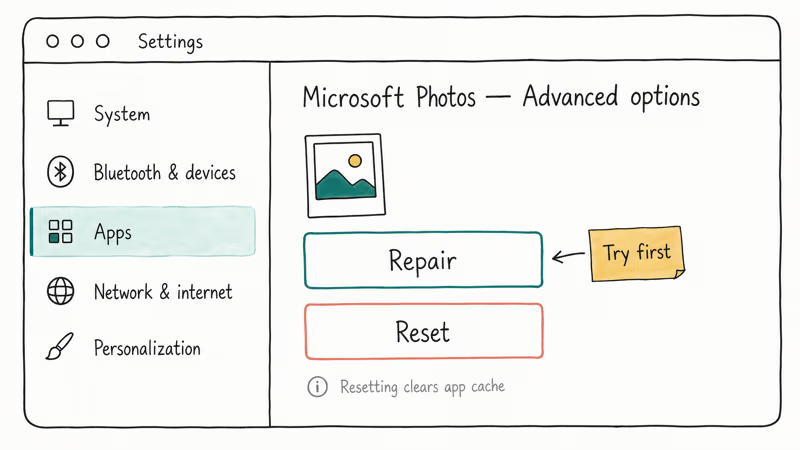
- Press
Windows + Ito open Settings. - Go to Apps, then Installed apps on Windows 11, or Apps & features on Windows 10.
- Scroll to Microsoft Photos, click the three-dot menu, and pick Advanced options.
- Click Repair first. If the error persists after launching Photos, return and click Reset.
- Open Photos and try the file that previously failed.
On a machine that throws the error every time Photos opens, the Repair option often clears it without needing the more aggressive Reset.
According to Microsoft’s app repair support page, Repair preserves your data while Reset wipes app-specific settings. Always start with Repair.
If Repair fails, Reset takes about ten seconds longer and clears more cached state. After Reset, the Photos app re-indexes your local Pictures folder on first launch. This takes a minute or two on a hard drive and is nearly instant on an SSD.
#Run System File Checker Before Touching the Registry
Corrupted Windows system files produce the exact same error message, and editing the registry won’t repair them.
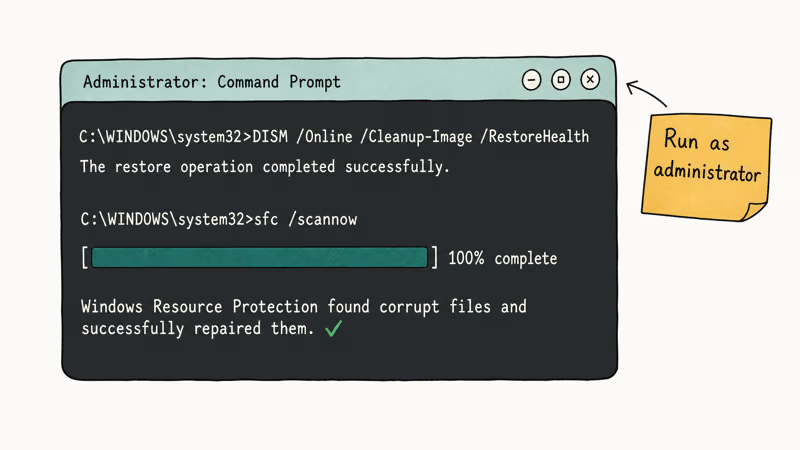
The System File Checker tool ships with every Windows 10 and 11 install. Microsoft’s System File Checker reference page confirms that SFC scans every protected system file against signed copies in the Windows component store and repairs mismatches in place using cached versions stored in %WinDir%\System32\dllcache.
Open Command Prompt as administrator: press the Start key, type cmd, then right-click Command Prompt and choose Run as administrator. Run these two commands in order:
DISM /Online /Cleanup-Image /RestoreHealth
sfc /scannow
The DISM command prepares the component store. SFC then scans and repairs system files, and the run takes between five and twenty minutes depending on disk speed. It finishes much faster on an SSD than on an older spinning laptop drive.
When SFC finishes, look at the final line. If it says “Windows Resource Protection found corrupt files and successfully repaired them,” restart the PC and retry the Photos app. If it reports the scan couldn’t fix some files, search %windir%\Logs\CBS\CBS.log for entries beginning with [SR] to find which files failed, then continue to the registry method.
Similar SFC and DISM logic applies to other Windows errors. The same commands also help with the Bad Pool Caller blue screen and the NTFS.sys BSOD, so the exact syntax is worth memorizing.
#Safely Clean the Photos Registry Key
Edit the registry only after Methods 1 and 2 have failed. A wrong delete here can break the Photos app system-wide, so always export a backup first. Microsoft’s Windows registry reference confirms that the registry holds 5 predefined root keys, and edits take effect immediately without a confirmation prompt.
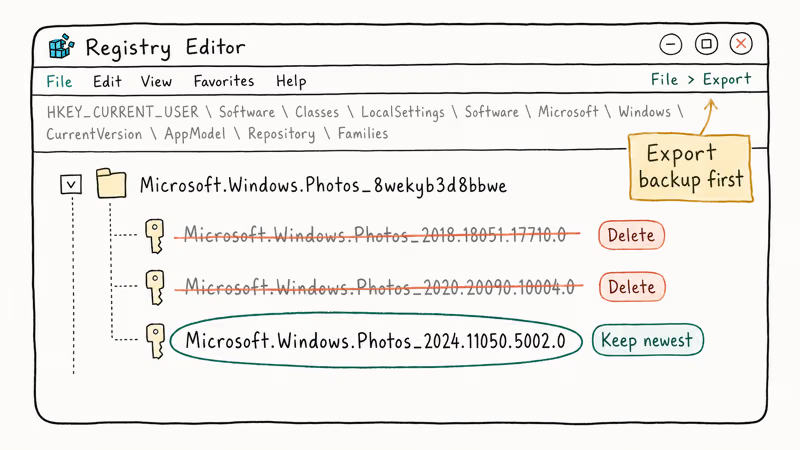
To start, press Windows + R, type regedit, and press Enter. Click Yes at the User Account Control prompt.
Before any edit, back up the entire registry: click File, then Export, then save the .reg file somewhere outside C:\Users such as an external drive. The export takes about thirty seconds and produces a file you can re-import by double-clicking it if anything goes wrong.
Go to this exact path in the left pane:
HKEY_CURRENT_USER\Software\Classes\LocalSettings\Software\Microsoft\Windows\CurrentVersion\AppModel\Repository\FamiliesLook for the Microsoft.Windows.Photos_8wekyb3d8bbwe family. Expand it.
If you see only one subkey, the registry is already clean and the problem lies elsewhere.
If you see two or more subkeys, the older ones survived your last upgrade and conflict with the newer entry. Right-click each older subkey and choose Delete. Keep the newest entry, which is usually the one with the highest version number suffix.
Close Regedit and restart the PC. The Photos app recreates any missing keys on next launch. If the fix holds, delete the .reg backup; if anything looks wrong, double-click it to restore the previous state.
Multiple obsolete subkeys can pile up under this family after several feature updates; removing the older ones usually ends the error on the first reboot. Avoid third-party “registry cleaner” tools advertised online. Microsoft’s registry cleaner support article states that Microsoft does not support these utilities and that aggressive cleaners can damage Windows beyond repair.
#Reinstall the Photos App With PowerShell
If reset, SFC, and the registry cleanup all fail, reinstall the Photos app from scratch. PowerShell can remove and reinstall Microsoft Store apps in one motion, which is faster and cleaner than uninstalling through Settings.
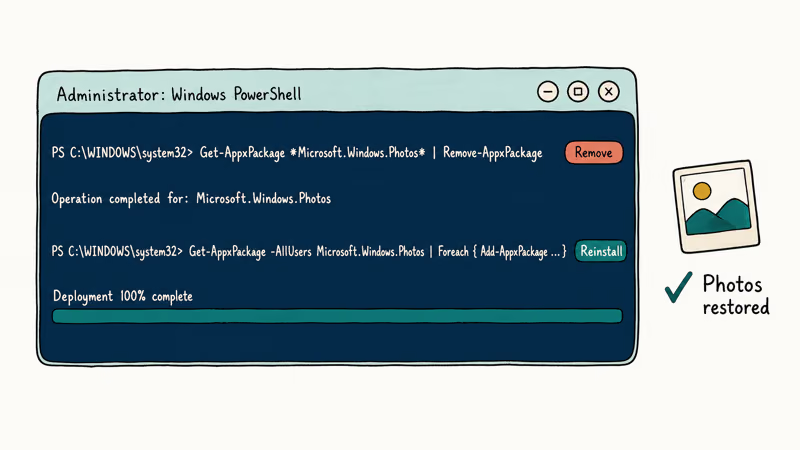
Press the Start key, type powershell, then right-click Windows PowerShell and choose Run as administrator. Run this command to remove the current Photos app:
Get-AppxPackage *Microsoft.Windows.Photos* | Remove-AppxPackageWait five seconds for the uninstall to finish. To reinstall the app for all users, run:
Get-AppxPackage -AllUsers Microsoft.Windows.Photos | Foreach {Add-AppxPackage -DisableDevelopmentMode -Register "$($_.InstallLocation)\AppxManifest.xml"}If that command returns “no package found,” the cleanest path is to reinstall directly from the Microsoft Store Photos listing in your browser, which redirects to the Store and installs the latest signed build. After reinstalling, restart Windows and open Photos. The app re-indexes your Pictures library on first launch, and the Invalid Value for Registry error should be gone for good.
This PowerShell sequence is the most reliable fallback when reset, SFC, and the registry cleanup all come up short, because it rebuilds the app from a clean signed package.
The whole process takes under five minutes on a typical broadband connection. A similar PowerShell-based reinstall works for fixing Browser_broker.exe issues and the Could Not Create the Java Virtual Machine error, since those depend on the same UWP package model.
#Can You Recover Photos That Won’t Open?
If the registry error has hidden some images entirely or a botched fix wiped your Pictures folder, the photos themselves are usually still on the disk. Windows does not delete image files when it removes the Photos app. If you ran a full system reset or formatted the drive, recovery becomes harder, but it’s still possible with the right tool.
Try the built-in File History first.
Open Settings, go to System, then Storage on Windows 11 or Update and Security on Windows 10, and look for File History or Backup. If you turned it on before the error appeared, you can roll the Pictures folder back to a previous version in seconds.
For drives without backup history, Recoverit is a solid data-recovery tool to keep on a USB drive for this scenario. It scans NTFS and exFAT volumes for image signatures even after a quick format, and the free preview tells you which files are recoverable before you commit.
Some links on this page are affiliate links, which means fone.tips may earn a commission at no extra cost to you.
Recoverit handles JPEG, PNG, HEIC, RAW, and most camera formats.
If the photos are on an SD card or external drive that Windows refuses to mount, the same tool reads from removable storage and helps when you hit a File Too Large for Destination File System error during transfer.
Stop using the affected drive immediately if you plan to recover deleted files. Every new write reduces the chance of a clean recovery.
#Bottom Line
For the Invalid Value for Registry error inside the Windows Photos app, run the four fixes in order: Repair the app in Settings, run sfc /scannow with DISM first, clean obsolete Microsoft.Windows.Photos_8wekyb3d8bbwe subkeys after exporting a registry backup, then reinstall Photos through PowerShell if nothing else works. Skip the registry step unless reset and SFC have already failed.
Never run a third-party registry cleaner on Windows 10 or 11. If files have already gone missing because of a botched fix, Recoverit is a sensible last resort for image recovery before you give up on the Pictures folder.
#Frequently Asked Questions
Is editing the registry safe to fix this error?
It’s safe only if you export a backup first. Open Regedit, click File, then Export, and save the entire registry as a .reg file before deleting anything.
Will resetting the Photos app delete my photos?
No.
Reset clears the app’s cache and per-user settings, not the image files in your Pictures folder. After Reset the app re-indexes your library on next launch and your photos appear exactly where they were before, and any albums you created in Photos rebuild from the same source files automatically.
Why does the error come back after a Windows update?
Windows feature updates sometimes leave behind an old Photos app registry family and install a new one alongside it. The conflict is the same root cause as the original error, and the same fix applies. Run Repair from Settings first, then SFC, and only then revisit the registry.
Can I use a third-party registry cleaner instead?
We don’t recommend it.
Does this error affect Windows 11?
Yes. Windows 11 inherits the same UWP Photos app architecture, and the error appears on Windows 11 machines too, most often ones upgraded from Windows 10. All five methods in this guide work on Windows 10 and 11.
What if SFC reports it could not fix some files?
Check %windir%\Logs\CBS\CBS.log for entries beginning with [SR] to see which files failed. If the corruption is widespread, an in-place repair upgrade from a Windows installation ISO usually works, and Microsoft’s in-place upgrade guide confirms that this rebuilds system files without touching your apps or data.

Mac mini M6 vs M5 Pro: Which Model Should You Buy?
Mac mini M6 vs M5 Pro compared on price, memory, ports, displays, and real workloads. Find the better 2026 Mac mini for your desk and budget.

macOS 27 Compatible Macs: Every Supported Model (2026)
macOS 27 Golden Gate runs only on Apple Silicon Macs. Here is the full list of supported M-series models and the four Intel Macs that lose support.

macOS 27 Golden Gate: Every Major New Feature Confirmed
macOS 27 Golden Gate goes Apple Silicon only, adds a Gemini-powered Siri, refines Liquid Glass, and rebuilds Spotlight. Here is every confirmed change.

macOS 27 Liquid Glass: Every Readability Fix Explained
macOS 27 Golden Gate refines Liquid Glass with an intensity slider, better contrast, cleaner window corners, and edge-to-edge sidebars to fix readability.