How to Fix PFN_LIST_CORRUPT Blue Screen Error on Windows
Fix PFN_LIST_CORRUPT (bug check 0x0000004E) on Windows 10 and 11 with 6 proven methods covering RAM, drivers, chkdsk, and SFC. Most cases clear fast.

Quick AnswerPFN_LIST_CORRUPT is a Windows blue screen with bug check code 0x0000004E, almost always caused by a faulty driver or bad RAM. Run Windows Memory Diagnostic first, then update display and chipset drivers. Those two steps resolve the crash for most people in under 20 minutes.
PFN_LIST_CORRUPT is Windows’ way of saying the Page Frame Number list, the kernel ledger that tracks every physical page of RAM in use, has gone inconsistent. Microsoft assigns this crash bug check code 0x0000004E. The six fixes below cover Windows 10 and 11, and Method 1 alone clears most cases. Start there.
- PFN stands for Page Frame Number, the kernel ledger Windows uses to map every physical page of RAM in real time
- Bug check code is
0x0000004E; per Microsoft’s debugger docs the cause is almost always a driver passing a bad memory descriptor list - Faulty RAM is the second-most-common trigger after drivers; Windows Memory Diagnostic catches hardware faults in about 10 minutes
- Third-party antivirus with deep kernel hooks (Avast historically) is a known software trigger that disabling resolves
- If all six methods fail, drive-level corruption or a failing SSD is the next thing to test with chkdsk plus SMART data
This guide assumes the PC, Windows license, and any third-party software involved are yours to troubleshoot, since steps like Driver Verifier and System Restore alter system state in ways the device owner should authorize.
#What Causes PFN_LIST_CORRUPT?
The PFN database is a kernel-managed array. It records the state of every physical page of memory: who owns it, whether it’s locked for I/O, how many references point at it. When that array goes out of sync with reality, Windows halts the system rather than continue with bad bookkeeping.
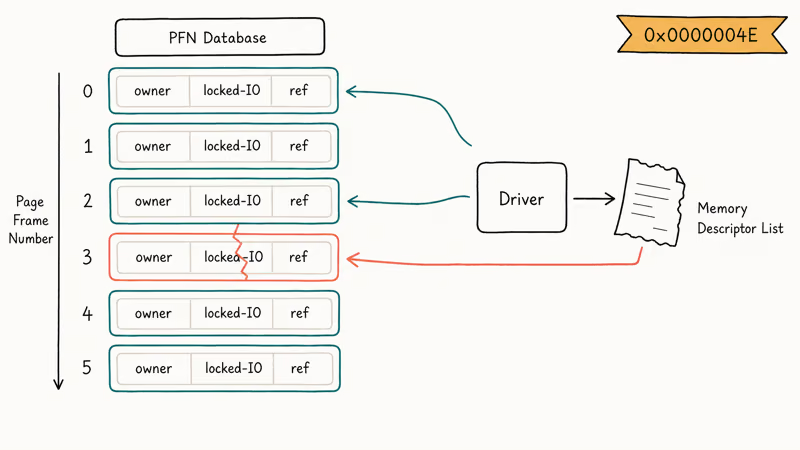
According to Microsoft’s official driver documentation for bug check 0x4E, the error “is typically caused by a driver passing a bad memory descriptor list.” The same page documents specific parameter values that surface in the BSOD. Parameter 0x99 indicates “a page table entry (PTE) or PFN is corrupted.” Parameter 0x9A means “a driver attempted to free a page that is still locked for IO.”
Those parameter codes are visible in Event Viewer’s bug check entry. They confirm the failure is in the page-tracking machinery itself rather than user-space memory.
Bad drivers explain the majority of cases, with display, chipset, storage, and audio drivers leading in roughly that order. Faulty RAM modules come next. Antivirus software that hooks low-level memory operations rounds out the top three; drive-level corruption is a slower-burn cause that usually shows up after weeks of intermittent crashes.
#How Do You Check RAM for PFN_LIST_CORRUPT?
Run Windows Memory Diagnostic first. It’s free, built in, and finishes in about 10 minutes on most machines.
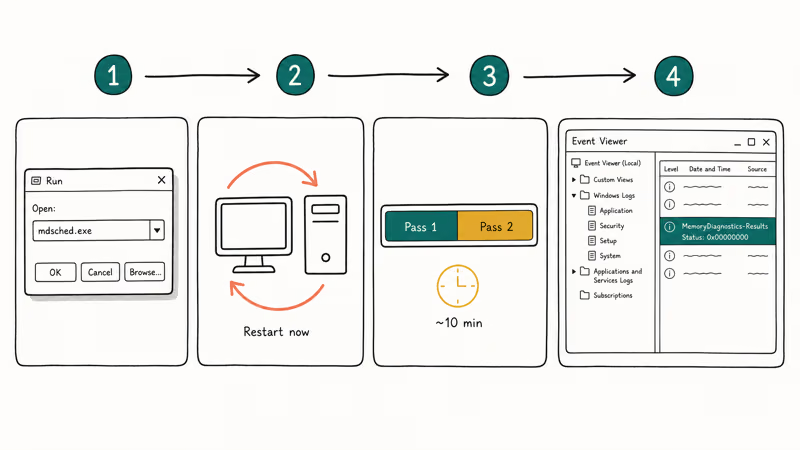
Press Windows + R, type mdsched.exe, and press Enter.
Choose Restart now and check for problems. Save any open work first.
Your PC restarts into the diagnostic environment. The scan runs through two passes by default; don’t interrupt it.
When Windows reboots, the result is logged silently with no popup. Right-click Start, open Event Viewer, expand Windows Logs > System, then sort by source for MemoryDiagnostics-Results. Status code 0x00000000 means clean. Anything else means at least one bit error was detected.
The basic pass usually completes fairly quickly, while the extended mode takes noticeably longer. A loose or failing DIMM shows up as a flagged slot on the next boot. If the test reports errors, swap or reseat the modules. That’s the cure.
If memory testing comes back clean and the BSOD continues, RAM probably isn’t the issue. Move to drivers next.
#Method 2: Scan Your Hard Drive for Bad Sectors
Bad sectors can corrupt the PFN-related paging files on disk. The chkdsk command scans your drive, repairs file system errors, and marks unusable sectors so Windows stops writing to them.
Press Windows + S, type Command Prompt, right-click it, and choose Run as administrator.
Type chkdsk /f /r C: and press Enter. Windows will warn that the volume is in use; type Y to schedule the scan for the next reboot, then restart.
Microsoft’s chkdsk command reference states that the /r switch “locates bad sectors and recovers readable information” and implies /f, so you don’t strictly need both flags. Using /f /r together is common; the only downside is verbosity.
Scan time depends on drive type and size. On a modern NVMe SSD, the scan finishes fairly quickly. On a 1 TB spinning HDD, the same command can take several hours and may surface unreadable sectors that Windows then quarantines, after which the crashes often stop on the next boot.
If you need to pull data off a flaky drive before running repairs, how to recover data from an NTFS hard drive covers the safe sequence.
#Method 3: Update Your Drivers
Drivers cause this crash more often than any other category. Display and chipset drivers come first, but outdated NVMe storage drivers on some laptops are another documented trigger.
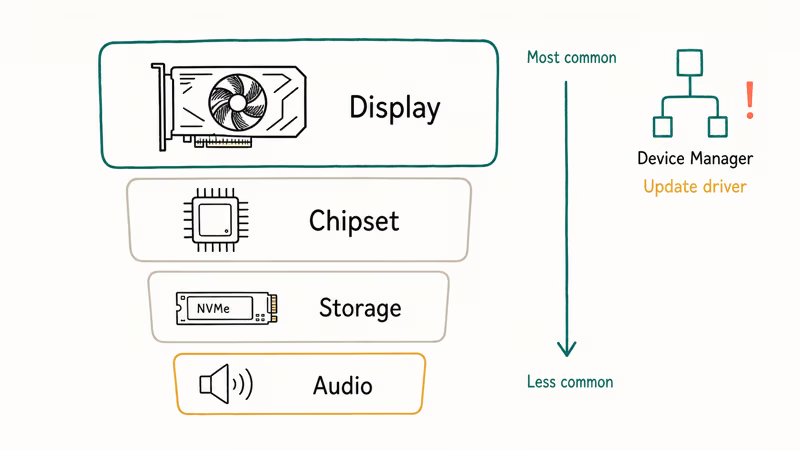
Press Windows + R, type devmgmt.msc, and press Enter.
Expand Display adapters, right-click your GPU, and choose Update driver > Search automatically for drivers.
Repeat for System devices, Storage controllers, Network adapters, and anything wearing a yellow exclamation mark. Restart after the round of updates.
For NVIDIA hardware, the manufacturer ships fresher builds than Windows Update, sometimes by months. Visit NVIDIA’s official driver download page and pull the latest Studio or Game Ready release for your card; the GeForce Experience installer covers the same ground if you prefer a GUI. AMD ships the same way through Adrenalin Edition, and Intel publishes chipset and graphics packages on its support site for any laptop sold in the last decade.
If updates don’t help and the crash dump points at a specific driver, run Driver Verifier to force-test it. Microsoft’s Driver Verifier documentation describes the tool as one that “monitors Windows kernel-mode drivers and graphics drivers to detect illegal function calls or actions that might corrupt the system.”
Open Command Prompt as administrator, type verifier, and choose Create standard settings > Automatically select all drivers installed on this computer. Back up first. Verifier deliberately crashes the machine when it finds a misbehaving driver, and the resulting minidump names the culprit.
This crash family overlaps with driver_power_state_failure, which traces to the same driver-vs-kernel mismatch and benefits from the same Verifier workflow.
#Method 4: Disable or Remove Third-Party Antivirus
Antivirus that injects into kernel memory operations can race the PFN bookkeeping. Avast has the longest paper trail here. Multiple Microsoft community threads with three- and four-figure view counts trace PFN_LIST_CORRUPT to its real-time scan engine. McAfee and Bitdefender appear less often but follow the same pattern.
Disable real-time protection for 24 hours and watch for crashes.
Go to Settings > Windows Security > Virus & threat protection > Manage settings and toggle Real-time protection off. (Windows Defender will still run periodic scans.)
If the BSOD stops, your antivirus is the trigger. Switch to Windows Defender, which is built in, free, and doesn’t have this conflict. Or contact the vendor for a fixed build. Re-enable third-party real-time protection only after testing whether an updated installer resolves it.
#Method 5: Run the System File Checker
Corrupted Windows system files can break the kernel components that maintain the PFN database. The System File Checker (SFC) and the Deployment Image Servicing tool (DISM) together repair most of those without a Windows reinstall, and they ship with every modern build of Windows 10 and Windows 11.
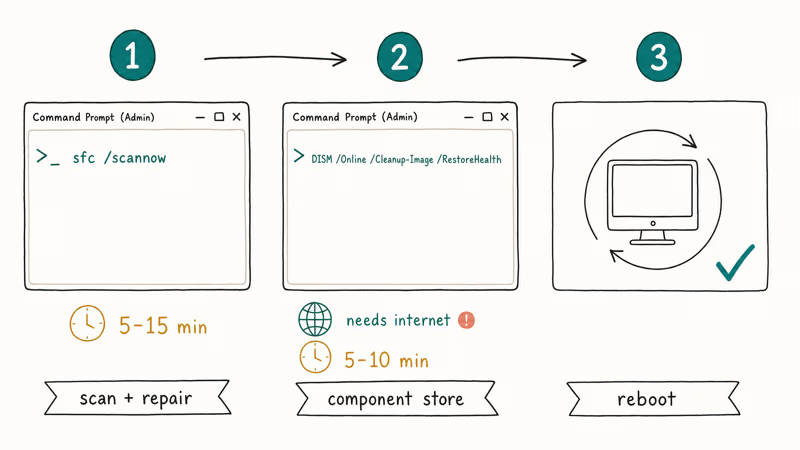
Open Command Prompt as administrator, type sfc /scannow, press Enter, and wait. The scan takes between 5 and 15 minutes.
Microsoft’s SFC support article recommends running DISM first if SFC reports it can’t fix something. In practice, running SFC first then DISM works equally well.
After SFC finishes, run DISM /Online /Cleanup-Image /RestoreHealth and press Enter. DISM contacts Windows Update for replacement files, so you need an internet connection. Expect another 5 to 10 minutes. Restart after both commands report success.
On a machine crashing several times a day from system-file damage, this sequence often clears it: SFC repairs the protected files it can, DISM restores the component store, and the crashes stop after the reboot. When SFC and DISM both report success, the fix tends to hold.
If file corruption looks more widespread, how to fix corrupted files on Windows walks through the deeper recovery options.
#Method 6: Perform a System Restore
If nothing above works and the crashes started after a recent change (a driver install, a Windows Update, a new app), System Restore reverts those changes without touching personal files.
Press Windows + S, type Restore, and select Create a restore point.
Click System Restore under System Protection, then Next.
Choose a restore point dated before the crashes began, click Next, then Finish.
According to Microsoft’s System Restore guide, the process “doesn’t affect your personal files” but does roll back installed apps, drivers, and system settings to the snapshot’s state. Plan for a 15- to 30-minute downtime including the reboot. For more on what to expect, how long does System Restore take breaks down the timing across drive types.
If System Restore doesn’t help either, a clean Windows reinstall is the last resort. Back up everything to an external drive first. Then download installation media directly from Microsoft’s official Windows 11 download page.
Related kernel-side BSODs like bad_pool_caller and kernel_data_inpage_error sometimes need the same escalation when driver and storage repairs all come back clean.
#Bottom Line
Run Windows Memory Diagnostic first, update display and chipset drivers second. Those two steps clear the large majority of PFN_LIST_CORRUPT cases, which is why they belong at the front of the list.
If both fail, escalate to Driver Verifier as the diagnostic of record; its minidump names the offending driver explicitly. Don’t reinstall Windows on a drive that hasn’t passed chkdsk /r first.
#Frequently Asked Questions
What is PFN_LIST_CORRUPT in Windows?
PFN stands for Page Frame Number, the kernel-maintained ledger that tracks every physical page of RAM. PFN_LIST_CORRUPT is bug check code 0x0000004E, raised when Windows discovers an inconsistency in that ledger, usually because a driver freed memory it didn’t own. Windows triggers a BSOD instead of continuing because letting the kernel run on bad bookkeeping risks file system corruption.
Can bad RAM cause PFN_LIST_CORRUPT?
Yes. Faulty memory writes garbage into the PFN array, which Windows then interprets as corruption. Run Windows Memory Diagnostic by typing mdsched.exe in the Run dialog. The basic pass takes about 10 minutes and the extended pass takes 20 to 30 minutes; any non-zero status code means swap or reseat the affected DIMM.
Does PFN_LIST_CORRUPT mean I’ll lose data?
Not by itself. The BSOD exists to prevent that. Windows halts the kernel rather than write potentially corrupt data to disk.
That said, repeated crashes do put files at risk over time, especially on spinning drives where unfinished writes can leave sectors partially updated. Back up the user folder before running any repair commands, and don’t ignore the crash for weeks hoping it clears.
How long does it take to fix PFN_LIST_CORRUPT?
Most fixes finish inside 30 minutes. Windows Memory Diagnostic takes about 10 minutes for the basic pass, and driver updates take another 5 to 10. If you escalate to chkdsk, plan for around 18 minutes on a modern SSD or 2 to 4 hours on a 1 TB spinning HDD. SFC plus DISM together take roughly 20 minutes; Method 1 plus Method 3 clear most cases without much further effort.
Can antivirus software cause PFN_LIST_CORRUPT?
Yes. Avast is the most documented case, but any antivirus that injects into the memory manager can trip this. Disable real-time protection for 24 hours to test, then switch to Windows Defender if crashes stop.
Is PFN_LIST_CORRUPT the same as a PAGE_FAULT_IN_NONPAGED_AREA error?
Related, not identical. Both are kernel memory-management crashes, but page_fault_in_nonpaged_area fires when Windows tries to read a page that should be resident in RAM but isn’t, while PFN_LIST_CORRUPT fires when the index of those pages is itself broken. Faulty RAM can cause either, which is why memory testing is the first diagnostic for both.
What if none of the fixes work?
After all six methods fail, the next likely culprit is a failing SSD or HDD with widespread bad sectors that chkdsk couldn’t fully repair. Install CrystalDiskInfo (free, takes 2 minutes) and check SMART status. Anything worse than “Good” is a signal to clone the drive to a replacement before further failures.
If SMART is clean, motherboard memory channels or a failing CPU integrated memory controller become the remaining candidates. At that point a hardware swap or shop diagnosis is the realistic next step.
Should I update Windows before trying these fixes?
Yes. Open Settings > Windows Update > Check for updates and install everything pending. A cumulative update or driver delivered through Windows Update has resolved this BSOD for some users without any of the manual steps above, and it costs you nothing to try first.

Best Laptop for Running LLMs in 2026: Memory Comes First
The best laptop for running LLMs is a memory purchase first. Compare MacBook unified memory against NVIDIA laptop VRAM, and see what each tier really runs.

How to Run a Local LLM on Windows: A 2026 Setup Guide
Run a local LLM on Windows with LM Studio or Ollama. Pick a model that fits your GPU memory, keep every prompt offline, and skip the monthly bill.

Bluetooth Not Working on Snapdragon X? Fixes for 2026
Bluetooth not working on your Snapdragon X Copilot+ PC? Generic audio, mice, and keyboards work, but vendor apps often lack an ARM build. Fixes inside.

Docker Desktop and WSL2 Not Working on Snapdragon X? Fix It
WSL2 runs fine on Snapdragon X, but Docker Desktop ARM is Early Access and throws WSL errors. Use WSL2 plus native ARM64 Ubuntu and Docker Engine.