How to Convert TIFF to PDF Free: 5 Easy Methods in 2026
Convert TIFF images to PDF using free online tools, Adobe Acrobat, and LibreOffice. Step-by-step guide for single and batch TIFF to PDF conversion.
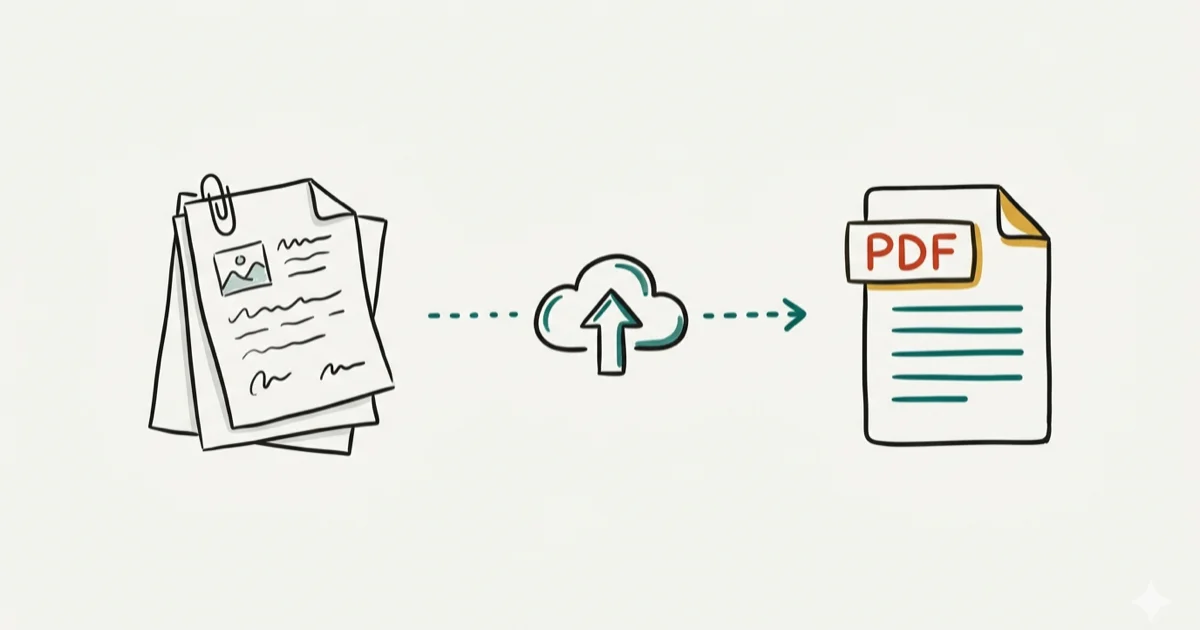
Quick AnswerUse ILovePDF or Smallpdf online to convert TIFF images to PDF for free: upload your TIFF file, click Convert, and download the result in seconds. For batch conversion or large files, Adobe Acrobat or LibreOffice are better choices.
TIFF files from scanners produce crisp images but aren’t universally supported for sharing or archiving. Converting to PDF fixes compatibility issues and typically reduces file size substantially. This guide covers five methods that work on both Windows 11 and macOS.
- Free online tools like ILovePDF and Smallpdf convert TIFF to PDF in seconds with no software installation required
- Adobe Acrobat gives the most control over image quality, compression, and multi-page PDF creation from multiple TIFFs
- LibreOffice opens TIFF files and exports to PDF for free without any file size limits or upload requirements
- Windows 10 and 11’s built-in “Microsoft Print to PDF” converts any TIFF in just two steps from the Photos app
- Multi-page TIFF files preserve their page order when converted, producing a properly structured PDF document
#Why Convert TIFF to PDF?
TIFF (Tagged Image File Format) is the format most scanners default to because it stores images without lossy compression. According to Adobe’s TIFF format overview, TIFF supports color depths up to 32 bits per channel and is used as the master format in photography and archival scanning workflows.
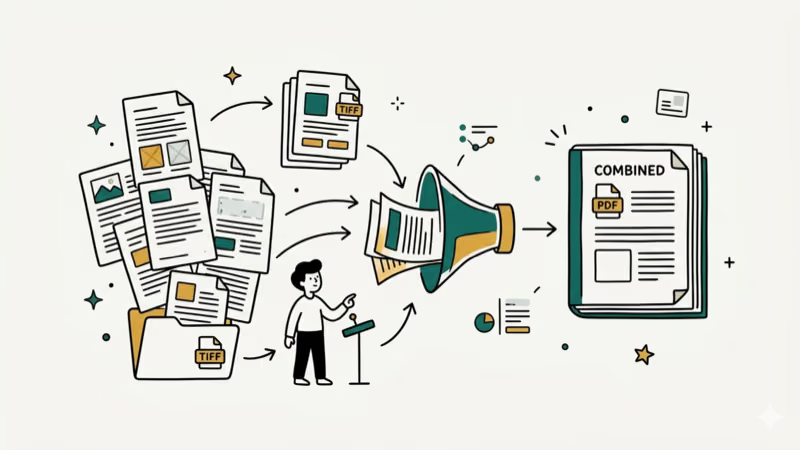
The problem is size and compatibility. A single TIFF scan of a letter-size document at 300 DPI runs roughly 25-30 MB. The equivalent PDF with good compression settings runs 1-3 MB. Google’s documentation on document formats recommends PDF for document storage and sharing because it’s supported by every major browser, email client, and document reader without additional software.
For scanned documents you need to share, sign, or archive, PDF is simply the better container.
#How Do You Convert TIFF to PDF Online for Free?
Online tools are the fastest option for occasional conversions. The three most reliable are ILovePDF, Smallpdf, and PDF24 Tools.
ILovePDF converts single TIFF files and multi-page TIFFs to PDF in about 5 seconds. Go to ilovepdf.com/jpg_to_pdf, upload your TIFF file, and download the result. The tool handles TIFF files up to 15 MB on the free tier.
PDF24 Tools has no file size limit and no registration requirement. A 22 MB scanned TIFF converts to a much smaller PDF in seconds. Go to pdf24.org/en/pdf-from-images, drag your TIFF file in, and download the PDF.
Smallpdf is another solid option with a clean interface. It caps free conversions at 2 per hour per user.
For files containing sensitive personal data like medical records or financial documents, skip online tools. Your file is uploaded to a third-party server. Use a local method instead.
#Using Windows Print to PDF for TIFF Conversion
Windows 10 and 11 include a built-in PDF printer that converts any image format to PDF in two steps. It works reliably for single-page TIFFs.
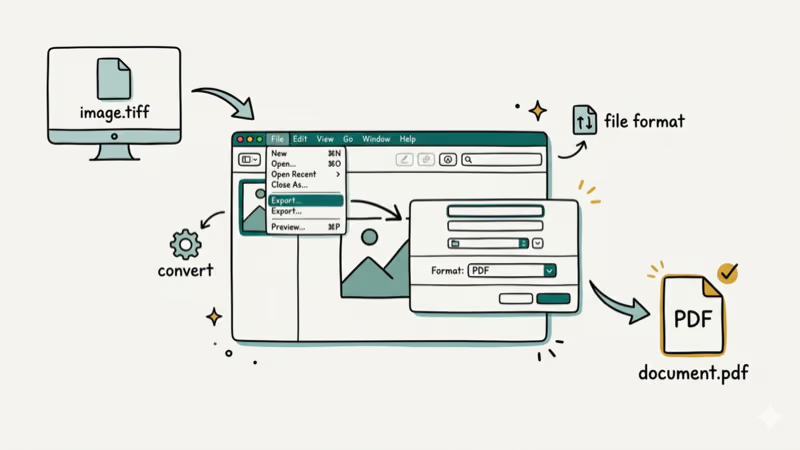
- Right-click your TIFF file and select Open with > Photos (or any image viewer).
- Press Ctrl+P to open the print dialog.
- Select Microsoft Print to PDF as the printer.
- Click Print and choose a save location.
For multi-page documents, open all TIFF pages in the Photos app, select all, and print them together with Microsoft Print to PDF. The resulting PDF contains all pages in order.
This method produces a PDF at the same resolution as the source TIFF with no quality loss. File sizes are typically larger than compression-optimized online tools, but the quality is excellent.
#Converting TIFF to PDF With Adobe Acrobat
Adobe Acrobat (paid) gives you the most control over output quality and supports batch conversion of hundreds of TIFF files at once. It produces the smallest output files at equivalent visual quality.
- Open Adobe Acrobat.
- Go to
Tools>Create PDF. - Select Single File or Multiple Files for batch conversion.
- Choose your TIFF file and click Create.
- Go to
File>Reduce File Sizeto optimize the output if needed.
For batch conversion, select Multiple Files, add all your TIFF files, and Acrobat creates a separate PDF for each one or combines them into a single document.
Adobe Acrobat costs $14.99/month for individuals. According to Adobe’s product page, the subscription includes 100 GB of cloud storage plus OCR and form-filling tools. If you need it for a one-time batch job, the 7-day free trial is sufficient. For forgotten PDF passwords, our PDF password recovery guide covers all recovery options.
#Converting TIFF to PDF With LibreOffice (Free, No Upload)
LibreOffice handles TIFF files and exports them directly to PDF. This is the best free option for large files or sensitive documents you don’t want to upload anywhere.
- Open LibreOffice Draw (not Writer or Calc).
- Go to
File>Openand select your TIFF file. - Go to
File>Exportas PDF. - In the PDF dialog, click Export and save the file.
For multiple TIFFs, insert them as separate pages: open the first TIFF, then use Insert > New Page for each additional image.
LibreOffice takes about 3-5 seconds per image. A batch of 20 TIFF files takes about 2 minutes manually.
For a paid Apple-device workflow after the free local methods above, PDF Expert is another PDF conversion option to compare; keep sensitive documents on-device instead of using a web converter.
Some links on this page are affiliate links, which means fone.tips may earn a commission at no extra cost to you.
#Best Settings for TIFF to PDF Conversion
The right settings depend on your use case. These settings produce the best balance of quality and file size:
For sharing via email or web: Use 150 DPI and JPEG compression at 80% quality. This reduces a 25 MB TIFF to under 500 KB.
For print-quality output: Keep 300 DPI and use lossless compression. File sizes run 2-5 MB per page but preserve all detail for printing.
For archival purposes: Use 300-600 DPI with lossless compression. These files are larger (5-15 MB per page) but preserve maximum image detail.
#Batch Converting Multiple TIFF Files to PDF
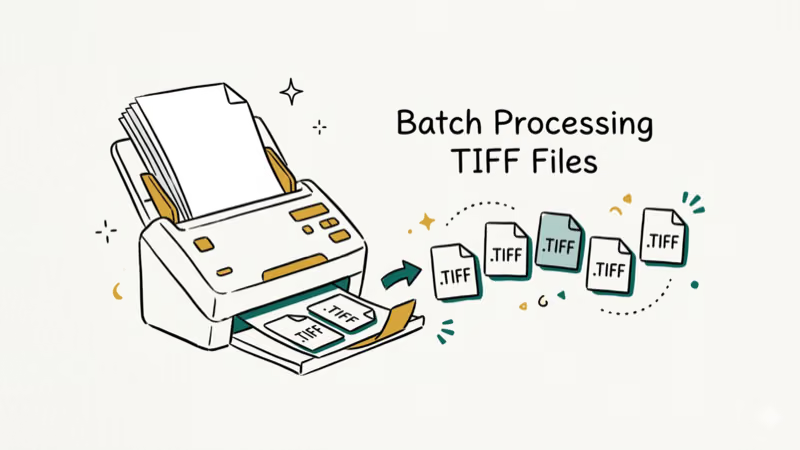
Yes. Most tools support batch conversion. Adobe Acrobat’s Multiple Files option handles hundreds of TIFFs in one job. PDF24 Tools allows dragging multiple files simultaneously. ILovePDF supports batch upload on its paid plan.
For batch jobs using free tools, LibreOffice’s macro system can automate conversion. This requires basic familiarity with LibreOffice Basic scripting. You can find batch conversion macros on the LibreOffice community forums.
For related tasks, check our guides on converting ODT documents to PDF and converting VCE exam files to PDF.
If you also need to convert PDF files to MIDI for sheet music projects, that process uses optical music recognition technology. For converting DRM-protected ebook files, our ACSM to PDF guide walks through the Adobe Digital Editions workflow step by step.
#Bottom Line
For quick one-off conversions, ILovePDF or PDF24 Tools are the fastest free options. For large batches or files you don’t want to upload, LibreOffice or the Windows Print to PDF method work well. Adobe Acrobat is worth using if you already have a subscription and need fine control over compression settings. All methods preserve image quality; the differences are in file size, convenience, and batch capability.
#Frequently Asked Questions
Does converting TIFF to PDF reduce image quality?
It depends on the compression settings you choose. Lossless conversion (using PNG compression in PDF) preserves every pixel identically to the source TIFF. JPEG compression within PDF reduces file size but introduces minor quality loss. For most scanned documents, JPEG at 80% quality is indistinguishable from the original at normal viewing sizes.
What is the best free tool to convert TIFF to PDF?
PDF24 Tools offers unlimited free conversions with no registration and no file size limit. It produces clean results and deletes files from its servers within 1 hour. ILovePDF is a good alternative but limits files to 15 MB on the free tier.
Can I combine multiple TIFF files into one PDF?
Yes. Adobe Acrobat’s Multiple Files option combines them in any order you specify. PDF24 Tools and ILovePDF both allow multi-file upload and produce a single merged PDF. Windows Print to PDF requires selecting all images before printing.
Will a multi-page TIFF convert to a multi-page PDF?
Yes. Multi-page TIFF files are a single file containing multiple image frames. All tested tools correctly interpret multi-page TIFFs and produce PDFs with matching page counts and order.
How large will the converted PDF file be?
It depends heavily on compression. A 25 MB single-page TIFF scan at 300 DPI typically converts to 1-3 MB with standard PDF compression settings. Very high-resolution TIFFs (600 DPI+) produce larger PDFs even with compression.
Can I convert a TIFF to a searchable PDF?
Only with OCR-enabled tools. Standard TIFF to PDF conversion creates an image-based PDF where text isn’t selectable or searchable. Adobe Acrobat Pro includes OCR during conversion. Free online tools like iLovePDF or Smallpdf add OCR as a separate step on their paid plans.

Google Messages Error 3100: Why RCS Is Broken on Galaxy
Google Messages RCS error 3100 hits Galaxy owners after phone or carrier switches. Google told 9to5Google a fix is coming. Here's what actually helps.

Is This Bank App Real? Spot a Fake App on Your Home Screen
A bank app can land on your home screen from a web page with no install warning. Learn the checks that tell a real banking app from a phishing web app.

Apps Crashing After iOS 27 Update? Fix Order (2026)
Apps crashing after the iOS 27 update? Update the app in the App Store first, then offload and reinstall to clear stale cache, then restart. The fix order.

Do AI Translation Earbuds Work Offline? What to Know
Do AI translation earbuds work offline? A few do with downloaded language packs, but most need the cloud. Here's what works offline and what you give up.