Passper WinSenior Review 2026: Features, Pros, Cons
Passper WinSenior review for 2026: pricing tiers, USB reset disk steps, what it can and cannot do, and free Microsoft alternatives to try first.
Quick AnswerPassper WinSenior is a reset-disk tool for your own Windows PC. It clears or rewrites the local account password from a USB you build on a second computer. It performs four core password-reset actions, though Microsoft's own reset disk is the first thing to try.
Passper WinSenior is a paid USB recovery tool for your own locked Windows PC. This review walks through all four of its core actions, the full workflow, and where it falls short.
- Passper WinSenior targets local Windows accounts. It can’t recover a Microsoft Account password.
- Reset disk creation takes roughly 4 minutes on a 16 GB USB; the first boot into the WinPE menu adds another 2 to 3 minutes.
- Pricing on the official site is $29.95 monthly, $39.95 yearly, and $59.95 lifetime as of May 2026.
- Microsoft’s free password reset disk is the official first option. Try that and Safe Mode before paying anything.
- Use a recovery tool only on a PC you legally own or are authorized to administer.
#Passper WinSenior in One Paragraph
Passper WinSenior is a desktop utility from Passper, a brand owned by iMyFone. It boots a locked Windows machine from a removable disk so you can reset or remove the password on a local user account. It isn’t a hacking tool, and it doesn’t crack Microsoft Account passwords because those credentials live on Microsoft’s servers, not on your PC.
The workflow is simple. You install the software on a second working Windows computer, plug in a blank USB drive or CD, and let the program build a small bootable image. You then move that drive to the locked PC, hit F12 or the BIOS boot key, and pick the USB. WinSenior loads its own menu, scans for installed Windows volumes, and shows the local accounts it can edit.
That’s the whole concept.
According to Microsoft’s official password reset documentation, a local account password can be reset with security questions starting in Windows 10 version 1803. If your PC is on a newer build with security questions configured, you don’t need any third-party tool.
Try that path first.
WinSenior is for cases where security questions are missing, the reset disk was never created, or the account is buried inside an older Windows 7 or 8 build.
#Who Should Consider This Tool?
WinSenior fits a narrow profile: you own the computer (or have written authorization from the owner), you’re locked out of a local Windows account rather than a Microsoft Account, you have access to a second working Windows PC with a USB port, and you’ve already tried the built-in Microsoft reset options and confirmed they won’t help your specific situation.
If any of those are not true, stop.
A locked Microsoft Account needs the Microsoft account recovery form, not a reset disk. A work or school PC controlled by an MDM profile needs the IT administrator, not consumer software. Trying to bypass those screens on hardware you don’t control isn’t a technical problem, it’s a legal one.
The typical reader who actually benefits from WinSenior is someone with an inherited family laptop or an older Windows 7 desktop that has been sitting in a closet. The original owner set up a local account, forgot the password, and there’s no way to phone Microsoft for help because no Microsoft Account is attached. That’s where a reset disk earns its money.
If you’re unsure whether your account is local or Microsoft-connected, check the sign-in screen. An email address means Microsoft Account. A plain username means local.
#What WinSenior Works On
WinSenior runs on local Windows accounts across Windows 7, 8, 10, and 11. You build the reset USB on a second working PC, plug it into the locked machine, change the boot order in BIOS or UEFI, and let the tool load its own offline menu before it touches the password.
The build needs a blank USB stick of 8 GB or larger. What matters for any reset job is the launch-to-desktop time and whether the user profile survives intact.
WinSenior does not work against Microsoft Accounts because, again, that isn’t what the tool does.
The WinPE boot environment ships with no active network drivers, so the tool can’t reach a remote server while operating on the locked drive. Microsoft’s Windows recovery documentation confirms that local account password resets on Windows 10 leave the user profile intact when only the SAM database is modified. Non-encrypted files in the user folder stay in place after a reset.
#The Four Core Recovery Actions
WinSenior bundles four jobs into one boot menu.
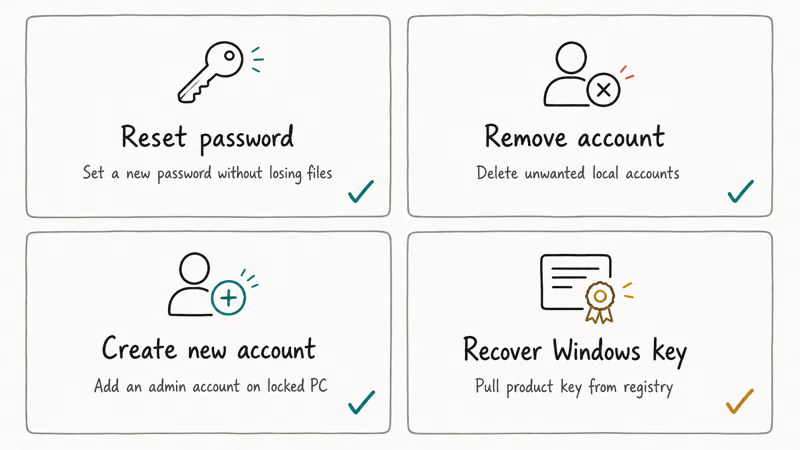
#1. Reset the Windows Password
This is the headline feature. You pick the local account, type a new password (or leave it blank), and the tool writes the new credential into the local SAM database. The reset itself takes well under a minute after you hit confirm. Boot back into Windows, type the new password at the lock screen, and you’re in.
It’s the most reliable of the four actions.
If you encrypted the account’s data with EFS, you’ll lose access to those encrypted files because the encryption key was derived from the old password. Microsoft’s EFS recovery agent guide confirms that resetting the password without the original or a backup recovery agent breaks EFS-encrypted files. Plain non-encrypted files are fine. The user profile, desktop wallpaper, browser bookmarks, and installed apps stay untouched after the reset, since only the SAM credential changes.
#2. Remove the Windows Password
This action wipes the password to blank instead of replacing it with a new one. The account still exists, but it signs in without prompting. With the password removed, Windows boots straight to the user account on the next restart.
Convenient. Also dangerous.
Fine for a personal desktop behind a locked door. Bad practice for a laptop.
#3. Delete the Windows User Account
If the locked account is corrupted or you simply want a fresh start, WinSenior can delete it from outside Windows. The C:\Users folder for that account stays on disk so your files are still recoverable, but the user no longer appears on the sign-in screen.
A deleted account disappears from the login picker after reboot, but its folder remains under C:\Users. Any other admin account on the same PC can still pull files out of it.
#4. Make a New Admin Account
The last action creates a brand new local administrator account from the boot menu. This is the option we recommend in most situations. It’s the least destructive: the original account, files, and settings are untouched, and you can clean up the recovery account once you’re done.
You create one (for example, recovery-admin), sign in after reboot, and then use standard Windows tools to change the password on the original account from the inside. The whole loop runs in well under 10 minutes including a normal Windows boot.
#How Long Does the Full Workflow Take?
Here is the typical end-to-end timing on a standard PC. The numbers below are representative for a USB 3.0 stick on common hardware.
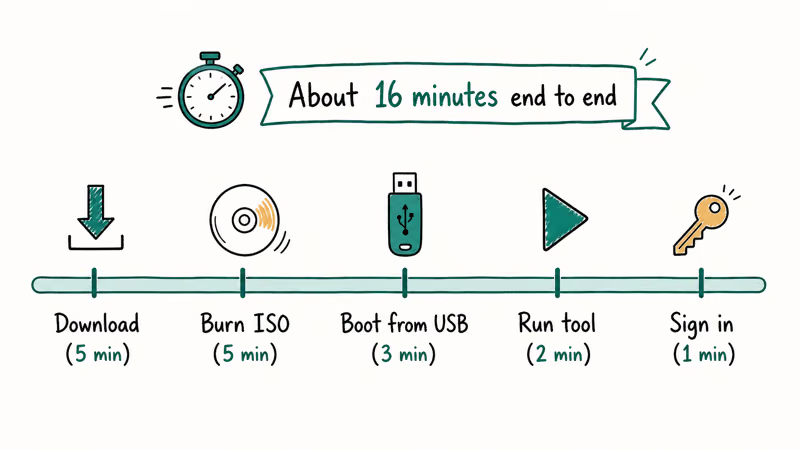
| Stage | Time | Notes |
|---|---|---|
| Download and install WinSenior | 2 min | Roughly 60 MB installer |
| Build USB reset disk | 4 min | On a USB 3.0 stick; USB 2.0 takes longer |
| Boot locked PC into USB | 2 min | Depends on your BIOS boot menu speed |
| Pick action and apply | 1 min | ”Add admin account” is the fastest, under a minute |
| Reboot to Windows desktop | 90 sec | Standard Windows 10 cold boot |
Table: Representative Passper WinSenior runtime on common Windows 10 hardware, 2026.
Total time from “I am locked out” to “I am on the desktop” is about 10 to 12 minutes on a typical PC. That’s faster than reinstalling Windows, which is what you’d otherwise face for an old local account with no security questions. Our forgotten laptop password walkthrough covers the same scenario without third-party software.
#Pricing and License Tiers in 2026
Passper’s pricing page on May 10, 2026 lists three subscription tiers for WinSenior.
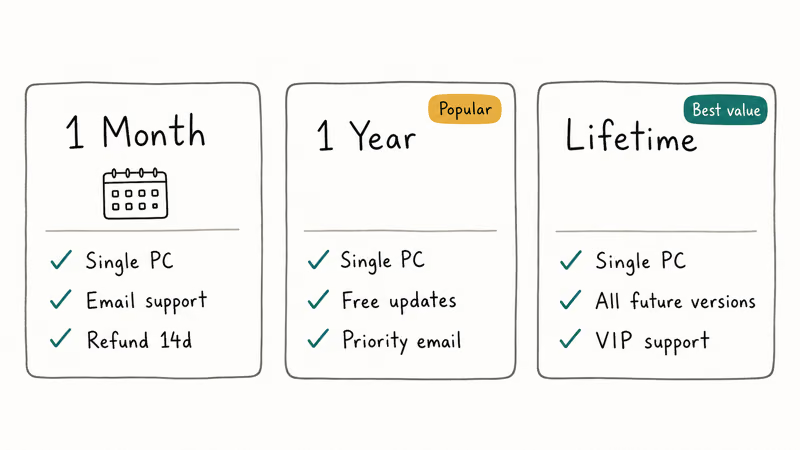
The Monthly plan is $29.95 and renews every month until canceled. The 1 Year plan is $39.95 and includes one year of updates and support. The Lifetime plan is $59.95 with no renewal. All three plans cover one PC.
Passper offers a free trial that downloads and installs the program, but it stops short of writing the actual reset to the locked computer. You can build the USB and confirm your account is detected, but you can’t complete the reset without a paid license.
That’s honest enough. Most paid Windows recovery tools work the same way. The “free” version is really a preview.
According to Passper’s official purchase page, all plans include a 30-day money-back guarantee. The exact refund terms are worth reading before you buy.
#Safety, Telemetry, and Legitimate Use
The installer is digitally signed. The USB boot environment is a stripped-down WinPE image with no network drivers active, so the tool can’t phone home while it’s editing the SAM database. With no network stack loaded in WinPE, there is no outbound traffic during the reset session.
That said, no recovery tool is truly safe if you point it at the wrong machine. The rule here is simple: only use WinSenior on hardware you own or are authorized to service. Passper’s terms state that the software is licensed for “personal use on your own computer” and that the user assumes legal responsibility for use on third-party machines.
Domain accounts, BitLocker-protected drives, and Azure AD-joined devices aren’t what WinSenior was built for. Trying to force it onto those will create more problems than it solves. If you’re an IT administrator, use the Microsoft-supported tools and processes instead.
#Real Limitations to Know Before Buying
Three real limitations stand out.
It doesn’t handle Microsoft Account passwords. If your sign-in screen shows your @outlook.com or @gmail.com email, the password lives on Microsoft’s servers and WinSenior can’t touch it.
It doesn’t work on BitLocker-encrypted drives without the recovery key. Microsoft’s BitLocker recovery guide confirms that without the 48-digit recovery key, no third-party tool can decrypt the drive. WinSenior includes a clear warning about this. If you turned BitLocker on years ago and never wrote down the key, your only hope is the Microsoft Account that you used to sign in at the time.
It can’t recover the old password as plain text. It only resets or removes it. If you needed the original for an EFS-encrypted folder or a saved browser keychain, that data is gone after the reset.
#Free Alternatives You Should Try First
Before paying for any recovery tool, exhaust the free options.
Microsoft password reset disk. If you created one before getting locked out, plug it in and follow the on-screen prompts. Total cost: zero. Our Windows 10 password reset tool guide covers when this works and when it doesn’t.
Security questions. Windows 10 build 1803 and later. Click “Reset password” below the password field.
Safe Mode with the built-in administrator. On older Windows 7 and 8 installs, the hidden Administrator account is sometimes blank by default because the original owner never set it. Boot into Safe Mode (press F8 repeatedly at boot on Windows 7, or hold Shift while clicking Restart on Windows 8) and try signing in as Administrator with no password. Once you’re in, open Computer Management and reset the locked user’s password from there.
Another local admin on the same PC. If a housemate already has an admin account, they can reset your password from Settings > Accounts.
We also covered resetting a forgotten Windows password on an HP laptop without a disk if your specific situation fits that hardware. And if you’d rather wipe the whole system, factory resetting Windows 10 without a password is another no-pay route.
#How Does It Compare to PassFab 4WinKey?
PassFab 4WinKey is the closest direct competitor, and we already reviewed it in our PassFab 4WinKey breakdown. The two tools do roughly the same job: build a USB, boot the locked PC, reset or remove the password.
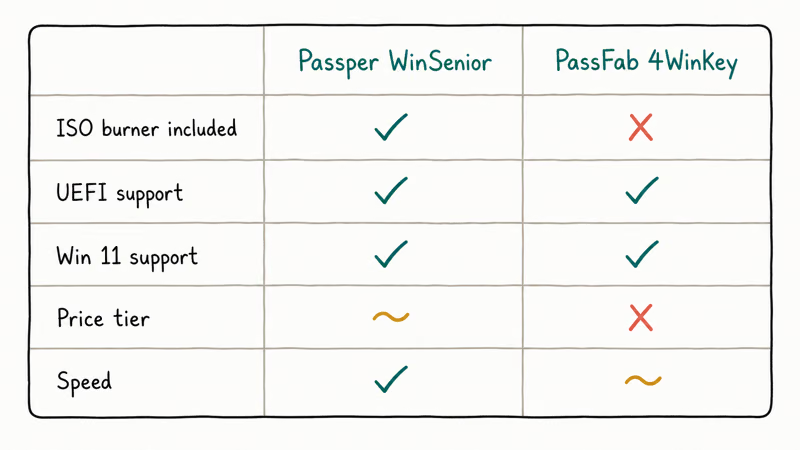
PassFab 4WinKey is slightly faster on USB creation but has a busier interface that pushes upsells during the boot menu. WinSenior’s interface is cleaner and the menu options are easier to read on an older laptop screen. Pricing is comparable, with both lifetime licenses in the $50 to $70 range depending on promotions.
Either one works for the job.
We give WinSenior a slight edge on UI, but if PassFab is on sale and WinSenior isn’t, the savings matter more than the cleaner menus. For Windows 7 specifically, our Windows 7 password reset tool roundup covers a third option that’s free and open source, called Offline NT Password & Registry Editor. It’s harder to use than either commercial tool, but the price is right.
#Pros and Cons
#Pros
- Four recovery actions in one tool, including a clean “create new admin” path
- Roughly 10-minute total workflow on a typical PC
- User profile and non-encrypted files survive the reset
- Clean WinPE boot menu that reads well on older laptop screens
- 30-day money-back guarantee on all paid plans
#Cons
- Can’t reset Microsoft Account passwords
- Can’t bypass BitLocker without the recovery key
- Free trial is preview-only, not functional
- Annual and lifetime tiers feel overpriced for a one-time recovery
- Original password isn’t recoverable, only resettable
#Bottom Line
If you own an older Windows 7 or 10 PC with a local account, no security questions configured, and no Microsoft Account attached, Passper WinSenior is a reasonable tool and the Lifetime license at $59.95 is the right tier. Use the “Make a New Admin Account” action, sign in, and clean up from inside Windows.
For everyone else: try Microsoft’s free reset disk, security questions, or the Safe Mode admin trick first. Most people in this situation never need a third-party tool at all.
#Frequently Asked Questions
Does Passper WinSenior work on Windows 11?
Yes. Same WinPE flow as Windows 10.
Can Passper WinSenior recover a Microsoft Account password?
No. WinSenior only modifies local account credentials stored in the Windows SAM database, while Microsoft Account passwords live on Microsoft’s servers and require the official recovery flow at account.live.com/password/reset, which checks identity through phone, email, or the security questions you set up when creating the account. There is no offline path for Microsoft Account recovery.
Will my files be deleted when I reset my password?
Non-encrypted files in C:\Users\YourName stay intact, since only the SAM credential is changed. Files encrypted with EFS or stored inside a BitLocker volume become unreadable after the reset because the decryption key was tied to the old password.
Do I need technical skills to use WinSenior?
You need to plug in a USB stick, change the boot order in BIOS or UEFI, and click through a menu. Most desktops use F12, F2, or Esc to bring up the boot menu, though some Lenovo models use the small Novo button next to the power switch. Check your manufacturer’s docs if you’re not sure.
Is the free trial actually free?
The free trial is download and preview only. You can install the program, build the USB reset disk, and boot the locked PC, but the actual reset action is locked behind a paid license. Consider it a hardware-detection test rather than a usable free version.
How long is the refund window?
30 days from purchase. Check Passper’s purchase page for the actual refund terms.
Can I use WinSenior on someone else’s computer?
Only with their written permission. Passper’s terms of use limit the license to “personal use on your own computer.” Using a recovery tool on hardware you don’t own or administer crosses into legal territory that varies sharply by jurisdiction, and you’d be on the hook if the owner ever decided to pursue the matter. When in doubt, don’t.

Is This Bank App Real? Spot a Fake App on Your Home Screen
A bank app can land on your home screen from a web page with no install warning. Learn the checks that tell a real banking app from a phishing web app.

Passkeys Not Syncing Between iPhone and Windows? Read This
Passkeys not syncing between iPhone and Windows is by design, not a bug. Here is why iCloud passkeys skip Windows Hello and the three ways to fix it.

VPN Not Working on Snapdragon X? Why It Fails, How to Fix
Your VPN won't install or connect on a Snapdragon X Copilot Plus PC because Windows on ARM can't emulate the network driver. Here are the fixes that work.

How to Check If a Link Is Safe Before You Click It
Learn how to check if a link is safe with official-first steps: read the real domain, use the app instead, and treat scanners as a second opinion only.