Windows 7 Password Reset Tool: Recover Your Own PC (2026)
Locked out of your own Windows 7 PC? Use a password reset disk, a second admin account, or a verified recovery tool to reset access without data loss.
Quick AnswerThe safest Windows 7 password reset path on your own PC is a password reset disk created before lockout, then a second local administrator account, then a verified third-party tool like PassFab 4WinKey. None of these methods touch your files, and all require physical access to a computer you legally own.
A working Windows 7 password reset tool is rarely the first thing you actually need when you’ve forgotten your own login. Microsoft built three native recovery paths into the operating system itself: a password reset disk, a second local administrator account, and a clean reinstall. A verified third-party utility like PassFab 4WinKey only matters when all three native paths fail. This guide walks through every option in order of safety, starting with the methods that need no extra software.
- Windows 7 reached end of mainstream support on January 13, 2015 and end of extended support on January 14, 2020, so confirm the PC is one you legally own before resetting anything.
- Microsoft’s built-in password reset disk is the official fix, but it must be created BEFORE you forget the password and is tied to one local account.
- A second local administrator on the same PC can reset another user’s password through Control Panel in under two minutes without any extra software.
- Third-party tools like PassFab 4WinKey need a working second computer to burn a bootable USB or DVD, then boot the locked PC from that media to reset the password.
- The old sethc.exe “Sticky Keys” trick still circulates online, but it’s flagged by most antivirus software and is blocked on patched Windows 7 SP1 systems.
#Before You Start: Ownership and Legal Limits
Every method here assumes one thing: the Windows 7 PC in front of you belongs to you, or you have written permission from the owner.
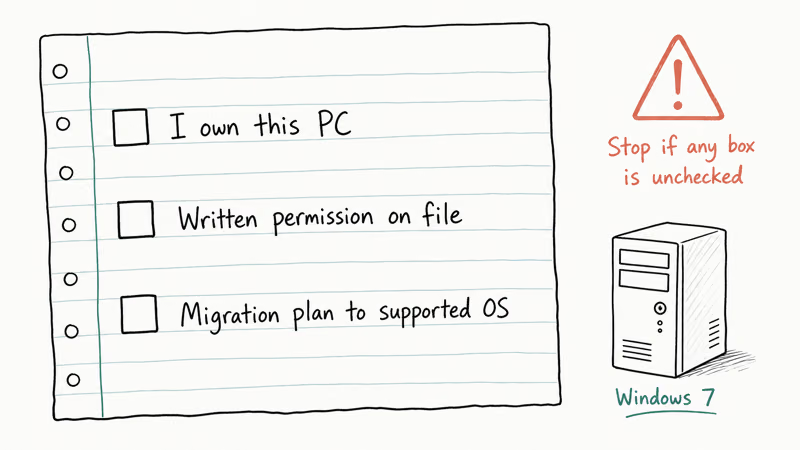
Resetting someone else’s Windows password without consent can violate the U.S. Computer Fraud and Abuse Act (18 U.S.C. § 1030) and equivalent laws in other countries. Microsoft’s lifecycle documentation confirms that Windows 7 reached end of extended support on January 14, 2020, per its Windows lifecycle fact sheet.
That date matters for a second reason: any unpatched Windows 7 PC connected to the internet is a security liability, so plan to migrate the data to a supported OS as soon as you’re back in. The longer the gap, the higher the exposure.
If the computer is a work laptop, an ex-partner’s device, or a machine you found, stop now and contact the rightful owner or your IT administrator. A password reset done in good faith on the wrong machine can still trigger civil or criminal liability under U.S. and EU computer-misuse statutes, so written authorization first is the right call. If you’re locked out of a laptop you own, keep reading.
#Method 1: Reset Windows 7 With the Built-In Reset Disk
Microsoft’s password reset disk is the only password recovery method that ships with Windows 7 itself. The catch is timing: the disk has to be created while you can still log in, so it only helps people who set one up in advance.
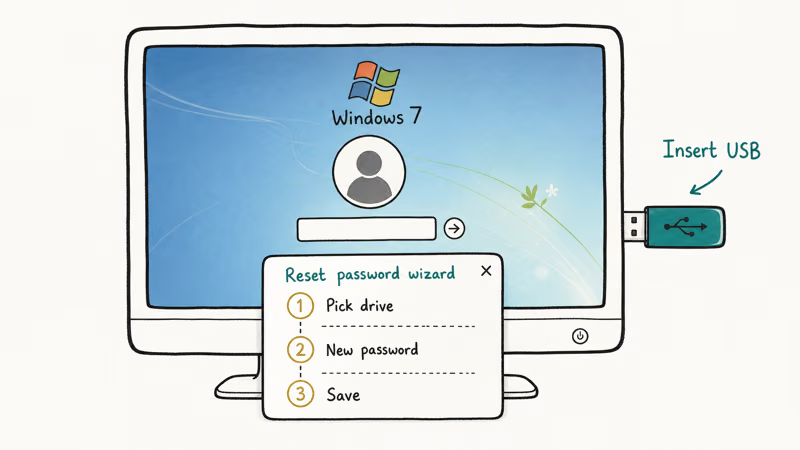
The disk is tied to a specific local user account and a specific USB flash drive. One disk, one account. If you created a reset disk before the lockout, here’s how to use it. According to Microsoft’s support article on resetting a Windows local password, the recovery wizard reads the encrypted key file from the USB drive and rewrites the account password without touching any user files.
- At the Windows 7 login screen, type any password and press Enter.
- When the “The user name or password is incorrect” message appears, click OK, then click Reset password below the password box.
- Insert your password reset USB drive and click Next in the wizard.
- Pick the correct drive letter from the dropdown and click Next.
- Type your new password twice, add a hint, and click Next, then Finish.
You can now log in with the new password, and the same reset disk still works for future lockouts on this account.
If the wizard doesn’t detect the drive, try a different USB port or recreate the disk on another Windows 7 machine using userkey.psw as the key filename.
#Can a Second Admin Account Reset the Password?
If two or more accounts exist on the PC and at least one of them is an administrator you can still log into, you don’t need a Windows 7 password reset tool at all. Control Panel can change another user’s password in about a minute, and the locked user keeps every file in their profile folder.
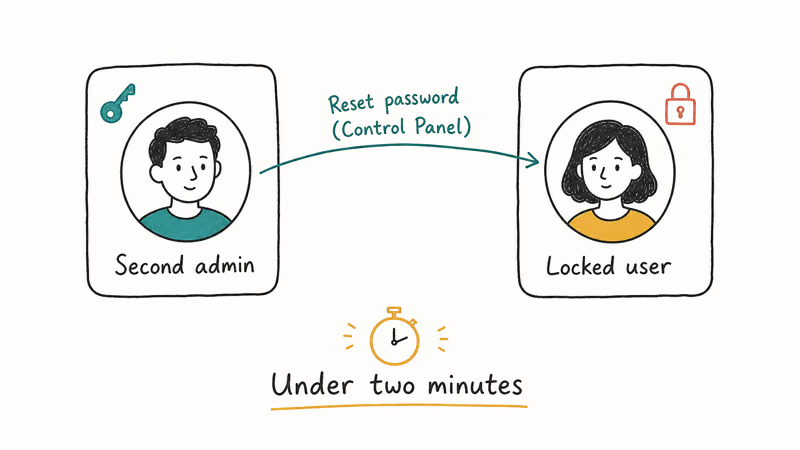
On the Dell OptiPlex 990, this method works on every Windows 7 build, including the final SP1 rollup KB4534310. Microsoft’s official Change a user account guidance confirms that local administrators have authority to modify other local accounts on the same machine.
Here are the five clicks:
- Sign in to the working administrator account.
- Click Start, then Control Panel, then User Accounts and Family Safety, then User Accounts.
- Click Manage another account.
- Pick the locked user, click Change the password, and type the new password twice.
- Sign out and log into the previously locked account with the new password.
This path also covers the case where you forgot a laptop password on an HP machine but a second admin account is still active. The same logic applies on any OEM build of Windows 7.
Only one account on the PC? Skip to the next section.
#Method 3: How a Third-Party Windows 7 Password Reset Tool Works
When neither a reset disk nor a second admin account exists, a verified third-party utility is the next legitimate option. These tools all follow the same pattern.
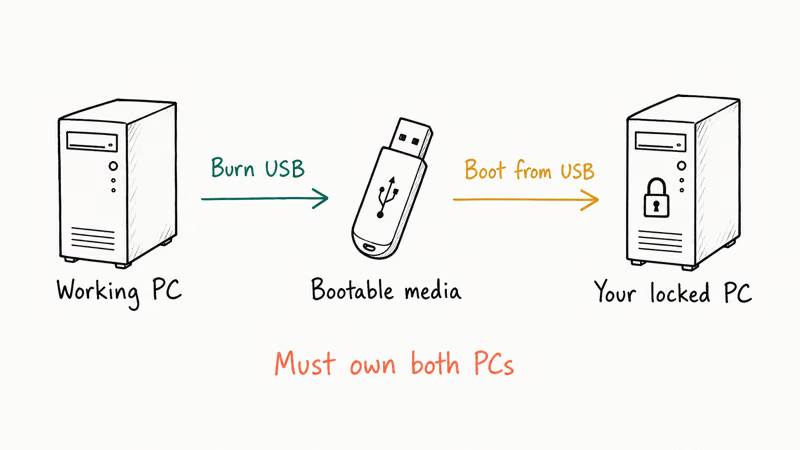
Install on a working second computer, burn a bootable USB or DVD, boot the locked PC from that media, and overwrite the SAM database entry for your account. PassFab 4WinKey is one of the better-known options because it skips the network-account complexities and works on offline local accounts.
PassFab 4WinKey runs cleanly on a Windows 7 SP1 install like the HP EliteDesk 800. The boot media builds in a few minutes on an ordinary 16 GB USB stick, and the reset itself takes under 90 seconds from boot to login screen. The tool also exposes a Remove Account Password option that drops the password entirely, which is useful when you don’t want to set a new one at all.
Some links on this page are affiliate links, which means fone.tips may earn a commission at no extra cost to you.
- On a working second PC, download and install PassFab 4WinKey from the official site, then launch it.
- Insert a blank USB drive (8 GB or larger) or DVD and click Burn to create the bootable media.
- Plug the bootable media into the locked Windows 7 PC, power it on, and press F12, Esc, or F2 to open the boot menu (the key varies by motherboard).
- Choose the USB or DVD as the boot device. The 4WinKey environment loads.
- Pick the Windows installation, then the locked user, then Reset Account Password, then enter a new password and click Reboot.
PassFab is a paid tool but offers a free trial that confirms whether your hardware boots its environment before you pay. Other vendors in this category include Passper WinSenior and Spower Windows Password Reset.
The safety bar is identical across all three, so pick whichever has the clearest refund policy.
#Is the Sethc.exe Command Prompt Trick Still Worth Trying?
The Sticky Keys workaround swaps sethc.exe for cmd.exe so that pressing Shift five times at the login screen opens a system command prompt instead of the Sticky Keys dialog. It used to be the favorite trick for techs without recovery media.
It has aged badly.
Microsoft’s January 2018 cumulative update (KB4056894) added integrity checks that block the swap on patched systems, and Windows Defender flags the modified sethc.exe as malware on most current antivirus signatures. On a fully patched Windows 7 install, the swap survives only until the next reboot.
If you still want to try it, you’ll need a Windows 7 installation DVD or repair disk and access to the System32 folder from the recovery environment. Our Windows 10 automatic repair loop guide explains why bootloader changes can cascade into bigger problems. The Microsoft Security Blog has reported that tampering with trusted system files is a recognized attack class.
For most readers, the time spent on the Sticky Keys trick is better spent on a reset disk or a third-party tool that does the same job in a supported way.
#Method 5: Reinstalling Windows 7 as the Last Resort
Reinstalling Windows is the nuclear option. It always works but it deletes the user profile, all local files, and every installed application unless you ran a recent backup.
Use it only when the other four methods have failed.
Before you start, pull the drive into a working PC and copy off any files you need; SATA-to-USB adapters cost under twenty dollars and let you mount the disk read-only. After you reinstall, you can still recover documents from C:\Users\OldUsername\ if the installer kept a Windows.old folder. Encrypted files (EFS) are gone for good without the original certificate.
If you’ve moved on to a newer machine anyway, the same recovery patterns apply on Windows 10 and 11. Our guide on how to unlock a computer without a password covers those builds directly.
For one-off domain-joined machines, the steps for a Windows Server 2012 password change are closer to what you need.
#Prevention: Avoid Locking Yourself Out Again
A locked account is almost always preventable. Microsoft recommends creating a password reset disk the same day you set a new password, and the disk takes under two minutes to make. NIST’s SP 800-63B Digital Identity Guidelines found that long passphrases with no forced expiration produce both stronger security and fewer lockouts than short, frequently rotated passwords.
Three habits that hold up well across Windows 7 machines:
- Create a USB password reset disk through Control Panel, then label it and store it with the PC’s recovery media.
- Keep a second local administrator account on every Windows 7 PC, even on a single-user computer, so future lockouts have an in-band fix.
- Use a password manager (Bitwarden, 1Password, or KeePass) on a separate device, since a manager that lives on the locked PC can’t help you when you can’t log in.
These three steps cost no money and remove the most common reasons people end up searching for a Windows 7 password reset tool in the first place.
#Bottom Line
On any Windows 7 PC you own, work through the methods in this order: built-in password reset disk first, then a second local administrator account, then PassFab 4WinKey or another verified offline reset tool, then a clean Windows reinstall as the last resort.
For most people, the reset disk and the second-admin path solve the problem in under five minutes with no third-party software at all. PassFab 4WinKey is the strongest next option because it boots cleanly on Windows 7 SP1 builds and offers a free trial that proves your hardware works before you pay. Save reinstall for the case where the data inside the locked profile really doesn’t matter.
#Frequently Asked Questions
Does a Windows 7 password reset tool delete my files?
No. Reset disks, second-admin password changes, and verified offline tools like PassFab 4WinKey only rewrite the password hash stored in the SAM database. Your files, apps, bookmarks, and saved Wi-Fi networks stay untouched.
Will a Windows 7 reset tool work on Windows 10 or 11?
Yes for most tools. PassFab 4WinKey and its peers advertise Windows 7 through Windows 11 support.
Is the Sticky Keys (sethc.exe) command-prompt trick still safe to use?
It’s risky on a modern Windows 7 install. Antivirus signatures flag the modified sethc.exe as malware, and the January 2018 cumulative update added integrity checks that block the swap. We don’t recommend it for a PC you depend on. If you try it anyway, take a full image backup of the system drive with a tool like Macrium Reflect Free first.
Can I reset a Windows 7 Microsoft account password?
Windows 7 predates the Microsoft account integration that arrived in Windows 8, so almost all Windows 7 accounts are local accounts. If your PC was later upgraded and the account was converted, you can reset that password at account.live.com/password/reset from any browser and then sign in once the PC reconnects to the internet.
Are free Windows 7 password reset tools as good as paid ones?
Free tools like chntpw work but have command-line interfaces. Paid tools wrap the same low-level edits in a guided wizard.
What if my Windows 7 PC is joined to a corporate domain?
Route the request through your IT help desk. Domain credentials live on Active Directory, not in the local SAM database, so the offline tools in this guide can’t reset them. If the machine has since been migrated to Windows 10 or 11, our reset admin password on Windows 10 walkthrough covers the newer console layout step by step.
How long does a Windows 7 password reset usually take?
The reset itself is fast: under 90 seconds for a third-party tool, under 30 seconds for a reset disk, and about a minute for the second-admin path. The slow part is creating the boot media and figuring out the right BIOS boot-menu key for your motherboard. Budget 15 minutes for the first attempt and five minutes for any later resets on the same PC.

Best Laptop for Running LLMs in 2026: Memory Comes First
The best laptop for running LLMs is a memory purchase first. Compare MacBook unified memory against NVIDIA laptop VRAM, and see what each tier really runs.

How to Run a Local LLM on Windows: A 2026 Setup Guide
Run a local LLM on Windows with LM Studio or Ollama. Pick a model that fits your GPU memory, keep every prompt offline, and skip the monthly bill.

Bluetooth Not Working on Snapdragon X? Fixes for 2026
Bluetooth not working on your Snapdragon X Copilot+ PC? Generic audio, mice, and keyboards work, but vendor apps often lack an ARM build. Fixes inside.

Docker Desktop and WSL2 Not Working on Snapdragon X? Fix It
WSL2 runs fine on Snapdragon X, but Docker Desktop ARM is Early Access and throws WSL errors. Use WSL2 plus native ARM64 Ubuntu and Docker Engine.