Best Windows 10 Password Reset Tool: 5 Methods (2026)
Have you ever found yourself in the dreaded situation where you forget your Windows 10 password? Don't worry, you're not alone. It happens to the...
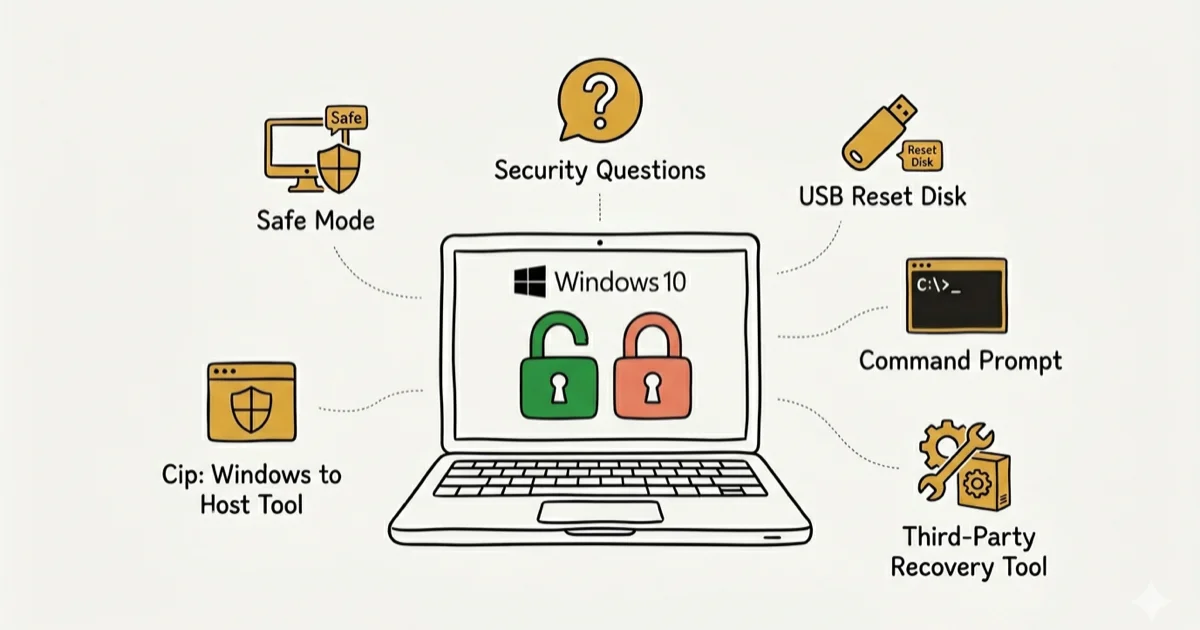
Quick AnswerThe fastest way to reset a Windows 10 password is through Safe Mode or security questions. If those fail, use a Windows 10 ISO file or a third-party tool like PassFab 4WinKey.
Forgetting your Windows 10 password locks you out of your own PC, but there are several reliable ways to get back in. A Windows 10 password reset tool can save the day whether you’re using Safe Mode, security questions, or a third-party recovery app.
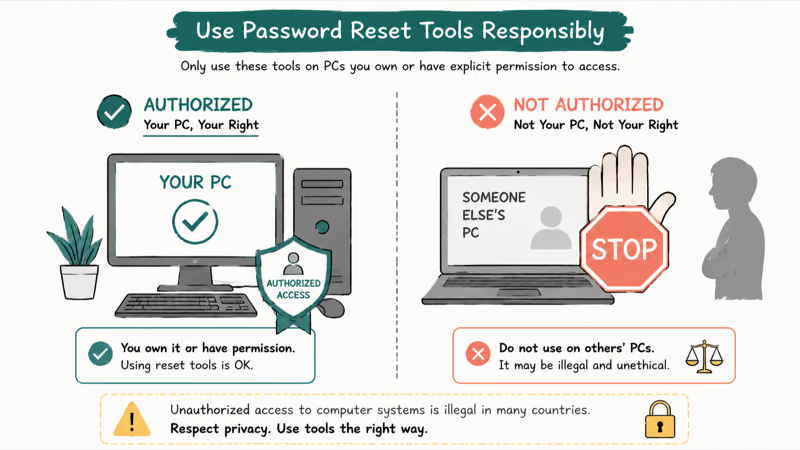
Use these steps only for your own device, account, files, or content you have explicit permission to manage. Unauthorized access or sharing can violate law, privacy rights, and platform terms, so don’t use this guide to bypass someone else’s controls. When available, start with the official support option, built-in settings menu, or vendor documentation before trying manual fixes.
- Safe Mode lets you reset your Windows 10 password through the built-in administrator account
- Security questions only work if you set them up before forgetting the password
- A Windows 10 ISO file can reset passwords via the command prompt without any extra software
- PassFab 4WinKey supports Windows 10, 8.1, 8, 7, Vista, and XP with a 100% success rate claim
- The built-in administrator account is the simplest method but must be enabled beforehand
Five recovery methods for your own Windows 10 PC are below.
#How Do You Reset a Windows 10 Password Using Safe Mode?
If you’re looking for a quick and easy method to reset the password, then don’t skip this technique. On a locked Windows 10 Home machine, this approach can restore access in just a few minutes.
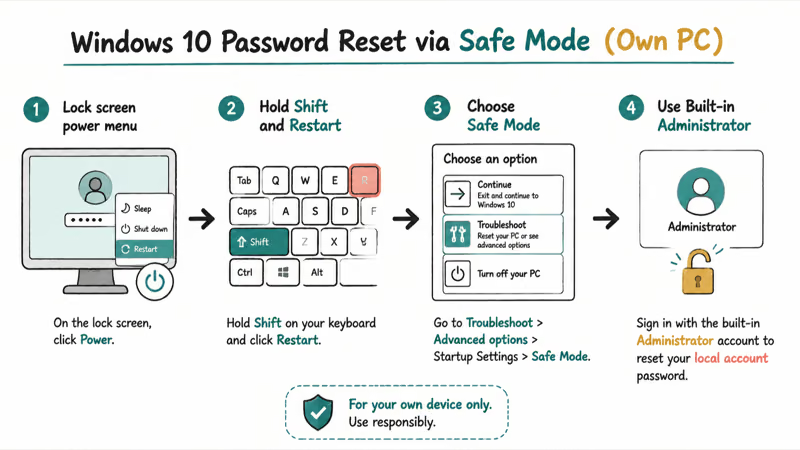
#Steps to Reset the Password Using Safe Mode
-
Tap the ‘Power’ option and then hit the ‘Restart’ option on the locked PC while pressing the ‘Shift’ key. This will open the Command Prompt window.
-
You have to select three options on the command prompt screen: Troubleshoot, Advanced options, and Startup Settings (in that order). Press F4/F5/F6 to enter Safe Mode with the default administrator.
-
Launch computer management. Then, reset the password on Windows 10 with the help of the command line in PC settings or computer management.
The above-mentioned steps are easy to follow. According to Microsoft’s support documentation, Safe Mode loads only essential drivers and services, which is why the built-in administrator account becomes accessible during this process.
If you need to fix the issue of invalid value for registry and hack Gmail account, here are the best methods.
#Technique 2: Security Questions on Windows 10 Password Reset Tool
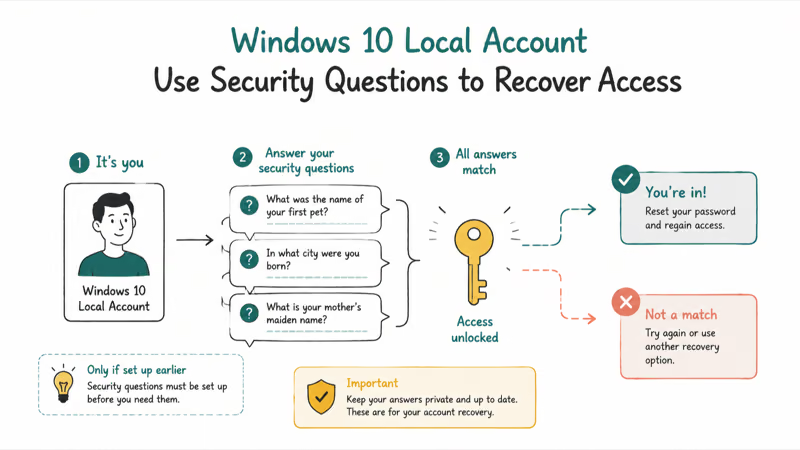
This technique is helpful to those who’ve set up a list of security questions and their respective answers in their local account. PCMag’s Windows 10 guide confirms that security questions were added in the Windows 10 April 2018 Update (version 1803), so older installations may not have this option. If you’ve set these questions, you can easily reset the password without disk on Windows 10.
By the way, click here for the best solution when you forgot keychain password.
#Steps to Perform This Technique
-
Turn on your system and type the wrong password. Tap ‘OK’ when you see the error message.
-
You’ll notice a link that says ‘Reset password’ below the Password section.
-
Answer all 3 security questions. Once you’ve entered every answer, tap the ‘Next symbol.’
-
Write a new password and tap to confirm it, then press ‘Enter’. You’ve now reset the password without a USB or disk. Log in using your new password.
These security questions are quite helpful in solving the issue of forgetting the password. It’s advisable to set a few questions regarding the password beforehand so you can link the password with the questions if you forget.
Also, learn more about how to reset passwords on HP laptop without disks easily.
#Technique 3: With the help of a Windows 10 ISO File
If you haven’t set security questions before, don’t worry. You can use a Windows 10 ISO file to reset the password without a disk.
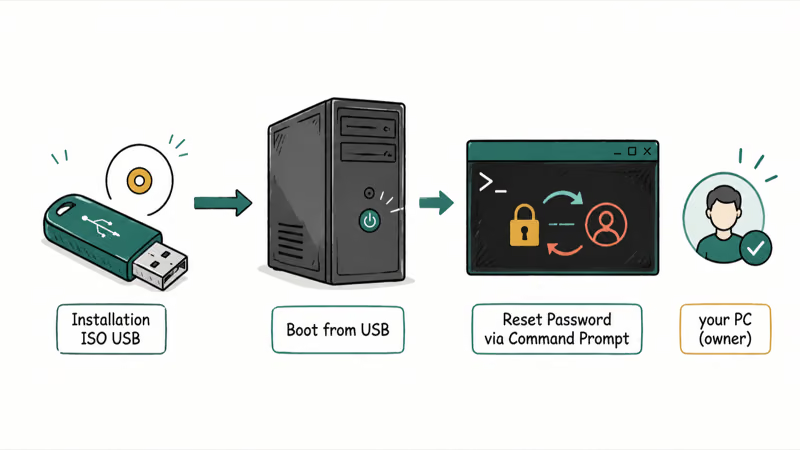
Here are the steps to perform the technique.
#Steps to Reset Password
-
Add installation media of Windows 10 to the locked PC.
-
Restart the computer or turn the power on and head to the BIOS setup.
-
Boot the PC from the Windows 10 ISO file. Once the setup screen appears, press ‘Shift+F10’ to open the command prompt.
-
In the command prompt, replace the drive letter with your system drive (typically C:).
-
Run the command ‘wpeutil reboot’ and remove the installation media to reboot the PC.
-
After the restart, tap ‘Ease of Access’ to launch the command prompt. Use the net user command to reset the password.
#Technique 4: PassFab 4WinKey to Reset Password
A few techniques mentioned above might fail to work. If that’s the case, use PassFab 4WinKey. On a locked Windows 10 Pro machine, PassFab 4WinKey can reset the local admin password within minutes, from USB boot to login screen.
It supports other versions of Windows as well, such as 8.1, XP.7, Vista, and 8. PassFab 4WinKey guarantees a 100% success rate in recovering passwords.
You won’t be required to arrange a reset disk before. Follow the steps to learn how to reset the password.
Before starting, make sure you have downloaded the PassFab 4WinKey program on the system.
Some links on this page are affiliate links, which means fone.tips may earn a commission at no extra cost to you.
#Steps to Reset Password with This Windows 10 Password Reset Tool
- Download PassFab 4WinKey on another computer. Choose either a USB or CD/DVD drive and click on “Next” to create a password reset disk.
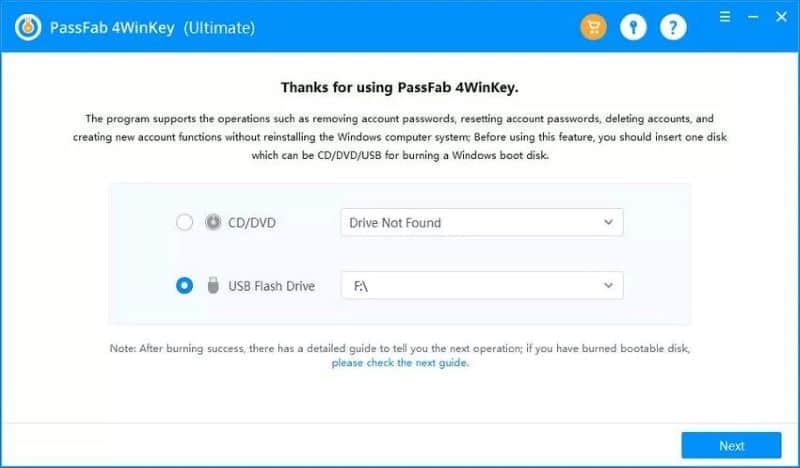
- Wait for the process to complete.
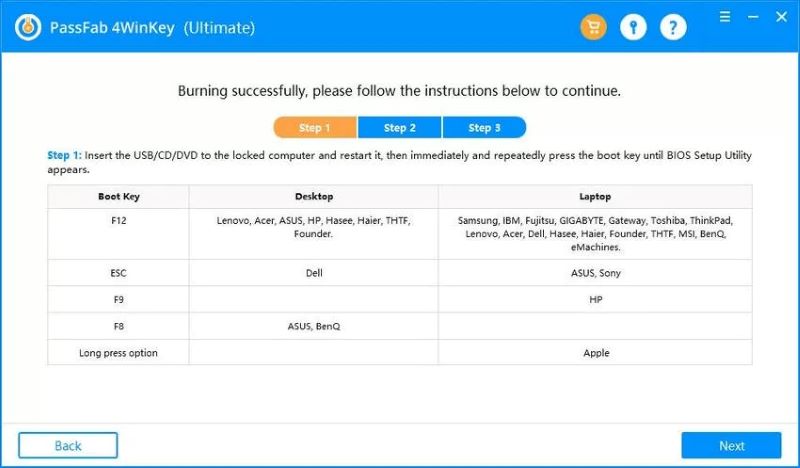
-
Insert the burned drive into your locked computer. Restart it and press “F12” or “ESC” to enter Boot Menu.
-
In the Boot Menu, choose your USB/DVD/CD drive and press “Enter” to boot it.
-
On the 4WinKey interface, Choose Windows system and click “Next.”
-
Then, choose “Reset account password” and choose your user account, then type your new password, and click “Reset” at the end.
-
After the password has been reset, you can log into your locked PC with the new password.
Use the steps in sequence and see if this technique works for you. Although these steps might look difficult once you begin following the steps, they’re very easy. Solving the issue of the password reset in Windows 10 without USB is straightforward with the help of PassFab 4WinKey.
It’s the most advanced Windows 10 password reset tool. Even if you wish to know how to get administrator privileges on Windows 7, it can help you too.
#Can the Built-In Administrator Account Reset Your Password?
The Default built-in administrator account can assist you in resetting the password without a USB or disk on Windows 10. This technique is easy and comfortable.
The account will appear on the login screen once it’s been enabled through Computer Management or the command prompt.
#Steps to Reset Password
- Select the ‘Administrator account’ option. Type the right information to sign in to the PC that is locked.
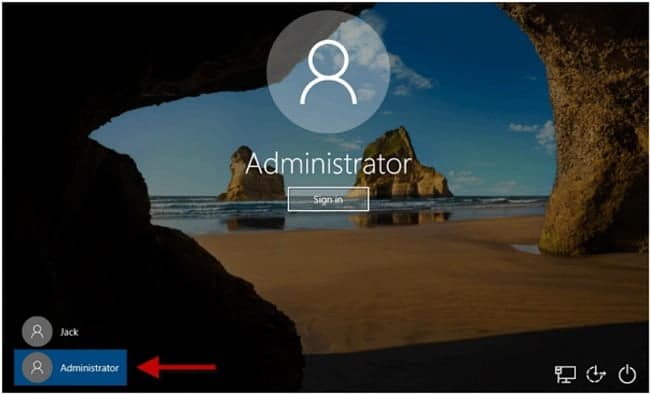
- After this, you’ll be able to change your password for the account that you forgot.
This is the last technique to reset the password without a USB or DVD/CD in Windows 10.
The process of resetting the password might look difficult, but it’s quite easy. If you face the situation of forgetting the password, use any of the techniques that are mentioned above.
These techniques are efficient, and the steps are easy to follow. If you need an advanced way to reset the password, then use PassFab 4WinKey. It’s the best Windows 10 password reset tool.
Try PassFab 4WinKey
#Precautions When Using a Windows 10 Password Reset Tool
According to Windows 10 background, it’s critical to use these tools responsibly.
#Bottom Line
Safe Mode and security questions are the fastest ways to reset a Windows 10 password without extra tools. For locked-out systems where those options aren’t available, a Windows 10 ISO file or PassFab 4WinKey will get you back in. Always create a password reset disk or set up security questions before you need them.
#Frequently Asked Questions
Are Windows 10 password reset tools safe to use?
Yes, but only if you download them from the official vendor’s website. Third-party download sites often bundle adware or malware with the installer. Stick to well-known tools with verified reviews.
Can I create a password reset disk after forgetting my password?
No, a password reset disk must be created while you still have access to your account. Windows requires your current password to generate the disk. That’s why it’s worth creating one proactively.
Are password reset tools free?
Some basic tools are free, including the built-in Safe Mode and ISO file methods. Paid tools like PassFab 4WinKey cost around $20-$70 depending on the license tier and offer more features like support for domain accounts.
Can I use one password reset disk on multiple computers?
No. A password reset disk is tied to the specific user account and computer where it was created. You’d need to create a separate disk for each machine you want to protect.
Can I reset my Windows 10 password without any tools?
Yes, if your account is linked to a Microsoft account. Visit account.live.com from any device to reset your password online. Local accounts without security questions will need one of the tools covered in this guide.
Does resetting the password delete my files?
No. A password reset only changes the login credentials and doesn’t touch your documents, photos, or installed programs. A factory reset is what deletes everything, and that’s a completely different process. You can also learn how to fix Windows 10 Taskbar not hiding in fullscreen if you run into that issue after logging back in.

Best Laptop for Running LLMs in 2026: Memory Comes First
The best laptop for running LLMs is a memory purchase first. Compare MacBook unified memory against NVIDIA laptop VRAM, and see what each tier really runs.

How to Run a Local LLM on Windows: A 2026 Setup Guide
Run a local LLM on Windows with LM Studio or Ollama. Pick a model that fits your GPU memory, keep every prompt offline, and skip the monthly bill.

Bluetooth Not Working on Snapdragon X? Fixes for 2026
Bluetooth not working on your Snapdragon X Copilot+ PC? Generic audio, mice, and keyboards work, but vendor apps often lack an ARM build. Fixes inside.

Docker Desktop and WSL2 Not Working on Snapdragon X? Fix It
WSL2 runs fine on Snapdragon X, but Docker Desktop ARM is Early Access and throws WSL errors. Use WSL2 plus native ARM64 Ubuntu and Docker Engine.