1Password vs Bitwarden: Which Password Manager to Use?
1Password vs Bitwarden compared head-to-head. Free tier, pricing, passkeys, open-source transparency, family plans, and who each one is really built for.
Quick AnswerBitwarden is the better pick for most people: free unlimited tier, $19.80/year premium, and fully open-source. 1Password wins on polish and Travel Mode for international travelers. Both use AES-256 encryption with zero-knowledge architecture.
Both 1Password and Bitwarden are solid password managers. They suit very different people, and choosing the wrong one means either overpaying or hitting friction daily.
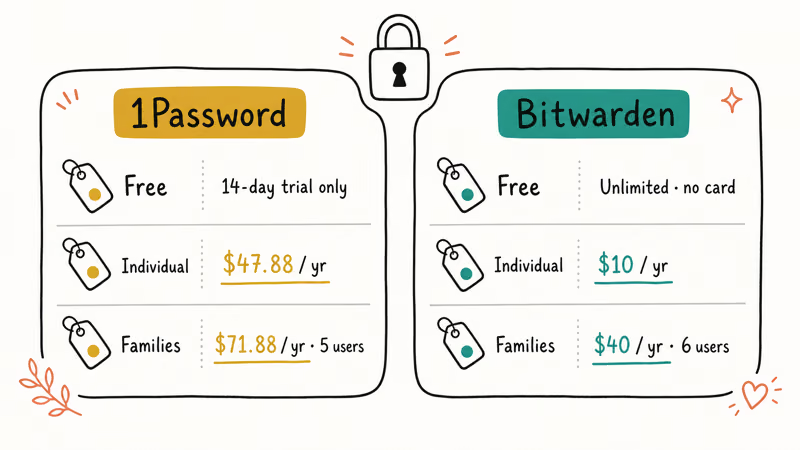
- Bitwarden’s free tier includes unlimited passwords and unlimited devices with no credit card required; 1Password has no free tier, only a 14-day trial
- 1Password raised its individual plan price to $47.88/year in March 2026; Bitwarden Premium costs $19.80/year
- Bitwarden is fully open-source and completed multiple 2025 audits by firms including ETH Zurich and Palo Alto Networks’ Unit 42
- 1Password’s Travel Mode physically removes vaults from devices at border crossings; no other mainstream password manager has an equivalent feature
- Families with up to 6 users pay $47.88/year with Bitwarden versus $71.88/year with 1Password, a gap that widened with 1Password’s 2026 price increase
#Free Tiers and Pricing
Bitwarden’s free plan has no device or password limits. You get unlimited passwords and devices, cross-device sync, secure notes, and passkey support, all permanently with no credit card required. Sync works across iPhone, macOS, and Windows on the free tier, with no per-device cap. Most competitors restrict free accounts to a single device.
No catch. Just free.
1Password doesn’t offer a free tier. You get a 14-day trial, then you’re paying. After March 2026, 1Password raised its individual plan from $35.88 to $47.88 per year — about two and a half times what Bitwarden Premium costs at $19.80/year. Bitwarden Premium adds encrypted file attachments, hardware security key support (YubiKey, Titan), vault health reports, and Bitwarden Send for encrypted file sharing.
The family plan gap is even wider. Bitwarden Families covers six users for $47.88/year, with premium features enabled for every member: YubiKey support, encrypted file attachments, and vault health reports included. According to 1Password’s pricing page, their Families plan covers up to 5 members, while Bitwarden Families covers six for $47.88/year, so a typical household pays less with Bitwarden while getting more seats.
That savings only grows if you’ve got a larger family on the plan.
| Plan | 1Password | Bitwarden |
|---|---|---|
| Free tier | 14-day trial only | Unlimited, no card |
| Individual | $47.88/year | $19.80/year |
| Families | $71.88/year (5 users) | $47.88/year (6 users) |
| Business | $7.99/user/month | $6/user/month |
Pricing comparison: 1Password vs Bitwarden individual and family plans (2026)
#Security Architecture
Both use AES-256. Neither has been breached.
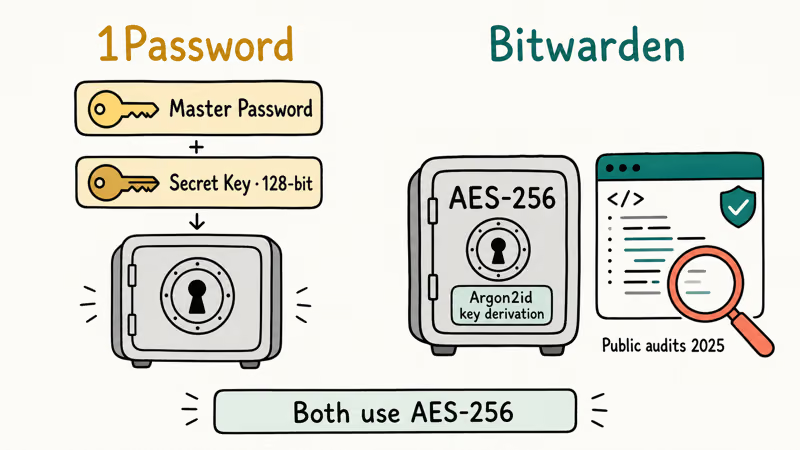
1Password adds a Secret Key: a 128-bit random key stored on your device that combines with your master password to derive the encryption key. Even if someone steals your master password, they still can’t decrypt your vault without your specific Secret Key. It’s a meaningful second layer for high-risk accounts.
Bitwarden takes a different approach. According to Bitwarden’s security whitepaper, the platform uses Argon2id for key derivation, a memory-hard hashing algorithm that resists brute-force attacks more effectively than PBKDF2. The bigger trust signal is transparency. Bitwarden’s entire codebase is public on GitHub, so security researchers worldwide can audit it at any time.
Bitwarden’s audit page confirms three third-party security assessments in 2025: cryptography by ETH Zurich’s Applied Cryptography Group, mobile apps by Palo Alto Networks’ Unit 42, and web app and network by Fracture Labs. IOActive audited client apps and SDKs in 2024. XDA’s guide to the best password managers notes Bitwarden as a top recommendation for transparency-focused users. 1Password is SOC 2 Type 2 certified but keeps its source code closed.
Both managers support autofill on HTTPS pages, passkey creation, and local vault unlock on iOS 18 and Android 15.
#Is 1Password’s Travel Mode Worth It?
Travel Mode is 1Password’s most distinctive feature. Nothing else in the mainstream market does what it does.
When you activate Travel Mode from the web dashboard, 1Password physically removes any vault not marked “Safe for Travel” from your device. There’s no toggle visible in the app, no hidden folder, and no trace left behind. A border agent examining your phone won’t find your work vault, financial credentials, or client data because those vaults aren’t present on the device. One click from your web dashboard restores everything once you’ve cleared customs.
Once Travel Mode is enabled, any vault not marked “Safe for Travel” disappears from the app entirely: no vault name, no item count, nothing left to inspect.
Bitwarden has no equivalent feature.
You can manually delete a vault and restore it later, but that’s a manual process with no protection against accidental re-sync triggered by a push notification.
If you travel internationally with sensitive work credentials, Travel Mode alone justifies 1Password’s premium. For most home users it doesn’t matter either way.
#Passkey Support
Both managers support passkeys, but the experience differs in ways that matter day-to-day.
1Password’s passkey support is polished. When a supported site offers passkey registration, the browser extension intercepts the prompt and saves the passkey directly to your vault. The save-and-fill flow on Chrome and Safari mirrors regular password autofill, so there is no separate workflow to learn. Passkeys sync across all your devices through vault sync automatically.
Bitwarden also supports passkeys in browser extensions, desktop apps, and mobile. The experience is solid but slightly rougher, and autofill prompt timing on older Android versions can feel less responsive than 1Password’s. The core passkey storage and sync work correctly.
For a deeper look at how passkeys work, read our guide on passkeys vs passwords vs 2FA. Our Bitwarden review covers how its free tier handles passkeys end-to-end.
Both managers also pair well with a dedicated best 2FA app for accounts that don’t yet support passkeys.
SIM swapping can bypass both managers entirely. Our guide on how to prevent SIM swapping is worth reading before you rely on any password manager as your only security layer.
#Ease of Use
1Password wins on UI polish. The apps on iOS and Android feel cohesive: vault organization, autofill suggestions, and the emergency kit setup all follow clear patterns. For households where not everyone is technical, the onboarding flow is the least friction you’ll find in any paid manager.
Bitwarden’s apps are functional and reliable, but utilitarian. Autofill on iOS works through the system keyboard settings — one extra setup step, but not a hard one. On Android 15, Bitwarden’s autofill integrates with the system framework and works across major apps once it’s enabled in settings. The browser extensions for both managers work well across Chrome, Firefox, Safari, and Edge.
Bitwarden’s web vault is a practical advantage on shared or borrowed computers. 1Password also has web access, but it requires your Secret Key in addition to your master password. More secure, but more steps.
#Should You Self-Host Bitwarden?
Self-hosting is a Bitwarden-only option. Bitwarden publishes a complete Docker deployment, and according to Bitwarden’s open source page, the same codebase running on bitwarden.com is exactly what you’d deploy. No locked enterprise-only features. Setup takes about 30 minutes on a Linux VPS and you keep all your vault data on your own infrastructure.
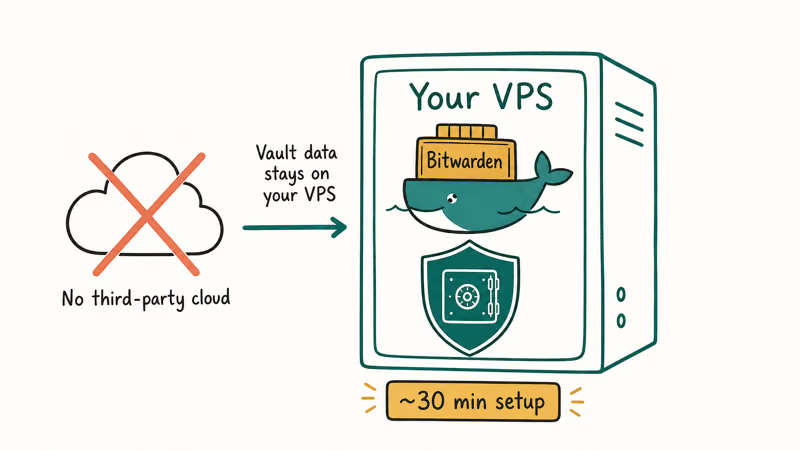
Self-hosting makes sense for IT administrators, developers, and privacy-conscious users who don’t want any third-party cloud handling their credentials.
1Password doesn’t support self-hosting. If infrastructure control matters to your team, Bitwarden is the only mainstream option available.
#Teams and Business Plans
For small teams under 10 people, 1Password Teams Starter at $19.95/month flat works out to roughly $2/user/month for 10 users. That’s actually cheaper than Bitwarden Teams at $4/user/month at the same headcount.
Above 10 people the math flips. Bitwarden Business at $6/user/month undercuts 1Password Business at $7.99/user/month. At 100 users, that difference totals $2,388/year. Both plans include SSO integration, detailed audit logs, and directory sync.
Self-hosting at enterprise scale? Bitwarden only.
#Bottom Line
Pick Bitwarden if you want strong security at the lowest possible cost, full open-source transparency, or your own self-hosted vault. The free tier covers most people’s needs without any upgrades. Premium at $19.80/year adds hardware key support, vault health reports, and encrypted file attachments.
Pick 1Password if you regularly cross international borders with sensitive credentials, or you manage a household where non-technical users need the smoothest possible onboarding. Small teams under 10 should price-check both.
Either manager is far better than reusing passwords or relying on your browser’s built-in storage. See our guide on how to set up passkeys on iPhone for the next step toward passwordless logins. And if you’re on public Wi-Fi regularly, our best VPN for iPhone guide explains what a password manager covers and what it doesn’t.
#Frequently Asked Questions
Is Bitwarden really free forever?
Yes. Bitwarden’s free tier includes unlimited passwords, unlimited devices, cross-device sync, and passkey support with no time limit and no credit card required. The only restrictions on the free tier are the absence of encrypted file attachments and advanced 2FA options like hardware security keys. Those require the $19.80/year Premium plan.
Can 1Password and Bitwarden import from each other?
Yes. Bitwarden lists 1Password as a direct import source (.1pif or .csv). Export from 1Password’s web app, import in Bitwarden’s web vault settings. The whole process takes about 5 minutes.
Does Bitwarden have a family plan like 1Password?
Yes. Bitwarden Families covers six users for $47.88/year. 1Password Families covers five users for $71.88/year. Bitwarden includes premium features for all six users and unlimited shared collections; 1Password Families adds guest accounts and a more polished admin interface for managing access.
What happens to Bitwarden data if you self-host?
Your vault lives on your server. Backups are your responsibility. No backup means no recovery.
Self-hosting is best suited for users or teams with basic Linux server skills and a willingness to manage their own backups. It’s not for everyone, but for organizations with data residency requirements or teams that simply want nothing stored on someone else’s servers, the Docker deployment is well-documented and the Bitwarden cloud service remains available as a fallback if you ever need to migrate.
Is 1Password’s Secret Key really necessary?
The Secret Key adds real protection: even if someone steals your master password through phishing or a data breach, they still need your specific Secret Key to decrypt the vault. The trade-off is that recovering access on a new device requires the Secret Key, so you need it stored somewhere safe.
Most users store it in their 1Password emergency kit PDF. Print it and file it physically when you first create your account, not after you lose access.
Does either password manager work without an internet connection?
Both cache your vault locally for offline reads. Syncing requires a connection. Bitwarden self-hosted deployments can be configured on a completely local-only network, which isn’t possible with 1Password’s cloud-only service.
Can I use Bitwarden without the browser extension?
Bitwarden has desktop apps for Windows, macOS, and Linux, plus mobile apps for iOS and Android. You can retrieve credentials manually without the browser extension, but autofill in the browser requires the extension. The iOS app uses the native autofill framework, so no extension is needed on mobile. Enable it under Settings > General > Autofill & Passwords on iOS 18.

Is This Bank App Real? Spot a Fake App on Your Home Screen
A bank app can land on your home screen from a web page with no install warning. Learn the checks that tell a real banking app from a phishing web app.
Passkeys Not Syncing Between iPhone and Windows? Read This
Passkeys not syncing between iPhone and Windows is by design, not a bug. Here is why iCloud passkeys skip Windows Hello and the three ways to fix it.
VPN Not Working on Snapdragon X? Why It Fails, How to Fix
Your VPN won't install or connect on a Snapdragon X Copilot Plus PC because Windows on ARM can't emulate the network driver. Here are the fixes that work.
How to Check If a Link Is Safe Before You Click It
Learn how to check if a link is safe with official-first steps: read the real domain, use the app instead, and treat scanners as a second opinion only.