Passkeys Explained: What They Are and How to Set Up
Passkeys explained simply: what they are, why they beat passwords on phishing, and how to set them up on iPhone, Android, Windows, and password managers.
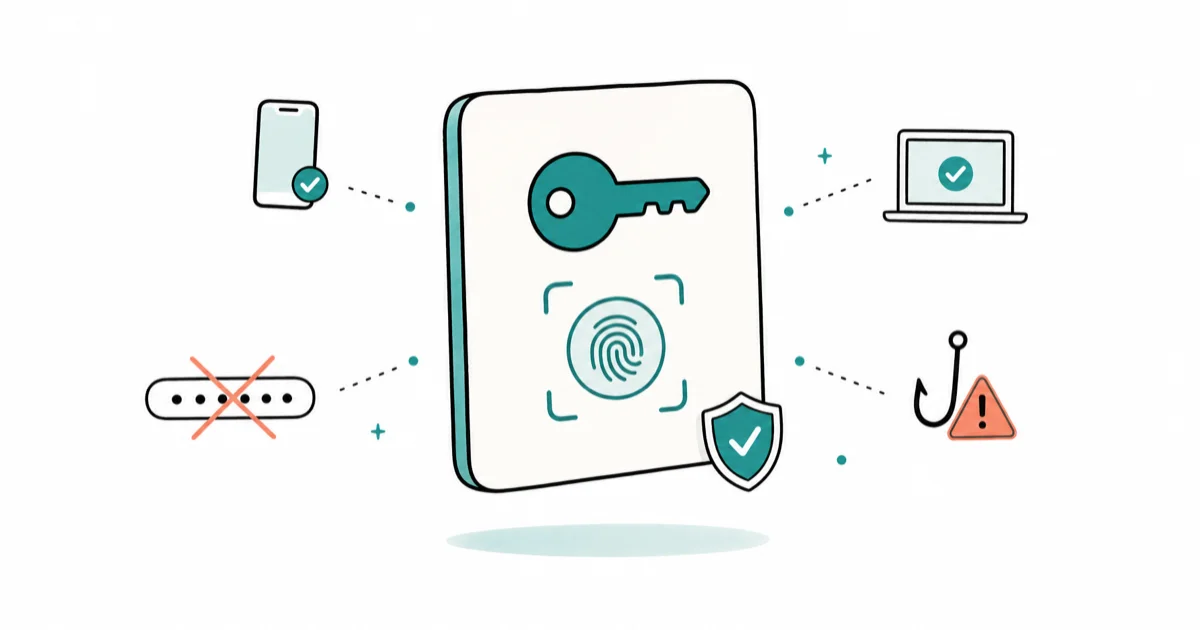
Quick AnswerPasskeys replace passwords with a private key on your device, unlocked by Face ID, a fingerprint, or your screen lock. They are phishing-resistant because the credential only works on the real site.
Passkeys are the password replacement that Apple, Google, and Microsoft have all adopted, and they fix the two worst problems with passwords at once. You stop memorizing anything, and fake login pages stop working against you. This guide explains what passkeys are and how to set them up on every major platform.
- A passkey is a cryptographic credential split into a private key that stays on your device and a public key stored on the website
- Passkeys are phishing-resistant by design because the credential only works on the exact site that created it
- You approve a passkey login with Face ID, a fingerprint, or your screen lock, so there is no password to type or steal
- Synced passkeys back up to iCloud Keychain or Google Password Manager and follow you across devices automatically
- Apple, Google, and Microsoft support passkeys natively, and managers like 1Password and Bitwarden store them across platforms
#What Are Passkeys?
A passkey is a login credential built on public-key cryptography. Your device and the website each hold one half of a key pair.
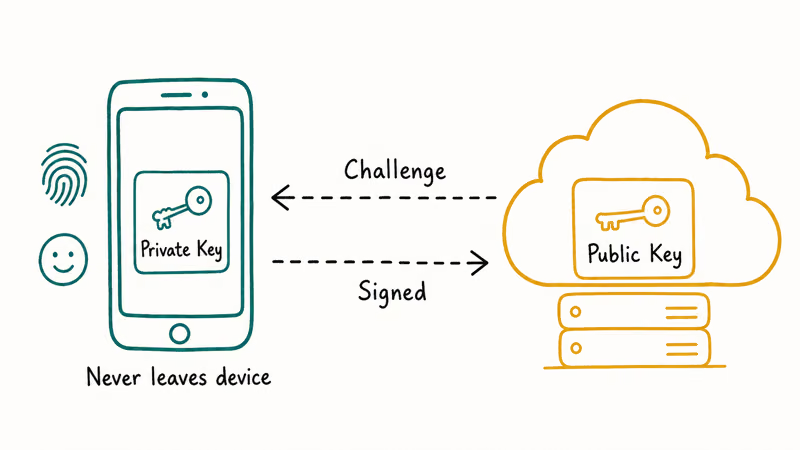
The private key never leaves your device. According to the FIDO Alliance, which sets the standard, a passkey lets you “sign in to apps and websites with the same process that they use to unlock their device,” meaning your fingerprint, face, or PIN. The FIDO Alliance also states that passkeys build on 2 FIDO2 standards, WebAuthn and CTAP, so the same credential works in any compliant browser or app without each site reinventing the wheel.
Only the public key sits on the server.
That key is worthless to an attacker who pulls it from a breach, because it can’t be reversed into the private half. When you sign in, the site sends a challenge, your device signs it, and the site checks the signature against the public key it holds. You approve with a biometric or your screen lock, and no password ever travels across the network.
#Why Are Passkeys More Secure Than Passwords?
Passkeys close the attack routes that passwords leave wide open. The headline benefit is phishing resistance, and it’s structural rather than a setting you toggle.
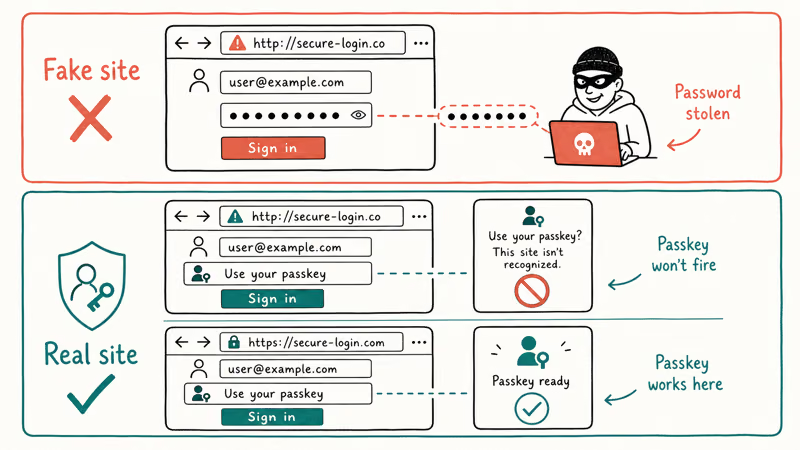
A passkey is bound to the website that created it. The FIDO Alliance confirms that passkeys are “phishing resistant and secure by design” because “there are no passwords to steal.” Type your password into a convincing fake page and it’s gone. A passkey simply won’t fire on the wrong domain.
There’s also no shared secret to breach.
Servers store only your public key, which can’t be reversed into a working login, so a leaked database hands attackers nothing usable. Passkeys kill credential reuse too, since every one is unique and generated for you, which means you can’t accidentally reuse a weak passkey across ten accounts the way people reuse one password everywhere. If you lean on a password manager today, our comparison of 1Password vs Bitwarden covers how both now store passkeys next to your old logins.
#How to Set Up Passkeys on iPhone
On iPhone, passkeys live in iCloud Keychain and sync across your Apple devices. Setup happens inside whatever app or website you’re signing in to, not in a separate passkey app.
First, confirm iCloud Keychain is on. Open Settings, tap your name, then iCloud, then Passwords, and check that the toggle is enabled.
Then visit a site that supports passkeys. Look for a “create a passkey” option in its account security settings, authenticate with Face ID or Touch ID, and the passkey saves on its own. Apple’s passkey support page confirms that “passkeys sync across a user’s devices using iCloud Keychain,” and that the Keychain is end-to-end encrypted.
After that, the saved passkey can sync to your other Apple devices through iCloud Keychain.
Biometrics acting up? If Face ID stops responding mid-setup, our fix for Face ID not working gets it back so you can approve the passkey, and the steps for a forgotten Keychain password help if you ever lose access to your saved credentials.
#How to Set Up Passkeys on Android
On Android, passkeys are stored in Google Password Manager and sync to every device signed in to your Google Account. The flow mirrors the iPhone process closely.
Open the account you want to protect and find its security or sign-in settings. Choose to create a passkey, then verify it’s you. Google’s passkey help page explains that “unlike passwords, passkeys can’t be shared, copied, written down, or accidentally given to someone else.”
Your biometric data stays put. Google states that “your biometric data, used for fingerprint or face unlock, stays on your device and is never shared with Google.” Only the cryptographic signature travels to the server, which is what keeps the system private as well as secure. The setup flow is usually just the account prompt plus your screen-lock approval.
Locked out of the device itself? Our guide on a forgotten Android password helps you back in before you set up new passkeys.
#How to Set Up Passkeys on Windows
Windows handles passkeys through Windows Hello, which ties them to your face, fingerprint, or PIN on that PC. This is the path for desktop logins in Edge and other browsers.
Set up Windows Hello first if you haven’t. Open Settings, go to Accounts, then Sign-in options, and configure a fingerprint, facial recognition, or a PIN. That gesture becomes the thing that approves your passkeys.
Then sign in to a passkey-enabled website and choose to create a passkey when it’s offered. Windows prompts you to verify with Windows Hello, and the passkey is saved. A passkey created this way can stay device-bound to that PC, or it can sync through a password manager if you store it there instead of the local Windows credential store.
#Synced Versus Device-Bound Passkeys
Not all passkeys behave the same way, and the difference matters most for backup and recovery. The FIDO Alliance defines two types, and you’ll meet both.
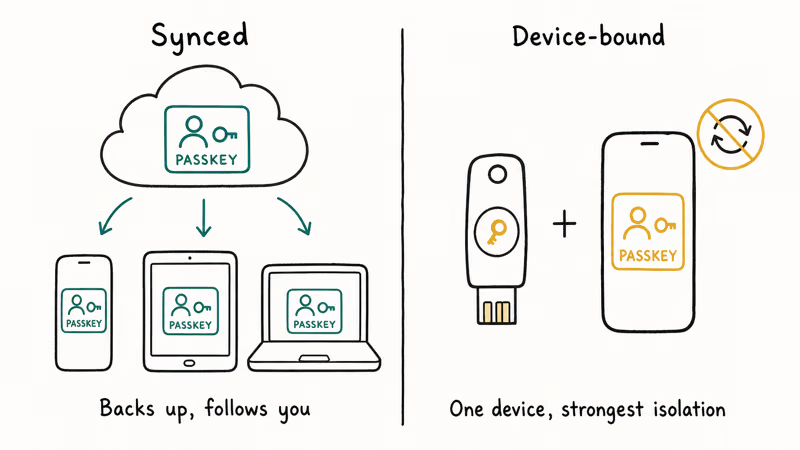
Synced passkeys back up to a provider’s cloud and follow you everywhere. The FIDO Alliance describes these as “passkeys that are synced between user’s devices via a cloud service.” An iCloud Keychain passkey works across your iPhone, iPad, and Mac, while a Google Password Manager passkey reaches every device signed in to your Google Account. This is the default for most consumers because it survives a lost or replaced phone without any extra steps on your part.
Device-bound passkeys are the opposite. They never leave a single device or hardware key. That gives the strongest isolation, since the private key is physically tied to one piece of hardware, but they don’t sync, so losing the device loses the passkey. A YubiKey works this way.
For most people, synced passkeys win. For any accounts that still lean on one-time codes rather than passkeys, pair your passkeys with a strong authenticator app.
#Using Passkeys With a Password Manager
A cross-platform manager is the best option if you live across Apple, Android, and Windows. Both 1Password and Bitwarden now store passkeys directly, the same way they store passwords, so you get one vault that follows you everywhere instead of three separate keychains that each stop at their own brand’s border.
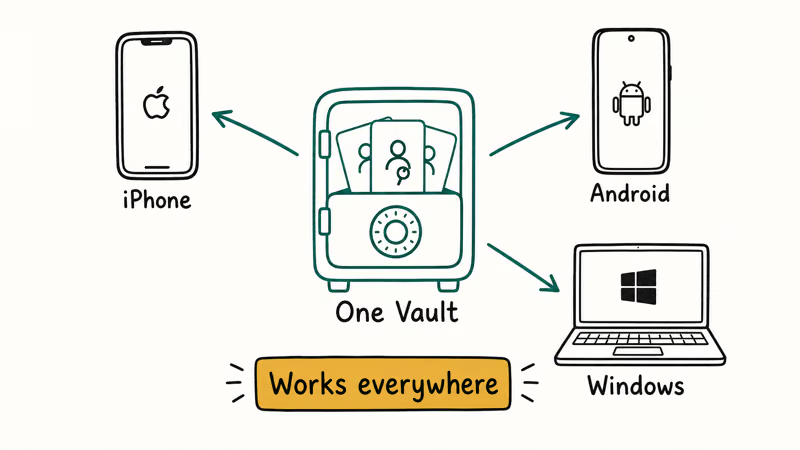
Store a passkey in a manager and it syncs everywhere that manager runs. A passkey you create on a Windows PC then works on your iPhone and Android tablet too, which solves the biggest passkey complaint of all: fragmentation between platforms that otherwise trap each credential inside one brand’s walls.
The trade-off is real. You’re trusting that manager with your credentials, so pick one with a strong security record.
#Bottom Line
Start small. Add a passkey to your most important account, your Google or Apple ID, using the built-in keychain on the device you use daily. The synced model means it instantly works on your other devices, and the phishing resistance protects that high-value account even if you fall for a fake login page one tired evening when your guard is down.
Split across Apple, Android, and Windows? Store passkeys in 1Password or Bitwarden instead of any single platform’s keychain, which keeps every passkey everywhere and sidesteps ecosystem lock-in. Either way beats reusing one password.
#Frequently Asked Questions
Are passkeys safer than passwords?
Yes, on two counts. Passkeys are phishing-resistant because the credential only works on the genuine website that created it, so a fake login page can’t capture it. They also leave no shared secret on the server, which means a data breach exposes only a useless public key rather than a reusable password that attackers can replay across your other accounts.
What happens to my passkeys if I lose my phone?
Synced passkeys aren’t lost with the device. An iCloud Keychain or Google Password Manager passkey is backed up to your account, so signing in to a replacement phone restores every one. Device-bound passkeys stored only on the lost phone or a hardware key can’t be recovered. That’s the main reason synced passkeys suit most people.
Can I use the same passkey across Apple, Android, and Windows?
Not through the built-in keychains. To roam one passkey across all three, store it in a cross-platform manager like 1Password or Bitwarden instead.
Do passkeys need an internet connection?
You need a connection to register a new passkey and to verify the challenge during sign-in, since the server is involved both times. The private key itself stays on your device. Your biometric check also happens locally, so your fingerprint or face never travels online.
Do all websites support passkeys yet?
Not yet, though adoption keeps growing. Major services from Google, Apple, Microsoft, and many banks support passkeys, but plenty of smaller sites haven’t added them. For accounts without passkey support, keep using a strong unique password plus two-factor authentication until the option finally lands.
Is my fingerprint or face stored on the website?
No, never. Your biometric data stays on your device. It only unlocks the private key locally; the site receives just a signature.
Can I still use a password if a passkey doesn’t work?
Yes, in most cases. Sites that offer passkeys usually keep the password and two-factor options available as a fallback, so you can sign in the old way if a passkey ever fails. Over time some services may make passkeys the default, but a backup login method is typically still provided.

Is This Bank App Real? Spot a Fake App on Your Home Screen
A bank app can land on your home screen from a web page with no install warning. Learn the checks that tell a real banking app from a phishing web app.
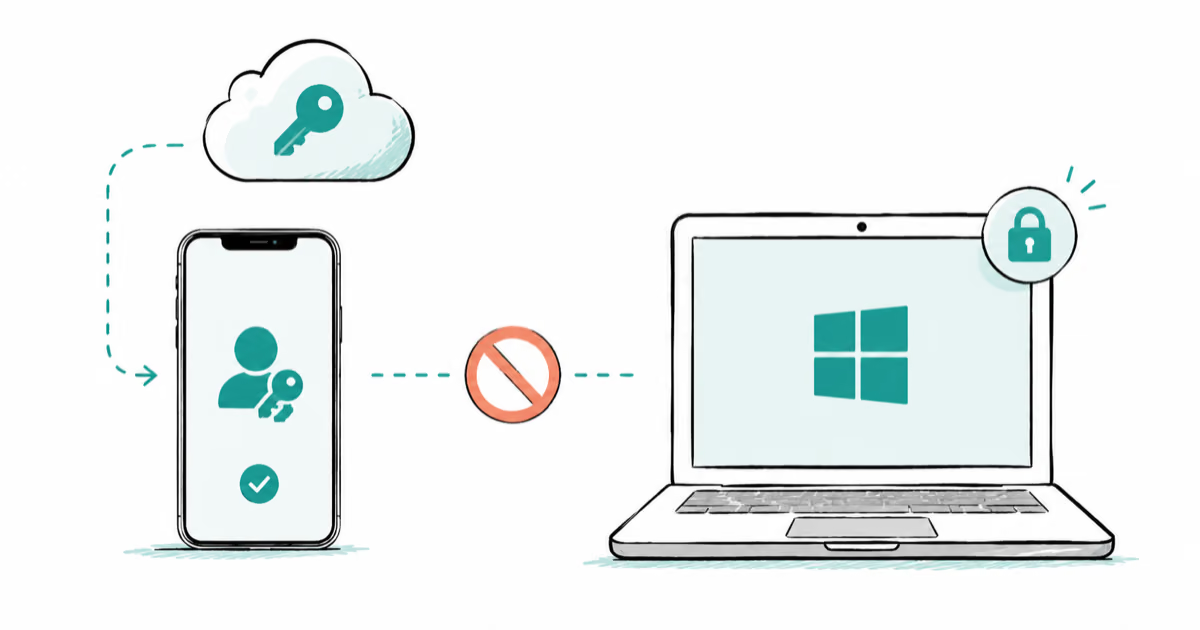
Passkeys Not Syncing Between iPhone and Windows? Read This
Passkeys not syncing between iPhone and Windows is by design, not a bug. Here is why iCloud passkeys skip Windows Hello and the three ways to fix it.
VPN Not Working on Snapdragon X? Why It Fails, How to Fix
Your VPN won't install or connect on a Snapdragon X Copilot Plus PC because Windows on ARM can't emulate the network driver. Here are the fixes that work.
How to Check If a Link Is Safe Before You Click It
Learn how to check if a link is safe with official-first steps: read the real domain, use the app instead, and treat scanners as a second opinion only.