How to Set Up Passkeys on Android: Complete 2026 Guide
Set up passkeys on Android in five steps: turn on a screen lock, enable Google Password Manager, then create your first passkey for Google or GitHub.
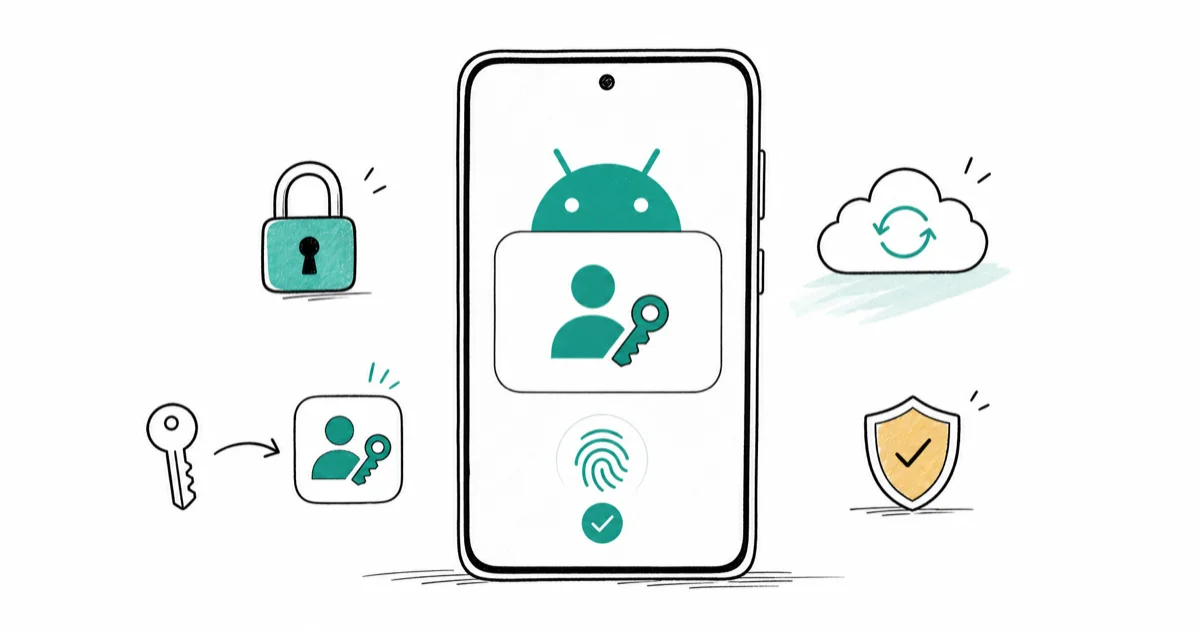
Quick AnswerSet a screen lock, turn on Google Password Manager sync, visit a supported site, choose Create a passkey, then confirm with your fingerprint or PIN to save it.
Setting up passkeys on Android starts with a screen lock and Google Password Manager sync. Once those are in place, supported sites show a system passkey sheet for fingerprint, face, or PIN confirmation.
- Passkeys on Android need a screen lock (PIN, pattern, password, or biometric) and Google Password Manager sync turned on for your Google account
- Android 9 (Pie) is the minimum for first-party passkey support, with Android 14 adding the cleaner system prompt sheet used in this guide
- Creating a passkey takes one fingerprint or PIN tap on a site that supports it, with no password to type or remember afterward
- Cross-device sign-in to Windows, Mac, or iPhone uses a QR code plus a short-range Bluetooth handshake, so both devices have to be physically near each other
- Keep the matching password active for the first 30 days as a fallback while you confirm the passkey syncs to your other Android devices
#What Is a Passkey and Why Use One on Android?
A passkey is a passwordless credential stored on your Android device that proves your identity through your fingerprint, face, or screen-lock PIN. Two cryptographic keys are generated when you create one: a private key that never leaves the phone, and a public key the website stores on its server.
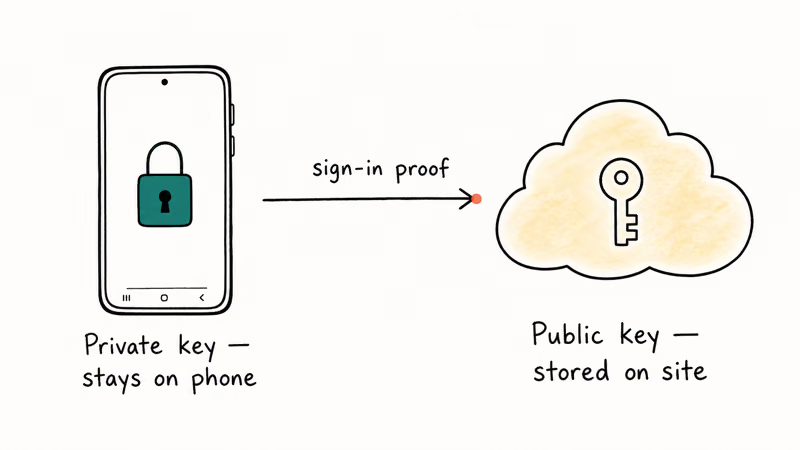
The FIDO Alliance passkeys overview states that passkeys are built on FIDO2 and WebAuthn standards and are phishing resistant by design, because there is no shared secret for a fake login page to capture. A server breach exposes only the public half of the key pair, which is useless on its own. If you are weighing the trade-offs before switching, the breakdown of passkey vs password vs 2FA compares the three on phishing resistance, recovery, and day-to-day convenience.
For Android owners the practical upside is shorter sign-ins, no SMS codes once the account has a passkey on file, and full recovery on a new Pixel or Galaxy when you sign back into the same Google account.
#Setting Up the Prerequisites: Screen Lock, Google Password Manager, and Sync
Three things have to be in place before any passkey will save on Android. The first is a working screen lock. Go to Settings > Security & privacy > Device unlock (Pixel) or Settings > Lock screen (Samsung) and confirm a PIN, pattern, password, or biometric is active. Passkeys reuse this lock as the user verification factor, so a phone with no screen lock can’t store one.
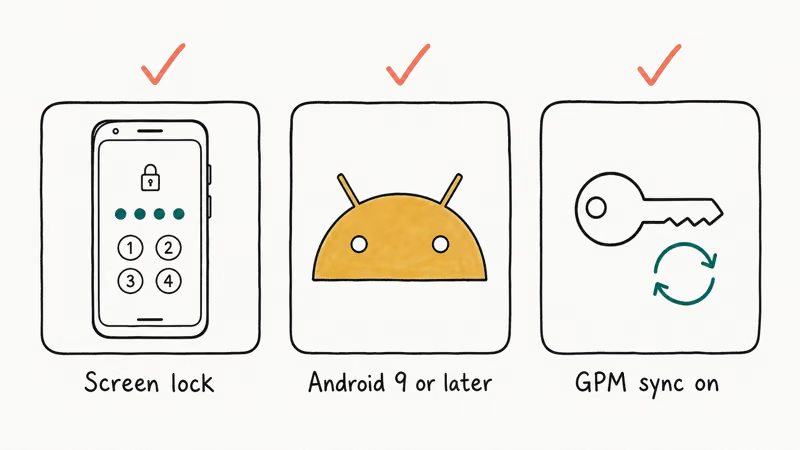
The second is Android 9 or later. Android 14 has the cleanest passkey sheet because Google moved it into the system credential picker, but the underlying support starts at Pie. Check Settings > About phone > Android version if you are not sure.
The third is Google Password Manager sync. Open Settings > Google > All services > Google Password Manager, tap Settings, then turn on Offer to save passwords and Use Android autofill with Google. According to Google’s Password Manager help page, saved passwords and passkeys sync across every Android device signed into the same Google account, plus Chrome on Mac, Windows, and Linux. The same setting is what makes the passkey sheet appear automatically when a site asks for sign-in.
These steps apply only to your own Android device and your own Google account. Don’t enable passkeys on accounts you don’t own. Explicit consent is required, and modifying another person’s account can break terms of service or privacy law in your jurisdiction.
Treat the screen-lock PIN and Google account recovery as sensitive personal data. The walk-through on recovering a forgotten Android password covers the official routes.
#How Do You Create a Passkey on Android?
Once the prerequisites are set, creating your first passkey is a single fingerprint or PIN tap. The best place to start is your Google account, because it protects every other Google service tied to it. Open Chrome and go to myaccount.google.com/signinoptions/passkeys, sign in with your existing password, then tap Create a passkey.
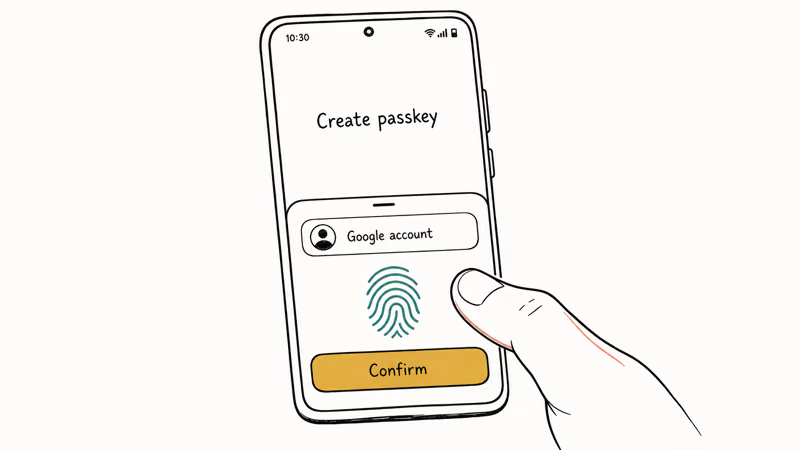
When you tap it, Android shows a sheet titled Create passkey for [account]. Confirm with your fingerprint, face unlock, or screen-lock PIN, and the passkey is stored in Google Password Manager.
The same flow works on other supported sites. GitHub, PayPal, Microsoft, and an expanding list of banks now offer a Create a passkey or Sign in without a password button inside their security settings.
Two details worth checking. The sheet shows which Google account will hold the passkey (relevant if two are signed in), and the site should confirm registration. No confirmation? Refresh the security page and look for a new entry under saved passkeys before assuming the sign-up failed.
#Signing In With an Android Passkey on Other Devices
Signing in on the same Android phone is the simplest case. Open the site or app, tap the username field, and the system prompts for your fingerprint almost instantly.
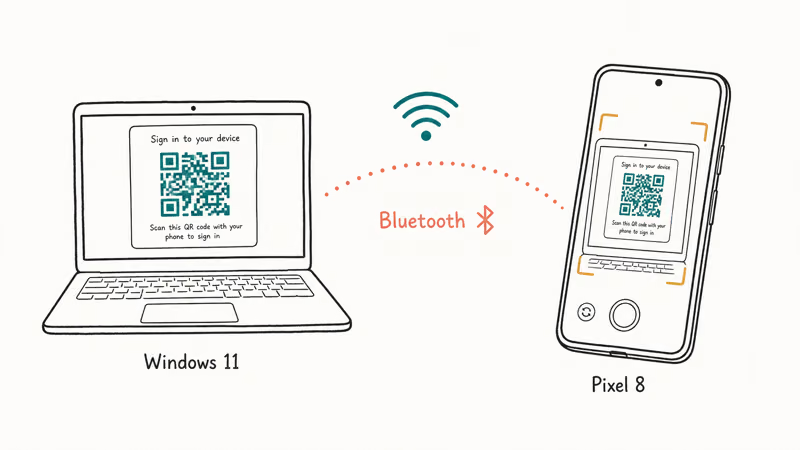
Cross-device sign-in is where Android passkeys quietly impress. The QR-code flow hands the request from the computer to your phone, then Bluetooth proximity checks that both devices are physically near each other.
The laptop displays a QR code, you scan it with your phone camera, and a short-range Bluetooth handshake confirms the two devices are physically near each other before the passkey sheet appears on the phone.
The Windows or Mac browser does not store the passkey after that sign-in. The next time you sign in from the same laptop you’ll repeat the QR step, unless you create a second device-bound passkey there. That deliberate friction is the point: the passkey never leaves the Android phone, so a remote attacker who steals the laptop session still can’t use the passkey from somewhere else.
#Where Passkeys Are Stored and How They Sync Across Devices
Passkeys live in Google Password Manager alongside your saved passwords. Open Settings > Google > All services > Google Password Manager, and any passkey you have created appears as an entry with a small key icon next to the site name.
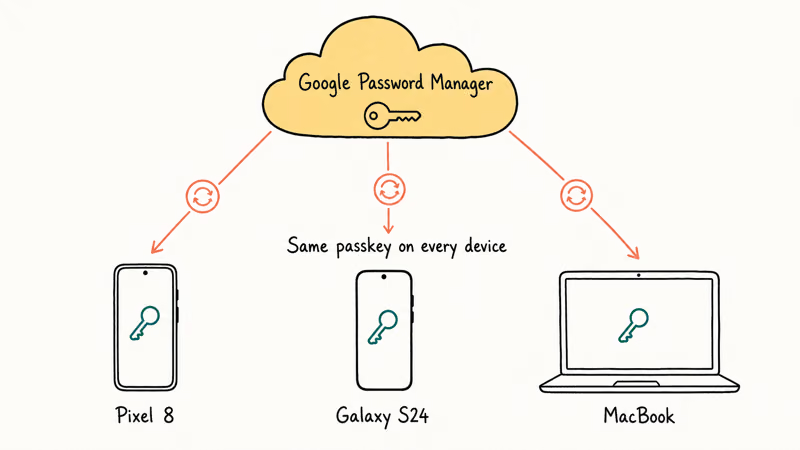
The Google passkeys for your account guide confirms that Google Password Manager surfaces saved passwords and passkeys side by side, and that both sync across devices signed into the same Google account.
A passkey saved in Google Password Manager can appear on other signed-in Android devices and in Chrome profiles tied to the same Google account.
If a passkey doesn’t appear on a second device, the fix is almost always a Google Password Manager sync toggle. Turn the sync option off, then turn it back on and wait for Google Password Manager to refresh.
If you can’t get past the screen lock at all on a backup device, see the walk-through on resetting an Android password before doing anything destructive.
Google Password Manager is also where your saved Wi-Fi credentials live. The guide on seeing saved Wi-Fi passwords on Android covers that for a different use case.
#Managing, Removing, and Recovering Passkeys on Android
Day-to-day management happens inside Google Password Manager. Tap a site to see when the passkey was created, which device it was created on, and a Delete option. Removing a passkey takes two taps, but the matching password on the site stays active unless you delete it there as well.
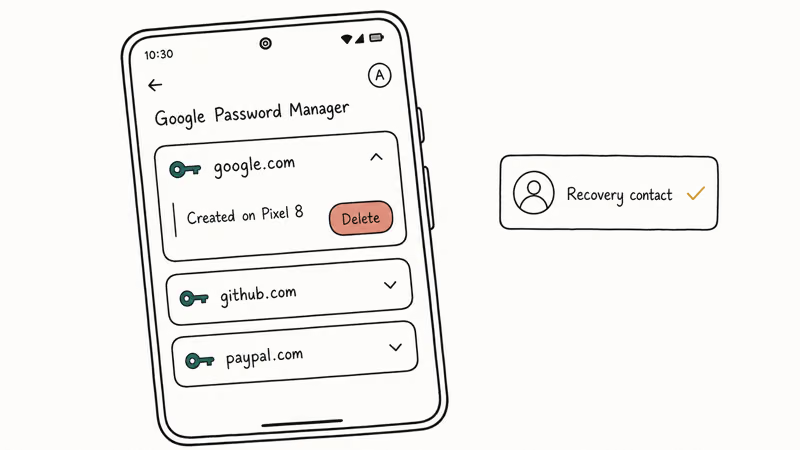
For recovery, keep a second sign-in method on every account that holds a passkey, plus an up-to-date recovery phone and email on the Google account.
Passkeys are tied to your Google account, so signing back in on a new Android phone restores them automatically once you complete the standard Google sign-in checks.
If a passkey-related prompt appears that you did not initiate, treat it the same as any other unexpected lock-screen request. The official path is to change your Google account password, review active sessions, and only then consider removing the passkey. The walk-through on removing an Android screen lock covers the lock-screen side if you suspect the phone itself is exposed.
If you are setting up the same flow for an iPhone in the household, the guide on how to set up passkeys on iPhone covers the iCloud Keychain equivalent.
#Bottom Line
Create your first Android passkey for your Google account, not a random forum login. The Google account is the master key for Gmail, YouTube, Google Pay, Android backups, and the Play Store, so a phishing-resistant passkey there pays off across the rest of your digital life.
Keep the original Google password active as a fallback while you confirm the passkey syncs to a second Android device and signs in cleanly from a Windows or Mac browser over the QR flow. After that, switch the account to passkey-first sign-in and add at least one trusted recovery contact to the Google account so a lost phone never becomes a lockout.
#Frequently Asked Questions
What is a passkey on Android?
A passkey is a passwordless sign-in credential stored on your Android device. It uses two cryptographic keys, a private one that stays on the phone and a public one the website holds, so there is no shared secret a phishing page can steal.
How do I create a passkey on Android?
Open the security settings of a site that supports passkeys, such as your Google account, GitHub, or PayPal, and tap Create a passkey. Android shows a system sheet, you confirm with your fingerprint, face, or screen-lock PIN, and the passkey is saved to Google Password Manager.
Do passkeys require a screen lock on Android?
Yes. The screen-lock PIN, pattern, password, or biometric authorizes every passkey use. Turn the lock off and Google Password Manager blocks new passkey creation.
Are passkeys safer than passwords on Android?
In most threat models, yes. The FIDO Alliance documents that passkeys are domain-bound and phishing resistant, which removes the single biggest cause of account takeover (a typed password reused or phished). Passkeys also remove SMS codes from the loop on accounts that previously relied on text-message 2FA, which closes the SIM-swap route on those accounts.
Do my Android passkeys sync across devices?
Yes, through Google Password Manager. Any passkey you create on one Android device is offered to every other Android device signed into the same Google account, plus Chrome on Mac, Windows, or Linux signed into that profile.
If a passkey doesn’t appear on a second device, toggle Google Password Manager sync off and on, then wait for it to refresh.
Can I use my Android passkey to sign in on a Windows PC?
Yes, through the QR-code flow any modern browser supports. The Windows browser shows a QR code, you scan it with your Android phone, and Bluetooth verifies the two devices are physically close before the passkey sheet appears. The PC doesn’t store the passkey, so the next sign-in repeats the QR step.
What Android version do I need for passkeys?
Android 9 (Pie) is the minimum for first-party passkey support inside Google Password Manager. Android 14 adds the cleaner system credential picker used in most screenshots and step-by-step guides, but the earlier versions still work for sites that have rolled out passkey support.
Can I delete an Android passkey and go back to a password?
Yes. Open Settings > Google > All services > Google Password Manager, tap the site entry, and choose Delete. The matching password on the site is still active unless you also removed it on the site itself, so you can keep using the password while you decide whether to switch back to passkey-first sign-in.

Is This Bank App Real? Spot a Fake App on Your Home Screen
A bank app can land on your home screen from a web page with no install warning. Learn the checks that tell a real banking app from a phishing web app.

Passkeys Not Syncing Between iPhone and Windows? Read This
Passkeys not syncing between iPhone and Windows is by design, not a bug. Here is why iCloud passkeys skip Windows Hello and the three ways to fix it.

VPN Not Working on Snapdragon X? Why It Fails, How to Fix
Your VPN won't install or connect on a Snapdragon X Copilot Plus PC because Windows on ARM can't emulate the network driver. Here are the fixes that work.

How to Check If a Link Is Safe Before You Click It
Learn how to check if a link is safe with official-first steps: read the real domain, use the app instead, and treat scanners as a second opinion only.