Outlook Keeps Crashing: 9 Fixes That Stop the Restart Loop
Stop Outlook from crashing with 9 clear fixes: Safe Mode, add-in pruning, Office Quick Repair, SCANPST.EXE, new profile, OST rebuild, and SaRA scan.
Quick AnswerLaunch Outlook with the /safe switch to bypass add-ins. If it stays open, go to File > Options > Add-Ins, set Manage to COM Add-Ins, click Go, and uncheck the third-party items. Restart Outlook normally and re-enable add-ins one at a time. The first add-in that triggers a crash is the culprit, and removing it fixes the loop for most people.
Outlook quitting the second you click a message almost always traces to one of three culprits: a bad add-in, a corrupted PST or OST file, or a broken Office install. The fixes below apply to Outlook for Microsoft 365, Outlook 2021, and Outlook 2019. The fastest one takes under two minutes.
- A single broken third-party add-in causes the majority of repeat Outlook crashes; launching with
outlook.exe /safeisolates it in under 30 seconds. - Office Quick Repair runs in about 2 minutes and rewrites broken DLLs without touching your mailbox or PST data files.
- SCANPST.EXE ships with every desktop Outlook install and repairs PST files up to about 2 GB without losing message bodies.
- A corrupted Outlook profile is the second most common crash cause, and creating a fresh profile through
Control Panel>Mailtakes roughly 5 minutes. - The Microsoft Support and Recovery Assistant (SaRA) automates 80 percent of the diagnostic work and is free, signed by Microsoft, and safe to leave running unattended.
#Why Does Outlook Keep Crashing on My PC?
Outlook crashes for one of four root reasons, and the fix you reach for depends on which bucket the symptom matches.
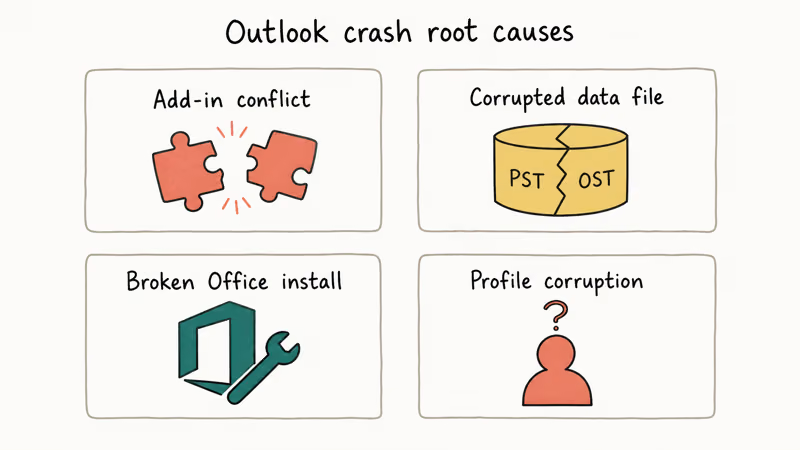
- Add-in conflict. A third-party COM add-in (often Adobe, Zoom, Salesforce, or an old PDF toolbar) is loading at startup and throwing an unhandled exception. This is the single most common cause and the easiest to confirm.
- Corrupted data file. Your PST or OST file picked up a bad write during a previous crash, an antivirus scan, or a hard shutdown. Outlook opens, indexes the file, hits the bad block, and quits.
- Broken Office install. A Windows update, a failed Office update, or a partial uninstall left Outlook with mismatched DLLs. The app launches, then crashes when a specific feature loads.
- Profile corruption. The Outlook profile (the registry entry that maps your account to its data files) has a stale or invalid pointer. Outlook never gets past the loading splash.
According to Microsoft’s Outlook troubleshooting guide, add-ins and corrupted data files account for the largest share of repeat-crash tickets, which is why the steps below tackle those two buckets first.
#Quick Fixes That Stop Most Outlook Crashes in Under Five Minutes
Start here. Each step below takes under five minutes and resolves the most common crash patterns.
#1. Launch Outlook in Safe Mode
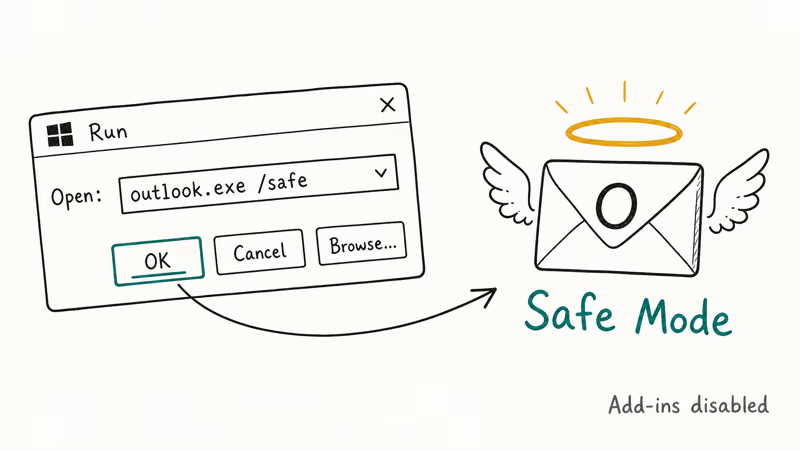
Press Windows + R, type outlook.exe /safe, and press Enter. Safe Mode loads Outlook with all add-ins and customizations disabled. If Outlook stays open in Safe Mode, the crash is almost certainly an add-in problem and you should jump to step 2. If it crashes the same way in Safe Mode, the issue is deeper (data file or install) and you should skip to the Quick Repair section.
#2. Disable Third-Party COM Add-Ins
With Outlook running in Safe Mode, go to File > Options > Add-Ins. At the bottom, set Manage to COM Add-Ins and click Go. Uncheck every add-in that is not from Microsoft, then close and relaunch Outlook normally.
If Outlook stays stable, re-enable add-ins one at a time, restarting after each, until the crash returns. The last add-in you turned on is the offender. An outdated Adobe Acrobat PDFMaker add-in is a frequent culprit, and updating it to the current Acrobat build usually stops the crashes.
#3. Run Office Quick Repair
Quick Repair re-registers Outlook’s DLLs without re-downloading the full install. Open Settings > Apps > Installed apps, find Microsoft 365 or Microsoft Office, click the three-dot menu, and select Modify. Choose Quick Repair and click Repair.
The process takes about 2 minutes, needs no internet, and won’t touch your mailbox, PST files, or signatures. If Quick Repair doesn’t stop the crashes, run Online Repair from the same menu instead. Online Repair takes about 15 minutes and pulls a fresh copy of every Office binary from Microsoft’s servers.
#4. Update Outlook and Windows
Open Outlook, go to File > Office Account > Update Options > Update Now. Then open Settings > Windows Update and install any pending updates. Microsoft ships Outlook stability fixes monthly, so a pending update can be the whole fix. Microsoft’s Office update history page confirms that Build 16.0.18324 included a fix for an Outlook startup crash tied to the calendar module.
#How Do I Repair a Corrupted Outlook Data File?
If the crashes started after a hard reboot, a sudden power loss, or an antivirus scan, your PST or OST file probably has a damaged block. Outlook ships with a built-in repair tool called SCANPST.EXE.
#5. Run SCANPST.EXE on Your PST File
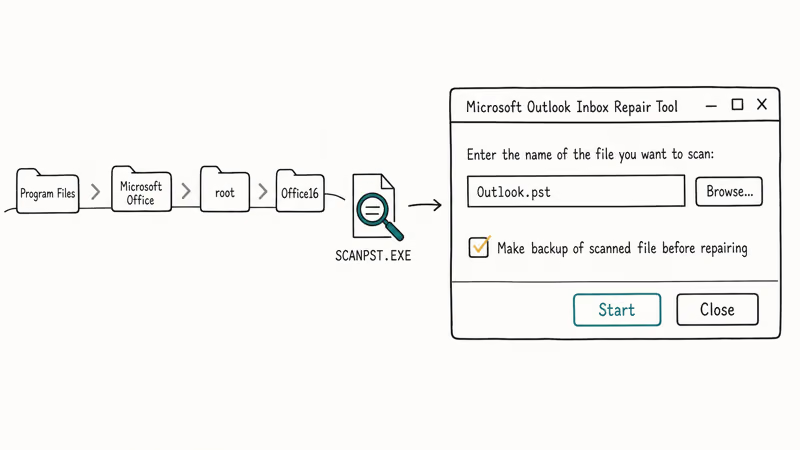
Close Outlook completely. Open File Explorer and go to one of these paths depending on your Office version:
- Microsoft 365 / Office 2021 / 2019:
C:\Program Files\Microsoft Office\root\Office16 - Office 2016:
C:\Program Files (x86)\Microsoft Office\Office16 - Office 2013:
C:\Program Files (x86)\Microsoft Office\Office15
Double-click SCANPST.EXE, then click Browse to select your PST file. Default PST paths are C:\Users\<you>\Documents\Outlook Files\ or C:\Users\<you>\AppData\Local\Microsoft\Outlook\. Check Make backup of scanned file before repairing and click Start.
The scan takes about 1 minute per 100 MB. If errors are found, click Repair. SCANPST runs up to 8 passes on badly damaged files. For a deeper walkthrough, see our guide on using SCANPST.EXE to repair corrupted PST files.
A note on file size: SCANPST handles PST files reliably up to about 2 GB. For larger files, the success rate drops and a third-party recovery tool may be a better fit.
#6. Rebuild the OST File for Exchange and Microsoft 365 Accounts
If you use an Exchange or Microsoft 365 account, your local cache is an OST file, and SCANPST can’t repair it. Instead, delete the OST and let Outlook rebuild it from the server.
Close Outlook. Open Control Panel > Mail > Show Profiles, select your profile, and click Properties > Data Files. Note the OST path (usually C:\Users\<you>\AppData\Local\Microsoft\Outlook\<account>.ost), close the dialogs, and delete the OST file in File Explorer.
Reopen Outlook. The client downloads a fresh copy from Exchange. The rebuild can take 30 minutes to several hours depending on mailbox size; a large Microsoft 365 mailbox on a typical broadband connection lands on the longer end of that range. If you have OST data you can’t afford to lose, our guide on converting OST to PST walks through the export step before deletion.
#Fixes for Outlook Crashes That Hit on Startup
Crashes that hit before you can even see the inbox are almost always profile corruption.
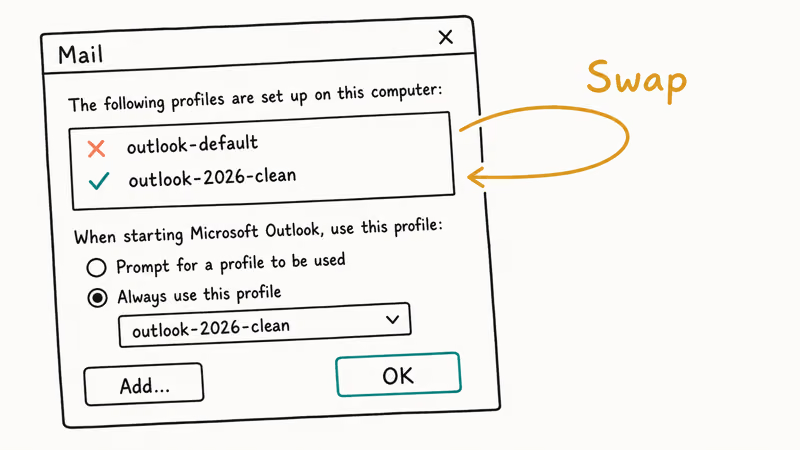
#7. Create a New Outlook Profile
Open Control Panel > Mail (Microsoft Outlook). Click Show Profiles, then Add. Give the new profile a name (something like outlook-2026-clean), click OK, and walk through the account setup wizard. When the profile finishes building, set Always use this profile to the new name and click OK.
Reopen Outlook. If the crashes stop, the old profile was the problem and you can delete it from the same dialog. The whole process takes about 5 minutes for a single account. If Outlook is so unstable you can’t reach this dialog, use our walkthrough on how to restart Outlook for the safe-startup variants.
A related symptom is when Outlook keeps asking for your password on a loop. That pattern usually means the profile holds a stale token, and a fresh profile resolves both at once.
#8. Run the Microsoft Support and Recovery Assistant
Microsoft’s Support and Recovery Assistant (SaRA) is a free signed diagnostic tool that automates the steps above. Download SaRA from the official Microsoft page, install it, and pick Outlook from the list of apps. Pick Outlook keeps crashing or won’t start, then click Next.
SaRA runs about a dozen checks (data file integrity, profile registry entries, Office activation status, add-in scan) and either fixes the issue or hands you a one-click solution. The whole scan takes about 4 minutes. Microsoft’s SaRA documentation confirms the tool covers more than 80 distinct Outlook scenarios.
#Solutions for Outlook for Mac Crashes
Mac builds of Outlook crash for slightly different reasons (no PST files, no COM add-ins, but profile corruption is still common).
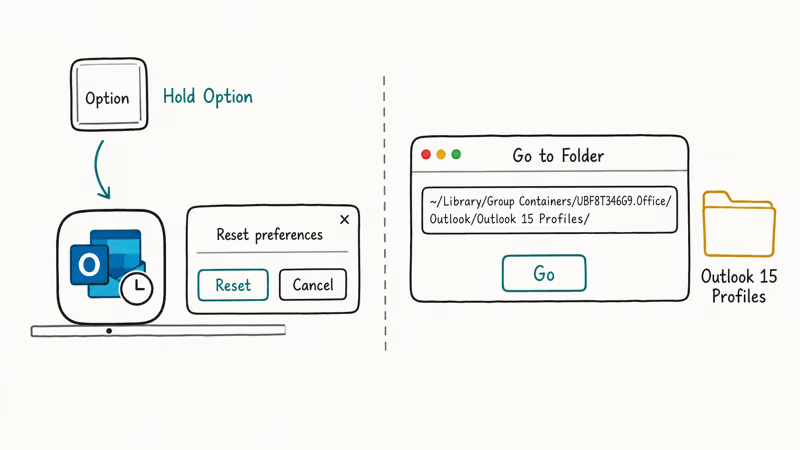
- Reset Outlook preferences. Hold Option while launching Outlook, then choose Reset preferences. This rebuilds the local profile without touching your mail.
- Delete the Outlook profile cache. Quit Outlook. Open
Finder>Go>Goto Folder and paste~/Library/Group Containers/UBF8T346G9.Office/Outlook/Outlook 15 Profiles/. Move the folder to the desktop, relaunch Outlook, and let it rebuild. - Reinstall from the App Store. Drag Outlook to the Trash from
/Applications, restart, and reinstall from the Mac App Store or your Microsoft 365 portal. Your mailbox lives on the server; nothing is lost. - Check macOS compatibility. According to Microsoft’s Outlook for Mac system requirements, the current build requires macOS 13 Ventura or newer. Older macOS versions get an older Outlook with known stability bugs.
If your view layout has shifted unexpectedly after the reinstall, our guide on what to do when Outlook view changed gets the inbox layout back to default.
#When None of the Standard Fixes Work
If you’ve run Safe Mode, disabled add-ins, repaired the install, repaired the data file, and built a fresh profile, and the crashes still happen, the issue is usually one of three less common causes.
- Conflicting Windows process. A non-Office process, often a video conferencing helper or an antivirus shield, is hooking Outlook at the wrong moment. The COM Surrogate process is a frequent suspect on Windows 11; check Task Manager for
dllhost.exeinstances tied to Outlook. - Hardware acceleration glitch. Open
File>Options>Advanced, scroll to Display, and check Disable hardware graphics acceleration. Restart Outlook. This fixes a class of crashes tied to old Intel and AMD integrated GPU drivers. - Damaged Windows user profile. If Outlook crashes for one Windows user account but works for another on the same PC, the Windows profile itself is damaged. Create a new local Windows account and migrate your data over.
If none of those land it, contact Microsoft Support directly or post to the Microsoft Community forum with the exact event log entries from Event Viewer (Windows Logs > Application, filter by source Outlook).
#Bottom Line
Start with outlook.exe /safe and the COM Add-Ins toggle. That single sequence resolves a majority of repeat-crash cases. If Safe Mode also crashes, jump to Office Quick Repair, then SCANPST or the OST rebuild depending on your account type, and save the new-profile and SaRA steps for the rest. Keep your PST file under 2 GB and disable any add-in you don’t actively use.
#Frequently Asked Questions
Why does Outlook crash every time I open an email?
A single message with malformed HTML or an unsupported attachment can trigger a render crash. Try opening Outlook in Safe Mode, then move the suspect message to a temporary folder using the Outlook on the web interface (which uses a different render engine). Once the message is out of the way, the desktop client usually opens cleanly.
Will SCANPST.EXE delete my emails?
No. SCANPST.EXE makes a backup copy of your PST file before any repair (when you check the backup option, which is on by default). It then rebuilds the file’s index and recovers as many messages as it can. On a PST with isolated corrupted blocks, the messages and calendar items typically come back intact.
How long does Office Quick Repair take?
About 2 minutes for Quick Repair on a current Microsoft 365 install. Online Repair takes 12 to 18 minutes depending on your internet speed because it re-downloads the full Office binaries. Quick Repair is offline; Online Repair needs an active internet connection.
Can I use Outlook on the web while I fix the desktop client?
Yes. Outlook on the web (outlook.office.com or outlook.live.com) reads the same mailbox and is unaffected by desktop crashes. Use it as your fallback while you work through the steps. New messages, drafts, and calendar updates all sync back to the desktop client when it stabilizes.
Does reinstalling Outlook delete my emails?
Not by default. Microsoft 365 and Exchange accounts keep all mail on the server, and reinstall pulls a fresh copy. POP3 accounts store messages locally in the PST file, so back up the PST file (in Documents\Outlook Files\) before any uninstall. Restore it through File > Open & Export > Open Outlook Data File after the reinstall.
Is Outlook in Microsoft 365 more stable than Outlook 2019?
Generally yes. The Microsoft 365 build receives monthly stability patches, while Outlook 2019 only gets security fixes, so the 365 channel tends to crash less often. If your IT policy allows it, the 365 channel is the more stable choice in 2026.
What does the error 0xc0000005 in Outlook mean?
That’s an access-violation crash, almost always caused by a bad add-in or a corrupted DLL. Run Office Quick Repair first, then disable third-party add-ins. If the error still hits, run the System File Checker (sfc /scannow in an admin PowerShell) to repair Windows system files, then retry Outlook.

Google Messages Error 3100: Why RCS Is Broken on Galaxy
Google Messages RCS error 3100 hits Galaxy owners after phone or carrier switches. Google told 9to5Google a fix is coming. Here's what actually helps.

Is This Bank App Real? Spot a Fake App on Your Home Screen
A bank app can land on your home screen from a web page with no install warning. Learn the checks that tell a real banking app from a phishing web app.

Apps Crashing After iOS 27 Update? Fix Order (2026)
Apps crashing after the iOS 27 update? Update the app in the App Store first, then offload and reinstall to clear stale cache, then restart. The fix order.

Do AI Translation Earbuds Work Offline? What to Know
Do AI translation earbuds work offline? A few do with downloaded language packs, but most need the cloud. Here's what works offline and what you give up.