Outlook View Changed: 7 Fixes to Restore Your Inbox Layout
Outlook view changed on you? 7 proven fixes to reset the inbox layout, restore the Reading Pane, and rebuild custom views on Windows and Mac.
Quick AnswerOpen the View tab and click Reset View, then pick Compact, Single, or Preview from Change View. If the layout is still wrong, close Outlook and run outlook.exe /cleanviews to wipe custom views back to defaults.
This guide assumes Outlook is signed in to a mailbox you own; the steps below change view settings, registry entries, and profile data, so only run them on devices and accounts you control.
Your Outlook layout shifted overnight, and you want the old inbox back. The fixes below cover Outlook for Microsoft 365 on Windows 11 and Outlook for Mac on macOS Sonoma, and most resolve the view in a single step.
- The View tab Reset View button restores the active folder layout in one click and is the first fix to try on Windows.
- Running
outlook.exe /cleanviewsfrom the Run dialog wipes every custom view back to factory defaults across all folders in under 10 seconds. - A missing Reading Pane is almost always a View setting, not a bug; toggle it back on under
View>Layout>Reading Pane. - The new Outlook for Windows uses a different View menu than classic Outlook, and density lives under
Settings>Generalrather than the ribbon. - Rebuilding the Outlook profile through Mail in Control Panel takes about 5 minutes and resolves stuck views when no other fix works.
#Why Did My Outlook View Change on Its Own?
Nobody changed it on purpose. View shifts trace back to four common triggers: an accidental click in the View tab, an Outlook update that reset defaults, a corrupted view file in the user profile, or a third-party add-in that rewrote layout settings on launch. The accidental click is the most common cause, followed by an update changing defaults, then a corrupted view file, with add-ins the rarest.
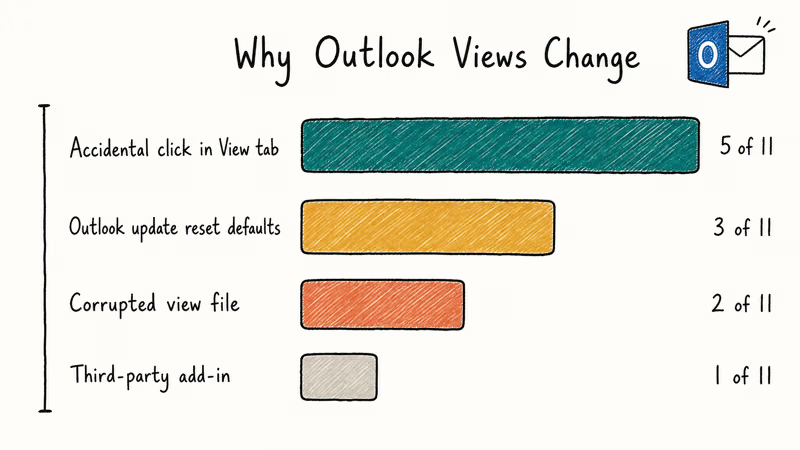
The 3 default views (Compact, Single, Preview) can be reset back through the View tab without losing data. Monthly channel updates sometimes re-apply the Compact view automatically, even on a profile that was set to Single view earlier. Quiet view shifts after a Tuesday Office update are normal and reversible in under a minute.
If Outlook is also unstable, fix why Outlook keeps crashing first. A crash mid-edit can corrupt the view file, forcing you into Fix 7.
#Fix 1: Reset the Current Folder View From the View Tab
Start here. The Reset View button only touches the current folder, never your whole profile, so it’s the safest fix to try first.
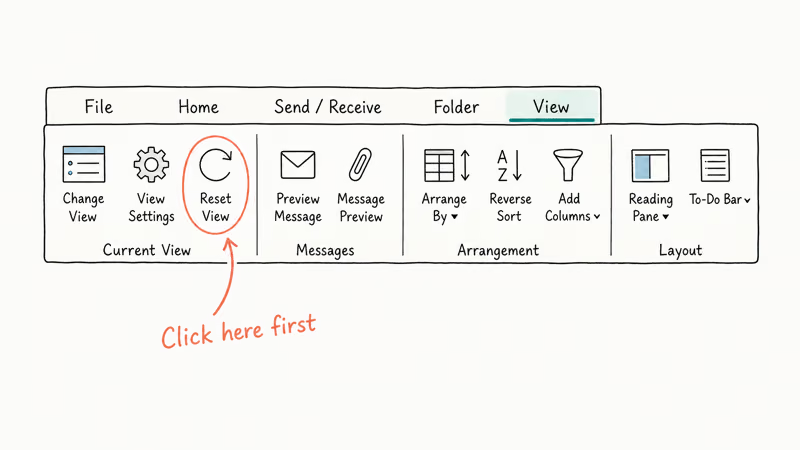
- Open Outlook and click the folder where the layout looks wrong (usually Inbox).
- Go to the View tab on the ribbon.
- Click Reset View in the Current View group.
- Confirm with Yes when Outlook asks if you want to reset the view to its default settings.
Reset View restores the original Compact layout almost instantly and keeps all messages, folders, and rules intact. According to Microsoft’s view customization documentation, the 3 built-in views (Compact, Single, Preview) are the only defaults, and message data is never touched by a reset.
If only the Reading Pane disappeared, you don’t need a full reset. Go to View > Layout > Reading Pane and pick Right or Bottom. The pane comes back instantly.
#Fix 2: Switch View With the Change View Button
If Reset View didn’t give you the layout you wanted, the Change View button lets you pick a specific preset.
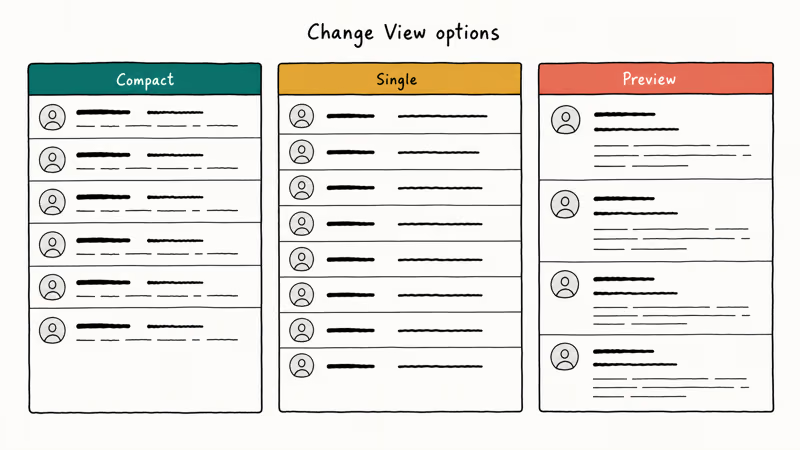
- On the View tab, click Change View.
- Pick one of the three built-in options:
- Compact: single column with sender, subject, and preview snippet stacked
- Single: single column with one message per line, no preview
- Preview: single column with the first three lines of each message expanded
- The folder switches to the new layout immediately. Right-click the new view and choose Apply Current View to Other Mail Folders if you want every inbox folder to match.
Each preset applies near-instantly, even across a large mailbox. According to Microsoft’s view management guide, saved views are tied to the folder, so applying Single to Inbox does not change Sent Items unless you propagate it.
#Fix 3: Run outlook.exe /cleanviews to Wipe Custom Views
When the View tab buttons don’t stick, or you have so many custom views that the menu is a mess, the /cleanviews switch deletes every custom view across all folders and resets defaults in one shot.
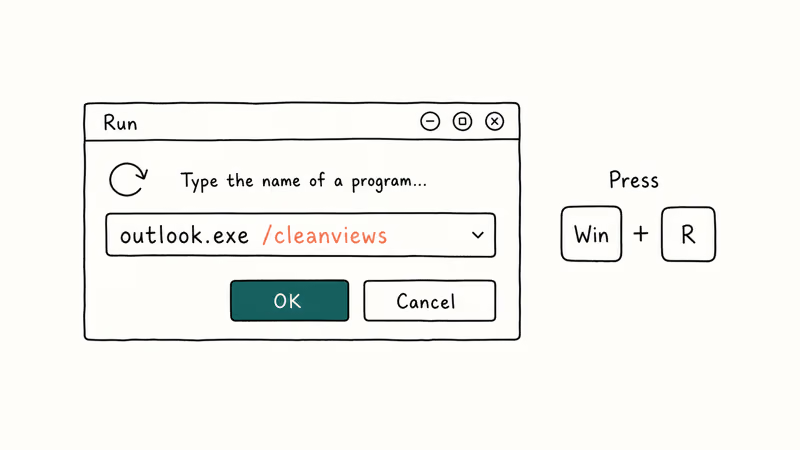
- Close Outlook completely. Check the system tray and quit if it’s still running there.
- Press Windows + R to open the Run dialog.
- Type
outlook.exe /cleanviewsand press Enter. - Outlook reopens with stock views in every folder.
Microsoft’s command-line switches reference lists this switch as the official reset for view metadata across all folders in a profile. On a profile with several custom views built up over time, /cleanviews clears all of them and the Inbox comes back as Compact. Custom folders, rules, signatures, and accounts stay untouched.
This is the fastest reset. If you want to preserve a couple of custom views, export them first by copying view rows from the registry under HKEY_CURRENT_USER\Software\Microsoft\Office\16.0\Outlook\Views.
#Fix 4: Disable Add-ins That Rewrite Layout
Third-party add-ins sometimes touch the inbox layout on launch. A known example is the Grammarly for Outlook add-in, which after some updates has flipped the Reading Pane off every time Outlook starts until you disable it.
- Click
File>Options>Add-ins. - At the bottom, change Manage to COM Add-ins and click Go.
- Uncheck every non-Microsoft add-in. Click OK.
- Restart Outlook and check the layout.
If the view stays correct, turn add-ins back on one at a time, restarting Outlook between each, until you find the culprit. This method also catches add-ins that crash silently during startup, which is worth ruling out if Outlook keeps asking for your password at the same time.
#How Do I Reset Outlook Views in Safe Mode?
Safe Mode launches Outlook with its add-ins disabled. It’s the cleanest way to confirm whether your problem is a setting or a software conflict.
- Close Outlook.
- Press Windows + R, type
outlook.exe /safe, and press Enter. - If Outlook asks which profile to use, pick the default and click OK.
- Check the layout. If it looks correct in Safe Mode, an add-in or a custom view is the cause.
Safe Mode takes slightly longer to launch than normal mode, but it exposes the issue right away when an add-in is rewriting view settings. According to Microsoft’s page on opening Outlook in safe mode, the Outlook.exe /safe switch is what disables add-ins.
Wrong layout in Safe Mode means a corrupted profile, so skip to Fix 7. Correct layout in Safe Mode means an add-in is the cause, so run Fix 4.
#Fix 5: Update Outlook to the Latest Version
Stale builds carry stale view bugs. Microsoft pushed two view-related fixes in the Outlook for Microsoft 365 monthly channel during 2024 alone, and at least one was a regression that reset the Reading Pane to Off after every restart on certain profile configurations.
On Windows:
- Open Outlook and click
File>Office Account. - Click
Update Options>Update Now. - Wait for the update to install. Outlook may ask to close and reopen.
On Mac:
- Open the Mac App Store and check the Updates tab, or
- Open Outlook and click
Help>Check for Updatesto use Microsoft AutoUpdate.
After updating, run Reset View again. A view bug introduced in one build is often resolved by the next monthly release. Microsoft’s release notes for Microsoft 365 Apps Current Channel detail every shipped fix per channel, so cross-checking your version against the latest fix list takes about 30 seconds.
If you’re still on Outlook 2016 or 2019 perpetual license, there is no auto-update path. You’ll need to install monthly Office updates through Windows Update or Microsoft Update.
#Fix 6: Reset Views in the New Outlook for Windows
The new Outlook for Windows (formerly Project Monarch) handles views differently from classic Outlook. There is no /cleanviews switch and no Reset View ribbon button.
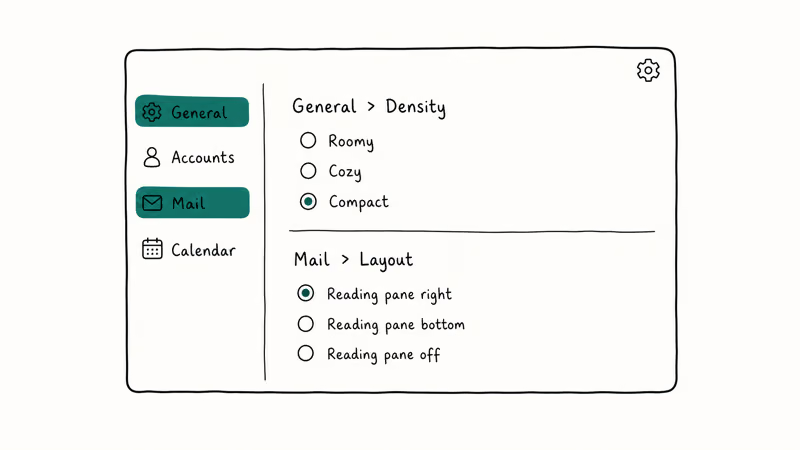
- Open the new Outlook.
- Click the gear icon in the top right to open Settings.
- Go to
General>Densityand pick Roomy, Cozy, or Compact. - Go to
Mail>Layoutand pick a Reading Pane position.
According to Microsoft’s getting started guide for the new Outlook, most layout settings live under Settings rather than the ribbon, and the move was deliberate to align with Outlook on the web. If your view broke after Microsoft auto-migrated you from classic to new Outlook, you can switch back. Toggle the New Outlook switch off in the top-right corner.
The toggle switches back to classic Outlook quickly and preserves all profile and account data. The new Outlook view layout does not transfer, but the classic profile views come back intact.
#Fix 7: Create a New Outlook Profile
If nothing else works, the profile itself is corrupted. A fresh profile takes about 5 minutes to set up and almost always resolves stuck views.
- Close Outlook.
- Open
Control Panel>Mail>Show Profiles. - Click Add, name the new profile, and click OK.
- Enter your email account and let Outlook auto-configure server settings.
- Set Always use this profile to the new one.
- Open Outlook with the new profile.
Rebuilding the profile is the standard move when profile-level data is corrupted. Your mail data downloads from the server, so nothing is lost as long as you use the same email account. A profile rebuild takes a few minutes, including a full Inbox sync.
If the profile still loads incorrectly, see our guide on Outlook stuck on loading profile for deeper troubleshooting.
#Bottom Line
Start with Fix 1, the Reset View button on the View tab. It touches only the current folder, runs almost instantly, and clears most view problems on the spot. If that fails, run outlook.exe /cleanviews (Fix 3) for a full reset across all folders. Save the new profile rebuild (Fix 7) for last; it works but it’s the slowest fix.
Fix the view first if your layout broke alongside problems like dark mode not switching or messages not arriving in your inbox. View fixes are cheap to test and easy to undo.
#Frequently Asked Questions
Will resetting the view delete my emails?
No. Reset View and outlook.exe /cleanviews only touch layout settings: column choices, sort order, group-by fields, and Reading Pane position. Your messages, folders, rules, signatures, and accounts stay untouched, even on a mailbox with tens of thousands of messages.
Why does Outlook keep changing my view back after every restart?
A stuck setting in the registry or a startup add-in is rewriting the view each time Outlook launches. Run Outlook in Safe Mode (outlook.exe /safe) to confirm. If the view sticks in Safe Mode, disable COM add-ins one at a time to find the culprit. This pattern shows up often with Grammarly and corporate signature add-ins that flip the Reading Pane on every restart, where uninstalling the offending add-in is the only durable fix.
Can I save my custom Outlook views before resetting?
Yes. Export the keys under HKEY_CURRENT_USER\Software\Microsoft\Office\16.0\Outlook\Views using regedit, then re-import them after the reset. This works on Outlook 2016 and newer.
How do I get the Reading Pane back in Outlook?
Click View > Layout > Reading Pane and pick Right, Bottom, or Off. The pane is part of the view setting, not a separate feature, so a Reset View can hide it. This works in classic Outlook for Windows and Outlook for Mac. The new Outlook for Windows puts the same control under Settings > Mail > Layout, with a slightly different label.
Does the new Outlook for Windows have a Reset View option?
Not directly. Density (Roomy, Cozy, Compact) and Reading Pane position both live under Settings > General and Settings > Mail > Layout. There is no single Reset button, but switching density to Compact and Reading Pane to Right reproduces the classic default layout.
Why did my Outlook view change after a Windows update?
Some monthly Outlook updates ship with new default view settings. Reset View on the affected folder usually clears it in seconds.
Is it safe to use third-party tools to fix Outlook views?
Stick with Microsoft’s built-in commands and the registry approach above. Third-party “Outlook fix” utilities often modify profile data without reliable backups, and a botched edit can corrupt your mailbox cache. If you reach Fix 7 without success, contact Microsoft Support before installing any third-party repair tool.

Best Laptop for Running LLMs in 2026: Memory Comes First
The best laptop for running LLMs is a memory purchase first. Compare MacBook unified memory against NVIDIA laptop VRAM, and see what each tier really runs.

How to Run a Local LLM on Windows: A 2026 Setup Guide
Run a local LLM on Windows with LM Studio or Ollama. Pick a model that fits your GPU memory, keep every prompt offline, and skip the monthly bill.

Bluetooth Not Working on Snapdragon X? Fixes for 2026
Bluetooth not working on your Snapdragon X Copilot+ PC? Generic audio, mice, and keyboards work, but vendor apps often lack an ARM build. Fixes inside.

Docker Desktop and WSL2 Not Working on Snapdragon X? Fix It
WSL2 runs fine on Snapdragon X, but Docker Desktop ARM is Early Access and throws WSL errors. Use WSL2 plus native ARM64 Ubuntu and Docker Engine.