Outlook Keeps Asking for Password? 7 Fixes That Stop It
Outlook keeps asking for password? Clear cached logins, repair the profile, disable prompt settings, and check Modern Auth for Microsoft 365 mailboxes.
Quick AnswerOutlook keeps asking for password because cached credentials are stale or the Outlook profile is corrupt. Clear the saved logins in Credential Manager, then either repair the profile or build a new one in Mail (Control Panel).
Outlook keeps asking for your password even after you type it right. The prompt comes back five seconds later, then again the next time you open the app. The fixes below target the common local causes: stale cached credentials, a damaged Outlook profile, legacy authentication settings, and conflicting add-ins. This guide assumes you’re signing in to your own mailbox, since clearing credentials on someone else’s account would break their session and may violate workplace policy.
- Start with
Credential Manager>Windows Credentials: delete entries that start withMicrosoftOffice,MS.Outlook, or your mail server, then restart Outlook. - Profile corruption is the second major cause. Building a fresh profile in
Control Panel>Mail(Microsoft Outlook) > Show Profiles can clear the loop when local profile data is damaged. - The hidden setting “Always prompt for logon credentials” sits inside
File>Account Settings>Change>More Settings>Security. Turn it off. - Modern Authentication must be on for Microsoft 365 mailboxes. It’s controlled by the registry key
HKCU\Software\Microsoft\Office\16.0\Common\Identity\EnableADAL = 1. - Slow VPN connections can also trigger repeated prompts when the Exchange handshake times out.
#Why Does Outlook Keep Prompting Me for a Password?
The prompt is Outlook’s way of saying it can’t reach your mailbox with the credentials it has stored. The three common causes are stale cached credentials, a corrupt Outlook profile, and misconfigured authentication.
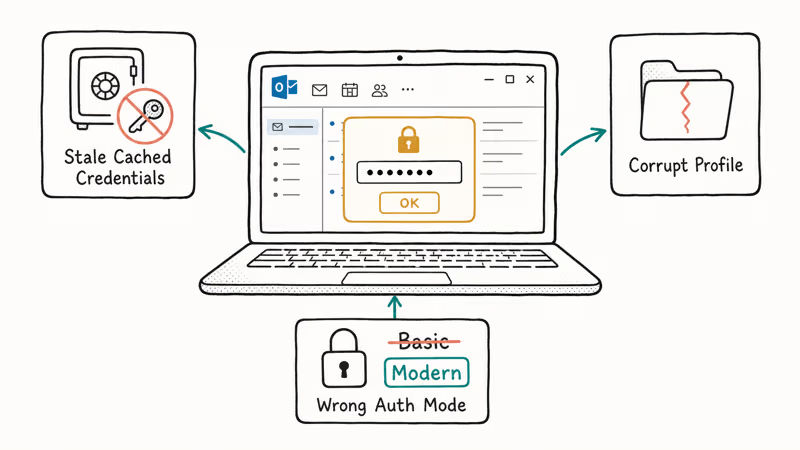
Stale cached credentials come first. Windows keeps a vault of saved Outlook logins in Credential Manager. When you change your password, switch tenants, or upgrade Office, the cached entry stops matching the server, but Outlook keeps trying it. The prompt is what you see when that retry fails.
A corrupt Outlook profile is the second cause. A damaged profile triggers constant credential prompts because the local data file (.OST) drifts out of sync with the mailbox state. Repairing or rebuilding the profile is the cleanest fix.
Misconfigured authentication rounds out the top three. Microsoft 365 mailboxes need Modern Auth enabled.
#Method 1: Clear the Cached Credentials in Windows
This is the lowest-risk first step because it removes stale local sign-in entries without changing the mailbox itself.
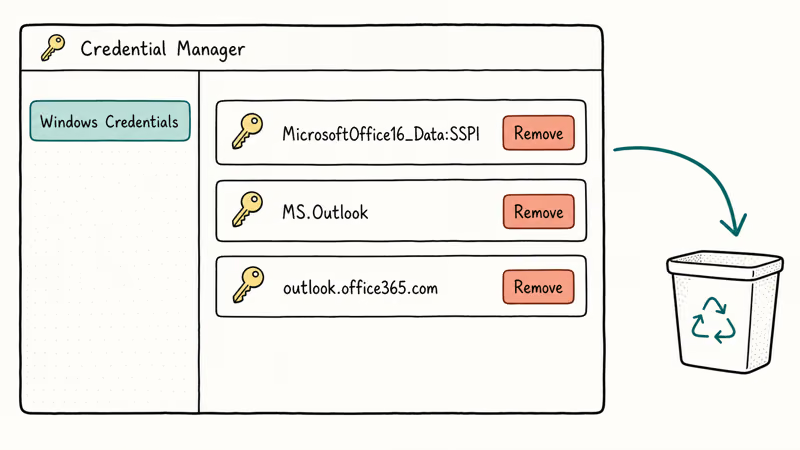
- Press Windows key + R, type
controland press Enter. - Set the View by dropdown to Large icons.
- Open
Credential Manager>Windows Credentials. - Look for entries that start with
MicrosoftOffice16_Data:SSPI,MS.Outlook, your Exchange server name, or your email address. - Click each one, choose Remove, and confirm.
- Close Credential Manager and reopen Outlook. Type your password once and check Remember my credentials.
If the prompt comes back, move to Method 2.
#Method 2: Turn Off “Always Prompt for Logon Credentials”
A buried Outlook setting can force the prompt every session, regardless of cached credentials. Check it before rebuilding the whole profile.
- Open Outlook and click
File>Account Settings>Account Settings. - Highlight your account on the Email tab and click Change.
- Click More Settings, then open the Security tab.
- Untick Always prompt for logon credentials under “User identification”.
- Click OK, then Next, then Finish. Restart Outlook.
This setting only appears for Exchange and POP/IMAP accounts. Microsoft 365 accounts using Modern Authentication won’t show it.
#Method 3: Verify Modern Authentication Is Enabled
For Microsoft 365 and Exchange Online mailboxes, Microsoft announced that basic authentication was retired across Exchange Online in October 2022. If Outlook is still trying basic auth, you’ll get an endless prompt. Confirm Modern Auth is on with this registry check.
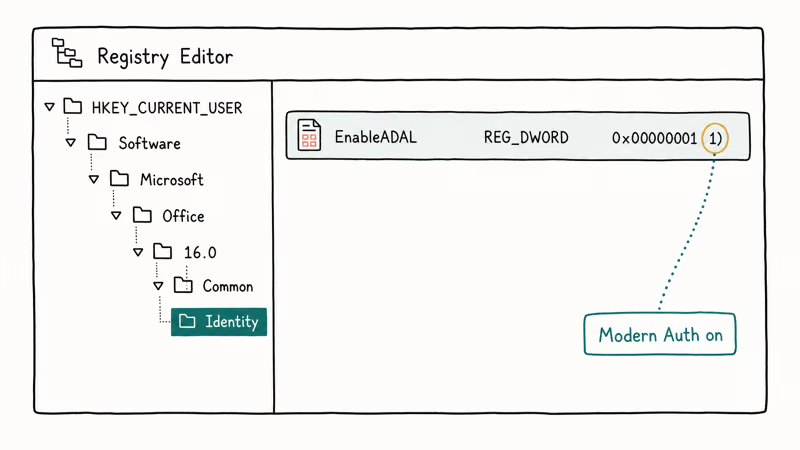
- Press Windows key + R, type
regedit, and press Enter. - Go to
HKEY_CURRENT_USER\Software\Microsoft\Office\16.0\Common\Identity. (Use15.0for Office 2013 or14.0for Office 2010.) - Look for a DWORD called
EnableADAL. It should equal1. - If it’s
0or missing, right-click in the right pane, chooseNew>DWORD(32-bit) Value, name itEnableADAL, and set the data to1. - Also confirm
DisableADALatopWAMOverrideis not set to1if you’re on Windows 10 or 11. - Close regedit and restart Outlook.
The Microsoft 365 admin documentation confirms that Modern Authentication is on by default for all new tenants, but tenants created before 2017 may still need it switched on at the admin level.
#Method 4: Repair the Outlook Data File
A corrupt .OST file is a frequent culprit on Outlook 2016 and 2019. Repairing it forces Outlook to re-sync from the server.
- Close Outlook completely. Check Task Manager and end any
OUTLOOK.EXEprocess if you see one. - Open File Explorer and paste this into the address bar:
%localappdata%\Microsoft\Outlook. - Find the .OST file matching your account. Rename it to add
.old(for example,you@company.ost.old). - Reopen Outlook. It will rebuild a fresh .OST and ask for your password once. Type it and tick Remember.
Hold off on deleting the renamed file. A full re-sync of a 5 GB mailbox can take three to four hours over a typical office connection, and you’ll lose anything not yet downloaded if you scrub the .old copy too early. Wait until the Send/Receive progress bar shows zero pending items.
#Method 5: Build a New Outlook Profile
If repair didn’t help, the profile itself may be damaged. This is especially plausible after an Office upgrade or a backup restore.
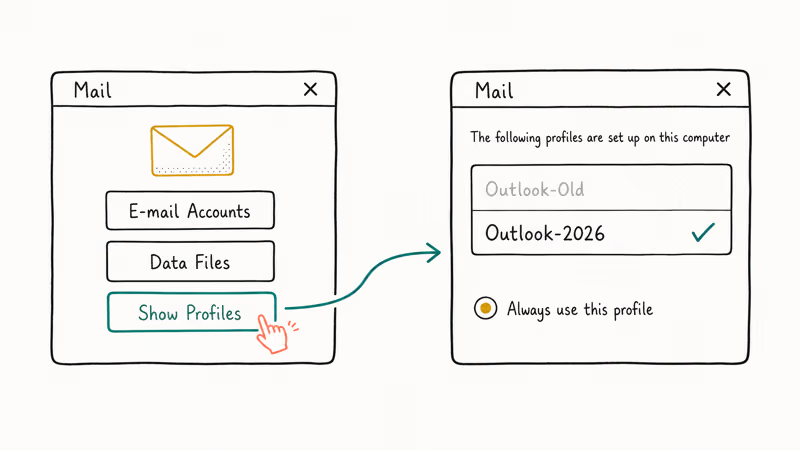
- Close Outlook.
- Open Control Panel and search for
Mail. Click Mail (Microsoft Outlook). - Click Show Profiles, then Add. Name the new profile something like
Outlook-2026. - Walk through the wizard with your email address and password. Outlook will auto-discover the server settings.
- Back on the Mail dialog, set Always use this profile to your new one and click OK.
- Open Outlook. The first sync takes 5 to 30 minutes depending on mailbox size.
Still stuck? See our Outlook stuck on Loading Profile guide.
#Method 6: Update Outlook to the Latest Build
Microsoft has shipped at least three Outlook updates over the past two years that specifically targeted credential-prompt regressions. Running an outdated build means you’re carrying known authentication bugs that newer releases already patched, so updating costs nothing and frequently solves the issue on the spot.
- Open Outlook and click
File>Office Account. - Under Product Information, click
Update Options>Update Now. - Wait for the install to finish and restart Outlook.
If your IT team blocks user-initiated updates, ask them to confirm your Office channel. The Current (Monthly Enterprise) channel ships fixes promptly. The legacy Semi-Annual channel can lag credential patches by six months, which is enough to bake in regressions long after Microsoft has resolved them on supported channels. A quick check there often saves the round-trip through every other method on this page.
#Method 7: Disable Conflicting Add-Ins
Old add-ins can hijack the credential exchange. Stale Skype for Business hooks, backup connectors, CRM plug-ins, and third-party security plug-ins can all sit between Outlook and the network stack.
- Click
File>Options>Add-ins. - At the bottom, set Manage to COM Add-ins and click Go.
- Untick everything except
Microsoft Exchange Add-in. - Click OK and restart Outlook.
- If the prompt is gone, re-enable add-ins one at a time until you find the one causing it.
Still stuck after all seven? The issue probably sits on the server. Check the Microsoft 365 service health dashboard and ping your IT admin.
#What if I’m Using a Personal Outlook.com Account?
Personal Outlook.com accounts are different: with 2FA, Outlook may need an app password.
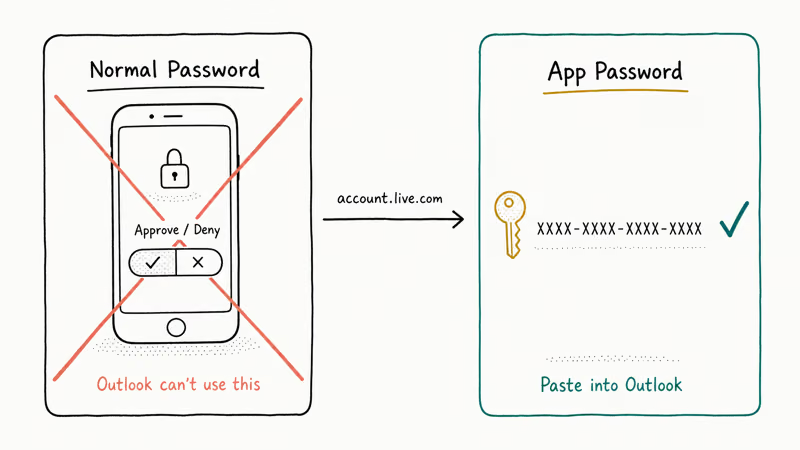
Sign in at account.live.com/proofs/AppPassword, generate a 16-character app password, and paste it into Outlook when prompted. Microsoft’s account security help states that an app password is required for any non-browser app once 2FA is enabled. Don’t reuse your normal password, since Outlook will keep failing.
Related fixes if Outlook acts up after this:
#Bottom Line
Start with Method 1. Credential Manager clears the loop for most people in two minutes flat.
If Method 1 doesn’t take, work down the list. The seven methods move from low-risk local cleanup to profile rebuilds and server-side checks. Microsoft 365 users should jump to Method 3 early, since a wrong EnableADAL value is a silent root cause. And if you’ve upgraded Office in the last month or two, skip ahead to Method 5; a fresh profile saves the most time when the issue traces back to a botched upgrade.
#Frequently Asked Questions
Why does Outlook ask for my password every time I open it?
Two reasons cover almost every case. Either you forgot to tick Remember my credentials the last time you signed in, or the “Always prompt for logon credentials” toggle is on in your account’s Security tab (Method 2 turns it off). On managed work laptops, it’s almost always the second one; on personal machines, it’s almost always the first.
Will I lose my emails if I create a new Outlook profile?
No. A new profile only affects local Outlook data, not your mailbox on the server. Your emails, calendar, and contacts re-download from Exchange or Microsoft 365 the first time you open the new profile. The original profile (and its .OST file) stays on disk until you delete it manually, so you can roll back if needed.
How do I know if my Outlook is using Modern Authentication?
Check the Connection Status panel. Hold Ctrl and right-click the Outlook tray icon, choose Connection Status, and look at the Authn column. Bearer* means Modern Auth; NTLM or Basic means legacy.
Can my IT admin force-disable the password prompt?
Yes, through Group Policy. Admins can push the EnableADAL registry key, kill legacy authentication at the tenant, and silence “Always prompt” via ADMX templates. On a managed device where local fixes do nothing, file a ticket. The admin policy will override anything you change yourself, so escalation is the right move.
What’s the difference between an OST and a PST file?
Big difference. The .OST is a synchronized cache that Outlook rebuilds from the server if you delete it (used by Exchange and Microsoft 365). A .PST is a standalone data file used for IMAP, POP, and archived mail; deleting a .PST permanently destroys its contents, so back it up first. Method 4 only renames the .OST, which is safe.
Does this also fix Outlook on Mac asking for a password?
Mostly. Outlook for Mac stores credentials in Keychain Access. Open it, search for Exchange and your email address, delete the matching items, and restart Outlook.
Why does the password prompt come back even after I tick “Remember”?
If you ticked Remember but the prompt returns, Credential Manager is silently rejecting the save — usually because of a corrupted vault or a Group Policy that disables credential persistence. Try deleting the entire Web Credentials and Windows Credentials vaults via Credential Manager, then re-adding the account. If that fails, your IT department has likely disabled credential storage and you’ll need to ask them to grant an exception.

Google Messages Error 3100: Why RCS Is Broken on Galaxy
Google Messages RCS error 3100 hits Galaxy owners after phone or carrier switches. Google told 9to5Google a fix is coming. Here's what actually helps.

Is This Bank App Real? Spot a Fake App on Your Home Screen
A bank app can land on your home screen from a web page with no install warning. Learn the checks that tell a real banking app from a phishing web app.

Apps Crashing After iOS 27 Update? Fix Order (2026)
Apps crashing after the iOS 27 update? Update the app in the App Store first, then offload and reinstall to clear stale cache, then restart. The fix order.

Do AI Translation Earbuds Work Offline? What to Know
Do AI translation earbuds work offline? A few do with downloaded language packs, but most need the cloud. Here's what works offline and what you give up.