How to Convert OST to PST in Outlook: 4 Working Methods
Convert OST to PST in Outlook using the built-in Import/Export wizard, Archive feature, or drag-and-drop. Step-by-step guide for all Outlook versions.
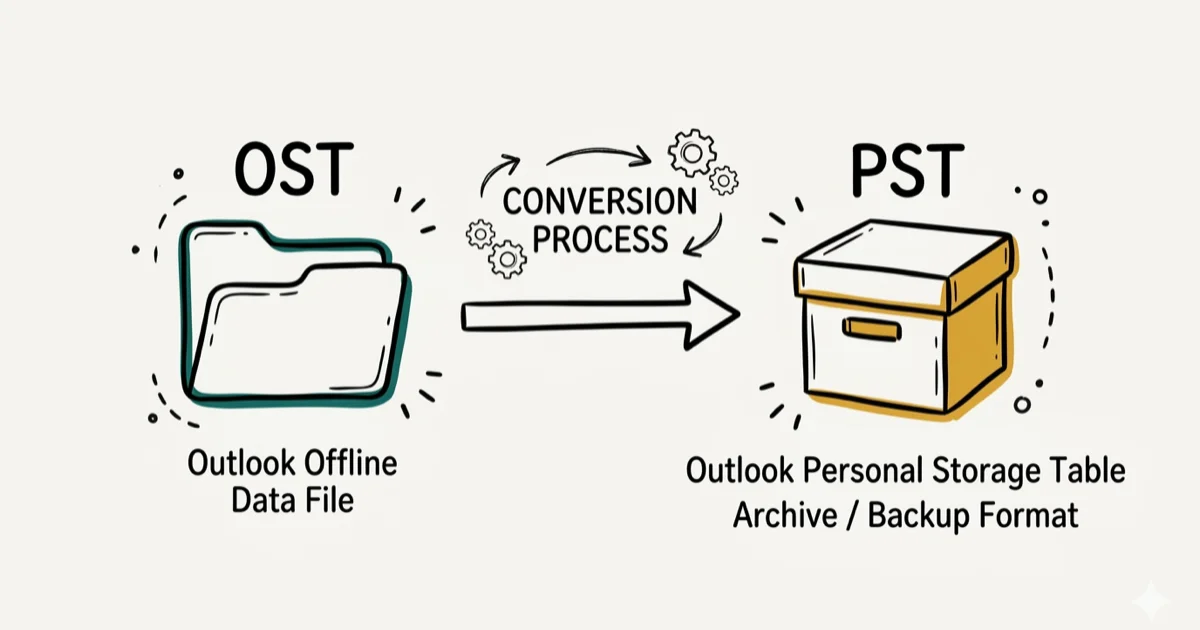
Quick AnswerUse Outlook's built-in Import/Export wizard to convert OST to PST: go to File > Open & Export > Import/Export, select Export to a file, choose Outlook Data File (.pst), pick your folders, and save. No third-party software needed.
OST files store Outlook data locally for Exchange accounts. Converting OST to PST creates a portable copy for migration, recovery, or offline access.
Convert OST files only from your own mailbox, your own device, or an Exchange account you are authorized to administer. Mail archives can contain personal data, contracts, credentials, and client records, so keep consent documented, follow legal retention rules, and store exported PST files in an approved secure location with restricted access.
- Outlook’s built-in Import/Export wizard converts OST to PST without any third-party software
- The Archive method creates a PST file and is best for cleaning up large mailboxes while preserving data
- Outlook 2016, 2019, 2021, and Microsoft 365 support PST files up to 50 GB; Outlook 2013 and earlier had a 20 GB limit
- Encrypted OST files can’t be directly converted — you must decrypt first or use a dedicated repair tool
- Always back up your OST file before conversion since the process can fail on corrupted mailboxes
#What Is an OST File and Why Convert It?
OST (Offline Storage Table) files are local copies of your Exchange mailbox that let Outlook work without a constant server connection. PST (Personal Storage Table) files are portable data files you can open on any computer with Outlook installed, regardless of server access.
Convert OST to PST for unavailable servers, migrations, deleted-email recovery, or decommissioned mailboxes.
According to Microsoft’s support documentation, PST files support up to 50 GB in Microsoft 365 and can be moved between Outlook installations freely, while OST files are tied to the specific Exchange account that created them and can’t be used on a different machine without server access.
According to Google’s Workspace migration documentation, migrating from Exchange to Google Workspace involves exporting PST files as an intermediate step, which confirms PST is the universal standard for Outlook data portability.
If you’re also dealing with related Outlook problems, our guides on fixing Outlook not receiving emails or restarting Outlook cover the most common issues.
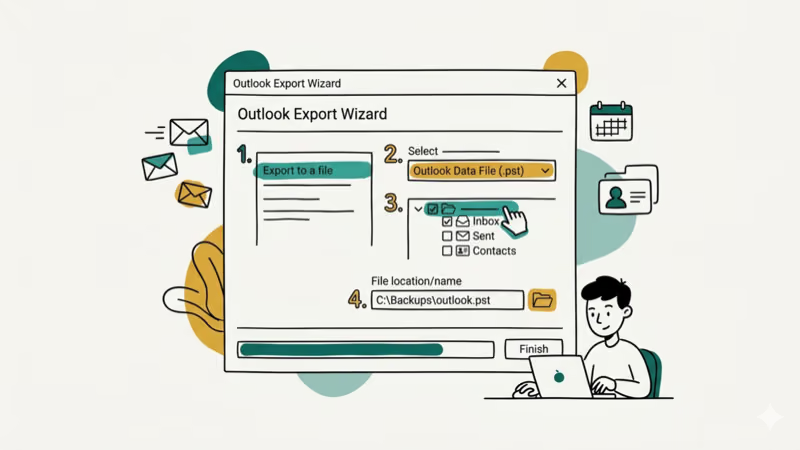
#Method 1: Convert OST to PST via Import/Export
This is the simplest method and requires only Outlook itself.
- Open Outlook and sign in to your account.
- Go to
File>Open & Export>Import/Export. - Select Export to a file and click Next.
- Choose Outlook Data File (.pst) and click Next.
- Select the folders you want to export. Check Include subfolders to get everything.
- Choose a save location and click Finish.
Outlook exports your selected folders to a PST file at the location you specified. Large mailbox exports can take longer depending on your hardware, storage speed, and mailbox condition. The resulting PST file can be imported to any Outlook installation using File > Open & Export > Import/Export > Import from another program or file.
#Method 2: Convert OST to PST via Archive
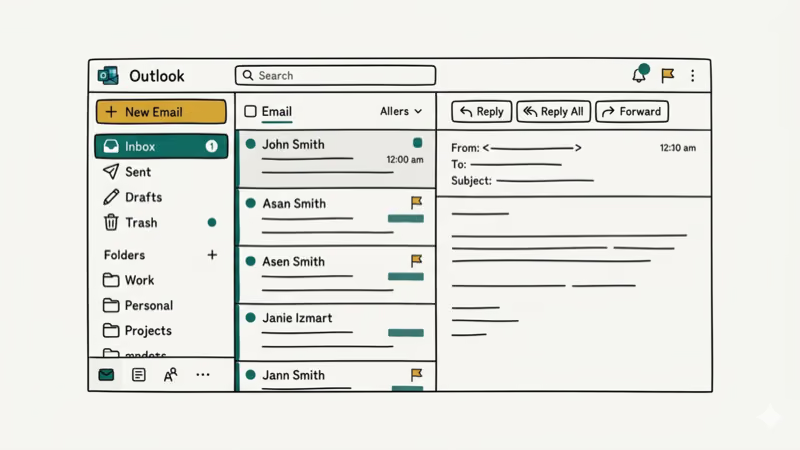
Outlook’s Archive feature is primarily designed for cleaning up old emails, but it creates a PST file in the process. This method works well for archiving emails older than a specific date.
- Open Outlook and go to
File>Options>Advanced. - Under the AutoArchive section, click AutoArchive Settings.
- Enable archiving and set your preferences for how old items should be before archiving.
- Choose a destination folder for the archive PST file.
- Click OK to apply.
The Archive method produces a PST file at your chosen location. Unlike Import/Export, it only archives items matching your date criteria, not your entire mailbox. This is useful if you want to reduce your active mailbox size while preserving older data. According to Microsoft’s archiving guide, AutoArchive states that items older than 6 months (the default setting) are removed from your active mailbox and stored in the archive PST, reducing your active mailbox size automatically.
#Method 3: Convert OST to PST via Drag and Drop
Drag and drop moves specific folders into a new PST file.
- In Outlook, go to
File>New Items>More Items>Outlook Data File. - Name the new PST file and click OK.
- The new PST file appears in your folder list on the left sidebar.
- Drag email folders from your OST mailbox into the new PST file.
Drag-and-drop copies email folders, not a full mailbox snapshot. Use Import/Export for complete exports.
#Can You Recover a Corrupted OST File for Free?
If your OST file is corrupted, the Import/Export method will fail with an error. Microsoft provides a free built-in repair tool called SCANPST.EXE for this. Our guide on using SCANPST.EXE covers the repair process step by step.
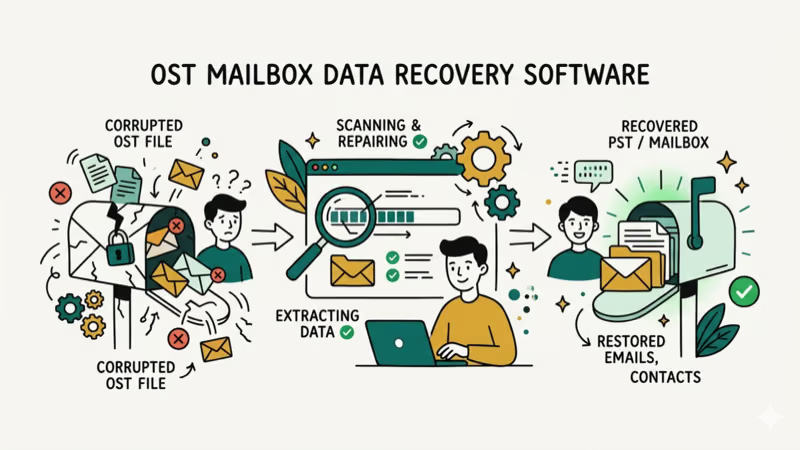
For severely corrupted OST files where SCANPST fails, third-party tools like Stellar Repair for Outlook can recover data from heavily damaged files. These paid tools extract data directly from the OST file structure without requiring an active Exchange connection.
Some links on this page are affiliate links, which means fone.tips may earn a commission at no extra cost to you.
#Best Practices for OST to PST Conversion
Following best practices prevents data loss during the conversion process.
Back up your OST file first. Find it at C:\Users\[Username]\AppData\Local\Microsoft\Outlook\ on Windows, then copy it to a safe location before starting any conversion.
Check your PST file size. PST files have limits: 20 GB for Outlook 2016 and later, 50 GB for Microsoft 365. According to Microsoft’s PST file limits page, exceeding these limits causes Outlook to display errors and refuse further data. If your OST mailbox is larger, split it by exporting folder by folder.
Verify the PST after conversion. Open the PST in Outlook via File > Open & Export > Open Outlook Data File and spot-check that your folders and emails are intact.
Don’t convert an encrypted OST without decrypting first. Encrypted OST files can’t be read by Import/Export; contact IT for a decryption key or use a compatible recovery tool.
#Using Your Converted PST File
Once converted, the PST file is fully portable. You can open it in any Outlook installation by going to File > Open & Export > Open Outlook Data File. The PST file contains all the email, calendar, and contact data from the folders you exported.
Keep the original OST file until you’ve verified the PST is complete. If the Exchange server becomes available again, Outlook will sync the OST normally — the PST is a separate copy that doesn’t affect your server-side mailbox.
If sync is the root issue, fix Outlook disconnected errors first.
#Bottom Line
For most users, the Import/Export wizard is the right choice. It’s free, built into Outlook, and handles the conversion without additional software. Use the Archive method if you want to offload old emails while keeping your active mailbox lean. For corrupted OST files, SCANPST.EXE is the first tool to try before paying for a third-party repair solution.
#Frequently Asked Questions
Can I convert OST to PST without Outlook?
Not easily. The OST format is proprietary to Microsoft Outlook, and third-party tools that claim to convert OST without Outlook installed often produce incomplete or corrupted PST files. The most reliable methods all require an active Outlook installation with the account still accessible.
Is there a file size limit for PST files?
PST files created by Outlook 2003 and earlier have a 2 GB limit. Outlook 2007 through 2013 support up to 20 GB. Outlook 2016, 2019, 2021, and Microsoft 365 support up to 50 GB. If your OST is larger, split the export into multiple PST files.
Can I convert an encrypted OST file to PST?
Encrypted OST files can’t be directly converted by the Import/Export wizard. You need to decrypt the file first, which typically requires the Exchange server and your account credentials. If the server is gone, a third-party tool designed to handle encrypted OST files is your only option.
How long does OST to PST conversion take?
Conversion time depends on mailbox size, storage speed, Outlook version, and whether the mailbox has corruption. Larger mailboxes and network drives usually take longer than small local exports.
Will the converted PST work with Outlook on a different computer?
Yes. Copy the PST file to the new computer and open it in Outlook via File > Open & Export > Open Outlook Data File. All emails, attachments, and folder structure are preserved.
What is the difference between OST and PST files?
OST files are tied to a specific Exchange account and sync with the server. They’re not designed to be moved between computers. PST files are standalone data files that work independently of any server. Converting OST to PST makes your mailbox data portable and accessible without an Exchange server.
Can I recover deleted emails from an OST file?
In some cases, yes. Third-party recovery tools can sometimes extract deleted items from OST files that haven’t been overwritten. The built-in Outlook recovery options (Recover Deleted Items) only work while the Exchange server is accessible.

Google Messages Error 3100: Why RCS Is Broken on Galaxy
Google Messages RCS error 3100 hits Galaxy owners after phone or carrier switches. Google told 9to5Google a fix is coming. Here's what actually helps.

Is This Bank App Real? Spot a Fake App on Your Home Screen
A bank app can land on your home screen from a web page with no install warning. Learn the checks that tell a real banking app from a phishing web app.

Apps Crashing After iOS 27 Update? Fix Order (2026)
Apps crashing after the iOS 27 update? Update the app in the App Store first, then offload and reinstall to clear stale cache, then restart. The fix order.

Do AI Translation Earbuds Work Offline? What to Know
Do AI translation earbuds work offline? A few do with downloaded language packs, but most need the cloud. Here's what works offline and what you give up.