Scanpst.exe: Fix Outlook PST Corruption in 5 Steps (2026)
Outlook crashing or emails vanishing? Scanpst.exe repairs corrupted PST files in minutes. Step-by-step guide plus when to skip it and what to try instead.

Quick AnswerRun Scanpst.exe to repair corrupted PST files. Close Outlook, find the tool through Windows Search, browse to your PST, click Start, then Repair. The scan finishes in 5 to 30 minutes depending on file size.
Scanpst.exe is the built-in Outlook repair tool that fixes corrupted PST files when your mailbox won’t open or messages start vanishing. It ships with every desktop version of Outlook from 2013 through Microsoft 365, runs entirely offline, and finishes in 5 to 30 minutes for most archives.
Scanpst only fixes PST structural damage, not crashes, sync errors, or password loops.
Legal note: Only use Scanpst on your own device or with explicit authorization. Running it against someone else’s mailbox without permission can violate privacy laws and break workplace policy.
- Scanpst.exe only repairs PST file corruption, not crashes from plugins, sync errors, or password loops
- Always copy your PST to a second location first; the tool deletes unreadable sections instead of recovering them
- Files larger than 2GB often stall or time out, so split or archive heavy mailboxes before scanning
- Run the tool up to three passes if errors remain; many archives clear up between the first and second run
- If three passes don’t open the file, rebuild your Outlook profile or restore from a previous backup before paying for third-party software
#What Does Scanpst.exe Actually Do?
Scanpst.exe is Microsoft’s Inbox Repair Tool. It walks through a PST file header by header, rebuilds the index Outlook uses to load folders, and strips out any block it can’t read.
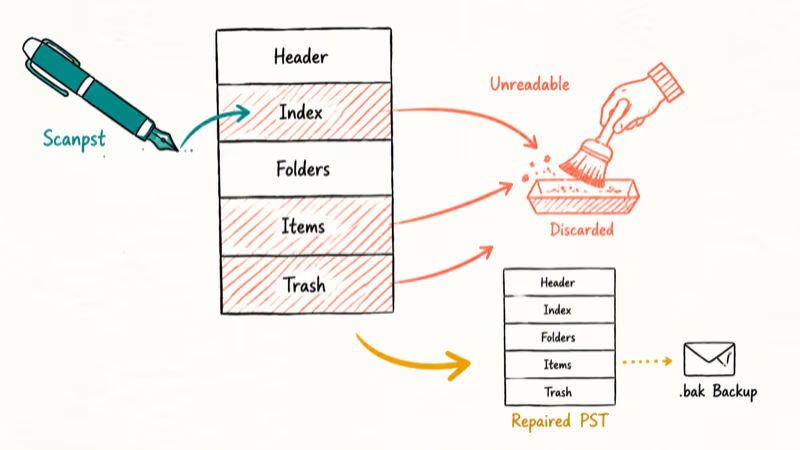
The naming is a little misleading.
Scanpst doesn’t restore data. It discards the parts that can’t be parsed and saves what’s left, which is why a backup before the scan is non-negotiable.
You’ll usually lose a handful of items: a few emails buried in a damaged folder, a stale calendar entry, maybe a contact card. The trade is straightforward. You give up the broken pieces in exchange for a working mailbox that opens again.
According to Microsoft, Outlook 2010 raised the PST limit from 20 GB to 50 GB, and the Inbox Repair Tool ships with every version since (full reference in the official Scanpst guide). Microsoft recommends running Scanpst as the first troubleshooting step when Outlook can’t open your data file or shows “file is not a personal folders file” errors.
The same page confirms that Scanpst writes a .bak backup of your PST before any repair changes touch the original. That gives you a manual rollback path on the source disk if the repair removes something you needed.
#Where Scanpst.exe Lives on Windows
Scanpst is built into Outlook, but Microsoft hides it inside Program Files. It doesn’t appear in the Start menu, and the path changes depending on your Outlook version and whether your Office install is 32-bit or 64-bit.
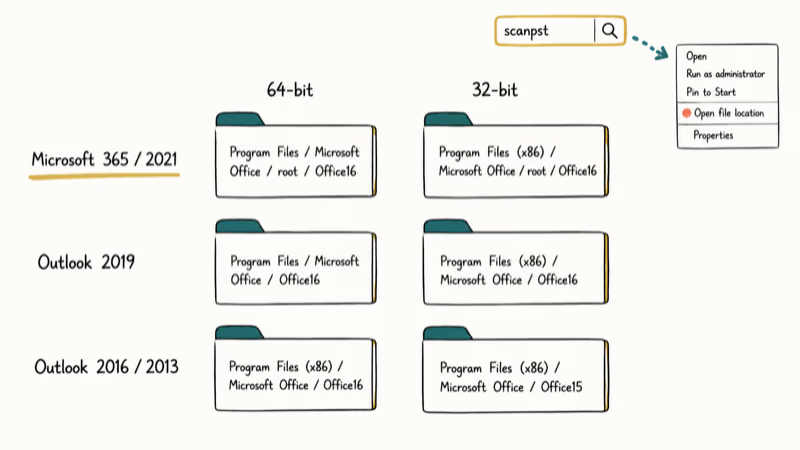
Standard install paths:
- Outlook 2021 / Microsoft 365 (64-bit): C:\Program Files\Microsoft Office\root\Office16
- Outlook 2021 / Microsoft 365 (32-bit): C:\Program Files (x86)\Microsoft Office\root\Office16
- Outlook 2019 (64-bit): C:\Program Files\Microsoft Office\Office16
- Outlook 2019 (32-bit): C:\Program Files (x86)\Microsoft Office\Office16
- Outlook 2016: C:\Program Files (x86)\Microsoft Office\Office16
- Outlook 2013: C:\Program Files (x86)\Microsoft Office\Office15
Don’t know your Outlook version? Open Outlook, go to File, then Office Account, and look at the build number. It tells you both the year and the bitness in one line.
If digging through Program Files sounds painful, just use Windows Search:
- Press Windows key + S
- Type scanpst
- Right-click the result and pick Open file location
When Search returns nothing, your Outlook install is probably damaged. Open Settings, go to Apps > Installed apps, find Microsoft Office, click the three-dot menu, then choose Modify > Quick Repair. If Quick Repair doesn’t surface Scanpst.exe, run Online Repair instead. It reinstalls Office while keeping your data files in place.
#How to Run Scanpst.exe Step by Step
Repairing a PST file takes 5 to 30 minutes for most archives. Files above 2GB can run for an hour or more if Scanpst needs multiple passes to clear corruption. Don’t interrupt the scan once it starts.
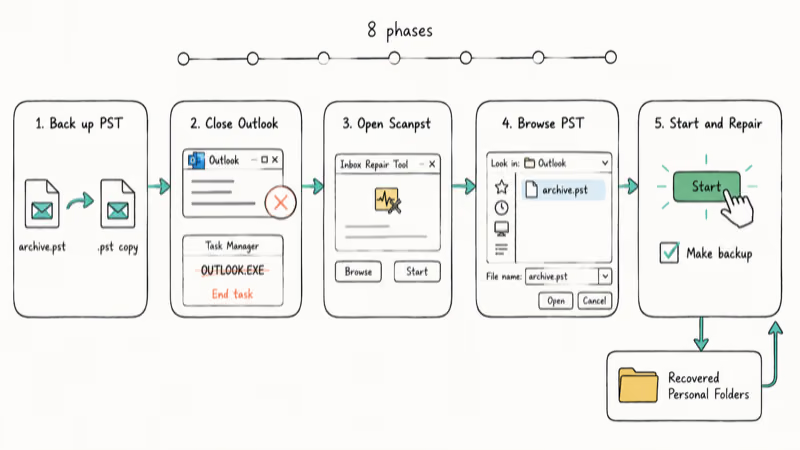
Step 1: Back up your PST file first
Outlook stores PST files at:
- C:\Users[YourUsername]\AppData\Local\Microsoft\Outlook\
Find the file ending in .pst, right-click, copy it, and paste a duplicate to your Desktop, an external drive, or OneDrive.
According to Microsoft’s introduction to Outlook data files, the .pst extension stores email, calendar, contacts, and tasks for POP3, IMAP, and webmail accounts on your local disk. That makes the .pst the only authoritative copy for non-Exchange users.
The duplicate matters before you touch the original.
Step 2: Close Outlook completely
Closing the window isn’t enough. Outlook keeps background workers running for sync and add-ins, and Scanpst can’t grab an exclusive lock on the file while those are alive.
Press Ctrl + Shift + Esc to open Task Manager, switch to the Details tab, and end every process with outlook in the name. Even a minimized instance can hold the lock, so Scanpst will throw “file in use” until you kill OUTLOOK.EXE from Task Manager.
Recheck Task Manager once more.
Step 3: Open Scanpst.exe
Use Windows Search, double-click the result, and the Inbox Repair Tool window opens. It’s small. There are exactly two buttons that matter: Browse and Start.
Step 4: Select your PST file
Click Browse, point to your PST under C:\Users\[YourUsername]\AppData\Local\Microsoft\Outlook\, select it, and click Open.
Step 5: Scan and repair
Click Start.
The scan runs through eight phases. If errors turn up, leave the Make backup of scanned file before repairing checkbox on and click Repair.
When repair finishes, Outlook opens with a new folder at the root of your mailbox called Recovered Personal Folders. That’s where Scanpst dumps everything it pulled out of damaged sections. Drag anything useful back into your real folders before deleting the recovery folder.
If errors remain after the first pass, run Scanpst again. Some archives clear on the second pass, while heavily damaged files can need three or four passes before they stop reporting errors. Most users see the file open normally by the second run.
After Scanpst finishes, restart Outlook cleanly. Your mailbox should load to the inbox view without errors.
#When Will Scanpst.exe Not Help You?
Scanpst is narrow. It only fixes structural damage inside a PST file. If the symptom comes from somewhere else, scanning won’t change anything, and it’ll burn 30 minutes for nothing.
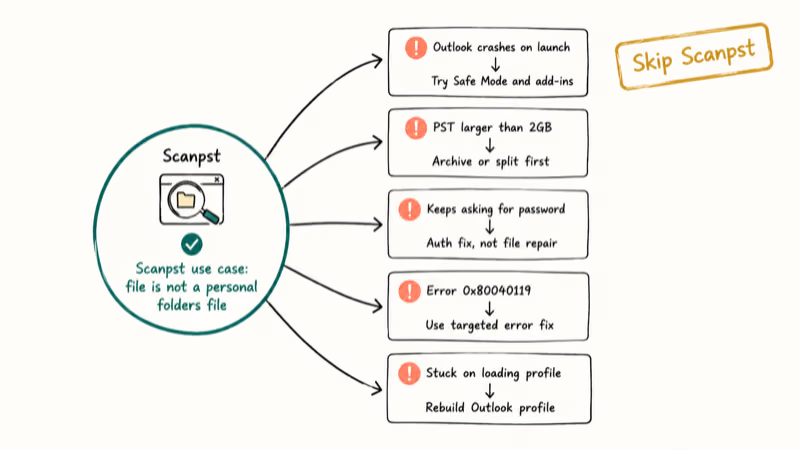
Skip Scanpst when:
- Outlook keeps crashing on launch but no error mentions corruption. That’s usually an add-in conflict or a damaged profile. Try restarting Outlook in Safe Mode first.
- Your PST is over 2GB. Scanpst stalls or hangs on huge files. Archive old mail or convert OST to PST and split the data before scanning.
- Outlook keeps prompting for credentials. That’s authentication, not file corruption. Walk through Outlook keeps asking for password instead.
- You see a specific error code like 0x80040119. Map the code first by checking the dedicated Outlook error 0x80040119 fix. Most error codes have targeted fixes that beat a blind PST scan.
- Outlook hangs at the loading screen forever. That’s profile state, not data file damage. Walk through Outlook loading profile stuck before reaching for Scanpst.
#Scanpst Limitations You Should Know
It doesn’t bring back permanently deleted email. Scanpst only operates on data still inside the PST structure. Deleted items emptied from Trash and aged out of the Recoverable Items area aren’t sitting in the file waiting to be revived. Running Scanpst on a PST whose messages were deleted and purged weeks earlier only surfaces structural fragments in the Recovered Personal Folders folder.
The deleted messages won’t come back.
It can’t open password-protected PSTs without the password. If your PST is encrypted and you’ve lost the password, Scanpst fails silently or returns a generic error. There’s no built-in bypass.
It won’t touch OST files. OST is the offline cache for Exchange, Microsoft 365, and IMAP accounts; PST is local-only storage. Scanpst is a PST-only utility. If your account uses an .ost, the right move is to delete the cached .ost file and let Outlook resync from the server on next launch.
It deletes what it can’t repair. There’s no review screen and no “skip this section” option. Anything Scanpst flags as unreadable is removed from the working file. The pre-scan backup is your only way to recover if a healthy chunk gets caught in the sweep.
#If Scanpst Fails After Three Passes
When three passes can’t open the file, the corruption is past Scanpst’s depth. At that point, more scanning won’t help. Try one of these instead.
-
Restore from a previous version. Right-click the .pst file, pick Restore previous versions, and roll back to a Windows shadow copy from before the crash. This works on machines with File History or System Restore enabled.
-
Rebuild your Outlook profile. Open
Control Panel>Mail>Show Profiles, add a new profile, set it as the default, and reconnect your account. For Microsoft 365 and Exchange users, the server resyncs everything automatically into a fresh OST. You’ll lose local-only PST folders that aren’t on the server, so save anything that lives only on disk first. -
Try a third-party recovery tool. Stellar Repair for Outlook, Kernel for Outlook PST Repair, and DataNumen handle deeper structural damage. They cost roughly $50 to $100 for a single license, and they vary in success depending on the corruption pattern. Treat them as a last resort, not a first line of defense.
-
Walk away from the file. If the PST is years old and you don’t need the data, delete it. Outlook creates a new one automatically on next launch and you keep moving.
#How to Prevent PST Corruption
The cleanest fix is the one you don’t have to run.
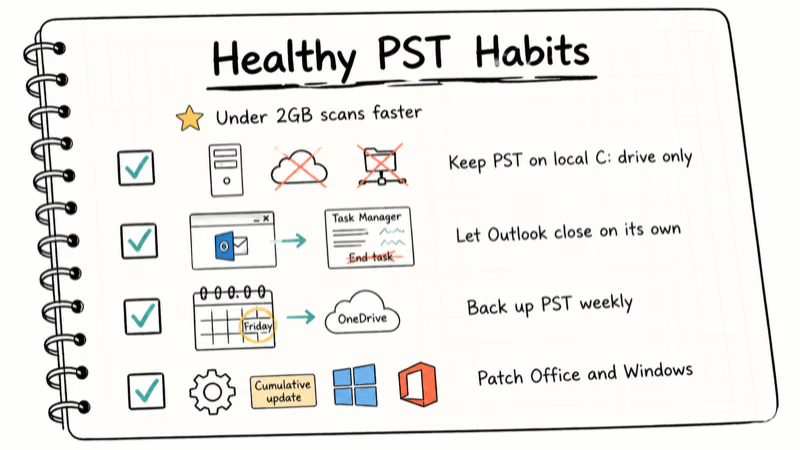
Healthy PST hygiene cuts most corruption events. According to Microsoft’s archive guide, AutoArchive can move items older than a configurable age into a separate archive .pst, and Microsoft recommends keeping the active mailbox lean to improve performance. A working PST under 2GB scans noticeably faster when something does break, so aggressive archiving pays off the first time you actually need to run Scanpst.
A few more habits that pay off:
- Keep PST files off network shares. SMB, OneDrive sync, and roaming profiles cause most “file is not a personal folders file” errors. Store the PST on the local C: drive only.
- Don’t force-quit Outlook. Let it close on its own. Killing it through Task Manager mid-write is one of the fastest ways to corrupt the index.
- Back up the PST weekly. Use
File>Open & Export>Import/Export for a clean copy, or just script a copy of the .pst to OneDrive every Friday. - Patch Office and Windows. Microsoft ships PST integrity fixes in cumulative updates. Outdated builds carry known corruption bugs that updates have already patched.
#Bottom Line
Scanpst.exe is the right first move when Outlook won’t open and the error mentions a damaged file, but it’s not a cure-all.
Back up your .pst, run Scanpst up to three times, then stop.
If the file still won’t open after three passes, rebuild the Outlook profile before paying for Stellar or Kernel. For Microsoft 365 and Exchange accounts the server holds the source of truth, so a profile rebuild costs you only local-only folders. Skip Scanpst entirely for crashes, password loops, sync issues, and “PST not found” errors. Those need targeted fixes, not a structural scan.
#Frequently Asked Questions
How often should I run Scanpst.exe?
Only when Outlook won’t open or shows a corruption-specific error like “file is not a personal folders file” or “errors have been detected in the file”. Don’t run it as preventive maintenance, since the tool’s whole repair flow is destructive on the parts it can’t read. If you find yourself running it monthly, the underlying issue is almost always a failing drive, a network-stored PST that gets interrupted mid-write, or repeated force-quits in Task Manager rather than the .pst itself.
Can I run Scanpst.exe while Outlook is open?
No. Scanpst needs an exclusive lock on the .pst, and Outlook holds that lock the whole time it’s running. Close Outlook and kill any leftover OUTLOOK.EXE processes in Task Manager first.
Will Scanpst.exe delete my emails?
It can. Scanpst removes any block it can’t read, so a corrupted folder index can take a handful of items with it during repair. Copy the .pst before you click Repair.
How long does Scanpst take to repair a file?
For typical archives, expect 5 to 10 minutes on PSTs under 500MB and 15 to 30 minutes on files between 500MB and 2GB. Anything over 2GB can stretch into hours or hang outright, especially when Scanpst has to run multiple repair passes. If the scan goes past 2 hours on a 2GB file, kill it from Task Manager, archive a chunk of mail to shrink the working .pst, then start a fresh scan on the smaller file.
Should I run Scanpst if Outlook is just slow but not crashing?
Probably not. Slowness almost always traces back to a bloated mailbox or too many add-ins, not file corruption. Archive emails older than a year and disable unused add-ins through File, then Options, then Add-ins before assuming the PST is the culprit.
What is the Recovered Personal Folders folder after repair?
It’s a Scanpst-created folder at the root of the mailbox holding orphaned messages, contact fragments, and calendar items rescued from damaged sections. Drag anything useful into your normal folders, then delete it once empty.
Can Scanpst fix Outlook invalid XML errors?
Sometimes. If the underlying cause is a damaged PST, Scanpst clears it and the Outlook invalid XML error goes away. If the XML lives in a config file like outcmd.dat or a damaged add-in manifest, Scanpst is the wrong tool. Run Scanpst once, and if the error returns, move to config-level fixes.
Do I need third-party PST repair tools if Scanpst fails?
Only after three Scanpst passes don’t open the file or the .pst is over 3GB and obviously broken. For most people, Scanpst is enough. Tools like Stellar Repair for Outlook and Kernel for Outlook PST Repair run $50 to $100 per license and recover deeper structural damage, but treat them as a last resort after profile rebuild and previous-version restore haven’t worked.

Best Laptop for Running LLMs in 2026: Memory Comes First
The best laptop for running LLMs is a memory purchase first. Compare MacBook unified memory against NVIDIA laptop VRAM, and see what each tier really runs.

How to Run a Local LLM on Windows: A 2026 Setup Guide
Run a local LLM on Windows with LM Studio or Ollama. Pick a model that fits your GPU memory, keep every prompt offline, and skip the monthly bill.

Bluetooth Not Working on Snapdragon X? Fixes for 2026
Bluetooth not working on your Snapdragon X Copilot+ PC? Generic audio, mice, and keyboards work, but vendor apps often lack an ARM build. Fixes inside.

Docker Desktop and WSL2 Not Working on Snapdragon X? Fix It
WSL2 runs fine on Snapdragon X, but Docker Desktop ARM is Early Access and throws WSL errors. Use WSL2 plus native ARM64 Ubuntu and Docker Engine.