How to Restart Outlook on Windows and Mac (5 Methods)
Restart Outlook on Windows or Mac to fix freezes, crashes, and send/receive errors. 5 step-by-step methods plus Safe Mode and profile repair fixes.

Quick AnswerTo restart Outlook on Windows, open Task Manager with Ctrl+Shift+Esc, end the outlook.exe process, then relaunch Outlook from the Start menu. On Mac, press Cmd+Option+Esc, force quit Microsoft Outlook, then reopen it; the full restart takes under 30 seconds and won't delete any emails.
Outlook freezing on a draft you spent ten minutes writing is the worst kind of bug. A clean restart fixes most of these stalls without touching your emails, because Outlook stores messages in PST or OST data files that stay safe even when the app crashes. This guide covers five restart methods that work across Outlook for Microsoft 365, Outlook 2021, and the older Outlook 2016 build many offices still run.
- Restart Outlook through Task Manager on Windows (end the outlook.exe process) or Force Quit (Cmd+Option+Esc) on Mac; both take under 30 seconds end to end.
- The outlook.exe /resetnavpane command fixes the navigation pane when Outlook crashes on launch but won’t open normally.
- Outlook Safe Mode (outlook.exe /safe) disables add-ins, the single biggest cause of recurring freezes across Outlook 2021 and Outlook for Microsoft 365.
- If a clean restart fails, create a new Outlook profile in
Control Panel>Mailto rule out a corrupted profile registry entry. - A restart never deletes emails because your data sits in PST or OST files separate from the running application.
#Why Does Outlook Stop Responding?
Most freezes trace back to four causes. Naming yours saves time.
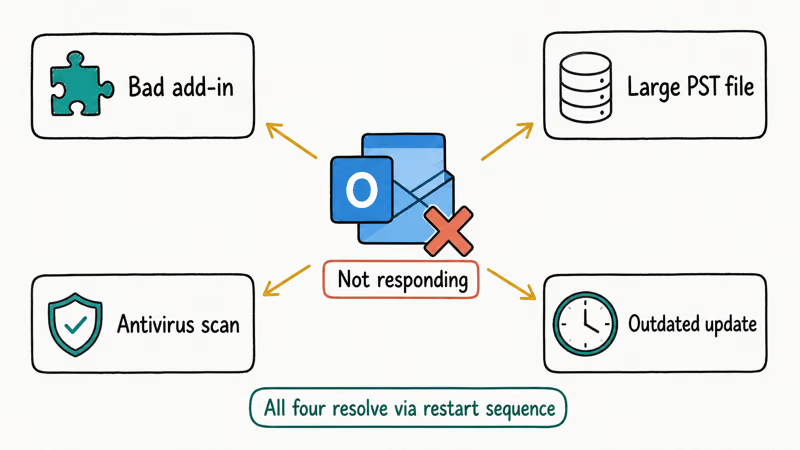
The most common trigger by far is an add-in conflict. That usually happens after a Windows update or a Teams upgrade pushes a refreshed COM add-in that doesn’t play nicely with the installed Outlook build.
The second culprit is mailbox bloat. Microsoft states that the default PST and OST size limit is 50 GB on Outlook 2010 and later, per its Outlook data file size limit guide. In practice Outlook noticeably slows once the OST file passes about 30 GB, and a single hung sync request can freeze the whole window.
Other triggers include corrupted profile registry keys, a stuck navigation pane, and conflicts with antivirus software scanning every incoming message in real time. According to Microsoft’s Outlook hangs or freezes guide, most of these stalls clear after a forced close and a clean relaunch of the app.
#How to Restart Outlook on Windows in 4 Steps
This is the fastest fix on Windows 10 and Windows 11, and it works the same way across current Outlook for Microsoft 365 builds. The full sequence finishes in under a minute.
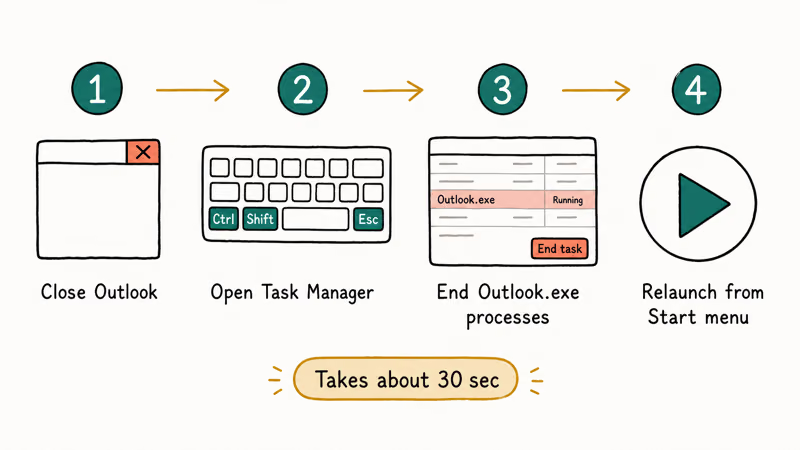
- Press Ctrl+Shift+Esc to open Task Manager. (Ctrl+Alt+Delete also works; then click Task Manager.)
- In the Processes tab, scroll to Microsoft Outlook or outlook.exe. If you see multiple Outlook entries, they’re usually background sync threads, which is normal.
- Click the Outlook entry once, then click End Task at the bottom right. Confirm if Windows asks.
- Reopen Outlook from the Start menu or the taskbar shortcut. The first launch after a forced end can take 10 to 15 seconds while OST files reindex.
Done. That clears almost every transient freeze.
If Outlook still won’t open after step 4, try the navigation pane reset. Press Win+R to open the Run dialog, type outlook.exe /resetnavpane, and hit Enter. That’s Microsoft’s standard fix when Outlook crashes on launch with a navigation pane error.
The /resetnavpane reset is the standard fix when an Outlook update breaks custom folder favorites, and it usually relaunches cleanly while preserving your saved views.
If your Outlook loading profile screen freezes before the inbox loads, that’s a separate fix.
#How to Restart Outlook on Mac with Force Quit
Outlook for Mac handles restarts differently because macOS doesn’t have a Run dialog. Force Quit works on both the new unified Outlook and the legacy build still installed on many older Macs.
- Press Cmd+Option+Esc to open the Force Quit Applications window.
- Select Microsoft Outlook from the app list.
- Click Force Quit and confirm in the popup.
- Reopen Outlook from Launchpad, the Dock, or Spotlight (Cmd+Space, then type Outlook).
If Outlook for Mac refuses to quit, open Activity Monitor (Spotlight, then type Activity Monitor), select Microsoft Outlook, click the X button in the toolbar, and choose Force Quit. That routes around a hung modal dialog the Force Quit Applications window sometimes can’t see.
The new Outlook for Mac syncs less aggressively than the legacy version, so the relaunch typically shows your inbox within 5 seconds. If your Mac is taking longer, check whether iCloud Mail sync is also running, because both processes hitting the mail database at once is a known slowdown.
#How to Restart Outlook in Safe Mode and Disable Add-Ins?
Safe Mode strips Outlook back to the bare client with zero add-ins loaded, no startup macros, and a barebones toolbar layout. Microsoft’s Office safe mode documentation confirms that this is the right diagnostic step when Outlook crashes on startup, freezes inside specific folders, or pops error dialogs the moment you click a meeting invite. Think of it as Outlook with every optional moving part disabled, so any bug that disappears must be coming from one of those parts.
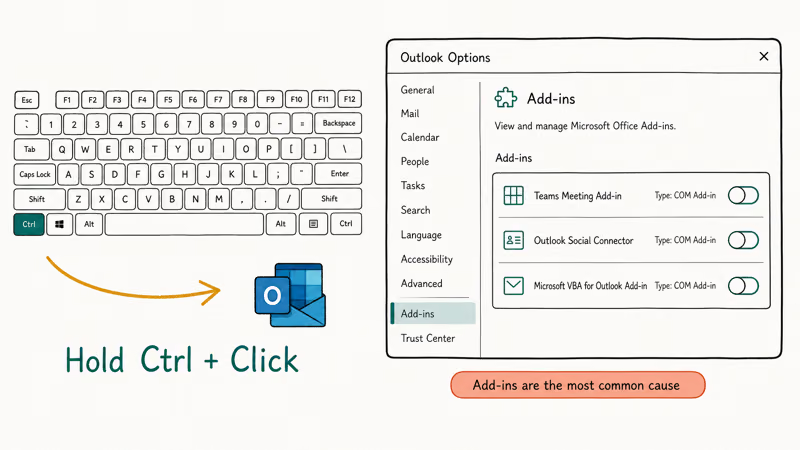
Here’s how to start Outlook in Safe Mode on Windows.
- Close Outlook completely. Check Task Manager to confirm no outlook.exe process is running.
- Press Win+R, type
outlook.exe /safe, and hit Enter. The space before /safe matters. - If Outlook prompts for a profile, pick the one you normally use and click OK.
- When Outlook opens, the title bar will say Microsoft Outlook (Safe Mode).
Now check whether the bug you’re chasing is gone. If Outlook works fine in Safe Mode but breaks in normal mode, the cause is an add-in. To find the culprit, go to File > Options > Add-Ins, click the Manage dropdown at the bottom, choose COM Add-Ins, and click Go. Uncheck every add-in, click OK, then restart Outlook normally.
If Outlook is stable, re-enable add-ins one at a time. After each re-enable, restart Outlook and check again. The add-in that brings the crash back is your problem.
The usual offenders are the Teams Meeting add-in and older Adobe Acrobat PDFMaker builds. Patching both to the latest version usually fixes the conflict on its own, without disabling the add-in, since recent releases specifically address these Outlook compatibility problems. If patching isn’t an option right away, leaving the problem add-in disabled is a safe stopgap, because Outlook still sends and receives mail normally with COM add-ins turned off.
If your specific issue is the password prompt looping every few minutes, the Outlook keeps asking for password fix covers credential cache resets that Safe Mode alone can’t solve.
#Run Microsoft Support and Recovery Assistant
When a clean restart, a /resetnavpane reset, and Safe Mode all fail, the problem is deeper than a transient hang.
Microsoft’s Support and Recovery Assistant documentation recommends running SaRA as the first automated diagnostic when Outlook errors persist after a restart. Download the tool from the official Microsoft page, run it, choose Outlook from the app list, then pick the scenario that matches your problem.
The “Outlook keeps crashing” scenario takes several minutes to scan and produces a short report that often points to a specific culprit, such as a stale add-in registry entry. That kind of targeted diagnosis is hard to reach by hand.
#Repair Your Outlook PST or OST File or Create a New Profile
A corrupted data file or a broken profile causes the worst Outlook crashes, because no restart touches the underlying state. Two repairs handle most of these cases.
#Repair Your PST or OST File
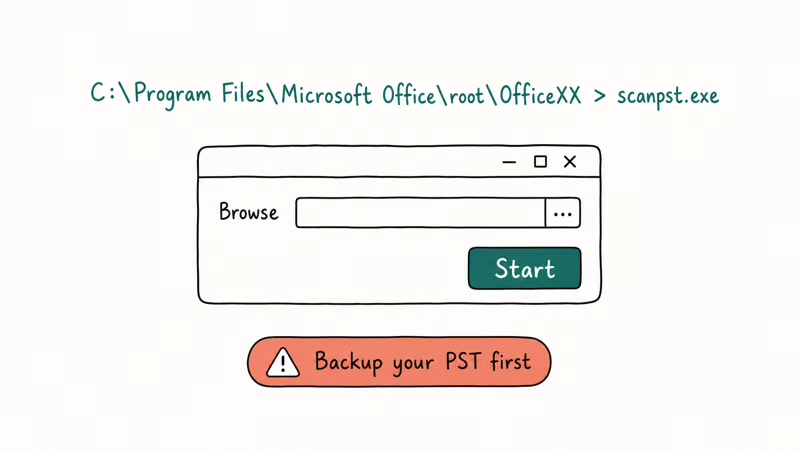
Microsoft’s Inbox Repair Tool guide confirms that scanpst.exe can repair corruption inside PST files; OST files repair by deleting and resyncing.
To find scanpst.exe, search your C: drive for it. The typical path is C:\Program Files\Microsoft Office\root\Office16. Close Outlook, run scanpst.exe, browse to your PST file (usually under C:\Users\[you]\Documents\Outlook Files), and click Start. A multi-gigabyte PST takes a while to scan, but the repair usually finishes within a reasonable window.
If Outlook keeps crashing even after a clean scanpst pass, the next step is usually a fresh Outlook profile rather than another repair attempt.
#Create a New Outlook Profile
A corrupted Windows profile registry entry causes Outlook to crash even after a fresh PST file repair, because the profile holds the account configuration, the OST file pointer, the navigation pane layout, and a bundle of settings keys under HKEY_CURRENT_USER\Software\Microsoft\Office. Creating a new profile bypasses the broken one without removing your account credentials, and Outlook will rebuild the OST file from your server on the first sync.
- Close Outlook. Press Win+R, type
control mlcfg32.cpl, and hit Enter. (Newer Windows 11 builds may needcontrolthen click Mail manually.) - Click Show Profiles, then Add.
- Type a new profile name. Any name works; we use Outlook-Fresh because it makes the new entry obvious in the dropdown.
- Enter your email address and password when prompted. Outlook auto-configures most accounts.
- Set the new profile as default under “Always use this profile” and click OK.
Open Outlook, let it finish the first sync, and check whether the original bug is gone. If yes, the old profile was corrupted, and you can delete it from the same Show Profiles screen.
Outlook also throws fits when it can’t reach the mail server. The Outlook disconnected fix covers connectivity issues that look like crashes but are really network problems.
#Bottom Line
Start with the Task Manager restart; it resolves most single-session freezes in under a minute. If the same crash returns within an hour, jump straight to Safe Mode with outlook.exe /safe and disable add-ins one by one. Save SaRA and PST repair for stubborn cases where Outlook fails to launch at all. If your view suddenly changed instead of crashing, use the view reset command, not a restart.
#Frequently Asked Questions
Will restarting Outlook delete my emails or data?
No. Your emails live in PST files (for POP and IMAP accounts) or OST files (for Exchange and Microsoft 365), and both stay on disk regardless of whether Outlook is running. A restart only kills the running process. It doesn’t touch your mailbox storage or any local rules.
How often should I restart Outlook?
There’s no fixed schedule; restart when you see a problem. Leaving Outlook open for more than a week on Windows tends to cause memory bloat and slower folder switching, so a weekly close-and-reopen keeps the client snappier. Many teams also restart Outlook on Mondays after weekend Windows updates roll through, because new patches occasionally invalidate the cached add-in state. If you reboot your computer every day or two, the regular boot covers this for you.
Is there a keyboard shortcut to restart Outlook?
Alt+F4 closes the active Outlook window. To restart fully, press Alt+F4, then Windows key, type Outlook, and hit Enter to relaunch.
Why does Outlook keep crashing right after I restart it?
A recurring crash right after restart almost always means an add-in conflict, a corrupted profile, or a damaged PST file. Try Safe Mode first. If Outlook works there, the cause is an add-in. If Outlook still crashes in Safe Mode, run scanpst.exe on your PST file, then create a new profile if the repair doesn’t help.
Can I restart Outlook on the web (outlook.com)?
Refresh the browser tab with F5 or Ctrl+R. If glitches persist, sign out and clear your browser cache.
Does restarting fix Outlook startup errors?
Sometimes. A plain restart fixes the startup error if the cause was a hung process; if the error persists, run outlook.exe /resetnavpane first, then outlook.exe /safe. If both fail, the issue is usually a corrupted PST or a damaged profile, so repair with scanpst.exe or create a new profile.
What is the difference between Safe Mode and a normal restart?
A normal restart reopens Outlook with all your add-ins loaded. Safe Mode (outlook.exe /safe) reopens Outlook with all add-ins disabled and a minimal toolbar. Use a normal restart for transient hangs; use Safe Mode when the crash repeats every time you launch.

Google Messages Error 3100: Why RCS Is Broken on Galaxy
Google Messages RCS error 3100 hits Galaxy owners after phone or carrier switches. Google told 9to5Google a fix is coming. Here's what actually helps.

Is This Bank App Real? Spot a Fake App on Your Home Screen
A bank app can land on your home screen from a web page with no install warning. Learn the checks that tell a real banking app from a phishing web app.

Apps Crashing After iOS 27 Update? Fix Order (2026)
Apps crashing after the iOS 27 update? Update the app in the App Store first, then offload and reinstall to clear stale cache, then restart. The fix order.

Do AI Translation Earbuds Work Offline? What to Know
Do AI translation earbuds work offline? A few do with downloaded language packs, but most need the cloud. Here's what works offline and what you give up.