No AMD Graphics Driver Is Installed: 6 Windows 10 Fixes
Fix the 'No AMD graphics driver is installed' error on Windows 10 with 6 proven methods covering driver reinstall, Safe Mode boot, and DDU cleanup.

Quick AnswerReinstall the AMD driver in Safe Mode with the AMD Cleanup Utility or DDU, then install the latest WHQL package from amd.com. That sequence clears the broken installation that triggers the 'No AMD graphics driver is installed' message even when Device Manager looks fine.
The “No AMD graphics driver is installed” error means Radeon Software can’t talk to the GPU even though Windows still draws to your monitor. It usually points to a half-removed driver, a stuck AMD service, or a Microsoft Basic Display Adapter that took over after a Windows update. The six fixes below cover both integrated Radeon graphics on Windows 10 and discrete Radeon cards on Windows 11, ordered from fastest to most thorough.
- The fastest fix is the AMD Cleanup Utility in Safe Mode followed by a fresh driver install from amd.com. It often clears the error after a single reboot.
- Display Driver Uninstaller (DDU) is the deeper option when Cleanup Utility isn’t enough; it strips registry leftovers Cleanup Utility leaves behind.
- Always disconnect from the internet before uninstalling so Windows Update doesn’t push a generic Microsoft Basic Display Adapter mid-process.
- Check that the AMD External Events Utility service is set to Automatic; the same error can appear when this service drops to Manual.
- If a yellow warning sign sits on the GPU in Device Manager, that’s a driver state issue; if the GPU is missing entirely, suspect a hardware seating problem before reinstalling drivers.
#Why Does Windows Say No AMD Graphics Driver Is Installed?
The message comes from Radeon Software, not Windows. When you launch the Adrenalin app or AMD Software, it queries the AMD driver service and the registry keys under HKLM\SOFTWARE\AMD. If those keys are missing, point to a different driver branch, or the AMD External Events Utility service is stopped, the panel throws this error even when your monitor still shows a picture.
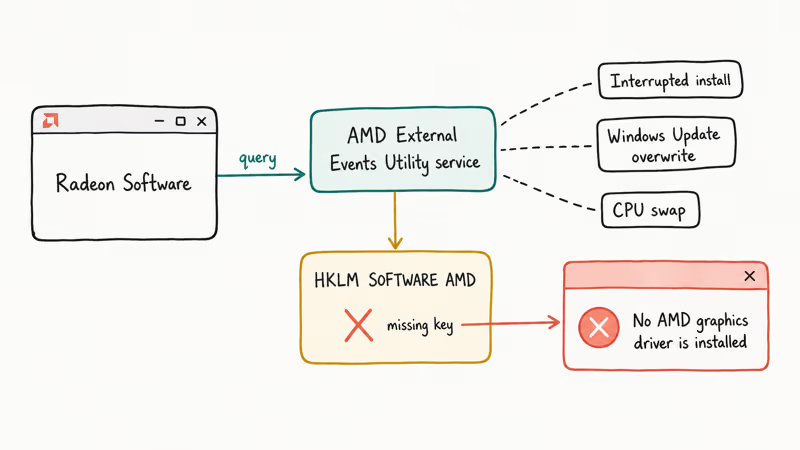
Three causes are common: an interrupted install leaving orphaned registry entries, Windows Update overwriting the AMD package, or a CPU swap that changes the primary GPU. According to AMD’s support page, only a clean reinstall fixes it.
A common trigger is a Windows 10 cumulative update resetting the AMD External Events service to Manual.
Adrenalin loads for a second or two, then throws the error. Restarting the service fixes it for that boot, but only a clean reinstall stops the error from coming back for good. If you’re also seeing related GPU instability such as the Video_Dxgkrnl_Fatal_Error BSOD, treat the driver reinstall below as the first step for both.
#Method 1: Use the AMD Cleanup Utility in Safe Mode
This is AMD’s official recommendation and the right first step on any machine showing this error.
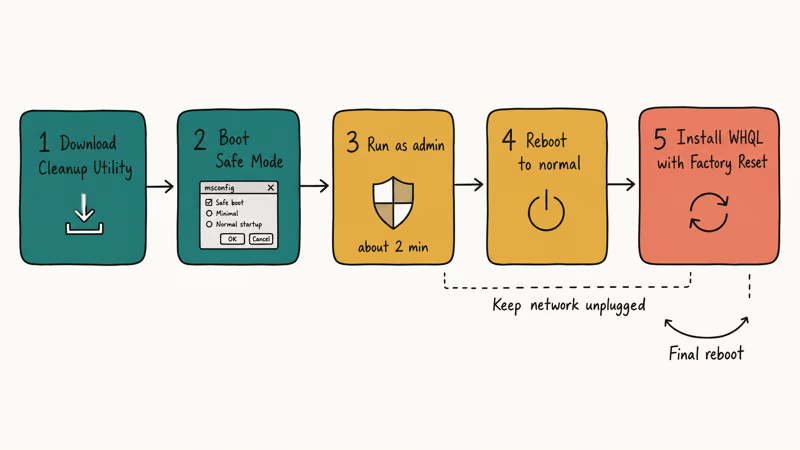
- Download the AMD Cleanup Utility from amd.com’s support article. Save it to your Desktop, not Downloads, so you can find it after Safe Mode strips the taskbar.
- Boot Windows 10 into Safe Mode. Press Windows + R, type
msconfig, hit Enter, then under the Boot tab tick Safe boot with the Minimal option. Restart. - Right-click
amdcleanuputility.exeand choose Run as administrator. Click OK when the warning about uninstalling AMD drivers appears. - Wait for the utility to finish, which usually takes about two minutes. Click Finish and let it reboot.
- Open
msconfigagain, untick Safe boot, and restart back to normal mode. - Download the latest WHQL Adrenalin driver from AMD’s auto-detect page, run it, and pick Factory Reset when the installer offers it.
This sequence usually clears the error on the first try. Don’t skip the Factory Reset option, since that is the part of the new install that overwrites any remaining old configuration. If you keep the network cable unplugged until after the new driver finishes, Windows Update can’t race the install and push a generic display driver in the middle.
#Method 2: Run Display Driver Uninstaller (DDU)
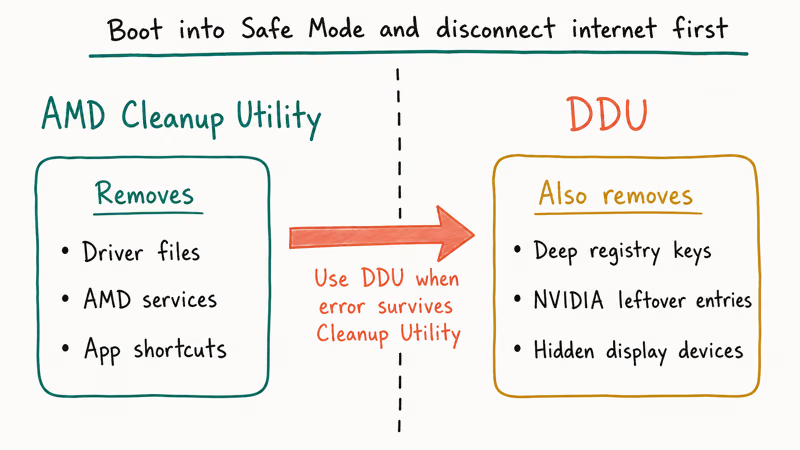
If the AMD Cleanup Utility leaves the error in place, DDU is the deeper tool. It scrubs registry keys Cleanup Utility skips and removes leftover NVIDIA or Intel display entries that can confuse Radeon Software on machines that have swapped GPUs.
- Download DDU from Wagnardsoft’s official page. Cross-check the file hash if your browser flags it; that warning is a false positive on the unsigned build, but only the official site is safe.
- Disconnect from the internet by pulling the Ethernet cable or disabling Wi-Fi from the system tray. This keeps Windows Update from sending a replacement driver while DDU is working.
- Boot into Safe Mode using the same
msconfigmethod as Method 1. - Run
Display Driver Uninstaller.exeas administrator. In the right panel, choose GPU and AMD. - Click Clean and restart. DDU will remove the driver, restart, and you’ll see Windows fall back to the Microsoft Basic Display Adapter at low resolution. That’s expected.
- Reconnect to the internet, download the Adrenalin package from amd.com, install it, and reboot once more.
On a system that previously ran an NVIDIA card, the AMD Cleanup Utility alone often leaves a few NVIDIA service keys in the registry. DDU removes those, and Radeon Software opens normally on the next boot. Microsoft’s documentation for Safe Mode boot confirms that drivers installed in Safe Mode are limited to the Microsoft signed set, which is why a fresh AMD install must happen after you return to normal mode.
#Method 3: Restart the AMD External Events Utility Service
Try this if the error appears intermittently or only after a Windows update.
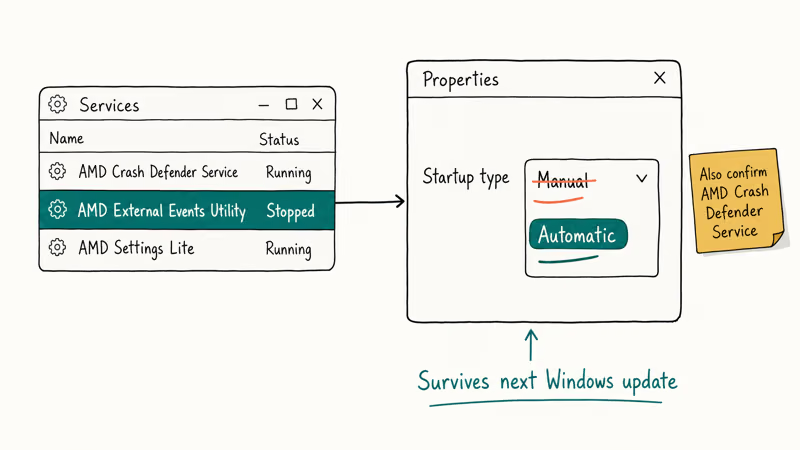
The AMD External Events Utility service handles the bridge between Radeon Software and the kernel-mode driver. When Windows resets it to Manual or stops it outright, Radeon Software thinks no driver is loaded.
- Press Windows + R, type
services.msc, and press Enter. - Scroll to AMD External Events Utility. Right-click it and pick Properties.
- Set Startup type to Automatic. Click Start if the service is stopped.
- Click Apply, then OK. Open Radeon Software again. No reboot is needed.
- While you’re in services.msc, also confirm AMD Crash Defender Service is running. It’s part of the same package and a common silent failure point.
The AMD External Events Utility issue tends to recur after monthly cumulative updates. AMD’s release notes don’t always call this out, but the pattern is consistent: a cumulative update lands, the service drops to Manual, and Radeon throws the error on next launch. Setting the service to Automatic survives the next update.
#Method 4: Roll Back the Windows Update That Broke the Driver
If the error started immediately after a Windows update, the cleanest fix is uninstalling the offending update and pausing future updates while you install a known-good AMD driver.
- Open
Settings>Update & Security>Windows Update>Viewupdate history. - Click Uninstall updates at the top. The list shows installed quality and feature updates by date.
- Sort by Installed On and uninstall the most recent KB that landed before the error appeared. Quality updates uninstall in about 5 minutes; feature updates can take 20+ minutes and require a restart.
- After the rollback, go back to Windows Update and click Pause updates for 7 days.
- Reinstall the AMD driver from amd.com using the Factory Reset option from Method 1.
According to Microsoft’s update history pages, Windows 10 cumulative updates have shipped graphics-driver regressions multiple times in 2024 and 2025. The symptom is usually a missing GPU in Radeon Software, a stuck cursor, or BSODs like DPC Watchdog Violation and IRQL_NOT_LESS_OR_EQUAL. Pausing updates for a week buys you time to confirm the AMD driver is stable before Windows tries again.
#Method 5: Check Your Hardware Detection in Device Manager
Sometimes the error is correct, and the GPU really isn’t detected.
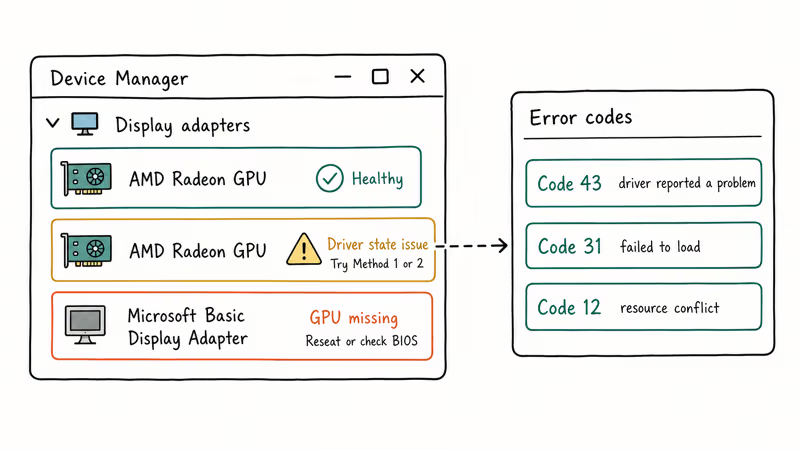
Before reinstalling drivers a third time, check what Device Manager actually sees on the system right now.
- Press Windows + X and pick Device Manager.
- Expand Display adapters. You should see your AMD GPU listed by model. If you only see “Microsoft Basic Display Adapter,” the AMD GPU is hidden or the driver isn’t loading.
- From the menu, click
View>Showhidden devices. Scroll back to Display adapters. A grayed-out AMD entry means the device is present but disabled or unloaded. - If you see a yellow warning triangle, double-click the device. The Status field tells you the exact error code. Code 43 means the driver reported a problem, Code 31 means it failed to load, and Code 12 means a resource conflict.
- If the GPU is missing entirely, shut down, unplug the power cable, and reseat the GPU in its PCIe slot. A loose 8-pin power connector or a partially seated card produces the exact same Radeon Software error as a software issue.
A grayed-out entry usually means the AMD service is stopped (Method 3) or the driver got partially uninstalled. A yellow warning sign means the driver is loaded but in an error state, so Method 1 or 2 is the right next step. Compare with our generic audio driver and WIA driver guides if you see similar yellow warnings on other devices in the same session, since they often share the same root cause.
#Method 6: Repair Microsoft Visual C++ Redistributables
This is the older fix from the original error guides. It still helps on systems running pre-2020 AMD drivers.
Adrenalin and the legacy Catalyst Control Center both depend on Visual C++ runtimes. A corrupted runtime can produce the same error message.
- Open
Settings>Apps>Apps &features. - Type “Visual C++” in the search box. You should see entries for 2005, 2008, 2010, 2013, 2015-2022 depending on what is installed.
- Click each entry and pick
Modify>Repair. Reboot after the last repair completes. - If the repair option is missing or the repair fails, uninstall the entry and download a fresh copy from Microsoft’s official Visual C++ download page.
- Reboot, then reinstall the AMD driver.
Most modern systems won’t need this step. But it has historically fixed the error on pre-2020 systems where the Visual C++ 2005 runtime got corrupted. For deeper Windows file repair, see our guide on how to repair Windows 10 without a CD.
#What Should You Try If None of These Fixes Work?
If all six methods leave the error in place, the GPU itself may be failing or the system is detecting a different graphics device than you think. Boot the machine with only one GPU connected (no integrated graphics passthrough, no second card), test in another PCIe slot if available, and try a different display cable.
AMD’s RMA process requires the card to appear in BIOS first. If your GPU isn’t listed there, no Windows fix will help.
For laptops with switchable graphics (a Ryzen iGPU plus a discrete Radeon), make sure the discrete GPU is enabled in BIOS and not overridden by a manufacturer power-saving profile. Some Lenovo and HP laptops disable the discrete AMD GPU under “battery saver” profiles, which causes Radeon Software to throw the no-driver error even with a perfect driver install. Switching to the manufacturer’s “performance” or “balanced” profile in their utility usually restores detection.
#Bottom Line
Start with the AMD Cleanup Utility in Safe Mode followed by a fresh Adrenalin install from amd.com. That sequence clears the error in most cases and is the path AMD officially recommends. If the error returns after a Windows update, the AMD External Events Utility service is the most likely culprit; setting it to Automatic in services.msc keeps the fix sticky.
Skip Driver Easy and other third-party “driver updater” apps for this specific error. AMD’s own download page is the only source that ships matching kernel-mode and user-mode components together, and mismatched components are exactly what triggered the error in the first place.
For unrelated missing-driver checks after AMD’s own reinstall succeeds, Driver Booster can scan the rest of the PC, but don’t use it to replace AMD’s Adrenalin package for this error.
Some links on this page are affiliate links, which means fone.tips may earn a commission at no extra cost to you.
#Frequently Asked Questions
Will Windows Update install the correct AMD driver for me?
Sometimes, but not the version Radeon Software needs. Windows Update typically ships an older WDDM driver that lacks the user-mode Adrenalin components. According to AMD’s driver download page, the WHQL package on amd.com includes the full Radeon Software stack; Windows Update does not. Install from amd.com, then pause updates for 7 days so Windows doesn’t overwrite the install.
How often should I update my AMD graphics driver?
Roughly every 2-3 months for general use, or sooner if you play a new release that ships day-one driver optimizations.
Can I use Driver Easy or DriverPack Solution to fix this?
We don’t recommend it for this specific error. Third-party driver updaters often install drivers from non-AMD sources, which can cause the exact mismatch between kernel-mode and user-mode components that this error reports. Use AMD’s auto-detect tool from amd.com instead, since it pulls the WHQL package directly from AMD’s CDN. The auto-detect tool also matches your exact CPU and GPU combo, including iGPU variants.
Why do I get this error after a Windows update even though my driver was working?
Cumulative updates can reset the AMD External Events Utility service to Manual or replace parts of the AMD driver with a generic Microsoft Basic Display Adapter. Method 3 fixes the service issue without a full reinstall.
Do I need to back up my data before reinstalling AMD drivers?
A driver reinstall doesn’t touch your personal files, but it does drop the screen briefly during install. Save any open work first. If you’re running DDU in Safe Mode, plan for about 10 minutes of downtime including reboots, and close any unsaved documents before you reboot.
What if Device Manager shows a yellow warning on my AMD GPU?
A yellow warning means Windows loaded the driver but it returned an error. Double-click the device to see the error code. Code 43 means the driver reported a hardware fault (try Method 1 or 2), Code 31 means the driver failed to load (Method 1 with DDU as a follow-up), and Code 12 means a resource conflict that usually requires a BIOS update. The Status field shows the exact code.
Is it safe to use DDU on a system with both AMD and NVIDIA hardware?
Yes, but use the GPU vendor selector carefully.
My GPU is fine in BIOS but not in Windows, what does that mean?
That points to a Windows driver problem, not a hardware problem. The BIOS POST sees the card, so the PCIe slot and power are working. Methods 1, 2, and 3 cover the three most common Windows-side causes.

Best Laptop for Running LLMs in 2026: Memory Comes First
The best laptop for running LLMs is a memory purchase first. Compare MacBook unified memory against NVIDIA laptop VRAM, and see what each tier really runs.

How to Run a Local LLM on Windows: A 2026 Setup Guide
Run a local LLM on Windows with LM Studio or Ollama. Pick a model that fits your GPU memory, keep every prompt offline, and skip the monthly bill.

Bluetooth Not Working on Snapdragon X? Fixes for 2026
Bluetooth not working on your Snapdragon X Copilot+ PC? Generic audio, mice, and keyboards work, but vendor apps often lack an ARM build. Fixes inside.

Docker Desktop and WSL2 Not Working on Snapdragon X? Fix It
WSL2 runs fine on Snapdragon X, but Docker Desktop ARM is Early Access and throws WSL errors. Use WSL2 plus native ARM64 Ubuntu and Docker Engine.