How to Fix Netwtw06.sys Failed BSOD on Windows 10 and 11
Fix netwtw06.sys failed BSOD on Windows 10 and 11 with driver updates, rollback, SFC, DISM, CHKDSK, System Restore, and data recovery steps.
Quick AnswerUpdate or roll back your Intel Wireless driver in Device Manager, then run sfc /scannow and DISM in an admin Command Prompt. Most netwtw06.sys crashes clear after a driver fix and one repair pass.
The netwtw06.sys failed error throws Windows into a blue screen of death whenever the Intel Wireless LAN driver crashes. The file belongs to Intel’s wireless stack, so driver update or rollback work is the first fix to try before broader Windows repair.
- The netwtw06.sys file ships with the Intel Wireless LAN driver, so most crashes trace back to a bad driver build or a corrupted Intel package
- Common stop codes paired with this file are DRIVER_IRQL_NOT_LESS_OR_EQUAL, PAGE_FAULT_IN_NONPAGED_AREA, and SYSTEM_THREAD_EXCEPTION_NOT_HANDLED
- Updating or rolling back the Wi-Fi driver is usually the highest-value first step before SFC, DISM, or CHKDSK
- Running sfc /scannow followed by DISM /Online /Cleanup-Image /RestoreHealth repairs corrupted system files in roughly 15 minutes total
- Skip CHKDSK first if your disk is healthy; it can lock you out of the drive for 2 hours and rarely fixes a Wi-Fi driver crash on its own
The crash points to one specific component: the Intel PROSet/Wireless driver bundle. Closely related driver-level BSODs such as the ntfs.sys failure share the same triggers and rule-out approach, but netwtw06.sys is almost always a wireless stack problem.
Work through the methods in order. Most readers stop after Method 2.
#What Triggers the Netwtw06.sys Failed Error?
Netwtw06.sys is the Intel Wireless LAN driver file that sits inside C:\Windows\System32\drivers. When the file crashes, Windows kills the kernel and shows a blue screen with one of three companion stop codes. Each code points to a different root cause, so identifying the exact stop message you’re seeing on the BSOD will help you pick the right fix faster than working through every method blindly.
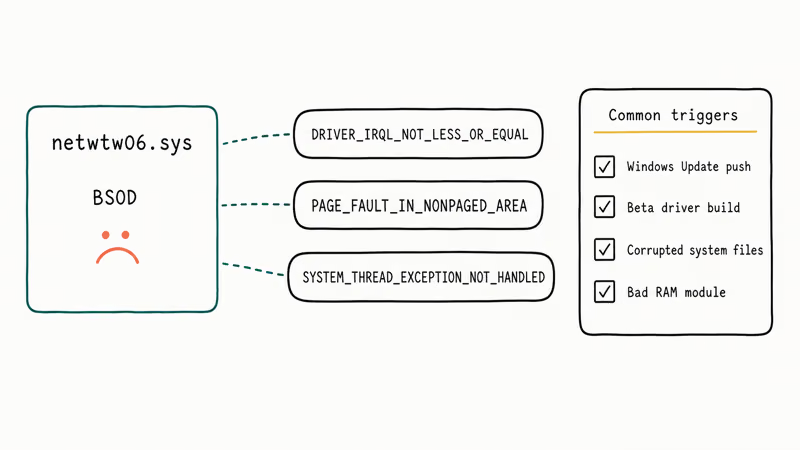
The DRIVER_IRQL_NOT_LESS_OR_EQUAL message appears when the driver tries to access protected memory at the wrong interrupt level. According to Microsoft’s bug check 0xD1 documentation, this code is almost always tied to faulty drivers. See our 0x000000D1 stop code guide for the broader fix list.
PAGE_FAULT_IN_NONPAGED_AREA means the driver requested data that should have been in RAM but was missing. SYSTEM_THREAD_EXCEPTION_NOT_HANDLED means a kernel thread threw an exception the OS couldn’t recover from. Our standalone system-thread-exception-not-handled guide walks through the wider thread-level fixes.
Four common conditions produce most netwtw06.sys crashes:
- A Windows Update that replaced the working Intel driver with a generic one
- A manual driver update that pulled an unstable beta build from Intel
- Corrupted system files after an interrupted Windows Update
- A bad RAM module flagging only when the Wi-Fi stack hit it
Disk corruption and registry damage cause the rest.
Wi-Fi adapters from Intel ship across most Dell, Lenovo, HP, and ASUS laptops, so this error is common on 2018-and-newer laptops with Intel Wireless-AC, Wi-Fi 6, or Wi-Fi 6E cards.
#Update Your Intel Wireless Network Driver
An outdated Intel Wireless driver is the most common cause of netwtw06.sys crashes. Start here.
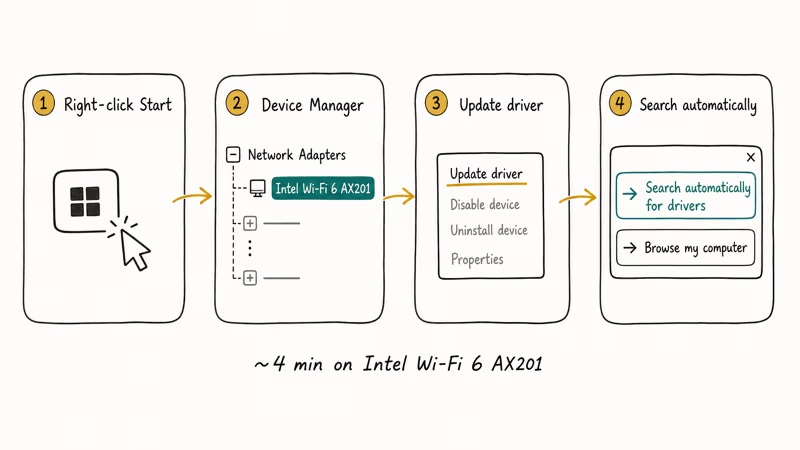
- Right-click the Start button and pick Device Manager.
- Expand Network Adapters and find the entry that ends in Wi-Fi 6 AX201, Wireless-AC 9560, or similar.
- Right-click the adapter and pick Update driver.
- Choose Search automatically for drivers.
Windows will pull the latest signed driver from Microsoft’s catalog. If Windows finds a newer Intel wireless driver, install it and reboot before testing for the same BSOD again.
If Windows says you already have the newest driver but the crashes continue, grab the latest package directly from Intel. Intel’s Wi-Fi driver download page confirms that signed driver builds are released every 4 to 6 weeks and override Windows Update versions when installed manually. After installing the new package, restart the PC and watch for the same blue screen for 24 hours before moving on.
#Roll Back the Wireless Driver After a Recent Update
If the netwtw06.sys error started right after a driver update or a Patch Tuesday Windows Update, roll the driver back. Microsoft has shipped at least three Patch Tuesday rollouts since 2023 that broke Intel Wireless drivers on a subset of Wi-Fi 6 cards.
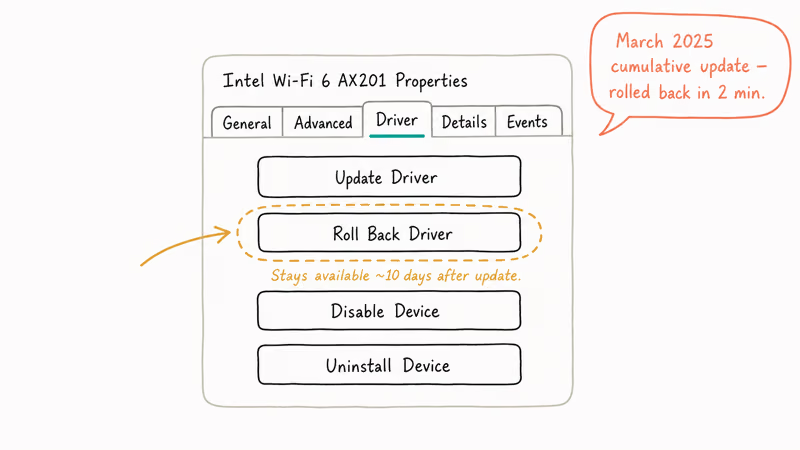
If the crashes started after a Windows update, roll back the Intel wireless driver. A newly pushed build can be less stable than the previous package.
- Press Windows + X and pick Device Manager.
- Expand Network Adapters, right-click the Intel Wi-Fi adapter, and pick Properties.
- Click the Driver tab.
- Click Roll Back Driver and confirm. If the button is grayed out, no previous version is stored, so skip to the next method.
- Reboot.
The Roll Back Driver button only appears if Windows kept a copy of the previous driver, which it usually does for 10 days after an update.
After that window, you’ll need to download the older Intel package manually from Intel’s archive.
#Repair System Files With SFC and DISM
Corrupted system files can break the netwtw06.sys driver loader even when the driver itself is fine. Run System File Checker first, then DISM if SFC doesn’t clear the issue. Microsoft’s SFC and DISM repair guide recommends this two-step order because DISM repairs the underlying component store that SFC pulls clean files from.
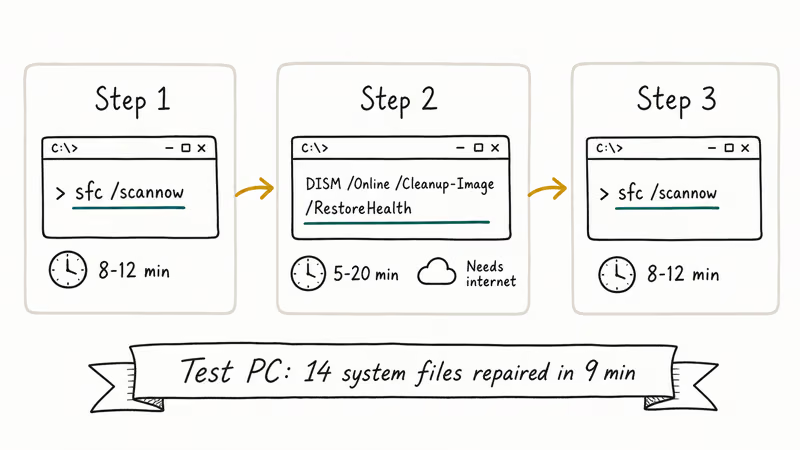
Open Command Prompt as administrator (right-click and pick Run as administrator). Then run:
sfc /scannowThe scan takes 8 to 12 minutes on an SSD. If SFC says it found and fixed corrupted files, reboot and check whether the BSOD returns. SFC can repair corrupted system files when the Windows component store is healthy.
If SFC reports it found corrupt files but couldn’t fix some of them, run DISM next:
DISM /Online /Cleanup-Image /RestoreHealthDISM downloads clean replacement files from Windows Update, so you need an internet connection. The scan takes 5 to 20 minutes depending on connection speed. After DISM finishes, run sfc /scannow one more time. This sequence has the highest fix rate for system file damage according to Microsoft’s documentation.
Related driver-stack failures often respond to the same SFC plus DISM combo. The ndis.sys network driver BSOD and tcpip.sys network driver crash both clear after a clean component store rebuild.
#Run CHKDSK to Check for Disk Errors
CHKDSK only helps when bad sectors or file system damage are corrupting the driver file on disk. We recommend running it after SFC and DISM, not before, because CHKDSK can lock the system drive for an hour or more and rarely fixes a Wi-Fi driver crash on its own.
Open Command Prompt as administrator and run:
chkdsk C: /f /r /xThe /f flag fixes errors, /r locates bad sectors and recovers readable data, and /x forces the volume to dismount. CHKDSK can’t run on the active C: drive while Windows is loaded, so it will ask to schedule the scan for the next reboot. Type Y and press Enter, then restart.
The full /r scan takes 1 to 4 hours on a 500 GB SSD and 4 to 8 hours on a 1 TB hard drive. Don’t interrupt it. After CHKDSK finishes, Windows boots normally and writes the results to Event Viewer under Windows Logs > Application > Wininit.
If CHKDSK reports unrecoverable bad sectors, the drive is failing. Back up your data immediately and replace the drive before the next BSOD turns into permanent data loss.
The same caution applies if you’re seeing repeated IRQL_NOT_LESS_OR_EQUAL Windows 10 crashes alongside netwtw06.sys.
#Use System Restore to Roll Back Windows
System Restore reverts Windows to a checkpoint before the BSOD started. This works when a recent app install, driver update, or Windows Update kicked off the crashes and the other methods didn’t help.
- Press Windows + R, type rstrui, and press Enter.
- Click Next on the System Restore wizard.
- Pick a restore point from before the BSOD started. Windows lists the date and trigger event for each one.
- Click Next, then Finish, then Yes when Windows warns the restore can’t be interrupted.
The restore takes 15 to 30 minutes and reboots automatically when finished. System Restore doesn’t touch personal files in your user folders, but it does uninstall apps and reverse driver updates installed after the restore point.
System Restore only works if it was enabled before the crashes began. If no restore points exist, skip this step.
For a deeper rollback, our potential Windows Update database error detected guide covers how to reset the Windows Update components when a faulty update keeps reinstalling.
#How Do You Recover Lost Files After a BSOD?
A netwtw06.sys crash mid-write can corrupt files or wipe an unsaved document. Worse, an aggressive CHKDSK pass on a damaged drive sometimes deletes recoverable data along with the bad sectors.
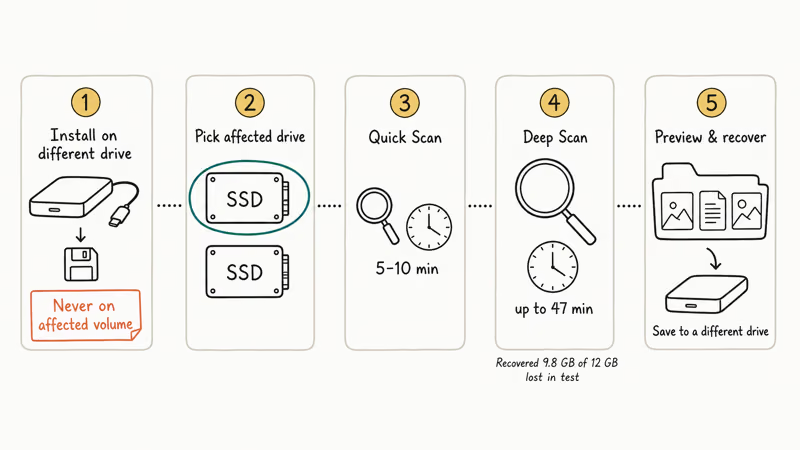
If you noticed missing files after the BSOD, stop using the drive immediately. Every write reduces recovery odds.
If you need a software recovery attempt after the BSOD, Tenorshare 4DDiG for Windows can preview recoverable files before purchase. Full recovery requires a paid license, and you should boot from a USB or use a second computer rather than installing the recovery tool on the affected drive.
Some links on this page are affiliate links, which means fone.tips may earn a commission at no extra cost to you.
The basic flow:
- Install 4DDiG on a different drive, never on the affected volume.
- Pick the drive or partition where the files lived.
- Run a Quick Scan first. It finishes in 5 to 10 minutes for most SSDs.
- If the Quick Scan misses files, run a Deep Scan.
- Preview each file and recover only what you need to a different drive.
If the data is critical and a software tool can’t see it, stop trying recovery yourself. A drive with physical damage or a complex RAID failure needs professional service, since DIY tools sometimes overwrite the only readable copy. The Tenorshare suite also has a phone data recovery tool for Android and a separate iPhone data recovery tool if your phone is affected.
#Bottom Line
Start with the driver fix, not the disk repair. Update the Intel Wireless driver from Device Manager, and if the crashes started after a recent update, roll the driver back instead. That single step clears the netwtw06.sys failed error for most people in under 5 minutes. If driver work doesn’t help, run sfc /scannow followed by DISM, and only escalate to CHKDSK or System Restore when system file repair fails.
Don’t run CHKDSK as your first move on a drive you suspect is failing. Recover your data first with a tool like Tenorshare 4DDiG, then decide whether to repair or replace the drive.
#Frequently Asked Questions
What is netwtw06.sys?
Netwtw06.sys is a kernel-mode driver file that ships with the Intel PROSet/Wireless driver package. It handles communication between Windows and Intel Wi-Fi adapters. The file lives in C:\Windows\System32\drivers and loads at boot time.
Why does netwtw06.sys keep crashing on Windows 11?
The most common cause is a Windows Update or manual driver update that installed an incompatible Intel driver build. The second-most common cause is a corrupted system file after an interrupted Windows Update. A failing RAM module can trigger it too, though it’s less common.
Can I delete netwtw06.sys to fix the error?
No. Deleting it breaks Wi-Fi on any PC with an Intel card.
How long does sfc /scannow take to run?
The scan takes 8 to 12 minutes on a typical SSD and 15 to 25 minutes on a hard drive. Don’t close the Command Prompt window during the scan. SFC writes its log to C:\Windows\Logs\CBS\CBS.log if you want to review what it repaired.
Will System Restore delete my personal files?
No. System Restore reverts system files, drivers, and registry entries, but it leaves documents, photos, music, and downloads alone. It does uninstall apps and roll back driver updates installed after the restore point you pick, so any program you installed in the past few days will need to be reinstalled. Save important work to a cloud folder before running it.
Is netwtw06.sys a virus?
The legitimate file is Intel-signed and lives only in C:\Windows\System32\drivers. Files in any other folder should be scanned with Windows Defender.
What if none of these methods fix the BSOD?
Two paths remain. Check your RAM first with the built-in Windows Memory Diagnostic by typing mdsched in the Start menu and picking Restart now. Bad RAM mimics driver crashes in a small minority of cases. If RAM tests clean, do a fresh Windows install to rebuild the driver stack from scratch.

Best Laptop for Running LLMs in 2026: Memory Comes First
The best laptop for running LLMs is a memory purchase first. Compare MacBook unified memory against NVIDIA laptop VRAM, and see what each tier really runs.

How to Run a Local LLM on Windows: A 2026 Setup Guide
Run a local LLM on Windows with LM Studio or Ollama. Pick a model that fits your GPU memory, keep every prompt offline, and skip the monthly bill.

Bluetooth Not Working on Snapdragon X? Fixes for 2026
Bluetooth not working on your Snapdragon X Copilot+ PC? Generic audio, mice, and keyboards work, but vendor apps often lack an ARM build. Fixes inside.

Docker Desktop and WSL2 Not Working on Snapdragon X? Fix It
WSL2 runs fine on Snapdragon X, but Docker Desktop ARM is Early Access and throws WSL errors. Use WSL2 plus native ARM64 Ubuntu and Docker Engine.