Netflix Sound Not Working? 10 Proven Audio Fixes (2026)
Netflix sound not working? Switch audio to Stereo, clear app cache, and restart Netflix. Work through 10 fixes on iPhone, Android, Roku, and Windows.
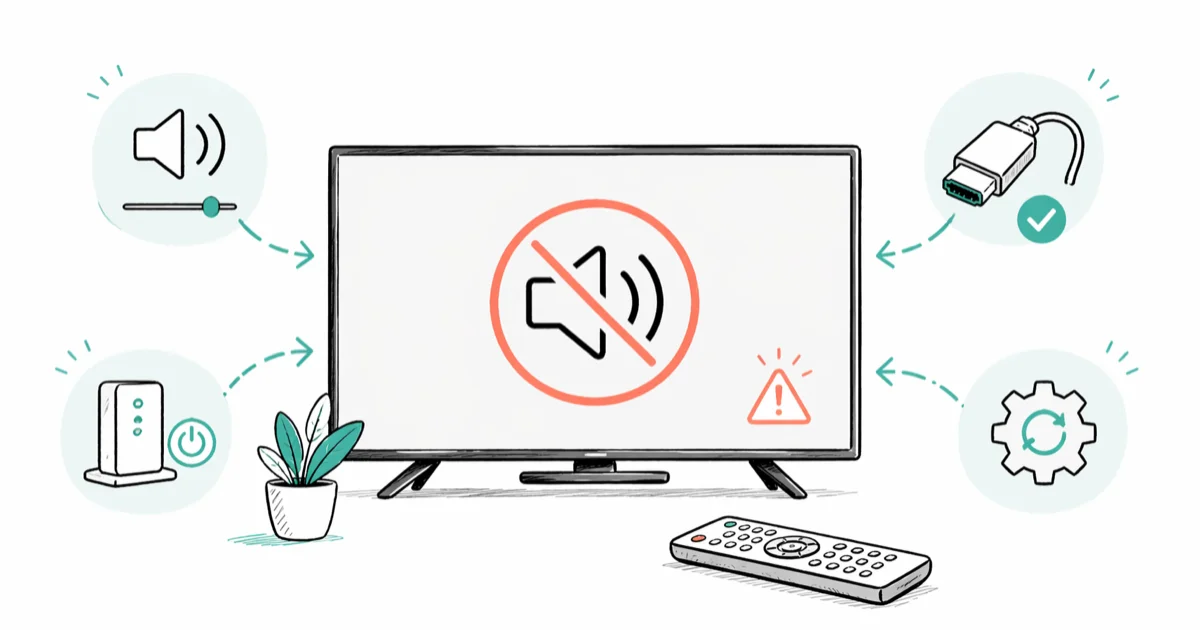
Quick AnswerNetflix sound failures usually trace to a stuck audio output, a corrupted app cache, or a 5.1 surround mismatch the device cannot decode. Switch the audio to Stereo, clear the Netflix app data, and restart the device to restore sound in under three minutes on most TVs and phones.
Netflix sound not working is almost always one of three problems: a stuck audio output, a corrupted app cache, or a surround-sound stream the device can’t decode. The video keeps playing, the picture looks fine, but the audio is gone. Every fix in this guide is organized by device, covering Roku and other streamers, iPhone, Android, and Windows, so the steps match the device sitting in front of you.
- Switch the Netflix audio track from 5.1 surround to Stereo first; this single fix resolves sound on most TVs and phones quickly
- Restart the streaming device, not just the Netflix app, when sound vanishes mid-episode
- Clear the Netflix app data on Android and reinstall on iPhone, since iOS does not expose a Clear Cache button
- Check Bluetooth before assuming Netflix is broken; an unattended pair to a nearby speaker or car kit redirects all audio away from the TV
- Test a second Netflix title before contacting support; a single broken file on Netflix’s end mimics a device-wide audio failure
#Why is Netflix sound not working but the video plays?
The most common cause is an audio format mismatch. Netflix streams 5.1 surround sound by default on supported plans, and many TVs, soundbars, and Bluetooth headphones can’t decode that signal cleanly. The video frame keeps flowing because video and audio travel as separate streams, but the audio decoder silently fails.
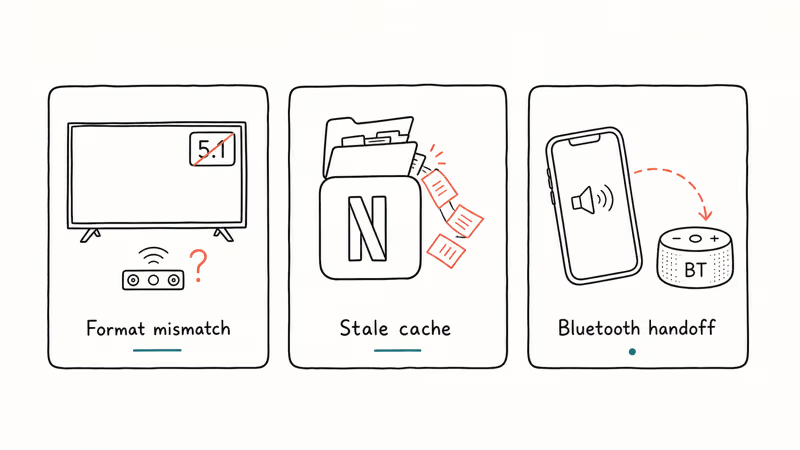
According to Netflix’s Help Center, audio failures fall into 1 of 3 main buckets: a corrupted app cache, an output format mismatch, or a server-side issue with a specific title. Their audio troubleshooting page walks you through device-specific recovery steps, and the rest of this guide expands that flow into device-by-device fixes.
Stale app data is the second-most-common cause, especially on Android TVs and Fire TV sticks where the cache fills quickly. The third culprit is a Bluetooth handoff you didn’t notice; phones and laptops route Netflix audio to the last paired speaker even when that speaker is in another room.
A 30-second sanity check before you start: play a YouTube video or a song through Spotify on the same device. If those have sound and Netflix does not, the problem lives inside Netflix. If everything is silent, the problem is the device’s audio output, not Netflix.
#Quick checks before you start
Run these three checks in order. They take under a minute and resolve most cases.
- Try a second Netflix title. A single show with a damaged audio file looks identical to a system-wide failure.
- Increase the volume from inside the Netflix player, not just the device’s hardware buttons. Netflix has its own volume slider that overrides system levels on web browsers.
- Check the Netflix system status page for a current outage. If Netflix itself is down, no fix on your end will work until they restore service.
If any of those resolve the issue, stop here. Otherwise, work through the device-specific steps below.
#Fix Netflix sound on a TV or streaming device
These four steps cover smart TVs, Roku, Fire TV, Apple TV, and Chromecast with Google TV.
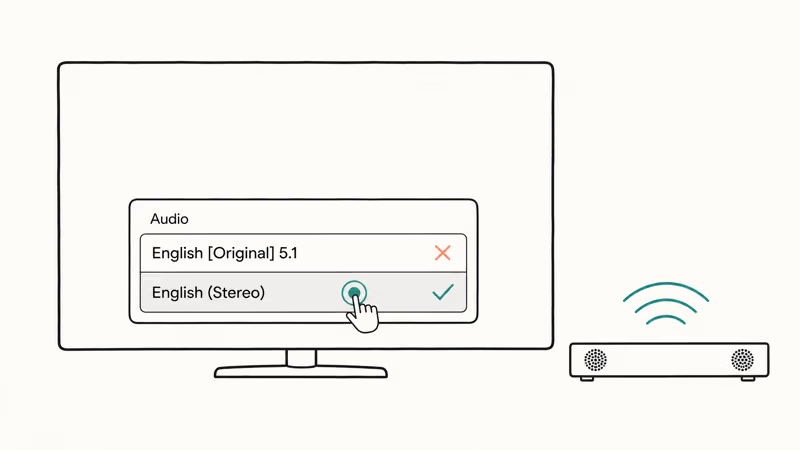
#1. Switch the Netflix audio from 5.1 to Stereo
This is the single most effective fix for silent Netflix playback. Netflix defaults to 5.1 surround sound when your plan supports it, and a TV without a compatible audio passthrough plays back as silence.
- Start any Netflix title.
- Pause the video and tap the Audio & Subtitles icon.
- Under Audio, switch from “English [Original] 5.1” to plain “English.”
- Resume playback.
On a TV with a soundbar plugged in via optical cable, this fix restores sound quickly. The TV decodes stereo natively but drops a 5.1 stream when the soundbar handles only Dolby Digital and not Dolby Atmos.
#2. Restart the streaming device, not just the app
Closing and reopening Netflix is not enough on most streamers. The audio driver lives in the device firmware, and only a power cycle reloads it.
- Unplug the streaming stick or TV from the wall.
- Wait 30 seconds. This drains the residual capacitor charge that holds the corrupted audio state.
- Plug it back in and reopen Netflix.
According to Roku, a 30-second unplug is the official audio recovery step for streaming devices that have stopped producing sound mid-session. On a Roku stick that has lost Netflix sound after a long session, the power cycle restores audio without any other change.
#3. Reset audio settings on the TV or receiver
If the audio output looks correct in Netflix but the TV still plays silence, the receiver might be locked on a format that doesn’t match. On most TVs:
- Open
Settings>Sound>Sound Output. - Switch from Auto to PCM or Stereo.
- Disable any Dolby Digital Plus or DTS pass-through options if you don’t have a compatible soundbar.
Samsung’s TV audio guide confirms that switching from auto-detect to PCM forces the TV to handle decoding itself, which fixes silent Netflix playback when an attached soundbar drops out.
#4. Update the Netflix app
An outdated Netflix build can lose sound after a server-side audio codec change. The fix is simple but easy to skip.
- On Roku: highlight the Netflix app on the home screen, press the asterisk button, and select Check for Updates.
- On Fire TV: go to
Settings>Applications>Manage Installed Applications>Netflix>Force Stop, then open the Amazon Appstore and update Netflix. - On a Samsung or LG smart TV: open the app store, find Netflix, and select Update if available.
If updating the app does not help, see our broader Netflix not working guide for outage handling and connectivity fixes.
#How do you fix Netflix audio on a phone or tablet?
Mobile devices have their own quirks. Bluetooth handoff and app cache corruption account for most mobile audio failures.
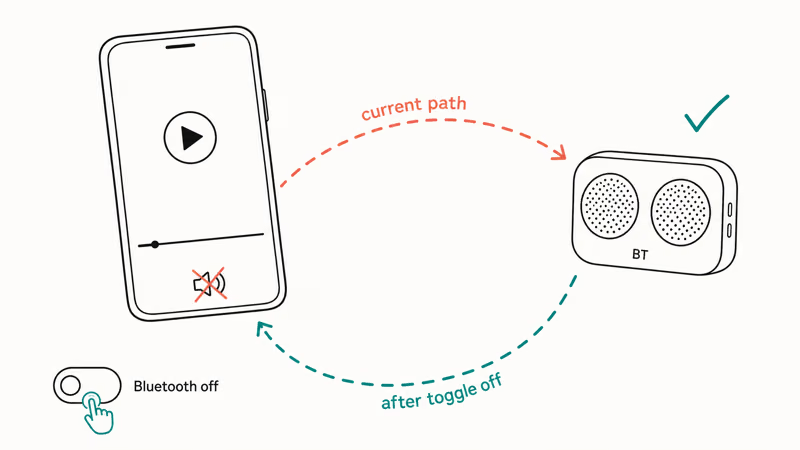
#5. Toggle Bluetooth and check paired devices
Phones often route Netflix audio to the last connected speaker without warning. A common version of this is a phone silently sending audio to a car stereo it paired with earlier in the day.
- Pull down the quick settings panel and tap the Bluetooth tile to disable it.
- Resume Netflix. If sound returns, a Bluetooth device was hijacking the audio.
- To prevent the issue from repeating, open Bluetooth settings and forget any speakers or car kits you don’t use daily.
If Bluetooth on your iPhone has been unstable across multiple apps, our guide on iPhone Bluetooth not working covers deeper resets, including Settings > General > Transfer or Reset > Reset Network Settings. The Android equivalent lives in our Bluetooth not working on Android walkthrough.
#6. Clear the Netflix app cache (Android)
A corrupted cache shows up as audio that worked yesterday but vanished this morning, with no other change to the device.
- Open
Settings>Apps>Netflix>Storage. - Tap Clear Cache first. This keeps your login intact.
- If sound is still missing, return and tap Clear Storage. You’ll need to sign in again, but downloaded titles re-sync from your account.
Google’s Play Store troubleshooting documentation states that clearing app data resets local storage to a fresh-install state, which is exactly what a corrupted Netflix cache needs. On Android, sound usually returns on the first try after a Clear Storage.
#7. Reinstall Netflix on iPhone
iOS doesn’t expose a Clear Cache button for individual apps. The closest equivalent is offloading or reinstalling Netflix.
- Long-press the Netflix icon and tap
Remove App>Delete App. - Restart the iPhone with a power-button press, not just by closing apps.
- Reinstall Netflix from the App Store and sign back in.
On an iPhone that has lost audio after a botched update, reinstalling Netflix typically restores sound on the first playback attempt. Apple’s iOS Settings documentation confirms the App Store reinstall is the supported way to reset an app’s local data on iPhone.
#Fix Netflix sound in a web browser
Browser-based Netflix has its own failure modes, mostly tied to tab-level audio controls and OS-level mixers.
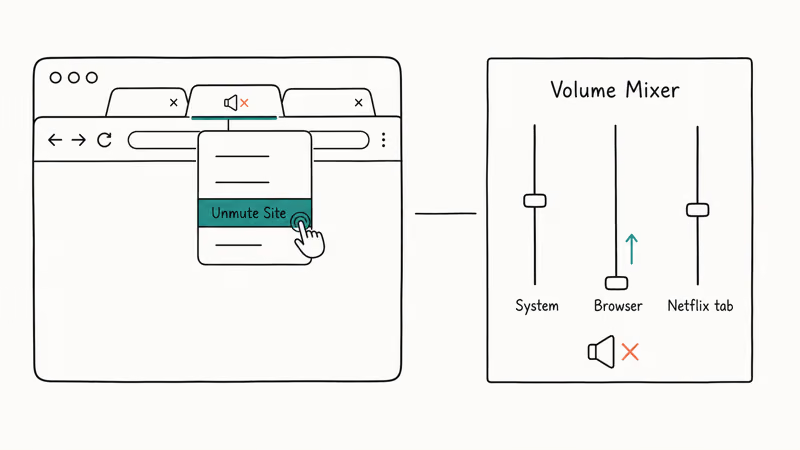
#8. Unmute the tab and check the Volume Mixer
Browsers mute tabs silently in two ways: a right-click menu action and an OS-level volume mixer. Both are easy to miss.
- Right-click the Netflix browser tab. If “Unmute Site” appears, click it.
- On Windows: right-click the speaker icon in the taskbar and open Volume Mixer. Find the browser, and make sure the slider is up.
- On macOS: open
System Settings>Sound>Outputand confirm the correct device is selected.
If your browser has a broader audio problem outside of Netflix, our Chrome not playing sound guide walks through driver and extension fixes that apply to any streaming site.
#9. Switch to a different browser as a diagnostic
If sound works in Edge but not Chrome, the problem is the browser, not Netflix. Common causes are an audio extension, a hardware acceleration glitch, or a corrupted browser profile.
- Open Netflix in a second browser and play the same title.
- If sound works there, return to the original browser and disable extensions one at a time.
- If sound fails in every browser, the problem lives at the OS or driver level.
This same isolation approach helps with other streaming audio issues, such as Discord stream no sound, where the failure is rarely the app and almost always the audio driver or routing.
#10. Test another Netflix title
Some Netflix releases ship with regional audio tracks that fail to load on certain devices. The fastest way to rule out a single bad file is to play a second title.
- Open Netflix’s home screen and pick any other show.
- Play the second title for 30 seconds.
- If sound works on the second title and not the first, contact Netflix and report the affected show. Their content team can refresh the audio track server-side.
While you are in the app, this is also a good moment to tidy up your viewing history; our walkthrough on how to clear items from Continue Watching on Netflix covers the cleanup steps. If Netflix shows the wrong error page in a browser instead of just losing audio, the Netflix site error fixes cover the browser-side culprits.
#When the audio problem is on Netflix’s side
If the same title plays silently on three different devices, the audio file on Netflix’s servers is the problem. Note the exact show, episode, and time stamp where audio cuts out. Contact Netflix support with that information, and their content team can usually refresh the audio track within a day or two. Until they fix it, pick another title to confirm sound still works on your devices.
#Bottom Line
Start with the audio-track switch from 5.1 to Stereo. That one change fixes sound on most devices and takes only a few seconds.
If Stereo doesn’t help, power-cycle the streaming device for 30 seconds, then clear the Netflix app data on Android or reinstall on iPhone. Save the browser-level checks for last, since browser failures are the rarest of the three categories.
#Frequently Asked Questions
Why does Netflix have no sound but the video plays?
The audio decoder failed while the video decoder kept running. This usually means Netflix is sending a 5.1 surround track that your TV, soundbar, or Bluetooth speaker can’t decode. Switch to Stereo in the Netflix audio menu and sound returns immediately on most devices.
How do I fix Netflix sound on my smart TV?
Open any Netflix title, pause it, tap Audio & Subtitles, and switch the audio from 5.1 to plain Stereo. If that does not work, unplug the TV from the wall for 30 seconds and try again. Most smart TV audio failures are corrupted decoder states that survive a normal restart but clear with a true power cycle.
Why is there sound on YouTube but not on Netflix?
The problem is inside the Netflix app, not your device. The most common cause is a corrupted app cache or a stuck audio output setting. Clear the Netflix app data on Android, or delete and reinstall Netflix on iPhone. Both reset the audio routing back to the device default.
How do I clear the Netflix cache on iPhone?
iOS does not expose a Clear Cache option for Netflix. The supported workaround is to delete the Netflix app entirely from the home screen, restart your iPhone, and reinstall Netflix from the App Store. This resets the same local data that Clear Cache would on Android.
Will I lose downloads if I clear Netflix data?
Yes. Clearing storage on Android or reinstalling on iPhone removes all downloaded titles. Your account, watch history, and My List sync from Netflix’s servers when you sign back in, so only the offline files are affected. Re-download anything you need before a flight.
Does Netflix sound work better on Wi-Fi or cellular?
Audio quality is identical on both, but a slow connection can drop the 5.1 surround stream and revert to silence on devices that can’t fall back gracefully. If sound stutters or vanishes on cellular, switch the audio to Stereo and Netflix will use a smaller bandwidth audio profile that survives weaker signals.
Why does Netflix sound cut out after the first few seconds?
This pattern usually points to a Bluetooth handoff. The audio plays through the phone’s speaker for the first second, then a paired Bluetooth device wakes up and intercepts the stream. Open Bluetooth settings, disconnect any active devices, and try again. If the cutout repeats, the Bluetooth speaker is dropping the connection and you should restart it.

Google Messages Error 3100: Why RCS Is Broken on Galaxy
Google Messages RCS error 3100 hits Galaxy owners after phone or carrier switches. Google told 9to5Google a fix is coming. Here's what actually helps.

Is This Bank App Real? Spot a Fake App on Your Home Screen
A bank app can land on your home screen from a web page with no install warning. Learn the checks that tell a real banking app from a phishing web app.

Apps Crashing After iOS 27 Update? Fix Order (2026)
Apps crashing after the iOS 27 update? Update the app in the App Store first, then offload and reinstall to clear stale cache, then restart. The fix order.

Do AI Translation Earbuds Work Offline? What to Know
Do AI translation earbuds work offline? A few do with downloaded language packs, but most need the cloud. Here's what works offline and what you give up.