Chrome Not Playing Sound? 10 Fixes That Actually Work
Chrome not playing sound? Fix it by unmuting the tab, checking Volume Mixer, clearing cache, updating audio drivers, and resetting site permissions.
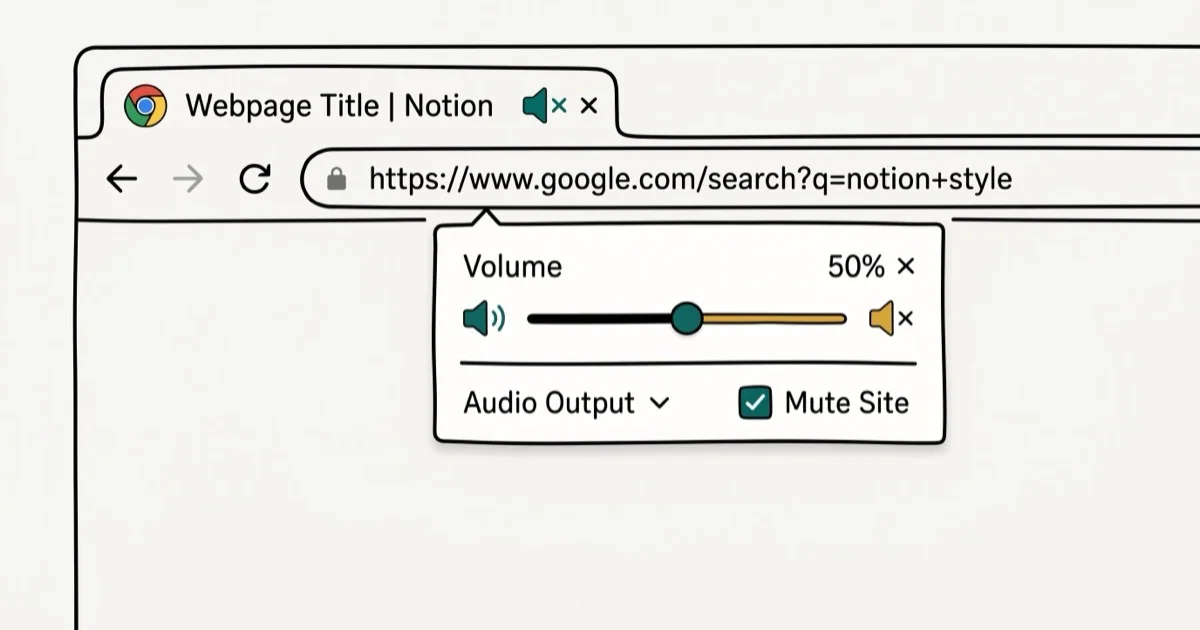
Quick AnswerCheck that the tab is not muted by right-clicking it, then verify Chrome is not muted in your system Volume Mixer. If sound still fails, clear Chrome cache, disable extensions, and update your audio driver.
Chrome is the browser most people use for YouTube, Netflix, and streaming music, so when sound stops working in Chrome, it’s immediately disruptive. The most common cause is a muted tab or a Chrome-specific volume setting in the Windows Volume Mixer, both of which take under 30 seconds to check. Most cases resolve with one of the first three fixes below.
- Right-click a tab to check if it’s individually muted before assuming a deeper problem
- Windows Volume Mixer controls Chrome’s volume separately from your system volume
- Clearing Chrome’s cache and cookies resolves a small but real share of audio issues caused by corrupted data
- Outdated audio drivers are the most common hardware-level cause of Chrome sound failure
- Reinstalling Chrome takes under 5 minutes and fixes issues caused by corrupted installation files
#Common Causes of Chrome Sound Failure
Several different layers between your browser and your speakers can interrupt audio. Common causes include:
- Individual tab muted in Chrome
- Chrome muted in Windows Volume Mixer
- Incorrect audio output device selected
- Cached data corrupting audio playback
- Outdated or corrupted audio driver
- Conflicting browser extension blocking audio
- Chrome permissions blocking audio on a specific site
- Corrupted Chrome installation files
Google’s Chrome support documentation explains that audio is one of the per-site permissions Chrome can block, which is why sound fails on some sites even when everything else looks normal.
#Why Isn’t Chrome Playing Sound?
Start with the obvious checks before digging deeper.
Check if the tab is muted. Right-click the tab showing a speaker icon. If you see “Unmute tab,” click it. Chrome added per-tab muting in version 52, and it’s easy to trigger accidentally by clicking the speaker icon in the tab.
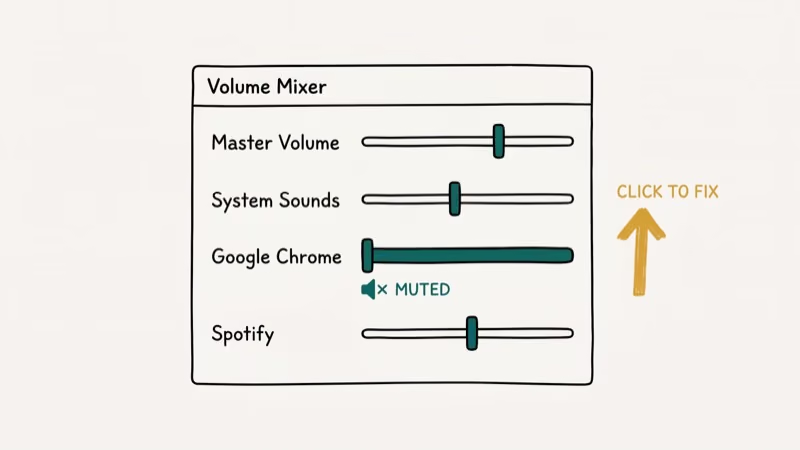
Check the Volume Mixer. Right-click the speaker icon in your Windows taskbar and select Open Volume Mixer. Look for a Chrome entry and confirm its slider is not at zero and is not muted. A muted Volume Mixer entry is one of the single most common causes of this problem. This is completely separate from your system volume.
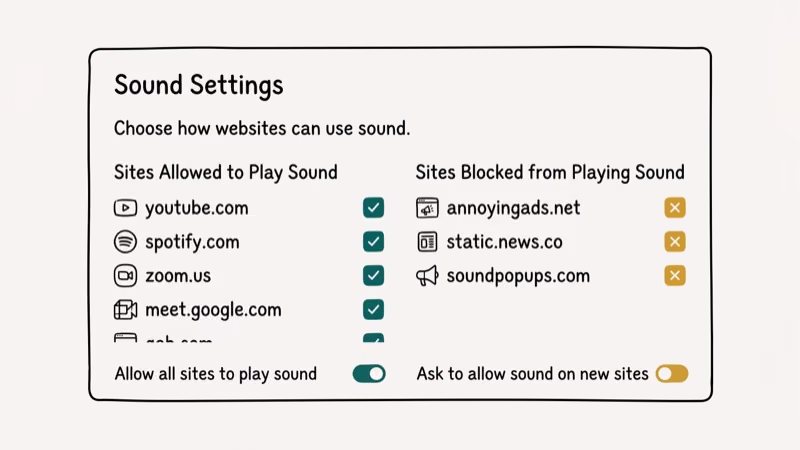
Check site permissions. Click the padlock icon in Chrome’s address bar, go to Site settings, and look at the Microphone and Sound settings. If Sound shows “Block,” change it to “Allow” and reload the page.
#Fixing Chrome Sound on Windows
Most Windows audio problems in Chrome fall into three categories: driver issues, output device mismatches, and corrupted system audio settings.
#Update or Reinstall Your Audio Driver
An outdated audio driver is the most common hardware-level cause of Chrome sound failure. According to Microsoft’s Windows audio troubleshooting guide, driver issues account for a large portion of audio failures in Windows 10 and 11, with outdated drivers cited as a primary cause in many reported cases.
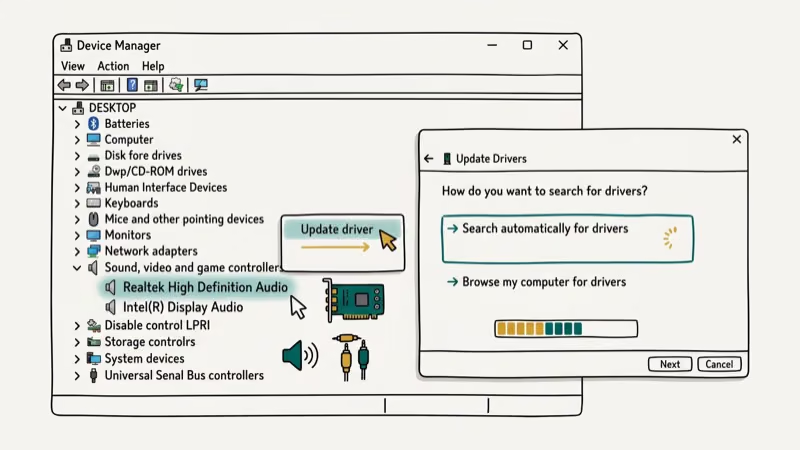
To update: press Windows key + X, select Device Manager, expand Sound, video and game controllers, right-click your audio device, and select Update driver. Choose Search automatically and let Windows find the latest version.
If updating doesn’t help, right-click the same driver entry and select Uninstall device, then restart your computer. Windows reinstalls the driver automatically on reboot. This full reinstall wipes any corrupted driver files that an update alone won’t touch, which is why it resolves cases where the Update option reports “best driver is already installed” but audio is still broken.
#Check the Audio Output Device
Chrome sends audio to whatever device Windows treats as the system default output. If you recently plugged in headphones, a USB speaker, a Bluetooth device, or an HDMI monitor with built-in speakers, Windows may have silently switched the default output to that new device. Plugging in a USB audio interface, for example, often changes the default output instantly and cuts Chrome’s audio until you switch back.
Right-click the speaker icon in the taskbar, click Open Sound settings, and verify the correct output device is selected under Choose your output device.
#Clear Cache and Cookies
Corrupted cached audio stops Chrome from loading media. A streaming site that caches a broken audio track is a typical trigger.
Click the three-dot menu, go to More tools > Clear browsing data, set the range to All time, check Cached images and files and Cookies and other site data, then click Clear data. If Chrome is also running slowly, our guide on Chrome being slow covers how cache buildup affects overall performance.
#Why Does Chrome Have No Sound on Certain Sites?
If sound works on some sites but not others, the issue is almost always a site-level permission or a content-specific setting rather than a system problem.
Reset audio permissions for the site. Click the padlock in the address bar, go to Site settings, and check Sound. If it’s blocked, change it to Allow. Chrome’s default behavior changed in version 66 to autoblock autoplay audio, which can also prevent user-triggered audio on some sites.
Check for extension conflicts. Some ad blockers and script blockers stop audio elements from loading. Open an incognito window (Ctrl+Shift+N) and test the same site.
Extensions don’t load in incognito by default. If audio works in incognito, go to chrome://extensions and disable them one at a time to find the culprit. You can also use the Chrome Task Manager to spot any extension consuming unusual CPU during playback.
Try a different browser. If audio works in Firefox or Edge but not Chrome, the issue is Chrome-specific, narrowing the cause to Chrome’s settings, extensions, or installation. For sound not working on YouTube specifically, there are YouTube-level audio controls separate from Chrome’s settings. If Netflix audio fails, our Netflix sound not working guide covers app-specific audio settings that Chrome’s tools don’t address.
#Resetting Chrome Audio Permissions and Settings
Before pulling out driver tools, try resetting Chrome’s internal audio controls.
Reset site permissions globally. Go to Settings > Privacy and security > Site settings > Sound. Check if the site is listed under Not allowed to play sound and remove it from that list. According to Google’s Chrome permissions documentation, sound permissions persist per site indefinitely once set, so an old block survives browser updates.
Reset Chrome flags. Type chrome://flags in the address bar and click Reset all at the top. Experimental flags can interfere with audio codecs. Resetting brings Chrome back to default behavior. Restart Chrome after resetting.
Check the err_cert_date_invalid error too. If you see SSL certificate errors alongside sound failures, both can stem from system clock issues that affect Chrome’s connection to audio streaming servers.
#Fixing Chrome Sound Issues With Advanced System Tools
When per-browser fixes don’t work, the problem is at the operating system level.
Run Windows audio troubleshooter. Go to Settings > System > Sound, scroll down to Troubleshoot, and run it. According to Microsoft’s support documentation, the built-in troubleshooter fixes driver and service issues that don’t surface through manual inspection, and Microsoft recommends running it as a first step for audio problems.
Restart the Windows Audio service. Press Windows key + R, type services.msc, find Windows Audio, right-click it, and select Restart. If the service was stopped, click Start instead. A stopped audio service cuts all system sound, not just Chrome.
Reinstall Chrome. If nothing else works, go to Settings > Apps, find Google Chrome, click Uninstall, then download a fresh copy from google.com/chrome. Your bookmarks and passwords sync from your Google account, so you don’t lose data. Reinstalling takes under 5 minutes and resolves issues caused by corrupted Chrome installation files. If you’ve been having other Chrome issues like bookmarks vanishing, our Chrome bookmarks disappeared guide covers related file corruption problems.
#Bottom Line
Right-click the tab to unmute it, then check the Windows Volume Mixer for Chrome. Those 2 steps fix most sound problems. If they don’t, clear the cache, test in incognito mode, and update your audio driver. Reinstalling Chrome fixes file corruption issues.
#Frequently Asked Questions
Why does Chrome have no sound but other browsers work fine?
This confirms the problem is Chrome-specific rather than a system audio issue. Check Chrome’s site permissions (padlock > Site settings > Sound), disable all extensions and test in incognito mode, then try resetting Chrome to default settings through Settings > Advanced > Reset settings.
How do I unmute a tab in Chrome?
Right-click the tab and select Unmute tab. You can also click the small speaker icon in the tab. Per-tab muting persists across reloads until you unmute it manually.
Why is Chrome muted in my Volume Mixer?
Chrome gets muted in Volume Mixer when you right-click the speaker icon next to its mixer entry, or sometimes after a Windows update resets mixer levels. Right-click the taskbar speaker icon, open Volume Mixer, find Chrome, and drag its slider up or click the mute button to restore it.
Does clearing cache fix Chrome sound problems?
Yes, in a minority of cases. Clearing cache removes corrupted audio data that blocks playback. You won’t lose bookmarks, passwords, or extensions.
Can an extension block sound in Chrome?
Yes. Ad blockers, script blockers, and some privacy tools can intercept audio elements before they load. Test by opening the same page in a Chrome incognito window, where extensions don’t run by default. If audio works in incognito, disable extensions one at a time from chrome://extensions until you identify the one causing the problem.
Why does Chrome have no sound after a Windows update?
Windows updates sometimes reset default audio devices or modify driver settings. Open Sound settings (right-click taskbar speaker), verify your output device is correct, and check the Volume Mixer for Chrome’s entry. If your audio driver was updated, check Device Manager for any driver errors or roll back the driver to the previous version.

Google Messages Error 3100: Why RCS Is Broken on Galaxy
Google Messages RCS error 3100 hits Galaxy owners after phone or carrier switches. Google told 9to5Google a fix is coming. Here's what actually helps.

Is This Bank App Real? Spot a Fake App on Your Home Screen
A bank app can land on your home screen from a web page with no install warning. Learn the checks that tell a real banking app from a phishing web app.

Apps Crashing After iOS 27 Update? Fix Order (2026)
Apps crashing after the iOS 27 update? Update the app in the App Store first, then offload and reinstall to clear stale cache, then restart. The fix order.

Do AI Translation Earbuds Work Offline? What to Know
Do AI translation earbuds work offline? A few do with downloaded language packs, but most need the cloud. Here's what works offline and what you give up.