Netflix Site Error: 8 Fixes and Error Code Solutions
Fix the Netflix site error fast. Work through 8 methods plus solutions for codes NW-2-5, UI-800-3, UI-113, and 10008 across browsers and devices.
Quick AnswerThe Netflix site error usually traces to a corrupted browser cache, a blocked VPN connection, or stale app data on your device. Clear cookies for netflix.com, disable any active VPN, and reset the Netflix app to resolve most cases in under three minutes.
The Netflix site error shows up as a vague “We’re having trouble” message, an error code on a black screen, or a refusal to load netflix.com at all. The cause is almost always one of three things: a browser problem, a network problem, or stale app data.
The fixes below are organized by device, covering Chrome and Firefox on a computer, iPhone and Android phones, and streaming hardware like Roku and Fire TV, so the steps match whatever you’re using.
- Check the Netflix status page before touching anything else; many “site errors” are server-side and no device fix will help.
- Clearing cookies for netflix.com fixes the majority of browser-side errors on both Chrome and Firefox.
- Error codes that start with “NW” point to network problems, while codes that start with “UI” usually point to local app or device data.
- A connected VPN or proxy is the most common cause of a previously-working Netflix account suddenly throwing a site error.
- If Netflix loads on cellular data but fails on home Wi-Fi, the problem is your router, DNS, or ISP routing, not your account.
#Why Are You Seeing the Netflix Site Error?
Start by ruling out a Netflix-side outage before you touch your device. According to Netflix’s “Is Netflix down?” status page, the company posts a real-time service banner whenever its streaming or sign-in services are degraded. If the page shows anything other than “Netflix is up!”, no amount of cache clearing will fix it. Wait 15 to 30 minutes and try again.
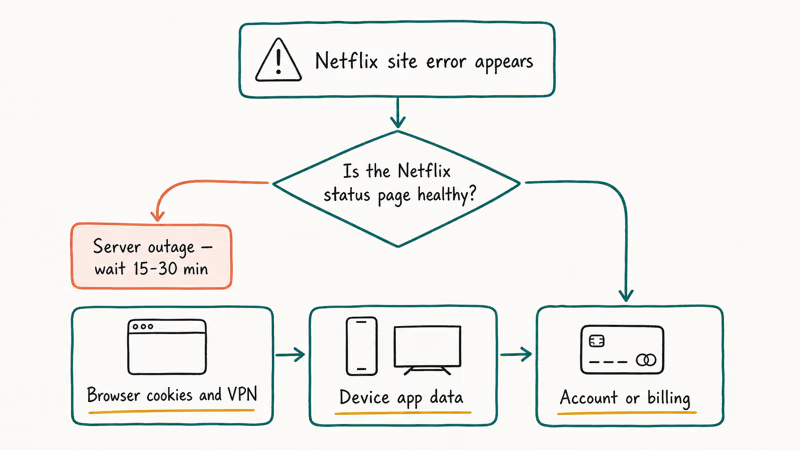
If the status page is healthy, the cause sits between Netflix’s servers and your screen. The usual suspects are browser cookies that have gone stale, a VPN that Netflix has blocked, network throttling on hotel or guest Wi-Fi, or local app data that has corrupted after a Netflix update. Our Netflix not working guide covers the broader “won’t load” scenarios; this article focuses on the message-specific site error and the numbered error codes Netflix throws on top of it.
Account-level problems are rarer but worth a quick check. Sign in at netflix.com from a regular browser. If you see a message about a payment issue, a profile lock, or a household sharing prompt, that’s the real problem and the device-level fixes below won’t help.
#How Do You Fix Netflix Site Error in Your Browser?
Browser issues account for most Netflix site errors on a computer. Start with the lightest fix and work up only if it fails.
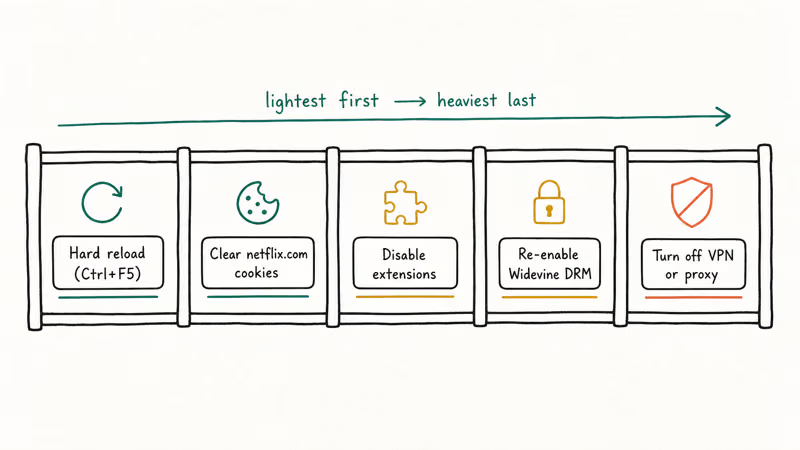
Hard reload first. Press Ctrl-F5 on Windows or Cmd-Shift-R on Mac while netflix.com is open. This bypasses the browser cache and pulls a fresh copy of every Netflix asset. A meaningful share of “site error” messages clear on this single step alone.
Try the next fix only if the reload alone fails.
Clear cookies for netflix.com only. Wiping your full browser cache will sign you out of every site, which is usually unnecessary. In Chrome, go to Settings > Privacy and security > Cookies and other site data > See all site data and permissions, search for netflix, and click the trash icon. In Firefox, open Settings > Privacy & Security > Cookies and Site Data > Manage Data, then remove only the netflix.com entries. Reload the page and sign back in.
Disable extensions next. Open Netflix in an Incognito or Private window. If the site loads cleanly there, an extension is the cause. The usual culprits are ad blockers, privacy tools, and script blockers. Disable extensions one at a time in chrome://extensions until the error stops.
DRM is the next layer to check.
Check the Widevine DRM module. Chrome and Firefox use Google’s Widevine to decrypt Netflix’s stream. If the module is disabled or missing, Netflix shows a generic site error rather than a clear DRM message. Our Widevine Content Decryption Module fix covers the re-enable path step by step.
Disable VPN and proxy. Netflix actively blocks most consumer VPNs to enforce regional licensing. A VPN that worked yesterday can stop working today because Netflix updated its IP block list overnight. Disconnect any VPN, switch off proxy settings in your operating system, and try again.
If none of these steps clear the error, the problem is not your browser. Move to the device-level fixes below.
#Resetting the Netflix App on Phone, TV, or Streaming Stick
App data corruption causes most site errors on phones, smart TVs, and streaming sticks. Resetting the app forces a clean state without removing your account.
iPhone or iPad. Open Settings, scroll to Netflix, and tap Reset. This wipes the app’s local cache without making you re-download the app. This single toggle often clears the “Whoops, something went wrong” message in under a minute. If the toggle doesn’t show up, force-quit the Netflix app from the app switcher and reopen it before resetting.
Android takes a different path through the system settings.
Android phone or tablet. Go to Settings > Apps > Netflix > Storage > Clear Cache. Netflix recommends clearing the app data for any error that mentions a streaming or playback problem on Android. On most Android phones the site error clears on the first restart after clearing the cache. If clearing the cache alone doesn’t fix it, tap Clear Storage in the same menu, but note that this signs you out and removes downloaded titles.
TVs are different. The reset path lives in the device’s settings, not inside the Netflix app.
Smart TV, Roku, or Fire TV. Power cycle by unplugging the device from the wall (not just powering it off), waiting 60 seconds, and plugging it back in. The forced reboot clears RAM and re-pulls a fresh DRM token from Netflix. On a Roku streaming stick, this often clears UI-800-3 on the first attempt. If the power cycle fails, sign out of Netflix on-screen and sign back in.
Windows 10 or 11 Microsoft Store app. Go to Settings > Apps > Installed apps, find Netflix, click the three-dot menu, choose Advanced options, then Reset.
For audio-only failures, see our Netflix sound not working walkthrough.
#Solving Netflix Error Codes by Number
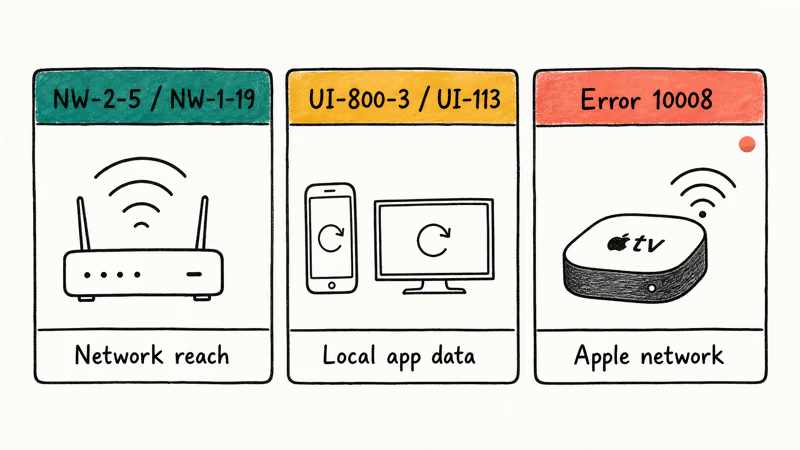
When the site error shows up with a numeric code, the code itself tells you which part of the system is broken. These four codes account for most reports.
#NW-2-5, NW-1-19, and other NW-prefixed codes
NW codes mean the device can’t reach Netflix’s servers, or the connection is too slow.
The typical message is “Netflix has encountered an error. Retrying in X seconds.” On streaming sticks, NW-2-5 commonly appears when the router DHCP lease has expired and the device hasn’t renewed it. Other NW codes including NW-1-19 follow the same logic.
Fix order: restart the router (unplug for 30 seconds, plug back in), confirm the device is on the right Wi-Fi network, and try a wired Ethernet connection if your TV or streaming stick supports it. If a single device gets an NW code but everything else streams fine, the device’s network settings are the issue, and a factory reset of the network settings on that device clears it.
#UI-800-3
UI-800-3 means the data Netflix stored on your device has corrupted. The full message is “Couldn’t connect to Netflix. Please try again or restart your home network and a streaming device.” Netflix’s help center confirms that UI-800-3 is an information refresh issue tied to the local Netflix app, not your account.
To fix it, refresh the local Netflix data.
On a phone or tablet, clear the app cache or reset the app as described above. On a smart TV or streaming stick, sign out, restart the device, and sign back in. On a Roku, deactivating Netflix in Settings > Netflix > Sign out before the restart usually clears it.
#UI-113
UI-113 looks similar to UI-800-3 but is more specific to streaming devices, gaming consoles, and smart TVs. The message reads “We’re having a problem starting Netflix.” First confirm Netflix loads on a desktop browser at netflix.com to rule out an account issue. Then restart the device, sign out, restart your home network, and sign back in. Connecting the streaming device directly to the modem with Ethernet rules out a router-level problem.
#Error code 10008
The 10008 code shows up almost exclusively on Apple TV and other iOS devices. The message is “A problem occurred while playing this item.” It’s a network problem, not an app problem, in the majority of cases.
Apple recommends restarting the Apple TV and home network before reinstalling any app, and the same order applies here. Run the device’s built-in network test, restart it, sign out and back in to Netflix, and try a different Wi-Fi network if one is available.
If you also see error codes from other streaming services like Prime Video, our Amazon Prime Video error code 5004 fix covers a similar troubleshooting flow for Amazon’s platform.
#Network Fixes That Restore Streaming Speed
A slow or unstable network is the second most common cause of a Netflix site error. Netflix needs a steady 0.5 Mbps for SD playback, 5 Mbps for HD, and 25 Mbps for 4K. A connection that fluctuates between those tiers will throw a site error mid-stream rather than dropping quality silently.
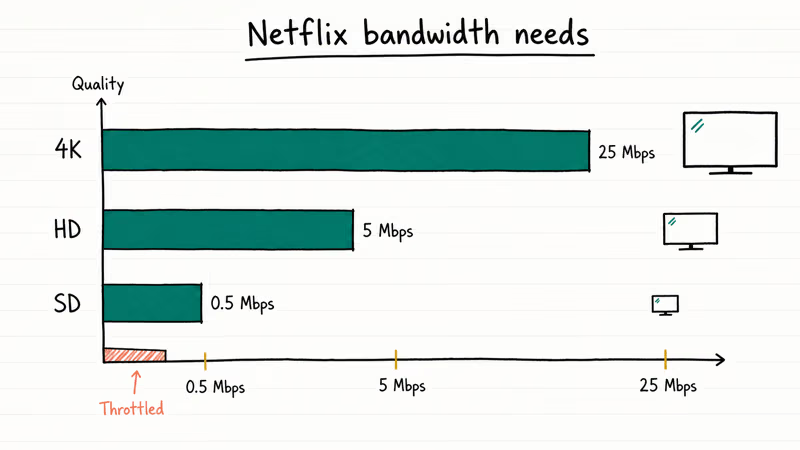
Run a speed test from the device that is failing. The result tells you whether to fix the device, the router, or your ISP plan. If your speed is well under what Netflix needs, our why is my internet so slow all of a sudden guide covers the most common router and ISP-side causes.
A few targeted network checks:
- Move closer to the router. Streaming sticks at the back of a TV are often shielded from the router by the TV itself. A large metal-framed TV can drop the signal noticeably when the stick sits behind it versus on an open side shelf.
- Switch from 2.4 GHz to 5 GHz Wi-Fi. The 5 GHz band is faster and less congested in most homes. Most newer streaming sticks default to 2.4 GHz to keep range strong, but if speed is the bottleneck, switch in the device’s network settings.
- Use Ethernet when possible. Apple TV, Fire TV Cube, Nvidia Shield, and most smart TVs have an Ethernet port. A wired connection eliminates Wi-Fi as a variable.
- Check if your ISP is throttling. Some ISPs slow streaming traffic during peak hours. The fix is a complaint, a plan upgrade, or a switch.
#When the Netflix Site Error Means Account Trouble
A small percentage of site errors come from your Netflix account, not your device or network. The signs are subtle: the error appears across every device on your account, but Netflix loads fine for friends or roommates on the same Wi-Fi.
Check three things in order.
First, sign in at netflix.com on a browser. If you see a payment failure banner, your card on file expired or was declined. Update it under Account > Membership & Billing.
Second, check the Recent device streaming activity page under your account.
If a device you don’t recognize is on the list, change your password, sign out of all devices, and re-enable two-step verification before signing back in. Then check whether the error is tied to a specific profile rather than the whole account. Some “Pardon the interruption” site errors trace back to a single corrupted profile that resolves only after you delete and recreate it.
If your account looks clean and you still see the error, the problem is upstream. Contact Netflix support directly through the help center; their live chat resolves account-side issues faster than any troubleshooting guide can.
For long-term housekeeping, our clear continue watching on Netflix guide shows how to keep the account’s local state tidy across devices.
#Bottom Line
Status page first, then cookies on a computer or app reset on a phone or TV.
If you see a numeric code, use it: NW codes mean network, UI codes mean local app data, and 10008 is an Apple-device network issue. When nothing works after 15 minutes of fixes, the problem is almost certainly server-side and waiting it out is the right call.
#Frequently Asked Questions
Why does Netflix keep saying site error after I clear my cache?
The cause is upstream. Check Netflix’s status page first, then disable any active VPN, then test on a different device on the same network. If the error appears on every device but only on your network, the problem is your router or ISP routing rather than the Netflix app or your account.
Can a VPN cause the Netflix site error?
Yes. Disconnect the VPN, reload Netflix, and confirm.
What does Netflix error code UI-800-3 actually mean?
UI-800-3 means the data Netflix stored on your device has corrupted, usually after a forced app update or an interrupted sign-out. Clear the Netflix app cache, sign out and back in, or reset the app from the device settings menu. On a Roku, the path is Settings > Netflix > Sign out; on Apple TV, hold the Touchpad on the app icon, click Delete, then reinstall.
How do I run Netflix’s built-in network test on Android?
Open the Netflix app, tap your profile icon, then App Settings > Network Test. The test confirms whether your phone can reach Netflix’s servers at streaming-grade speeds.
Will clearing my browser cache delete my Netflix account?
No. Cookies and cache hold only local browser data, not your Netflix subscription, watch history, or profiles.
Why does Netflix work on cellular but not on home Wi-Fi?
When Netflix loads on cellular but fails on Wi-Fi, the problem is your router, DNS, or ISP routing, not Netflix or your account. Restart the router for 30 seconds, then try a different DNS like 1.1.1.1 or 8.8.8.8 in your router’s admin page. If the error persists across multiple devices on the same Wi-Fi, contact your ISP and ask whether they’re throttling streaming traffic during peak hours, since that’s a common culprit on older copper lines.
How long do Netflix server outages usually last?
Most resolve in 30 to 60 minutes once Netflix posts an alert on its status page.
Does reinstalling the Netflix app delete my downloads?
Yes. Reinstalling the app removes any titles you downloaded for offline viewing. Sign in to your account on a browser and visit Manage Download Devices before reinstalling so you can free a download slot if you hit the limit on the new install.

Google Messages Error 3100: Why RCS Is Broken on Galaxy
Google Messages RCS error 3100 hits Galaxy owners after phone or carrier switches. Google told 9to5Google a fix is coming. Here's what actually helps.

Is This Bank App Real? Spot a Fake App on Your Home Screen
A bank app can land on your home screen from a web page with no install warning. Learn the checks that tell a real banking app from a phishing web app.

Apps Crashing After iOS 27 Update? Fix Order (2026)
Apps crashing after the iOS 27 update? Update the app in the App Store first, then offload and reinstall to clear stale cache, then restart. The fix order.

Do AI Translation Earbuds Work Offline? What to Know
Do AI translation earbuds work offline? A few do with downloaded language packs, but most need the cloud. Here's what works offline and what you give up.