How to Clear Continue Watching on Netflix (2026 Guide)
Clear your Netflix Continue Watching list in seconds. Four methods for TV, phone, and browser, plus why some titles refuse to leave the row.

Quick AnswerOpen your Netflix profile, hover or long-press the title in the Continue Watching row, and choose Remove from Row. On a browser, you can also delete any episode from Account > Viewing Activity for the same result.
The Netflix Continue Watching row turns into a graveyard of half-watched pilots after a few months. Netflix added a one-tap Remove from Row option to every modern client, so you don’t have to dig through Viewing Activity anymore. The current flow works the same across Roku, iPhone, Android, and the Netflix web player, so the steps below match what you’ll see in 2026.
- On smart TVs and streaming sticks, hover over the title and choose Remove from Row from the menu that appears under the artwork.
- On the iPhone or Android app, tap the three-dot menu on the title’s tile and pick Remove from Row.
- On a browser, the fastest path is
Account>Viewing Activity, then click the circle-slash icon next to any episode. - Removing one episode of a series triggers a Hide series? prompt that wipes every episode of that show from your row at once.
- Changes can take up to 24 hours to sync across all devices on the same profile, so don’t panic if the title reappears for a day.
#How Do You Remove a Title From Continue Watching?
Netflix calls this feature Remove from Row, and it lives on every modern Netflix client. The exact gesture changes by device, but the result is the same: the show or movie disappears from your Continue Watching strip and stops counting toward your viewing recommendations. According to Netflix’s help article on removing titles from Continue Watching, the option works on computers, TVs, Android devices with the latest Netflix app, and iPhone or iPad.
Before you start, sign in to the profile you want to clean. The Netflix profiles help page confirms each profile keeps its own viewing history.
If you’re using a shared TV, also check that you’re not on the default Netflix profile, which is the easiest one to mistake for your own. When two profiles share the same first letter, it’s easy to clear the wrong row before noticing.
#Clear Continue Watching on a Smart TV or Streaming Stick
This is the most common setup, and it’s the fastest method now that Netflix surfaces the remove option directly on the tile.
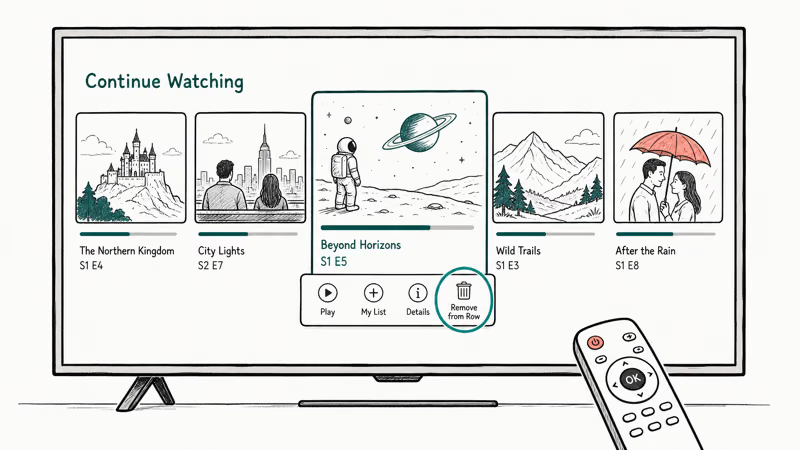
- From the Netflix home screen, scroll down to the Continue Watching row.
- Highlight the title you want gone. The artwork should expand and a small menu of icons appears below it.
- Press right or down on your remote until you reach the trash-can icon labeled Remove from Row.
- Press OK or the center button on the remote to confirm.
The tile vanishes immediately on the device you used, and the row reflows within a second on current Roku and Samsung Tizen TVs. On older Fire TV sticks the menu sometimes loads a beat slower, but the option is still there once the focus animation finishes.
If you don’t see the icon, your TV is probably running an older Netflix build. Force-close the app from the system menu, reopen it, and the new tile design should load. Persistent loading or playback issues can also block the menu, so it’s worth ruling out an outage with our Netflix not working checklist before assuming the feature is missing.
#Clear Continue Watching on iPhone or Android
The mobile flow added the three-dot menu in late 2022 and matches across iOS and Android.
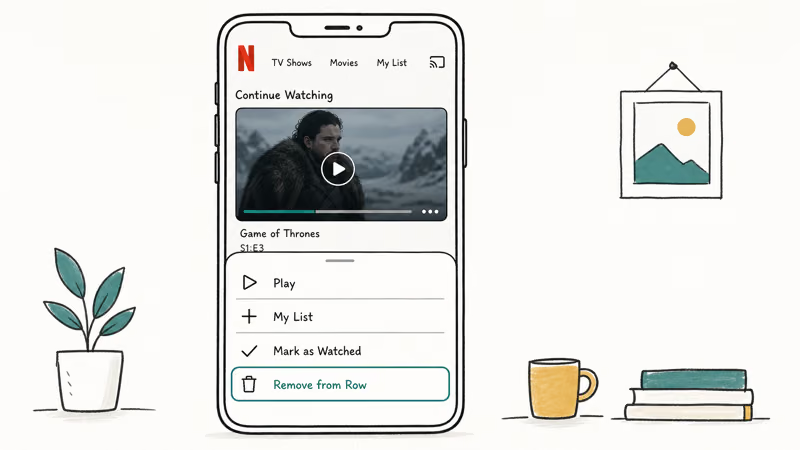
- Open the Netflix app and stay on the Home tab so the Continue Watching row appears near the top.
- Find the title you want to remove. On the title’s tile, tap the three vertical dots overlaid on the lower-right corner.
- A bottom sheet slides up with options like Play, Add to My List, Mark as Watched, and Remove from Row.
- Tap Remove from Row. The tile is gone the next time the row scrolls past it.
The same sheet is available if you tap into the title’s detail page first, but you have to scroll to find the option, which is slower. The three-dot route is the quicker path, taking only a few seconds per title versus the longer trip through the detail page.
A quick caution for shared accounts: the mobile app remembers the last profile you used, so the first thing to confirm is the avatar in the top-right corner. Removing a title from the wrong profile is the most common reason a list seems to keep changing on its own.
#Clear Continue Watching on a Web Browser
The browser is the only place you can wipe individual episodes of a series instead of the whole show. If a single bad episode is all you want gone, this is your route.
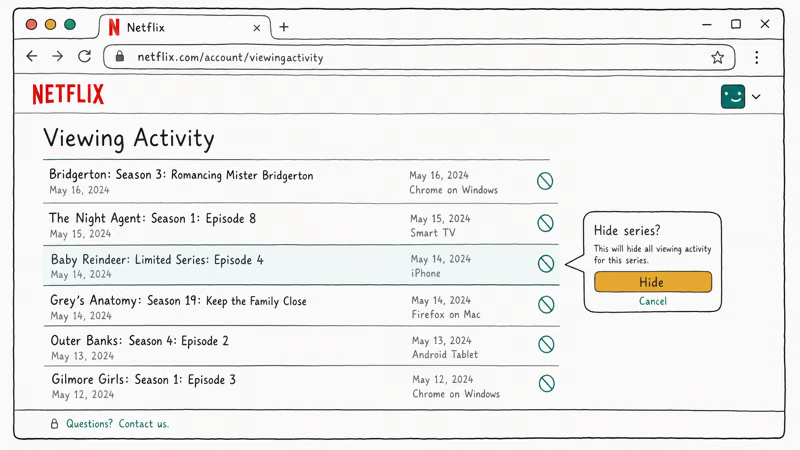
- Sign in at netflix.com and click your profile avatar in the top right.
- Choose Account from the dropdown.
- Scroll down to the Profile & Parental Controls section, expand the profile you’re cleaning, and click Viewing Activity.
- You’ll see a chronological list of every episode and movie you’ve watched on that profile. Click the small circle with a slash next to any title to hide it.
- After you click the icon for a single episode of a series, Netflix shows a Hide series? prompt. Click it to wipe every episode of that show from your row.
Netflix’s Viewing Activity help page states that hidden titles disappear from your row within 24 hours and stop influencing recommendations going forward. The browser row often updates within a few minutes and a connected TV within about an hour, so the 24-hour window is a worst-case ceiling rather than the norm.
If a sibling rented something on your card while traveling and you don’t want it counted, this is also where you go. The same screen has a Hide All option at the bottom that wipes the entire profile’s history at once.
#Why Won’t a Show Leave My Continue Watching Row?
A handful of glitches keep titles stuck even after you remove them. Most of them are easy to clear in a minute or two.
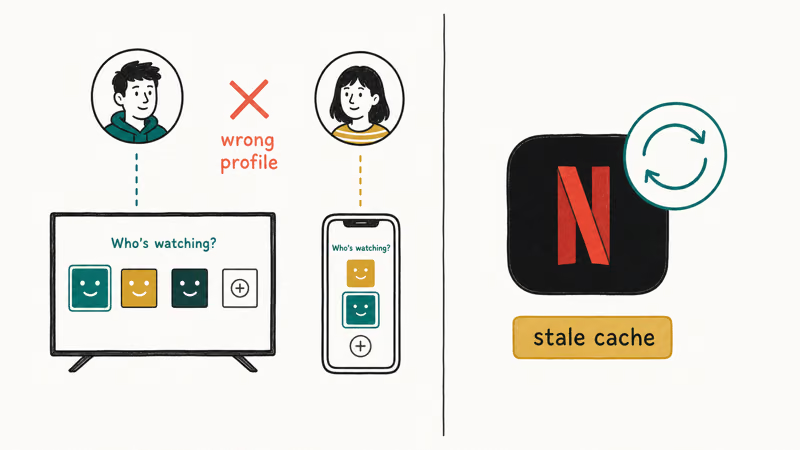
Profile mismatch is the most common reason. Netflix only removes the title from the profile you’re signed into, so if you tap Remove from Row on the smart TV’s profile but watched the show on the mobile app under a different profile, the row on the phone keeps the title. Switch profiles, repeat the steps, and it goes away.
A stale app cache causes the second-most cases. On Fire TV, Apple TV, and older Android TV builds, the home screen sometimes caches the row layout for hours. Force-quitting the app from the device’s app manager and reopening it pulls a fresh row from Netflix’s servers.
Watch for promoted-row confusion. Trending Now and Top 10 sit next to Continue Watching and look similar at a glance. Check the row label above the artwork.
If the show really refuses to leave after switching profiles and clearing the cache, sign out of every device and sign back in on one. That forces the account to rebuild its row state from scratch.
#Tips to Keep Your Continue Watching Row Tidy
A little hygiene each month keeps the row useful instead of cluttered.
- Use Mark as Watched on the same three-dot menu when you finish a series. This stops Netflix from re-suggesting the next season as if you abandoned it, and it removes the title from the row without hiding it from your full history.
- Give every regular viewer in the house their own profile. If you share an account with a partner who likes horror and you don’t, the rows on every device stay clean once both of you stop borrowing the same profile.
- For a guest you don’t want to delete, set up a profile labeled Guest and ask visitors to switch to it before they watch. The Netflix Help Center recommends this approach in its profile management guide because it isolates viewing history without forcing you to share a password to a new account.
- Treat Hide All as a once-a-year reset. It nukes the entire profile’s viewing history, so recommendations start fresh, but you also lose any progress markers on shows you wanted to come back to. For shows you want to keep on hand without leaving them in the row, the same three-dot menu also surfaces Netflix offline downloads on supported titles, so the next leg of your commute is covered without cluttering the home screen. A leaner row also helps if Netflix keeps buffering on older TVs.
- If a single account is being shared across regions or households and the row keeps mixing genres, the cleanest fix may not be deleting items at all. It may be canceling a duplicate streaming service you don’t actually use, the same way our guide on how to cancel Starz walks through it for that platform.
#Bottom Line
Use Remove from Row on whichever device you’re holding when the clutter bothers you. The TV remote and the mobile three-dot menu are both faster than digging into Account settings. Reserve the browser-based Viewing Activity flow for one case it’s actually best at: hiding a single episode of a series without wiping the whole show.
If a title still won’t budge after twenty-four hours, it’s almost always a profile mismatch or a cached row, not an account-level bug. Signing out and back in on one device clears it. While you’re cleaning up, the same Continue Watching grooming pairs well with our fixes for Netflix sound not working and the persistent Netflix site error page, two of the other common Netflix annoyances worth resolving in the same session.
#Frequently Asked Questions
Can I remove just one episode of a series instead of the whole show?
Only on a browser. The mobile and TV apps remove the entire series in one step when you choose Remove from Row, but the Account > Viewing Activity page on netflix.com lets you hide individual episodes one at a time.
Does removing a title delete it from my watch history permanently?
No. It only hides the title from your row and excludes it from recommendations. Your watch progress is wiped, though.
How long does it take for Netflix to sync the change across devices?
Netflix says up to 24 hours, but other devices on the same profile usually update within an hour.
Will clearing Continue Watching reset my Netflix recommendations?
It nudges them, not resets them. Each removed title is excluded from future recommendations, but everything else on that profile still shapes the algorithm. For a true reset, the Hide All button at the bottom of the Viewing Activity page wipes the entire profile’s history at once. There is no undo, and progress markers on every show go with it.
What if the Remove from Row option is missing on my smart TV?
You’re probably on an older Netflix build. Force-close the Netflix app from your TV’s system settings, then reopen it and try again. Roku and Fire TV often need a manual app refresh after a major Netflix update. If the option is still missing after that, check whether your TV’s firmware is current, since some 2018-and-earlier panels stopped getting full Netflix client updates.
Is creating a new profile a faster way to clear everything?
Yes, but you lose all built-up recommendations. The new profile starts blank and takes weeks to feel personal again.
Does Hide All on the Viewing Activity page also remove ratings I gave shows?
It removes your viewing history, but ratings (the thumbs up, thumbs down, and double thumbs up that replaced star ratings in 2017) are stored separately and are not cleared by Hide All. To reset those, you have to thumb-click each title individually or contact Netflix support for a full account-level reset.
Google Messages Error 3100: Why RCS Is Broken on Galaxy
Google Messages RCS error 3100 hits Galaxy owners after phone or carrier switches. Google told 9to5Google a fix is coming. Here's what actually helps.

Is This Bank App Real? Spot a Fake App on Your Home Screen
A bank app can land on your home screen from a web page with no install warning. Learn the checks that tell a real banking app from a phishing web app.
Apps Crashing After iOS 27 Update? Fix Order (2026)
Apps crashing after the iOS 27 update? Update the app in the App Store first, then offload and reinstall to clear stale cache, then restart. The fix order.

Do AI Translation Earbuds Work Offline? What to Know
Do AI translation earbuds work offline? A few do with downloaded language packs, but most need the cloud. Here's what works offline and what you give up.