Netflix Not Working? 8 Proven Fixes for Phone, TV, and PC
Netflix not working? Run the outage check first, then clear app data or restart the device. Work through 8 fixes on iPhone, Android, Roku, and Windows.
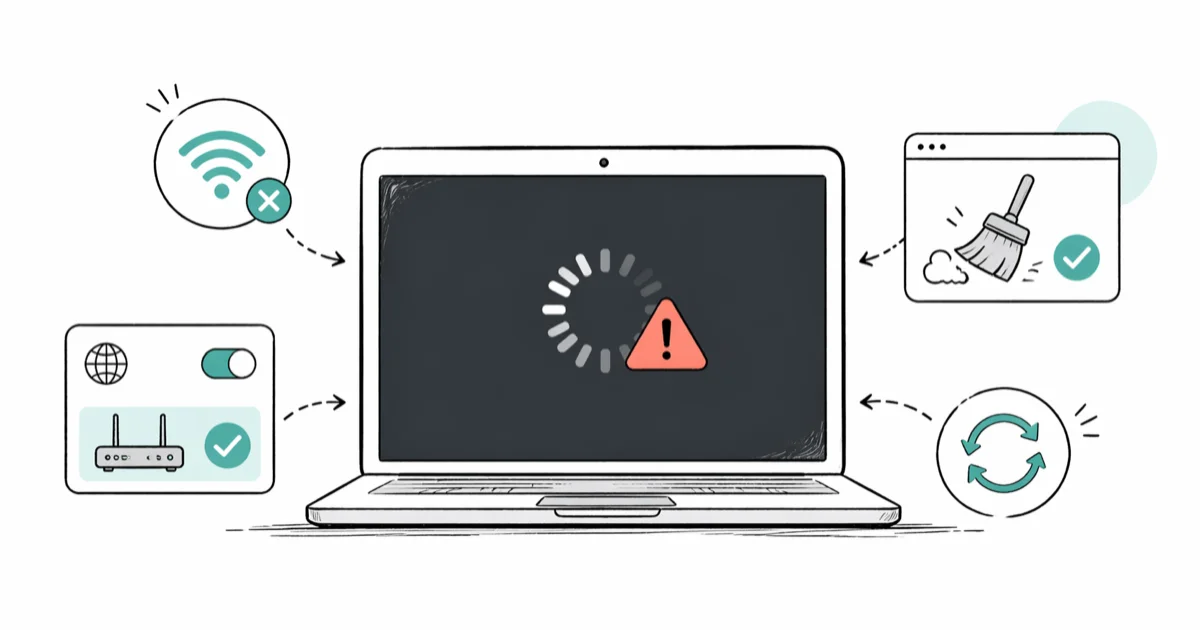
Quick AnswerNetflix usually fails from a temporary outage, a stale app cache, or a slow connection. Check the Netflix status page first, then clear app data on the failing device to resolve most cases in under five minutes.
When Netflix stops working, the cause is almost always one of three things: a server outage, a broken app cache, or a slow connection. The hard part is figuring out which one in under five minutes. The fixes below are grouped by phone, computer, TV, and streaming device so you can start with the device that’s failing.
- Check the Netflix status page first; many outages are server-side and no device fix will help.
- Clearing the Netflix app cache or signing out and back in resolves most “won’t load” cases on phones and tablets.
- Most Netflix streaming problems trace back to bandwidth, not the app; run a speed test before reinstalling anything.
- Restarting your streaming device is often a better first step than reinstalling the app.
- If Netflix loads on cellular but fails on Wi-Fi, the problem is your router or DNS, not your Netflix account.
#Why Is Netflix Not Working Right Now?
Start by ruling out a Netflix-side outage before you touch your device. According to Netflix’s “Is Netflix down?” status page, the company posts a real-time service banner whenever its streaming or sign-in services are degraded. If you see anything other than “Netflix is up!” on that page, no amount of router restarts will help. Wait it out and try again in 15 to 30 minutes.
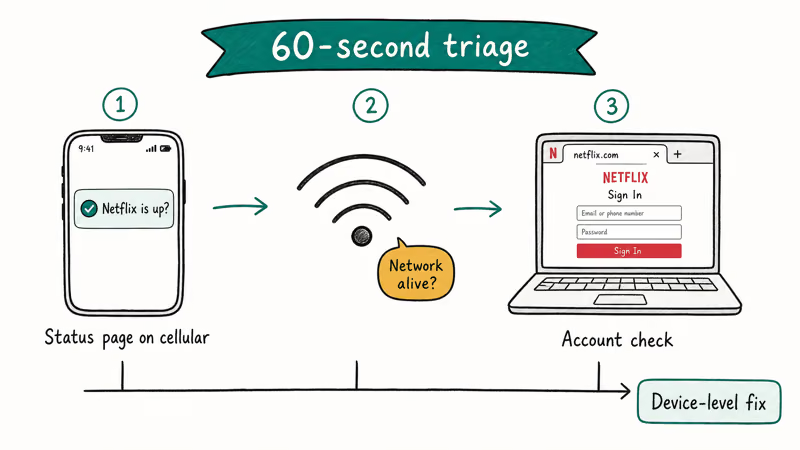
If the status page looks healthy, your network is the next suspect. Hotel, school, and corporate guest Wi-Fi often block or throttle streaming. Test another site to confirm the connection works.
Account-level problems are rarer but worth a quick check. Sign in at netflix.com from a regular browser. If you see a message about a payment issue or a profile lock, that’s your real problem and the device-level fixes below won’t change anything. Our Netflix site error walkthrough covers the message-specific codes that show up at this step.
#Quick triage in 60 seconds
- Open the Netflix status page on a phone using cellular data (not your home Wi-Fi).
- Try a different website to confirm the network is alive.
- Sign in to netflix.com on a desktop browser to rule out account problems.
If all three pass, the problem is on your specific device, and the next sections walk through fixes by platform.
#How Do You Fix Netflix on iPhone or iPad?
On an iPhone, the fastest fix is almost always force-quitting the app and reopening it. Swipe up from the bottom of the screen (or double-press the Home button on older models), find the Netflix card, and swipe it up to close. Reopen the app before you reinstall anything.
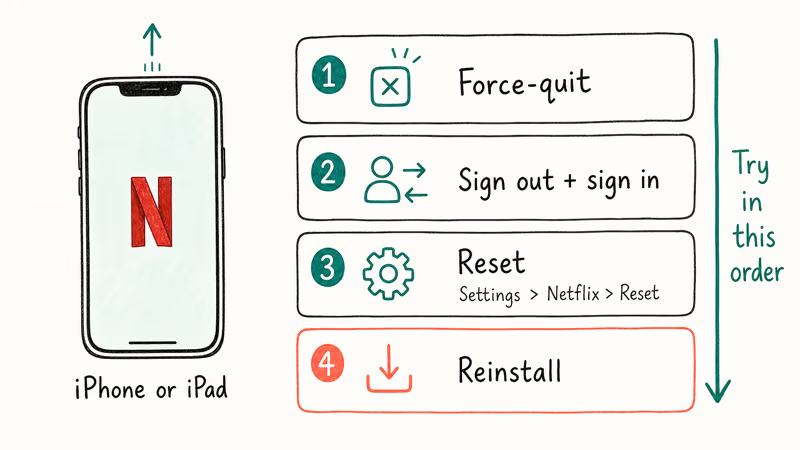
If the app still fails, sign out and back in. Open Netflix, tap More > Sign Out, then sign in again. This refreshes your profile and active devices list without deleting the app.
Reinstalling is the next step, not the first. Press and hold the Netflix icon on the home screen, tap Remove App > Delete App, then reinstall from the App Store. Reinstalling deletes downloaded titles, so confirm you have a working internet connection before doing this.
If Netflix opens but Wi-Fi is the issue, our guide on iPhone won’t connect to Wi-Fi covers the network-level fixes.
#Reset on iOS without reinstalling
iOS has a built-in Netflix reset toggle. Go to Settings > Netflix > Reset to clear the app’s local data without reinstalling.
#Fixing Netflix on Android Phones and Tablets
The single most effective Android fix is clearing the Netflix app cache. Go to Settings > Apps > Netflix > Storage > Clear Cache. This removes corrupted temporary files without deleting your downloads or sign-in. Netflix recommends clearing the app data for any error code that mentions a streaming or playback problem on Android.
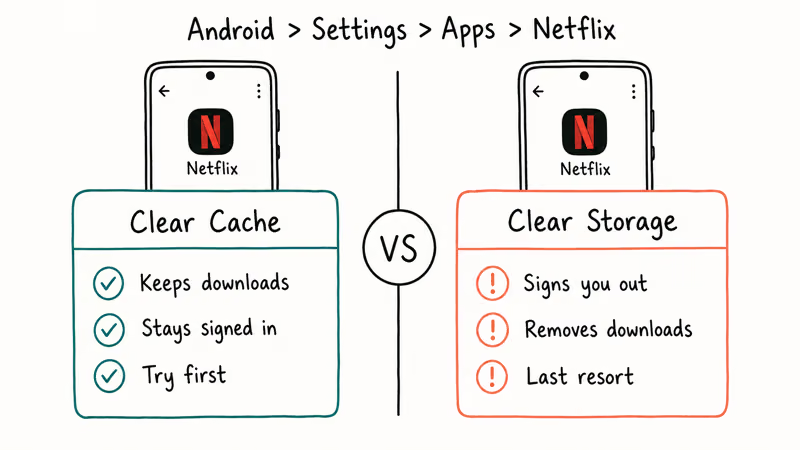
If clearing the cache alone doesn’t fix it, tap Clear Storage in the same menu. This is more aggressive: it signs you out and removes downloaded titles, but it forces a clean app state.
For app-specific guidance on cache clearing across other apps, our clear cache, cookies, and history on Android phone tutorial covers the broader process.
A few extra Android-specific checks:
- Update the app. Open the Play Store, search Netflix, and confirm you are on the latest version. Old app builds break with new server APIs.
- Check for an OS update.
Settings>System>Softwareupdate. Netflix drops support for Android versions older than Android 7.0 in some regions. - Use Netflix’s built-in network test. Open the app, tap your profile icon, then
App Settings>Network Test. The result tells you whether your phone can reach Netflix’s servers at streaming-grade speeds.
If downloads are the problem, Netflix limits how many devices can hold offline content at once. Sign in to your account on a browser and tap Manage Download Devices to remove an old phone or tablet that no longer needs the files. Once a slot opens up, downloads on the new device will resume.
#Fixing Netflix on a Computer (Windows or Mac)
Browser issues account for most “Netflix not loading” complaints on a computer. Start with a hard reload (Cmd-Shift-R on Mac, Ctrl-F5 on Windows) before anything else. If that fails, clear the browser’s cookies for netflix.com only. Full cache wipes are overkill and will sign you out of every site.
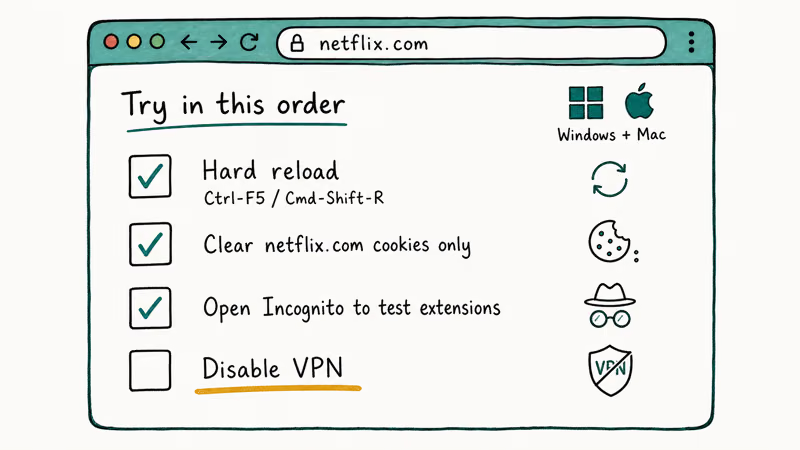
In Chrome: Settings > Privacy and security > Cookies and other site data > See all site data and permissions, search for netflix, and click the trash icon. Reload netflix.com.
Browser extensions are the second-most-common culprit. Ad blockers, privacy extensions, and script blockers can break Netflix’s DRM check. Open Netflix in an Incognito or Private window. If it works there, the problem is an extension.
Disable VPN connections before retrying. Netflix actively blocks most consumer VPNs to enforce regional licensing, and a VPN is the single most common reason a previously-working Netflix account suddenly throws a “streaming error” in the middle of a session. If you need a VPN for privacy on other sites, our what is VPN on iPhone guide explains the trade-offs.
Windows 10 and 11 users running the Netflix app from the Microsoft Store can reset the app the same way iOS does. Go to Settings > Apps > Installed apps, find Netflix, click the three-dot menu, choose Advanced options, then Reset. This wipes the app’s local data without uninstalling it.
If audio is missing while video plays, our Netflix sound not working walkthrough covers the codec and driver fixes.
#Fixing Netflix on a Smart TV, Roku, or Streaming Stick
Power cycling the TV or streaming stick is the best first move for smart-TV Netflix problems. Unplug the device from the wall (not just power it off), wait 60 seconds, then plug it back in. The forced reboot clears the device’s RAM and re-pulls a fresh DRM token from Netflix’s servers.
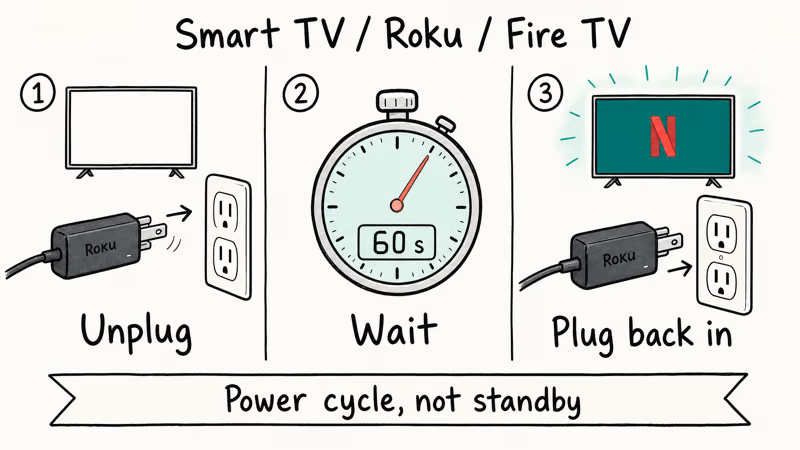
If the power cycle doesn’t work, sign out of Netflix using the on-screen menu (or by pressing the Up-Up-Down-Down-Left-Right-Left-Right-Up-Up-Up-Up sequence on Roku, which opens a hidden sign-out screen). Sign back in. This forces a fresh session and can clear the “Whoops, something went wrong” error after a long standby period.
A few more TV-specific checks:
- Restart the router. A 30-second power cycle of the router clears stale DHCP leases that often confuse smart TVs.
- Check for a TV firmware update. Manufacturer support sites list the path; on most Samsung and LG models it’s
Settings>Support>Software Update. - Reinstall the Netflix app. On Roku, remove the channel and re-add it. On Apple TV, hold the Touchpad on the app icon, click Delete, then reinstall from the App Store.
If your smart TV simply won’t connect to Wi-Fi at all, that’s a network problem rather than a Netflix problem. The fix lives upstream in your router, not in the Netflix app.
#Black Screens, Buffering, and Slow Streaming Quality
A black screen with audio playing is almost always a graphics or HDMI handshake issue. On Windows, update your graphics driver from the manufacturer’s site (Intel, NVIDIA, or AMD). On a smart TV, swap the HDMI cable and try a different port. HDMI 2.0 ports can sometimes negotiate poorly with HDR content from Netflix.
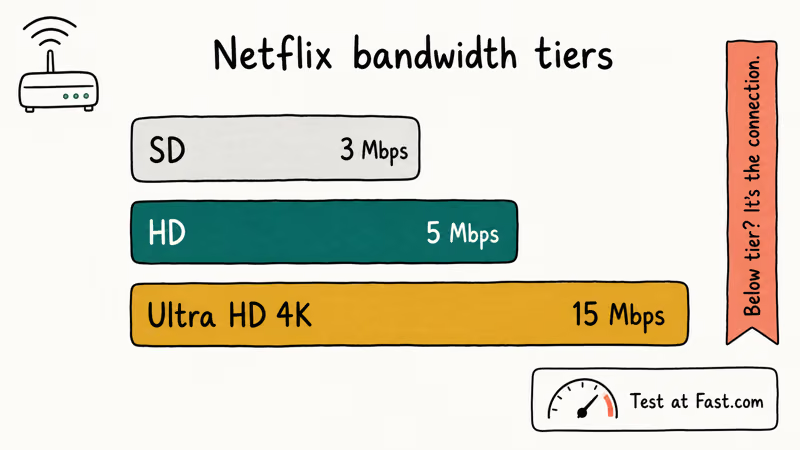
Buffering and pixelation point at bandwidth. According to Netflix, 3 Mbps is the floor for SD, 5 Mbps for HD, and 15 Mbps for Ultra HD 4K, per its internet speed recommendations. Run a speed test at Fast.com, which is owned by Netflix and tests against Netflix’s own CDN. If your result is well below the threshold for your subscription tier, the issue is your connection, not your app.
Other things that quietly steal bandwidth:
- A second device downloading a system update in the background.
- A roommate streaming 4K on a different TV.
- Cloud backup running on a phone or laptop.
Lower the playback quality manually if your connection is permanently slow. Sign in at netflix.com, go to Account > Profile > Playback settings, choose Medium instead of Auto or High. The video looks softer but it stops buffering.
If Netflix shows a black screen on iOS, toggle off the Color Filters accessibility setting at Settings > Accessibility > Display & Text Size > Color Filters. Color Filters can interfere with the playback layer and leave video black while audio continues.
For account-level cleanup, our continue-watching cleanup guide is the right next stop.
#Bottom Line
Start with the status page and a 60-second outage check before touching your device. If Netflix is up, force-quit the app, then clear the cache (Android) or use the Reset toggle (iOS, Windows). On a smart TV or streaming stick, unplug the device from power for a full minute; that single step resolves more cases than reinstalling the app.
Reinstall only after a power cycle and cache clear both fail. Run Fast.com before reinstalling anything: most “Netflix is broken” reports turn out to be Wi-Fi problems, not Netflix problems.
#Frequently Asked Questions
Why is Netflix not working only on my smart TV?
A smart TV typically fails when its DRM token expires or its firmware is out of date. Unplug the TV from the wall for 60 seconds, then sign out and back into Netflix. If the problem persists, check for a software update under Settings.
Does clearing the Netflix app cache delete my downloads or watchlist?
Clearing the cache doesn’t delete downloads or your watchlist, and you stay signed in to your Netflix account. Clearing the storage is the more aggressive option in Android’s app settings, and that one signs you out and removes offline content along with the cache. Always try Clear Cache first; only escalate to Clear Storage if the cache wipe fails to fix the playback issue you’re seeing on your phone.
Why does Netflix keep saying “Whoops, something went wrong”?
That message is Netflix’s catch-all error and almost always means the app failed to authenticate with the server. Sign out of Netflix, restart your device, and sign back in. On smart TVs, this often clears the error after a stale standby session.
Can a VPN cause Netflix to stop working?
Yes. Netflix actively blocks most consumer VPN endpoints to enforce regional licensing, so an enabled VPN is one of the most common reasons playback breaks suddenly. Disable the VPN and try again. If you need the VPN for privacy, switch it off only for the Netflix session and re-enable it afterward.
How long does a typical Netflix outage last?
Many outages resolve within 30 minutes. Larger regional issues can run two to four hours. Netflix posts updates on its status page and on the @Netflixhelps Twitter handle while incidents are active.
Does Netflix work without Wi-Fi?
Netflix needs an active internet connection for streaming, but downloaded titles play offline on phones and tablets. Open the app, tap Downloads, and start playback without a connection. Subscription downloads expire after 48 hours from when you start watching them on most plans.
Should I reinstall the Netflix app or just clear cache first?
Always clear cache first. Reinstalling deletes downloaded content and your local sign-in state. On Android the order is: force-quit, clear cache, sign out and back in, then reinstall only if all three fail. On iOS, use the in-Settings Reset toggle before reinstalling, since it does the same thing without removing the app.

Google Messages Error 3100: Why RCS Is Broken on Galaxy
Google Messages RCS error 3100 hits Galaxy owners after phone or carrier switches. Google told 9to5Google a fix is coming. Here's what actually helps.

Is This Bank App Real? Spot a Fake App on Your Home Screen
A bank app can land on your home screen from a web page with no install warning. Learn the checks that tell a real banking app from a phishing web app.

Apps Crashing After iOS 27 Update? Fix Order (2026)
Apps crashing after the iOS 27 update? Update the app in the App Store first, then offload and reinstall to clear stale cache, then restart. The fix order.

Do AI Translation Earbuds Work Offline? What to Know
Do AI translation earbuds work offline? A few do with downloaded language packs, but most need the cloud. Here's what works offline and what you give up.