Mac Keeps Crashing? 8 Proven Fixes for Every Model
Fix a Mac that keeps crashing with eight practical steps. Covers Safe Mode, Disk Utility, NVRAM/SMC resets, reinstall options, and hardware checks.
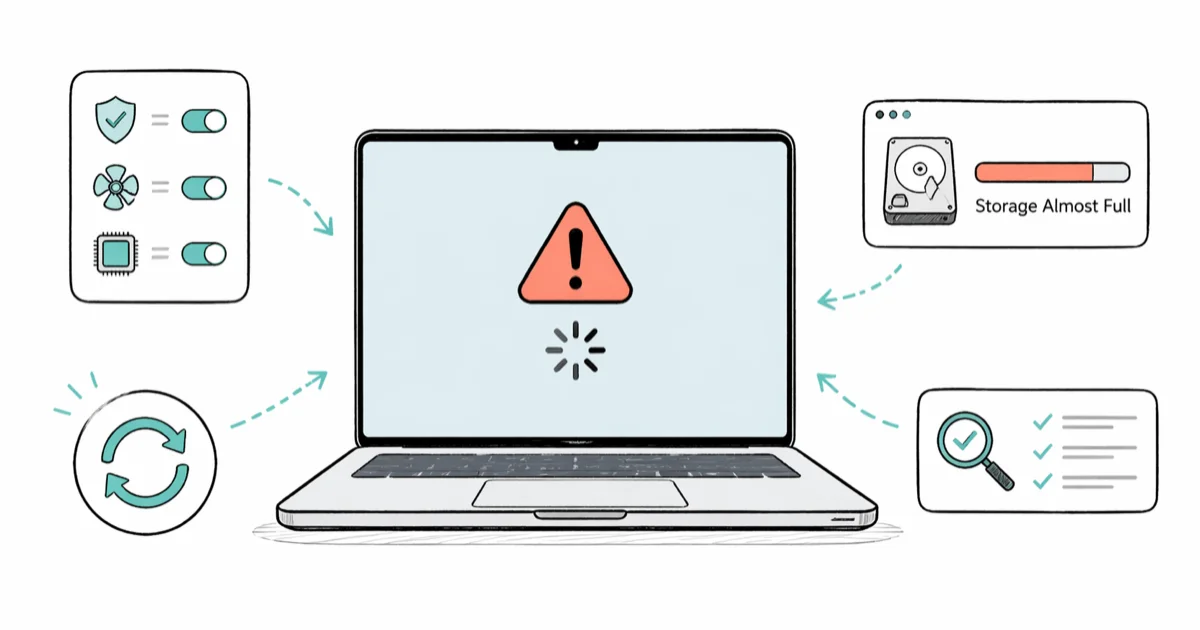
Quick AnswerA Mac that keeps crashing is usually a software conflict, a near-full startup disk, or a buggy app rather than a hardware fault. Boot in Safe Mode first, check Activity Monitor for a runaway process, and back up before touching anything riskier than a restart.
Your Mac keeps crashing and you need it to stop today. The fix almost always lives in software (a runaway app, a packed startup disk, a flaky login item) and not in a failed logic board, so this guide walks every Apple Silicon and Intel Mac on macOS Sequoia or earlier through the safe-first order: diagnose, back up, isolate, then escalate.
This guide covers eight practical steps that apply to both Apple silicon and Intel Macs. Start at the top and stop once your Mac stays stable through normal use.
- Back up your Mac with Time Machine before any reset, reinstall, or hardware test
- Safe Mode disables every third-party kernel extension and login item in one boot
- Free at least 10 to 15 percent of your startup disk to stop kernel panics
- Activity Monitor surfaces the runaway process behind beach balls and freezes
- Apple Diagnostics returns a reference code in about 5 minutes before any repair quote
#Back Up Your Mac Before Anything Else
Crashing Macs lose data fastest during the fixes, not during the crashes. Before you reset, reinstall, or boot into Recovery, plug in an external drive and run Time Machine (System Settings > General > Time Machine > Add Backup Disk) or copy your Documents, Desktop, and Downloads folders by hand to a USB drive or iCloud Drive.
According to Apple’s Time Machine setup guide, the first backup of a half-full 512 GB drive runs about 2 to 4 hours over USB-C; subsequent hourly snapshots take seconds. If your Mac panics mid-backup, restart in Safe Mode (the next section) and try again from there. A backup that keeps failing in normal mode will often complete once you boot into Safe Mode first.
A backup is also your safety net for warranty claims. If a Genius Bar appointment ends in a logic board swap, you keep the data.
#Why Does Your Mac Keep Crashing?
Mac crashes split into two patterns. A kernel panic restarts the whole machine and shows a black screen reading “Your computer was restarted because of a problem.” An app crash freezes one program (often with a spinning beach ball) while the rest of macOS keeps running, but repeated app crashes can drag the system down.
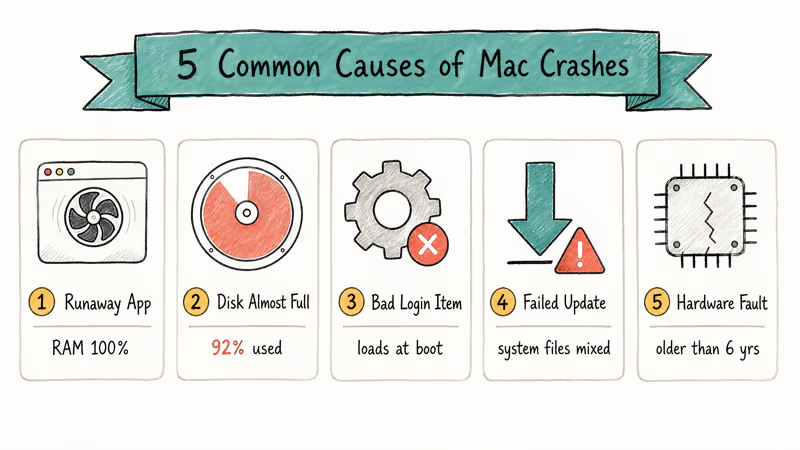
Most repeated crashes trace to one of five causes:
- A runaway app or browser tab eating all available RAM
- A startup disk above 90 percent full so macOS can’t write swap files
- An incompatible login item or kernel extension loading at boot
- A failed or interrupted macOS update leaving system files in mixed states
- Hardware faults on Macs older than 5 to 6 years (RAM, SSD, fans)
Your Mac saves a crash report after every panic. Open Console (Applications > Utilities > Console > Crash Reports) and look at the Process field for the offender and Exception Type for the cause. EXC_BAD_ACCESS means a memory error, EXC_CRASH means the app killed itself, and EXC_BREAKPOINT usually means an app bug the developer needs to patch. The same process name across three or more reports is your culprit.
#Restart in Safe Mode
Safe Mode is your single best diagnostic. It boots macOS with only Apple-signed extensions, skips login items, clears font caches, and runs a directory check on your startup volume.
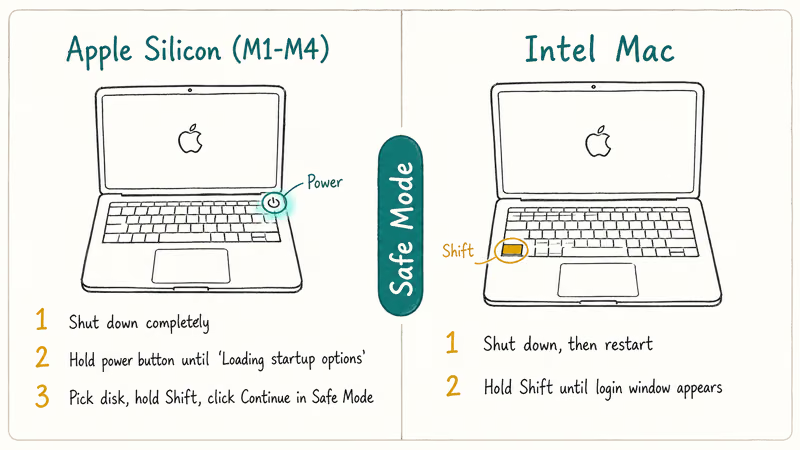
Apple Silicon Macs (M1, M2, M3, M4): Shut down completely. Press and hold the power button until “Loading startup options” appears. Select your startup disk, hold Shift, and click “Continue in Safe Mode.”
Intel Macs: Shut down, restart, and hold Shift until the login window appears.
If your Mac runs cleanly in Safe Mode for an hour, the problem lives in third-party software. Restart normally and remove recently installed apps, antivirus tools, or VPN clients one at a time, restarting between each removal. A common culprit is a third-party antivirus or security extension that breaks after a macOS update; removing it often stops the crashes. The same Safe Mode test also works when your MacBook isn’t turning on at all.
If Safe Mode itself crashes, jump to Disk Utility First Aid below.
#Force Quit and Activity Monitor
For frozen apps, press Command + Option + Esc, select the locked app, and click Force Quit. That clears one freeze in seconds.
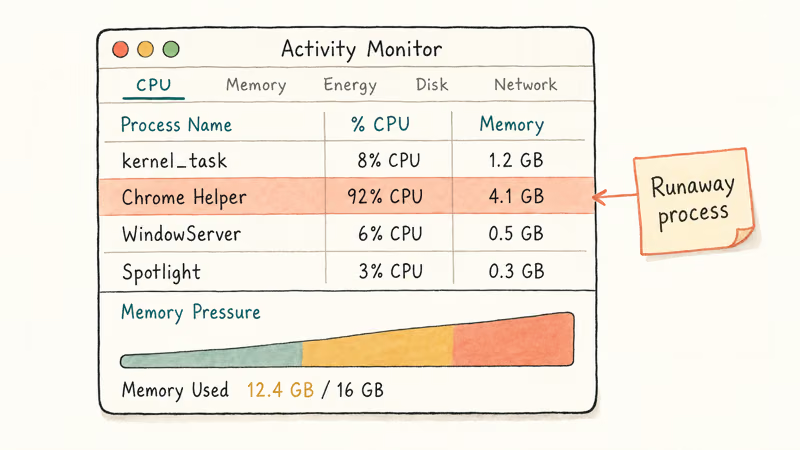
For repeated freezes, open Activity Monitor (Applications > Utilities > Activity Monitor). Click the CPU tab, sort by % CPU descending, and watch for any process sitting above 80 percent for more than a minute. Switch to the Memory tab and check the Memory Pressure graph at the bottom. Yellow or red pressure means macOS is swapping aggressively and you are seconds from a beach ball.
Browser tab overload can push Memory Pressure into yellow or red and leave the Mac swapping aggressively. Close unused tabs and quit heavy apps until the graph returns to green. If Bluetooth isn’t available on your Mac at the same time, that’s a separate symptom but often pairs with system-wide resource exhaustion.
#Run First Aid in Disk Utility
Corrupted disk permissions, a damaged file system, or a bad APFS container will cause unexpected restarts even when no app is misbehaving. First Aid scans and repairs the volume in minutes.
Open Disk Utility, choose View > Show All Devices, click the top physical disk, then First Aid > Run. Wait 2 to 5 minutes per volume.
If First Aid reports errors it can’t fix, restart into macOS Recovery (Command + R on Intel, hold the power button on Apple Silicon) and run First Aid from there. Recovery has deeper file-system access. If you keep seeing the erase process has failed on Mac message during repair, that points to a failing SSD and you should stop and book a Genius Bar appointment.
#Free Up Startup Disk Space
A startup disk above 90 percent full is the single most common cause of “random” crashes on Macs of every age and price. macOS keeps swap files, app caches, and temporary update files on the boot volume, and Apple recommends keeping at least 10 to 15 percent free for normal operation.
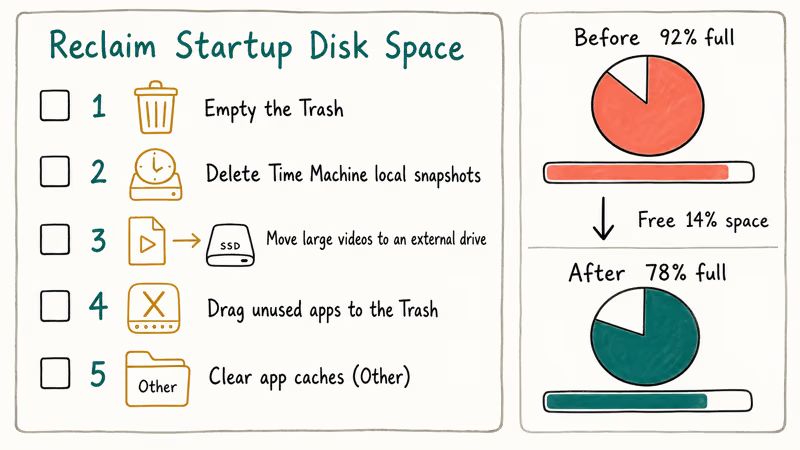
Check your space at Apple menu > About This Mac > More Info > Storage Settings. Apple’s built-in recommendations panel shows the largest space hogs.
To reclaim room fast:
- Empty the Trash (right-click the Trash icon > Empty Trash).
- Delete old Time Machine local snapshots (
tmutil listlocalsnapshots /thentmutil deletelocalsnapshots <name>in Terminal). - Move large video and project files to an external hard drive or cloud storage.
- Drag unused apps from Applications to the Trash.
- Clear app caches on your Mac if Storage shows “Other” eating tens of gigabytes.
Freeing startup disk space can stop repeat panics when macOS is running out of room for swap and temporary files. If your iCloud account is also full, fix iCloud storage full first so Optimize Mac Storage actually works.
#How Do You Reset NVRAM and SMC Safely?
NVRAM (non-volatile RAM) stores low-level settings: display resolution, startup disk, speaker volume, time zone. The SMC (System Management Controller) handles power, thermals, fans, and battery charging on Intel Macs. Reset both when crashes are tied to sleep, wake, display flicker, or battery weirdness, but only after you have a backup.
NVRAM reset (Intel Macs only): Shut down. Turn on and immediately hold Option + Command + P + R. Keep holding for 20 seconds, then release.
SMC reset (Intel laptops with the T2 chip, 2018 to 2020): Shut down. Press and hold Control + Option + Shift on the left side of the keyboard for 7 seconds. Without releasing, add the power button. Hold all four keys for 7 more seconds, release, then press the power button to start.
Apple Silicon Macs (M1 and later): There is no manual NVRAM or SMC reset. macOS handles both at every boot. Just shut down and wait 30 seconds before turning on again. Apple’s SMC reset reference states that Intel laptops with the T2 chip need 7 seconds of held keys to complete the reset, while Apple Silicon needs only the power cycle.
If a MacBook Pro screen is flickering along with the crashes, an NVRAM reset is the safe first step before anything more invasive.
#Run Apple Diagnostics
Apple Diagnostics scans RAM, logic board, storage, fans, and battery for hardware faults without touching your data. The test takes about 5 minutes and never modifies the disk, which makes it the right step before any paid repair quote.
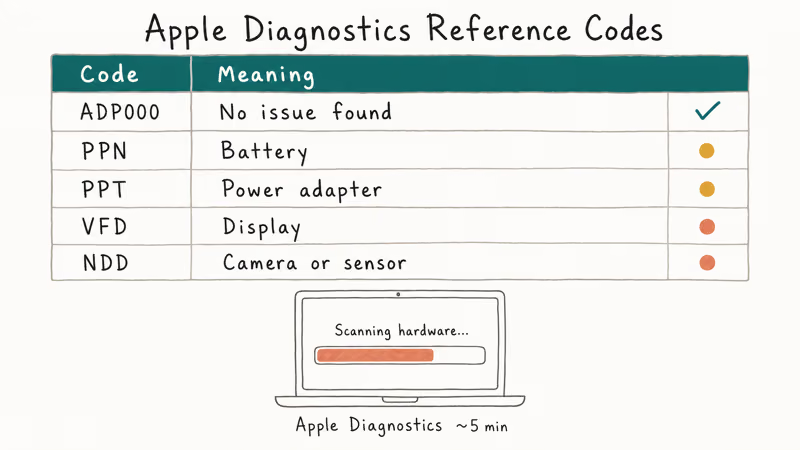
Disconnect every external device except keyboard, mouse, display, and power adapter. Then:
- Apple Silicon: Shut down. Press and hold the power button until startup options appear, then press Command + D.
- Intel: Shut down. Turn on and immediately hold D until a progress bar shows up.
A return code of ADP000 means no hardware issues were found and you should focus on software fixes. Any other code (PPN, PFM, VFD, NDC, NDD, NNN families) points to a specific component. Write the code down and look it up on Apple’s diagnostics reference codes page before you accept a quote, because some codes (like NDD006 for the camera) aren’t worth a logic board swap on a 6-year-old machine.
#Update or Reinstall macOS Without Wiping Data
Apple ships kernel and driver fixes in nearly every point release, so an outdated macOS is a known crash source. Go to System Settings > General > Software Update and install whatever appears.
If updating doesn’t stop the crashes, reinstall macOS without erasing your data. Boot into macOS Recovery (Command + R on Intel, hold the power button on Apple Silicon) and choose Reinstall macOS Sequoia (or your current version). The reinstaller replaces every system file but leaves Users, Applications, and settings alone. The process takes 20 to 45 minutes depending on download speed.
This is the right step when the macOS installation couldn’t be completed message keeps appearing or when one specific app like Microsoft Word keeps crashing on Mac and reinstalling the app alone hasn’t helped.
#Restoring From Time Machine
When the crashes started right after a specific update or app install, roll the system back instead of digging deeper. Boot into macOS Recovery, choose Restore From Time Machine Backup, pick your backup disk, and select a snapshot from before the crashes began.
A full Time Machine restore erases your current system and replaces it with the backup. Save anything created after the backup date (Documents, recent photos, in-progress projects) to a separate USB drive or iCloud Drive before you start, because those files won’t survive the restore. Plan on 1 to 4 hours depending on backup size and connection (Thunderbolt is faster than USB-C, which is faster than Wi-Fi to a Time Capsule).
If the original failure looked like a Mac stuck on the Apple logo, do the restore from Recovery rather than from a normal boot.
#Tips to Prevent Future Mac Crashes
Update macOS the week each point release ships. Check System Settings > General > Software Update on the first of every month if you skip auto-updates.
Keep the startup disk under 85 percent full. Move large video archives, raw photo libraries, and old project folders to an external SSD or cloud storage. Apple’s storage management guide recommends turning on Optimize Mac Storage so iCloud automatically offloads files you haven’t opened recently.
Close browser tabs you stopped reading. Audit Login Items quarterly and remove unfamiliar ones. Run First Aid in Disk Utility quarterly to catch slow corruption.
If your Mac is more than 7 years old and crashes after every fix in this guide, the hardware is likely tired. Book a Genius Bar reservation before paying for an out-of-warranty repair. A clean Apple Diagnostics report plus persistent crashes usually means a third-party SSD upgrade or a trade-in is the better spend than a logic board swap.
If you see a black screen on a MacBook Pro on top of crashes, that combination is a stronger hardware signal and warrants the appointment sooner.
#Bottom Line
Back up first, then boot into Safe Mode. Safe Mode answers the only question that matters at the start: does your Mac crash because of macOS itself or because of something you installed on top of it. If Safe Mode runs clean, the cause is software you can remove for free.
Still crashing in Safe Mode? Run First Aid, free your startup disk to under 85 percent, reset NVRAM (Intel) or just power-cycle (Apple Silicon), and reinstall macOS without erasing as your last in-place fix. Save Apple Diagnostics and a paid repair quote for a Mac older than 7 years where the reference code is real, the disk is healthy, and the crashes survive a clean reinstall. Most Mac crashes never get past the first three steps.
Mac Tips & Tricks
#Frequently Asked Questions
How do I read a Mac crash report?
Open Console from Applications > Utilities > Console and click “Crash Reports” in the sidebar. The Process field names the app or service that crashed, and the Exception Type names the failure mode.
Can a full hard drive cause my Mac to crash?
Yes, and it’s one of the most common causes on Macs of any age. When the startup disk drops below about 5 GB free, macOS can’t create swap files or hand virtual memory to active apps, which triggers kernel panics and beach balls. Check available space at Apple menu > About This Mac > More Info > Storage Settings and offload large files to an external drive or iCloud Drive if space is tight.
Does resetting NVRAM erase any of my files?
No. NVRAM stores system settings like display resolution, startup disk selection, and speaker volume. The reset takes 20 seconds and your Mac boots normally with default values, which the system rewrites on first use.
Why does my Mac crash when I open one specific app?
The app is probably incompatible with your current macOS version, was corrupted during install, or needs more memory than your Mac can provide. Update the app first from the Mac App Store or the developer’s site. If that doesn’t help, uninstall it completely, restart, and reinstall from the original source. Open Activity Monitor while the app runs to see whether memory or CPU spikes right before the crash.
Should I reinstall macOS if my Mac keeps crashing?
Try it after Safe Mode, First Aid, and freeing disk space have all failed. The in-place reinstall replaces system files without touching your personal data, so it’s low risk and usually fixes corrupted system files in 30 to 45 minutes.
How do I check if my Mac has a hardware problem?
Run Apple Diagnostics. Shut down, hold the power button until startup options appear (Apple Silicon) or hold D at startup (Intel), then press Command + D. The test takes about 5 minutes. ADP000 means no hardware issues were detected; any other code points to a specific component, and you should write the code down before talking to Apple Support.
When should I take my Mac to Apple for repair?
Bring it in for any non-ADP000 code, crashes that survive a clean reinstall, clicking from the storage drive, graphical artifacts on screen, or a chassis too hot to touch during browsing.
Is it normal for an old Mac to crash frequently?
Macs older than 7 to 8 years crash more often because Apple drops driver and security support and modern macOS releases push the hardware harder. Adding RAM (on machines that allow it) or swapping a spinning hard drive for an SSD restores stability for many older Intel iMacs and Mac Pros, but logic-board faults are usually not worth repairing at that age.
macOS 27 Golden Gate: Release Date and Compatible Macs
macOS 27 Golden Gate was announced at WWDC 2026. Here is the release date, the Apple Silicon-only compatible Mac list, and every confirmed new feature.
How to Copy and Paste on a Mac: Shortcuts and Fixes
Copy and paste on a Mac with Command-C and Command-V. Learn the cut shortcut, paste without formatting, Universal Clipboard, and fixes when it breaks.

How to Use the Phone App on Mac: macOS Tahoe Setup Guide
Set up the Phone app on macOS Tahoe to relay iPhone cellular calls. Covers requirements, FaceTime setup, Call Screening, and common firewall fixes.
How to Use iPhone Mirroring on Mac: Full 2026 Setup Guide
Set up iPhone Mirroring on macOS Sequoia with iOS 18. Covers hardware requirements, the six common error messages, EU limits, and a shared-Mac privacy fix.