How to Use iPhone Mirroring on Mac: Full 2026 Setup Guide
Set up iPhone Mirroring on macOS Sequoia with iOS 18. Covers hardware requirements, the six common error messages, EU limits, and a shared-Mac privacy fix.
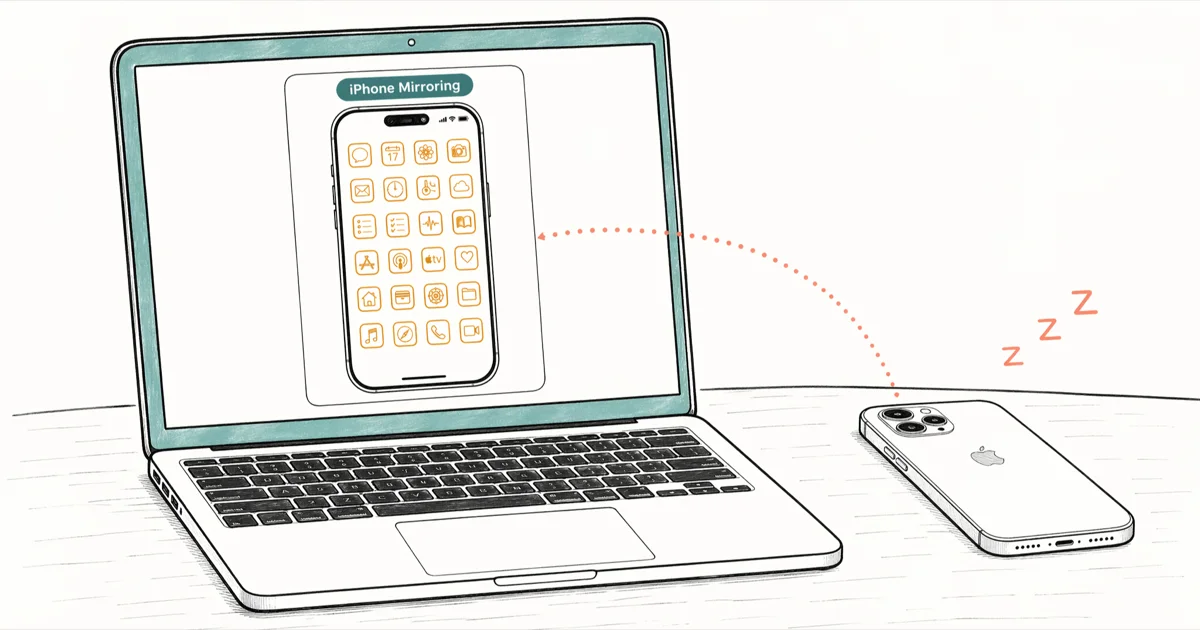
Quick AnswerOpen the iPhone Mirroring app on your Mac running macOS Sequoia, tap Allow on your locked iPhone running iOS 18, and authenticate with Touch ID or your password. Both devices must share the same Apple ID with two-factor authentication enabled.
iPhone Mirroring is the macOS Sequoia feature that streams your locked iPhone’s screen to your Mac and lets you tap, type, and drag files as if the phone were open in front of you. It pairs an Apple Silicon or T2 Intel Mac on macOS Sequoia with an iPhone XS or newer on iOS 18. This guide covers hardware checks, prerequisites, first launch, and honest limits, including the six error messages that come up most often.
This guide applies only to a device or account you own.
- iPhone Mirroring ships in macOS Sequoia 15 and iOS 18 with no third-party app
- Mac needs Apple Silicon or T2 Intel, and iPhone must be XS or newer
- Both devices share one Apple ID with two-factor auth, and the iPhone must be locked and near the Mac
- The feature was unavailable in the EU at launch; verify your region first
- Anyone with Mac access opens your full iPhone, so turn it off on shared Macs
#Understanding iPhone Mirroring on macOS Sequoia
iPhone Mirroring shows your iPhone screen in a Mac window and routes keyboard, trackpad, and clipboard input back. It shipped with macOS Sequoia 15 and iOS 18.
The app lives in your Mac’s Dock once you update to Sequoia. When you launch it, your iPhone stays locked with its screen off while a window on your Mac shows the iOS Home Screen. You launch apps, respond to notifications, and drag files between the two devices. According to Apple’s iPhone Mirroring support page, the feature uses end-to-end encrypted Continuity protocols over Wi-Fi and Bluetooth.
No separate account, no paid tier. One requirement Apple downplays: both devices need Continuity, the umbrella that also powers Handoff, Universal Clipboard, and AirDrop. If those already work, mirroring probably will too. If they don’t, run the AirDrop not working checklist first because the fixes overlap.
#Which Macs and iPhones Support It
Your Mac needs Apple Silicon (M1, M2, M3, or M4) or an Intel Mac with the T2 Security Chip from 2018 onward. Your iPhone needs to be an iPhone XS, XR, or newer on iOS 18. Apple’s macOS Sequoia system requirements page names the eligible Macs: MacBook Air 2020+, MacBook Pro 2018+, Mac mini 2018+, iMac 2019+, iMac Pro 2017, Mac Studio 2022+, and Mac Pro 2019+. That matches the T2-or-newer Continuity cutoff.
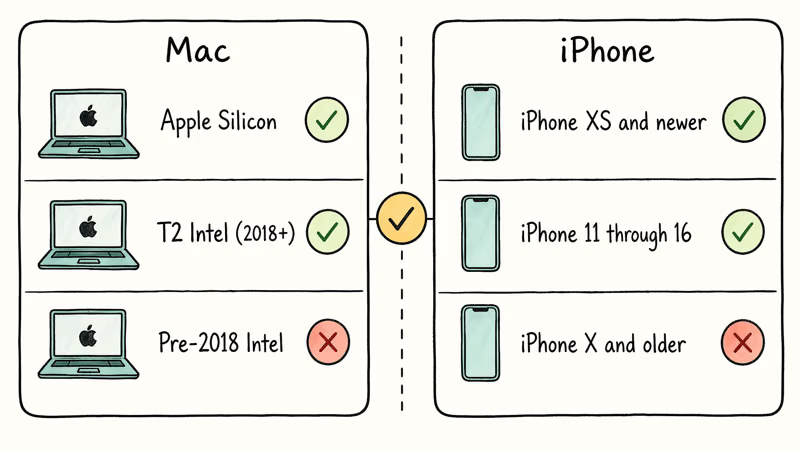
Quick gear check:
- Apple Silicon Macs (M1-M4): fully supported
- Intel Macs with T2 (2018-2020): supported, though the mirror window tends to feel slightly less responsive than on Apple Silicon
- Intel Macs without T2 (pre-2018): not supported; Apple confirms that
- iPhone XS, XR, 11, 12, 13, 14, 15, 16 series: supported
- iPhone X and older: not supported; the A12 chip is the floor
Both devices also need to stay within Bluetooth range, roughly 30 feet. If the iPhone loses Bluetooth mid-session, the Mac window freezes within a few seconds.
#Prerequisites That Silently Block Pairing
Six Continuity preconditions must be satisfied before the Mac app will find your iPhone. Missing any one produces a generic error rather than a useful message, which is why most “iPhone Mirroring not working” Reddit threads are really prerequisite threads in disguise.
Run this pre-flight checklist before launching the app:
- Same Apple ID with two-factor auth on both devices
- Current OS running macOS Sequoia 15+ and iOS 18+
- Wi-Fi and Bluetooth on, same network
- iPhone locked, Mac not AirPlaying
A Redditor in r/MacOS reported that their setup only worked after signing out of iCloud and back in on both devices. A stale device-list entry is a common cause of this. If the checklist looks clean and mirroring still fails, sign out and back in first.
Two-factor authentication is the prerequisite that trips up most people, according to Apple Community threads. If 2FA is disabled, iPhone Mirroring won’t appear in the Dock. Enable it under Settings > [Your Name] > Sign-In & Security. Bluetooth is the other common blocker; our Bluetooth not working on iPhone X guide covers the relevant reset steps.
#How Do You Set Up iPhone Mirroring for the First Time?
Confirm the six prerequisites, place your iPhone face-down near your Mac, and launch iPhone Mirroring from the Dock or Spotlight. Click Continue on the intro screen.
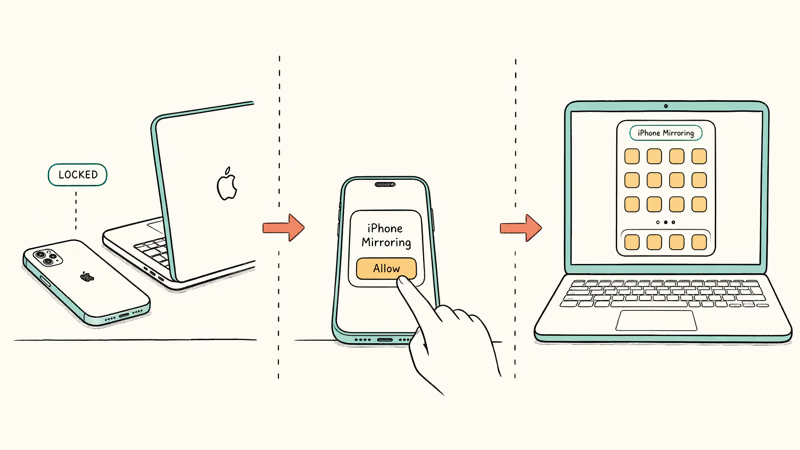
The Mac window shows a large Apple logo during the pairing handshake, usually just a brief moment. Your iPhone briefly vibrates and shows an “iPhone Mirroring” prompt on the Lock Screen. Tap Allow to authorize that specific Mac. You only do this once per Mac-iPhone pair.
Back on the Mac, a prompt asks how to authenticate future sessions:
- Ask Every Time requires Touch ID or password on each launch; safer but slower
- Automatically Authenticate logs in silently after initial pairing; faster but only appropriate on a personal Mac you trust
Pick Ask Every Time on any Mac you share. A good rule is Automatically Authenticate on a personal Mac you control and Ask Every Time on any shared or office machine. Change this later under System Settings > Desktop & Dock > iPhone Mirroring.
After authentication, the iPhone Home Screen appears in a Mac window. Keyboard, trackpad, and Spotlight (Command-Space) all work immediately.
#What You Can Do Inside the Mirrored iPhone
You can launch any app, type with your Mac keyboard, scroll with the trackpad, and use Spotlight as if holding the phone. iMessage, Authenticator apps, banking apps, and two-factor SMS codes all appear inside the mirror window.
Drag-and-drop works both ways for files, photos, and text. A small PDF dragged from Finder lands in the iPhone’s Files app almost instantly.
Notifications from the iPhone appear in the Mac’s Notification Center, and clicking one opens the source app inside the mirror window. Apple recommends disabling iPhone notifications on the Mac if you find them duplicative, under System Settings > Notifications > Allow notifications from iPhone. Audio routes to the Mac’s speakers or connected headphones while the iPhone stays silent.
Two things don’t work. You can’t record the mirrored iPhone’s screen with macOS’s built-in recorder because Apple blocks capture of the iPhone Mirroring app. You also can’t mirror while the iPhone is in active use: pick up the phone and unlock it, and the Mac window disconnects within a second. For deeper context, our control iPhone from PC guide compares iPhone Mirroring to Windows-side alternatives.
#The Six Errors That Actually Appear
Six error messages cover most real-world failures. Each maps to a specific prerequisite.
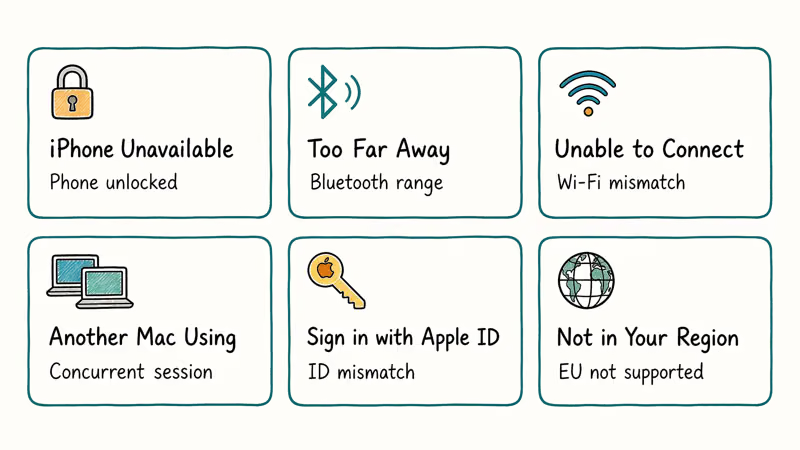
Three connectivity errors:
- “iPhone is unavailable”: the iPhone is unlocked, in a call, or has the Mac AirPlaying to it; lock the phone and retry
- “Your iPhone is too far away or needs to be turned on”: Bluetooth is out of range or disabled; bring devices within 30 feet
- “Unable to connect to iPhone”: Wi-Fi networks don’t match, or a VPN is blocking multicast discovery; match networks, disable VPN
Three account or state errors:
- “Another device is using iPhone Mirroring”: another Mac on the same Apple ID has an active session; quit that session first
- “Sign in with your Apple ID to use iPhone Mirroring”: one device is signed out or on a different Apple ID; they must match exactly
- “iPhone Mirroring isn’t available in your region”: your Apple ID’s region is set to an EU country where the feature hasn’t launched
9to5Mac reported that the EU rollout is gated by Digital Markets Act compliance reviews. Changing your Apple ID region removes access to existing App Store purchases, subscriptions, and Apple Cash balance, so the workaround has real costs. We don’t recommend changing regions purely for this feature.
When no specific error matches, run this three-step reset: turn off Bluetooth on both devices for 10 seconds then back on, sign out of iCloud on the Mac under System Settings > [Your Name] > Sign Out and sign back in, and reboot both devices. One of those three steps clears the large majority of “mirroring just stopped” cases.
#Is iPhone Mirroring Safe on a Shared Mac?
Anyone logged into the Mac account that set up iPhone Mirroring can open your full iPhone on demand: messages, banking apps, photos, two-factor codes. This is the feature’s biggest honest limitation, and Apple’s documentation glosses over it.
Apple’s support page states that iPhone Mirroring requires the Mac user to authenticate. If you picked Automatically Authenticate during setup, that happens silently. On a shared laptop, anyone who knows your Mac login password gains full iPhone access the moment they launch the app. They don’t need your iPhone passcode, Face ID, or physical possession of the phone.
Three changes protect you on a shared Mac: set the authentication mode to Ask Every Time under System Settings > Desktop & Dock > iPhone Mirroring, lock the Mac (Control-Command-Q) whenever you step away, and remove authorization entirely under System Settings > General > AirDrop & Handoff by disabling Allow iPhone Mirroring. Re-pairing is the trade-off for real protection.
On a personal Mac, iPhone Mirroring is as safe as the macOS user account it runs under. Use a strong Mac login password plus FileVault, and you’re covered.
#Bottom Line
If your Mac is Apple Silicon or T2 Intel, your iPhone is XS or newer, and you’re outside the EU, set up iPhone Mirroring once and pick Ask Every Time authentication. Run the six-point prerequisite checklist before launch — it prevents the large majority of the common errors. If you share your Mac with anyone, turn iPhone Mirroring off entirely rather than trusting the silent re-auth to protect your phone.
Mac Tips & Tricks
#Frequently Asked Questions
Does iPhone Mirroring work over cellular or only Wi-Fi?
Wi-Fi is required. The feature uses local network streaming for the display signal and Bluetooth only for the initial device handshake, so cellular data is not part of the path. Both devices need to be on the same Wi-Fi network.
Can I use iPhone Mirroring with two iPhones on one Mac?
Yes, you can pair multiple iPhones to a single Mac as long as all devices share the same Apple ID. You switch between them from the iPhone Mirroring menu bar icon. Only one iPhone can be actively mirrored at a time.
Will my iPhone battery drain faster while mirrored?
Yes, but modestly. There’s only a small amount of extra battery usage compared to the phone sitting idle and locked. The Mac does most of the display work, so the iPhone’s screen stays off, which saves more power than the active Bluetooth and Wi-Fi radios cost.
Does iPhone Mirroring work with different Apple IDs for iCloud and iMessage?
No. Both devices must share the same Apple ID across all Continuity services, not just iCloud sign-in. A separate Apple ID for iMessage on either device blocks pairing. Consolidate to one Apple ID before starting.
Can I mirror an iPhone to a Windows PC instead of a Mac?
No. iPhone Mirroring is macOS-only and depends on Apple’s Continuity stack. For Windows users who need iPhone access, our iMessage for Windows guide covers Chrome Remote Desktop and other workarounds that don’t require a Mac.
Is there a way to mirror an iPhone to a PlayStation or game console?
Not through iPhone Mirroring, which is Mac-only. Gaming consoles need different paths: AirPlay to a compatible smart TV, an HDMI adapter routed through the console’s input, or third-party apps like R-Play that stream directly to a PS5. None of these match iPhone Mirroring’s tight Mac integration, but they work in practice for casual gaming or quick screen sharing. Our mirror iPhone to PS4 guide covers PlayStation-specific workarounds in detail.
What happens to iPhone Mirroring during a phone call?
If a call arrives while mirroring, the Mac window shows the incoming call and you can answer from the Mac, with audio routed through the Mac’s microphone and speakers. Pick up the iPhone physically instead and the session disconnects immediately because the phone is no longer locked.
Can I enable iPhone Mirroring in the European Union?
Not officially yet, as of early 2026. Apple announced a staged rollout and EU availability is expected as Digital Markets Act reviews conclude. Switching your Apple ID’s country to a non-EU region unlocks the feature but breaks App Store purchases, subscriptions, and Apple Cash, so the trade-off usually isn’t worth it.
macOS 27 Golden Gate: Release Date and Compatible Macs
macOS 27 Golden Gate was announced at WWDC 2026. Here is the release date, the Apple Silicon-only compatible Mac list, and every confirmed new feature.
How to Copy and Paste on a Mac: Shortcuts and Fixes
Copy and paste on a Mac with Command-C and Command-V. Learn the cut shortcut, paste without formatting, Universal Clipboard, and fixes when it breaks.
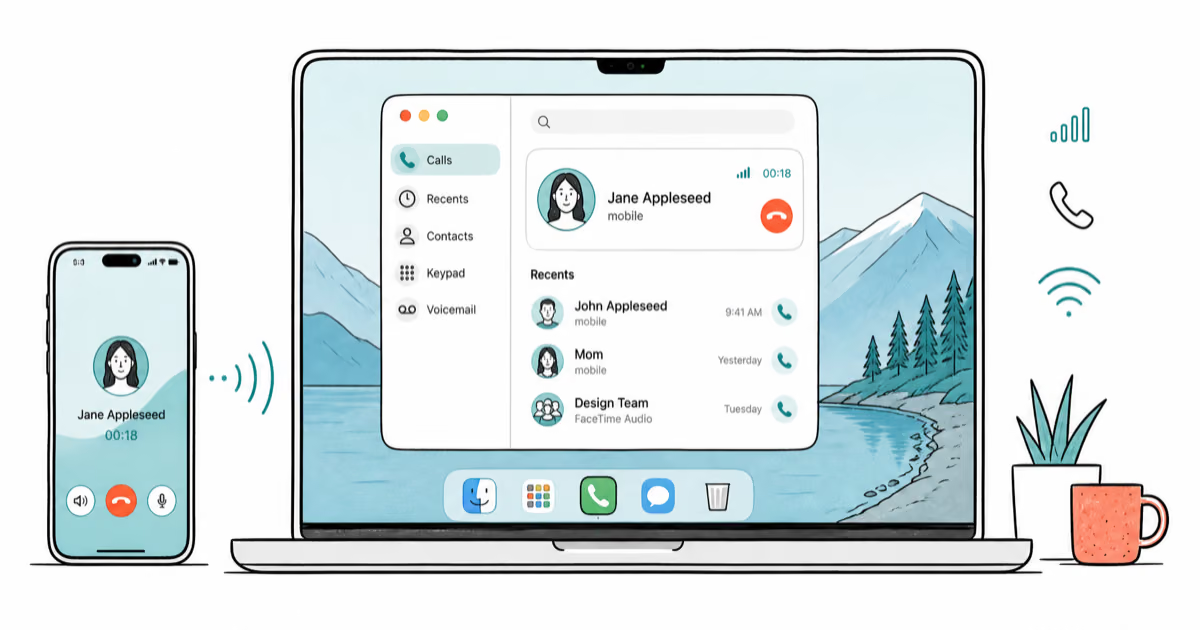
How to Use the Phone App on Mac: macOS Tahoe Setup Guide
Set up the Phone app on macOS Tahoe to relay iPhone cellular calls. Covers requirements, FaceTime setup, Call Screening, and common firewall fixes.
5 Best iPhone File Manager Apps for Windows and Mac
The 5 best iPhone Explorer alternatives for Windows and Mac in 2026. Compare iMazing, AnyTrans, iExplorer, iFunBox, and FileApp with current pricing.