How to Use the Phone App on Mac: macOS Tahoe Setup Guide
Set up the Phone app on macOS Tahoe to relay iPhone cellular calls. Covers requirements, FaceTime setup, Call Screening, and common firewall fixes.
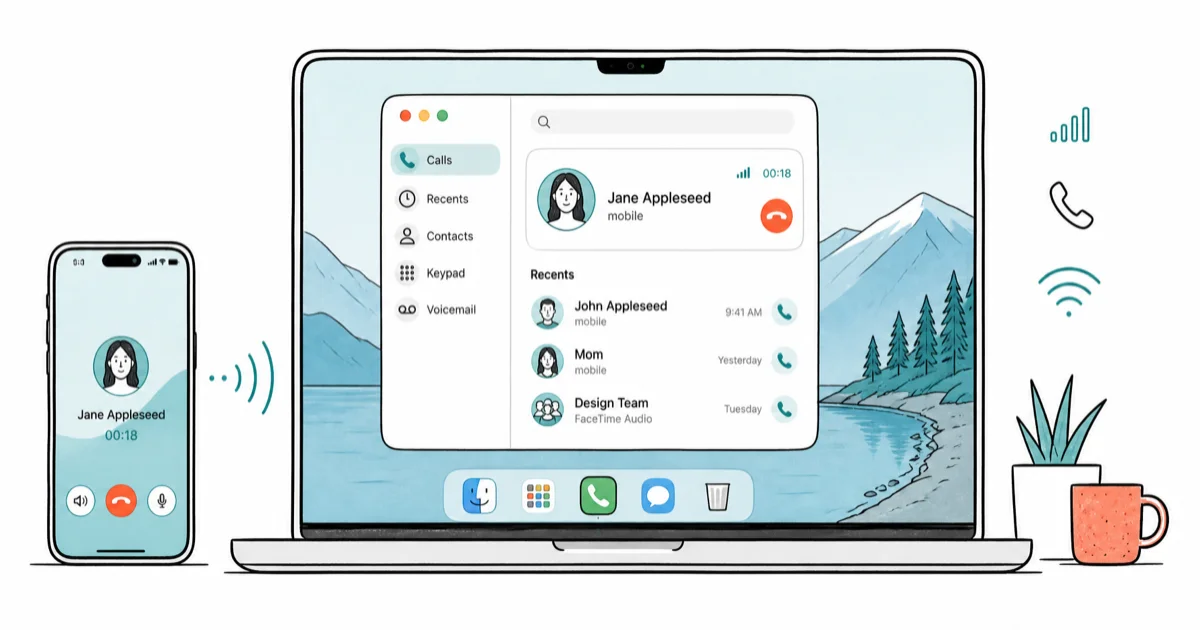
Quick AnswermacOS Tahoe 26 adds a Phone app that relays your iPhone's cellular calls to the Mac via Continuity. Sign in to the same Apple Account on both, turn on Calls on Other Devices, then open Phone from the Mac's Dock.
The Phone app on Mac arrived with macOS Tahoe 26 in 2025, letting you place and answer iPhone cellular calls from a dedicated Mac window. Setup depends on two Continuity toggles: one on the iPhone and one in FaceTime settings on the Mac.
- macOS Tahoe 26 adds a standalone Phone app that ships in the Mac’s Dock; earlier macOS versions only answered calls through FaceTime
- The Mac and iPhone must be signed into the same Apple Account with two-factor auth and connected to the same Wi-Fi network
- Setup is two toggles: iPhone Settings → Apps → Phone → Calls on Other Devices, then Mac FaceTime → Settings → Calls from iPhone
- New Tahoe-only features include Call Screening (filters unknown callers), Hold Assist (holds your spot in a phone queue), and Live Translation (real-time spoken translation)
- If outgoing calls fail silently, add the Phone app under System Settings → Network → Firewall → Options before further troubleshooting
#What Is the Phone App on macOS Tahoe?
macOS Tahoe’s new Phone app is a standalone Mac application that relays your iPhone’s cellular calls to a dedicated window. According to Apple’s What’s new in macOS Tahoe 26 page, the app is “powered by Continuity” and uses the iPhone as the cellular bridge.
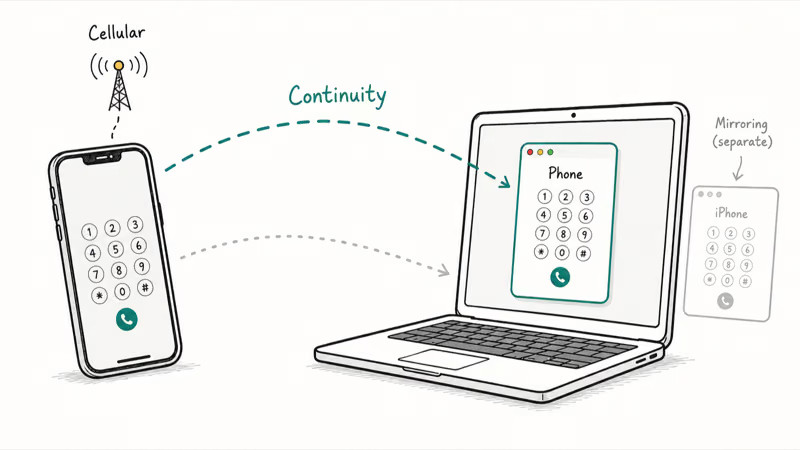
Before Tahoe, answering an iPhone call on a Mac required the FaceTime app, which felt awkward for voice calls and offered no keypad for dialing out.
Phone and iPhone Mirroring are separate features that share the Continuity stack but solve different problems. Mirroring opens a window that streams your locked iPhone’s screen to the Mac so you tap and scroll the phone remotely.
The Phone app keeps its own keypad, Recents, Contacts, and Voicemail tabs. Our iPhone Mirroring guide covers the other feature.
AppleInsider’s WWDC25 Phone app preview reported that the addition closes a gap that had bothered users for years: Continuity already let calls ring on a Mac, but there was no dedicated app to start a call from. The Tahoe Phone app fixes that.
#What You Need Before the Phone App Will Work
The standalone Phone app has a strict version floor and four other Continuity prerequisites. Miss one and the app either fails to appear in the Dock or rings on the iPhone but not the Mac.
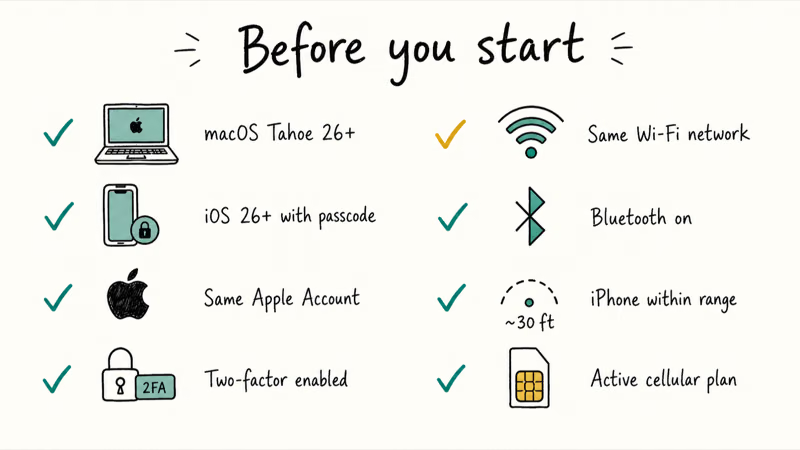
Required setup on both devices:
- Mac on macOS Tahoe 26 or later for the standalone Phone app; macOS Sequoia 15 only offers call-answering through FaceTime
- iPhone on iOS 26 or later with a passcode set
- Same Apple Account on both devices, with two-factor authentication enabled
- Wi-Fi turned on on both devices, connected to the same network
- Bluetooth on for the initial Continuity handshake
- iPhone powered on, charged, and close enough for Continuity to maintain the local connection
- Active cellular plan on the iPhone (the Phone app relays cellular calls, not VoIP)
Apple’s call-relay setup guide states that the iPhone needs iOS 8.1 or later for the legacy FaceTime-based answering path, but the dedicated Phone app on Mac requires the Tahoe and iOS 26 generation specifically. If your Mac is on Sonoma or Sequoia, you’ll still get incoming-call notifications via FaceTime, but no Phone icon in the Dock.
#How Do You Set Up the Phone App on Your Mac?
Setup is two toggles plus one app launch. The iPhone toggle authorizes call relay; the Mac toggle tells FaceTime to relay calls from your iPhone; the Phone app appears in the Dock automatically once both are on.
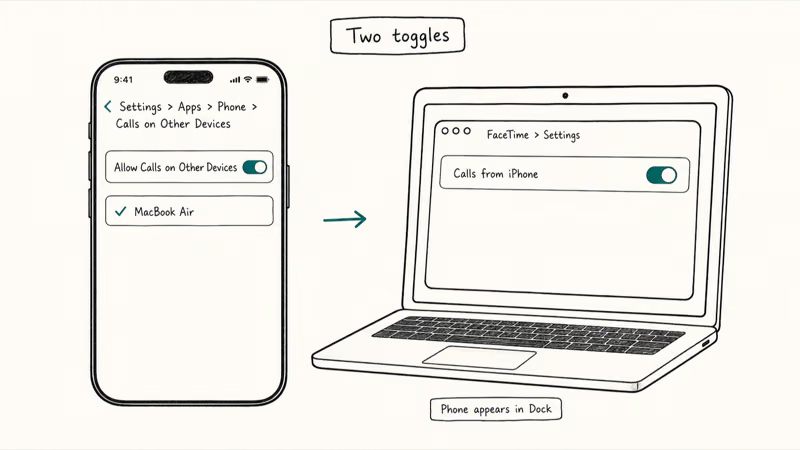
On your iPhone:
- Open Settings.
- Tap Apps, then Phone, then Calls on Other Devices.
- Toggle Allow Calls on Other Devices on.
- In the device list below, enable your Mac.
On your Mac:
- Open FaceTime.
- From the menu bar, choose FaceTime → Settings.
- Confirm FaceTime is signed in with the same Apple Account as your iPhone.
- Make sure your phone number appears under “You can be reached for FaceTime at” and “Start new calls from”.
- Turn on Calls from iPhone.
The Phone app icon should appear in the Mac’s Dock after the relay settings are enabled. If the app doesn’t appear, sign out of your Apple Account on the Mac and sign back in; stale device-list entries can block Continuity discovery.
#Making and Answering Calls From Your Mac
To make a call, open Phone, then use Keypad, Contacts, or Recents.
You can also right-click any phone number in Contacts, Calendar, Messages, Search, or Safari and choose to call. Apple’s Phone App User Guide for Mac confirms that the same keypad, voicemail, and call-history surfaces from iOS appear in the Mac app.
Incoming calls show as a banner notification on your Mac. Click Accept to take the call on the Mac, Decline to send it to voicemail, or click the down-arrow next to Accept for options like Reply with Message or Remind Me. If you pick up the iPhone physically mid-call, the audio routes back to the iPhone and the Mac window closes the call session, so handing off mid-conversation works the other direction too.
Recents on the Mac mirrors your iPhone’s call log; for cleanup steps, see our iPhone call history guide. Voicemails play in the Voicemail tab with the same iOS transcript view.
#Call Screening, Hold Assist, and Live Translation Explained
Three Tahoe-only features set the Phone app on Mac apart from the older FaceTime-based call-answering path.
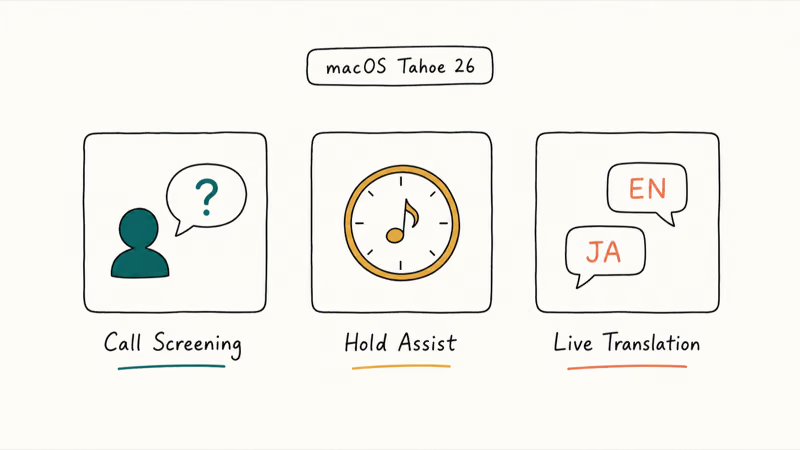
Call Screening filters calls from unknown numbers. Apple’s macOS Tahoe marketing page confirms that the feature “finds out who’s calling and why. Once the caller shares their name and the reason for their call, your phone rings.” In practice, when an unknown number calls, the Mac shows a quiet notification that lets the caller leave a name and a short reason without ringing through. You can pick up if it sounds important or let it go to voicemail.
Hold Assist keeps your place in a customer-service queue. Tap it when the hold music starts; the Mac rings you back when a real person picks up.
Live Translation provides real-time spoken translation between languages during a call. Apple’s “What’s new in macOS Tahoe 26” page notes that the feature works “entirely on-device” through Apple Intelligence, which means your Mac and iPhone must both support Apple Intelligence and have it enabled. Live Translation is not available on Intel Macs or on iPhones older than the iPhone 15 Pro line, since Apple Intelligence requires Apple Silicon and an A17 Pro or newer chip.
#Troubleshooting When the Phone App Won’t Connect
Three failure modes account for almost every Phone app issue. Each maps to a specific check.
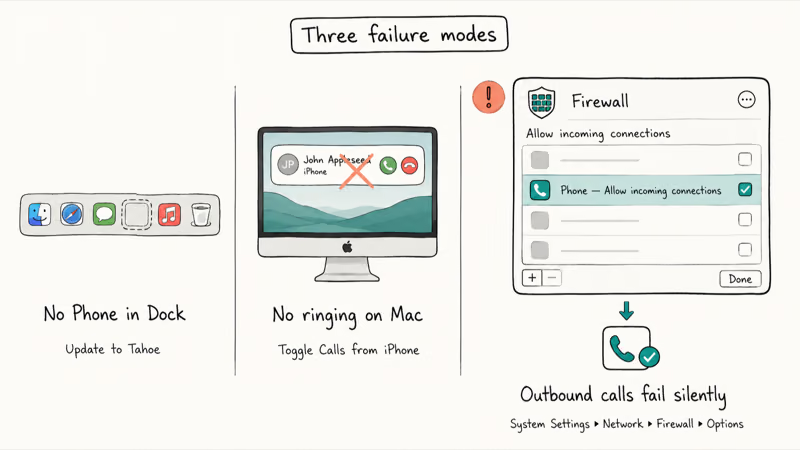
- Phone app missing from the Dock: you’re still on macOS Sequoia or earlier. The standalone Phone app is a Tahoe addition. Update to macOS Tahoe 26 or use FaceTime to answer calls until you can.
- No incoming-call notification on the Mac: open FaceTime → Settings and confirm Calls from iPhone is on. Also confirm both devices are on the same Wi-Fi network and signed into the same Apple Account. If those are clean, restart both devices, then re-toggle Calls on Other Devices on the iPhone.
- Outgoing calls to non-Apple numbers fail silently: macOS Firewall can block the Phone app when strict rules are enabled. Open System Settings → Network → Firewall → Options, scroll to the Phone app, and set it to Allow incoming connections before testing another call.
If calls drop mid-conversation, the iPhone is likely losing Bluetooth or Wi-Fi. The Phone app uses Wi-Fi for the audio stream and Bluetooth for the initial Continuity handshake, so both radios need to stay available.
For deeper iPhone-side issues, see our iPhone call failed checklist for carrier and SIM-level fixes. If AirDrop and Handoff also act up, our AirDrop troubleshooting guide covers the shared network issues.
#Bottom Line
If your Mac is on macOS Tahoe 26 and your iPhone is your primary phone, turn on Calls on Other Devices in iPhone Settings, sign FaceTime into the same Apple Account, and toggle Calls from iPhone. The Phone app can then relay calls from the Dock during work hours.
Skip the setup if you’re still on Sequoia or if your iPhone is a backup device that often sits in another room. The Phone app is a Continuity relay, not a replacement, so the iPhone has to be powered on and close enough for local Continuity features to work.
One last warning: if you’ve ever hardened macOS Firewall, add the Phone app to the allow list before your first outbound call, or it will fail silently with no diagnostic clue.
Mac Tips & Tricks
#Frequently Asked Questions
Do I need iPhone Mirroring to use the Phone app on Mac?
No. The Phone app and iPhone Mirroring are separate features that both run on top of Continuity. You can use the Phone app without ever enabling Mirroring, and the Phone app does not open a mirror of your iPhone screen.
What version of macOS adds the standalone Phone app?
The standalone Phone app on Mac was added in macOS Tahoe 26 in 2025. Earlier macOS versions, including Sequoia and Sonoma, only let you answer iPhone calls through the FaceTime app. There is no way to install the Tahoe Phone app on an older macOS version.
Why don’t I see incoming iPhone calls on my Mac?
The most common cause is that Calls from iPhone is off in FaceTime → Settings on the Mac. Open FaceTime, choose FaceTime → Settings, and confirm the toggle is on. Also check that both devices are signed into the same Apple Account and on the same Wi-Fi network. If everything looks correct, sign out of your Apple Account on the Mac and sign back in to refresh the Continuity device list.
Can I use the Phone app on Mac without an iPhone nearby?
No. The Phone app is a relay that uses your iPhone as the cellular bridge. If the iPhone is powered off, in Airplane mode, or outside Continuity range, the Mac has no way to send or receive cellular calls.
Does the Phone app on Mac work over Wi-Fi only or cellular too?
The Mac talks to the iPhone over Wi-Fi using local Continuity protocols, not over cellular. The iPhone still places and receives the actual call over its cellular signal. Both devices have to be on the same Wi-Fi network for the relay to work; the Mac itself does not need any cellular plan.
Why does the firewall block my outgoing calls to non-Apple numbers?
macOS Firewall can block the Phone app’s outbound connections if you’ve enabled “Block all incoming connections” or a strict allow-list policy. Open System Settings → Network → Firewall → Options, find the Phone app in the list, and switch its rule to allow connections before testing another outbound call.
Is Live Translation in the Phone app available everywhere?
Live Translation requires Apple Intelligence, which runs only on Apple Silicon Macs and on iPhones with the A17 Pro chip or newer. Apple Intelligence also has region limits at rollout that vary by country. Check System Settings → Apple Intelligence & Siri to confirm both your Mac and Apple Account region support the feature before relying on it.
Can I use the Phone app from a Windows PC instead?
No. The Phone app and Continuity calling are Mac-only. Windows users who want cross-device messaging can route through Microsoft Phone Link or third-party tools; our iMessage on Windows guide covers the closest practical workarounds for messages, but no consumer tool relays iPhone cellular voice calls to a Windows PC.

macOS 27 Golden Gate: Release Date and Compatible Macs
macOS 27 Golden Gate was announced at WWDC 2026. Here is the release date, the Apple Silicon-only compatible Mac list, and every confirmed new feature.
How to Copy and Paste on a Mac: Shortcuts and Fixes
Copy and paste on a Mac with Command-C and Command-V. Learn the cut shortcut, paste without formatting, Universal Clipboard, and fixes when it breaks.
How to Use iPhone Mirroring on Mac: Full 2026 Setup Guide
Set up iPhone Mirroring on macOS Sequoia with iOS 18. Covers hardware requirements, the six common error messages, EU limits, and a shared-Mac privacy fix.

6 Best iPhone File Manager Apps for Windows and Mac
The 6 best iPhone Explorer alternatives for Windows and Mac in 2026. Compare iMazing, AnyTrans, iExplorer, and iFunBox to pick the right iOS file manager.