iCloud Storage Full: 7 Ways to Free Up Space Quickly
Fix iCloud storage full on iPhone and iPad with 7 proven methods. Covers backups, photos, Messages, and paid plans. Works on iOS 17 and later.
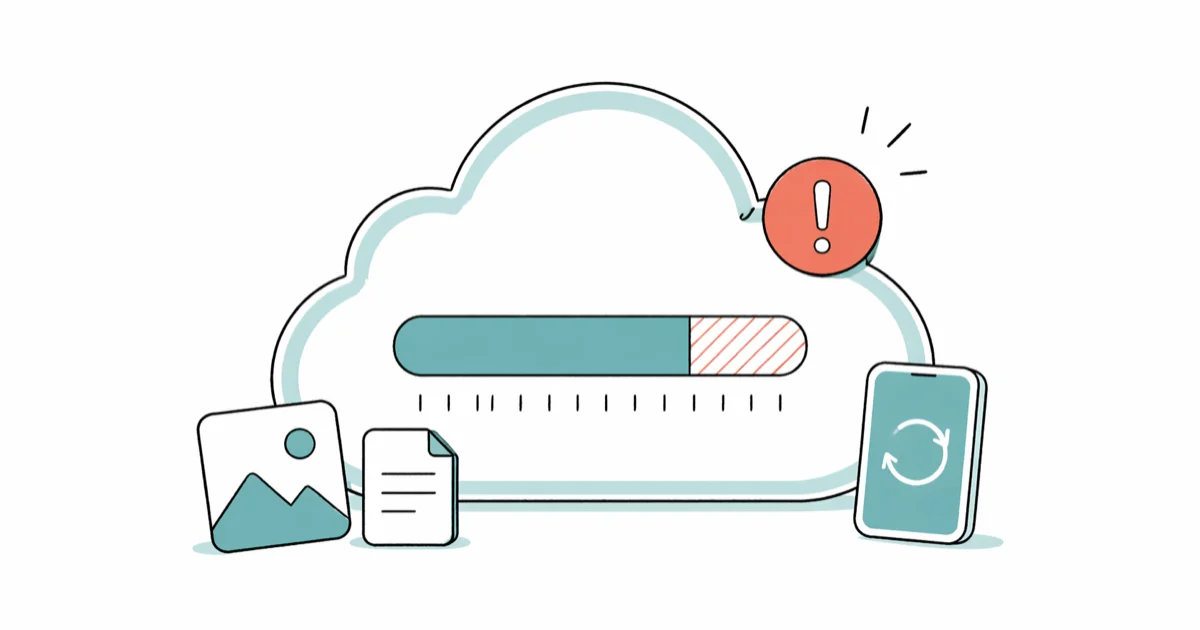
Quick AnswerOpen Settings, tap your name, tap iCloud, then tap Manage Account Storage. Delete old device backups first because they typically eat the most space. Tap a backup, then tap Delete Backup to reclaim the room.
iCloud’s free 5 GB tier fills up fast. Once it’s full, backups stall, photos stop syncing, and the alert won’t go away. The fastest fix is deleting old device backups, which usually claws back 1 to 4 GB in under three minutes.
- Delete old device backups first; they consume the most space and take two minutes to clear
- Turn off iCloud Backup for apps that don’t need it, like games and streaming services
- Move photos to a computer or Google Photos before deleting them from iCloud Photos
- Check Messages attachments because long iMessage threads can hide hundreds of megabytes of video
- Upgrade to iCloud+ 50 GB for $0.99 a month if manual cleanup isn’t enough
#What Causes a Full iCloud Account?
Most people are surprised by what’s actually using their space.
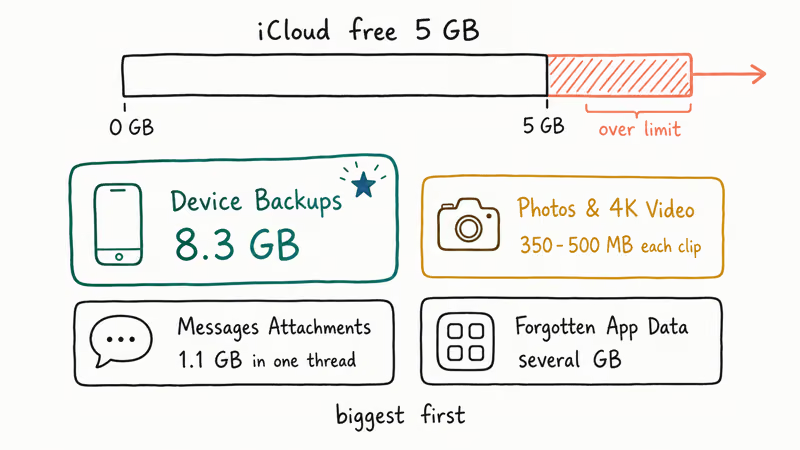
Device backups are the biggest culprit. Each iPhone backup runs roughly 2 to 6 GB depending on how full the device is, and old backups from phones you no longer own may still be sitting there. It’s common to find several stale backups from a retired iPhone or iPad quietly eating 8 GB or more.
That alone exceeds the free tier.
Photos and videos rank second. iCloud Photos stores originals at full resolution, and a single 4K video from a modern iPhone runs about 350 to 500 MB. One weekend trip can swallow a full gigabyte before you notice.
Messages with attachments come third. iMessage threads quietly accumulate photos, videos, and voice memos. A single busy three-year thread can hold more than a gigabyte of attachments on its own.
App data takes fourth.
Every app with iCloud Backup turned on writes to your quota, and apps you stopped using still back up on a schedule. A device with 50 active apps can carry several gigabytes of forgotten data, most of which you’ll never restore.
According to Apple’s iCloud storage guide, open Settings > [your name] > iCloud, then tap Storage or Manage Account Storage to review backups and other iCloud data.
#How to Check What’s Using Your iCloud Storage
Open Settings, tap your name at the top, tap iCloud, then tap Manage Account Storage. Review the storage details shown for your account. That single screen is where every cleanup decision starts.
Tap any item for a deeper view. Under Backups you’ll see each device on its own line. Tap a backup and you’ll see exactly which apps inside it are taking space, which is often the most useful single screen on iOS for storage diagnosis.
#How to Delete Old iCloud Backups
This is the fastest win for most readers.
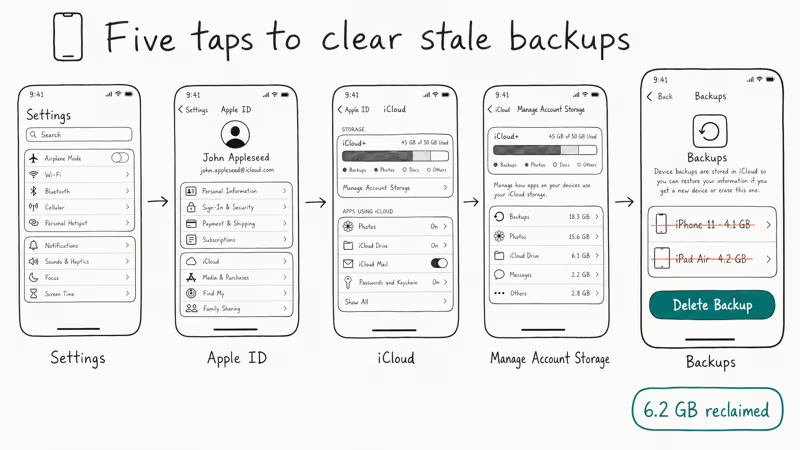
From Manage Account Storage, tap Backups. You’ll see every device backup linked to your Apple ID, including phones and tablets you no longer own. Tap a backup to see its size and the date it last updated.
Tap Delete Backup, then confirm.
The space returns immediately. Removing a couple of stale backups from old devices can reclaim several gigabytes in under three minutes. Keep at least one current backup for your active device, because deleting your current iPhone’s backup means no recovery point if the device fails or you reset it.
If you’ve already deleted photos to make room and they didn’t reappear in your active library, our guide on recovering deleted photos from iPhone covers the recovery options before they’re gone for good.
#Does Turning Off iCloud Photos Free Up Storage?
Yes, but only if you delete the photos from iCloud afterward.
Turning off iCloud Photos in Settings > [your name] > iCloud > Photos stops new uploads, but it doesn’t remove anything already stored in iCloud. To actually reclaim that space, delete photos directly from the Photos app while iCloud Photos is still on, then empty the Recently Deleted album.
According to Apple’s iCloud Photos guide, deleted photos stay in Recently Deleted for 30 days before they’re permanently deleted.
Before deleting large batches of photos from iCloud, back them up first.
Our guide on deleting iPhone photos permanently walks through the cleanest way to do that, and skipping the backup step is a common regret in iCloud cleanup threads on the Apple Community forum, where users routinely post asking how to recover photos they only meant to take off iCloud while keeping a local copy. Always make a copy before you bulk delete, even if it adds 10 minutes.
#How to Reduce App Backup Size
Some apps add hundreds of megabytes to your iCloud Backup without giving anything useful in return.
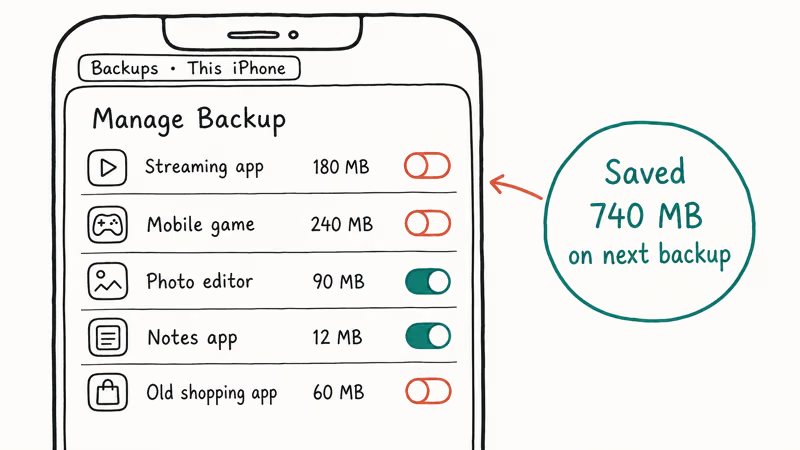
Open Settings, tap your name, tap iCloud, tap Manage Account Storage, then tap your current device backup. You’ll see a list of apps with backup sizes shown beside each one. Toggle off any app that doesn’t need cloud backup. Games are usually the best candidates because most modern games sync progress to a publisher account anyway.
Turning off backup for an app also removes that app’s existing backup data from iCloud.
The same Apple storage guide states that confirming Turn Off disables iCloud Backup for that app and removes all of its information from iCloud. Make sure you don’t need that backup data before you confirm.
#How to Clear Messages Attachments in iCloud
iCloud Drive stores iMessage attachments when Messages in iCloud is enabled, and a few years of group chats can quietly add several gigabytes.
In the Messages app, open a conversation thread and scroll to the very top. Tap the contact name or group title, then tap the Info button. Scroll down to Photos, then to Links and Attachments. Long-press any item and tap Delete to remove it, or tap See All Photos and use the Select button to bulk-delete in batches of 30 to 50.
Focus on video clips first. They’re the heavyweights at 10 to 100 MB per clip, and a long-running family group chat can hold well over a gigabyte of them, stretching back years and untouched for months, so clearing those alone often frees the most space in the shortest time.
If iMessage itself isn’t delivering on top of the storage problem, our companion guide on how to fix iPhone not receiving texts covers the network side of the issue.
#When to Upgrade to iCloud+
Manual cleanup has limits. If you regularly shoot 4K video, run multiple Apple devices on one Apple ID, or want a complete device backup for everything you own, 5 GB simply won’t last.
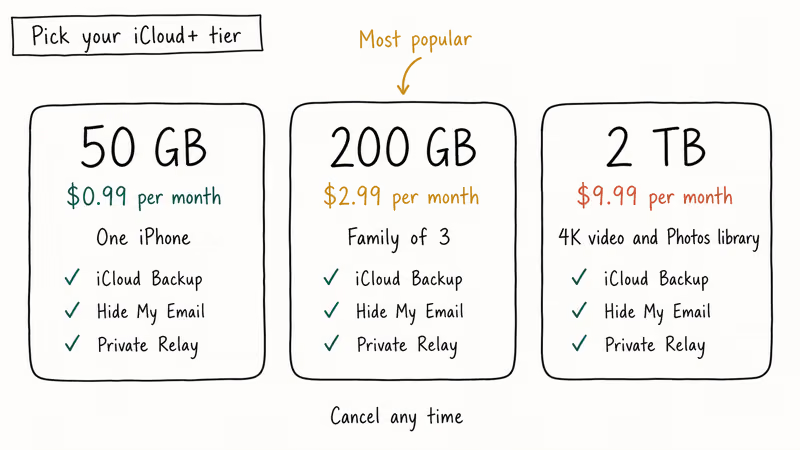
Apple’s iCloud+ plans start at $0.99 a month for 50 GB. The 200 GB plan at $2.99 a month works for families sharing storage across two or three devices. The 2 TB plan at $9.99 a month is built for heavy 4K video shooters and Photos libraries with a decade of history. To change plans, go to Settings > [your name] > iCloud > Manage Account Storage > Change Storage Plan.
Refunds prorate automatically.
According to Apple’s iCloud+ overview, the paid tiers also include Hide My Email, Private Relay, and a custom email domain on top of the storage bump. That makes the 50 GB plan a fair value even if you only need a couple extra gigabytes. If you ever lose access while juggling family Apple IDs, our iCloud login finder guide walks through the recovery options.
#Bottom Line
Delete old device backups first. That’s where the bulk of your space is hiding, and the fix takes two minutes. If you’re still over the limit after that, clear Messages attachments and review Photos next. Most people land back under 5 GB once they’ve cleaned out backups from devices they no longer own.
Only upgrade if manual cleanup didn’t get you there.
Most of the 5 GB problem is old data you can clear for free in 15 minutes.
If clearing storage doesn’t fix your sync issues, the problem is somewhere else; our guide on iCloud contacts not syncing covers that specific service, and our guide on iCloud notes not syncing handles Notes.
#Frequently Asked Questions
Why is my iCloud storage still full after deleting photos?
Photos sit in Recently Deleted for 30 days before iCloud releases the space. Open the Photos app, go to Albums, scroll down to Recently Deleted, then tap Select followed by Delete All. The bar in Manage Account Storage usually updates within a few minutes after that. If it still shows full, force a sync by toggling iCloud Photos off and back on.
How do I free up iCloud storage without deleting anything?
Upgrade your storage plan. Go to Settings > [your name] > iCloud > Manage Account Storage > Change Storage Plan and pick 50 GB for $0.99 a month. There’s no compression option for what’s already stored, so paying for more room is the only path that doesn’t involve removing files.
Does deleting an iCloud backup delete my iPhone data?
No. Deleting an iCloud backup only removes the backup copy stored on Apple’s servers. Your photos, apps, contacts, and messages stay on the device itself.
What happens when iCloud storage is full?
Backups, Photos, and Notes stop syncing.
You’ll see a banner alert that says “iCloud Storage Full” and a notification that your last backup couldn’t complete. Other iCloud-backed apps like Reminders, Voice Memos, and Health also pause updates across your devices. Freeing space or upgrading restores syncing automatically within minutes; you don’t need to manually retry the failed backup.
How much iCloud storage do I really need?
For one iPhone with full backup, 50 GB covers most users; for families or 4K shooters, jump to 200 GB.
Can I move iCloud photos to Google Photos to free up space?
Yes. Install the Google Photos app, sign in with a Google account, and let it back up the camera roll. Once every photo appears in Google Photos, open the iPhone Photos app, delete the camera roll, and empty Recently Deleted.
Why does iCloud say storage is full but I can’t find what’s using it?
App data stored in iCloud Drive doesn’t always show up in the main Manage Storage view. Go to Settings > [your name] > iCloud > iCloud Drive and look at the per-app list. Tap a noisy app and delete its stored documents one at a time. Old PDFs, scanned receipts, and abandoned project files often hide a surprising amount of space there.
Does buying a new iPhone give me more iCloud storage?
No. iCloud storage is tied to your Apple ID, not your hardware. A new iPhone uses the same 5 GB free tier or whatever paid plan you’re already on. You’ll need to manage or upgrade storage no matter which device sets it up first.

Mac mini M6 vs M5 Pro: Which Model Should You Buy?
Mac mini M6 vs M5 Pro compared on price, memory, ports, displays, and real workloads. Find the better 2026 Mac mini for your desk and budget.

Apple Siri Settlement: Who Qualifies and How to Claim
Apple's $250 million Siri settlement covers iPhone 15 Pro and iPhone 16 models bought June 2024 to March 2025. See who qualifies and how claims work.

iOS 26.6.1 Security Update: What Apple Fixed and Who Gets It
Apple released iOS 26.6.1 on August 17 with 29 security fixes, including an IPSec interception bug. See what it patches, who gets it, and how to update.

iPhone Adaptive Power: How It Works and When to Use It
Learn how iPhone Adaptive Power works, which models support it, what it changes, and when Low Power Mode is still the better battery-saving choice.