Mac Stuck on Apple Logo: 7 Fixes That Actually Work
Fix a Mac stuck on the Apple logo with 7 safe methods. Covers Safe Mode, NVRAM, Disk Utility, Recovery Mode, and when to call Apple Support.
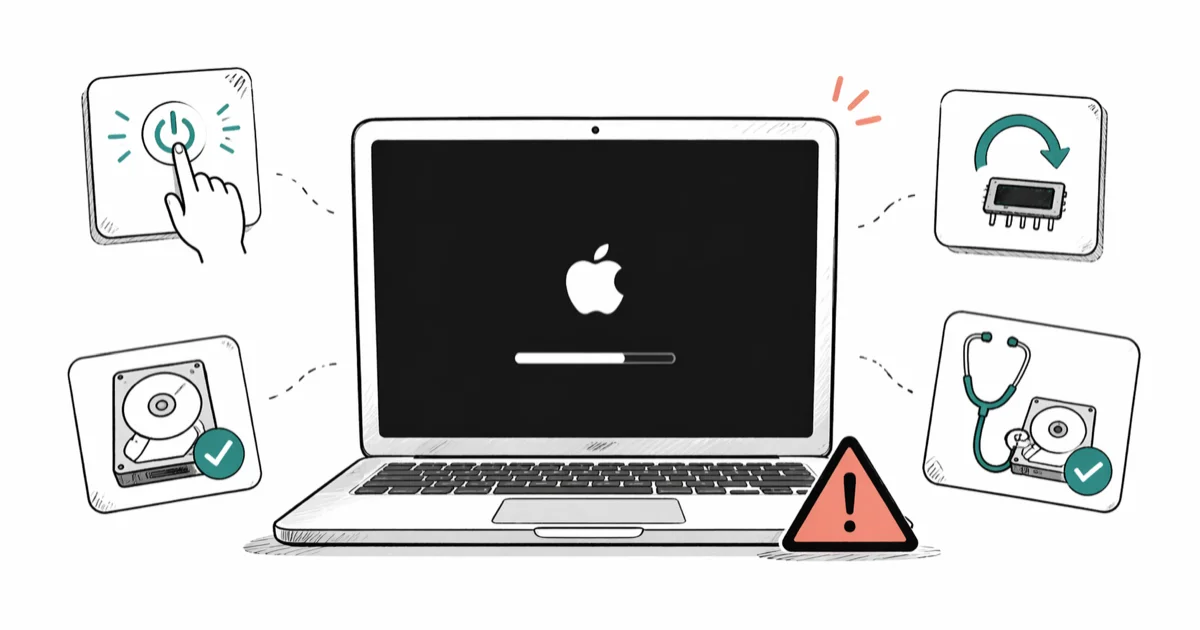
Quick AnswerForce restart your Mac by holding the power button for 10 seconds, then boot into Safe Mode. If that fails, repair the startup disk with Disk Utility from Recovery Mode and reinstall macOS without erasing your files.
Your Mac is frozen on the Apple logo and the fan keeps spinning. This is one of the most common Mac boot failures, and it usually points to a stalled macOS update, a corrupted system file, or a third-party kernel extension that broke after an OS upgrade. Software fixes should come before any hardware swap unless Apple Diagnostics reports a real failure.
- A force restart (hold power for 10 seconds) clears most temporary boot hangs and is always the safe first step
- Safe Mode bypasses third-party login items and runs an automatic disk check that fixes many post-update freezes
- NVRAM reset clears corrupted startup disk and display settings on Intel Macs only; Apple Silicon Macs reset NVRAM automatically
- Disk Utility First Aid in Recovery Mode repairs file system errors without touching your personal files
- Run Apple Diagnostics before paying for any repair so you don’t replace healthy parts based on guesswork
#Why Does Your Mac Get Stuck on the Apple Logo?
The Apple logo screen appears the moment your Mac finds a startup disk and begins loading macOS. According to Apple’s Mac startup process guide, a freeze at this stage means something interrupted that loading sequence after the firmware handed control to the operating system.
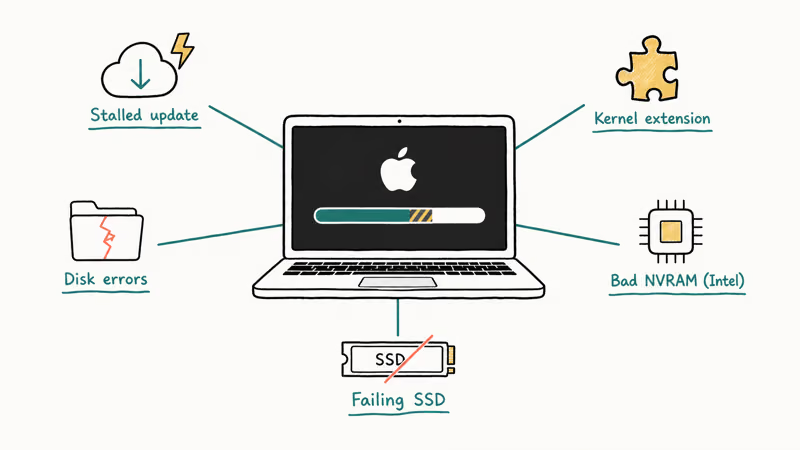
Power loss during a macOS update is the usual trigger.
Other causes include incompatible third-party kernel extensions after a major OS upgrade, a startup disk with file system errors, corrupted NVRAM settings on Intel Macs, and, more rarely, a failing internal SSD. Software fixes resolve the freeze in most cases. Hardware replacement should be the last option after Apple Diagnostics points to a real failure.
#Try a Force Restart First
Hold the power button for 10 seconds until the screen goes dark. Wait another 10 seconds, then press the power button to start back up. That’s it.
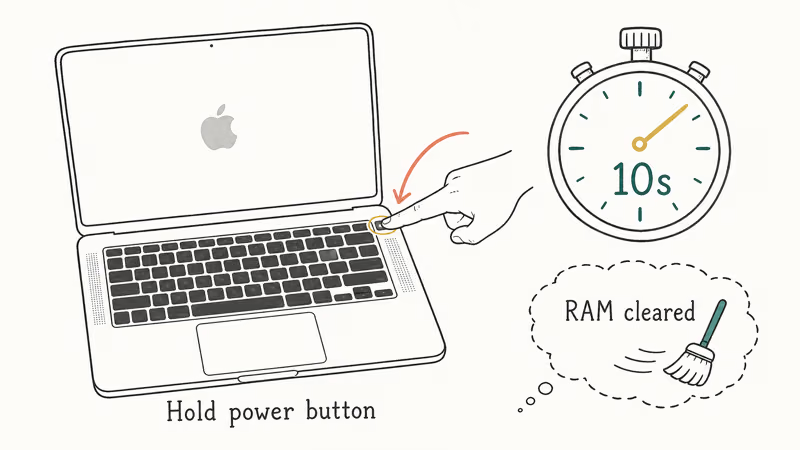
A force restart clears a transient software hang and gives macOS a clean boot attempt.
If the Mac freezes on the Apple logo again after the restart, move on to Safe Mode. Don’t keep force-restarting in a loop, since you can corrupt the startup disk further if a write was in progress.
#How Do You Boot Into Safe Mode on a Mac?
Safe Mode loads only the kernel extensions Apple ships with macOS, skips your login items, and runs an automatic disk check on the startup volume. It’s the single most effective software fix for the Apple logo freeze.
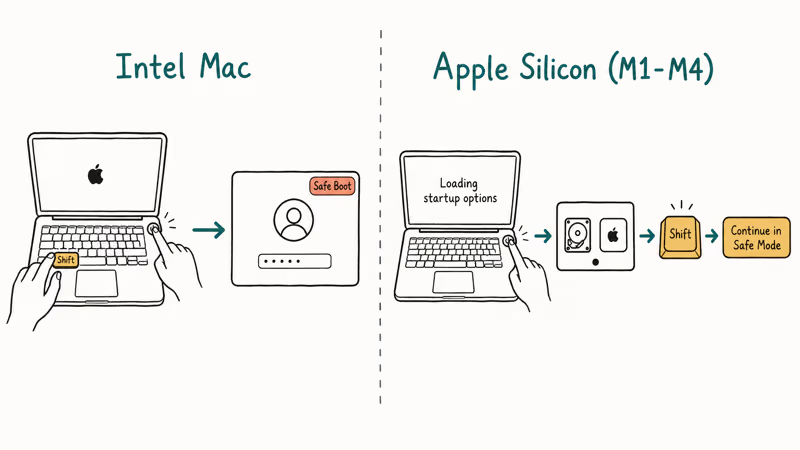
On Intel Macs: Shut down completely. Press the power button, then immediately hold the Shift key until the login window appears.
On Apple Silicon Macs (M1, M2, M3, M4): Shut down. Press and hold the power button until “Loading startup options” appears. Click your startup disk, hold Shift, and select “Continue in Safe Mode.”
The first Safe Mode boot can take 2 to 5 minutes longer than a normal startup because macOS is verifying the disk in the background. If Safe Mode succeeds after a stalled update, restart normally and watch whether the Apple logo freeze returns.
If Safe Mode boots cleanly, restart normally. If the freeze comes back, open System Settings > General > Login Items and disable every non-Apple item, then restart again. Persistent freezing after a Safe Mode boot points to a disk or system-file issue that needs Recovery Mode. Display flickering after a successful Safe Mode boot is a separate symptom covered in our MacBook Pro screen flickering guide.
#Reset NVRAM on Intel Macs
Corrupted NVRAM can point an Intel Mac at the wrong startup volume.
This step is for Intel Macs only. Apple Silicon Macs reset NVRAM automatically on every restart, so skip ahead if you have an M1, M2, M3, or M4 model.
Hold Option + Command + P + R for 20 seconds.
Apple’s NVRAM and PRAM reference confirms that the reset clears 5 startup-related settings: startup disk selection, display resolution, kernel panic information, time zone, and recent volume settings. After the reset, reopen System Settings and reconfigure those values if anything changed.
#Repair the Startup Disk With Disk Utility
If Safe Mode and the NVRAM reset didn’t help, the startup disk likely has file system errors that prevent macOS from finishing its boot. Disk Utility’s First Aid scan repairs these errors without erasing data.
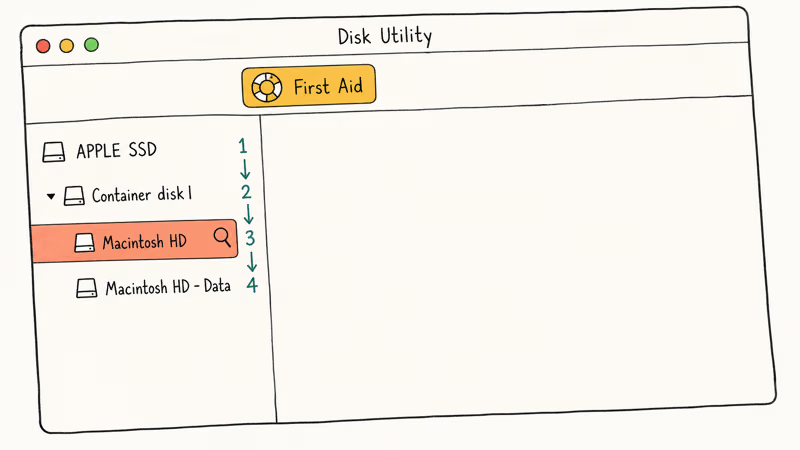
Boot into Recovery Mode.
- Intel Macs: Shut down, press the power button, then immediately hold Command + R until the Apple logo or a spinning globe appears.
- Apple Silicon: Shut down, press and hold the power button until “Loading startup options” appears, click “Options,” then “Continue.”
Inside macOS Recovery, choose Disk Utility, click View > Show All Devices, select your physical disk (usually “APPLE SSD” at the top of the list), and click First Aid. Run First Aid on the physical disk first, then on each container and volume below it. The full scan takes 5 to 20 minutes depending on disk size.
First Aid can repair minor APFS catalog errors that stop macOS from finishing startup. If it reports a clean repair, restart the Mac and check whether the Apple logo freeze clears.
If First Aid reports errors it can’t fix, your drive may be failing. Stop further repair attempts, back up whatever you can read, and move on to Apple Diagnostics. If your MacBook is not turning on at all, the troubleshooting starts before the Apple logo screen and that guide covers earlier hardware checks.
#Reinstall macOS Without Erasing Your Files
If the disk is healthy but macOS itself is corrupted, reinstall the operating system from Recovery Mode. The reinstall replaces system files only and leaves your documents, apps, and user accounts intact.
Back up first if you possibly can. A reinstall is low-risk, but any process that writes to the startup volume carries some chance of going wrong. If your Mac will boot into Recovery, you can copy files to an external drive from Recovery’s Terminal. Or boot into another Mac via Target Disk Mode (Intel) or Mac Sharing Mode (Apple Silicon) and pull anything irreplaceable off the drive before you continue.
Boot into Recovery using the steps above, select Reinstall macOS, and follow the prompts. Apple’s reinstall macOS guide states that reinstalling macOS can take 30 to 90 minutes and writes only the operating system, leaving your user data untouched. The installer downloads a fresh copy of the same macOS version from Apple’s servers, so the time depends on your network speed.
If the Apple logo freeze returns after a clean reinstall, the issue is almost certainly hardware. A failed macOS installation that couldn’t be completed often shares the same root causes and the steps in that guide complement this one.
#Reset the SMC for Power-Related Boot Failures
SMC handles power, fans, charging, and sleep. This Intel-only reset is for power-related boot failures.
MacBooks with the T2 chip: Shut down. Press and hold the right Shift, left Option, and left Control keys for 7 seconds. Without releasing, also hold the power button for 7 more seconds, then release everything and start the Mac normally.
Mac desktops (iMac, Mac mini, Mac Pro): Shut down, unplug the power cord, wait 15 seconds, plug it back in, wait 5 more seconds, then press the power button. Apple’s SMC reset reference confirms this resolves charging, fan, and boot sequence issues caused by power-management state corruption. If your Mac shows a black screen instead of the Apple logo, the same SMC reset is the right first move.
#Run Apple Diagnostics Before Replacing Hardware
If every software fix has failed, run Apple Diagnostics before booking a repair. The built-in test runs in 2 to 5 minutes and tells you exactly which subsystem is failing, so you don’t pay to replace healthy parts.
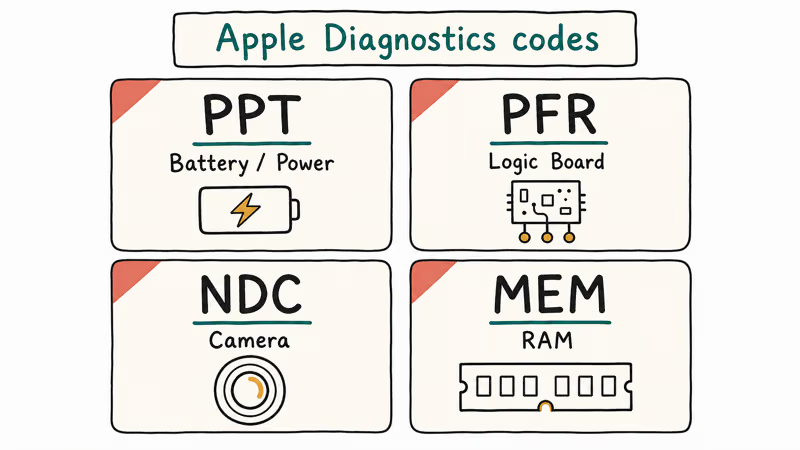
Disconnect every external device except a wired keyboard, mouse, and power adapter. Then:
- Intel Macs: Shut down, press the power button, and immediately hold the D key until a progress bar or language selector appears.
- Apple Silicon: Shut down, press and hold the power button until “Loading startup options” appears, then press Command + D.
Write down every reference code shown. “PPT” codes mean a power or battery issue, “PFR” points to the logic board or firmware, “NDC” is the camera, and “MEM” is RAM. Apple recommends sharing these reference codes with Apple Support when you book a repair, since the technician can pre-stage parts and shorten your service time.
Apple Diagnostics is worth running before any payment is made because reference codes can point the repair toward memory, power, firmware, camera, or logic-board issues. The same Apple logo freeze can also occur on iOS, and our iPhone stuck on Apple logo guide uses different keystrokes for the same diagnostic logic.
#When to Take Your Mac to Apple Support
Stop here if Apple Diagnostics reports hardware.
Check your coverage at About This Mac > Service before paying for any third-party repair. Replacing parts yourself voids the warranty and rarely costs less than a Genius Bar visit. Apple’s flat-rate logic-board repair often beats independent shops on price for newer Apple Silicon models because the chip is soldered.
Persistent crashes after the Apple logo issue is resolved deserve a separate look. Our Mac keeps crashing guide covers post-recovery stability problems.
#Bottom Line
Force-restart, boot to Safe Mode, then run Disk Utility First Aid from Recovery Mode. None of those steps erase your data, and they cover the most common software causes before you move to reinstalling macOS or paying for hardware repair. Reinstall macOS only after the disk passes First Aid, back up first whenever possible, and run Apple Diagnostics before agreeing to any paid hardware repair so you don’t replace parts that are still healthy.
Mac Tips & Tricks
#Frequently Asked Questions
Will I lose my data if my Mac is stuck on the Apple logo?
No. Your files stay on the startup disk through every step in this guide because none of them erase user data. Data loss only happens if the drive is physically failing or you choose Erase Disk inside Disk Utility.
How long should I wait before force-restarting?
Wait at least 30 minutes if a progress bar is visible under the Apple logo, even one that looks stuck. Some macOS updates write hundreds of files in long pauses and the bar can sit at the same position for 10 minutes. If the bar hasn’t moved in half an hour, it’s safe to hold the power button.
Can a bad RAM module cause the Apple logo freeze?
Yes, faulty RAM can prevent macOS from finishing its boot. Apple Diagnostics returns “MEM” or “PFM” reference codes when memory is the issue. On the few Mac models with user-upgradable RAM, you can test by removing one stick at a time. Apple Silicon Macs have RAM soldered into the SoC, so only Apple can service it.
Does resetting NVRAM erase any personal data?
No. NVRAM only stores startup disk choice, display resolution, kernel panic flags, and time zone. Your files, apps, and macOS user accounts are stored on the SSD and are completely separate from NVRAM.
What if my Mac gets stuck on the Apple logo right after a macOS update?
Boot into Safe Mode first. Safe Mode runs an automatic disk check, clears the dynamic loader cache, and skips third-party login items, which fixes most post-update boot failures without any further action. If Safe Mode succeeds, restart normally. If it doesn’t, run Disk Utility First Aid from Recovery.
Should I take my Mac to Apple Store if these fixes don’t work?
Yes, especially with AppleCare or a hardware code.
Can I get my files off a Mac that won’t boot past the Apple logo?
Yes. Boot the unresponsive Mac into Target Disk Mode (Intel: hold T during startup) or Mac Sharing Mode (Apple Silicon: boot to Recovery, then choose “Share Disk”). Connect it to a working Mac with a Thunderbolt or USB-C cable and the drive mounts as an external disk. You can copy any readable file off the drive before any deeper repair.
How do I prevent this from happening again?
Keep at least 15 percent free space on the startup disk, run Time Machine backups to an external drive, and wait one to two weeks after a major macOS release before installing it on your main machine. Day-one upgrades are where most stalled-update freezes happen, and Apple typically ships a follow-up patch within the first two weeks.
macOS 27 Golden Gate: Release Date and Compatible Macs
macOS 27 Golden Gate was announced at WWDC 2026. Here is the release date, the Apple Silicon-only compatible Mac list, and every confirmed new feature.
How to Copy and Paste on a Mac: Shortcuts and Fixes
Copy and paste on a Mac with Command-C and Command-V. Learn the cut shortcut, paste without formatting, Universal Clipboard, and fixes when it breaks.
How to Use the Phone App on Mac: macOS Tahoe Setup Guide
Set up the Phone app on macOS Tahoe to relay iPhone cellular calls. Covers requirements, FaceTime setup, Call Screening, and common firewall fixes.
How to Use iPhone Mirroring on Mac: Full 2026 Setup Guide
Set up iPhone Mirroring on macOS Sequoia with iOS 18. Covers hardware requirements, the six common error messages, EU limits, and a shared-Mac privacy fix.