How to Copy and Paste on a Mac: Shortcuts and Fixes
Copy and paste on a Mac with Command-C and Command-V. Learn the cut shortcut, paste without formatting, Universal Clipboard, and fixes when it breaks.

Quick AnswerPress Command-C to copy and Command-V to paste on a Mac. Use Command-X to cut, and Option-Shift-Command-V to paste without the original formatting.
Copy and paste on a Mac with Command-C to copy and Command-V to paste. If you just switched from Windows, old Ctrl-C and Ctrl-V habits are usually why nothing happens. The Mac puts those shortcuts on the Command key (⌘) instead.
- Command-C copies, Command-V pastes, and Command-X cuts on every Mac
- Option-Shift-Command-V pastes text without the source formatting
- Control-click a selection to copy or paste from the menu instead
- Universal Clipboard copies on your iPhone and pastes on your Mac
- Ctrl-C does nothing on a Mac because shortcuts use Command, not Control
#The Basic Copy and Paste Shortcuts
Highlight what you want, press Command-C, click where it should go, then press Command-V. That single pair handles text, images, files in Finder, and links across nearly every app. The ⌘ key sits next to the space bar.
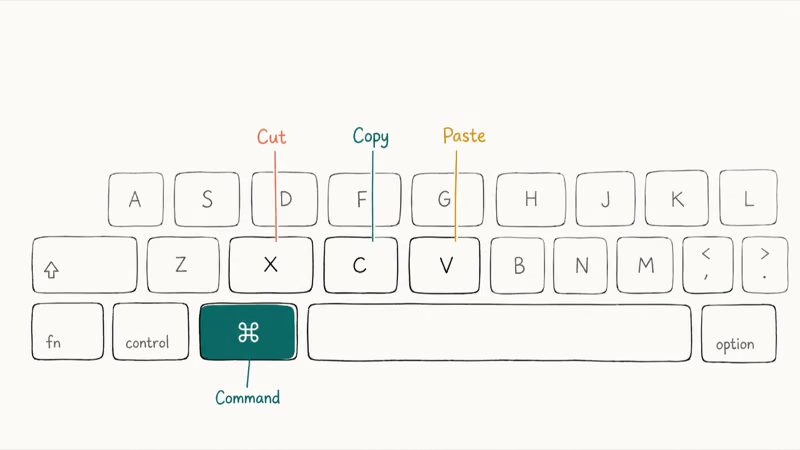
Command-C and Command-V behave consistently across common Mac apps and Finder: selected text, images, links, and files can be copied, then pasted wherever the destination accepts them. To cut instead of copy, press Command-X, which lifts the original out and holds it on the clipboard until you paste.
Apple’s copy and paste guide states that you can trigger 4 keyboard actions: copy, cut, paste, and paste-and-match-style. Each also has a menu and a Control-click equivalent.
Prefer menus? Every app keeps these commands under the Edit menu in the bar at the top of the screen, with each shortcut printed right beside its command so you can learn the combo while you work.
#Is It Control or Command to Copy on a Mac?
It’s Command, not Control. This is the single biggest source of confusion for people moving from a PC, where the same actions live on the Ctrl key.
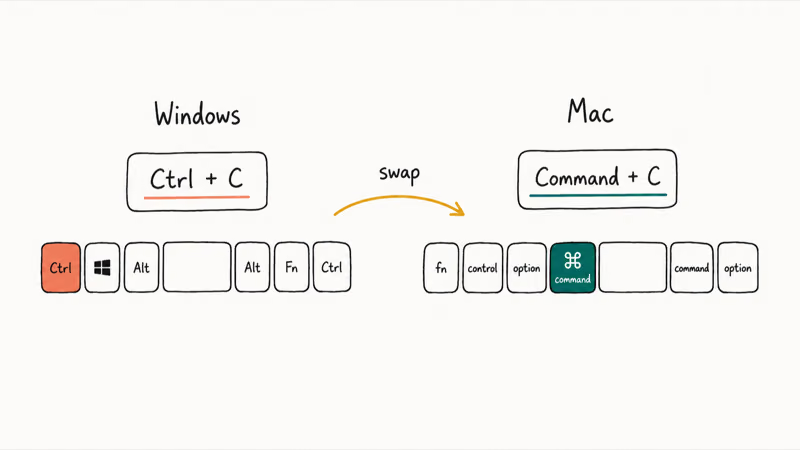
Pressing Ctrl-C on a Mac usually does nothing in text fields. That’s why a fresh switcher thinks copy and paste is broken. The Mac reserves Control for other tasks, like Control-click to open a shortcut menu. Apple’s Mac keyboard shortcuts page confirms that the standard editing combos all start with Command.
Here’s the quick map from Windows habits to Mac reality.
| Action | Mac shortcut | Windows equivalent |
|---|---|---|
| Copy | Command-C | Ctrl-C |
| Cut | Command-X | Ctrl-X |
| Paste | Command-V | Ctrl-V |
| Paste without formatting | Option-Shift-Command-V | Ctrl-Shift-V |
| Select all | Command-A | Ctrl-A |
Keep the ⌘ symbol in mind whenever a guide tells you to press Ctrl. Swap in Command and the instruction almost always works. This one swap is the first thing to check when copy and paste seems broken after moving from Windows.
#Copying and Pasting With the Trackpad
Use Control-click, the Mac version of a right-click. Hold the Control key while you click, or tap with two fingers on the trackpad, and a menu appears.
That menu has Copy when text is selected and Paste when your cursor sits in an editable spot. It’s the same menu you’d get from a mouse with a right button. Want a true two-button feel? Turn on secondary click under System Settings > Trackpad, and a two-finger tap then behaves like a right-click everywhere, in every app.
Trackpad copy and paste is slower than the keyboard. It can still be useful when dragging text between two windows side by side, because the hands are already there.
#Pasting Without the Original Formatting
Press Option-Shift-Command-V to paste plain text that matches the style of wherever it lands. Apple labels this “Paste and Match Style.” It strips the source font, color, and size.
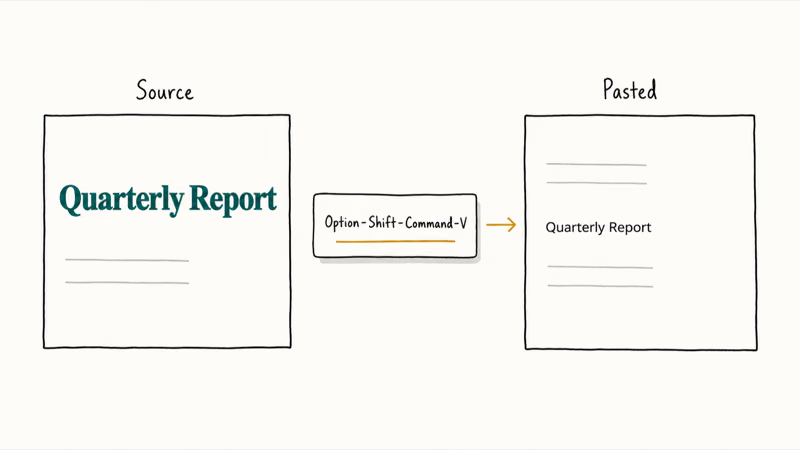
Most basic guides skip this shortcut. Power users reach for it daily. Copy a bold blue headline from a web page, paste it into an email with Option-Shift-Command-V, and it arrives in your email’s normal text style instead of clashing.
A few apps swap the exact keys or hide the command behind a different label. When the shortcut does nothing, open the Edit menu and look for “Paste and Match Style” to see the combo that app uses. In Google Docs, the same shortcut may work, but the Edit menu is the reliable place to confirm the app’s exact command.
#Can You Copy on iPhone and Paste on Mac?
Yes. Universal Clipboard, part of Apple’s Continuity features, lets you copy text, an image, or a file on one Apple device and paste it on another signed in to the same Apple Account.
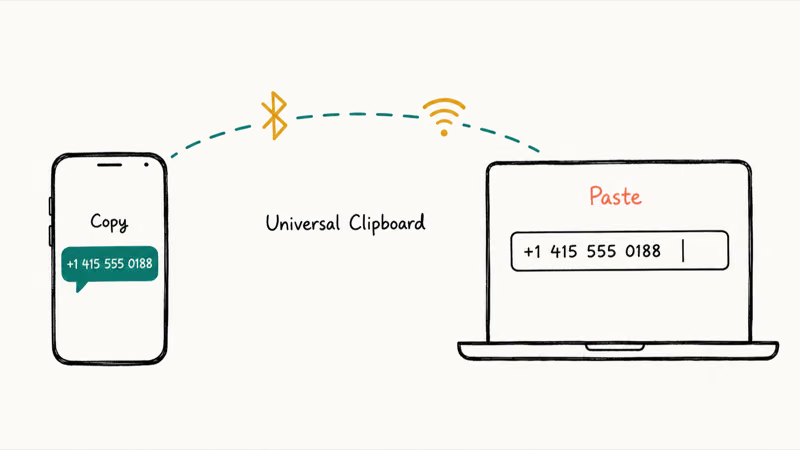
Copy a phone number on your iPhone, switch to your Mac, and press Command-V. When Universal Clipboard is set up correctly, the content lands in whatever field your cursor is sitting in on the Mac. No cable, no AirDrop prompt, no extra app.
Apple’s Universal Clipboard guide states that 4 conditions must be true for it to work: the devices sit near each other, share the same Apple Account, have both Bluetooth and Wi-Fi turned on, and have Handoff enabled. Handoff is the one most people forget exists, but it’s on by default, so you’ll rarely have to dig into Settings to switch it back on yourself.
Stopped working? Toggle Bluetooth off and on, then confirm both devices share one Apple Account. For more cross-device tricks, see the guides on how to use the Phone app on Mac and getting text messages on Mac.
#When Copy and Paste Stops Working on Your Mac
A stuck process is the usual culprit, and a quick restart fixes it. Copy and paste runs through a background service called pboard, which sometimes hangs after a system update.
Start small and work up. Quit and reopen the app where paste fails. If that doesn’t help, restart the Mac to clear the clipboard service. When the shortcut is dead but the Edit menu still works, you’re dealing with a remapped or stuck key, not the clipboard.
Two more checks worth running:
- Confirm you’re pressing Command, not Control or Option.
- Test copy and paste in a different app to see if the problem is app-specific.
For a deeper walkthrough of clipboard restarts and Terminal fixes, read the companion guide on copy and paste not working on Mac. A sluggish Mac can also starve these services, so clearing your cache often helps.
If the keys themselves feel wrong, the piece on Ctrl Alt Del on Mac covers force-quitting frozen apps that block input.
#Bottom Line
Use Command-C to copy, Command-V to paste, and Command-X to cut. Reach for Option-Shift-Command-V when you want clean text with no leftover formatting, and lean on Universal Clipboard when you copy something on your iPhone and want it on your Mac. If a shortcut suddenly dies, restart the app first, then the Mac.
Mac Tips & Tricks
#Frequently Asked Questions
What’s the copy and paste shortcut on a Mac?
Command-C copies and Command-V pastes. These work in nearly every Mac app, including Finder for files. The Command key (⌘) sits right next to the space bar.
Why isn’t copy and paste working on my Mac?
Usually a stuck clipboard service is to blame. Quit and reopen the app where paste fails, and if that does not clear it, restart your Mac to reset the background pboard process. Also double-check that you are pressing Command rather than Control, since that single mistake breaks the shortcut entirely for people coming from Windows.
How do I paste without formatting on a Mac?
Press Option-Shift-Command-V. Apple calls it Paste and Match Style, and it strips the original font, size, and color so the text blends in. If the shortcut does nothing in one app, check that app’s Edit menu for its own combo.
Can I copy on my iPhone and paste on my Mac?
Yes, through Universal Clipboard. Copy on the iPhone, then press Command-V on the Mac. Both devices need the same Apple Account, Bluetooth, Wi-Fi, and Handoff.
How do I copy and paste with the trackpad?
Control-click or tap with two fingers to open the shortcut menu, then pick Copy or Paste. It’s the Mac equivalent of a right-click. You can turn on a dedicated secondary click under System Settings > Trackpad if you’d rather have a true right-side button that works in every app and document you open.
Is it Control or Command to copy on a Mac?
It’s Command. Ctrl-C does nothing in most Mac text fields, which trips up nearly every Windows switcher. Swap in Command wherever a guide says Ctrl, and the shortcut works.
What does Command-X do versus Command-C?
Command-X cuts, while Command-C copies. Cutting lifts the original out and stores it on the clipboard for pasting, which makes it the right choice when you want to move text or a file rather than duplicate it. Copying always leaves the original exactly where it was, so reach for Command-C whenever you need the content in two places at once.

macOS 27 Golden Gate: Release Date and Compatible Macs
macOS 27 Golden Gate was announced at WWDC 2026. Here is the release date, the Apple Silicon-only compatible Mac list, and every confirmed new feature.

How to Use the Phone App on Mac: macOS Tahoe Setup Guide
Set up the Phone app on macOS Tahoe to relay iPhone cellular calls. Covers requirements, FaceTime setup, Call Screening, and common firewall fixes.
How to Use iPhone Mirroring on Mac: Full 2026 Setup Guide
Set up iPhone Mirroring on macOS Sequoia with iOS 18. Covers hardware requirements, the six common error messages, EU limits, and a shared-Mac privacy fix.
6 Best iPhone File Manager Apps for Windows and Mac
The 6 best iPhone Explorer alternatives for Windows and Mac in 2026. Compare iMazing, AnyTrans, iExplorer, and iFunBox to pick the right iOS file manager.