MacBook Pro Screen Flickering: 8 Fixes Before Repair
Fix MacBook Pro screen flickering safely. 8 staged fixes from SMC and NVRAM reset to flex-cable diagnosis. Back up first, escalate to Apple if needed.
Quick AnswerOn an Intel MacBook, reset the SMC and NVRAM and disable automatic graphics switching to clear most flickering. On Apple Silicon Macs, a 30-second power-off cycle followed by a Safe Mode boot covers the same ground because macOS resets SMC and NVRAM at every shutdown.
MacBook Pro screen flickering almost always falls into a small handful of buckets: a software glitch macOS can clear with one reset, a graphics-switching conflict on dual-GPU Intel models, or a worn display flex cable that movement of the lid exposes. Most flickering MacBooks clear up with this kind of staged triage and never need a panel replacement.
This guide goes in the order a technician would use it: cheap reversible checks first, software resets, hardware diagnostics, and a clear escalation path. Run the steps in sequence and stop the moment your screen stabilizes.
- A backup is your cheapest insurance: copy Documents and Desktop to an external drive before NVRAM, SMC, or Safe Mode resets. The resets shouldn’t touch user data, but a failing SSD can corrupt files mid-reset.
- Apple Silicon Macs (M1, M2, M3, M4) can’t reset SMC or NVRAM manually because macOS handles both at every shutdown. Only Intel MacBooks benefit from the keyboard combinations below.
- Plug in an external monitor first. If the external display stays stable while the built-in panel flickers, the issue is the screen or its flex cable, not the GPU.
- Run Apple Diagnostics (D on Intel, hold power on Apple Silicon) before paying for any repair. A clean ADP000 result means the hardware is fine and the fix is software.
- Out-of-warranty Apple repair quotes vary widely by model and finding, so always book a free Genius Bar diagnostic and get the reference code in writing before authorizing a panel or logic-board swap.
#What Causes MacBook Pro Screen Flickering?
Screen flickering on a MacBook Pro falls into four buckets, and the symptom pattern tells you which one. According to Apple’s Mac startup process guide, display output depends on three subsystems handing off cleanly: firmware power management, the macOS GPU driver, and the panel cable that physically connects the logic board to the screen. A glitch in any of the three can produce flicker, and the fix depends on which one.
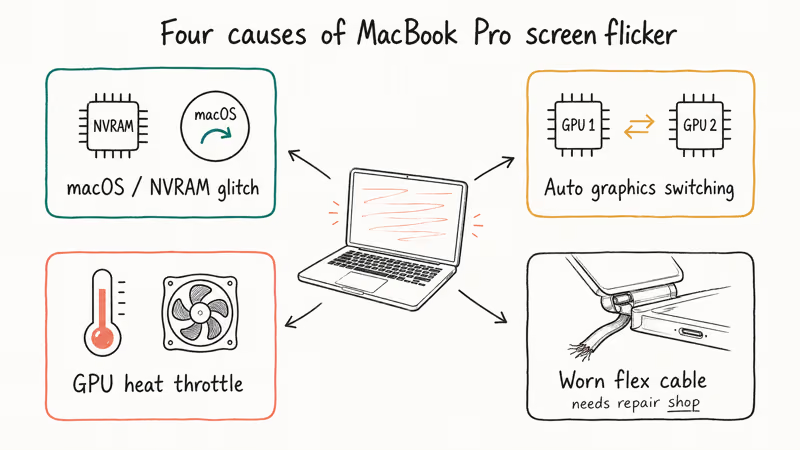
The four root causes, in roughly the order they show up most often:
- Buggy macOS update or display setting stored in NVRAM. Most common. Cleared by a point update or NVRAM reset.
- Automatic graphics switching on dual-GPU Intel models. Common on 15-inch and 16-inch Intel Pros. Cleared by disabling the setting.
- Heat throttling during heavy GPU load. The flicker gets worse during video edits and disappears after the laptop cools. Cleared by improving airflow.
- Worn display flex cable in the hinge. Hardware. Pattern matches lid angle. Needs a repair shop.
The first three are software and reversible. The fourth is hardware and the only category that absolutely needs paid service. Knowing which bucket you’re in saves the hour you’d waste resetting NVRAM on a frayed cable problem.
#Back Up Before You Reset Anything
Run Time Machine to an external SSD or copy your Documents and Desktop folders to a known-good drive before any of the resets below. Apple’s reinstall macOS guide confirms that NVRAM, SMC, and Safe Mode resets don’t touch user data, but a panel or backlight failure can be the visible symptom of a deeper logic-board issue, and a flickering MacBook can degrade into intermittent boot failures within the same week.
If the panel flickers so heavily you can’t see Finder, plug in an external monitor first (covered below) and run the backup from there.
#Software Fixes That Solve Most Flickering
The order matters. Each fix takes a few minutes, leaves no permanent change to user data, and rules out a category before you move on.
#Fix 1: Update macOS
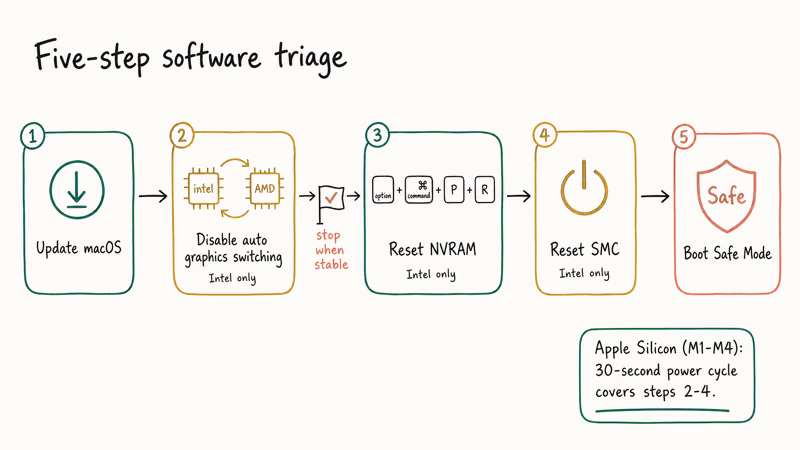
Outdated system software is a common flickering trigger because Apple ships GPU driver patches inside minor macOS releases. Open Apple menu > System Settings > General > Software Update and install whatever’s offered. According to Apple’s macOS release notes, display-driver fixes show up in most point updates, so even a 14.5 to 14.5.1 bump can clear a flicker that started after a major upgrade.
If your MacBook has other connectivity issues after updating, our AirDrop not working guide walks through related post-update troubleshooting.
#Fix 2: Disable Automatic Graphics Switching (Intel Only)
This applies to Intel MacBook Pros with both integrated and discrete GPUs (the 15-inch and 16-inch 2014 to 2019 models). When macOS swaps between the two GPUs, the handoff can produce a one-frame flicker that becomes constant under load.
Open System Settings > Battery (or System Preferences > Energy Saver on macOS 12 and earlier) and uncheck Automatic graphics switching.
Your MacBook will use the discrete GPU full-time, which drains the battery faster but eliminates the flicker. The setting only appears on machines with dual graphics, so M1 and M2 owners won’t see it.
#Fix 3: Reset NVRAM/PRAM (Intel Only)
NVRAM stores display resolution, brightness, and startup-disk settings. Corrupted values here can cause persistent flickering after a kernel panic or interrupted shutdown. Apple’s NVRAM and PRAM reference states that the reset clears 5 startup-related settings: startup-disk selection, display resolution, time zone, kernel-panic information, and recent volume settings.
Shut down your MacBook, press the power button, then immediately hold Option + Command + P + R for about 20 seconds. You’ll hear the startup chime twice on pre-2018 models. Release and let it boot normally, then reopen System Settings > Displays to confirm resolution and color profile.
On Apple Silicon, skip this. macOS resets NVRAM at every shutdown.
#Fix 4: Reset the SMC (Intel Only)
The SMC controls power delivery, including the display backlight. A corrupted SMC can cause flickering after sleep/wake cycles.
Apple’s startup troubleshooting page limits the SMC-reset step to older Intel-based Macs and says you don’t need to do it on a Mac with Apple silicon. Use the keyboard sequences below only for the Intel models they describe.
For Intel MacBooks with a non-removable battery, shut down, then press and hold Shift + Control + Option on the left side of the keyboard plus the Power button for 10 seconds. Release all keys and press the power button to start up.
T2 MacBooks (2018 to 2020 Intel models) need a 2-step process: 7 seconds on Control, Option, and Shift, then 7 more seconds with the power button added.
On a T2-era Intel MacBook Pro that flickers after every wake-from-sleep, the T2 SMC reset often clears the issue on its own, with no other change needed. Because the T2 chip manages power delivery to the display backlight, a corrupted power-management state is a common reason the screen misbehaves only after the machine returns from sleep rather than at a cold boot.
For M1 and later, shut down and wait 30 seconds before restarting. That single power cycle is the SMC equivalent.
#Fix 5: Boot Into Safe Mode
Safe Mode loads only the bare-minimum kernel extensions, runs a directory check on your startup disk, and clears font and kernel caches. According to Apple’s Safe Mode reference, a successful Safe Mode boot tells you the issue is third-party software or a cache problem rather than the OS itself.
Intel Macs: shut down, then power on while holding Shift until the login screen appears.
Apple Silicon Macs: shut down, press and hold the power button until “Loading startup options” appears, select your startup disk, then hold Shift and click “Continue in Safe Mode.”
If the flickering stops in Safe Mode, restart normally and uninstall recently added apps one at a time. A third-party display calibration tool is a frequent culprit for intermittent flicker, and removing it usually makes the flicker disappear immediately.
#Hardware Diagnosis: Confirm Before You Pay
If software fixes don’t help, you have to test the hardware. The next two checks let you isolate panel, cable, and GPU before authorizing any repair.
#Run Apple Diagnostics
Disconnect everything except your charger, shut down, then power on while holding D (Intel) or holding the power button until “Loading startup options” appears (Apple Silicon). Select your language and let the diagnostic run for 2 to 5 minutes.
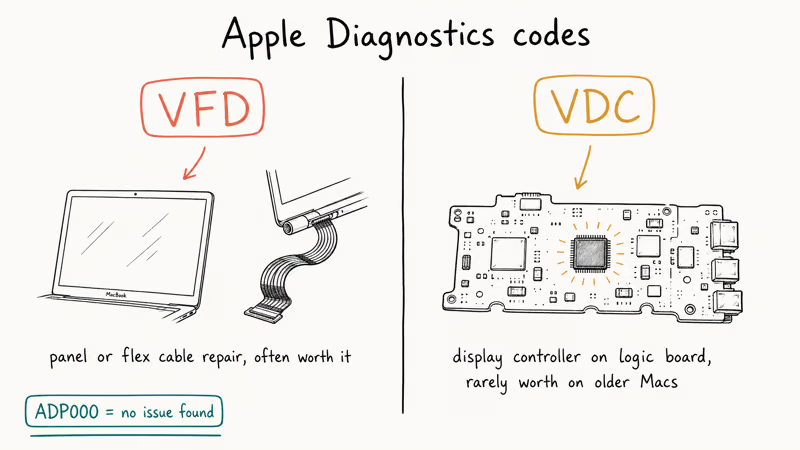
Write down any reference codes that appear. According to Apple’s diagnostics reference codes page, VFD codes point to display-panel or flex-cable problems, while VDC codes flag the display controller on the logic board. A VFD code on a 4-year-old MacBook usually means a worth-it cable repair, while a VDC code on a 6-year-old machine rarely justifies a logic-board swap.
#Check the Display Hinge and Flex Cable
Open the lid slowly from fully closed to fully open and watch for the flicker pattern. If the flicker gets heavier at one specific angle (especially past 90 degrees), a worn flex cable in the hinge is almost certainly the culprit.
This is hardware. No reset will fix it.
The 2016 and 2017 MacBook Pro models had a known flex-cable wear issue Apple eventually covered with a free repair program, and the same wear pattern still shows up on heavily used machines from later generations. The flex cable also runs near the connectors for your trackpad and camera, so check whether your trackpad and camera still respond normally while you’re troubleshooting. A multi-component failure often points to a single damaged ribbon rather than three separate problems.
#Can an External Monitor Help While You Troubleshoot?
Yes, in two ways. First, an external display lets you keep working while you schedule a repair: connect via USB-C or Thunderbolt and the Mac mirrors the desktop with no extra setup.
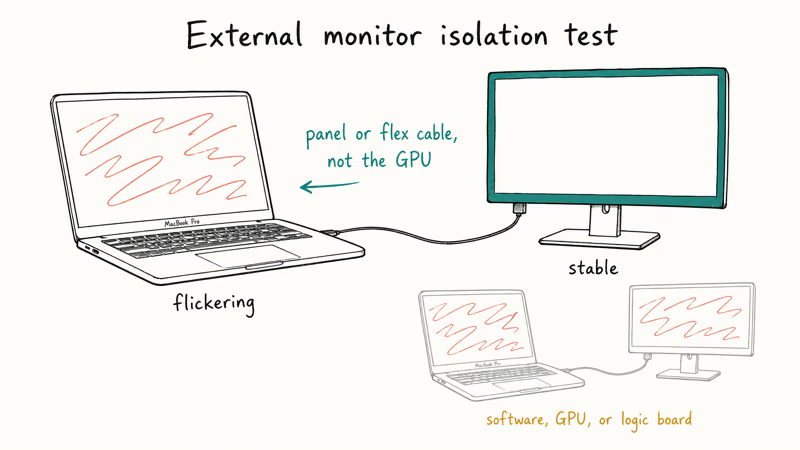
Second, the external monitor doubles as a diagnostic tool. If the external screen stays stable while the built-in panel flickers, the panel or its flex cable is the problem, not the GPU. If both screens flicker, you’re looking at a software, GPU, or logic-board issue.
On a MacBook Pro that flickers constantly, plugging in a known-good USB-C monitor quickly confirms whether the GPU is fine: if the external display stays stable, the fault is in the panel or its cable, not the GPU. Borrowing a friend’s monitor for the diagnostic is the cheapest hardware test in the whole troubleshooting flow.
#When to Get Apple or AppleCare+ Repair
Software flickering is free to fix. Hardware flickering rarely is, so escalate carefully.
If your MacBook is still under the standard 1-year warranty, AppleCare+, or one of Apple’s targeted repair programs, book a Genius Bar reservation before doing anything else. Bring your Apple Diagnostics reference code, the list of resets you’ve already tried, and a backup drive in case the technician needs to wipe the SSD. Leaning on Apple’s diagnosis catches the cheap flex-cable fix before someone tries to upsell the expensive one.
If the MacBook is out of warranty and Apple’s quote is steep, an authorized third-party repair shop is sometimes the right call. Two warnings before you book one: third-party repairs typically use non-original panels, and any repair that cracks the case can void Apple’s water-resistance certification on Retina displays. We don’t recommend opening a Retina MacBook yourself unless you’ve done it before. The display is glued, not screwed, and consumer-grade pry tools warp the bezel.
#How to Prevent Future Screen Flickering
Keep macOS current. Apple patches GPU driver bugs in most minor releases, and turning on System Settings > General > Software Update > Automatic Updates keeps you ahead of the bug fixes most likely to reach your hardware.
Avoid soft surfaces like beds and couches that block the rear vents. Heat buildup stresses the GPU. A 16-inch Pro running Final Cut on a duvet will get markedly hotter than the same machine on a cheap mesh stand under the same workload, since the stand keeps the rear vents clear.
Don’t install random display-management or screen-recording apps from unknown developers. These tools hook into low-level graphics APIs and conflict with macOS display drivers more often than the App Store reviews suggest. If a new tool starts a flicker, our Mac stuck on Apple logo and MacBook not turning on guides cover the recovery paths if a kext-style conflict turns into a boot loop.
For sluggish performance alongside flickering, check the MDS_stores process to rule out Spotlight indexing as the drain. Indexing on a failing SSD can mimic GPU stutter, and that pairing is worth ruling out before you spend money.
#Bottom Line
Start with a backup. Then run NVRAM and SMC resets on Intel models or a 30-second power cycle on Apple Silicon. Together they take under 5 minutes and clear most software-driven flickering.
If the screen stays unstable, plug in an external monitor to isolate panel from GPU, then run Apple Diagnostics. With the reference code in hand, take the MacBook to an Apple Store before authorizing any out-of-warranty repair. The free Genius Bar diagnosis catches the cheap flex-cable fix before someone tries to sell you a panel.
#Frequently Asked Questions
How much does Apple charge to fix a flickering MacBook Pro screen?
Apple’s quote depends on the model, the diagnostic finding, and whether you’re on AppleCare+. Apple’s repair pricing page shows current per-model rates, and a flex-cable repair is dramatically cheaper than a full panel or logic-board swap. Always book a free Genius Bar diagnosis before paying. The on-site reference code determines whether you need a cable repair or a much larger panel job, and that single piece of information is worth the appointment.
Can I keep using my MacBook with a flickering screen?
For minor flickering, short-term use won’t damage the hardware. But the eye strain is real, and a flicker getting worse week over week often hides a failing cable.
Why did my MacBook screen start flickering after a macOS update?
macOS updates ship GPU driver changes, and a new driver can conflict with display settings stored in NVRAM. Resetting NVRAM clears those settings on Intel models. On Apple Silicon a 30-second power cycle accomplishes the same thing. Apple typically patches GPU regressions within 2 to 4 weeks of a major release, so a follow-up point update is often the permanent fix.
Does Apple replace MacBook screens for free?
Only under warranty, AppleCare+, or one of Apple’s targeted screen replacement programs. Check the program page using your serial number. The 2016-2017 flexgate program is the well-known precedent.
What do the Apple Diagnostics reference codes for display issues mean?
VFD codes point to the display panel or flex cable. VDC codes flag the display controller on the logic board. Save the exact code and share it with Apple Support. The code largely determines the price quote you’ll get, and a VFD code on a 4-year-old MacBook usually maps to a cable repair rather than a logic-board swap.
Should I try a factory reset to fix screen flickering?
Only as a last resort, and only after a backup. Try the SMC reset, NVRAM reset, and Safe Mode first. If none of those help and Apple Diagnostics shows no hardware issues, run a non-destructive macOS reinstall from Recovery (Command + R on Intel, hold power on Apple Silicon) before doing a full erase. A Recovery reinstall keeps your data intact and rules out OS corruption without committing to a wipe.
Can third-party apps cause screen flickering?
Yes. Boot into Safe Mode to test. If the flicker stops there, uninstall recently added display calibration, screen recording, or graphics-overlay apps one at a time until you find the offender.
Is screen flickering covered by AppleCare+?
AppleCare+ covers a flickering display caused by a manufacturing defect at no cost beyond the standard service fee. Accidental damage (a dropped MacBook with a flickering panel after impact) carries a separate per-incident fee. Check your specific coverage at Apple menu > About This Mac > AppleCare before booking the appointment.

Pixel 11 vs Pixel 10: What Changed and Who Should Upgrade
Pixel 11 vs Pixel 10: same screen and camera resolution, new Tensor G6, 25W wireless, and Gemini Intelligence. Here is who should actually upgrade.

Verizon Not Receiving Texts? How to Fix It in 9 Steps
Verizon not receiving texts? Fix it in 9 steps: check Message Blocking in My Verizon, reset network settings, deregister iMessage, and call support.

Pixel Battery Drain: What Google's July Fix Really Covers
Google marked the Pixel idle battery drain bug fixed in July, but only some phones got the patch. Here is who is covered, who is not, and what to try.

iPhone Stuck on EDGE? How to Get 5G or LTE Back (2026)
iPhone stuck on EDGE with crawling data? Here's why the E icon appears, which settings force 5G or LTE back, and when the problem is your carrier.