HyperX Cloud 2 Mic Not Working: 9 Fixes That Actually Work
HyperX Cloud 2 mic not working? Walk through 9 fixes that actually solve the issue: USB port swap, default device setup, driver reinstall, and more.
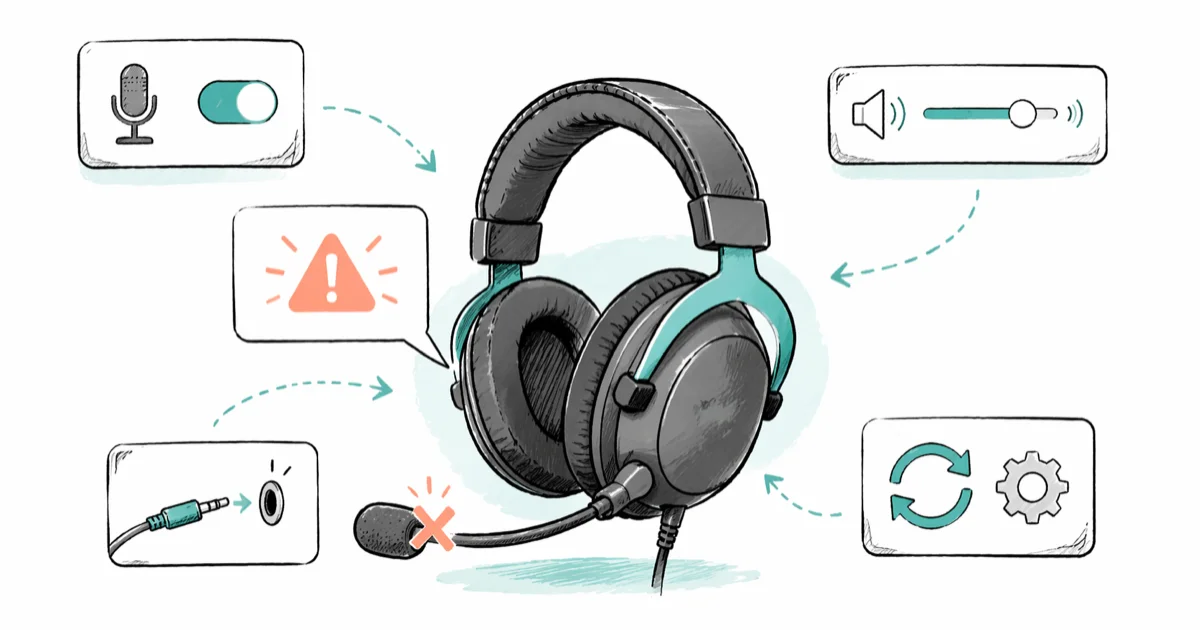
Quick AnswerPlug the USB sound card into a different port, set the headset as Default Communications Device under Windows Sound > Recording, and reinstall the HyperX audio driver. One of these resolves the mic for most users within five minutes.
The HyperX Cloud 2 mic not working is almost always one of three things: a muted USB sound card, a wrong default recording device in Windows, or a missing app-level microphone permission introduced after a Windows update. The nine-step sequence below starts with those quick checks before moving into drivers, ports, and hardware isolation.
- The mute button on the inline USB sound card is easy to miss; the LED ring turns red when muted.
- Windows 11 24H2 introduced a per-app microphone privacy toggle that defaults to OFF for many third-party games and chat apps.
- The HyperX Cloud II 7.1 surround USB control box registers as two devices in Windows: “Headset Earphone” (output) and “Headset Microphone” (input). Setting only the output as default can make chat apps use the wrong mic.
- Reinstalling the generic USB Audio Device driver is a sensible next step when the basic checks pass.
- If the mic works on a phone or another PC but not on yours, the issue is software on your PC, not the headset.
#What Causes the HyperX Cloud 2 Mic to Stop Working?
Your Cloud II ships with a detachable boom mic and an inline USB sound card (the small black box on the cable). Audio travels from the boom into the 3.5 mm splitter, then into the USB sound card, and into your PC. A failure at any point on that chain shows up the same way in Discord, Zoom, OBS, or Windows itself: zero input level.
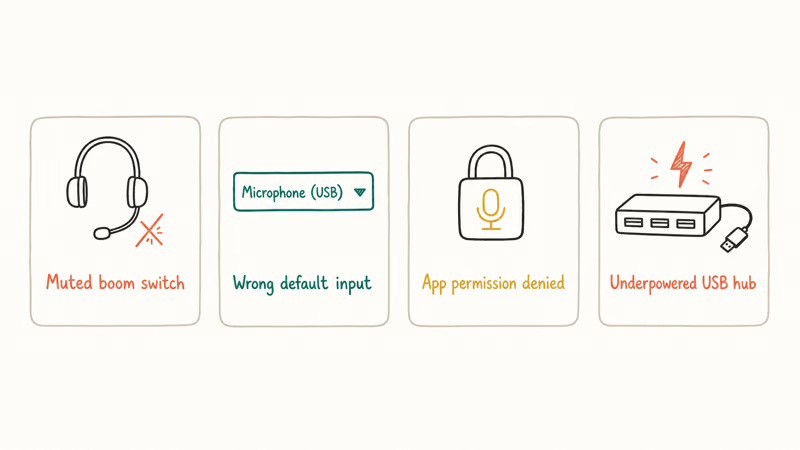
Each link in the chain has a different failure mode and a different fix, so the diagnosis order matters.
Those categories explain the order below. Start with the visible hardware controls, then Windows defaults and permissions, then driver reinstall and USB isolation. That path rules out the fast, reversible fixes before you assume the headset is faulty.
According to HyperX’s official support article on the Cloud II, the USB control box requires its own USB 2.0 (or higher) port and doesn’t work reliably through unpowered USB hubs.
That’s a common hardware-side trap: audio output can keep working while mic input fails.
#How Do You Quickly Check if the HyperX Mic Is Muted?
A dedicated mute button sits on the back face of the HyperX Cloud II USB sound card. The control box LED stays lit when the mic is muted and goes dark when unmuted. There’s no green “active” state, which trips up first-time owners who keep waiting for a green light that never comes.
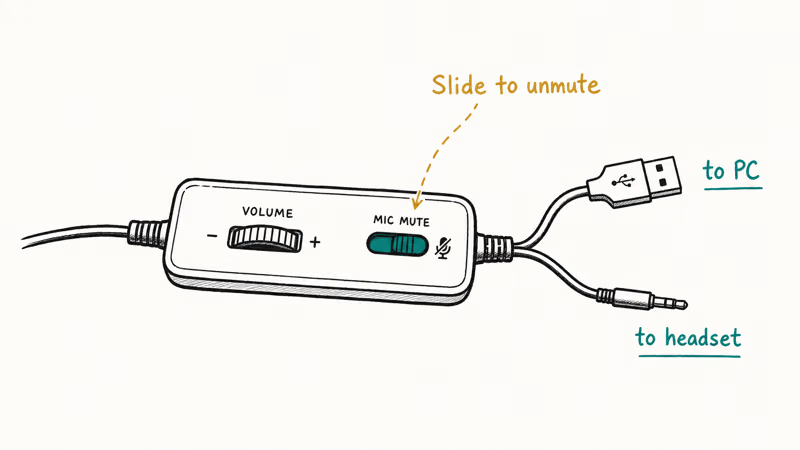
Press the mute button. If the LED toggles and the mic picks up your voice in any app, you’re done.
The mute-button fix is easy to overlook. People bump the control box while gaming, the LED hides on the back so they don’t notice, and the next time they open Discord, the mic is silent.
#Fix 1: Reseat the Boom Mic in the 3.5 mm Jack
A 3.5 mm jack on the left ear cup accepts the boom mic. It should click into place and sit flush against the housing. Partial insertion leaves the mic ring touching only ground and ear contacts on the TRRS plug, which produces no input. Many users stop pushing about 1 mm short.
Reseat the mic. Inspect the gold contacts on the plug for dust or pocket lint. Push it back in firmly until you feel a small click. Twist it gently to confirm it doesn’t wobble.
If you bought the Cloud II Wireless variant, there is no detachable mic and no 3.5 mm jack, so skip this fix.
#Fix 2: Switch the Default Recording Device in Windows
Windows can have multiple recording devices active at once (laptop built-in mic, USB webcam, HyperX headset). When you plug in the USB sound card, Windows does not always promote it to the default device.
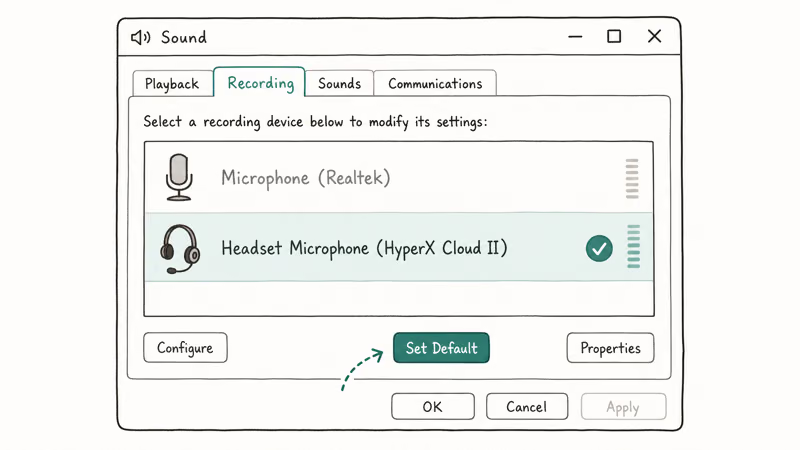
To set it manually:
- Right-click the speaker icon in the system tray.
- Click Sound settings (Windows 11) or Open Sound settings (Windows 10).
- Scroll to Input and click the HyperX Cloud II entry. On Windows 11, click the radio button next to it. On Windows 10, click Manage sound devices, find it, and click Set as default.
- Speak into the boom mic. The input level bar should move.
If the HyperX device does not appear in the list, click More sound settings, go to the Recording tab, right-click any empty space, and tick both Show Disabled Devices and Show Disconnected Devices. A disabled HyperX entry will show up. Right-click it and choose Enable, then Set as Default Device.
Microsoft confirms that USB audio devices must be set as default communications device for VoIP apps like Microsoft Teams and Skype to route through them correctly. Setting only the “Default Device” but not “Default Communications Device” causes apps like Teams to fall back to your built-in laptop mic.
#Fix 3: Grant the App Permission to Use Your Microphone
Windows 11 24H2 (released October 2024) tightened app microphone access. After the update, many users found their mic worked in some apps (browser, Voice Recorder) but not in others (Discord, OBS, certain games).
To check:
- Press Windows + I to open Settings.
- Go to Privacy & security > Microphone.
- Confirm Microphone access is ON at the top of the page.
- Confirm Let apps access your microphone is ON.
- Scroll to Let desktop apps access your microphone and confirm that toggle is also ON. This is the toggle most people miss, because Discord, Steam games, and OBS are desktop apps, not Microsoft Store apps.
Microsoft’s Windows 11 microphone privacy documentation states that desktop app access is a separate toggle from store app access, and disabling either one will block input.
After flipping these toggles, fully close and reopen the app that needs the mic. Discord in particular caches the permission state at launch and won’t pick up the change until you quit it from the system tray.
#Fix 4: Try a Different USB Port
The HyperX Cloud II USB sound card draws power from the port it’s plugged into. A worn USB-A port, a hub without external power, or a USB-A-to-USB-C dongle can deliver enough current for the headphone output (which is the louder, easier load) while failing to power the mic preamp.
What to try:
- Move the USB sound card directly to a motherboard rear-panel port. Front-panel ports on PC cases are wired through a cable to the motherboard and tend to be the lowest-quality ports on the system.
- Avoid USB 3.0 ports if your headset is older. Some early Cloud II revisions had compatibility issues with USB 3.0 chipsets (the workaround is using USB 2.0).
- Skip any unpowered USB hub. If you must use a hub, use one with its own power adapter.
USB hubs and docks can power headphone output while still dropping mic input. Move the USB sound card straight to a built-in port before blaming the headset.
#Fix 5: Reinstall the Generic USB Audio Driver
The HyperX Cloud II is a USB Audio Class device, meaning it doesn’t require proprietary drivers. It uses the generic Windows audio driver that ships with every modern Windows install. When that driver corrupts (after a botched Windows update or a sudden power loss during sleep), the symptom is exactly what you’re seeing: the device appears in Device Manager, but the mic produces no signal.
To reinstall:
- Unplug the HyperX USB sound card from the PC.
- Press Windows + X and click Device Manager.
- Expand Sound, video and game controllers and Audio inputs and outputs.
- Look for any HyperX or “USB Audio Device” entries (there may be 2-3). Right-click each one and pick Uninstall device. Tick the box “Delete the driver software for this device” if it appears.
- Restart the PC.
- Plug the HyperX USB sound card back in. Windows will automatically reinstall the generic USB Audio driver. Wait about 30 seconds for the device to fully enumerate before testing.
According to Microsoft’s USB Audio 2.0 driver documentation, Windows 10 1703 and later includes a class-compliant USB Audio 2.0 driver that should auto-install on plug-in. If the driver does not reinstall automatically, run Action > Scan for hardware changes from the Device Manager menu bar.
#Fix 6: Disable Exclusive Mode on the Recording Device
Exclusive mode lets a single application take total control of an audio device. When enabled, it occasionally locks the mic so other apps see no signal even though the device is technically “active.”
To turn it off:
- Open the Sound Control Panel (search “Sound” in Start, or run
mmsys.cpl). - Go to the Recording tab.
- Right-click HyperX Cloud II Microphone and choose Properties.
- Open the Advanced tab.
- Untick both Allow applications to take exclusive control of this device and Give exclusive mode applications priority.
- Click OK.
This is the same Sound dialog that controls input sample rate. While you’re there, set the Default Format to 2 channel, 16 bit, 48000 Hz (DVD Quality). Mismatched sample rates between Windows and Discord have caused complete mic dropouts in some Discord builds.
#Fix 7: Update or Roll Back the USB Audio Driver
If a reinstall doesn’t help, the next step is to either update the driver or roll back to the previous version, depending on when the problem started.
If the mic stopped working right after a Windows Update, roll back:
- Open Device Manager.
- Right-click USB Audio Device under Sound, video and game controllers and pick Properties.
- Go to the Driver tab. If Roll Back Driver is available, click it and follow the prompts.
If the mic has been gradually unreliable, update:
- In the same Driver tab, click Update Driver > Search automatically.
- If Windows reports the best driver is already installed, also check Windows Update for optional driver updates:
Settings>Windows Update>Advancedoptions > Optional updates > Driver updates.
If the mic stopped right after a Windows cumulative update, try a rollback first. Once Microsoft ships a later update that fixes the audio regression, you can re-apply Windows Update without losing the mic.
#Fix 8: Check the Mic in a Different App
Sometimes the mic itself is fine and the problem is one specific app. To isolate, open the built-in Windows Voice Recorder app (Windows 10) or Sound Recorder (Windows 11). Hit record and speak. If you hear yourself on playback, the headset hardware and Windows driver stack are healthy, and the issue is in Discord, Zoom, OBS, or whichever app failed first.
For Discord specifically:
- Open Discord > User Settings (gear icon) > Voice & Video.
- Set Input Device to HyperX Cloud II Microphone explicitly. Don’t leave it on “Default”, because Default sometimes resolves to the wrong device when multiple input devices exist.
- Click Let’s Check under Mic Test and speak. If the bar moves, Discord is fine.
- If Discord still doesn’t pick up the mic, hit Reset Voice Settings at the bottom of the page.
For Zoom: Settings > Audio > Microphone, pick the HyperX device, then click Test Mic and speak.
If the mic also fails in Discord screen share with no sound scenarios, the fix often overlaps with the audio routing fix linked there.
When the headset checks out and Discord stays silent, work through the full Discord voice-chat microphone fix list for app, OS, and browser settings.
#Fix 9: Test on Another Device to Isolate the Fault
If all eight software fixes above fail, the last step before assuming hardware failure is to test the headset on a completely different device, such as a phone with a USB-C adapter, a laptop, a console, or anything that accepts the USB sound card.
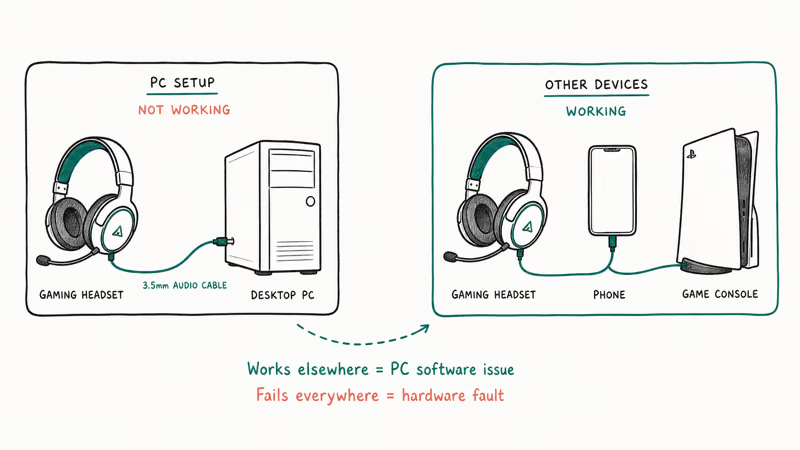
Mic works on the second device? Then your PC has deeper software corruption (Windows audio service, malware, group policy). Run a Windows in-place repair install.
If the mic fails on a second device too, the headset itself is faulty. HyperX offers a 2-year limited warranty on the Cloud II in most regions; if you’re inside that window, file an RMA. If you’re out of warranty, the boom mic is detachable and replacement boom mics are sold by HyperX directly for around $15, which is the cheapest fix for a damaged mic capsule.
For related hardware troubleshooting, two of our guides walk through similar isolation steps:
The pattern is the same: software first, hardware last. If you’re dealing with a USB device not recognized error when you plug in the sound card, fix that error before working through this list, because the headset can’t work if Windows isn’t seeing the USB device at all.
#Fixing a Mic That Works but Sounds Muffled or Distant
A working but quiet mic is a different problem from a dead mic. Two settings cause it:
Mic Boost too low. Open Sound Control Panel > Recording > HyperX Cloud II Microphone Properties > Levels tab. Set Microphone to 80-100 and Microphone Boost to +10 dB.
Wrong format for the use case. Stay at 16 bit / 48000 Hz for voice chat and gaming. Higher formats (24 bit / 96 kHz) are unnecessary for a gaming headset mic and have caused crackling in older Windows builds.
If the mic still sounds tinny after boost adjustments, the boom mic capsule may be partially damaged. The Cloud II’s boom mic is replaceable; HyperX sells replacement boom mics directly through their support store, and swapping in a new one needs no tools.
#Bottom Line
Work the fixes in order: mute, default device, and app permission first, then drivers and USB ports. If those fail, isolate hardware before considering repair.
The single most overlooked check is the Let desktop apps access your microphone toggle on Windows 11, which gets reset after major feature updates and silently kills mic input in Discord and game launchers. Check that toggle first if your mic worked yesterday and stopped working today after a Windows restart.
#Frequently Asked Questions
Why is my HyperX Cloud 2 mic working in Windows but not Discord?
Discord caches mic settings at launch. Fully quit Discord from the system tray, reopen it, then set Input Device in Voice & Video to HyperX Cloud II Microphone (not “Default”).
Does the HyperX Cloud 2 work on PS5 or Xbox Series X?
Yes, with caveats. Plug the 3.5 mm cable directly into the controller and skip the USB sound card. PS5 and Xbox Series controllers handle the mic over 3.5 mm natively. PS5 firmware doesn’t route mic input through the HyperX USB sound card reliably, and the PS5 doesn’t support standard Bluetooth headsets either, so the wired controller jack stays the dependable path.
Why does my HyperX Cloud 2 mic pick up background noise?
The Cloud 2 mic is an electret condenser with a wide pickup pattern. It captures keyboard clicks, fan hum, and any sound within a foot of the boom. Three fixes help: lower Microphone Boost by 10 dB, enable Discord’s Krisp noise suppression, and run RTX Voice if you have an Nvidia GPU. The biggest improvement is physical: bend the boom to within 2 inches of your mouth.
Can I fix the mic by reinstalling HyperX NGENUITY?
No. NGENUITY is HyperX’s configuration utility, not a driver. The Cloud II doesn’t use it.
How do I know if my HyperX Cloud 2 boom mic is broken?
Run the second-device isolation in Fix 9. Plug the headset into a phone (via USB-C adapter) or another PC. Working mic on the second device means the boom is fine. Failed mic on every device means the boom needs replacing.
Will updating to Windows 11 fix or break my HyperX Cloud 2 mic?
Windows 11 24H2 has a known issue where the Let desktop apps access your microphone toggle defaults to OFF for some upgrade paths. After upgrading to Windows 11, manually re-enable that toggle under Settings > Privacy & security > Microphone. The HyperX Cloud 2 itself is fully compatible with Windows 11 and uses the same USB Audio Class driver that ships with the OS.
Does the inline cable on the HyperX Cloud 2 control the mic too?
Yes. The inline remote has volume up, volume down, and a mic mute slider. That slider is separate from the mute button on the USB sound card, so check both.

Best Laptop for Running LLMs in 2026: Memory Comes First
The best laptop for running LLMs is a memory purchase first. Compare MacBook unified memory against NVIDIA laptop VRAM, and see what each tier really runs.

How to Run a Local LLM on Windows: A 2026 Setup Guide
Run a local LLM on Windows with LM Studio or Ollama. Pick a model that fits your GPU memory, keep every prompt offline, and skip the monthly bill.

Bluetooth Not Working on Snapdragon X? Fixes for 2026
Bluetooth not working on your Snapdragon X Copilot+ PC? Generic audio, mice, and keyboards work, but vendor apps often lack an ARM build. Fixes inside.

Docker Desktop and WSL2 Not Working on Snapdragon X? Fix It
WSL2 runs fine on Snapdragon X, but Docker Desktop ARM is Early Access and throws WSL errors. Use WSL2 plus native ARM64 Ubuntu and Docker Engine.