Lightworks Rotate Video: 2 Methods and 4 Alternatives
Rotate any clip in Lightworks with 3D DVE Z-rotation or Flip-Flop, plus 4 faster alternatives like iMovie, Photos, Premiere Pro, and Kapwing.
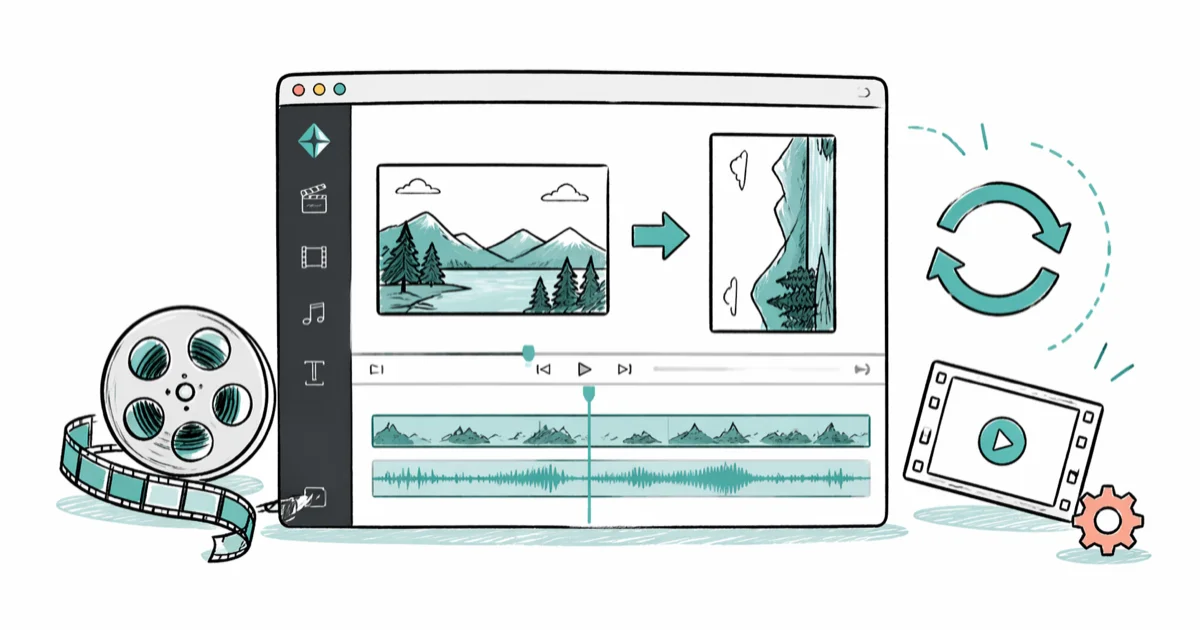
Quick AnswerRotate video in Lightworks by adding the 3D DVE effect to your clip, then dragging the Z-axis slider to 90, 180, or 270 degrees on the editing timeline.
A Lightworks rotate video task takes more clicks than the same fix in iMovie or Photos. The tool hides rotation inside the 3D DVE effect, which is overkill if you just want to flip a sideways phone clip. This guide walks through both rotation methods and four faster alternatives below.
This guide shows the exact slider path, common pitfalls like black bars and codec re-encoding, and when to skip Lightworks for a 30-second fix elsewhere.
- The fastest path is the 3D DVE effect with a Z-axis value of 90, 180, or 270 degrees.
- The Flip-Flop checkbox under DVE handles horizontal mirror flips, not arbitrary angles.
- Black bars after rotation come from a frame-aspect mismatch, so bump up Scale to fill the canvas.
- The free tier of Lightworks 2024 exports rotated MP4 at 720p without a watermark.
- iMovie, Photos, and Kapwing each rotate a clip in under 30 seconds without effects panels.
#How Do You Rotate a Video in Lightworks?
Both rotation methods sit inside the Effects panel, but they live in different control groups. The 3D DVE control has a Z-axis slider for any rotation angle. The flat DVE control has Flip-Flop and Slope checkboxes for mirror flips and 180-degree turns.
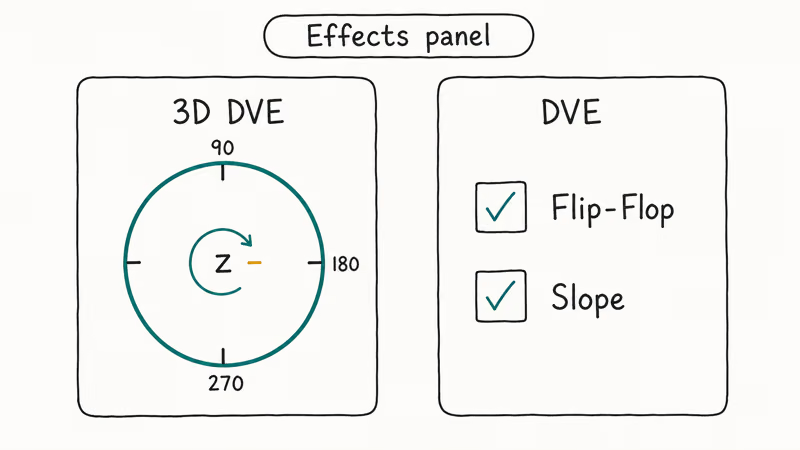
Lightworks handles rotation through its 3D DVE effect, an effects-panel tool geared toward camera-style moves rather than a dedicated orientation toggle, as you can see across its official guides hub. That’s why rotation feels buried compared to a one-click button in Windows Media Player.
Both methods work on the free tier and the paid Create and Pro tiers, on Windows, macOS, and Linux.
#Method 1: 3D DVE With Z-Axis Rotation
This method works for any angle, including non-90-degree corrections (for example, footage shot at a 5-degree tilt).
- Import the clip via
File>Importor drag it into the project bin. - Drag the clip from the bin onto the editing timeline (V1 video lane).
- Open Effects in the right panel and select 3D DVE.
- Click Add to Cut to attach the effect to the clip.
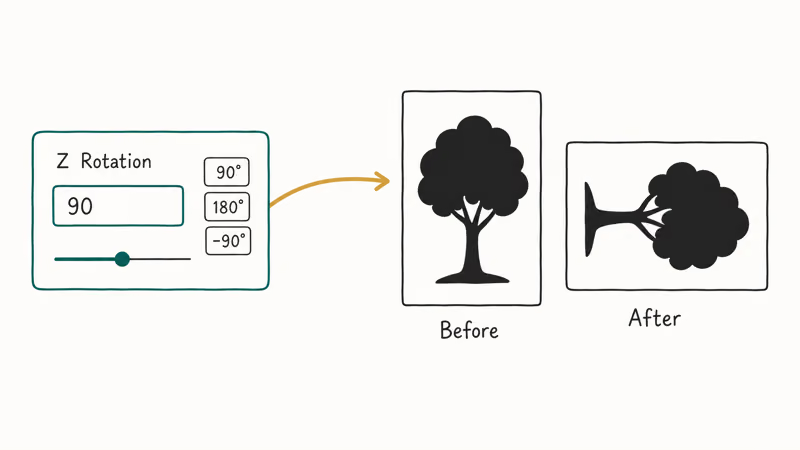
- In the effect controls, find Z Rotation and type a value (90 for clockwise, -90 for counterclockwise, 180 for upside-down).
The Z-axis preview updates inside the source viewer as you adjust the value. The slider also accepts decimal values, so small tilt fixes are possible.
Black bars are common after rotation. They come from a frame-aspect mismatch, so bump up Scale under the same DVE controls until the clip fills the canvas.
#Method 2: DVE Flip-Flop for Mirror Flips
Use this when you want a mirror image (horizontal flip) or a vertical flip, not free rotation.
- Place the clip on the timeline as before.
- Open
Effects>DVE(the flat one, not 3D DVE). - Add the effect to the cut.
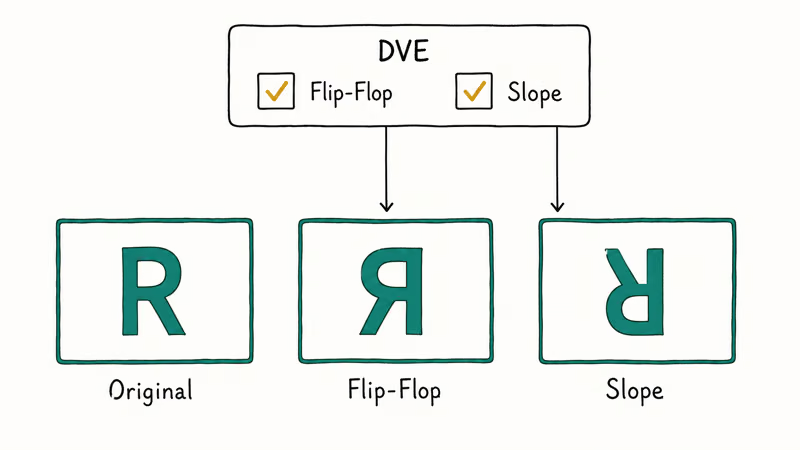
- In the DVE controls, check Flip-Flop for a horizontal mirror.
- Check Slope to flip vertically (mirror top-to-bottom).
- Combine both for a 180-degree turn.
Method 2 changes the frame orientation inside the DVE effect. Export settings still matter because re-encoding compresses the video again, which can soften fine detail like text overlays.
A short note: Flip-Flop is not interchangeable with Z rotation. Flip-Flop mirrors the image across an axis, so text reads backward. Z rotation spins the frame and keeps text readable.
#Should You Use Lightworks Just to Rotate?
Probably not — and here’s the math.
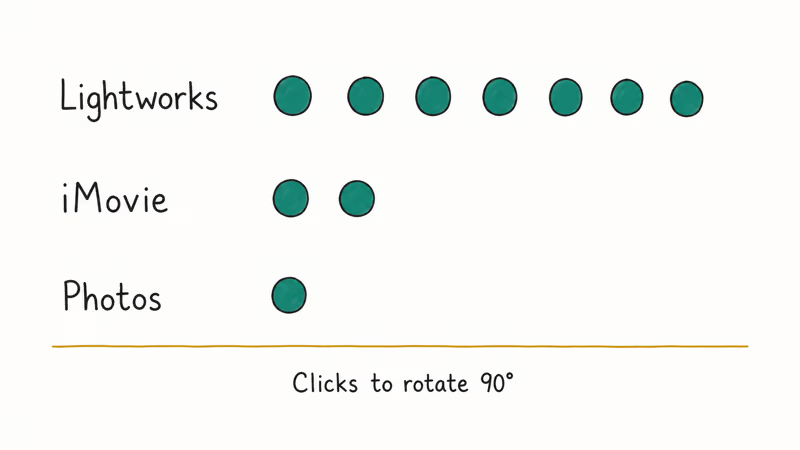
A simple 90-degree fix takes around 6 clicks in Lightworks (import, drop, open Effects, select DVE, add to cut, set Z value). The same fix takes 2 clicks in macOS iMovie’s Crop tool and 1 click in the Windows Photos app. Lightworks earns its keep on long-form edits with hundreds of clips, color grading, and multi-layer audio. For a single sideways phone clip, it’s the wrong tool.
Pro tip: open Lightworks only when the project actually needs its multi-layer timeline or color grading.
Adobe’s Premiere Pro documentation confirms that the Motion effect handles rotation as a single numeric input under Effect Controls, which is the closest pro-tier equivalent to Lightworks’ 3D DVE. If you already pay for Creative Cloud, Premiere is faster for one-off rotations than Lightworks. If you’re choosing between pro NLEs, our DaVinci Resolve vs Premiere Pro comparison breaks down which one suits which workflow.
#Easier Desktop Alternatives to Lightworks
#iMovie (Free on Mac and iPhone)
Apple’s iMovie user guide recommends the Crop tool for rotation: open the clip, click the Crop icon above the viewer, and use the rotate-left or rotate-right buttons. Each click rotates 90 degrees.
For a deeper feature comparison between Apple’s video apps, see our iMovie vs Final Cut Pro guide.
#Microsoft Photos and Clipchamp (Free on Windows)
Windows 11 ships with Clipchamp as the default video editor, while Photos handles quick trim-and-rotate jobs for short clips. Microsoft’s Clipchamp rotate guide states that you can select a clip on the timeline and click the rotate-by-90-degrees button to spin it in 90-degree steps. Both apps are free and require no install, since they ship with the OS.
If you want a full comparison across truly free Windows editors, our free video editing software no-watermark roundup lines up the trade-offs.
#Adobe Premiere Pro (For Pro Editors)
Premiere reuses the Motion effect for rotation:
- Drop the clip on the V1 video lane.
- Click Effect Controls in the upper-left panel.
- Expand Motion and find Rotation.
- Type a degree value or scrub the number.
- Adjust Scale if the rotated frame leaves black bars.
Premiere is overkill for a single rotation, but it’s already open if you’re mid-project. Our recommended laptops for video editing under $1,000 covers machines that handle Premiere comfortably without slowing the timeline.
#Online Tools for One-Click Rotation
Browser-based editors are the right answer when you want zero install and a single rotated clip out the door.
For a no-install option, Kapwing and Clideo both rotate uploaded video in the browser. Trade-offs: file-size caps on free tiers, optional watermarks on free exports, and slower export speed on multi-gigabyte clips. They’re best for sub-2-minute clips you need rotated once.
If browser-based workflows appeal to you, our guide to recording your screen on Windows 10 covers another lightweight option that skips desktop installs.
#Bottom Line
For a one-off 90-degree rotation, skip Lightworks and use iMovie on Mac or Clipchamp on Windows — both finish in under 30 seconds. Open Lightworks only when the rotation is part of a larger edit you’re already working on, or when you need a non-90-degree angle and the 3D DVE Z-axis slider is the cleanest tool for it.
#Frequently Asked Questions
Can Lightworks rotate by 1 degree increments?
Yes. The Z Rotation field under 3D DVE accepts decimal values, so 1, 1.5, or 0.25 degrees all work. Click into the number field and type the angle, or scrub the slider for finer adjustment.
Does the free version of Lightworks export rotated video without a watermark?
Yes, Lightworks 2024 (free) exports rotated MP4 at 720p with no watermark. Higher resolutions like 1080p or 4K need the paid Create or Pro tiers.
Is there a keyboard shortcut for rotation in Lightworks?
There is no built-in shortcut for rotation in stock Lightworks. You can map a custom shortcut to “Add 3D DVE to current cut” under Edit > Preferences > Hotkeys, which trims the workflow by about 2 clicks.
Why does my rotated clip have black bars in Lightworks?
Black bars after a 90-degree rotation come from the frame’s aspect ratio: a 16
horizontal clip becomes 9 vertical when rotated, leaving empty space on the sides. Increase the Scale value under the same DVE effect until the rotated frame fills the canvas. You can also adjust the Position controls if Scale alone leaves the subject off-center. For vertical-first projects, set the project sequence to a 9 preset before adding the clip.Can I rotate vertical phone footage in Lightworks?
You can. Drop the vertical clip on the timeline, apply 3D DVE, and set Z Rotation to -90 for a clockwise turn to horizontal orientation. Then either crop the result to 16
in the same effect or set the project sequence to a 9 vertical preset before export.What’s the fastest way to rotate a single clip without installing software?
Use Clipchamp on Windows or the iOS Photos app on iPhone. Both finish a 90-degree rotation in under 15 seconds with zero install.
Does rotation in Lightworks affect export quality?
It can, in two ways. First, if the rotated frame needs upscaling to fill the canvas, fine detail can soften slightly. Second, if you export to a different codec than the source, re-encoding adds compression artifacts. To avoid both, match your export codec to the source and bump Scale only as much as you need.
Is Lightworks still free in 2026?
Yes. The free tier is now branded Lightworks 2024 and lifts the old 30-day re-registration requirement. It’s still capped at 720p export, but rotation, color, and effects work without paying.

Google Messages Error 3100: Why RCS Is Broken on Galaxy
Google Messages RCS error 3100 hits Galaxy owners after phone or carrier switches. Google told 9to5Google a fix is coming. Here's what actually helps.

Is This Bank App Real? Spot a Fake App on Your Home Screen
A bank app can land on your home screen from a web page with no install warning. Learn the checks that tell a real banking app from a phishing web app.

Apps Crashing After iOS 27 Update? Fix Order (2026)
Apps crashing after the iOS 27 update? Update the app in the App Store first, then offload and reinstall to clear stale cache, then restart. The fix order.

Do AI Translation Earbuds Work Offline? What to Know
Do AI translation earbuds work offline? A few do with downloaded language packs, but most need the cloud. Here's what works offline and what you give up.