How to Rotate a Video in Windows Media Player (Free)
Rotate a video in Windows Media Player using VLC, Photos, or Clipchamp. Free methods for Windows 10 and 11 with step-by-step instructions included.
Quick AnswerWindows Media Player does not have a built-in rotation feature. To rotate a video, use the Windows Photos app, VLC Media Player, or the Clipchamp video editor included free with Windows 10 and 11.
Windows Media Player can’t rotate videos. It’s a playback-only tool with no editing controls, so you’ll need a different app to fix a sideways or upside-down clip. The good news: Windows 10 and 11 already include free tools that handle rotation in under a minute.
Below, you’ll find the fastest free options for Windows 10 and 11, ordered by convenience.
- Windows Media Player has no rotation feature in any version, including Windows 11
- The Photos app on Windows 10 and 11 rotates videos quickly with no extra software
- VLC Media Player can rotate and save videos permanently using its built-in transcode tools
- Clipchamp, included free with Windows 11, lets you rotate and export at up to 1080p
- Rotation doesn’t reduce video quality when you save in the same format and resolution
#Why Can’t Windows Media Player Rotate Videos?
Windows Media Player was designed strictly for playback. According to Microsoft’s community support page, the app doesn’t include editing tools like rotation, trimming, or cropping. This applies to both the legacy Windows Media Player and the newer Media Player app on Windows 11.
The confusion often starts because phones record video in portrait mode. When you transfer that file to a PC, some players read the orientation metadata correctly while others don’t. Windows Media Player sometimes ignores this metadata, which makes a perfectly fine video appear sideways.
You don’t need expensive software to fix this. The three methods below are all free and built into Windows or available as a free download.
#How to Rotate a Video With the Windows Photos App
The Photos app is usually the fastest option.
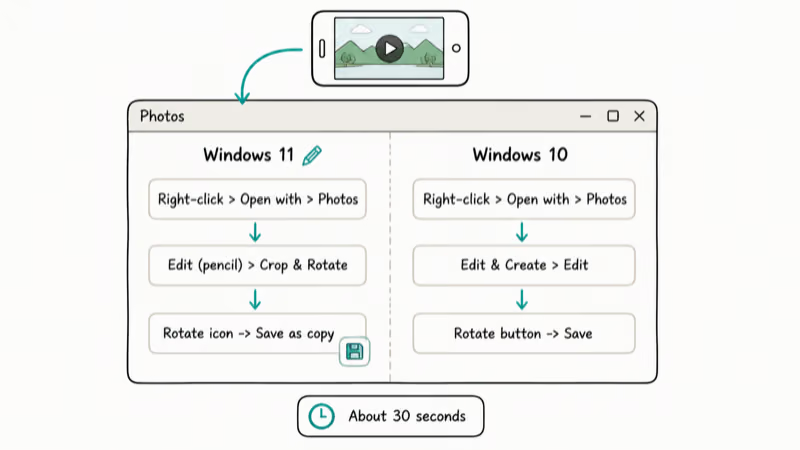
#On Windows 11
-
Right-click your video file and select Open with > Photos.
-
Click the Edit button (pencil icon), then select Crop & Rotate.
-
Click the Rotate icon until the orientation looks right.
-
Click Save as copy to keep your original file intact.
#On Windows 10
-
Right-click your video file and select Open with > Photos.
-
Click Edit & Create, then select Edit.
-
Click the Rotate button until the orientation looks right, then save.
The Photos app preserves video quality during rotation when it can save a copy without changing the source resolution.
If you work with other file types on Windows, you might find our guide on recovering unsaved Word documents helpful for avoiding data loss.
#How to Rotate a Video Using VLC Media Player
VLC is a free, open-source media player that handles rotation in two ways: temporary rotation for viewing only, or permanent rotation that saves a new file. Based on How-To Geek’s VLC rotation guide, VLC supports rotation on Windows, macOS, and Linux.
#Temporary Rotation (Preview Only)
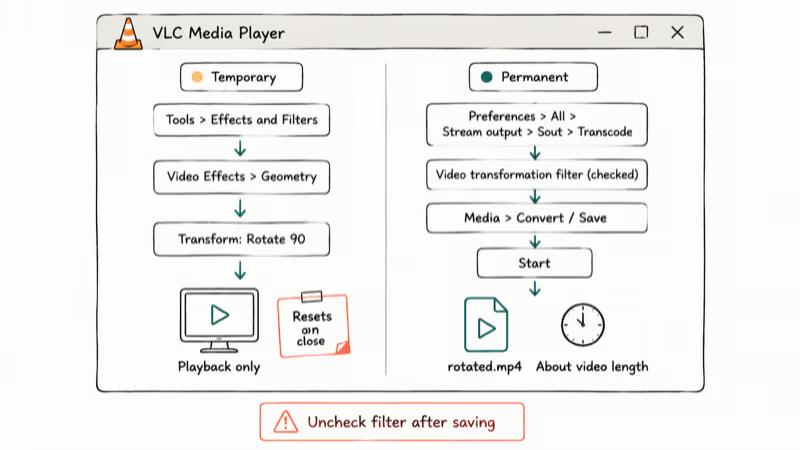
This changes the playback orientation only. Your original file stays unchanged on disk, and closing VLC resets everything back to how it was before you applied the rotation.
-
Open VLC and go to
Media>Open Fileto load your video. You can also drag and drop the file directly into the VLC window. -
Click
Tools>Effects and Filters, then go toVideo Effects>Geometry. -
Check Transform and pick your rotation angle from the dropdown.
The video now plays in the correct orientation. Close VLC and the rotation disappears because it was only applied to playback.
#Permanent Rotation (Save New File)
To save the rotated version as a new file, you’ll need a few extra steps.
-
Apply the temporary rotation using the steps above.
-
Go to
Tools>Preferences, click All under Show Settings, then find Stream output > Sout stream > Transcode. -
Check Video transformation filter and click Save.
-
Go to
Media>Convert/Save, add your file, pick a destination, and click Start.
VLC creates a new rotated file. The process takes roughly the same time as the video’s duration on most PCs. After saving, go back to Tools > Preferences and uncheck the transformation filter so it doesn’t apply to future conversions.
For other video format tasks, our guide on converting MTS to MP4 covers a similar process.
#How to Rotate a Video in Clipchamp
Clipchamp is a free video editor that Microsoft bundles with Windows 11. You can also download it from the Microsoft Store on Windows 10. It provides a visual editor that makes rotation straightforward.
-
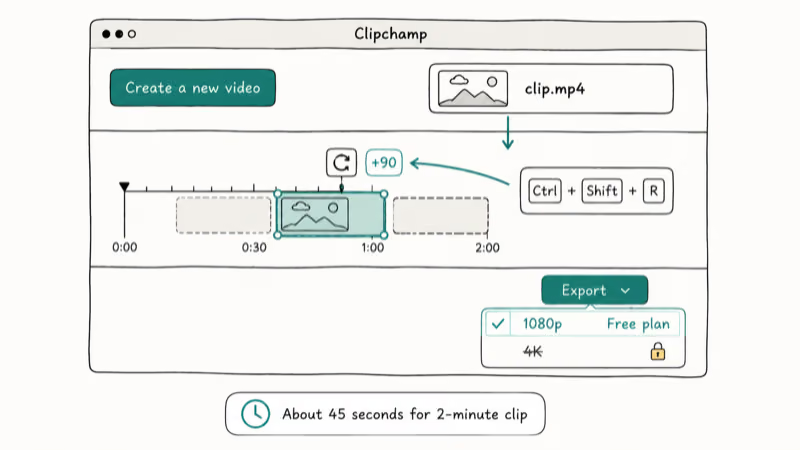
Open Clipchamp and click Create a new video.
-
Drag your video file into the media library, then onto the timeline.
-
Select the video on the timeline and click Rotate (or press Ctrl + Shift + R). Each click rotates 90 degrees, so click twice for a 180-degree flip or three times for a 270-degree counterclockwise turn.
-
Click Export and choose your resolution (up to 1080p on the free plan).
Clipchamp exports the file as an MP4. The free version caps exports at 1080p, which covers most use cases.
According to Microsoft’s Clipchamp documentation, the free plan includes all core editing features with exports capped at 1080p.
#Video Quality After Rotation
Rotation by itself doesn’t degrade quality. The pixels get rearranged without re-encoding in most tools, so the Photos app and Clipchamp both preserve the original resolution and bitrate.
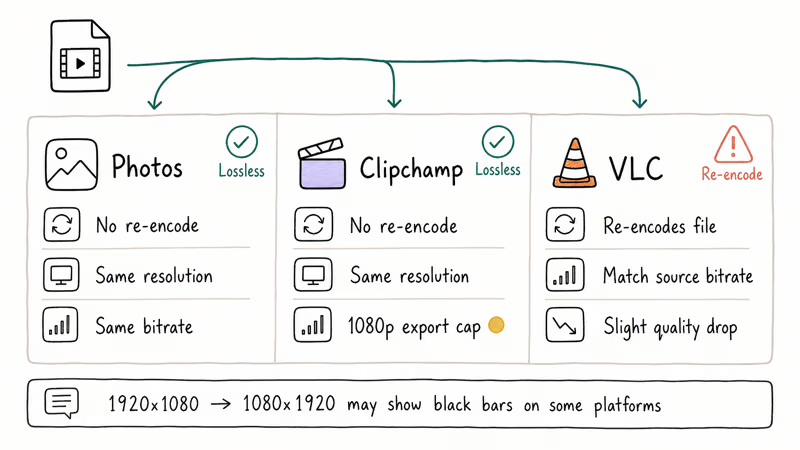
VLC is the exception. It re-encodes during the Convert/Save process, which can introduce a slight quality difference depending on your codec and bitrate settings. To minimize this, match the output format and bitrate to your source file.
One thing to watch: if you rotate a 1920x1080 landscape video to portrait, the resulting file becomes 1080x1920. Some older media players or social platforms may add black bars on the sides. Always test the rotated file before uploading it, especially for YouTube or Instagram where aspect ratio matters for how your content displays in feeds and search results.
If you’re dealing with other file format issues, our guide on converting video formats like HEVC explains codec compatibility.
#Third-Party Video Editors Worth Trying
DaVinci Resolve, Adobe Premiere Pro, and Shotcut all support rotation. These are better choices if you also need to trim clips, add text overlays, or adjust color grading.
DaVinci Resolve deserves a special mention. According to Blackmagic Design’s product page, the free version includes the same core editing tools as the paid Studio edition and supports up to 4K exports with no watermark.
For rotation alone, skip the heavy editors. VLC or the Photos app gets it done faster.
Lightworks users can instead follow Lightworks 3D DVE rotation steps when the timeline already lives in that editor.
If you also need to remove a watermark from a video, that’s where a full editor like DaVinci Resolve or Premiere Pro pays off.
#Why Does Your Video Play Sideways on a PC?
The video file itself might be fine. iPhones and Android phones store rotation as metadata inside the file rather than physically rotating the pixels. Most modern players read this flag correctly, but Windows Media Player sometimes ignores it.
If your video looks correct on your phone but sideways on your PC, metadata is the culprit. Any rotation method above fixes this.
iPhone users who transfer videos to Windows sometimes hit format issues too. Our guide on viewing HEIC photos on Windows covers a related compatibility problem. Android users switching platforms can check our walkthrough on transferring data from iPhone to Android on Windows for a broader overview of cross-platform file handling, including video orientation quirks that show up during phone-to-phone transfers.
#Bottom Line
Start with the Photos app. It’s already on your PC, handles rotation quickly, and preserves video quality. If you need to save the rotated version in a specific format or do batch processing, VLC is the better pick. Clipchamp works well if you want a visual editor with drag-and-drop controls.
None of these methods require paid software. Windows Media Player still can’t rotate videos, but you don’t need it to.
#Frequently Asked Questions
Can Windows Media Player rotate videos in any version?
No. Windows Media Player has never included a rotation feature, including the latest version on Windows 11. The newer Media Player app on Windows 11 can rotate during playback, but it doesn’t save the change. You’ll need a separate tool like Photos, VLC, or Clipchamp.
Will rotating a video make the file size larger?
Usually not. The Photos app and Clipchamp keep file sizes nearly identical to the original.
How do I rotate a video 180 degrees on Windows?
Open the video in the Photos app and click the Rotate button twice. Each click rotates 90 degrees, so two clicks give you 180 degrees. In VLC, select 180 degrees from the Transform dropdown under Tools > Effects and Filters > Video Effects > Geometry.
Can I rotate a video without installing any software?
Yes, if you’re on Windows 10 or 11. The Photos app comes pre-installed and handles basic rotation. You can also use free online tools like Canva or Kapwing, though they require uploading your video to their servers.
Does VLC save the rotated video permanently?
Not by default. VLC’s rotation through Effects and Filters is temporary and only affects playback. To save a permanently rotated file, you need to use the Convert/Save function with the Video transformation filter enabled in VLC’s advanced preferences. After saving the rotated file, go back into preferences and uncheck the transformation filter, otherwise every future conversion through VLC will apply the same rotation automatically, which catches a lot of people off guard when they convert other files later.
What video formats can I rotate on Windows?
The Photos app supports MP4, MOV, AVI, and WMV. VLC handles virtually every format, including MKV, FLV, and WebM. Clipchamp primarily works with MP4 but can import most common formats. If you have an unusual format like M2TS, convert it to MP4 first for the widest compatibility.
How do I rotate a video for Instagram or TikTok?
Rotate to portrait (9
) using Clipchamp or VLC before uploading. Both Instagram Reels and TikTok prefer vertical video.Can I rotate multiple videos at once?
The Photos app only handles one video at a time. VLC can batch-process through its command-line interface, but it requires some technical knowledge. For batch rotation, HandBrake (free) or DaVinci Resolve are better options since they support queue-based processing.

Best Laptop for Running LLMs in 2026: Memory Comes First
The best laptop for running LLMs is a memory purchase first. Compare MacBook unified memory against NVIDIA laptop VRAM, and see what each tier really runs.

How to Run a Local LLM on Windows: A 2026 Setup Guide
Run a local LLM on Windows with LM Studio or Ollama. Pick a model that fits your GPU memory, keep every prompt offline, and skip the monthly bill.

Bluetooth Not Working on Snapdragon X? Fixes for 2026
Bluetooth not working on your Snapdragon X Copilot+ PC? Generic audio, mice, and keyboards work, but vendor apps often lack an ARM build. Fixes inside.

Docker Desktop and WSL2 Not Working on Snapdragon X? Fix It
WSL2 runs fine on Snapdragon X, but Docker Desktop ARM is Early Access and throws WSL errors. Use WSL2 plus native ARM64 Ubuntu and Docker Engine.