DaVinci Resolve vs. Premiere Pro – Full Comparison in 2026
DaVinci Resolve vs. Premiere Pro: full 2026 comparison covering color grading, pricing, performance, integration, and which editor fits your workflow.
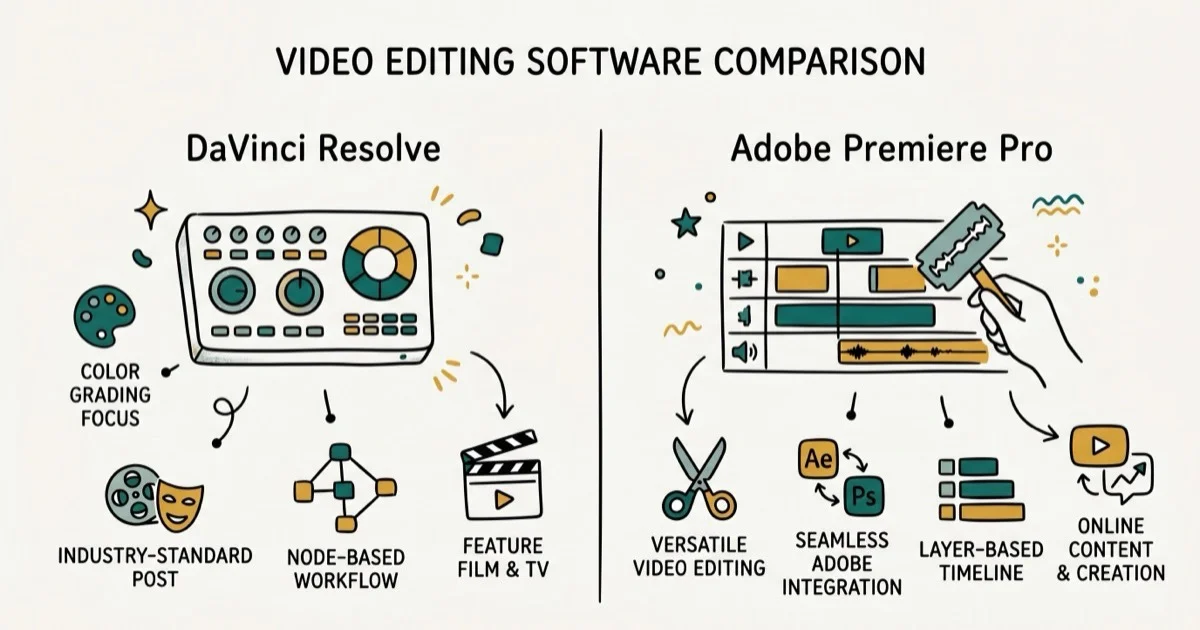
Quick AnswerDaVinci Resolve is better for color grading and budget-conscious editors since the free version is fully featured. Premiere Pro wins for Adobe ecosystem integration and advanced title work. For most independent editors in 2026, DaVinci Resolve offers more value.
Choosing between DaVinci Resolve and Premiere Pro comes down to your workflow priorities and budget. The practical differences show up in pricing, color workflow, Adobe integration, and hardware needs.
- DaVinci Resolve free includes full editing, color, and audio tools with no watermark; Premiere Pro starts at $22/month
- Color grading is DaVinci Resolve’s core strength, with node-based tools used by professional colorists industry-wide
- Premiere Pro’s Adobe CC integration (After Effects, Audition, Photoshop) is its biggest advantage
- DaVinci Resolve runs on Windows, macOS, and Linux; Premiere Pro is Windows and macOS only
- Premiere Pro handles unlimited multicam angles; DaVinci Resolve caps at 16 per clip
#Pricing: DaVinci Resolve vs. Premiere Pro
Price is the most immediate difference between these two tools.
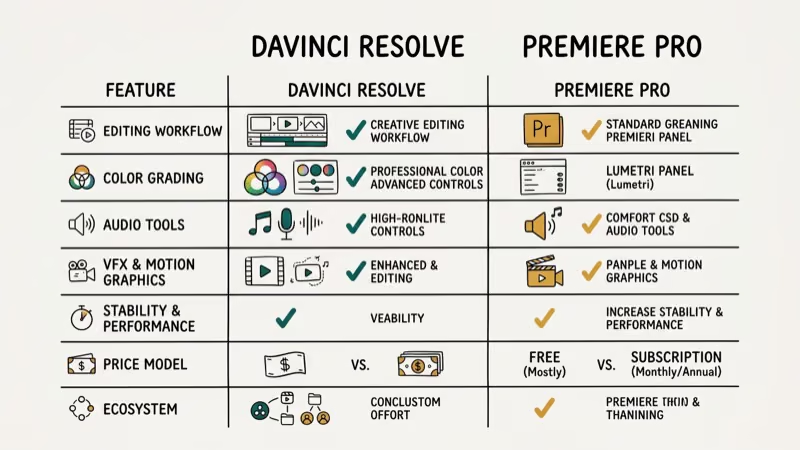
DaVinci Resolve has two versions. The free version includes the full editing, color, Fairlight audio, and Fusion effects pages. DaVinci Resolve Studio costs $295 as a one-time payment and adds features like noise reduction, AI-based tools, and collaboration features. Most independent editors never need Studio.
Adobe Premiere Pro costs $22/month for the standalone app or $60/month for the full Creative Cloud suite. According to Adobe’s pricing page, the standalone app renews annually at the monthly rate, meaning Premiere Pro alone costs $792 over three years, compared to a one-time $295 for DaVinci Resolve Studio. For freelancers, that cost difference is significant.
If budget matters, DaVinci Resolve is the clear winner.
#Which Editor Has Better Color Grading?
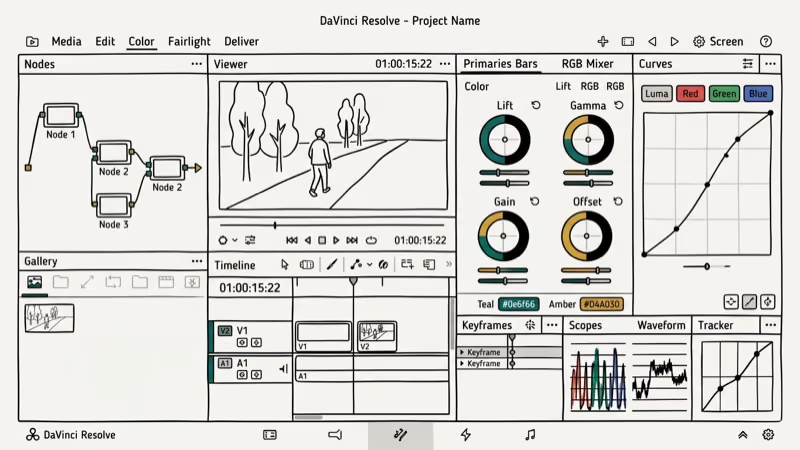
Color grading is where DaVinci Resolve dominates. Its dedicated Color page uses node-based grading, where each correction node can be stacked, masked, and keyed independently.
DaVinci’s color wheels are built for interactive adjustment, and the scopes (waveform, parade, vectorscope) update live as you adjust.
Premiere Pro uses Lumetri Color, which handles basic corrections well but gets awkward for complex grades that require multiple stacked adjustments. Hollywood colorists overwhelmingly use DaVinci Resolve’s node-based workflow because colorists can stack 10+ adjustment nodes on a single shot, each with independent masking and keying — a level of control that panel-based tools can’t replicate. Blackmagic Design’s color page documentation confirms that node-based grading was specifically designed for professional colorists who need isolated, stackable corrections on the same clip.
For related workflows, see the DaVinci Resolve audio guide and the fade audio in Premiere Pro guide.
#Adobe Integration: Premiere Pro’s Biggest Advantage
This is Premiere Pro’s strongest advantage. Adobe’s ecosystem means your project can move between apps without exporting and importing.
Working in Premiere Pro, you can right-click any clip and open it in After Effects for motion graphics. Audio goes to Audition for detailed processing. Photos from Lightroom drop straight into the timeline. This round-trip workflow is simpler than exporting from DaVinci Resolve and importing files into separate apps.
DaVinci Resolve integrates with Fusion for visual effects and Fairlight for audio. These are powerful tools, but they don’t have the ecosystem breadth of Adobe Creative Cloud. If your workflow involves Photoshop or After Effects regularly, Premiere Pro’s integration advantage is real and significant.
#Performance and System Requirements
Both editors are demanding, but in different ways.
DaVinci Resolve needs a dedicated GPU. According to Blackmagic Design’s system requirements, DaVinci Resolve uses GPU acceleration for color grading and effects far more aggressively than Premiere Pro, which means faster render times on the same hardware for color-heavy projects.
Premiere Pro’s proxy and playback workflow can be friendlier on lower-spec machines, especially for mixed-format timelines. On Apple Silicon Macs, this gap narrows significantly.
Linux support is DaVinci Resolve exclusive. Premiere Pro doesn’t run on Linux at all. For studios that standardize on Linux workstations, this ends the comparison.
#Multicamera Editing
Both tools support multicam workflows, but with different limits.
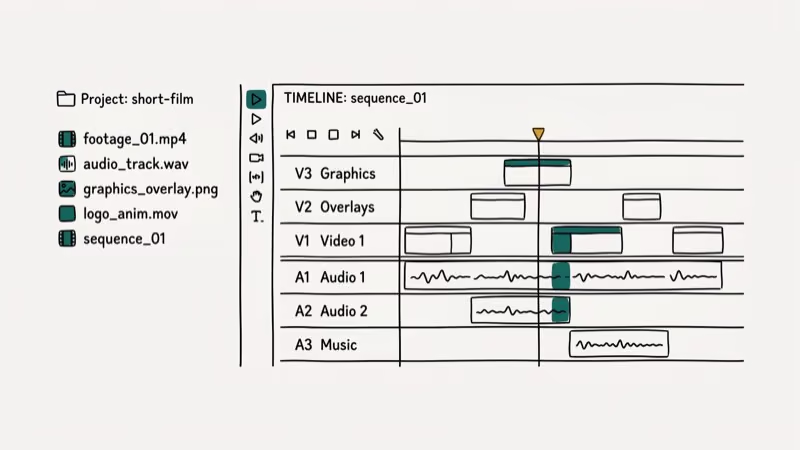
Premiere Pro has no camera angle limit in multicam sequences. DaVinci Resolve caps at 16 angles per multicam clip, which covers the vast majority of productions.
Large broadcast setups can exceed 16 cameras. That’s where Premiere Pro wins: broadcast professionals rely on it for high-count multicam work even when DaVinci Resolve handles color on the same project.
#Titles and Motion Graphics
Premiere Pro wins on titles. Its Essential Graphics panel has a large library of animated templates. Integration with After Effects means you can build fully custom motion graphics and bring them into Premiere in seconds via Motion Graphics Templates, a workflow that takes minutes rather than the hours Fusion requires for equivalent results.
DaVinci Resolve has Fusion. It handles sophisticated title animations, but the workflow takes longer to learn. For simple lower thirds and cards, Premiere Pro’s template system is faster. You can drop in a professional animated lower-third in under a minute, compared to building it node-by-node in Fusion.
#How Do You Speed Up Video in Each Editor?
Both handle speed changes well. In DaVinci Resolve, right-click a clip and select Change Clip Speed for uniform adjustments, or open Retime Controls for variable-speed segments with frame-by-frame control. Optical Flow fills in frames during speed changes and can make slow-motion clips look smoother than nearest-frame mode when the source has enough motion detail. The DaVinci Resolve speed up clip guide covers all four methods.
In Premiere Pro, Time Remapping with keyframes handles variable speed changes. The workflow is similar but requires a few more menu steps to reach the same result.
#Choosing the Right Editor for Your Workflow
Choose DaVinci Resolve if:
- You’re starting out and don’t want to commit to a monthly subscription
- Color grading is central to your work
- You need Linux support
- You want the best free professional editing tool available
Choose Premiere Pro if:
- Your workflow depends on After Effects, Photoshop, or other Adobe tools
- You work in a studio environment that has standardized on Adobe
- You need multicam support beyond 16 angles
- Advanced title templates are important to your workflow
For budget-conscious editors and colorists, Wondershare Filmora is also worth considering as a simpler alternative to both. And if you’re working with free video editing tools, DaVinci Resolve’s free version remains the most powerful no-cost option available.
Some links on this page are affiliate links, which means fone.tips may earn a commission at no extra cost to you.
#Bottom Line
DaVinci Resolve is the better value for most independent editors in 2026. The free version is fully professional, the color tools are industry-leading, and the one-time Studio payment costs less than 14 months of a Premiere Pro subscription. Premiere Pro wins when your workflow depends on Adobe Creative Cloud integration or requires more than 16 camera angles in multicam mode.
#Frequently Asked Questions
Is DaVinci Resolve harder to learn than Premiere Pro?
Both have steep learning curves. Premiere Pro’s interface is more familiar if you’ve used other Adobe products. DaVinci Resolve’s tabbed interface (Edit, Cut, Fusion, Color, Fairlight, Deliver) takes longer to navigate initially, but most editors find it intuitive within a few weeks of regular use.
Can I use both DaVinci Resolve and Premiere Pro on the same project?
Yes. Edit in Premiere Pro, color grade in DaVinci Resolve, then bring the graded footage back. Many professional workflows split the tools exactly this way.
Which is better for YouTube videos?
DaVinci Resolve. The free version exports directly to H.264 MP4 without a watermark, exactly what YouTube needs. You can color grade, cut, and export without spending anything, and the quality matches what Premiere Pro produces at $22/month.
Does DaVinci Resolve replace After Effects?
Not fully. Fusion handles compositing and many motion graphics tasks well, but After Effects has a far deeper ecosystem of third-party plugins (thousands of them) that Fusion can’t match in breadth. Studios with After Effects-heavy pipelines will find Premiere Pro the more practical pairing, since it plugs directly into that plugin ecosystem without extra round-trips.
What computers run DaVinci Resolve best?
Dedicated GPU is the most important factor. DaVinci Resolve performs significantly better with an NVIDIA or AMD discrete GPU rather than integrated graphics. Apple Silicon Macs (M1, M2, M3) also run DaVinci Resolve extremely well due to hardware acceleration support.
Is Premiere Pro worth the subscription cost?
For solo editors who only need Premiere Pro, $22/month is hard to justify when DaVinci Resolve’s free version handles the same core tasks. If your workflow regularly uses After Effects, Photoshop, or Audition, the full Creative Cloud bundle at $60/month spreads that cost across multiple professional tools and becomes more reasonable. Evaluate whether you actually use 3+ Adobe apps before committing.

Google Messages Error 3100: Why RCS Is Broken on Galaxy
Google Messages RCS error 3100 hits Galaxy owners after phone or carrier switches. Google told 9to5Google a fix is coming. Here's what actually helps.

Is This Bank App Real? Spot a Fake App on Your Home Screen
A bank app can land on your home screen from a web page with no install warning. Learn the checks that tell a real banking app from a phishing web app.

Apps Crashing After iOS 27 Update? Fix Order (2026)
Apps crashing after the iOS 27 update? Update the app in the App Store first, then offload and reinstall to clear stale cache, then restart. The fix order.

Do AI Translation Earbuds Work Offline? What to Know
Do AI translation earbuds work offline? A few do with downloaded language packs, but most need the cloud. Here's what works offline and what you give up.