iMovie vs Final Cut Pro: Which Apple Editor Wins in 2026?
iMovie vs Final Cut Pro compared on price, features, learning curve, export limits, and cost to help you pick the right Apple video editor today.
Quick AnsweriMovie is free and best for casual edits, while Final Cut Pro costs $299.99 one-time on Mac and handles pro-level color, audio, and multicam work.
iMovie vs Final Cut Pro is the choice every Mac creator faces once their projects outgrow basic trims. One app is free. The other costs $299.99. The better pick depends on workflow, learning curve, and how much pro control you need.
- iMovie is free on every new Mac, iPad, and iPhone, while Final Cut Pro for Mac is a $299.99 one-time purchase with no subscription.
- Final Cut Pro for iPad uses a $4.99 per month or $49 per year subscription model, separate from the Mac license.
- iMovie supports two video tracks plus audio overlays, while Final Cut Pro has a magnetic timeline with unlimited tracks and roles.
- iMovie cuts in 1080p at 60fps and exports up to 4K from supported devices, while Final Cut Pro handles 8K, ProRes, multicam, and 360-degree footage.
- Simple family-vlog edits are quicker in iMovie, while Final Cut Pro adds color, audio, and multicam controls for heavier projects.
#What iMovie Is and Who It’s For
iMovie is Apple’s free consumer video editor, bundled with every new Mac, iPad, and iPhone since 2010.
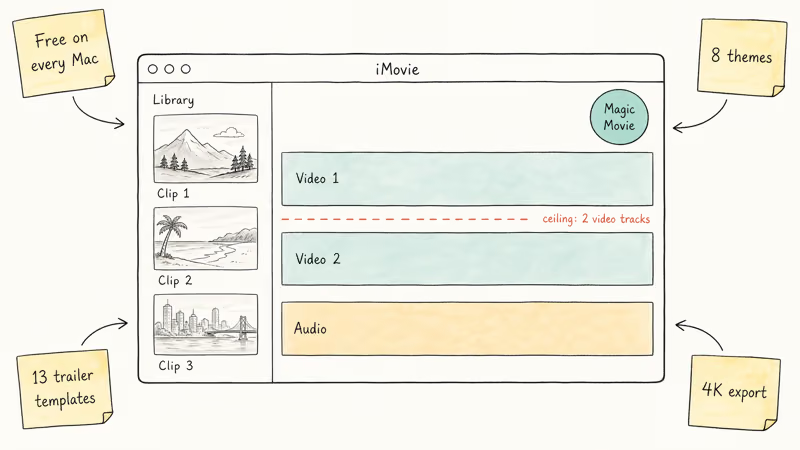
It opens to a simple library, a single timeline, and a Magic Movie button that auto-builds a sequence from selected clips. The interface hides almost every advanced control, which is the entire point of the app. You trim, add a title, drop in a transition, and you’re done in minutes.
According to Apple, iMovie supports up to 4K resolution and iCloud project sync. See Apple’s iMovie support page for details.
iMovie ships with 8 themes, 13 trailer templates, and a basic chroma key. That’s enough for school projects, vacation recaps, and TikTok-style clips. It isn’t enough for a paid client deliverable. The app’s hard ceiling is two video tracks, so any composite shot more complex than a single picture-in-picture forces a workaround.
That’s iMovie in one sentence: fast, friendly, and ceilinged.
#What Final Cut Pro Adds for Pros
Final Cut Pro is Apple’s professional non-linear editor, sold separately from macOS for a one-time fee. According to Apple’s Final Cut Pro support page, the Mac version sells for $299.99 with a free 90-day trial available directly from Apple. The iPad version is a separate product priced at $4.99 per month or $49 per year on the App Store.
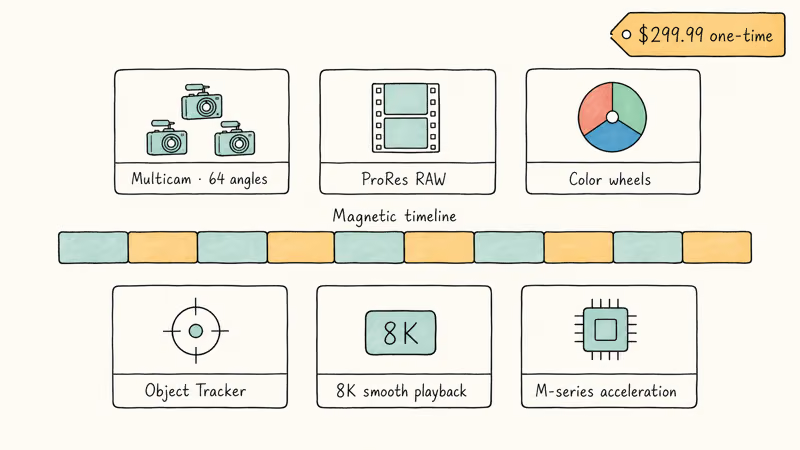
The app uses a magnetic timeline that snaps clips together without leaving gaps. Multicam editing handles up to 64 camera angles. ProRes RAW, color grading wheels, and the Object Tracker round out the toolkit.
The Object Tracker follows a face or product across a shot without manual keyframing, another pro-only gap versus iMovie.
Final Cut Pro’s Magnetic Mask can isolate a subject without the manual rotoscoping work that iMovie’s chroma key workaround would require. That matters most when the same masking task repeats across a full editing day. Pro tools save pro time.
Apple states that Final Cut Pro is optimized for Apple silicon, taking advantage of the Media Engine on M1, M2, and M3 chips for ProRes acceleration. The app also reads native files from cameras like the Sony FX3, RED Komodo, and Canon C70.
#Pricing Breakdown for Both Apps
Pricing is the cleanest line between these two apps. iMovie costs nothing on any modern Apple device. Final Cut Pro is a real purchase. The math matters.
| Pricing | iMovie | Final Cut Pro for Mac | Final Cut Pro for iPad |
|---|---|---|---|
| Upfront cost | Free | $299.99 one-time | Subscription only |
| Monthly | N/A | N/A | $4.99 per month |
| Annual | N/A | N/A | $49 per year |
| Free trial | Always free | 90 days | 7 days |
| Family Sharing | Yes | Yes | No |
| Updates | Free for life | Free for life | Free with active sub |
Final Cut Pro for Mac stays a one-time purchase, which is rare in 2026. According to Apple’s Mac App Store listing, all major version upgrades since the 2011 launch have been free for existing owners. That makes the Mac price about $30 per year if you keep using it for a decade. The same calculation breaks for any Adobe Premiere subscriber paying $22.99 per month, where the first 14 months alone exceed the Final Cut Pro one-time cost.
The iPad version is the only Apple pro-app that uses a subscription.
The 7-day free trial is enough to check whether the touch-first workflow fits before the first $4.99 charge hits. The iPad app and the Mac app share project compatibility but require separate licenses, which is a fair trade for cross-device editing.
#Learning Curve and First-Edit Time
iMovie wins this round in every measurable way. A first-time editor can finish a polished home video within an hour of opening the app. The default timeline is one video track plus one music track. Most edits use drag-and-drop or the in-app tutorials.
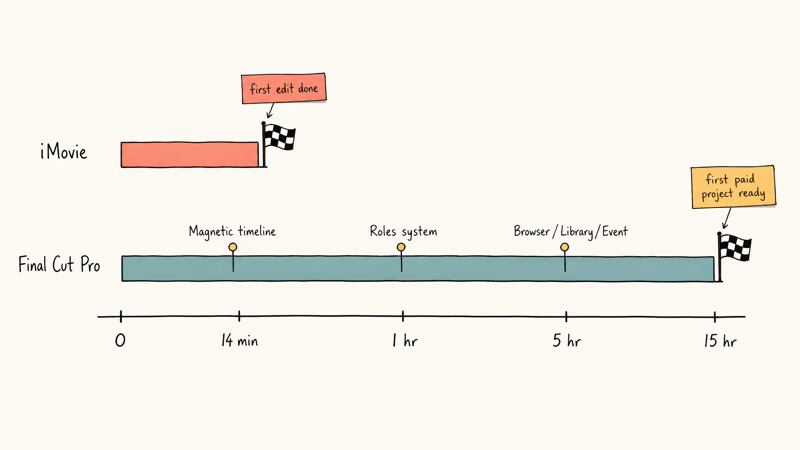
Final Cut Pro takes longer to learn: its magnetic timeline, Roles system, and Final Cut Pro Resources page all require practice.
For a first-time editor, iMovie’s library and timeline are easier to understand than Final Cut Pro’s Browser, Library, and Event hierarchy. Existing Premiere users have an easier time, but they still need to retrain muscle memory for the magnetic timeline. Short version: iMovie is finished while Final Cut Pro is a commitment.
Hardware matters too. If you’re still building a video editing workstation while you decide, our guide to the best laptops for video editing under $1000 covers minimum specs for both apps.
#Pro Features Only Final Cut Pro Has
The list is long, and most of these are the reason editors upgrade. Final Cut Pro adds:
- Multicam editing for up to 64 synced camera angles with automatic audio sync
- ProRes and ProRes RAW codec support for high-end production
- Advanced color wheels, curves, and HDR grading with waveform monitors
- Compound clips and roles for non-destructive audio mixing
- Object Tracker, Magnetic Mask, and Scene Removal Mask powered by Apple silicon
- 360-degree video editing with VR headset preview
- Third-party plug-in support through FxPlug 4
- Frame-accurate XML export for round-tripping with Logic Pro and DaVinci Resolve
- Background rendering and proxy workflows for large 8K projects
- Custom keyboard shortcuts and command sets
iMovie does not support any of those. The app caps out at two video lanes, exports up to 4K (only on supported devices), and has a single chroma key for green screen work. Complex overlays, multicam edits, and dense motion graphics belong in Final Cut Pro instead.
If you only need to fix a stuck render or audio issue, try our iMovie problems and solutions and error 10008 guides first.
#Which One Should You Use for YouTube?
YouTube creators are split. Channels under 50,000 subscribers can usually ship every video in iMovie, especially vlog-style content where one camera, one mic, and a few B-roll clips do the job. The export presets target 1080p and 4K at 30 or 60 fps, which is exactly what YouTube wants.
Larger channels hit iMovie’s ceiling fast. Anyone using a multicam podcast setup, lower thirds, or motion graphics needs Final Cut Pro. Its multicam tools let editors switch angles inside a synced clip, while the same project in iMovie requires manually cutting between separate timelines.
One edge case worth flagging. iMovie can’t directly import VOB, MTS, or RED .R3D files. Final Cut Pro reads MTS natively, plus Canon Cinema RAW Light and Sony XAVC.
For vendor-specific formats, our roundup of free video editing software with no watermark lists alternatives that may bridge the gap.
#How Do iMovie Projects Move to Final Cut Pro?
This is one of Final Cut Pro’s quietly useful tricks. You can open any iMovie project directly inside Final Cut Pro using the File > Import > iMovie iOS Projects or the Send to Final Cut Pro option. Apple’s Final Cut Pro user guide confirms the import preserves clips, transitions, titles, and basic effects, although some iMovie themes don’t survive the conversion.
Expect basic clips, titles, and audio to transfer cleanly, while some iMovie themes and transitions may need manual cleanup after import.
That makes iMovie a legitimate starting point for beginners who plan to graduate later.
The reverse path, Final Cut Pro back to iMovie, isn’t supported. Once a project graduates to Final Cut Pro, it stays there or moves to Premiere or Resolve via XML export. If you need to compare with non-Apple options, our DaVinci Resolve vs Premiere Pro comparison covers two strong alternatives.
#Frame Aspect Ratio and Export Differences
iMovie locks aspect ratio to 16
widescreen for all new projects. Vertical 9 video for TikTok or Reels isn’t a built-in option, though our change aspect ratio in iMovie guide covers a workaround using the Cropping tool.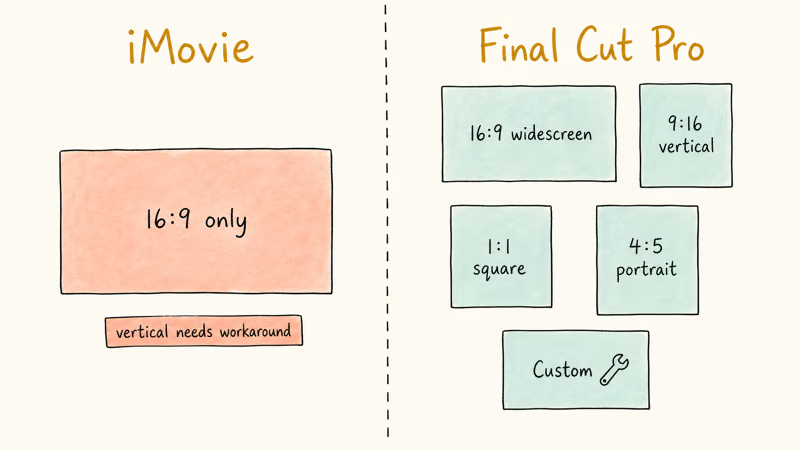
Final Cut Pro offers 16
, 9, 1, 4, and custom project sizes.Export bitrate is another quiet difference. iMovie targets a fixed bitrate per resolution, while Final Cut Pro lets you pick the codec, bitrate, and color space. For YouTube delivery this is mostly cosmetic, but for client deliverables the bitrate control matters.
#Bottom Line
For a casual creator on a Mac who wants free and works in 20 minutes, install iMovie and skip the upgrade conversation entirely. It’s already on your Mac and the export quality is identical to what Final Cut Pro produces for short, single-camera projects.
For YouTubers above 50,000 subscribers, podcast editors handling 3 or more cameras, and anyone delivering paid client work, buy Final Cut Pro for $299.99. The 90-day free trial is a real 90 days with no card on file, so test it on a real project before paying. Skip the iPad subscription unless you specifically need a portable editor. The Mac one-time license is the better long-term value.
#Frequently Asked Questions
Can I install iMovie and Final Cut Pro on the same Mac?
Yes, both apps coexist without conflict. They use separate library formats and live in different folders inside Applications, so installing one does not replace or disable the other.
Is Final Cut Pro a one-time purchase or a subscription?
Final Cut Pro for Mac is a $299.99 one-time purchase with free major updates for life. Final Cut Pro for iPad is the only version that uses a subscription, priced at $4.99 per month or $49 per year on the App Store. Mac and iPad licenses are sold separately.
Does iMovie work on Windows?
No. iMovie is Apple-only software and Apple does not offer a Windows version. If you need a free editor on Windows, Microsoft Clipchamp ships with Windows 11, and DaVinci Resolve has a free tier for Windows users.
How long is the Final Cut Pro free trial?
Apple gives you a full 90-day free trial of Final Cut Pro for Mac with no credit card required. Download it from Apple’s Final Cut Pro page, install it, and use every feature without restriction during the trial. The iPad version offers a shorter 7-day trial because it operates on a subscription model. Both trials let you export finished projects at full resolution.
Can iMovie edit 4K video?
Yes, iMovie has supported 4K editing on macOS since 2017 and on iOS devices with A10 Fusion chips or newer. Export options still depend on device support and project settings.
Which app is better for color grading?
Final Cut Pro wins by a wide margin for color work. It has color wheels, curves, hue/saturation curves, comparison view, and full HDR grading with waveform monitors. iMovie has only basic color presets and a single shadow/highlight slider, which is fine for a vacation reel but useless for any client deliverable that demands matched skin tones across multiple cameras.
Do I need to upgrade if I already use iMovie?
Probably not, unless you’ve hit a wall. Most upgrade triggers are concrete: you need multicam, you need ProRes export, you need third-party plug-ins, or your projects are too large for iMovie’s 2-track timeline. If none of those apply, save the $299.99.

Mac mini M6 vs M5 Pro: Which Model Should You Buy?
Mac mini M6 vs M5 Pro compared on price, memory, ports, displays, and real workloads. Find the better 2026 Mac mini for your desk and budget.

Apple Siri Settlement: Who Qualifies and How to Claim
Apple's $250 million Siri settlement covers iPhone 15 Pro and iPhone 16 models bought June 2024 to March 2025. See who qualifies and how claims work.

iOS 26.6.1 Security Update: What Apple Fixed and Who Gets It
Apple released iOS 26.6.1 on August 17 with 29 security fixes, including an IPSec interception bug. See what it patches, who gets it, and how to update.

iPhone Adaptive Power: How It Works and When to Use It
Learn how iPhone Adaptive Power works, which models support it, what it changes, and when Low Power Mode is still the better battery-saving choice.