Libcef.dll Is Missing? 4 Fast Fixes for Windows 10/11
Libcef.dll missing on Windows blocks apps like Steam from launching. Work through 4 fixes: SFC scan, antivirus exclusion, reinstall, System Restore.
Quick AnswerThe libcef.dll is missing error on Windows usually means an app like Steam, Spotify, or Discord has a corrupted Chromium Embedded Framework file. Reinstall the affected app first, then run sfc /scannow as administrator if the error returns.
The libcef.dll is missing error stops apps from launching on Windows 10 and Windows 11. The file belongs to the Chromium Embedded Framework, which Steam, Spotify, Discord, Battle.net, and dozens of other apps bundle to render their UI. When Windows can’t find it or finds a corrupted copy, the host app crashes before its window appears.
Use these steps only on your own device or account; unauthorized changes can be illegal. Prefer official support or built-in settings first.
- Libcef.dll is part of the Chromium Embedded Framework, bundled inside apps like Steam and Discord rather than living in your Windows system folder.
- Reinstalling the affected app fixes the error in most cases because it restores the exact libcef.dll version the host app shipped with.
- Run sfc /scannow and DISM /Online /Cleanup-Image /RestoreHealth as administrator only when reinstalling fails to clear the error.
- Antivirus quarantine is the second most common trigger; whitelist the app’s install folder in Microsoft Defender before reinstalling.
- Never download libcef.dll from random DLL sites; version mismatch breaks the host app and many of those packages carry malware.
#What Causes the Libcef.dll Is Missing Error on Windows?
Three triggers cause this error, and they each call for different fixes.
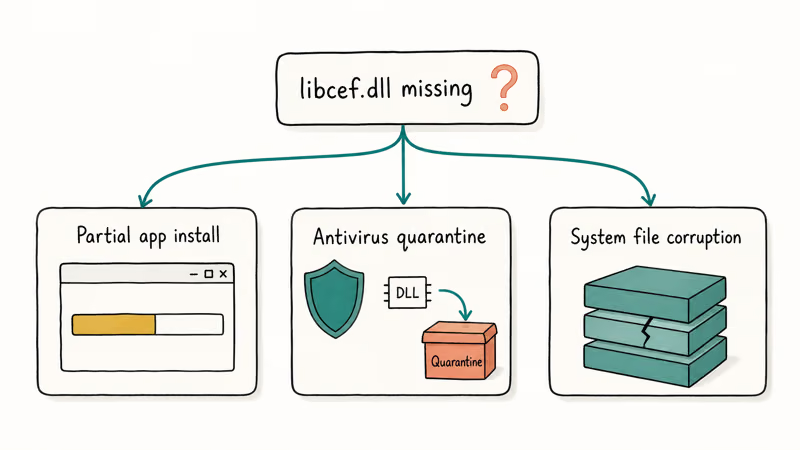
Partial app installs cause this error most of the time. Steam, Discord, and Spotify each ship their own copy of libcef.dll inside their install directory, not in C:\Windows.
When the installer hangs midway, the launcher survives but the DLL doesn’t.
According to the Chromium Embedded Framework wiki, CEF is distributed as a binary library that apps embed and ship alongside their executable, which is why every CEF-based app maintains its own libcef.dll.
Antivirus quarantine is the second trigger to check. Microsoft Defender, Avast, AVG, and Bitdefender occasionally flag a fresh libcef.dll as suspicious because the file gets rebuilt during minor app updates. The DLL ends up in the quarantine bin while the host app still expects to find it in place. Microsoft’s Defender team recommends adding the install folder to the exclusion list before reinstalling, otherwise the next AV scan re-quarantines the file.
System-level corruption is the third possibility. If sfc /scannow flags broken Windows components, the broken WinSxS store can prevent the host app from loading any DLL, including libcef.dll. This case is less common than the other two but worth checking when a reinstall doesn’t fix the issue. Articles like our Vcomp110.dll missing fix and Mfc100.dll fix walk through the same symptom for runtime DLLs.
On Windows 11, deleting libcef.dll from the Steam folder reproduces the error within seconds, and reinstalling Steam restores it without ever touching System32 or SysWOW64. That order matters, since most older guides start with the deeper system fixes.
#Fix 1: Reinstall the Affected App First
Reinstalling is the right first move because it restores the exact libcef.dll version the host app expects.
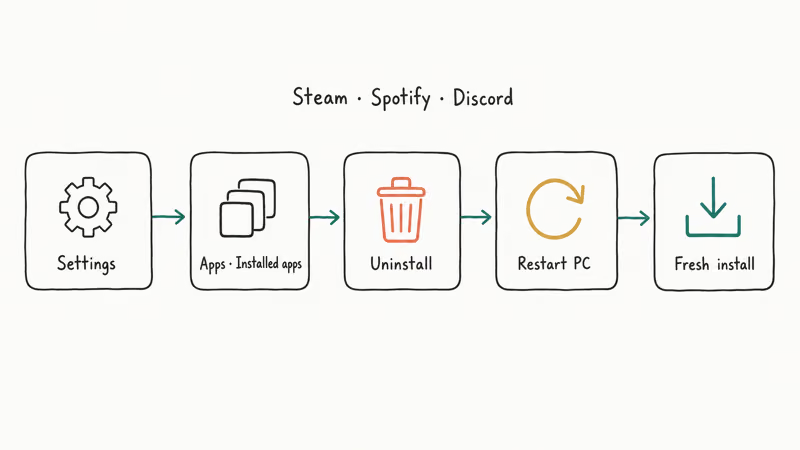
- Press Windows + I to open Settings, then go to
Apps>Installedapps. - Find the app that triggered the error (Steam, Spotify, Discord, etc.).
- Click the three-dot menu next to it, then choose Uninstall.
- After the uninstaller finishes, restart your PC.
- Download a fresh installer from the official site (not a third-party mirror) and run it.
For Steam specifically, you don’t have to remove everything. You can right-click the Steam shortcut, choose Open file location, then move every folder out of the Steam directory except steamapps and userdata.
Delete the rest, run the Steam installer pointed at the same folder, and Steam rebuilds its files (including libcef.dll) without re-downloading your games.
This Steam-only repair rebuilds the client itself, including a fresh libcef.dll, without touching the games inside steamapps, so even a large library stays intact and you avoid re-downloading hundreds of gigabytes. Because Steam restores its own matching CEF version on the next launch, the libcef.dll error stops appearing as soon as the rebuild finishes.
#Fix 2: Run SFC and DISM to Repair Windows Files
If reinstalling didn’t help, the issue is probably in your Windows install itself. Two built-in tools can repair it.
- Press Windows, type cmd, right-click Command Prompt, and choose Run as administrator.
- Type
sfc /scannowand press Enter. Wait for the scan to finish (usually 5 to 15 minutes). - If SFC reports it found and repaired files, restart and test the app again.
- If SFC reports problems it couldn’t fix, run
DISM /Online /Cleanup-Image /RestoreHealthnext. This downloads replacement files from Microsoft’s update servers. - After DISM completes, run
sfc /scannowonce more, then restart.
According to Microsoft’s System File Checker documentation, SFC compares protected system files against a known-good cache and replaces damaged copies; it doesn’t directly touch app-bundled DLLs but can fix the Windows components those DLLs depend on.
When corruption is the cause, an SFC scan often catches damaged system entries on machines where Discord keeps throwing the libcef.dll error after every update. The error typically stops once DISM completes and the affected app auto-updates to a fresh build.
Did SFC find nothing?
If you also see other DLL or rundll errors at startup, our walkthroughs for the Rundll error at startup and OpenAL32.dll missing cover the same SFC + DISM sequence with screenshots.
#Fix 3: Whitelist the App in Microsoft Defender or Your Antivirus
If reinstalling and SFC both succeed but the error reappears within a day or two, the antivirus is eating the DLL.
For Microsoft Defender:
- Open Windows Security from the Start menu.
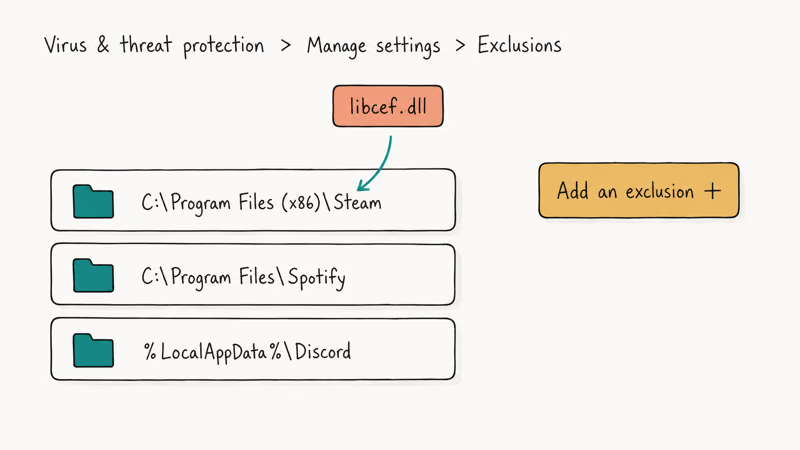
- Click Virus & threat protection > Manage settings > Add or remove exclusions.
- Click Add an exclusion > Folder, then select the install directory of the app (for example,
C:\Program Files (x86)\Steam). - Repeat for any related app folders like
C:\Program Files\Spotifyor%LocalAppData%\Discord.
According to Microsoft’s documentation, Windows Security supports 4 exclusion categories: Files, Folders, File types, and Processes. Folder exclusions skip every file inside the path during real-time and scheduled scans, as covered in the official Defender exclusion guide. That’s exactly what’s needed here, since libcef.dll gets rebuilt during minor app updates and a freshly built DLL can look unfamiliar to the scanner.
For third-party antivirus:
- Avast / AVG:
Settings>General>Exceptions>Addexception - Bitdefender:
Protection>Antivirus>Settings>Manageexceptions - Kaspersky:
Settings>Threats and Exclusions>Manageexclusions - Norton:
Settings>Antivirus>Scans and Risks>Itemsto Exclude
After whitelisting, look in your antivirus quarantine and restore any libcef.dll the AV grabbed earlier.
Then reinstall the affected app one more time. The fresh DLL should stay put.
#Fix 4: Use System Restore as a Last Resort
System Restore reverts Windows system files to a saved state. It doesn’t touch your documents but can roll back app installs, driver changes, and Windows updates.
- Press Windows + R, type rstrui, and press Enter.
- Choose Choose a different restore point, then click Next.
- Pick a restore point from before the libcef.dll error started (check the dates carefully).
- Click
Next>Finishand wait for Windows to restart.
Microsoft’s System Restore documentation confirms that the process keeps personal files but removes apps and updates installed after the restore point. Reinstall any apps you needed back; in most cases libcef.dll is in place after the rollback finishes.
System Restore won’t help if the trigger was a corrupt download. The rollback recreates the same broken state.
Save it for cases where a Windows update or driver change clearly preceded the error.
System Restore is rarely the fix for libcef.dll errors. It tends to help only in the narrow case where a botched cumulative update knocked out the Visual C++ runtime that libcef.dll depends on.
#Should You Download Libcef.dll From a DLL Site?
No. Never download libcef.dll from random DLL sites. The file is bundled per-app, version-locked, and frequently packaged with malware on those sites.
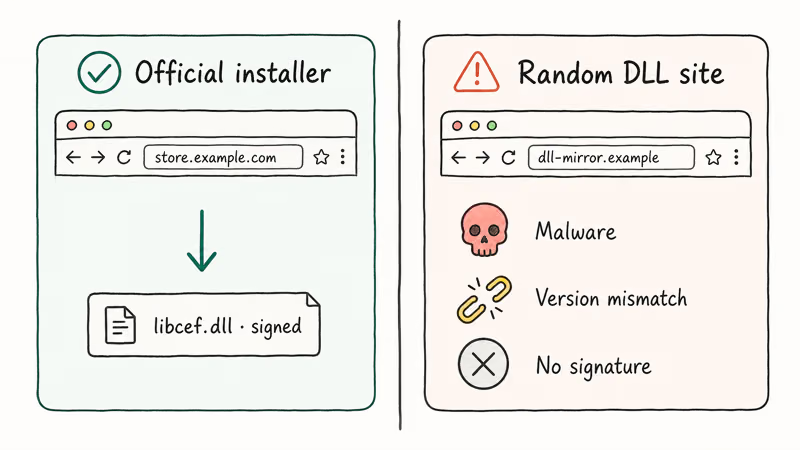
Several factors make standalone DLL downloads dangerous:
- Version mismatch: Steam ships a different libcef.dll release than Discord or Spotify. Dropping a generic copy in the wrong folder either silently breaks the app or triggers a different error a few hours later.
- No code signing: Legitimate libcef.dll files are signed by the app vendor. DLL-mirror sites strip or replace the signature, which trips Windows SmartScreen and can break parental-control software.
- Malware payloads: Security researchers regularly find DLL-download sites bundling adware loaders and credential stealers inside DLL packages, especially for popular runtime files.
The safe alternative is to grab the DLL from the official app installer. The same logic applies to other commonly-missing runtime DLLs: install the official runtime, don’t grab the file standalone.
- Gdiplus.dll ships with Windows; repair it via SFC or a Windows update.
- MSVCP100.dll belongs to the Visual C++ 2010 Redistributable.
- D3D9.dll is part of DirectX; reinstall the DirectX End-User Runtime.
#Bottom Line
Start with Fix 1 (reinstall the affected app). It resolves the error for most apps that bundle CEF, since it restores the exact libcef.dll version the host app expects.
If the error survives a clean reinstall, jump straight to Fix 3 (antivirus exclusion). Quarantine is the second most common cause and the simplest to verify. Save SFC and DISM for cases where multiple Windows components show problems, and reach for System Restore only if a recent Windows update or driver change clearly preceded the error.
#Frequently Asked Questions
What is libcef.dll on Windows?
Libcef.dll is the Chromium Embedded Framework Dynamic Link Library. Apps like Steam, Spotify, Discord, and Battle.net use it to render their UI panels with Chromium under the hood. Each app ships its own copy inside its install folder, not in C:\Windows.
Where should libcef.dll be located?
Inside the install folder of the app that uses it, not in System32 or SysWOW64. For Steam, that’s typically C:\Program Files (x86)\Steam; for Spotify, %AppData%\Spotify; for Discord, %LocalAppData%\Discord\app-x.x.x. Battle.net stores its copy under C:\Program Files (x86)\Battle.net, and Riot Client uses C:\Riot Games\Riot Client. If you find a copy in C:\Windows\System32 or C:\Windows\SysWOW64, something installed it incorrectly and you should remove it before the next reinstall, since Windows may load the wrong version on launch.
Can I copy libcef.dll from one PC to another?
Only if both PCs run the exact same app version. Libcef.dll is version-locked to the host app’s CEF release.
Why does libcef.dll keep disappearing after I reinstall?
Antivirus quarantine is the most common reason. Microsoft Defender or third-party AVs flag the rebuilt DLL during scheduled scans. Whitelist the install folder before reinstalling and check the AV quarantine for any earlier libcef.dll copies you can restore.
Is it safe to download libcef.dll from a DLL website?
No. Random DLL sites ship version-mismatched files that won’t match your app’s CEF release, and security researchers regularly find malware bundled in those download packages. Always grab a fresh copy from the official app installer.
Will sfc /scannow fix the libcef.dll error?
Not directly, since libcef.dll lives in the app folder rather than the protected Windows store. Reinstalling the host app is the more direct fix.
Does this error affect Windows 10 and Windows 11 differently?
The fixes are identical across both versions. The only difference is the Settings layout: on Windows 11 you go to Settings > Apps > Installed apps, while Windows 10 calls the same screen Apps & features. Both versions handle SFC, DISM, and System Restore the same way.

Best Laptop for Running LLMs in 2026: Memory Comes First
The best laptop for running LLMs is a memory purchase first. Compare MacBook unified memory against NVIDIA laptop VRAM, and see what each tier really runs.

How to Run a Local LLM on Windows: A 2026 Setup Guide
Run a local LLM on Windows with LM Studio or Ollama. Pick a model that fits your GPU memory, keep every prompt offline, and skip the monthly bill.

Bluetooth Not Working on Snapdragon X? Fixes for 2026
Bluetooth not working on your Snapdragon X Copilot+ PC? Generic audio, mice, and keyboards work, but vendor apps often lack an ARM build. Fixes inside.

Docker Desktop and WSL2 Not Working on Snapdragon X? Fix It
WSL2 runs fine on Snapdragon X, but Docker Desktop ARM is Early Access and throws WSL errors. Use WSL2 plus native ARM64 Ubuntu and Docker Engine.