How to Fix Rundll Errors on Windows 10 and Windows 11
Fix Rundll errors on Windows 10 and 11 with five proven methods. Reinstall programs, run SFC and DISM, clean orphaned registry keys, scan for malware.
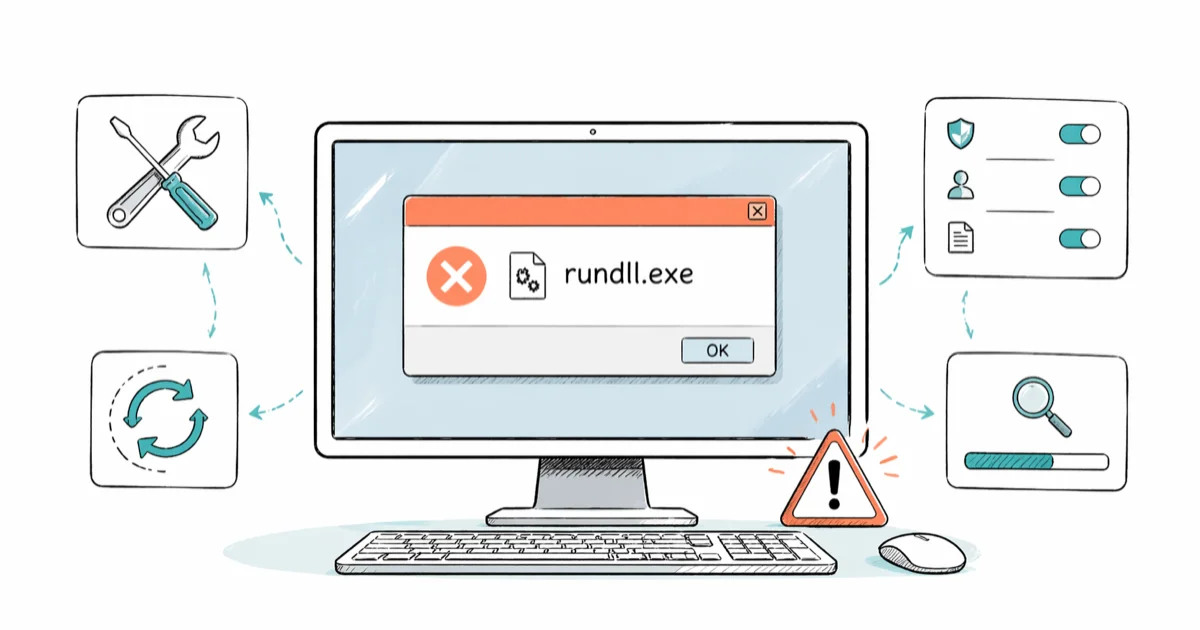
Quick AnswerRundll errors occur when Windows cannot load a Dynamic Link Library file. Reinstalling the offending program, running System File Checker, or cleaning leftover registry entries clears most cases.
A Rundll error usually pops up at startup, naming a DLL that Windows can’t find or load. The fix depends on whether the DLL is missing, corrupted, or pointed to by a leftover registry entry. The five steps below apply to both Windows 10 and Windows 11 PCs that throw Rundll popups at boot, and the order here clears the error in almost every case without reinstalling Windows.
- Rundll errors come from missing, corrupted, or orphaned references to a DLL file
- Reinstalling the program named in the popup is the fastest fix when the message identifies one
- System File Checker repairs Windows-owned DLLs in roughly 5 to 10 minutes from an admin terminal
- Orphaned Run keys in the registry trigger the popup at every boot until the entry is removed
- A full malware scan is mandatory because some Rundll popups are loaded by trojans masquerading as DLLs
#What Is Rundll and Why Does It Throw Errors?
Rundll32.exe is a small Windows host process that loads a DLL into memory and runs one of its exported functions. According to Microsoft’s Windows DLL documentation, DLLs let multiple programs share code, which is why a single bad reference can trigger the popup whether the file came from Windows itself or a third-party app.
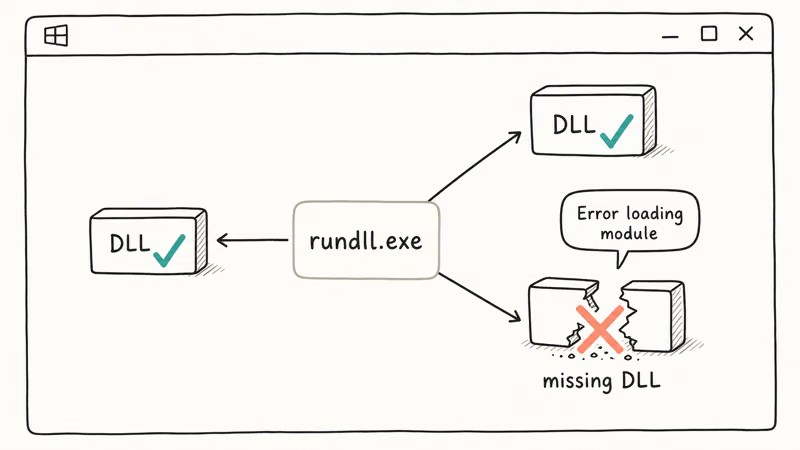
The error you see usually falls into one of three shapes, and each maps to a different cause:
- “There was a problem starting [filename]. The specified module could not be found.” Windows tried to load a DLL that no longer exists on disk.
- “Error loading [filename]. The specified procedure could not be found.” The DLL exists but the function Rundll32 was told to call is missing or the file is corrupted.
- “Rundll32.exe entry point not found.” The DLL was replaced by a version that does not export the symbol Windows expects, often after a botched update or partial uninstall.
Shape 1 commonly appears after removing an old printer driver, and shape 3 often follows a paused Windows update that left mismatched system files behind. Shape 2 is the one that warrants a malware scan first because trojans sometimes drop a fake DLL with the right name but the wrong exports.
#Method 1: Reinstall the Program Named in the Popup
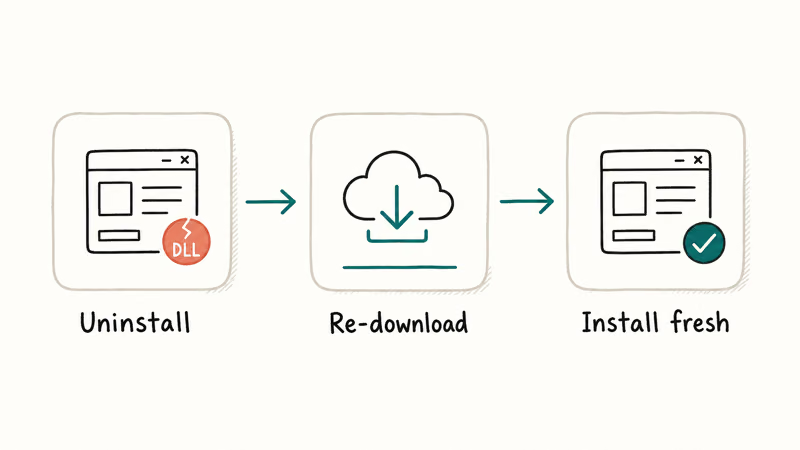
When the popup names a vendor or product, the fastest fix is to remove that program cleanly and install the latest build. When the message points at an outdated component, such as an old antivirus module, a clean reinstall typically clears the popup before the next reboot.
Steps:
- Open Settings and go to Apps, then Apps and features on Windows 10 or Installed apps on Windows 11.
- Find the program the popup names. The clue is usually in the file path, for example
C:\Program Files\AvastSoftware\Avast. - Click the program, choose Uninstall, and let the vendor’s removal tool finish.
- Restart the computer so any locked files are released.
- Download the current installer from the vendor’s official site, run it, and reboot once more.
If the popup names only a DLL file rather than a program, search the exact filename plus “rundll” on the vendor’s support site or on the Microsoft Q&A forum before deleting anything. Many DLLs belong to drivers or runtimes that other apps still need. If the troubleshooting drags on, our guide on why Windows 10 can run slow after software changes walks through related cleanup steps.
#Method 2: Run System File Checker and DISM
System File Checker (SFC) replaces Windows-owned DLLs that have been modified or deleted, and DISM repairs the component store SFC pulls replacements from. Microsoft recommends running them in that order.
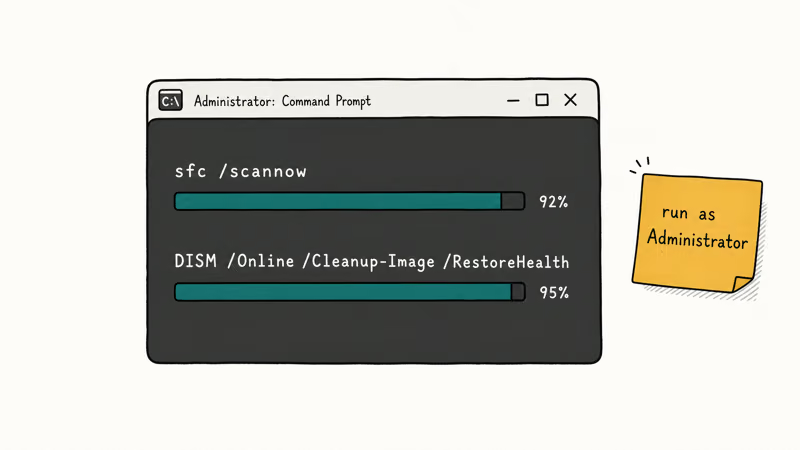
The Microsoft Support page on using SFC confirms that the tool scans every protected system file and replaces incorrect versions with correct Microsoft versions. The SFC scan usually finishes in a few minutes on Windows 11, and it’s nearly as quick on a Windows 10 machine with an SSD.
Steps:
- Press Windows + X and choose Terminal (Admin) on Windows 11 or Command Prompt (Admin) on Windows 10.
- Run
sfc /scannowand let it finish. The scan takes about 5 to 10 minutes on most machines. - If SFC reports it could not fix some files, run
DISM /Online /Cleanup-Image /RestoreHealthnext. - Reboot, then run
sfc /scannowonce more to confirm a clean result.
With the entry-point variant, SFC alone can return “Windows Resource Protection could not perform the requested operation.” Running DISM first, then a second SFC pass, usually fixes the corrupted files so the popup stops appearing. If you boot into a repair loop instead of the desktop, work through our Windows automatic repair loop guide before trying SFC again.
#Method 3: Remove Orphaned Run Keys in the Registry
Many Rundll errors come from a Run or RunOnce key that points to a DLL the uninstaller failed to clean up. Removing the orphan stops Windows from trying to load the missing file at boot.
Manual approach:
- Press Windows + R, type
regedit, and confirm the UAC prompt. - Open
HKEY_CURRENT_USER\Software\Microsoft\Windows\CurrentVersion\RunandHKEY_LOCAL_MACHINE\Software\Microsoft\Windows\CurrentVersion\Run. - Look for entries whose Data column references a DLL path that no longer exists on disk.
- Right-click the orphan and choose Delete. Repeat for
RunOnceunder both hives. - Reboot.
A safer alternative is to open Task Manager, switch to the Startup apps tab, and disable any item that calls rundll32.exe followed by a path you don’t recognize. This route avoids regedit entirely, and the popup is usually gone after the next reboot.
If the registry holds keys you can’t identify, the invalid value for registry walkthrough covers safer recovery options. For deeper cleanup of leftover update files that sometimes drop these orphans, our guide on how to delete Windows update files completely is the next stop.
Safety note: never delete entries you don’t recognize. If in doubt, export the key first by right-clicking it and choosing Export so you can restore it later.
#Method 4: Run a Full Malware Scan
A subset of Rundll popups is generated by malware that loads its payload through rundll32.exe. Microsoft’s Defender threat encyclopedia documents several families that abuse Rundll32 specifically, which is why running a full scan before deleting anything system-level matters.
Steps:
- Open Windows Security from the Start menu, then Virus and threat protection.
- Choose Scan options, select Full scan, and click Scan now.
- Quarantine anything Defender flags rather than deleting straight away. That preserves the log if you need to file it with IT.
- Run a second-opinion scan with a free on-demand tool such as Malwarebytes Free if Defender comes back clean but the popup persists.
- Reboot once both scans finish.
Malware is the cause in only a minority of Rundll cases, but when it’s to blame, Defender often quarantines a suspicious DLL stored under C:\ProgramData\ that a browser hijacker dropped. Once that file is removed and the machine reboots, the Rundll popup is gone and Method 5 is no longer required.
#Method 5: Disable the Startup Item That Triggers the Popup
If you can’t identify the vendor and the SFC plus malware scans came up clean, disabling the startup entry that calls Rundll32 is the safest temporary fix.
Steps:
- Press Ctrl + Shift + Esc to open Task Manager and click Startup apps.
- Sort by Status, then look for entries with a generic name and an unsigned publisher.
- Right-click each suspicious entry and choose Disable.
- Reboot.
- If the popup is gone, you can leave the entry disabled. If something stops working, re-enable items one at a time until you find the culprit.
This won’t repair a corrupted file, but it stops the popup so you can keep using the machine while you investigate. Pair it with Method 2 once you have time for a full SFC and DISM run.
#Should You Reinstall Windows?
A reinstall is the last resort. Before considering it, work through Methods 1 to 5 and verify your backups. The Microsoft recovery drive guide walks through building a USB recovery drive on a working machine first.
Before you reinstall:
- Back up personal files to an external drive or cloud storage.
- Note your Microsoft account and any local product keys for paid software.
- Confirm you can re-download the apps you rely on without the original installers.
If you keep hitting Stop codes alongside the Rundll popup, our DISM error 87 walkthrough often catches the underlying corruption before a full reinstall is needed.
#Frequently Asked Questions
Can a Rundll error cause data loss?
The popup itself does not delete files. The risk is indirect: a Rundll error driven by malware can be the visible symptom of a payload that is touching files in the background. Run a full malware scan before assuming the popup is harmless.
Is it safe to delete Rundll32.exe?
No. Rundll32.exe lives in C:\Windows\System32\ and is signed by Microsoft. Deleting it breaks countless legitimate features. If a popup tells you the file is missing, run System File Checker so Windows can restore it from the protected system files cache.
Why does the Rundll error keep coming back?
A returning popup means the root cause has not been removed. Either an orphan registry or scheduled-task entry keeps trying to load the missing DLL at boot, or malware is rewriting the file after every reboot. Run SFC, then a full Defender scan, then check Method 3 again. If the message persists, look in Task Scheduler for a task created by the program that originally caused the issue.
Can I fix a Rundll error without restarting?
Not reliably. Most fixes need a reboot so Windows reloads the DLL list cleanly.
Which method fixes Rundll errors fastest?
Method 1 wins when the popup names a program. Method 2 is the most reliable starting point when the popup only names a DLL because SFC and DISM run unattended and rarely break anything. Method 3 is the right answer when both Method 1 and Method 2 came up clean but the popup keeps returning at every boot.
Is a Rundll error serious?
It depends on the cause. An orphan registry entry from an uninstalled printer driver is a nuisance, and clearing the leftover Run key makes it stop. The same popup driven by malware loaded through Rundll32 is a real incident because the loader runs whatever payload it’s pointed at. Treat every persistent Rundll error as worth a malware scan, especially on a machine that handles email, banking, or work files.
Does a Rundll popup mean my Windows install is broken?
Not necessarily. A single popup pointing at a third-party DLL usually means a partial uninstall. A popup naming a system DLL such as shell32.dll is more concerning because it points at Windows-owned files, which is exactly what System File Checker is built to repair.
#Bottom Line
Start with Method 1 if the popup names a program: a clean uninstall and reinstall is the lowest-risk fix and clears most third-party DLL cases without touching the registry. If the popup names only a DLL, run SFC followed by DISM in Method 2, then a full Defender scan in Method 4 before going near regedit.
The combination of an automated SFC pass, a Defender full scan, and the Task Manager startup audit in Method 5 clears the large majority of Rundll popups without needing a Windows reinstall.

Best Laptop for Running LLMs in 2026: Memory Comes First
The best laptop for running LLMs is a memory purchase first. Compare MacBook unified memory against NVIDIA laptop VRAM, and see what each tier really runs.

How to Run a Local LLM on Windows: A 2026 Setup Guide
Run a local LLM on Windows with LM Studio or Ollama. Pick a model that fits your GPU memory, keep every prompt offline, and skip the monthly bill.

Bluetooth Not Working on Snapdragon X? Fixes for 2026
Bluetooth not working on your Snapdragon X Copilot+ PC? Generic audio, mice, and keyboards work, but vendor apps often lack an ARM build. Fixes inside.

Docker Desktop and WSL2 Not Working on Snapdragon X? Fix It
WSL2 runs fine on Snapdragon X, but Docker Desktop ARM is Early Access and throws WSL errors. Use WSL2 plus native ARM64 Ubuntu and Docker Engine.