How to Fix the Mfc100.dll Is Missing Error on Windows
Fix the mfc100.dll is missing error by reinstalling the Microsoft Visual C++ 2010 SP1 Redistributable. Step-by-step Windows troubleshooting guide.
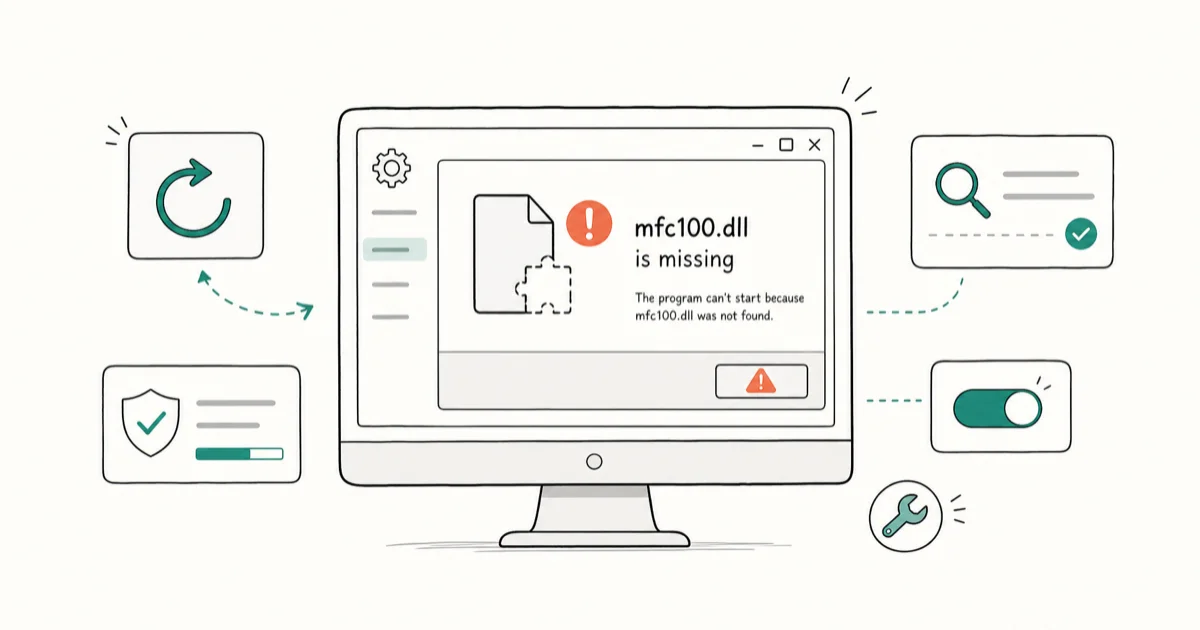
Quick AnswerThe mfc100.dll missing error means your Visual C++ 2010 runtime is broken or absent. Install the official Microsoft Visual C++ 2010 SP1 Redistributable (both x86 and x64 on 64-bit Windows) and restart the PC to restore the file.
The mfc100.dll missing error stops Windows programs from launching because they can’t find a runtime library that ships with the Microsoft Visual C++ 2010 Redistributable. Reinstalling the official redistributable is the first fix because it restores the missing runtime from Microsoft instead of relying on a loose DLL download.
- Mfc100.dll lives inside the Microsoft Visual C++ 2010 SP1 Redistributable, so reinstalling that package is the single most reliable fix on Windows 10 and Windows 11.
- 64-bit Windows needs both the x86 and x64 versions installed; missing the x86 build is the most common cause of the error returning after one install.
- Running sfc /scannow from an elevated Command Prompt rebuilds the protected copy of mfc100.dll, and chkdsk /f /r repairs the disk surface if the DLL keeps disappearing.
- Downloading mfc100.dll from third-party DLL sites is risky, often outdated for your build, and a known malware vector that the Microsoft Security blog has flagged for years.
- If only one application throws the error, uninstalling that app, rebooting, and reinstalling from the vendor restores its bundled runtime without touching the rest of Windows.
#Understanding Mfc100.dll and Its Role in Windows
Mfc100.dll is the Microsoft Foundation Class library that ships with Visual C++ 2010. Programs compiled against the MFC framework load this file at startup to draw windows, manage memory, and route messages between UI threads. When the file is missing, corrupted, or the wrong architecture, the application can’t start and Windows shows one of these prompts:
- “The program can’t start because mfc100.dll is missing from your computer.”
- “Mfc100u.dll is missing.” (the Unicode build, also part of the same package)
- “Error loading mfc100.dll. The specified module could not be found.”
According to Microsoft’s redistributable download page, the Visual C++ 2010 SP1 package installs the MFC runtime files, including mfc100.dll, into the Windows side-by-side store. Missing or partial installs are the most common root cause of the error. Older programs that bundle their own copy of mfc100.dll, like the msvcp100.dll error family, share the same root fix.
#What Causes the Mfc100.dll Missing Error?
Several events can take this DLL out of circulation, and the right fix depends on the cause:
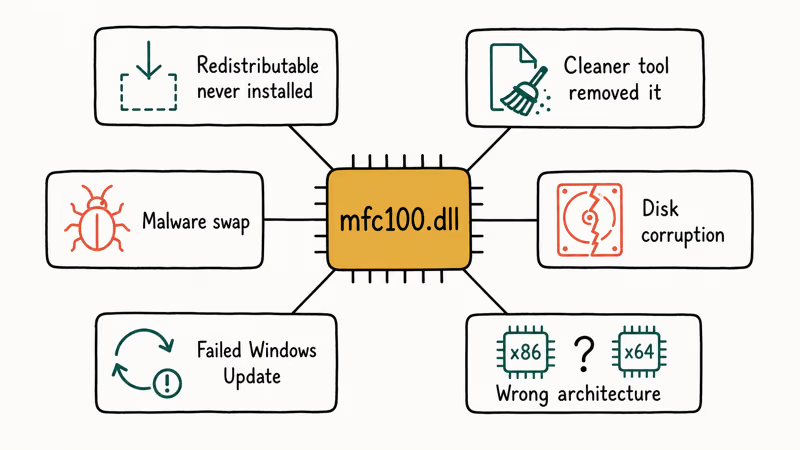
- The Visual C++ 2010 Redistributable was never installed, or only one architecture (x86 or x64) was installed.
- A user or cleaner tool removed the redistributable while uninstalling unrelated software.
- Malware replaced or deleted system DLLs to hide its own loader.
- A failing storage drive corrupted the file during a write operation.
- A botched Windows feature update partly registered new DLL versions and left mfc100.dll out.
- The application was compiled against the wrong architecture (a 32-bit installer running on a 64-bit Windows that has only the x64 redistributable).
Identifying the trigger before you start clicking through fixes saves time. If sfc /scannow keeps replacing the same file, you are looking at disk or malware damage, not just a missing runtime.
#Step-by-Step Fixes for the Mfc100.dll Missing Error
Work through these methods in order. The first three solve the vast majority of common missing-runtime cases.
#1. Reinstall the Microsoft Visual C++ 2010 SP1 Redistributable
This is the canonical fix. Microsoft Learn’s redistributable documentation states that the SP1 build is the supported source for the MFC 10.0 runtime, including mfc100.dll, on every consumer version of Windows from 7 through 11.
- Download the official package from the Microsoft Visual C++ 2010 SP1 Redistributable page.
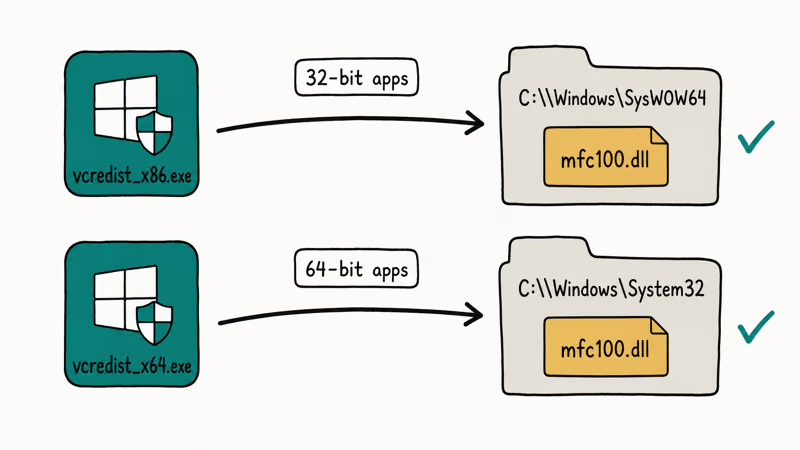
- Pick vcredist_x86.exe if Windows is 32-bit, or install both vcredist_x86.exe and vcredist_x64.exe on 64-bit Windows.
- Run each installer as administrator and accept the EULA.
- Restart Windows to commit the side-by-side registration.
- Relaunch the program that triggered the error.
A common 64-bit Windows trap is installing only the x64 redistributable while a 32-bit app still needs the x86 package. If the installer reports “A newer version is already installed,” choose Repair rather than Uninstall so you keep dependent apps working.
#2. Restore Mfc100.dll From the Recycle Bin
If the file vanished after a cleanup tool ran, it may still be sitting in the Recycle Bin.
- Open the Recycle Bin and click the search box.
- Type
mfc100to filter the contents. - Right-click each match and choose Restore.
- Restart Windows.
This route only works if the file was deleted within the retention window the Recycle Bin allows for the C: drive. Empty bins or quick-deleted files can’t be recovered this way.
#3. Run System File Checker
Windows ships with the System File Checker, which validates protected system files against a sealed manifest. According to Microsoft’s sfc command reference, running sfc /scannow scans every protected file and replaces incorrect versions with cached copies from %WinDir%\System32\dllcache.
- Press Windows + S and type cmd.
- Right-click Command Prompt and choose Run as administrator.
- Type
sfc /scannowand press Enter. - Wait for the scan to finish; it usually takes 8 to 15 minutes on an SSD.
- Restart the PC and retest the application.
If mfc100.dll is corrupted rather than missing from the redistributable install, sfc can replace the protected Windows copy and let the application launch after the next reboot. If sfc reports it can’t fix the file, run DISM /Online /Cleanup-Image /RestoreHealth first to pull fresh component-store sources from Windows Update, then run sfc again. If you hit the 0x80004002 error during the scan, the component store itself is damaged and DISM is the right next step.
#4. Run a Full Malware Scan
If sfc keeps replacing mfc100.dll only for it to vanish again, malware is the most likely cause.
- Open Windows Security from Start.
- Choose Virus & threat protection, then Scan options.
- Select Full scan and click Scan now.
- Quarantine or remove anything flagged.
- Reboot and run sfc /scannow once more to repair anything the malware touched.
For a second opinion, the Microsoft Safety Scanner is a free standalone tool that finds and removes threats that Defender missed.
#5. Use System Restore
If the error appeared right after a Windows update, a driver install, or a fresh app install, rolling back is faster than chasing the cause.
- Press Windows + S and search for Create a restore point.
- On the System Protection tab, click System Restore.
- Pick a restore point dated before the error first appeared.
- Confirm and let Windows reboot to apply the rollback.
Microsoft Support’s System Restore article confirms that the rollback only touches system files, drivers, and registry settings, so your documents and pictures stay intact. A full backup is still smart before any system change.
#6. Reinstall the Affected Application
If only one program throws the error, the runtime that vendor bundled with that program has been broken.
- Open
Settings>Apps>Installedapps. - Find the program, click the three-dot menu, and choose Uninstall.
- Restart Windows so the uninstaller can clean up file locks.
- Download a fresh installer from the official vendor site.
- Run the installer; it usually re-registers mfc100.dll alongside its private copy.
A vendor reinstall is also the safe path for older 32-bit games or design tools that ship with their own VC++ 2010 runtime.
#7. Check the Drive With Chkdsk
A failing disk can corrupt mfc100.dll over and over. Microsoft Learn’s chkdsk reference recommends running chkdsk with the /f flag to fix file system errors and /r to locate bad sectors and recover readable data.
- Open Command Prompt as administrator.
- Type
chkdsk C: /f /rand press Enter. - Press Y when prompted to schedule the scan for the next reboot.
- Restart Windows and let chkdsk finish (this can take an hour on rotating drives).
- After the PC restarts, retest the application.
If chkdsk returns a 0x80070570 error, the drive is showing read failures and you should image the disk to a backup before doing more repairs.
#Advanced Troubleshooting When Standard Fixes Fail
When the basics don’t stick, escalate carefully:
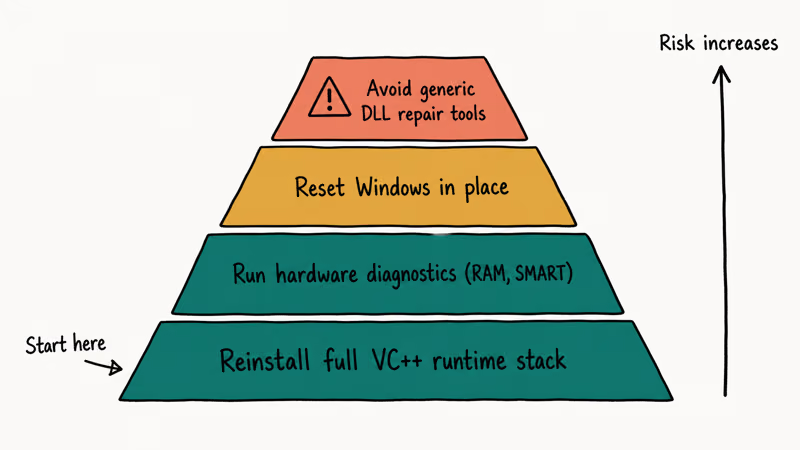
- Reinstall the entire Visual C++ runtime stack. Use the Microsoft Visual C++ Redistributable Runtimes All-in-One list to grab every supported version from 2005 through 2022, then run each installer.
- Run hardware diagnostics. Open Windows Memory Diagnostic from Start to test RAM, then run the manufacturer’s drive utility (Samsung Magician, Crucial Storage Executive, WD Dashboard) to read SMART data.
- Reset Windows in place.
Settings>System>Recovery>ResetthisPC>Keepmy files reinstalls Windows components without wiping documents and is faster than a clean install. - Avoid generic DLL repair tools. Sites that promise to “auto-fix” mfc100.dll usually drop a mismatched copy that triggers a STOP error 0xc0000006 the next time you reboot.
DLL families share the same playbook. The steps above resolve related runtime errors too once you swap in the matching redistributable version:
#Diagnostic Tools and Logs Worth Checking
Before you rebuild Windows or replace the drive, three free tools tell you exactly what is happening with mfc100.dll on your machine.
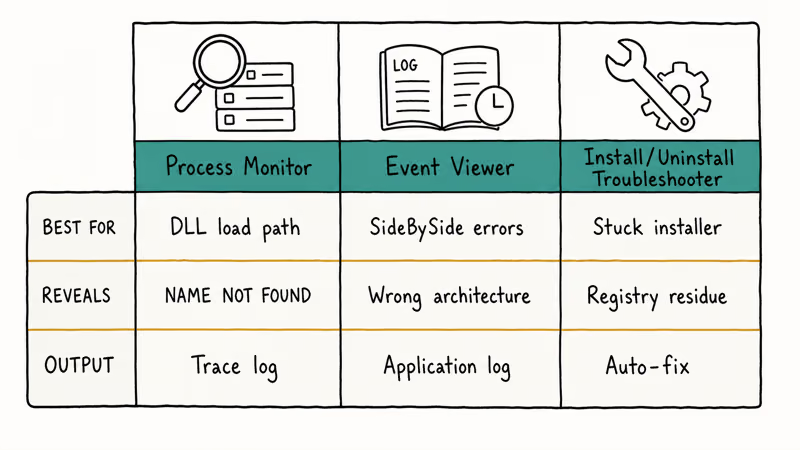
- Sysinternals Process Monitor (procmon.exe). Filter the log to Path contains mfc100.dll and replay the failing app. Procmon shows whether Windows looked for the file in System32, SysWOW64, or the app’s local folder, and whether the access returned NAME NOT FOUND or ACCESS DENIED.
- Windows Event Viewer. Open
Event Viewer>Windows Logs>Applicationand filter by source SideBySide. Side-by-side activation errors point to a missing or wrong-architecture redistributable, which is the same root cause as the missing DLL prompt. - Microsoft Program Install and Uninstall troubleshooter. Download the official Microsoft troubleshooter when the redistributable installer refuses to start or fails halfway. It clears the registry residue that traps half-installed VC++ packages.
If procmon shows the application searching C:\Windows\System32\mfc100.dll and getting NAME NOT FOUND on a 64-bit Windows, you almost certainly missed the x64 redistributable. The opposite path (SysWOW64) means the x86 build is missing. This single observation usually saves an hour of guesswork.
#How Do You Prevent Mfc100.dll Errors From Coming Back?
Prevention takes ten minutes and saves an afternoon. Three habits keep the file in place:
- Patch on a schedule. Microsoft pushes redistributable security updates through Windows Update; leaving Windows to install patches automatically catches mfc100.dll fixes you would otherwise miss.
- Keep one full image backup. Macrium Reflect Free, Veeam Agent, or Windows’ built-in System Image keep a known-good copy of the OS partition. Restoring an image takes 20 minutes; rebuilding a Windows install from scratch takes a day.
- Stop using PC cleaners that “optimize” DLLs. Cleaner apps that promise faster boot times often delete shared runtimes the system flags as unused.
#Bottom Line
Install the Microsoft Visual C++ 2010 SP1 Redistributable first, adding both the x86 and x64 builds on 64-bit Windows. That single step clears the mfc100.dll missing message for the overwhelming majority of users.
If the error returns, run sfc /scannow followed by DISM, then a Defender full scan. Reach for chkdsk and a Windows Reset only when those checks come back clean. Skip third-party DLL download sites entirely; they trade a five-minute fix for a long-term security risk.
#Frequently Asked Questions
Is it safe to download mfc100.dll from a third-party DLL website?
No. The file you receive may target a different Windows architecture, miss the latest security patches, or carry hidden malware. Use the official Microsoft Visual C++ 2010 SP1 Redistributable instead, which delivers the matching DLL plus its dependencies in a signed installer.
Can I copy mfc100.dll from another computer?
It works in some cases but breaks in others, especially when the source PC runs a different Windows build or different SP level. The safe option is reinstalling the redistributable, which guarantees the correct architecture and registration.
Will a Windows update fix the mfc100.dll missing error?
Sometimes. Cumulative updates ship newer versions of Visual C++ runtimes and can replace a corrupted mfc100.dll along the way. If your PC is several months behind on updates, run Settings > Windows Update > Check for updates first, restart, and retest.
Do I need both the x86 and x64 redistributables on 64-bit Windows?
Yes if you run any 32-bit apps, which is most installers, older games, and many enterprise tools. The x86 redistributable installs into C:\Windows\SysWOW64 and the x64 build installs into C:\Windows\System32. Skipping the x86 package is the single most common reason the error returns after one install.
What should I do if sfc /scannow can’t repair mfc100.dll?
Run DISM /Online /Cleanup-Image /RestoreHealth from an elevated Command Prompt to refresh the component store from Windows Update, then run sfc /scannow again. If sfc still fails, schedule a chkdsk pass to rule out disk damage. Persistent failure points to malware or hardware, not the DLL itself.
What if the error only appears for one specific program?
Uninstall the affected program, reboot, then reinstall it from the vendor’s official download. The installer carries the runtime files the program expects, including its private copy of mfc100.dll. If the issue persists, contact the vendor with the exact error text; it usually means the installer ships an incomplete dependency manifest.
How do I tell whether my Windows install is 32-bit or 64-bit?
Press Windows + I to open Settings, choose System > About, and read the System type field. “64-bit operating system, x64-based processor” means you need both x86 and x64 redistributables. “32-bit operating system” means the x86 installer alone is enough.
Can a STOP error like 0xc0000006 be caused by a bad mfc100.dll?
Yes. A mismatched or corrupted copy of mfc100.dll loaded from a third-party site can throw the 0xc0000006 STOP error when an app tries to call into the runtime. Removing the rogue copy and reinstalling the official Visual C++ 2010 SP1 Redistributable usually clears it.

Best Laptop for Running LLMs in 2026: Memory Comes First
The best laptop for running LLMs is a memory purchase first. Compare MacBook unified memory against NVIDIA laptop VRAM, and see what each tier really runs.

How to Run a Local LLM on Windows: A 2026 Setup Guide
Run a local LLM on Windows with LM Studio or Ollama. Pick a model that fits your GPU memory, keep every prompt offline, and skip the monthly bill.

Bluetooth Not Working on Snapdragon X? Fixes for 2026
Bluetooth not working on your Snapdragon X Copilot+ PC? Generic audio, mice, and keyboards work, but vendor apps often lack an ARM build. Fixes inside.

Docker Desktop and WSL2 Not Working on Snapdragon X? Fix It
WSL2 runs fine on Snapdragon X, but Docker Desktop ARM is Early Access and throws WSL errors. Use WSL2 plus native ARM64 Ubuntu and Docker Engine.