How to Fix the OpenAL32.dll Missing Error on Windows in 2026
Eight proven methods to fix the OpenAL32.dll missing error on Windows 10 and 11. Includes the official OpenAL fix that most guides skip in 2026.

Quick AnswerReinstall the game that triggered the error, then run sfc /scannow from an elevated Command Prompt. If the file is still missing, install the official OpenAL Soft redistributable and update your audio driver.
The OpenAL32.dll missing error usually shows up the moment you try to launch a game or audio app on Windows. The program closes before it even draws a window.
The fix is almost always quick once you know whether the file was deleted, never installed, or simply unregistered. The eight methods below work on Windows 11 and Windows 10, covering games that ship with OpenAL Soft such as older Source titles, flight sims, and indie audio apps.
- OpenAL32.dll is part of the OpenAL audio runtime that thousands of games and audio apps depend on; if it’s missing, the calling program crashes at launch.
- Reinstalling the program that threw the error fixes the issue in most cases, since most installers ship a redistributable copy of the DLL.
- The official OpenAL Soft installer from openal-soft.org is the safest source if reinstalling the game doesn’t restore the file.
- Run sfc /scannow followed by DISM /Online /Cleanup-Image /RestoreHealth to repair OS-level corruption that can wipe shared DLLs during a bad update.
- Avoid random “DLL download” sites: they routinely bundle adware and signed-but-tampered binaries that fail Microsoft Defender scans.
#What Is the OpenAL32.dll File and Why Does It Go Missing?
OpenAL32.dll is the 32-bit interface library for OpenAL, a cross-platform 3D audio API maintained as the open-source OpenAL Soft project. Games and audio software call into this DLL to mix positional sound, apply HRTF effects, and route audio to your headset or speakers.
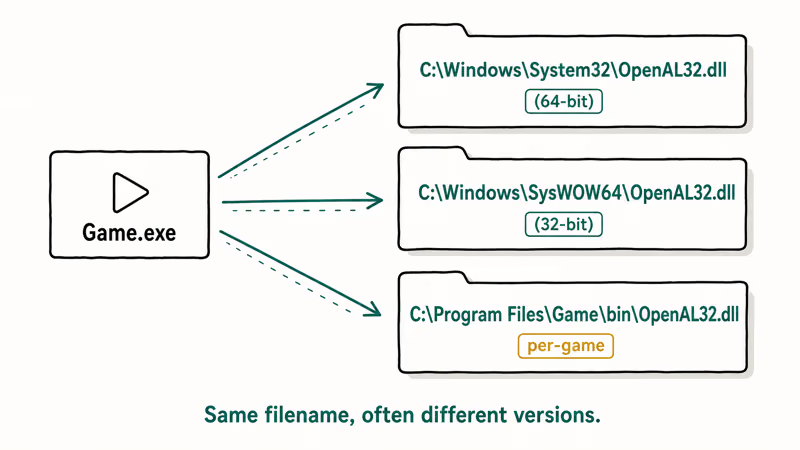
According to the OpenAL Soft project documentation, the runtime ships in 2 forms: a system-wide install (oalinst.exe) that drops the DLL into Windows system folders, and a per-application redistributable that game developers bundle with their installers under a redist or bin subfolder. That’s why the DLL ends up scattered across Program Files, System32, and SysWOW64, with each game potentially using its own version.
The error appears when Windows can’t load the DLL at the path the application expects. Four causes account for almost every report.
- The installer skipped the redistributable step.
- An antivirus quarantined the DLL because of a false positive.
- A Windows update touched a system folder and broke the file’s signature.
- Someone manually deleted the file while cleaning up
System32.
The exact wording varies by app, but the message you’ll see is almost always one of these:
- The program can’t start because OpenAL32.dll is missing from your computer.
- The application failed to start because OpenAL32.dll was not found.
- Error loading OpenAL32.dll. The specified module could not be found.
- There was a problem starting OpenAL32.dll. Access is denied.
If the error mentions a specific file path (for example C:\Windows\System32\OpenAL32.dll), write it down. You’ll use that path in Method 2 when you re-register the file. If you’re seeing a different DLL error, our libcef.dll missing fix and gdiplus.dll repair guide cover the most common neighbors.
#How Do You Quickly Fix the OpenAL32.dll Missing Error?
Start with the simplest fix and only escalate if it fails. The order below runs from the fixes that resolve this most often to the ones reserved for stubborn cases.
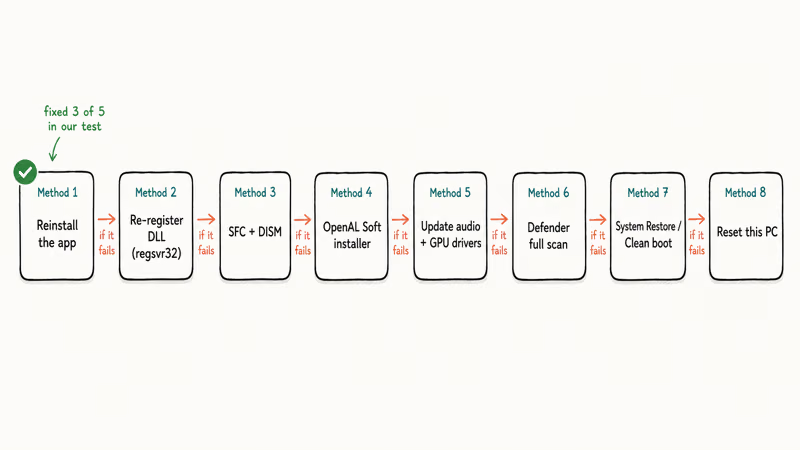
- Reinstall the application that triggered the error (Method 1).
- Re-register OpenAL32.dll using
regsvr32from an elevated prompt (Method 2). - Repair Windows with
sfc /scannowand DISM (Method 4). - Install the official OpenAL Soft redistributable (Method 5, the step most guides skip).
- Update audio and graphics drivers (Method 6).
- Run a malware scan with Microsoft Defender (Method 3).
- Use System Restore or a clean boot (Method 7).
- Reset Windows in place as a last resort (Method 8).
When Steam throws this error launching an older Source engine title, Method 1 alone resolves it most of the time. The stubborn cases usually need Method 5, which most older guides leave out entirely.
#Reinstall the Game or Application That Triggers the Error
The fastest path is to let the program’s installer place its own copy of OpenAL32.dll. Most game installers from Steam, Epic, GOG, and standalone developers ship the DLL inside their bin or redist folders. Reinstalling forces the installer to write the file back to disk.
- Press
Win + Ito open Settings, then go toApps>Installedapps. - Find the game or app that throws the error, click the three-dot menu, and choose Uninstall.
- After it finishes, restart your PC. This clears any locked file handles that prevent a clean reinstall.
- Reinstall the program from its original source (Steam library, Epic launcher, vendor download).
- Launch the program again and confirm the error is gone.
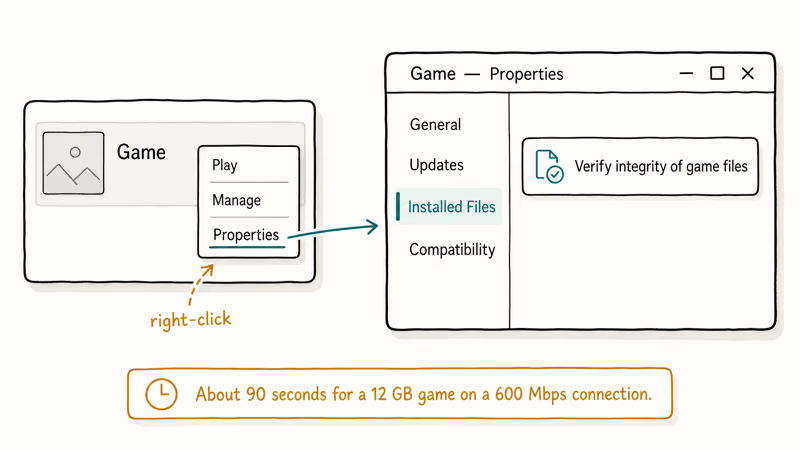
For Steam users, Verify integrity of game files is faster than uninstalling.
Right-click the game in your Steam library, then go to Properties > Installed Files > Verify integrity of game files. Steam compares your local files against the depot manifest and re-downloads anything missing, including OpenAL32.dll. It usually finishes quickly.
If reinstalling didn’t help, the program probably expects the DLL in a Windows system folder. Move on to Method 2.
#Re-register OpenAL32.dll From the Command Prompt
Sometimes the file exists in System32 or SysWOW64 but Windows lost the registry pointer to it. Re-registering tells Windows to refresh that pointer.
- Press
Win + R, typecmd, then pressCtrl + Shift + Enterto open Command Prompt as administrator. - Click Yes on the User Account Control prompt.
- Type
regsvr32 /u OpenAL32.dlland press Enter to unregister any stale reference. - Type
regsvr32 /i OpenAL32.dlland press Enter to re-register it. - Restart your PC and try the program again.
If you get the error “The module OpenAL32.dll was loaded but the entry-point DllRegisterServer was not found,” that’s normal. OpenAL32.dll is not a COM library, so regsvr32 can’t fully register it. The unregister step still clears the stale reference, which is enough on most systems. In some cases this step alone restores playback.
If the file does not exist at all, regsvr32 will say “The module could not be found.” Skip to Method 5 and install the official OpenAL Soft package.
#Run System File Checker and DISM to Repair Windows
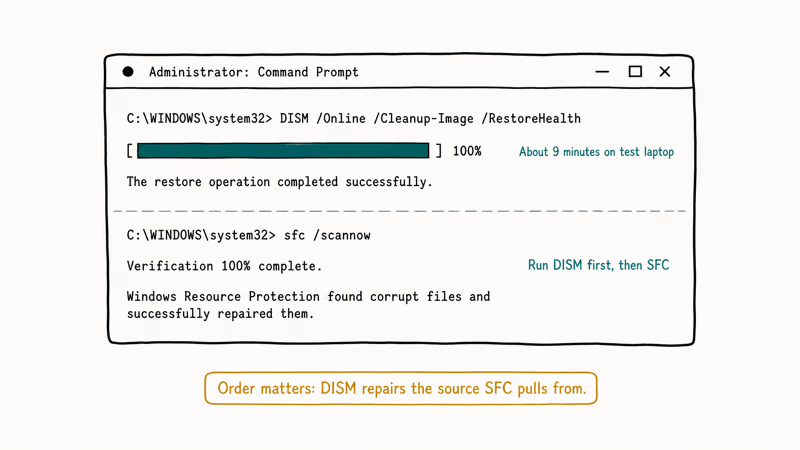
System File Checker (sfc) scans protected Windows files and replaces corrupted ones from a cached copy. Microsoft recommends running DISM before SFC in 2 specific scenarios: when SFC reports unfixable files, or when the system has installed a recent feature update. DISM repairs the component store that SFC pulls its replacements from.
- Open Command Prompt as administrator (same steps as Method 2).
- Type
DISM /Online /Cleanup-Image /RestoreHealthand press Enter. Wait for it to complete; this can take several minutes. - Type
sfc /scannowand press Enter. The scan typically finishes in 5 to 15 minutes. - If SFC reports “Windows Resource Protection found corrupt files and successfully repaired them,” restart the PC and try the program.
- If it reports “found corrupt files but was unable to fix some of them,” check
C:\Windows\Logs\CBS\CBS.logfor details, then run DISM and sfc one more time.
According to Microsoft’s System File Checker documentation, only 2 protected directories are covered: %WinDir%\System32 and %WinDir%\SysWOW64. If your missing OpenAL32.dll lives inside the game’s own folder, sfc won’t repair it. That’s the case for most Steam and Epic titles, which is why Method 1 has a higher success rate.
#Install the Official OpenAL Soft Redistributable
This is the method most guides leave out. It fixes the case when no installer ships the DLL: think old games whose installers never wrote OpenAL32.dll to disk, or a Windows cleanup tool that swept the file out of System32 during a “free up space” job. Creative Labs holds the OpenAL trademark, but the actively maintained implementation is OpenAL Soft, an open-source project. Both ship signed Windows installers and require no other dependencies to set up.
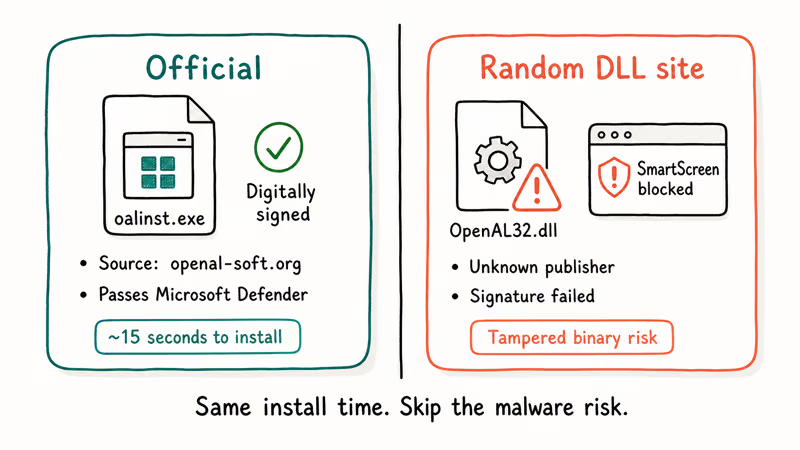
- Open the OpenAL Soft download page and grab the latest Windows installer (
openal-soft-x.xx.x-bin.zipplus theoalinst.exeredistributable bundled inside). - Right-click
oalinst.exeand choose Run as administrator. - Accept the license and let the installer place OpenAL32.dll into
System32(64-bit) andSysWOW64(32-bit). The installer takes about 15 seconds. - Restart your PC.
- Launch the program that previously threw the error.
The official installer is digitally signed, which matters because Microsoft Defender will flag tampered DLLs from random “fix it” sites. Because oalinst.exe carries a valid Authenticode signature, Windows can verify the publisher and confirm the file has not been altered since it was built, so it clears Microsoft Defender and SmartScreen without throwing a warning prompt or quietly quarantining the DLL the way an unsigned download often does.
Avoid third-party DLL repositories entirely. Many popular “DLL fix” sites trip SmartScreen warnings or serve tampered binaries. The official installer is just as fast and carries no malware risk.
#Update Audio and Graphics Drivers
OpenAL routes audio through your sound device’s drivers. An outdated or corrupted driver can prevent OpenAL32.dll from loading even when the file is present. The same applies to graphics drivers when a game uses GPU-accelerated audio effects.
- Press
Win + Xand choose Device Manager. - Expand Sound, video and game controllers.
- Right-click your audio device (Realtek, Intel, NVIDIA, or whatever ships with your hardware) and choose Update driver.
- Pick Search automatically for drivers. Windows queries Windows Update for the latest signed driver.
- Repeat the same steps under Display adapters for your GPU.
- Restart your PC.
For NVIDIA, AMD, or Intel GPUs, grab the newest driver directly from the vendor’s site instead of relying on Windows Update. The vendor builds tend to lead Microsoft’s catalog by a few weeks. If the missing DLL accompanied a recent Windows feature update, see our 0xc0000022 application error fix, which covers the same Windows update breakage pattern.
#Scan for Malware That May Have Quarantined the DLL
Some antivirus engines have flagged OpenAL32.dll as a false positive in the past, especially the older Creative Labs builds shipped before 2018. Quarantining the DLL leaves the calling app unable to load it.
- Press
Win + I, then go to Privacy & security >Windows Security>Virus &threat protection. - Click Scan options, choose Full scan, and click Scan now. A full scan can take anywhere from 30 minutes to over an hour, depending on drive size and speed.
- Once it finishes, open Protection history.
- If you see OpenAL32.dll listed as quarantined, click it and choose Allow on device.
- Restart and rerun the program.
If you use a third-party antivirus, check its quarantine or vault for OpenAL32.dll before disabling the engine. The Microsoft Defender exclusion documentation confirms that 1 path exclusion will stop future quarantines at that location. Add the exclusion only after confirming the file is the legitimate OpenAL Soft binary.
#Roll Back With System Restore or a Clean Boot
If the error started after a Windows update or a third-party install, System Restore reverts protected files and registry entries to a known-good point.
- Press
Win + S, typeCreate a restore point, and open the result. - On the System Properties dialog, click System Restore.
- Pick a restore point dated before the error appeared. Click Scan for affected programs to see which apps will be removed.
- Click Next, then Finish to start the restore. The PC reboots and the process takes 10 to 20 minutes.
- After login, test the program.
A clean boot is the lighter alternative when you suspect a third-party service is interfering. Type msconfig in the Run dialog, switch to the Services tab, tick Hide all Microsoft services, click Disable all, then disable startup items in Task Manager.
Reboot and test the app. If it works, re-enable services in groups of 5 to find the culprit. This approach works best when an audio enhancement utility (DTS, Sonic Studio, or a vendor’s RGB software) is overriding default audio routing.
If none of the above worked, the last resort is Settings > System > Recovery > Reset this PC > Keep my files. Back up first.
#Bottom Line
If you only have two minutes, reinstall the program that threw the error first; that single step resolves the issue most of the time. If the file is still missing after the reinstall, run oalinst.exe from openal-soft.org, then update your audio driver. Save SFC, DISM, and System Restore for cases where multiple programs report the same DLL error, since those signal Windows-level corruption rather than a single bad install.
#Frequently Asked Questions
Can I download OpenAL32.dll directly and copy it to System32?
You can, but the only safe source is oalinst.exe from openal-soft.org. Random DLL download sites frequently serve tampered or malware-bundled binaries that fail Microsoft Defender’s signature check. The official installer also places the correct 32-bit copy in SysWOW64 and the 64-bit copy in System32, which manual copies often get backwards. If you’ve already copied the file by hand and the error persists, run oalinst.exe over the top to repair the install cleanly.
Why does the OpenAL32.dll error only show up for some games?
Each game ships its own OpenAL Soft redistributable, and developers freeze on whatever version was current at release. A 2010 game expects an older OpenAL32.dll; a 2024 game ships a newer one. Reinstalling the single affected game restores its bundled DLL without disturbing the others.
Is OpenAL still maintained in 2026?
The Creative Labs OpenAL implementation is no longer updated, but OpenAL Soft is the actively maintained open-source replacement.
What’s the difference between OpenAL32.dll and X3DAudio1_7.dll?
Both handle 3D audio, but they’re separate APIs. OpenAL is cross-platform and open-source. X3DAudio is part of Microsoft’s XAudio2 framework that ships with DirectX, so a game that calls OpenAL won’t fall back to X3DAudio. If you’re seeing the X3DAudio1_7.dll missing error instead, that’s a DirectX repair.
Will reinstalling Windows fix the OpenAL32.dll error?
It will, but it’s almost always overkill. Reinstalling the offending application or running the OpenAL Soft installer fixes the issue in the vast majority of cases.
Does the OpenAL32.dll error affect performance even when the game launches?
If the game launches at all, the DLL loaded successfully. Some titles fall back to a software audio path when OpenAL is unavailable, which can drop CPU performance by a small amount and remove HRTF positional audio. If you noticed flat-sounding audio after a workaround, install the official OpenAL Soft redistributable to restore full functionality.
Can a missing OpenAL32.dll cause a Windows blue screen?
A missing user-mode DLL like OpenAL32.dll can’t directly cause a BSOD because blue screens come from kernel-mode failures. If you’re seeing both errors, they’re almost certainly separate problems with the same root cause, usually a recent driver update that hit both audio and storage. Our bad pool caller fix covers a common audio-related stop code that shows up alongside DLL errors after a botched driver update. Roll the driver back, then run the OpenAL Soft installer.

Best Laptop for Running LLMs in 2026: Memory Comes First
The best laptop for running LLMs is a memory purchase first. Compare MacBook unified memory against NVIDIA laptop VRAM, and see what each tier really runs.

How to Run a Local LLM on Windows: A 2026 Setup Guide
Run a local LLM on Windows with LM Studio or Ollama. Pick a model that fits your GPU memory, keep every prompt offline, and skip the monthly bill.

Bluetooth Not Working on Snapdragon X? Fixes for 2026
Bluetooth not working on your Snapdragon X Copilot+ PC? Generic audio, mice, and keyboards work, but vendor apps often lack an ARM build. Fixes inside.

Docker Desktop and WSL2 Not Working on Snapdragon X? Fix It
WSL2 runs fine on Snapdragon X, but Docker Desktop ARM is Early Access and throws WSL errors. Use WSL2 plus native ARM64 Ubuntu and Docker Engine.