Vcomp110.dll Is Missing on Windows: 7 Safe Fixes That Work
Fix the vcomp110.dll missing error on Windows 10 and 11 with seven safe methods: VC++ Redistributable reinstall, SFC scan, DISM repair, hardware checks.
Quick AnswerThe vcomp110.dll missing error means your Visual C++ 2012 Redistributable file is damaged or absent. Install the latest Visual C++ 2012 Redistributable from Microsoft (both x86 and x64), then run SFC /scannow from an elevated Command Prompt to restore the file.
The vcomp110.dll missing error blocks Windows apps built with Microsoft’s Visual C++ 2012 toolchain, including older games and CAD tools. The DLL is the OpenMP runtime shipped in the Visual C++ 2012 Redistributable, so any 2012-era program refuses to launch when it goes missing. The fixes below apply to both Windows 10 and Windows 11 and target the exact prompt: “The program can’t start because VCOMP110.dll is missing.”
- Vcomp110.dll ships with the Visual C++ 2012 Redistributable and powers OpenMP parallel processing in older Windows apps.
- Installing both the x86 and x64 builds of the Visual C++ 2012 Redistributable is the single most reliable fix on both Windows 10 and Windows 11.
- SFC /scannow followed by DISM /Online /Cleanup-Image /RestoreHealth repairs the system DLL cache when the standalone installer alone is not enough.
- Downloading vcomp110.dll from random “DLL fix” sites is unsafe because the files are unsigned and frequently bundled with malware loaders.
- If multiple DLL errors appear in the same week, run Windows Memory Diagnostic and chkdsk /r before reinstalling apps because the root cause is likely failing RAM or sectors.
#Why Vcomp110.dll Goes Missing on Windows
Vcomp110.dll is the Microsoft OpenMP runtime library that ships inside the Visual C++ 2012 Redistributable package. The number 110 in the filename matches Visual Studio version 11.0, the toolset Microsoft released in 2012. Any application compiled with that compiler can call vcomp110.dll for multithreaded loops, which is why the error often shows up with older CAD software, photogrammetry tools, and pre-2018 PC games.
According to Microsoft’s latest supported Visual C++ Redistributable documentation, each Visual Studio version installs its own runtime side-by-side, so Visual C++ 2015–2022 does not replace the 2012 package. That means installing the newest redistributable won’t fix a vcomp110.dll error; you need the 2012 release specifically.
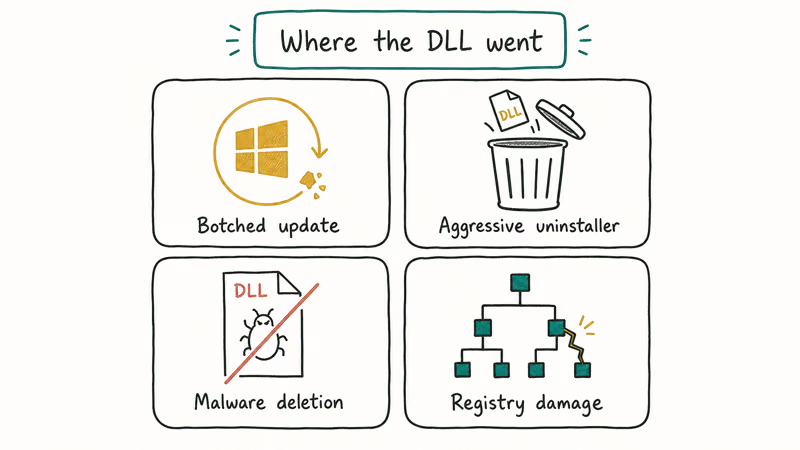
The file goes missing for four common reasons:
- A botched uninstall removed shared runtime files along with the parent application.
- A malware scanner or rogue cleaner deleted the DLL on a false-positive flag.
- A failed Windows Update left the redistributable in a half-patched state.
- A failing storage drive corrupted the file during a normal read or write.
Open a Visual Studio 2012-compiled app on a fresh Windows install without the redistributable and the error fires on the first launch, because most parent apps don’t bundle their own copy of vcomp110.dll.
#Method 1: Reinstall the Visual C++ 2012 Redistributable
This is the fix that resolves the error more often than any other single step. Microsoft hosts the installer permanently on the Visual C++ download page.
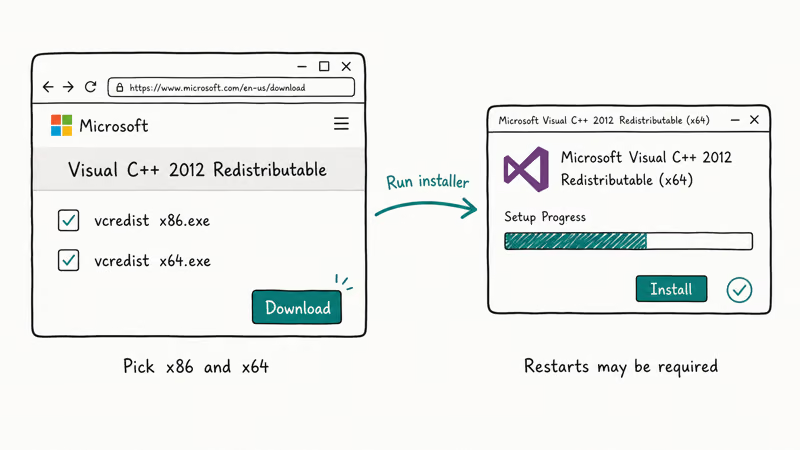
- Open the Visual C++ Redistributable list on
learn.microsoft.comand scroll to the Visual Studio 2012 (VC++ 11.0) row. - Download both
vcredist_x86.exeandvcredist_x64.exe. On 64-bit Windows you still need the x86 copy because many older apps run 32-bit. - Right-click each installer and choose Run as administrator.
- Pick Repair if the installer detects an existing installation. If not, accept the license and click Install.
- Reboot the PC, then relaunch the failing app.
On most Windows 10 and Windows 11 PCs, the Repair option does the job; the rest need an Uninstall + reinstall cycle. If Repair greys out, uninstall the package from Settings > Apps > Installed apps, reboot, and run the fresh installer.
For other Visual C++ runtime files like msvcp100.dll missing on Windows and mfc100.dll missing, the same redistributable-reinstall pattern applies. Just match the year number in the filename to the redistributable version.
#Method 2: Run SFC and DISM to Repair System Files
System File Checker (SFC) compares protected system DLLs against a cached known-good copy. DISM repairs the underlying component store that SFC reads from, so the two commands work as a pair.
- Press Windows + S, type
cmd, right-click Command Prompt, and pick Run as administrator. - Type
sfc /scannowand press Enter. The scan can take 10 to 30 minutes. - When SFC finishes, run
DISM /Online /Cleanup-Image /RestoreHealthand press Enter. - Run
sfc /scannowa second time so it can pick up the freshly restored cache. - Reboot and test the failing app.
Microsoft’s System File Checker support article confirms that SFC pulls replacement files from a compressed cache at %WinDir%\System32\dllcache, which is exactly the surface DISM rebuilds. That is why running SFC alone sometimes fails: the cache itself was already damaged before the DLL error ever appeared.
#Method 3: Reinstall the App That Triggers the Error
If only one specific program throws the vcomp110.dll error and other Visual C++ 2012 apps work fine, the program’s own copy of the DLL is the suspect.
- Open
Settings>Apps>Installedapps. - Find the failing program, click the three-dot menu, and pick Uninstall.
- Reboot.
- Reinstall the app from the official vendor’s site or store listing.
Reinstalling a misbehaving tool often drops a fresh vcomp110.dll into the program folder, and the error clears on the next launch. This is also the fastest fix for tools that ship vcomp110.dll alongside their .exe instead of relying on the system copy.
#Method 4: Restore Vcomp110.dll From the Recycle Bin
If you or a cleaning utility deleted the file recently, it might still be sitting in the Recycle Bin.
- Double-click Recycle Bin on the desktop.
- Sort by Original Location and look for
C:\Windows\System32\vcomp110.dllorC:\Windows\SysWOW64\vcomp110.dll. - Right-click the file and choose Restore.
If you can’t find it there, skip ahead to Method 1 or run a file-history rollback instead of downloading random copies from the web. When a third-party PC cleaner flags the DLL as “unused” and deletes it, restoring it from the Recycle Bin is often enough to fix the app without reinstalling anything.
#Method 5: Update Windows to Apply Missing Components
Cumulative updates occasionally repackage Visual C++ runtime files, especially when a security advisory ships a new build of the OpenMP runtime.
- Press Windows + I to open Settings.
- Click Update & Security (Windows 10) or Windows Update (Windows 11).
- Click Check for updates and install everything in the queue, including optional driver updates.
- Reboot when prompted.
If Windows Update itself errors out (for example with the Windows update error 0x800705b4), fix that first, because nothing else in this list will install cleanly until the update pipeline works again.
#Method 6: Scan Your PC for Malware
Malware sometimes deletes or replaces vcomp110.dll to hijack programs that load it. A clean scan rules this out before you spend more time on the symptom.
- Open
Windows Security>Virus &threat protection. - Click Scan options, pick Microsoft Defender Offline scan, and click Scan now.
- Let the PC reboot into the offline scanner.
An offline scan will catch a fake “VCRedist installer” pulled from a knockoff DLL site, where the real installer from Microsoft is clean. The offline scanner matters here because it runs before Windows fully boots, so a loader that hides from a normal in-session scan has nowhere to tuck itself away. Once Defender quarantines the loader, the legitimate redistributable installs without complaint on the next try.
#How Do You Check RAM and the Hard Drive for Errors?
When the redistributable installer fails repeatedly, or when several different DLL errors pop up in the same week, the storage drive or memory is usually the culprit. Two built-in Windows tools surface those failures without third-party software.
For RAM: Run Windows Memory Diagnostic from the Start menu and pick Restart now and check for problems.
For the hard drive: Open an elevated Command Prompt and run chkdsk C: /f /r /x. Microsoft’s chkdsk command reference confirms that the /r flag locates bad sectors and recovers readable information, while /f fixes file-system errors. The scan needs a reboot to run on your system drive and can take several hours on a spinning disk.
If chkdsk reports unrecoverable sectors, clone the disk to a healthy drive before continuing. Copying with MiniTool Partition Wizard preserves partitions and boot data so you can swap drives without reinstalling Windows. Don’t put more time into DLL fixes on a drive the system itself has flagged as failing.
Some links on this page are affiliate links, which means fone.tips may earn a commission at no extra cost to you.
#Method 7: Run Startup Repair or Reset Windows
If nothing above works, the system image itself is damaged and a Windows-level repair is the last clean step before a reinstall.
- Connect a USB drive (at least 8 GB).
- Download the Windows Media Creation Tool on a working PC.
- Run it, choose Create installation media for another PC, pick your language and edition, and write the ISO to the USB.
- Boot the failing PC from the USB, choose Repair your computer >
Troubleshoot>Startup Repair. - If Startup Repair can’t fix the issue, use Reset this PC and keep your files; this reinstalls Windows binaries (including Visual C++ runtimes) while preserving your data.
Microsoft recommends Reset this PC over a clean install when files matter, because the reset path keeps personal data and most Microsoft Store apps. A clean install is only necessary if the reset itself fails or if the drive shows pre-existing sector damage from Method 6.
Related DLL fixes that use the same Startup Repair workflow:
#Is It Safe to Download Vcomp110.dll From Third-Party Sites?
No. Microsoft doesn’t support manual DLL downloads, and random copies on “DLL fix” sites are often unsigned trojans riding the right filename into your System32 folder.
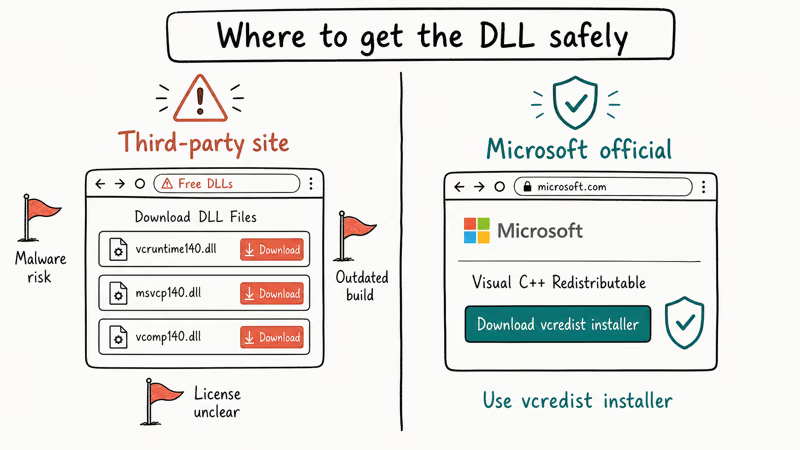
In most cases, you don’t need a manual download because the Visual C++ 2012 Redistributable installer in Method 1 places a fresh, signed vcomp110.dll into C:\Windows\System32\ (and SysWOW64\ for 64-bit Windows) automatically. Microsoft’s redistributable page also lists the exact SHA-256 hashes so you can verify the installer before running it.
If you’ve already downloaded a copy from a “DLL fix” site, delete it, run the offline Defender scan from Method 6, and replace it via the official redistributable. Manual DLL drops are also the single biggest reason follow-up fixes fail: the file is the wrong build, signed with an invalid certificate, or quarantined the moment SmartScreen wakes up.
#Bottom Line
Install both the x86 and x64 Visual C++ 2012 Redistributable packages from Microsoft and reboot. If the error stays, run SFC /scannow, then DISM /Online /Cleanup-Image /RestoreHealth, then SFC /scannow again. That pair clears the cases where Method 1 alone is not enough. Save Windows Memory Diagnostic and chkdsk /r for cases where two or more unrelated DLL errors appear in the same week, since that pattern points to failing drive or RAM rather than a Visual C++ problem.
#Frequently Asked Questions
What program installs vcomp110.dll on Windows?
Microsoft’s Visual C++ 2012 Redistributable package installs vcomp110.dll, alongside other Visual C++ 2012 runtime DLLs like msvcp110.dll and msvcr110.dll. The redistributable is a free download from Microsoft and installs both 32-bit and 64-bit copies side-by-side.
Where should vcomp110.dll be located on a 64-bit system?
On 64-bit Windows the 64-bit copy lives in C:\Windows\System32\vcomp110.dll, and the 32-bit copy lives in C:\Windows\SysWOW64\vcomp110.dll. Yes, that path is confusing — Microsoft swapped the naming convention so System32 holds 64-bit DLLs and SysWOW64 holds 32-bit DLLs. Both files are needed because apps load whichever one matches their own bitness.
Can I copy vcomp110.dll from another PC?
Technically yes, but it’s not recommended. The other PC’s copy might be a different patch level, signed with a different timestamp, or include changes from a Windows update that your machine doesn’t have. Installing the redistributable from Microsoft takes the same amount of time and gives you a signed, current build.
Why does the error still appear after reinstalling Visual C++?
If reinstalling the redistributable doesn’t fix it, the file is either being deleted by a malware loader, blocked by a security tool, or corrupted by a failing drive. Run the Method 6 offline Defender scan first, then SFC and DISM from Method 2. If you still hit the error after those steps, the storage drive likely has bad sectors and chkdsk /r will surface them. Stop reinstalling apps until the hardware is verified.
Does Windows Update install vcomp110.dll automatically?
Not on its own. Windows Update will ship Visual C++ 2012 Redistributable updates only if some other Microsoft app on your system already requested the redistributable as a prerequisite. Most users need to install it manually from the Microsoft download page.
Is vcomp110.dll the same as vcomp140.dll?
No. Vcomp110.dll ships with Visual C++ 2012, and vcomp140.dll ships with Visual C++ 2015–2022. They’re not interchangeable, and you can have both installed at the same time without conflict. Apps load whichever version they were compiled against.
How can I tell if vcomp110.dll is corrupted versus missing?
A missing file produces the exact error “VCOMP110.dll is missing from your computer” and the app refuses to launch. A corrupted file crashes differently — usually a startup crash or an access-violation message after the app loads partway. Open Event Viewer > Windows Logs > Application and filter on Error; if the faulting module column lists vcomp110.dll, the file is damaged. Reinstall the Visual C++ 2012 Redistributable to refresh it either way.

Best Laptop for Running LLMs in 2026: Memory Comes First
The best laptop for running LLMs is a memory purchase first. Compare MacBook unified memory against NVIDIA laptop VRAM, and see what each tier really runs.

How to Run a Local LLM on Windows: A 2026 Setup Guide
Run a local LLM on Windows with LM Studio or Ollama. Pick a model that fits your GPU memory, keep every prompt offline, and skip the monthly bill.

Bluetooth Not Working on Snapdragon X? Fixes for 2026
Bluetooth not working on your Snapdragon X Copilot+ PC? Generic audio, mice, and keyboards work, but vendor apps often lack an ARM build. Fixes inside.

Docker Desktop and WSL2 Not Working on Snapdragon X? Fix It
WSL2 runs fine on Snapdragon X, but Docker Desktop ARM is Early Access and throws WSL errors. Use WSL2 plus native ARM64 Ubuntu and Docker Engine.